 Decode AI-Powered Quality Engineering from AI & QA Leaders,Register for Free!

Next-Gen App & Browser Testing Cloud
Trusted by 2 Mn+ QAs & Devs to accelerate their release cycles

How to Clear Browser Cache on Android
Learn why it is important to clear browser cache on Android using Chrome, Samsung Internet, or Firefox to boost performance, free up space, and enhance security.

Tahneet Kanwal
January 11, 2026
Clearing the Android browser cache can free up space and fix problems with your phone’s battery, speed, and security. When you clear browser cache on Android, old cached data that can become corrupted is removed, helping to prevent bigger performance issues.
Additionally, removing saved web images and files can eliminate some traces of your online activity. While clearing the cache can improve performance and resolve issues, remember that you may need to re-download certain content or see longer website loading times on your next visit.
Steps to Clear Browser Cache on Android Using Chrome
To clear the browser cache on Android using Google Chrome, follow these steps:
- Tap on the three dots in the top right corner of the Chrome browser and select Settings.
- Scroll down and tap on Privacy and Security.
- You will see an option for Delete browsing data.
- Within the browsing data options, you’ll find both Basic and Advanced settings:
- Basic Settings: This option allows you to clear the following:
- Browsing history
- Cookies and site data
- Cached images and files
- Advanced Settings: This option includes additional data types, such as:
- Saved passwords
- Auto-fill form data
- Site settings
- Choose the time range from which you want to delete data, ranging from the Last 15 minutes to All time.
- After selecting the data you want to clear, tap on Delete data at the bottom. Confirm your selection to remove the chosen data from your browser.


Note: Validate your website’s browser compatibility across 3000+ browsers and OS combinations. Try TestMu AI Today!
Steps to Clear Browser Cache on Android Using Samsung Internet
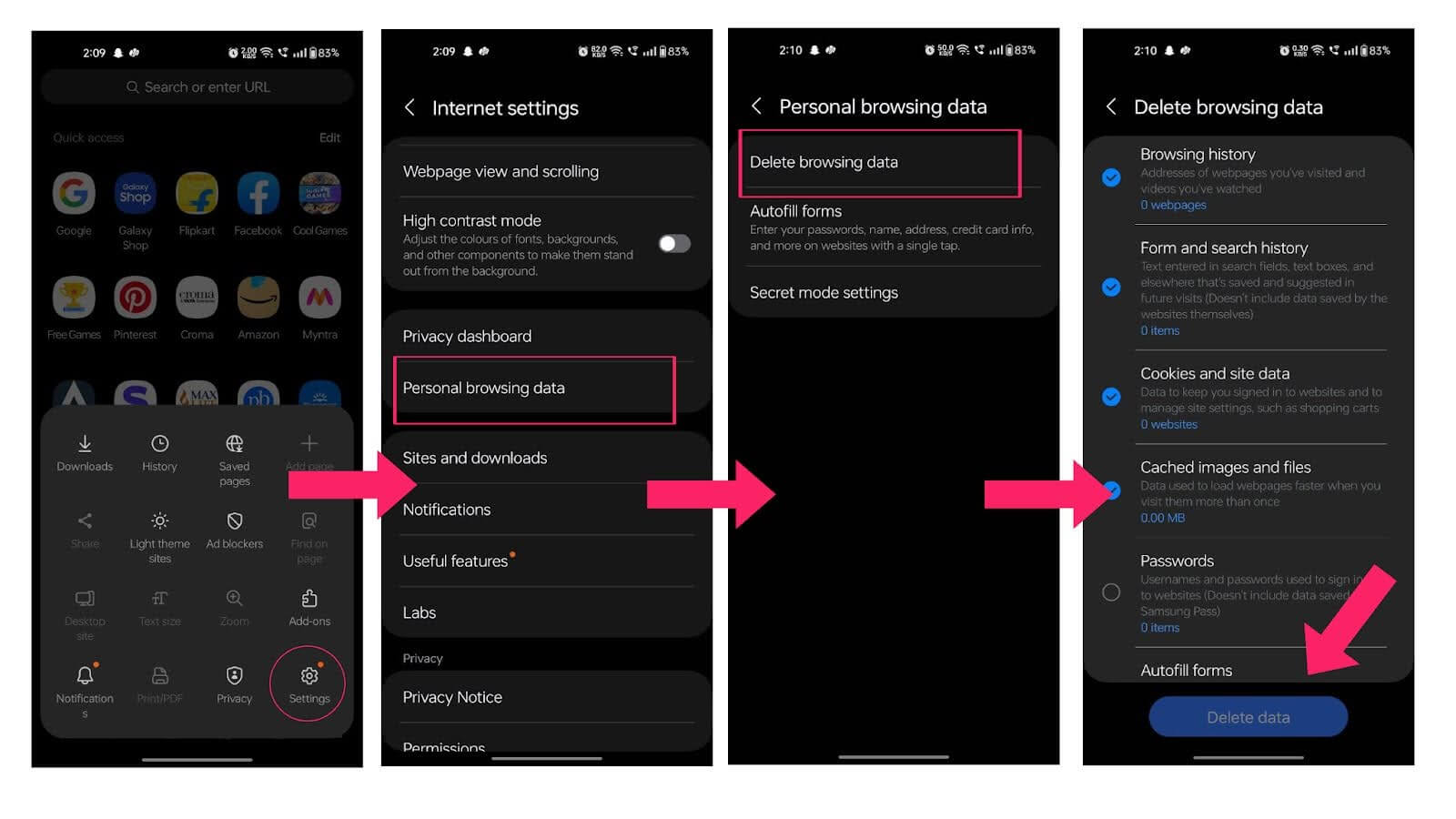
To clear the browser cache on Android using Samsung Internet, follow the steps given below:
- Tap on the three-line menu located at the bottom right corner of the app.
- Scroll down and select Personal browsing data.
- In the Delete browsing data menu, you will see a checklist of items you can delete.
- Check the items you want to remove from your browser’s cache.
- Tap the blue Delete data button at the bottom. Confirm your choice to remove the selected data from the Samsung Internet browser.
Steps to Clear Browser Cache on Android Using Firefox
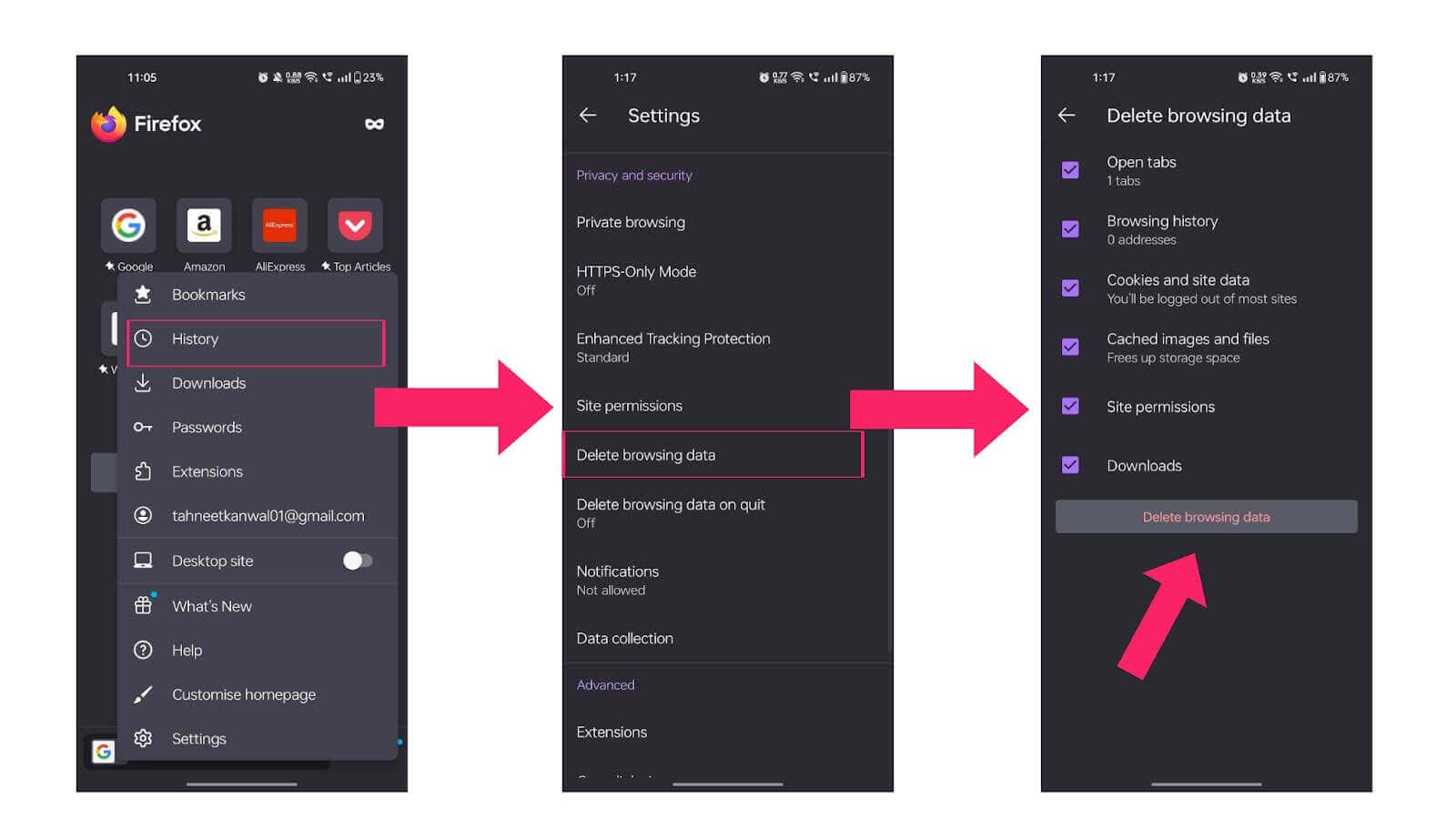
To clear the browser cache on Android using Firefox, follow these steps:
- Tap on the three dots icon in the top right corner to access the menu.
- Scroll down and select Delete browsing data.
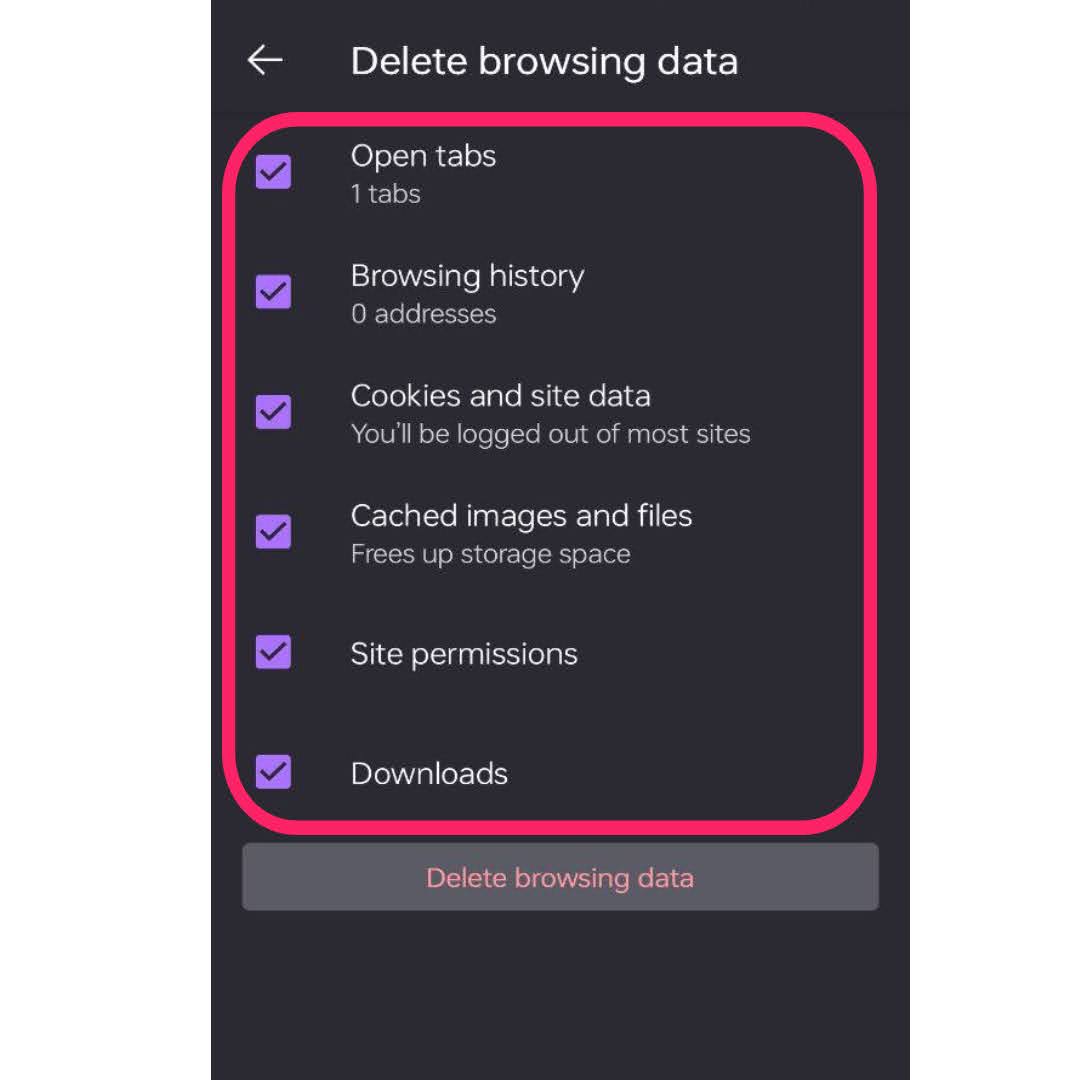
- You will see a list of items you can choose to delete, including:
- Open tabs
- Browsing history
- Cookies and site data
- Cached images and files
- Site permissions
- Downloads
- Select the items you wish to clear and tap Delete browsing data to confirm.

Conclusion
Whether you use Google Chrome, Samsung Internet, or Mozilla Firefox, each browser has simple steps to clear the browser cache on Android, delete cached data, and remove browsing history. Regularly clearing your browser cache can significantly enhance your device’s performance, free up space, and improve security. By following the specific instructions for your preferred browser, you ensure a smoother browsing experience while safeguarding your privacy. Make it a habit to clear your cache regularly for optimal performance.


Summarize with AI


Frequently asked questions
Did you find this page helpful?
More Related Hubs
TestMu AI forEnterprise
Get access to solutions built on Enterprise
grade security, privacy, & compliance
- Advanced access controls
- Advanced data retention rules
- Advanced Local Testing
- Premium Support options
- Early access to beta features
- Private Slack Channel
- Unlimited Manual Accessibility DevTools Tests