

Next-Gen App & Browser Testing Cloud
Trusted by 2 Mn+ QAs & Devs to accelerate their release cycles


On This Page
- New browser versions for cross browser testing.
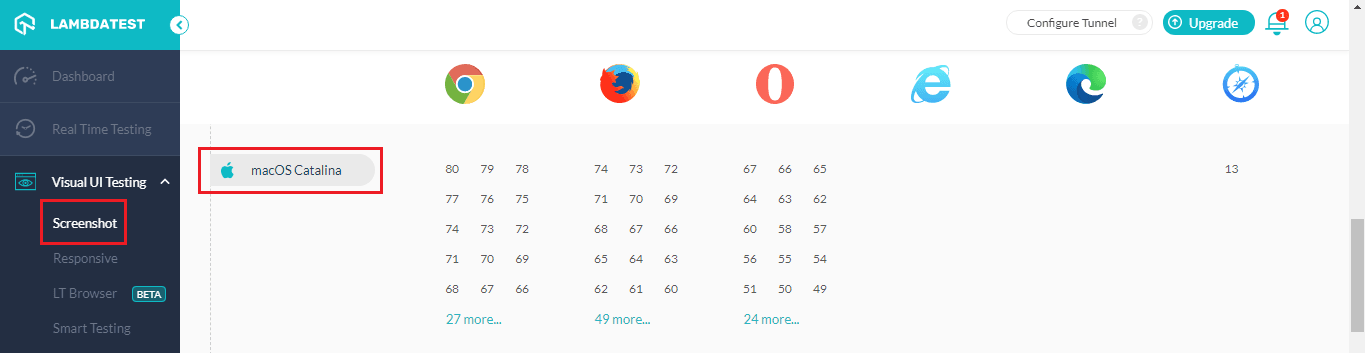
- macOS Catalina in Screenshot testing.
- New Android Browsers in our Appium Grid
- Slack alerts on build completion & test failure on our online Selenium Grid.
- PractiTest Integration for easy bug logging.
- Download reports functionality on TestMu AI Automation Dashboard.
- Latest Keyword Capability to help you run Selenium tests over the latest browser version.
- New Data Centers & new Grid to boost performance
- WebdriverIO Service for easy TestMu AI Tunnel setup.
- Official Docker Image of LambdaT Tunnel is now available for CI/CD pipelines.
- UnderPass can now be terminated from the GUI.

April 2020 Platform Updates: New Browser, Better Performance & Much Much More!
This product update is going to list down exciting features that have been added over TestMu AI Cross Browser Testing Cloud in April 2020.

Harshit Paul
January 30, 2026
Howdy testers! If you’re reading this article I suggest you keep a diary & a pen handy because we’ve added numerous exciting features to our cross browser testing cloud and I am about to share them with you right away!
This product update brings you:
Perform Cross Browser Testing Over Latest Browsers
We’ve added a bunch of latest browsers over TestMu AI to help you get the best coverage for cross browser testing. You can now test over:
- Google Chrome 81
- Google Chrome 83 Beta
- Mozilla Firefox 75
- Mozilla Firefox 76 Beta
- Opera 68
- Microsoft Edge 80
- Microsoft Edge 81
Test On Google Chrome 81 & Google Chrome 83 Beta
The latest versions of Google Chrome browsers can now be tested from Real Time testing & our cloud Selenium Grid.
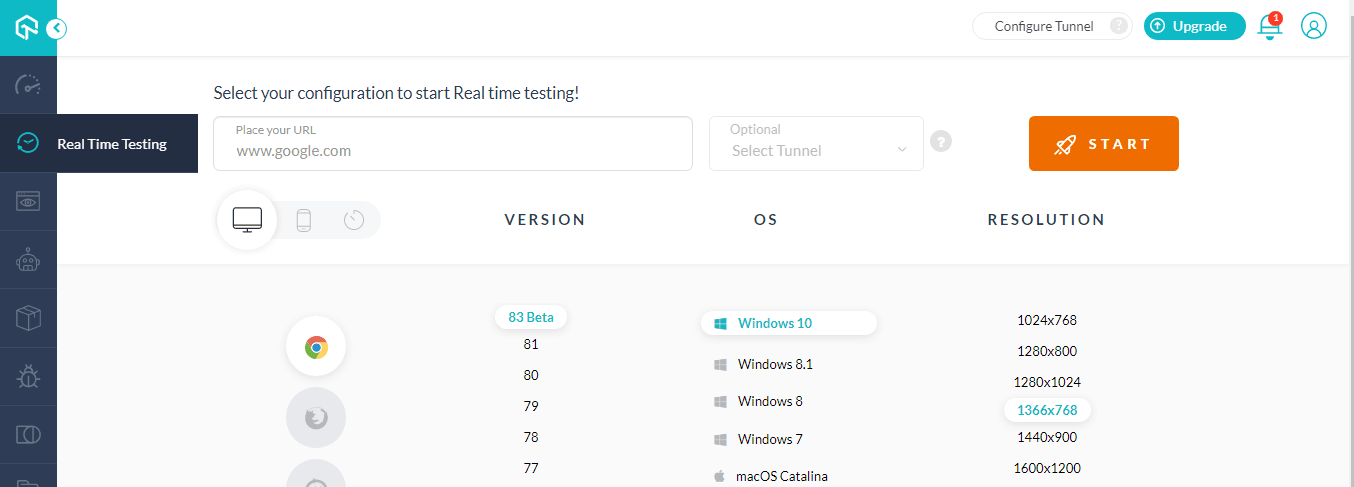
You can also find the capabilities for Google Chrome 81 & Google Chrome 83 in our Desired Capabilities Generator.
Mozilla Firefox 75 & Mozilla Firefox 76 Beta Is Now Available
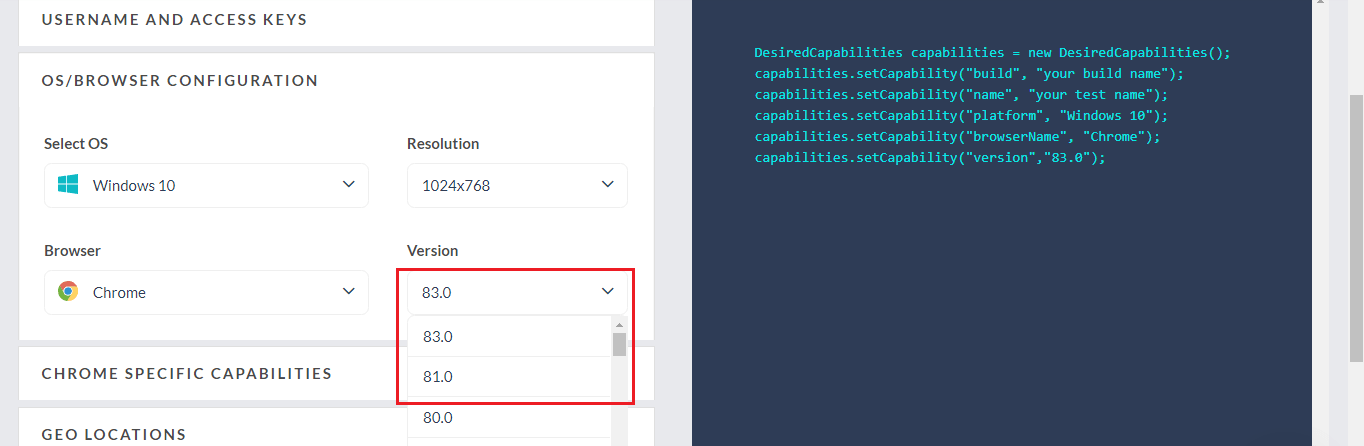
Similarly to Google Chrome, you can also test over Mozilla Firefox latest versions. You can find Mozilla Firefox 75 & Mozilla Firefox 76 in our Real-Time Testing. These browsers can also be found in our Desired Capabilities Generator for running your Selenium testing scripts over our online Selenium Grid.
Real Time Testing On The Latest Opera 68
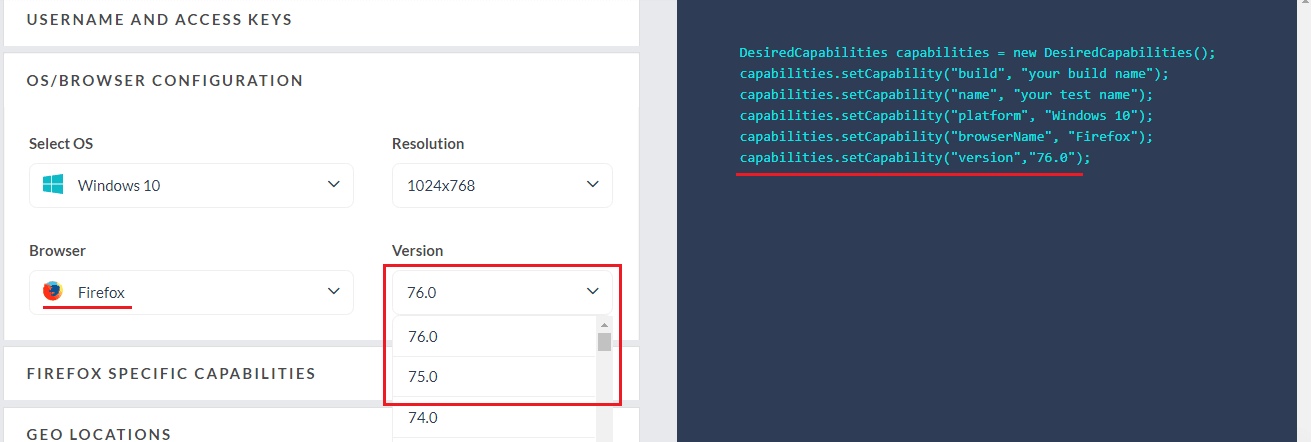
The new Opera 68 version is based on Chromium 80.0.3987.7. You can now test your website over the Chromium Opera 68 now to ensure cross browser compatibility. The new Opera browser version can be found in our Real-Time Testing.
You Can Also Test On Chromium Edge 80 & Edge 81
After a successful release of the first Chromium based Edge 79. Microsoft has come up with new Chromium-based browser versions i.e. Edge 80 & Edge 81. Surprisingly, the new Chromium Edge browsers have taken a considerable amount of browser market share after they were introduced.
As per NetMarketShare, the new Chromium Edge has gained the second-highest browser market share in March 2020 with a 7.59% share. Even after April, Microsoft Chromium Edge has retained the second spot with 7.76% share.
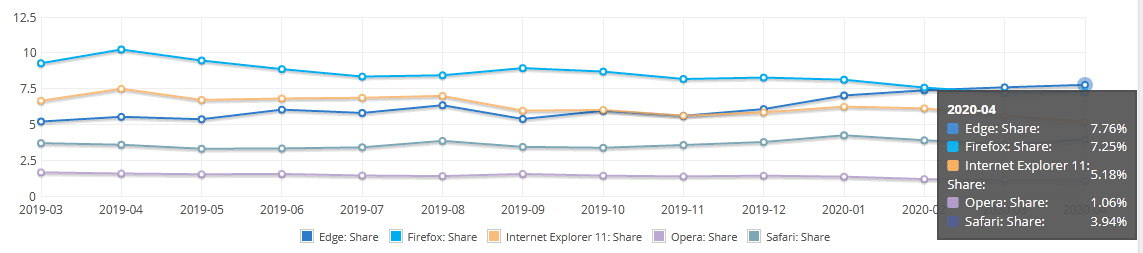
Which means you will have to re-evaluate your cross browser testing checklist to ensure that you have Chromium Edge listed in it. With TestMu AI, you can now test on Chromium Edge browsers latest versions as well.
You will find Edge 80 in Real Time Testing.
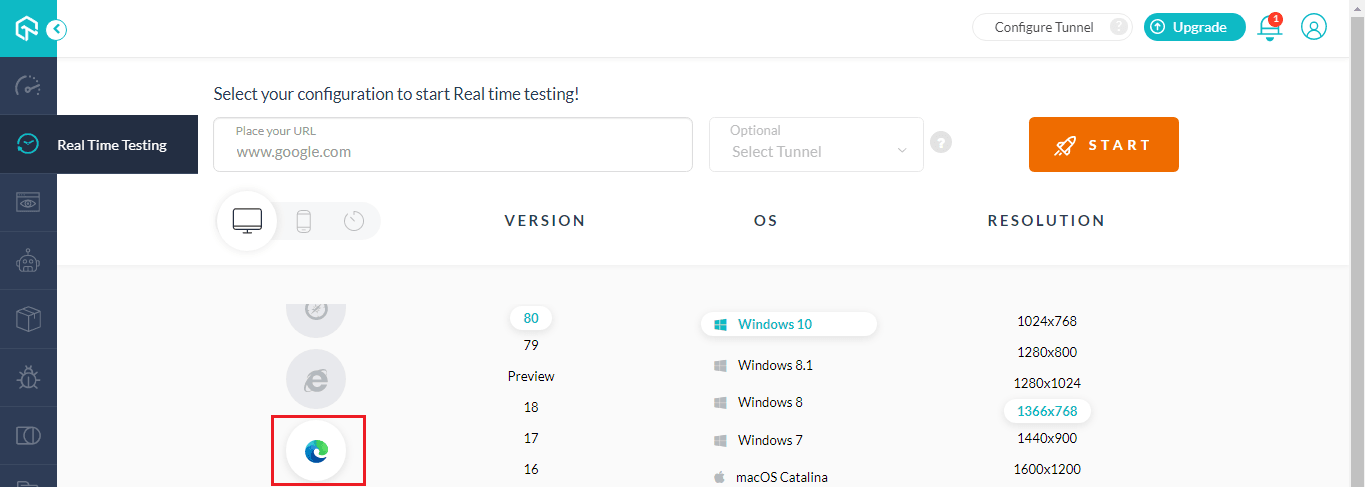
Similarly, if you wish to automate browser testing then you can find the Edge 80 & Edge 81 in the Desired Capabilities Generator as well.
Cross Browser Compatibility Between Chrome 81, Firefox 76, Edge 81, & Opera 68
With that said, it is important to note the cross browser compatibility differences between the latest browser versions before you start to test them.
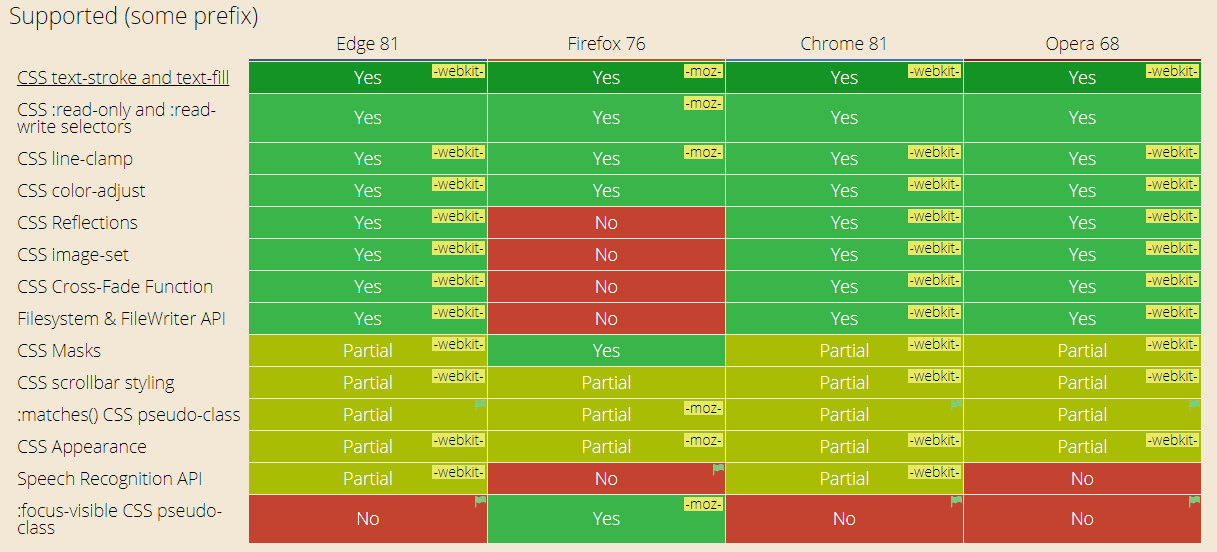
Src: CanIUse
It is important to notice that although Opera 68 is Chromium 80 based, it doesn’t support Speech Recognition API. However, Google Chrome 81 & Edge 81 does support it partially.
The Latest Mozilla Firefox Version lacks support for the below properties in contrast to other browsers.
- CSS Reflections
- CSS image-set
- CSS Cross Fade Function
- Filesystem & FileWriter API
- Like Opera, Speech Recognition API is not supported by the latest version of Mozilla Firefox 76.
However, the focus-visible CSS pseudo-class is only supported by the Mozilla Firefox. Similarly, the cross browser differences list would go on.
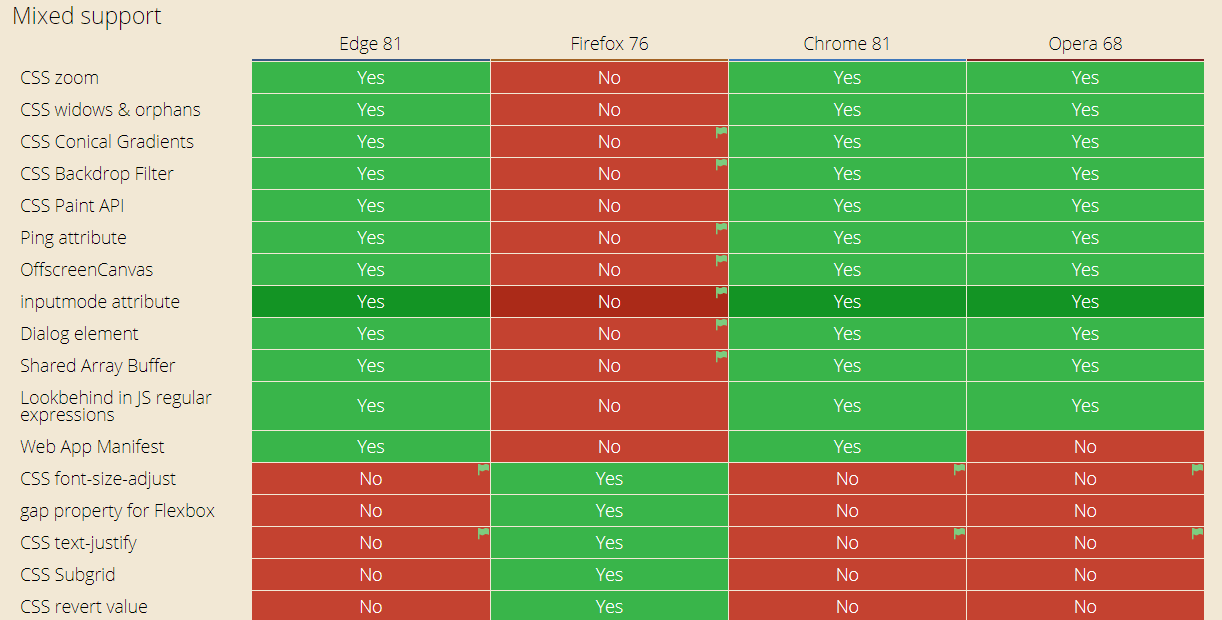
Make sure to check them all through CanIUse.
macOS Catalina Is Now Available For Screenshot Testing
Screenshot testing is a feature that allows you to capture full-page screenshots of your web-application over multiple browsers + OS combinations. You can test up to 25 different combinations in a single test session.
10 Must Try Features Of Automated Screenshot Testing On TestMu AI
We’ve added macOS Catalina in the Automated Screenshot testing feature inside our web-application to help you perform cross browser testing.
New Android Browsers Added To Our Appium Grid
If you don’t already know TestMu AI offers an online Selenium Grid of 2000+ real browsers for both mobile and desktop to help you automate browser testing. We also have an Appium Grid configured in place to help you expand your browser testing coverage for mobile browsers.
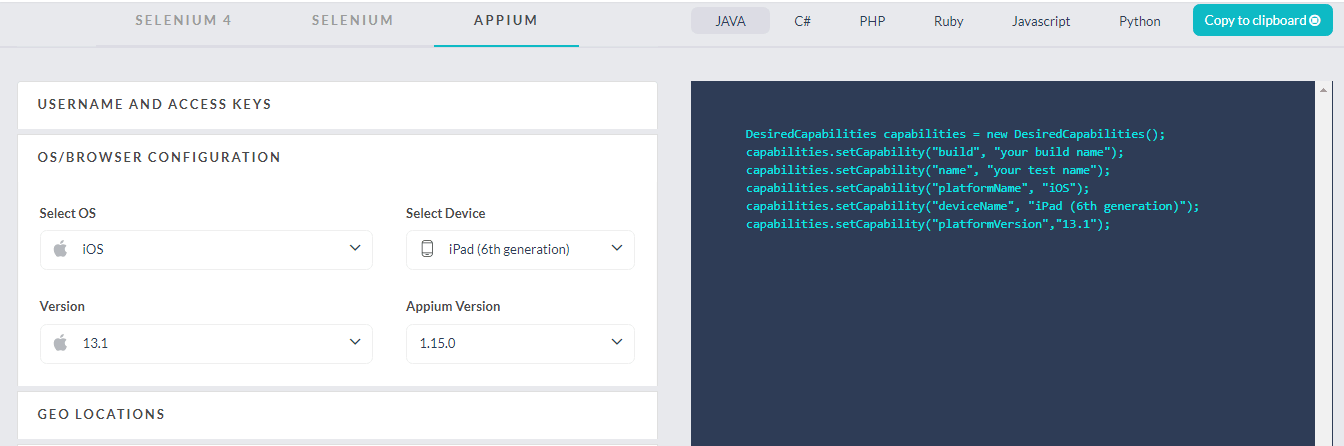
Now, we have added the below Android devices to our Appium Grid to help you automate browser testing over the Android browsers.
Slack Alerts For Build Completion & Test Failure On Our Online Selenium Grid
With TestMu AI Online Selenium Grid, you can now trigger Slack alerts for your test builds. That way, you will always be aware once the test build execution is completed and you would also be prompted about the test failures over Slack.
This is how a test failure would be represented over your integrated Slack channel.
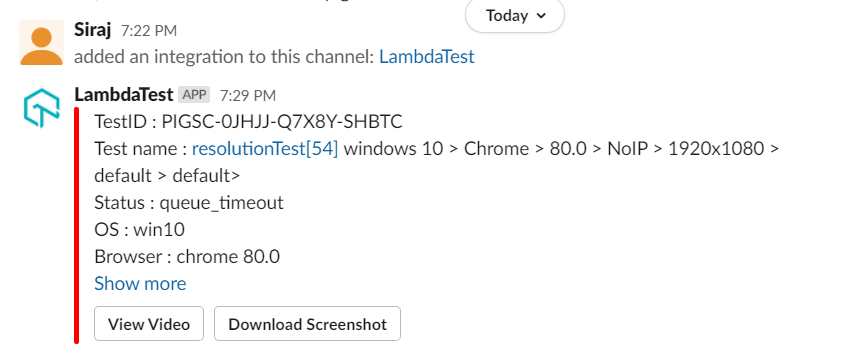
You can view the video of the test execution or download step-by-step screenshots to help you debug with the failure test case.
Similarly, this is how you’ll be notified if a test build is successfully passed.
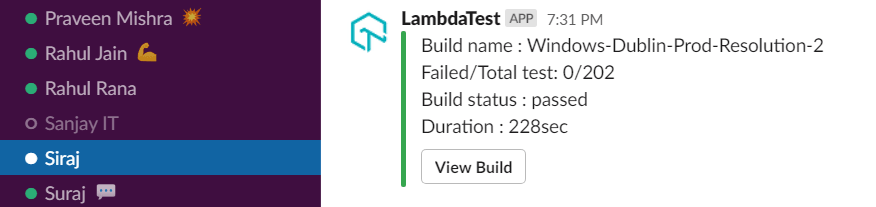
By clicking the View Build button, you will be routed to the automation logs where you can find the Automation Logs on TestMu AI where you will find all kinds of logs to help you analyze your Selenium testing scripts.
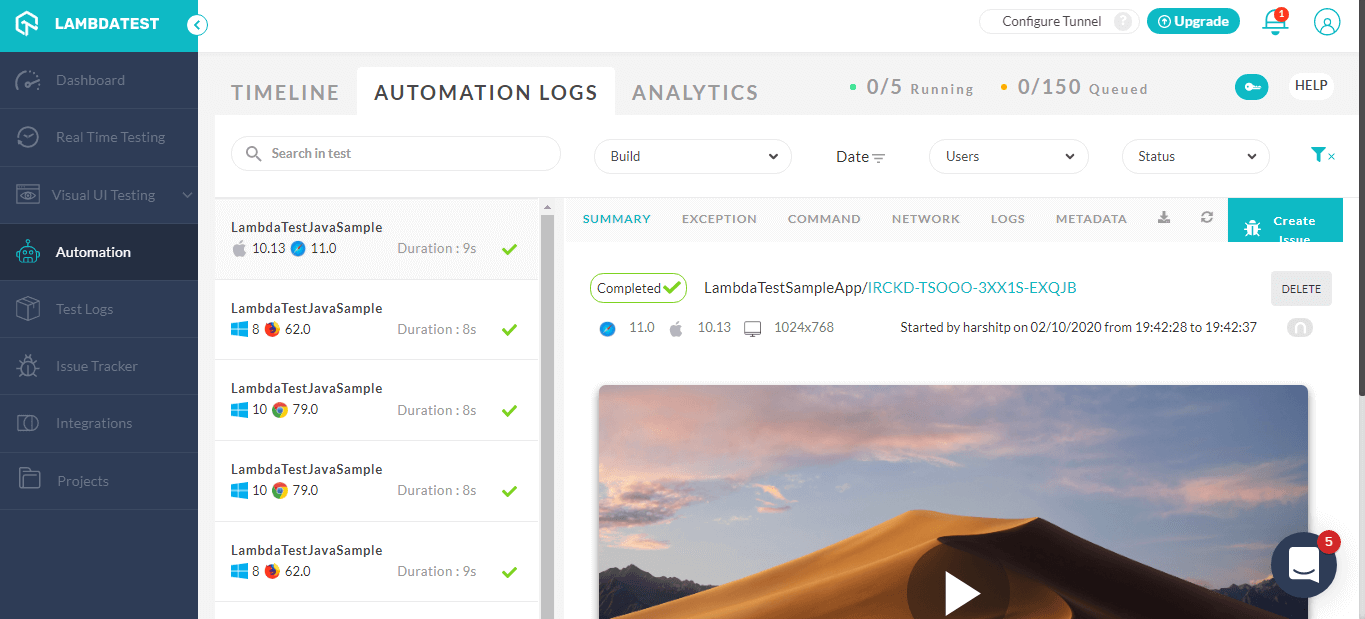
You can find video logs, command-by-command screenshots, network logs, command logs, exception logs, raw Selenium logs, and more.!
How Do I Enable Slack Alerts From TestMu AI?
If you already have Slack integrated with your TestMu AI account then you’ll have to re-install the integration. After you re-install or after installing TestMu AI Slack integration for the first time, you will have to go to TestMu AI integrations.
Under your integrations, you’ll find a card for Slack integration which will have a button for Settings. As you click on it, you can enable Slack alerts as per your requirements.
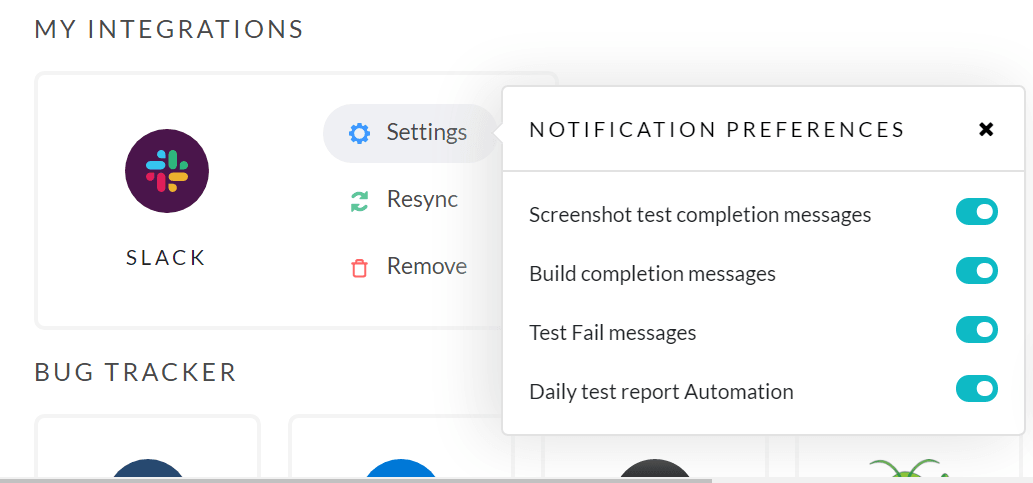
PractiTest Integration To Help You Mark Bugs In A Single Click
We’ve added another exciting integration to an industry-leading project management tool, PractiTest.
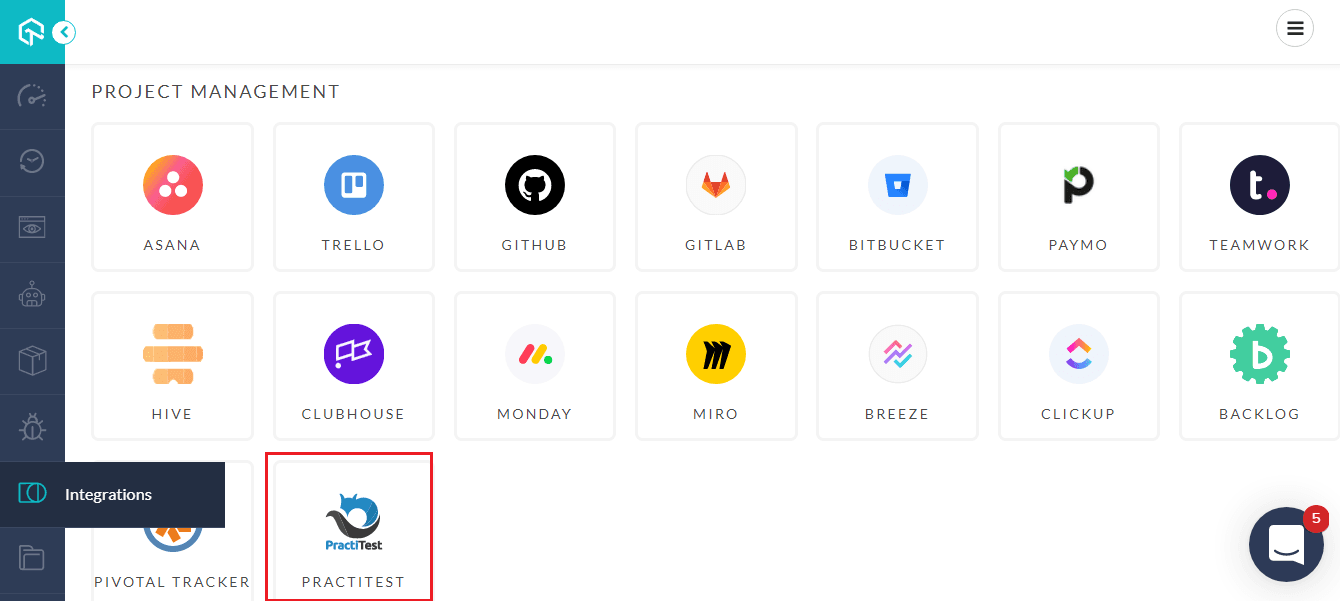
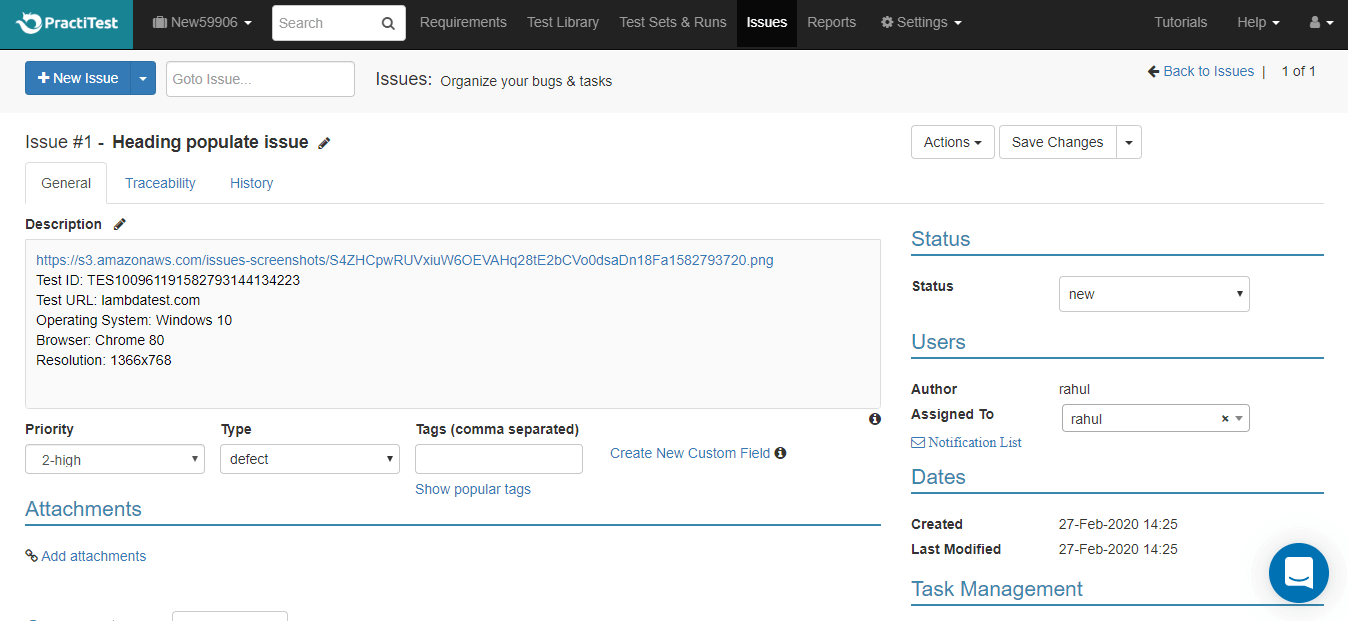
By integration PractiTest with your TestMu AI account, you will be able to send bugs directly to your PractiTest instance from TestMu AI.
After integration, you can use the mark as bug button from any testing format on TestMu AI i.e. Real Time Testing, Selenium Automation Testing, Screenshot Testing, Responsive Testing or Smart testing. The mark as bug will open a prompt around your PractiTest project.
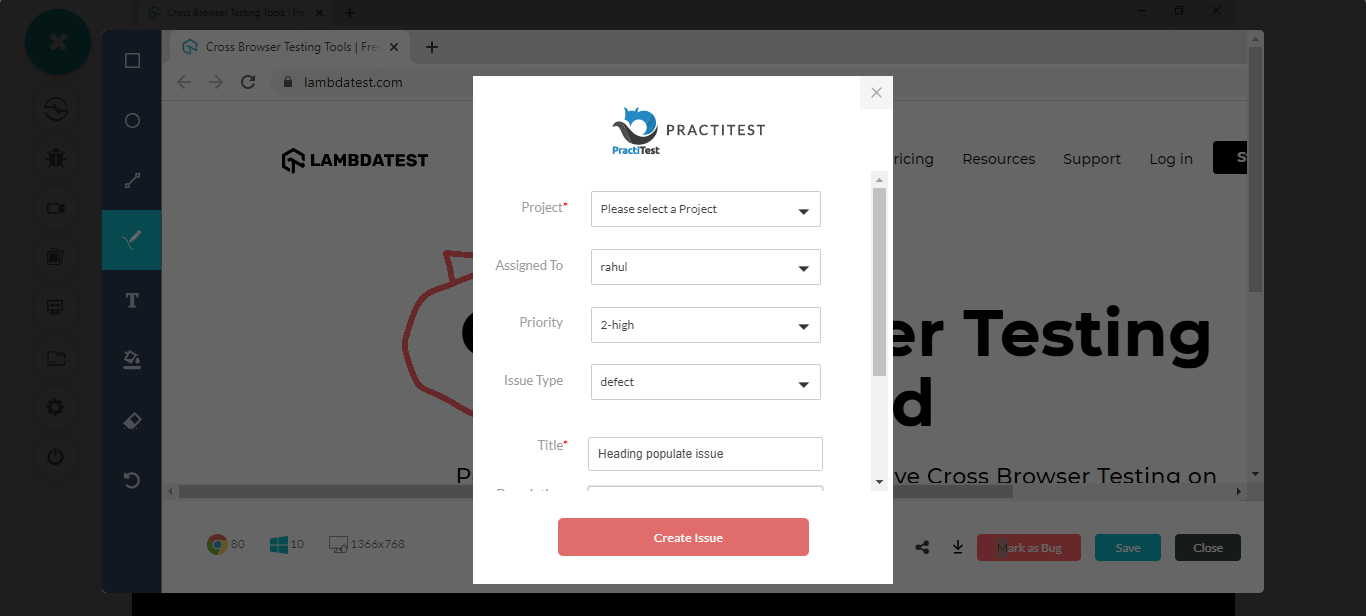
Once you fill the details and create the bug. The details would be sent to your PractiTest project directly from TestMu AI.
You Can Now Download PDF Reports From The Automation Dashboard
One of the biggest challenges with automation testing lies around the monitoring area. Keeping a track of your test builds that are running hundreds of test cases automatically over a Selenium Grid could be strenuous. Which is why we have come up with a feature which now allows you to download the report of your test build execution over the TestMu AI Selenium Grid.
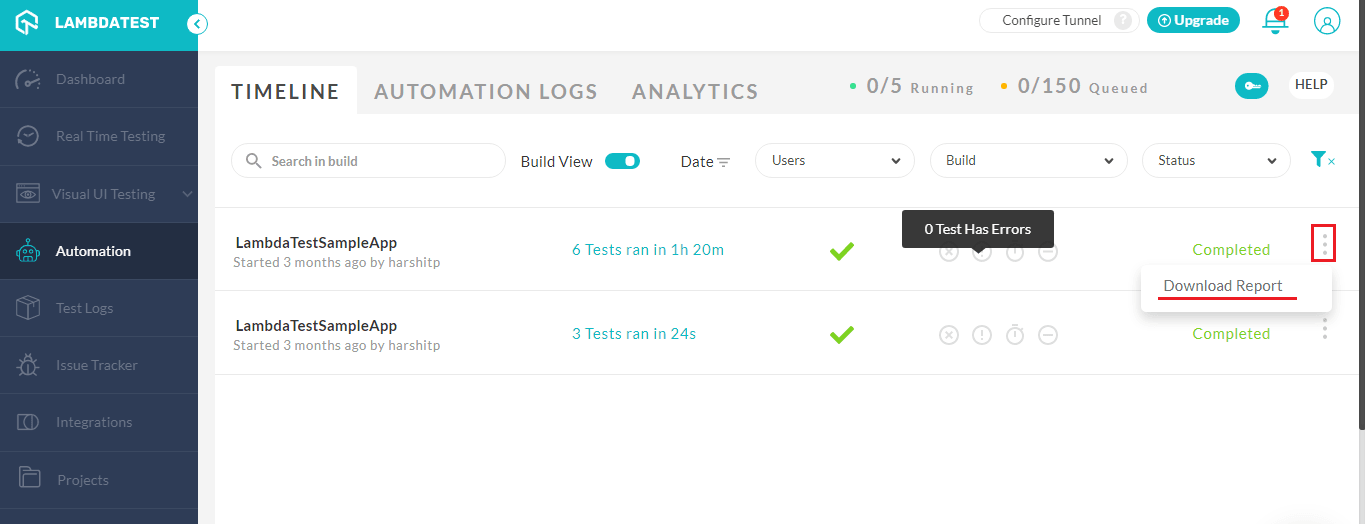
To download reports, you need to visit your TestMu AI Automation Dashboard and click the 3-dot icon over the test build for which you need the report. Once you click on the 3-dot icon, you will find an option to Download the report.
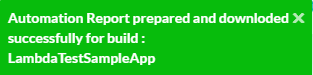
After you download the report, you will be notified over the TestMu AI web-app by the following prompt.
The report will give you the details around timestamps, browser coverage, OS coverage for your test cases within that build. Try it now, we are sure you’d be impressed. 😉
Have You Used The Latest Keyword Capability In Our Online Selenium Grid Yet?
We’ve come up with a handy capability which is triggered by the latest keyword. If you use this keyword in your desired capabilities class for the browser versions, it would automatically trigger your Selenium testing script over the latest version of the selected browser. Here is an example of the desired capabilities using the Latest keyword.
DesiredCapabilities capabilities = new DesiredCapabilities();
	capabilities.setCapability("build", "your build name");
	capabilities.setCapability("name", "your test name");
	capabilities.setCapability("platform", "Windows 10");
	capabilities.setCapability("browserName", "Chrome");
	capabilities.setCapability("version","latest");
The above desired capabilities class would automatically run your Selenium testing scripts over the latest version of Google Chrome available over our online Selenium Grid. Pretty cool, isn’t it?
Can I Use The Latest Keyword To Run Selenium Script Over A Legacy Browser?
Yes, you can. You can use the (latest-N) keyword in that case. This would allow you to execute your test over an older browser version. Here, N represents an integer. So if you wish to test your website over a browser version which was released 5 versions before the latest one, you can do so using the below capability:
DesiredCapabilities capabilities = new DesiredCapabilities();
	capabilities.setCapability("version","latest-5");
TestMu AI Service Is Now Listed On WebdriverIO To Ease Local Testing
As you may know TestMu AI allows you to test your locally hosted web pages through TestMu AI Tunnel. For running your Selenium testing with TestMu AI Tunnel, you’d have to specify the tunnel capability to true in your desired capabilities class. However, for WebdriverIO fans, we’ve come up with TestMu AI Service for WebdriverIO to ease out the TestMu AI Tunnel configuration process.
If you’re using WDIO test runner then all you have to do is add the wdio-lambdatest-service in your wdio.conf.js file and your TestMu AI Tunnel would automatically be instantiated for your WebdriverIO testing script.
New Data Centers & New Grid To Boost Selenium Cloud Performance
We’re thrilled to inform you that we’ve set up new data centers & Selenium Grid in North America, Europe & Asia-Pacific. We’re continuously scaling our infrastructure to deliver you the best Selenium testing experience on our cloud platform.
With the additions of these new Data Centers & Selenium Grid, we’ve improved the test execution time, boosted the performance and reduced the latency of our Selenium Cloud service.
UnderPass Can Now Be Terminated From The GUI
Underpass is an application developed by TestMu AI to help you configure TestMu AI Tunnel without using the command line, through GUI itself. All you have to do is provide your TestMu AI username & TestMu AI access key to the Underpass application & hit the launch button.
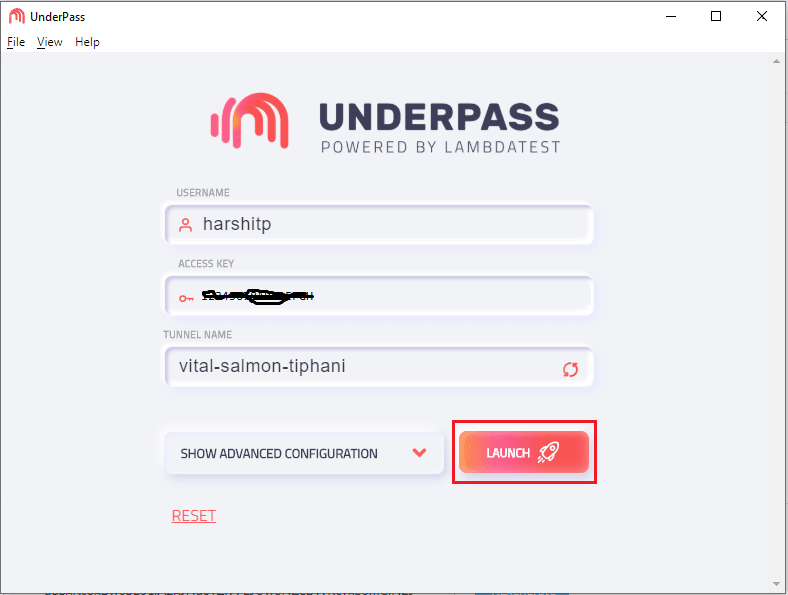
It would automatically run the TestMu AI Tunnel for you. Earlier, when you close the Underpass application it used to only terminate the binary file responsible for establishing a SSH(Secure Shell) connection with TestMu AI cloud servers. Now, it would also terminate the Underpass application from the GUI.
Official Docker Image Of TestMu AI Tunnel Is Now Available For CI/CD Pipelines
Incorporating local testing with your CI/CD pipelines just got smoother! We’ve come up with an official Docker Image of TestMu AI Tunnel which would allow you to test your locally hosted web-pages through your CI/CD pipelines. If you are running automation tests using our cloud Selenium Grid, we highly recommend you to set up Docker Image of TestMu AI for your preferred CI/CD pipeline tool such as Travis CI, Circle CI, GitLab CI, and more.!
Check Our GitHub Repository To Integrate Docker Image Of TestMu AI Tunnel
How Was That?
Like every other business, we are fighting our way through this global pandemic. Even as we work from home, we are fully operational and always working on innovative enhancements to our platform that works in the favour of our customer’s convenience. We hope you liked our recent additions to TestMu AI Cloud. Try them out and share your thoughts with us. It would mean a lot. You can drop comments here, or reach out to us by [email protected] , or you could simply drop a hello to our 24//7 customer chat support.
These are tough times and we simply want you to know that you’re constantly in our thoughts & our prayers. Only together can we defeat the COVID-19, so wash your hands frequently, stay indoors, and we wish you the very best of health. Cheers! 🙂



Did you find this page helpful?
More Related Hubs
TestMu AI forEnterprise
Get access to solutions built on Enterprise
grade security, privacy, & compliance
- Advanced access controls
- Advanced data retention rules
- Advanced Local Testing
- Premium Support options
- Early access to beta features
- Private Slack Channel
- Unlimited Manual Accessibility DevTools Tests