
How to Write a Bug Report: An Advanced Guide [Examples + Template]
Learn how to write a bug report that developers act on fast. Covers key components, real examples, a ready-to-use template, do's and don'ts, and expert tips.

Arnab Roy Chowdhury
March 6, 2026


A well-written bug report saves hours of debugging time and keeps releases on schedule. This advanced guide covers what a bug report is, the key components every report needs, how to write one that developers act on immediately, real-world examples, a ready-to-use template, and best practices followed by professional QA teams.
Overview
A bug report is a structured document used to describe defects found during software testing, helping developers understand the issue and reproduce it efficiently to fix it faster.
How to write a bug report?
- Write a Clear Title: Summarize the issue in a short and descriptive statement.
- Provide Environment Details: Mention browser, device, OS, and application version where the bug occurs.
- Add Steps to Reproduce: List the exact actions required to trigger the bug.
- Describe Expected Result: Explain how the application should behave normally.
- Explain Actual Result: Clearly state what incorrect behavior occurs.
- Set Severity and Priority: Indicate the impact of the bug and how urgently it should be fixed.
- Attach Supporting Evidence: Include screenshots, logs, or recordings to help reproduce the issue quickly.
What Is a Bug Report?
A bug report is a detailed document that describes an identified bug in a software application. Its purpose is to inform developers about the problem so they can investigate, reproduce, and fix it.
Well-structured bug reports accelerate debugging, prevent production delays, and reduce the back-and-forth between QA and development teams.
Vague descriptions like "the website doesn't load" or "the button doesn't work" give developers almost nothing to act on. Little information is equal to no information when it comes to bug fixing. The more precise and complete the bug report, the faster the resolution.

Note: Get a detailed information about the bug. Try TestMu AI Now!
What Are the Key Components of a Bug Report?
A complete bug report includes a title, steps to reproduce, expected vs. actual results, environment details, visual proof, and severity classification.
The exact fields may vary depending on your bug tracking tool, but the following components form the standard structure used by QA teams across the industry.
1. Bug ID: A unique identifier for each reported bug. Most bug tracking tools like Jira, GitHub Issues, or Asana auto-generate this. If you use spreadsheets, follow a consistent naming convention (e.g., BUG-001, BUG-002) to avoid duplicate bug reports and simplify referencing during sprint reviews.
2. Title: The first thing a developer reads. Keep it short, specific, and descriptive enough to convey the problem at a glance. A good title answers three questions: what is the problem, where does it occur, and under what condition. For example, "Checkout: Apply Coupon button unresponsive on Chrome 125 (Windows 11)" gives developers clear context, unlike "Checkout broken."
3. Description / Summary: Expand on the title with context. Explain how you found the bug, what you were testing, and what the expected behavior should be. A clear summary helps developers prioritize the fix and locate the bug report in the backlog. For example, "During regression testing on staging, the Apply Coupon button stops responding after entering a valid code. Occurs on Chrome 125, works on Firefox 126."
4. Steps to Reproduce: The most critical part of any bug report. Write each step as if the reader has never seen the application. One action per step. No assumptions. For example:
- Step 1: Navigate to https://staging.example.com/shop
- Step 2: Add "Wireless Headphones" to the cart
- Step 3: Click "Proceed to Checkout"
- Step 4: Enter SAVE20 in the coupon field
- Step 5: Click "Apply Coupon"
5. Expected Result vs. Actual Result: This comparison is what developers use first to understand the defect. State exactly what should happen and what actually happens. For example:
- Expected: A 20% discount is applied and a success message appears.
- Actual: The button becomes unresponsive. No discount, no error message, no loading indicator.
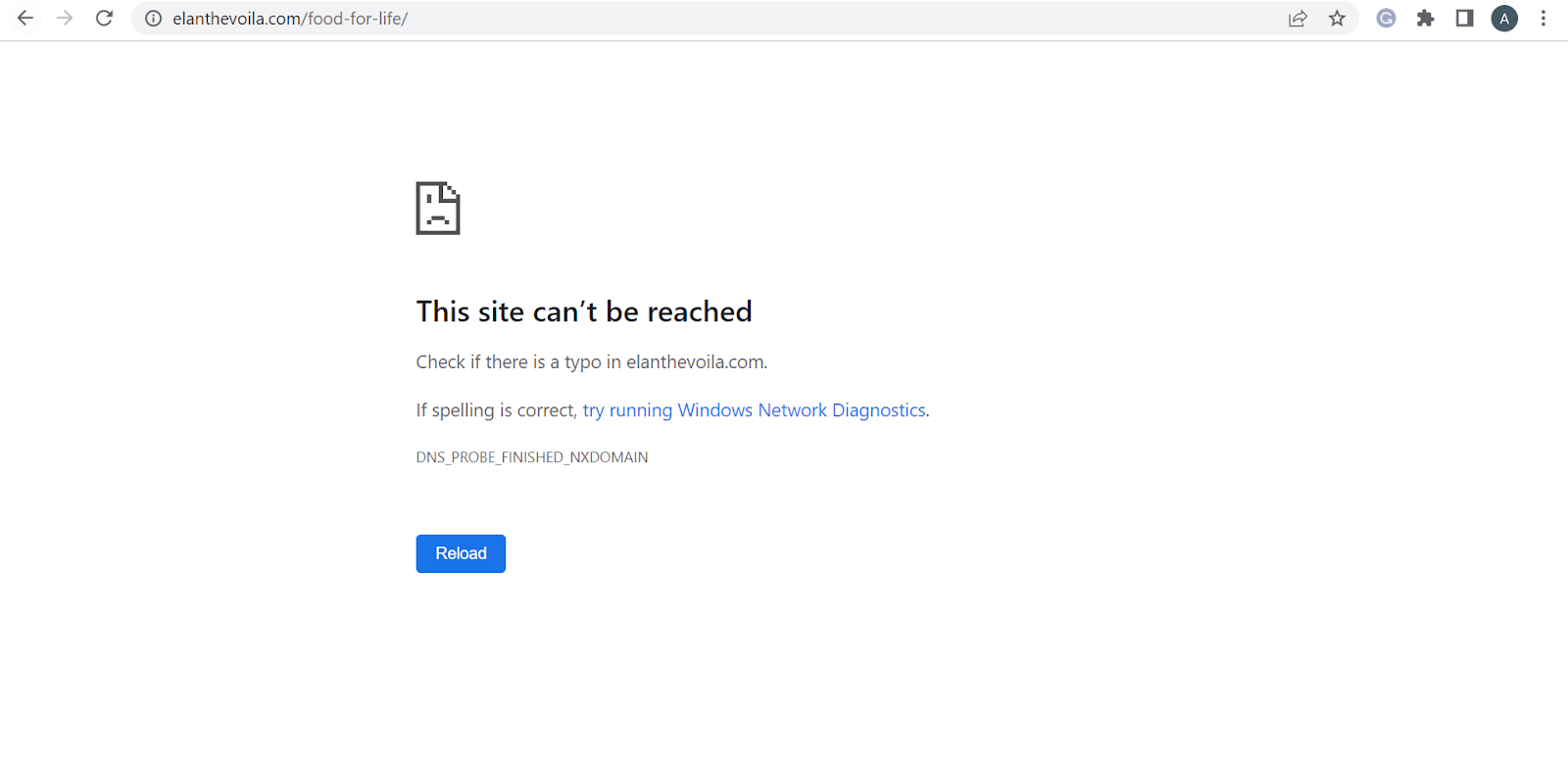
6. Screenshots and Visual Proof: A screenshot or short screen recording removes ambiguity and shows the developer the exact state of the application when the bug occurred. For cross-browser visual bugs, side-by-side screenshots comparing the broken rendering against the expected behavior are effective for identifying rendering inconsistencies. Visual regression testing tools such as TestMu AI's smart visual UI testing can automate this comparison across browsers and flag visual differences automatically.
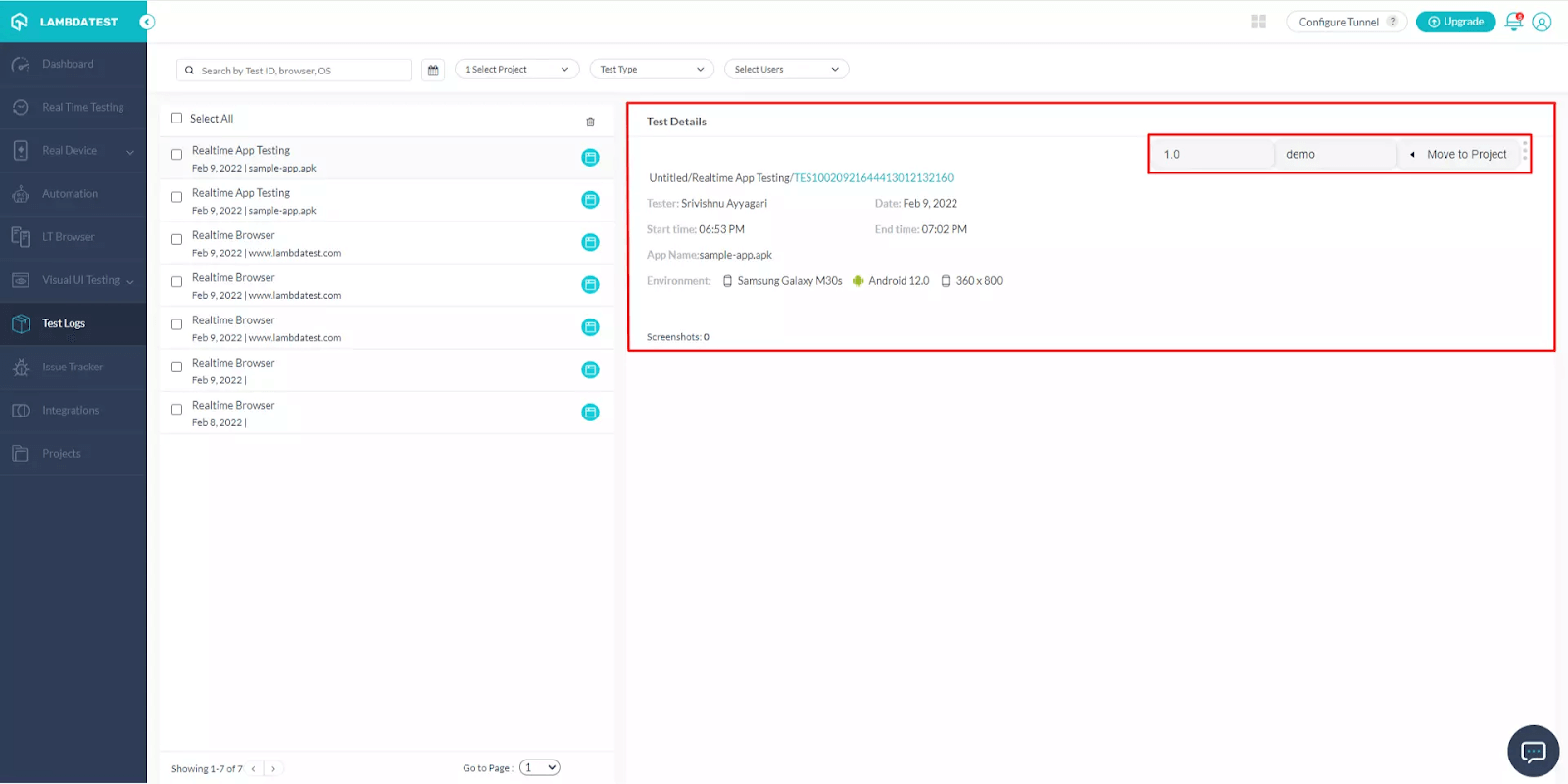
7. Environment: Include every detail that helps a developer replicate the exact testing conditions. Missing or inaccurate environment data is one of the top reasons bug reports get sent back for clarification.
- Browser and version (e.g., Chrome 125.0.6422.76)
- Operating system (e.g., Windows 11 Pro 23H2)
- Device (e.g., Desktop, iPhone 15 Pro, Samsung Galaxy S25)
- Screen resolution and viewport size
- App/build version and test environment URL
Capturing environment details manually is tedious and error-prone, especially when testing across dozens of browser-device combinations.
8. Console Logs: If the browser console shows errors when the bug occurs, include them. Open DevTools (F12), navigate to the Console tab, and copy any red error messages. For API-level issues, capture failed network requests from the Network tab (status 4xx or 5xx). Console logs give developers a direct technical entry point and often cut debugging time by helping them pinpoint the root cause faster.
9. URL / Source Location: The exact URL where the bug was found. This lets the developer navigate directly to the problem without guessing. For example: https://staging.example.com/checkout?coupon=SAVE20
10. Severity and Priority: Two separate classifications that together determine how fast a bug gets fixed.
Severity measures technical impact:
- Critical: Crash, data loss, security vulnerability
- Major: Core feature broken, no workaround
- Minor: Unexpected behavior, workaround exists
- Trivial: Cosmetic issue (typo, alignment, color mismatch)
Priority measures business urgency:
- P1: Fix before next release
- P2: Fix in current sprint
- P3: Next sprint
- P4: Backlog
A bug can be high severity but low priority (rare crash on an obscure device), or low severity but high priority (a typo on the homepage affecting brand perception). Understanding how severity and priority drive a bug through its various stages is covered in detail in the lifecycle of a testing bug.
11. Additional Information: Round out the bug report with supplementary details such as reporter name, assigned developer, date reported, due date, links to related bug reports or dependent issues, and any known workaround. For example: "Refreshing the page and re-entering the coupon code works on the second attempt."
How to Write an Effective Bug Report?
Writing an effective bug report requires a structured process: reproduce the bug, document the environment, write clear steps, and submit with accurate severity.
The section below walks through each step using a consistent example: a coupon code bug found during checkout testing.
Step 1: Reproduce and confirm the bug. Before writing anything, reproduce the issue at least twice. Test in a different browser or device to rule out a one-time occurrence. Check requirements to verify the behavior is a defect, not intended functionality.
For example: The "Apply Coupon" button on the checkout page stops responding after entering a valid code. Reproduced 3 out of 3 attempts on Chrome 125 (Windows 11). Works correctly on Firefox 126.
Step 2: Check for duplicate bug reports. Search your bug tracking tool for similar issues. If a matching bug report exists, add your new findings as a comment instead of filing a duplicate.
For example: Search "coupon button unresponsive" in Jira. No existing reports found. Proceed to file a new bug report.
Step 3: Write a specific, descriptive title. Include the page or feature name, the observed behavior, and the condition under which it occurs.
For example: "Checkout: Apply Coupon button unresponsive on Chrome 125 (Windows 11)"
Step 4: Write a clear summary. Provide a brief overview that explains the bug, its impact, and the context in which it was found.
For example: "During regression testing on the staging environment, the Apply Coupon button stops responding after entering coupon code SAVE20. No discount is applied and no error message is displayed. Issue is specific to Chrome 125 on Windows 11."
Step 5: List steps to reproduce. Write numbered, sequential actions starting from a clean state. One action per step. Include exact URLs, input values, and button names.
For example:
- Open Chrome 125 on Windows 11
- Navigate to https://staging.example.com/checkout
- Add any product to the cart
- Enter SAVE20 in the coupon code field
- Click "Apply Coupon"
Step 6: State expected vs. actual results. Define exactly what should happen and what actually happens. Use factual, specific language.
For example:
- Expected: A 20% discount is applied to the cart total and a success message appears.
- Actual: The button becomes unresponsive. No discount applied, no error message, no loading indicator.
Note: Bridge the gap between expected result and the actual result. Try TestMu AI Now!
Step 7: Document the environment and attach logs. Record browser version, OS, device, screen resolution, and app build version. Include any console errors or failed network requests from DevTools.
For example:
- Browser: Chrome 125.0.6422.76
- OS: Windows 11 Pro (23H2)
- Resolution: 1920 x 1080
- App version: v3.4.2 (staging)
- Console error: "Uncaught TypeError: Cannot read property 'apply' of undefined at coupon.js:142"
Step 8: Set severity and priority. Classify the technical impact (severity) and business urgency (priority) based on the actual user impact.
For example:
- Severity: Major (core checkout functionality broken, no workaround)
- Priority: P1 (blocks revenue-generating user flow, needs fix before next release)
Step 9: Submit, assign, and follow up. File the bug report in your tracking tool. Assign it to the relevant developer. After the fix is deployed, verify the resolution in the same environment where you originally found the bug. Close the report only after confirmation.
For example:
- Assigned to: Frontend team
- Related bugs: None
- Workaround: Refreshing the page and re-entering the coupon works on the second attempt
Filing bug reports manually across multiple tools introduces errors and slows down the process. Bug tracking tools like Jira, GitHub Issues, and Asana integrate with testing platforms to automate parts of this workflow.
What Does a Bug Report Template Look Like?
A bug report template standardizes how defects are documented, ensuring every report is consistent and complete regardless of who files it. Below you can find a bug report template commonly used:
| Field | Example |
|---|---|
| Bug ID | BUG-2071 |
| Title | Orders API: POST /api/v2/orders returns 502 Bad Gateway after build #2041 deployment to staging |
| Reported By | Rahul Mehta, QA Engineer |
| Date Reported | March 5, 2026 |
| Assigned To | Backend Team / DevOps |
| Description | The POST /api/v2/orders endpoint returns a 502 Bad Gateway error when placing an order with 3+ items. The issue started after build #2041 was deployed to the staging environment. Orders with 1-2 items process correctly. No error is returned in the API response body. |
| Steps to Reproduce | 1. Send a POST request to https://staging.example.com/api/v2/orders. 2. Include a valid auth token in the header. 3. Set the request body with 3 or more line items. 4. Send the request. |
| Expected Result | API returns 201 Created with the order confirmation payload. |
| Actual Result | API returns 502 Bad Gateway after ~30s timeout. No response body. |
| Environment | Staging server: staging.example.com, OS: Ubuntu 22.04 (Docker), Gateway: NGINX 1.25.4, Runtime: Node.js 20.11 |
| App/Build Version | v2.8.1, Build #2041, deployed via GitHub Actions (workflow run #5723) |
| Previous Working Build | Build #2039 (v2.8.0). Issue not present in this build. |
| Console / Server Logs | [ERROR] OrderService.createOrder() - TimeoutError: operation timed out after 30000ms at /src/services/order.js:87 |
| Network Trace | POST /api/v2/orders - Status: 502, Response Time: 30,412ms, Upstream: order-service:3000 (no response) |
| Screenshots / Evidence | [Attach Postman response screenshot + server log excerpt] |
| Severity | Critical (order placement blocked for carts with 3+ items) |
| Priority | P1 (revenue-impacting, blocks staging sign-off for release v2.8.1) |
| Reproducibility | 5 out of 5 attempts with 3+ items. 0 out of 5 with 1-2 items. |
| Deployment Details | Deployed March 4 at 14:32 UTC via GitHub Actions. Rollback to #2039 resolves the issue. |
| Related Issues | Possibly related to PR #1184 (refactored order batching logic) |
| Workaround | Splitting orders into batches of 2 items or fewer processes successfully. Alternatively, rolling back to build #2039 resolves the issue. |
What Are the Best Practices for Writing Bug Reports?
An ideal bug report is factual, specific, reproducible, and limited to one defect per ticket, with accurate severity classification and timely follow-up after the fix.
Do's of an Ideal Bug Report
1. File one defect per report. Combining multiple bugs into a single ticket creates confusion during triage and delays resolution. Each defect should have its own bug report with its own ID. If two issues appear on the same page but have different behaviors, file separate reports so they can be tracked, assigned, and closed independently.
2. Use factual, objective language. Describe exactly what happened without opinion or emotion. Write "The Submit button does not respond to clicks after form validation on Chrome 125" instead of "The Submit button is completely broken." Objective language prevents misinterpretation and keeps bug reports professional and actionable.
3. File the report immediately after discovery. Waiting hours or days leads to forgotten reproduction steps, inaccurate environment details, and missed context. Document the bug while everything is fresh. If your team uses testing platforms with bug tracking integrations, environment data and session screenshots are captured in real-time, making immediate reporting faster and more accurate.
4. Include the reproduction rate. A bug that occurs 5 out of 5 attempts is treated differently than one that occurs 1 out of 10. Always state the frequency in your bug report. For example: "Reproduced 4 out of 5 attempts on Chrome 125. Could not reproduce on Firefox 126."
5. Proofread before submitting. Grammatical errors, unclear sentences, or missing fields reduce credibility and waste developer time. Read the bug report once before submitting. Verify that steps to reproduce are numbered correctly, environment details are complete, and severity classification matches the actual user impact.
6. Flag hotfix requirements explicitly. Not all bugs can wait for the next sprint. If a defect blocks critical user flows or impacts revenue, state the need for a hotfix in the priority field. This helps the development team align on urgency without ambiguity and prevents escalation delays.
Don'ts of Writing Bug Reports
1. Don't assume the root cause: Describe observed symptoms, not speculated diagnoses. Write "The page returns a 500 error after clicking Place Order" instead of "The database is probably down." Bug reports document behavior. Developers investigate root causes.
2. Don't add irrelevant context: Every sentence in a bug report should help the developer understand, reproduce, or fix the issue. Details like "I found this right after a team standup" or "This happened while I was on VPN for a different task" add noise unless they directly affect reproduction conditions.
3. Don't mislabel severity or priority: Tagging a minor UI alignment issue as Critical floods the high-priority queue and delays genuinely critical fixes. Tagging a checkout crash as Low means it gets buried in the backlog. Classify based on actual user impact, not personal perception of urgency. For a detailed classification framework, see bug severity vs priority in testing with examples.
4. Don't use vague, non-specific language: "Something is wrong with the dashboard" gives the developer nothing actionable. Always specify what is wrong, where, and when: "Dashboard: Revenue chart displays $0 for all date ranges when user timezone is set to UTC+5:30."
5. Don't combine defect reporting with feature requests: If you notice a missing feature while filing a bug report, log it as a separate ticket. Mixing defect documentation with enhancement requests confuses prioritization and delays resolution of both.
6. Don't skip verification after a fix is deployed: A bug report is not complete when the developer marks it as fixed. Verify the resolution in the same environment where the issue was originally found. Close the report only after confirmation. If the fix is incomplete, reopen with updated details instead of filing a new report.
What are some of the Tips and Tricks to Remember while creating a Bug Report?
These practical tips cover the habits and workflows that improve bug reporting quality beyond the standard process and best practices covered above.
1. Confirm it is actually a bug before filing
Not every unexpected behavior is a defect. Testers sometimes log issues caused by environment misconfigurations, stale cache, user error, or intended design. This wastes time for both the developer and the reporting team.
Before filing a bug report:
- Reproduce the issue in at least two different environments (different browser, different device, or different OS)
- Rule out local environment issues such as VPN, proxy, browser extensions, or cached data
- Check the requirements specification or user story to confirm whether the behavior is actually failing or working as designed
If the behavior matches the spec, it is not a bug. If the spec itself is unclear, raise it as a requirement clarification, not a bug report.
2. Make bug report titles searchable in the backlog
Your bug tracking tool is also a long-term knowledge base. Months later, when someone encounters a similar issue, they will search the backlog. If your titles are vague ("Dashboard issue" or "Error on checkout"), they will not surface in search results.
Follow a consistent pattern: [Page/Feature]: [Observed behavior] on [Condition]
Examples:
- "Checkout: Apply Coupon returns no response on Chrome 125 (Windows 11)"
- "Dashboard: Revenue chart displays $0 for UTC+5:30 timezone users"
- "Registration: Email validation accepts invalid format ([email protected])"
This pattern makes every bug report indexable, filterable, and easy to deduplicate across sprints.
3. Know your audience
A bug report serves multiple readers. Developers need technical precision: exact steps, console errors, and stack traces. Product managers need business impact context: which user flow is blocked, how many users are affected, and what revenue is at risk.
Write the technical details in the steps, environment, and logs fields. Add the business impact in the description or additional information field. This way, both audiences get what they need from the same bug report without separate communications.
4. Use a testing platform that captures context automatically
Manually documenting browser version, OS, device model, screen resolution, and network conditions for every bug report is repetitive and error-prone. When environment details are incomplete or inaccurate, bug reports get rejected or sent back for clarification, slowing down the entire debugging cycle.
Cloud testing platforms reduce this overhead. Platforms like TestMu AI offer access to 3000+ browser-OS combinations and 10,000+ real devices. When a tester marks a bug during any test session using the one-click "Mark as Bug" feature, the platform automatically attaches environment details (browser, OS, resolution, device) and annotated screenshots to the integrated bug tracking tool. No manual copy-pasting, no missing fields.

Learn how to mark bugs during real-time testing and streamline your bug reporting workflow:
Subscribe to the TestMu AI YouTube Channel for tutorials on cross browser testing, bug reporting workflows, and test automation.
5. Integrate bug reporting into your testing workflow
Switching between your testing tool and bug tracking system to copy-paste details introduces errors and slows the process. Direct integrations eliminate this manual overhead.
TestMu AI integrates with bug tracking and project management tools including Jira, Asana, Trello, GitHub, GitLab, Slack, Microsoft Teams, and 120+ others. During any live or automated test session, you can log a bug report directly to your tracking tool with one click. Environment details, screenshots, and session replay links are attached automatically. No tab switching, no manual copy-pasting. Learn more about how to fast-track cross browser testing and debugging with TestMu AI.
Explore the full list of integrations on the TestMu AI Integrations page.
See how one-click bug logging from a test session to Jira works in practice:
6. Track bug trends across releases
Individual bug reports tell you about specific defects. Analyzing bug reports in aggregate reveals systemic patterns: is one module generating the majority of issues? Is a specific browser consistently producing more bugs than others? Are visual defects spiking after CSS refactors?
Centralized test management tools help surface these patterns. Platforms like TestMu AI's Test Manager provide a unified view of all bug reports, test cases, and test runs with dashboards that correlate defect trends with releases, sprints, and test coverage, enabling teams to take data-driven decisions on where to focus testing effort.


Frequently asked questions
Did you find this page helpful?
More Related Hubs
TestMu AI forEnterprise
Get access to solutions built on Enterprise
grade security, privacy, & compliance
- Advanced access controls
- Advanced data retention rules
- Advanced Local Testing
- Premium Support options
- Early access to beta features
- Private Slack Channel
- Unlimited Manual Accessibility DevTools Tests