

Next-Gen App & Browser Testing Cloud
Trusted by 2 Mn+ QAs & Devs to accelerate their release cycles


On This Page
- Steps to Refresh Firefox Browser Using Keyboard Shortcuts
- Steps to Refresh Firefox Browser With Troubleshoot Mode
- Steps to Refresh Firefox Browser by Clearing Cache
- Steps to Refresh Firefox Browser by Restarting the Browser
- Steps to Refresh Firefox Browser by Resetting to Default Settings
- Steps to Refresh Firefox Browser by Enabling Auto Refresh

How to Refresh Firefox Browser
Learn to refresh Firefox browser, reset settings, clear cache, and perform hard refreshes for a smoother browsing experience in this complete guide.

Bhavya Hada
January 12, 2026
Refreshing your Firefox browser quickly and easily solves problems like slow performance, errors, or unwanted changes. It brings the browser back to its original settings, keeping important data like bookmarks, passwords, and history. This guide will help you update Firefox on different devices, refresh it quickly, set it to update automatically and do more. By following these steps, you can refresh Firefox browser easily and quickly.
Steps to Refresh Firefox Browser Using Keyboard Shortcuts
Below are the steps you need to follow that will help you refresh Firefox browser:
1. Refresh (Normal Reload)
- Windows/Linux: Press Ctrl + R or F5 to reload the current page.
- Mac: Press Cmd + R to reload the current page.
2. Hard Refresh
- Windows/Linux: Hold down Ctrl and press F5 or Ctrl + Shift + R.
- Mac: Hold down Shift and click the Reload button or press Command + Shift + R.
These shortcuts are useful for quickly reloading pages to ensure you are viewing the most updated content, especially if web elements are not displaying properly due to cached data.

Note: Test your web page on the latest to legacy Firefox Browser versions. Try TestMu AI Today!
Steps to Refresh Firefox Browser With Troubleshoot Mode
If you experience persistent problems that aren’t resolved by a refresh or hard refresh, try Firefox’s Troubleshoot Mode:
- Open Firefox and go to the menu by clicking the three horizontal lines at the top-right corner and click on Help.
- Select Troubleshoot Mode (previously called Safe Mode).
- A confirmation dialog will appear. Click Restart. Firefox will restart in Troubleshoot Mode, temporarily disabling your extensions, themes, and custom settings.
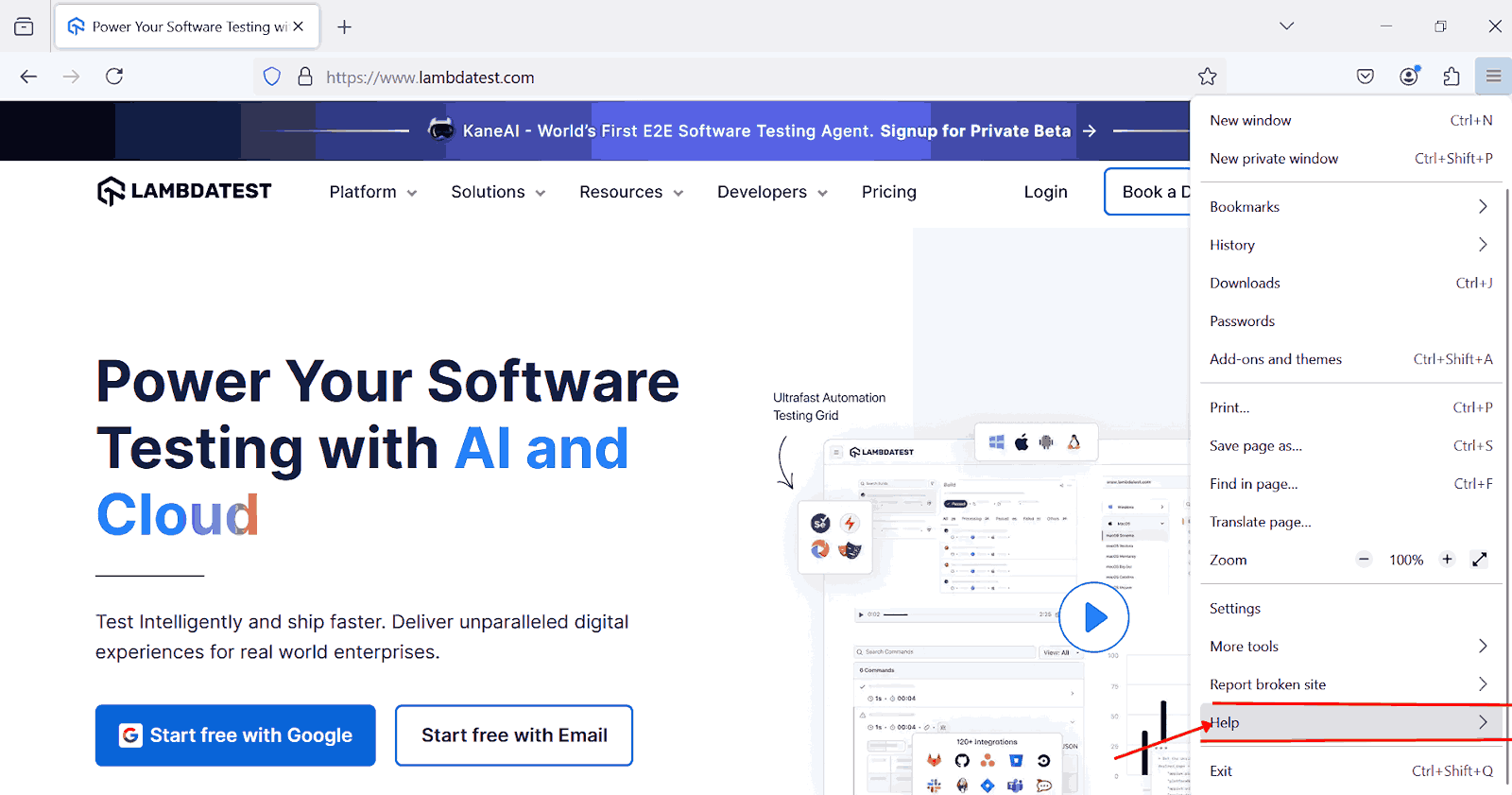
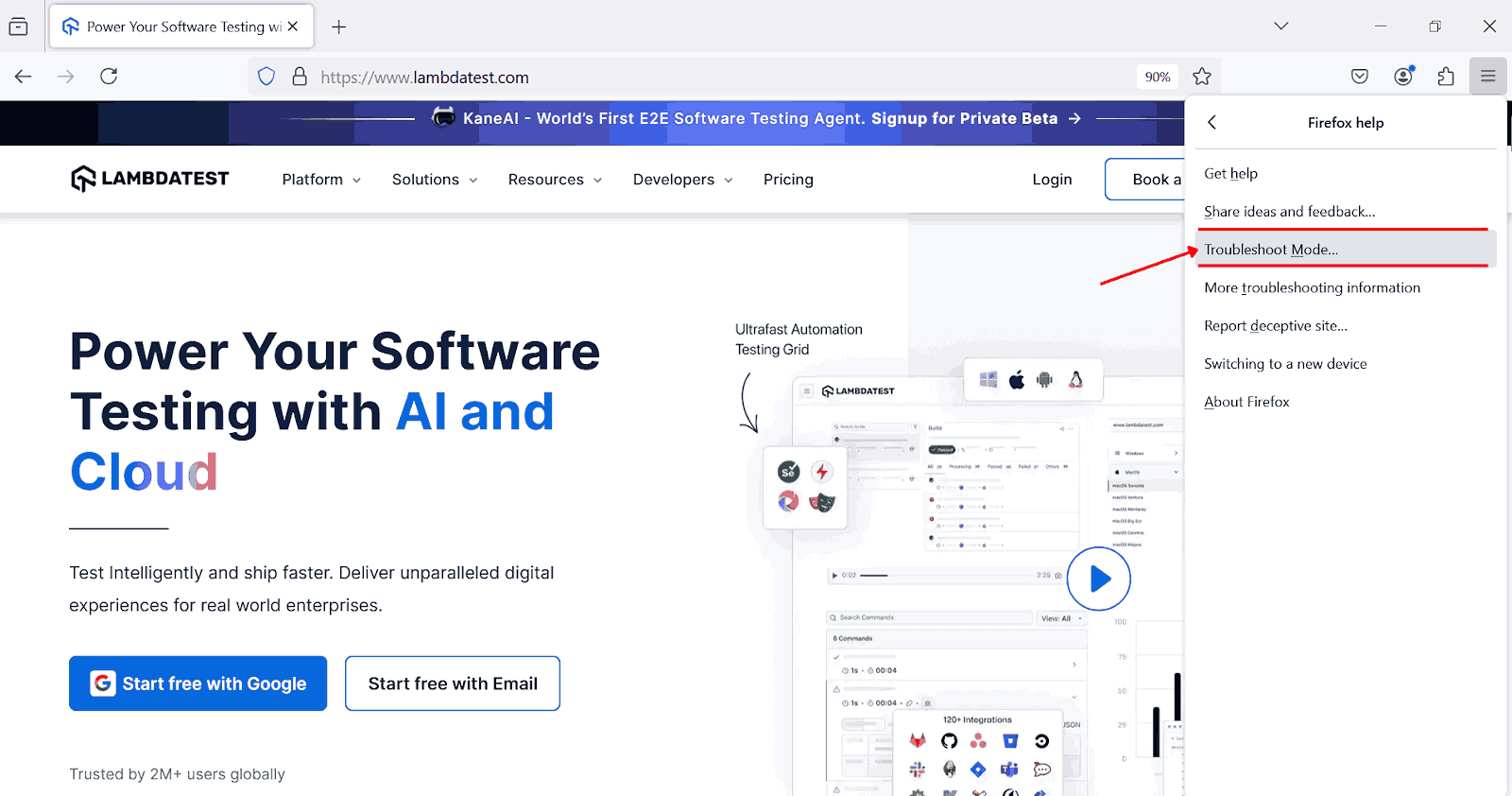
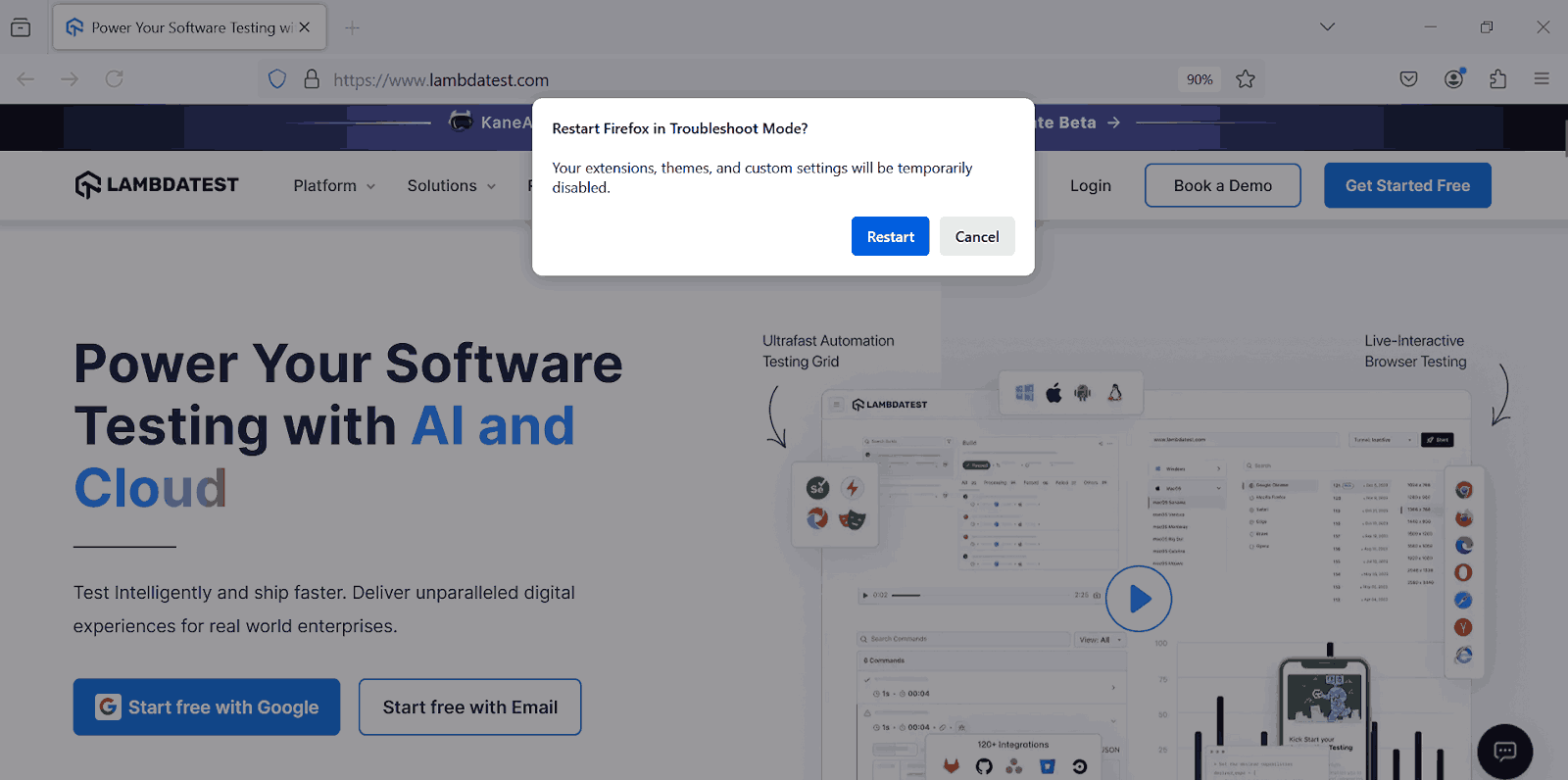
If these steps do not resolve the issue, further actions like clearing the browser cache or reinstalling Firefox may be required.
Steps to Refresh Firefox Browser by Clearing Cache
Clearing the browser cache helps resolve issues related to outdated or corrupted files. It forces Firefox to load fresh content.
Below are the steps you need to follow to clear the cache in Firefox:
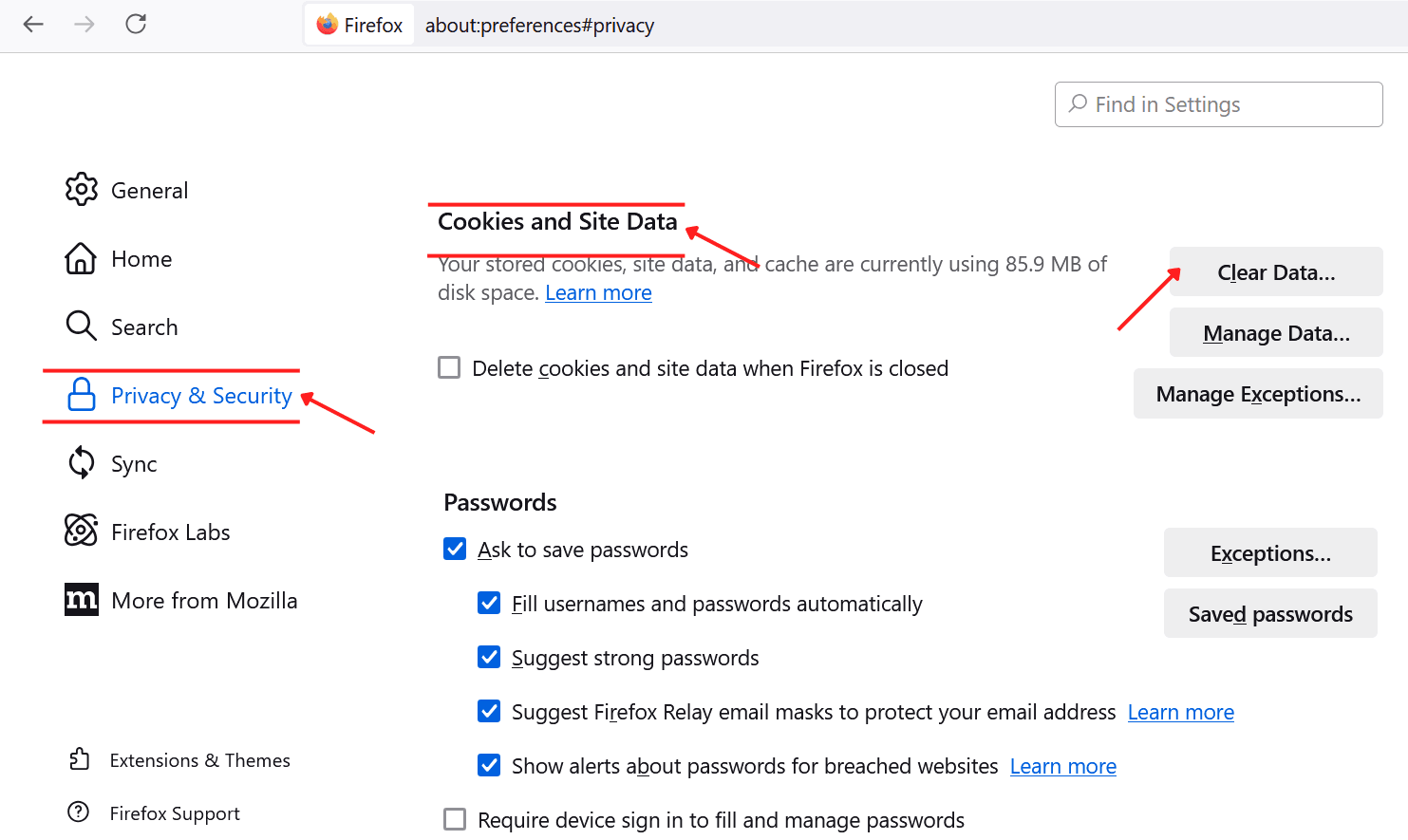
- Click the menu button and select Settings.
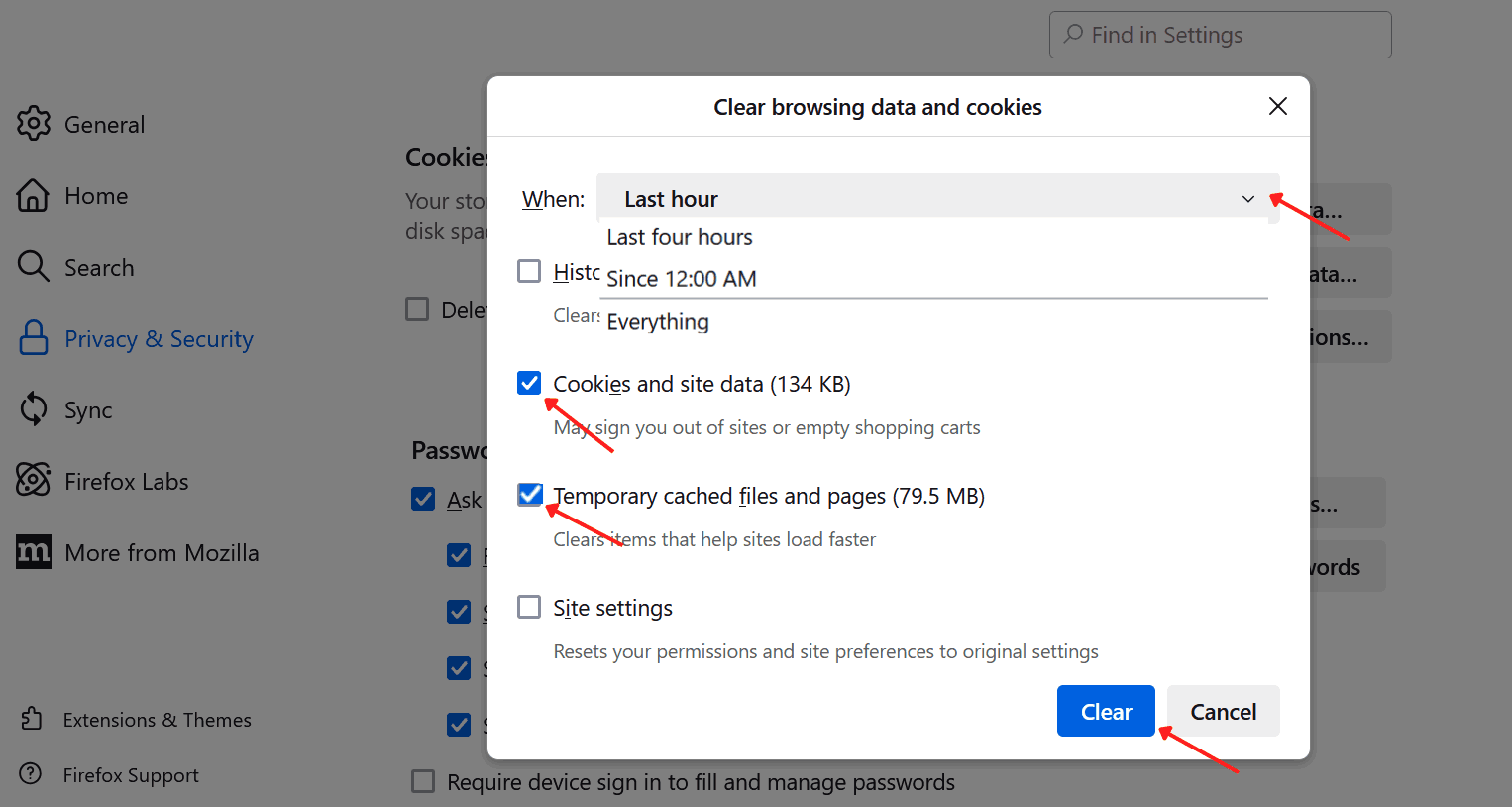
- In the left menu, click Privacy & Security, then under Cookies and Site Data, click Clear Data.
- Select Cookies and Site Data (this may sign you out of websites or remove items from shopping carts) and Temporary cached files and pages (helps resolve website loading issues). At the top, choose a time range (e.g., “Last hour,” “Last four hours,” or “Everything”) to specify the amount of data to clear. Click Clear to complete.
- Shortcut for Clearing Cache: Press Ctrl + Shift + Delete (Windows/Linux) or Command + Shift + Delete (Mac) to quickly open the Clear Browsing Data window.

Steps to Refresh Firefox Browser by Restarting the Browser
Sometimes, a simple restart is all that’s needed to fix minor glitches. Steps to Restart latest Firefox version:
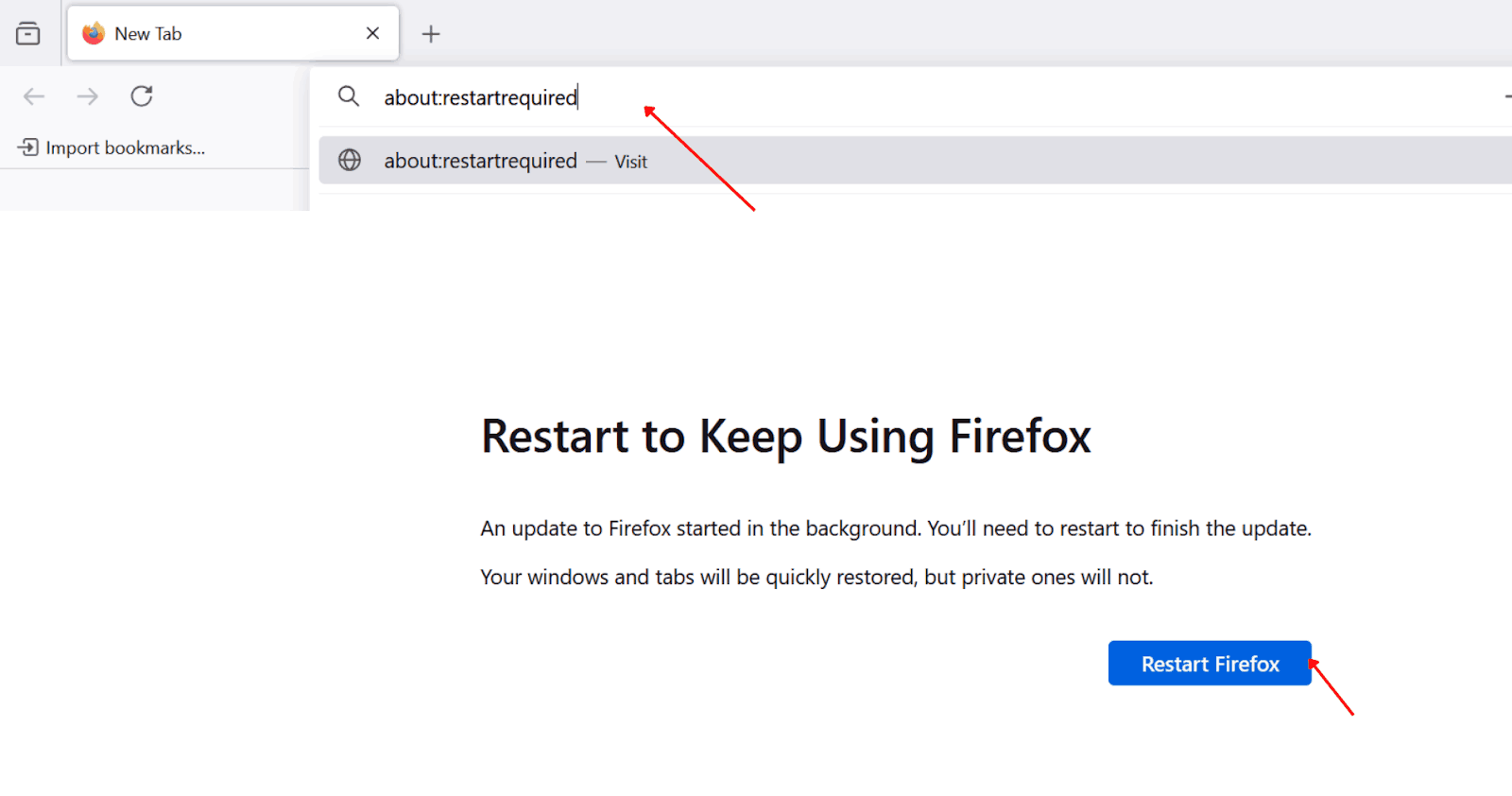
- On All Devices: Type about:restartrequired in the address bar and press Enter to restart Firefox.
- Manually: Close the browser by clicking the “X” and relaunch Firefox from your desktop or taskbar.

Steps to Refresh Firefox Browser by Resetting to Default Settings
If you’re facing persistent problems, resetting Firefox to its default state can help resolve underlying issues.
Steps to Reset Firefox browser to default:
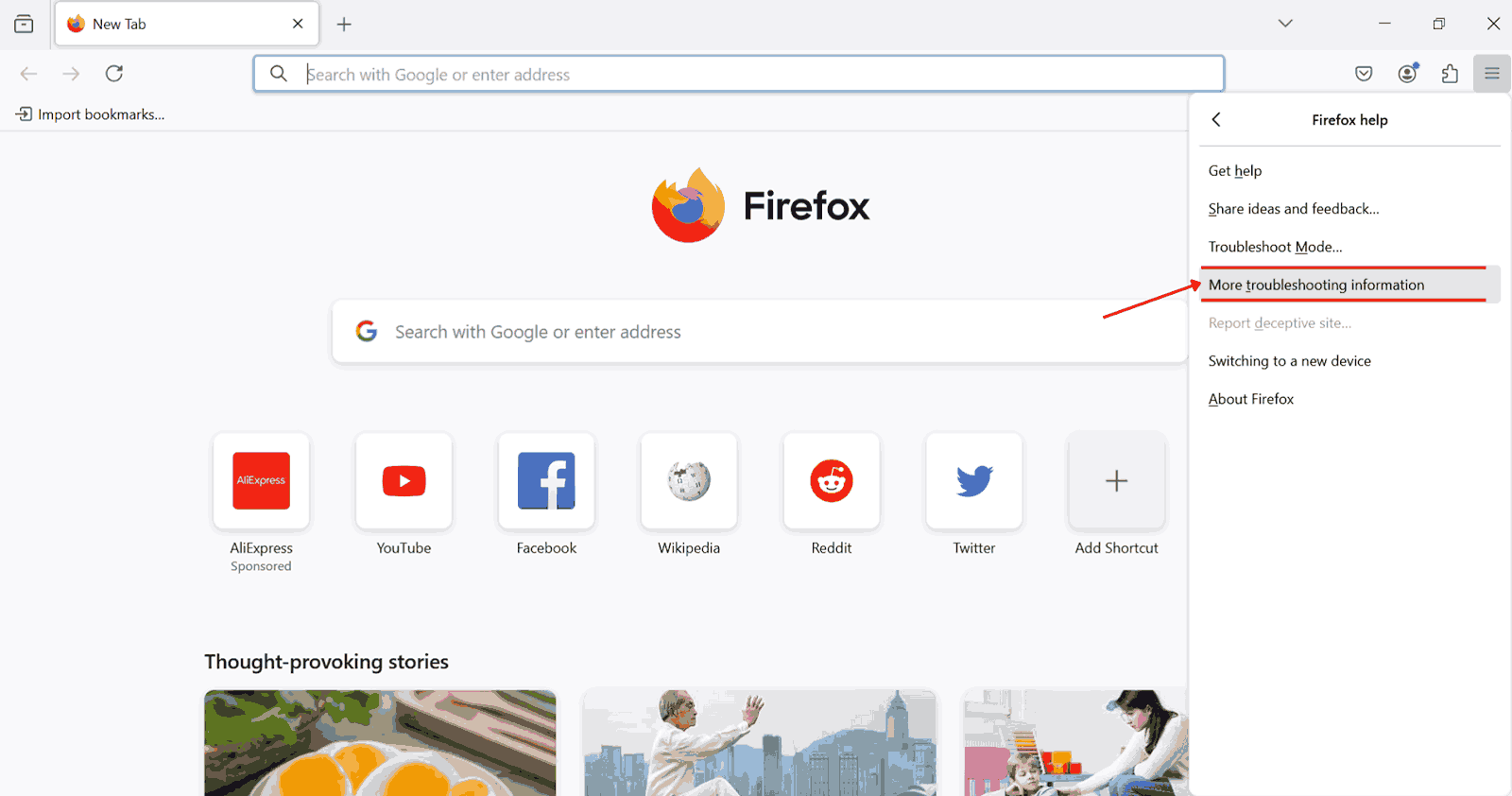
- Click Help and select More troubleshooting information.
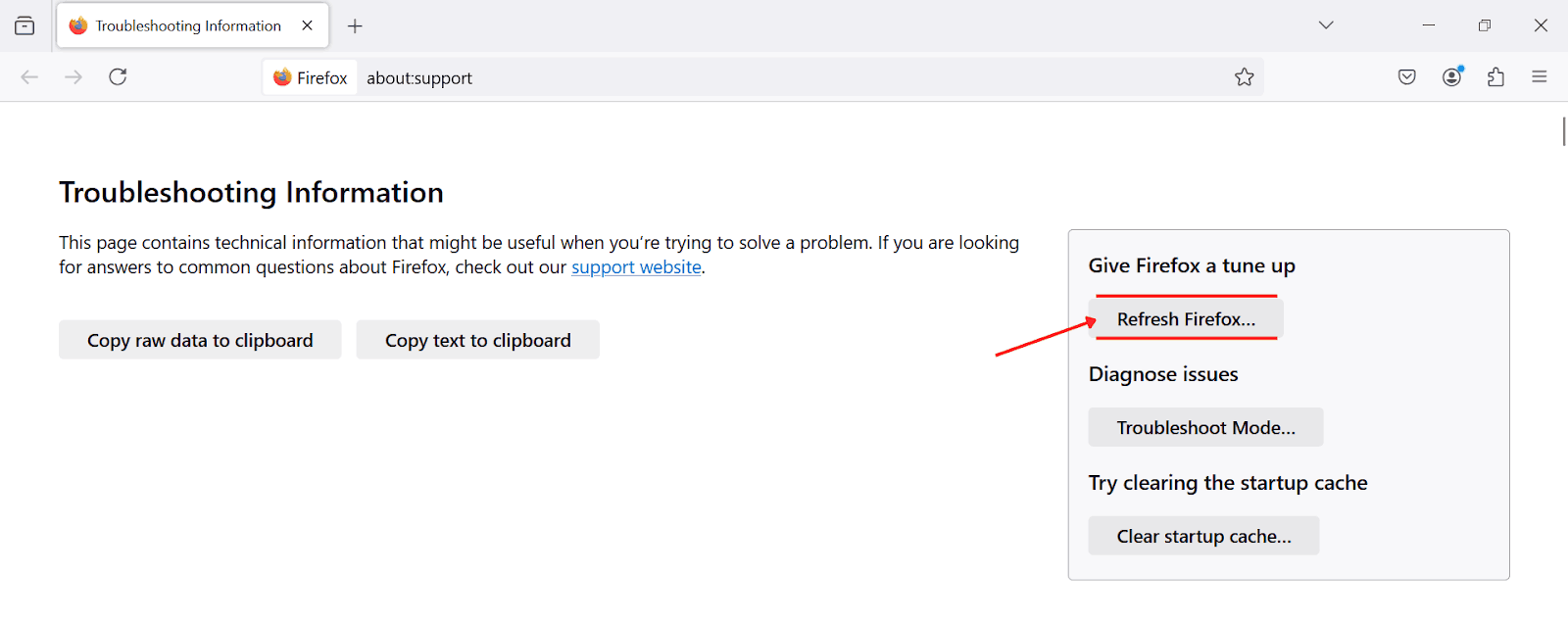
- Select Refresh Firefox in the right panel and confirm.
- In the pop-up, click the Refresh Firefox button to proceed with resetting Firefox to its default settings.
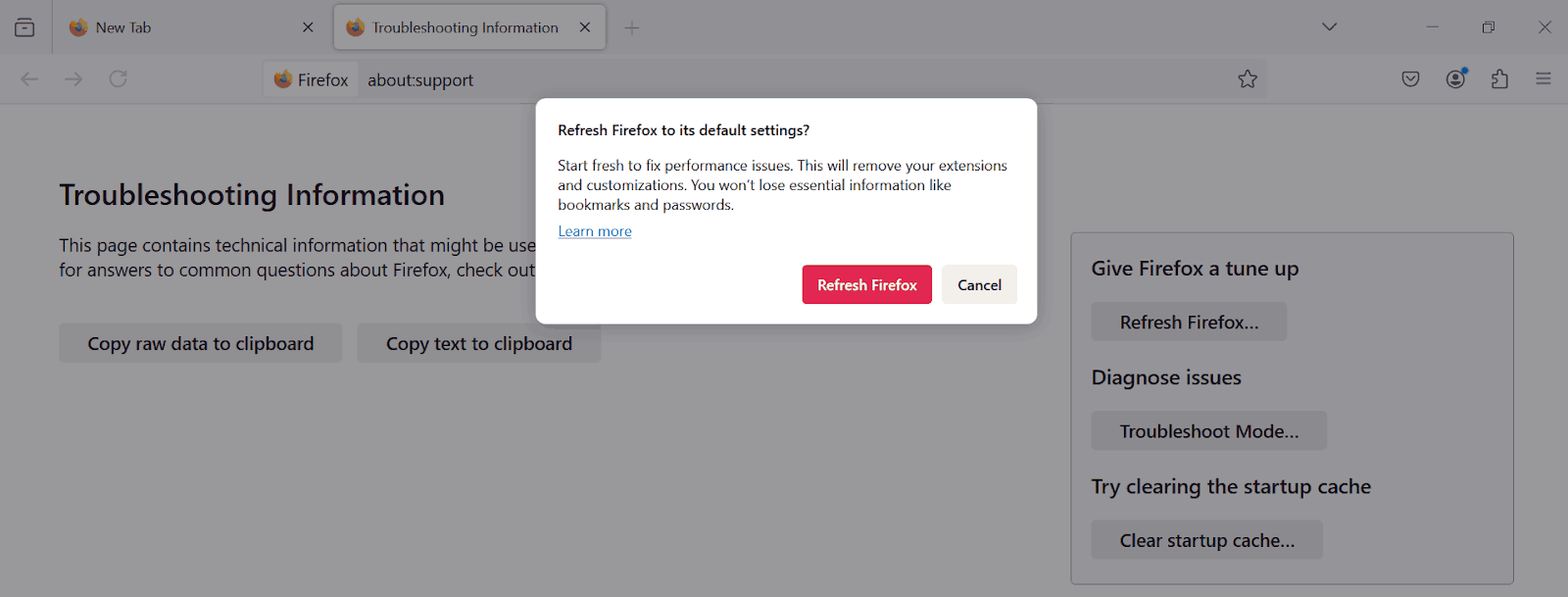
Tip: Resetting Firefox is ideal for removing problematic add-ons and restoring stability without affecting your saved data.
Steps to Refresh Firefox Browser by Enabling Auto Refresh
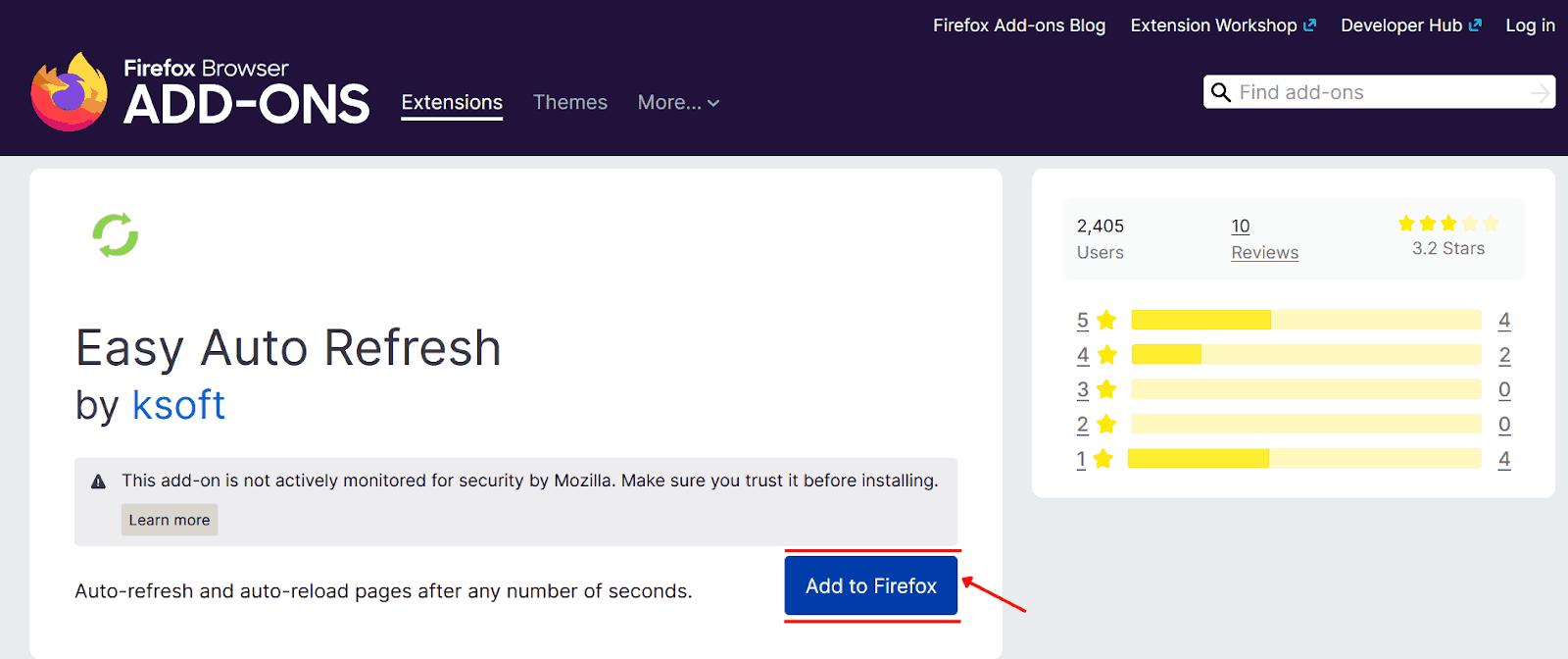
Auto-refreshing can be useful if you need a web page to reload periodically for updates. While Firefox doesn’t have a built-in auto-refresh feature, you can achieve this using extensions:
- Search for “Easy Auto Refresh” or similar extensions in the Firefox Add-ons Store.
- On the extension’s page, click the Add to Firefox to complete the installation.

Conclusion
Refreshing Firefox serves as a powerful troubleshooting tool to resolve many browser-related problems without losing important information like bookmarks and passwords. Experiencing performance slowdowns or persistent glitches often requires a clean slate, which refreshing provides while preserving essential data.
By mastering how to refresh, clear the cache, and enable hard or auto-refresh, you can ensure your Firefox browser remains efficient and responsive. Apply the appropriate methods based on your needs to keep your browsing experience at its best.


Frequently asked questions
Did you find this page helpful?
More Related Hubs
TestMu AI forEnterprise
Get access to solutions built on Enterprise
grade security, privacy, & compliance
- Advanced access controls
- Advanced data retention rules
- Advanced Local Testing
- Premium Support options
- Early access to beta features
- Private Slack Channel
- Unlimited Manual Accessibility DevTools Tests