

Next-Gen App & Browser Testing Cloud
Trusted by 2 Mn+ QAs & Devs to accelerate their release cycles


How to Hard Refresh in Edge
Learn how to perform a hard refresh Edge to clear cache and load the latest version of a webpage.

Bhawana
January 12, 2026
It may have happened to all of us at some point where the webpage in Edge didn’t load correctly, failed to load, or showed old content even though you have made new changes. This is exactly where you need to hard refresh in Edge to ensure the latest content appears.
Steps to Hard Refresh in Edge Using Keyboard Shortcuts
Performing a hard refresh in latest version of MS Edge is simple and can be done using keyboard shortcuts, which vary slightly by operating system.
Hard Refresh Edge on Windows and Linux:
The keyboard shortcuts to hard refresh Edge on Windows and Linux are:
- Ctrl + F5 or Fn + F5: Commonly used to bypass the cache and reload the webpage.
- Ctrl + Shift + R: An alternative shortcut that also clears the cache for the page and reloads the latest content.
Edge will reload the page, fetching the latest version directly from the server and ignoring cached files.
Hard Refresh Edge on macOS:
MacOS users have different shortcuts for hard-refreshing Edge:
- Command + Shift + R: The primary shortcut to clear the page cache and load the newest version of the website.
- Command + Option + R: An alternative that also ensures the cache is bypassed.
After performing a hard refresh, you should see the most up-to-date content for the page, as it bypasses the local cache.
Steps to Clear Cache and Hard Refresh in Edge Manually
Sometimes, a simple hard refresh might not resolve certain issues, especially if the browser’s cache has accumulated a lot of data over time. In these cases, it’s helpful to manually clear the cache and then perform a hard refresh on Edge.
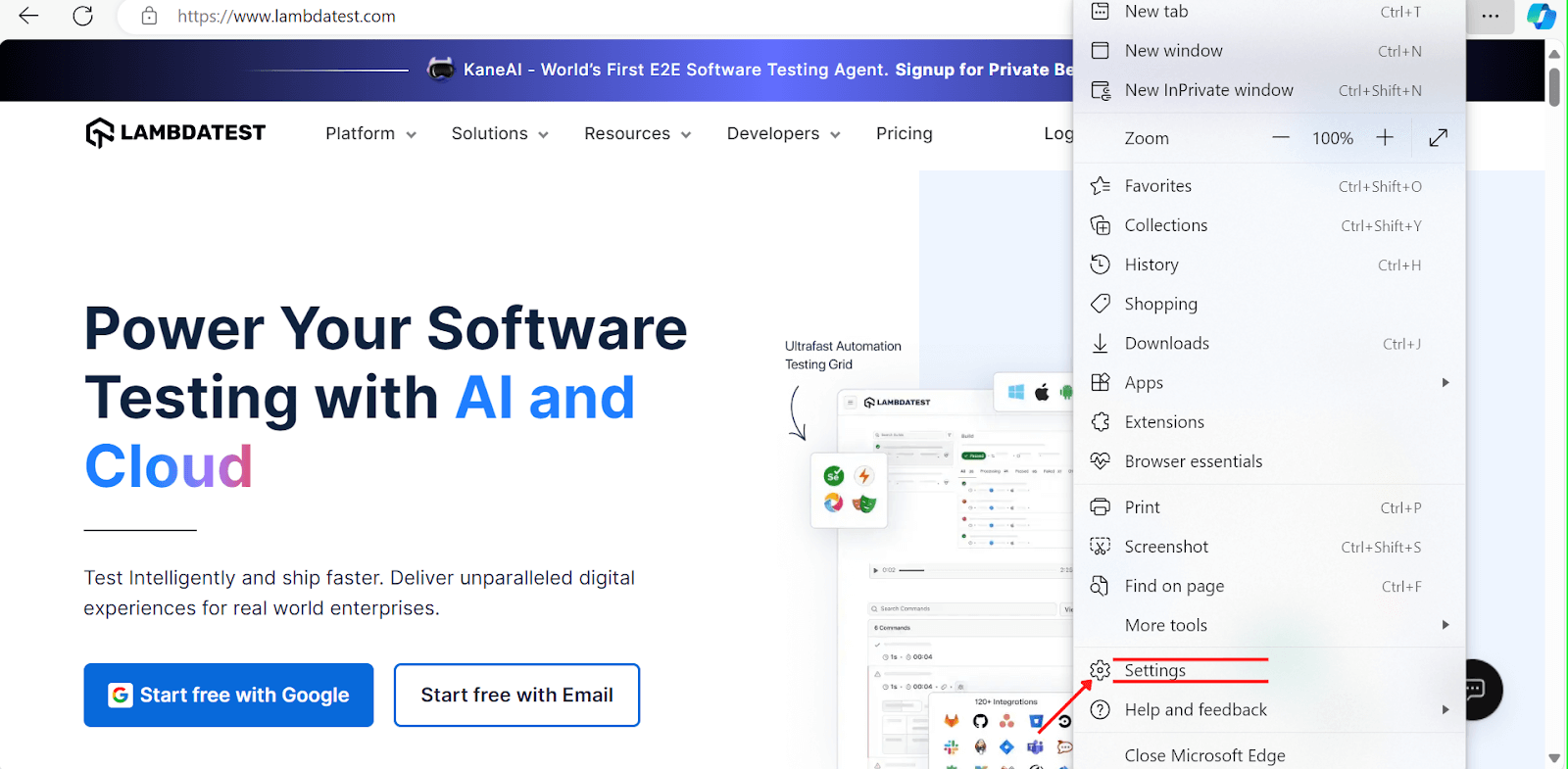
- Right-click the three-dot menu at the top of the browser window.
- Select Settings from the dropdown.
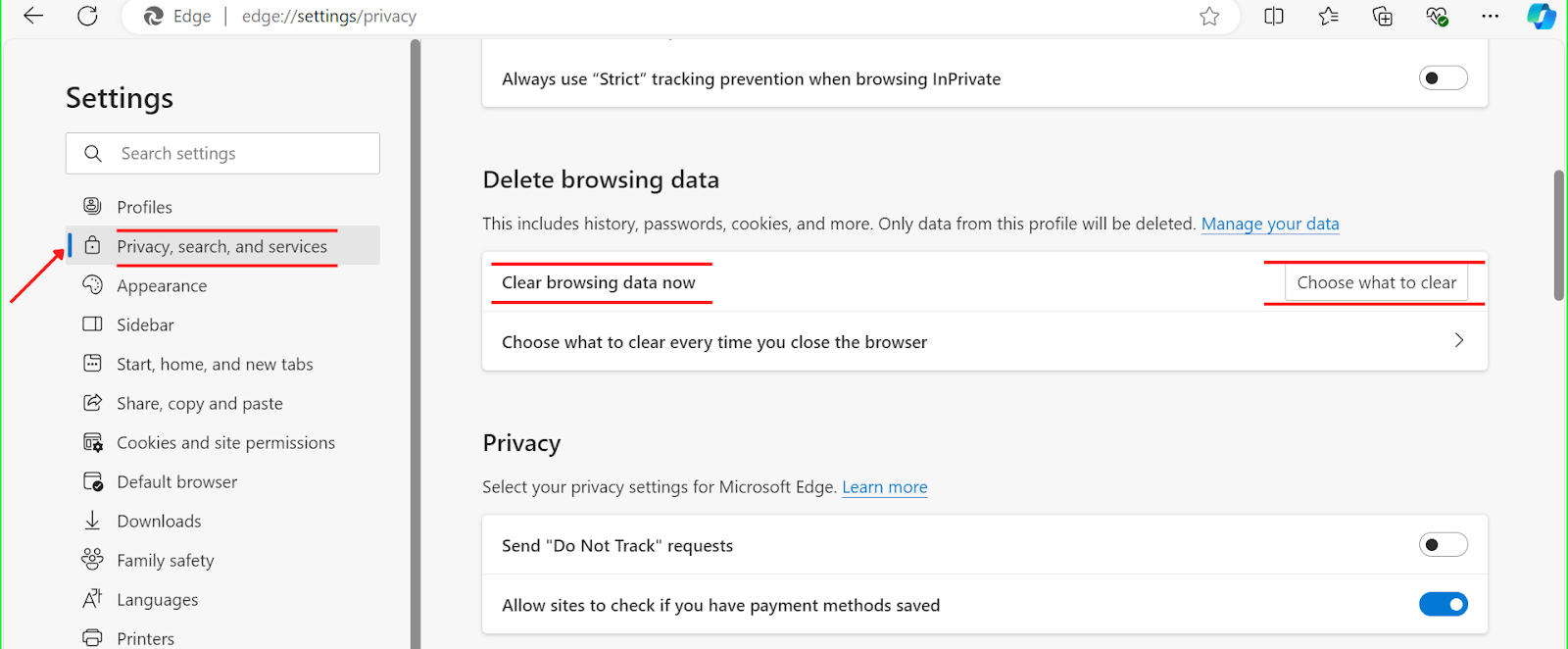
- Click Privacy, search, and services in the left-hand sidebar.
- Scroll down to the Clear browsing data now.
- Select the items you want to delete by clicking the Choose what to clear button.
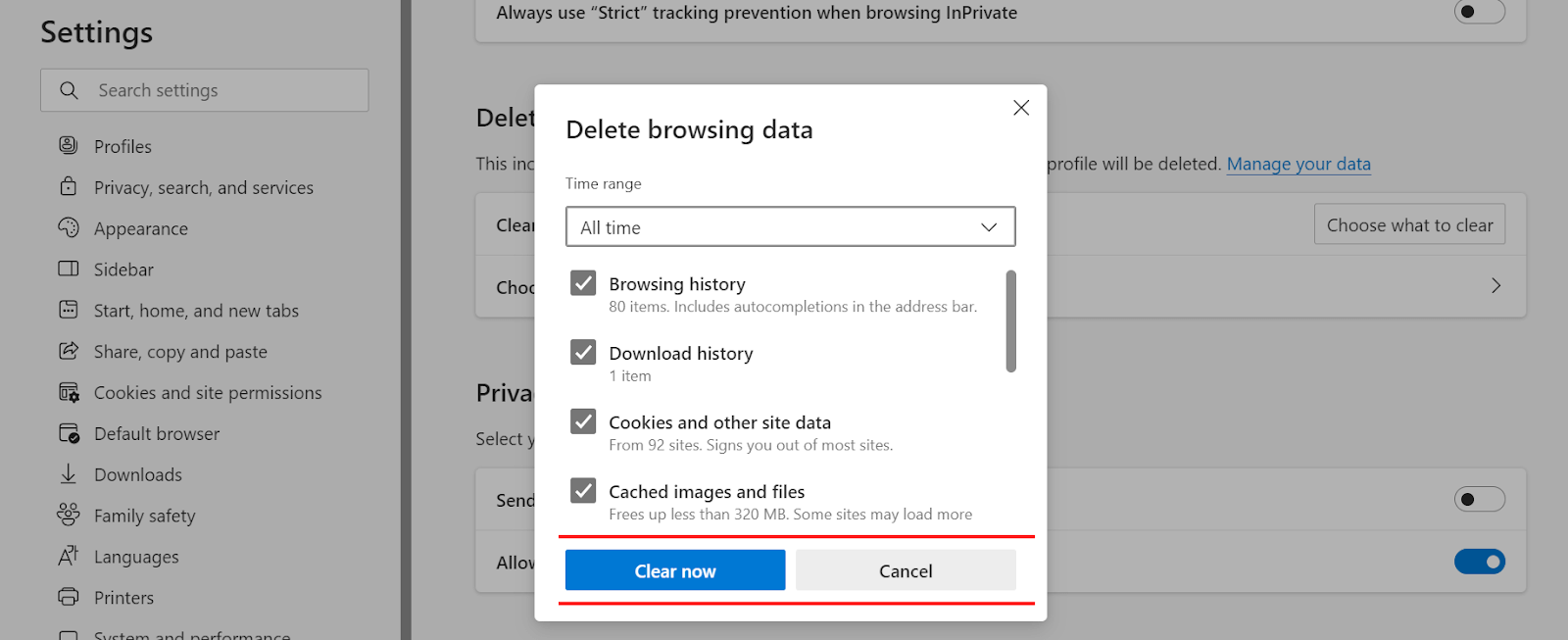
- In the dialog box, make sure that Cached images and files are checked. You can also clear other browsing data if necessary (e.g., cookies, history), but this is optional.
- Once you have selected the data to clear, click the Clear now button to remove the cached files from Edge.
After clearing the cache, revisit the webpage and use the hard refresh Edge keyboard shortcuts discussed earlier (e.g., Ctrl + F5 or Command + Shift + R) to ensure the latest version of the site loads without any cached files.

Note: Test your web page in any version of Microsoft Edge on any operating system. Try TestMu AI Today!
Other Ways to Hard Refresh in Edge
In addition to using keyboard shortcuts and manually clearing the cache, there are a few other ways you can hard refresh your Edge browser.
Developer Tools
The Developer Tools in Edge provide another method for performing a hard refresh. This is particularly useful for web developers who need to clear cache, cookies, and more during testing.
Here’s how to do it:
- Open Microsoft Edge and press either F12 or Ctrl + Shift + I to access the Developer Tools panel.
- In the Developer Tools interface, right-click the Refresh button in the Edge toolbar.
- Select Empty Cache and Hard Reload from the menu.

This will clear the cache for the page you’re on and reload it with the latest files from the server.
Browser Extensions
Another way to hard refresh in Edge involves the use of browser extensions. Numerous extensions are available that help users clear cache and hard refresh pages with just one single click. These extensions are useful if you often need to refresh pages without having to use shortcuts.
One such extension is “Clear Cache,” which allows you to clear cached data for specific pages and automatically reload them afterward.
Troubleshooting Hard Refresh Issues in Microsoft Edge
Sometimes, despite performing a hard refresh in Edge, users may still experience issues such as:
- The webpage is not showing the most recent content.
- Layout or design problems continue to persist even after refreshing.
- Some features on the page are not functioning properly as expected.
Possible Causes and Solutions:
- Extension Conflicts: Some browser extensions can interfere with the cache-clearing process. Try disabling all extensions and perform a hard refresh again to see if the issue is resolved.
- Persistent Cookies: If cookies are causing issues with the page, clearing the cookies along with the cache might help. Go to Edge’s Clear browsing data menu and select Cookies and other site data.
- Local DNS Cache: If you’re still having trouble, the issue could be with your local DNS cache. To clear the DNS cache on your system:
- On Windows, open the command prompt and type ipconfig /flushdns.
- On macOS, open the terminal and type sudo killall -HUP mDNSResponder.
- Browser Settings: In some cases, incorrect browser settings can lead to problems with refreshing. Restoring Edge’s default settings or reinstalling the browser might help resolve any persistent issues.
Conclusion
Getting a hard refresh in Edge is a great way to make sure you’re seeing the newest stuff on a website. Whether you’re dealing with old pages, problems with how things look or need to fix some web pages, knowing how to do a hard refresh can really come in handy.
By getting the hang of when and how to hard refresh in Edge, you can make your browsing time better and make sure you’re always seeing the latest updates.


Frequently asked questions
Did you find this page helpful?
More Related Hubs
TestMu AI forEnterprise
Get access to solutions built on Enterprise
grade security, privacy, & compliance
- Advanced access controls
- Advanced data retention rules
- Advanced Local Testing
- Premium Support options
- Early access to beta features
- Private Slack Channel
- Unlimited Manual Accessibility DevTools Tests