

Next-Gen App & Browser Testing Cloud
Trusted by 2 Mn+ QAs & Devs to accelerate their release cycles


On This Page

How to Clear Cache in Edge (Step-by-Step Guide 2026)
Learn how to clear cache in Edge with a step-by-step guide. Fix loading issues, remove outdated data, and improve Microsoft Edge performance quickly.

Tahneet Kanwal
March 2, 2026
It’s important to clear your cache in Edge and other browsers regularly. Cached files, images, and media help load pages faster on return visits, but when this data becomes outdated, it can lead to issues like outdated content displaying or slow-loading sites.
Clearing your cache in Edge ensures you’re always viewing the most current content and enhances your browsing experience.
Overview
How to Clear Cache in Edge Step by Step?
Clearing cache in Microsoft Edge helps prevent loading errors and improves browsing performance. Managing cache regularly keeps your browser optimized and responsive.
How to Clear Cache in Edge Manually?
- Click the three dots icon in the address bar.
- Select Settings from the dropdown.
- Go to Privacy, search, and services.
- Under Delete browsing data, click Choose what to clear.
- Select the time range.
- Ensure Cached images and files is selected.
- Click Clear now.
How to Clear Cache in Edge Automatically?
- Open Edge and go to Settings.
- Click Privacy, search, and services.
- Scroll to Delete browsing data and select Choose what to clear every time you close the browser.
How to Clear Cache in Edge Using Keyboard Shortcuts?
- Press Ctrl + Shift + Delete (Windows/Linux) or Command + Shift + Delete (macOS).
- Select the time range.
- Choose Cached images and files.
- Press Enter to clear cache.
- Select Cached images and files and other data types.
- Close settings to save changes.
What Happens to Edge Performance After Clearing Cache?
- Initial loading may be slower as content reloads.
- Latest content is displayed instead of outdated versions.
- Privacy improves by removing stored data.
- Website issues may be fixed by removing corrupted cache files.
How to Clear Cache in Edge
Clearing the cache in Microsoft Edge improves browsing by ensuring faster page loads and preventing issues with outdated content. Regularly managing your cache helps maintain optimal browser performance and resolve common problems.
Clear Cache in Edge Manually
To clear the cache in Edge, you must follow the standard steps given below.
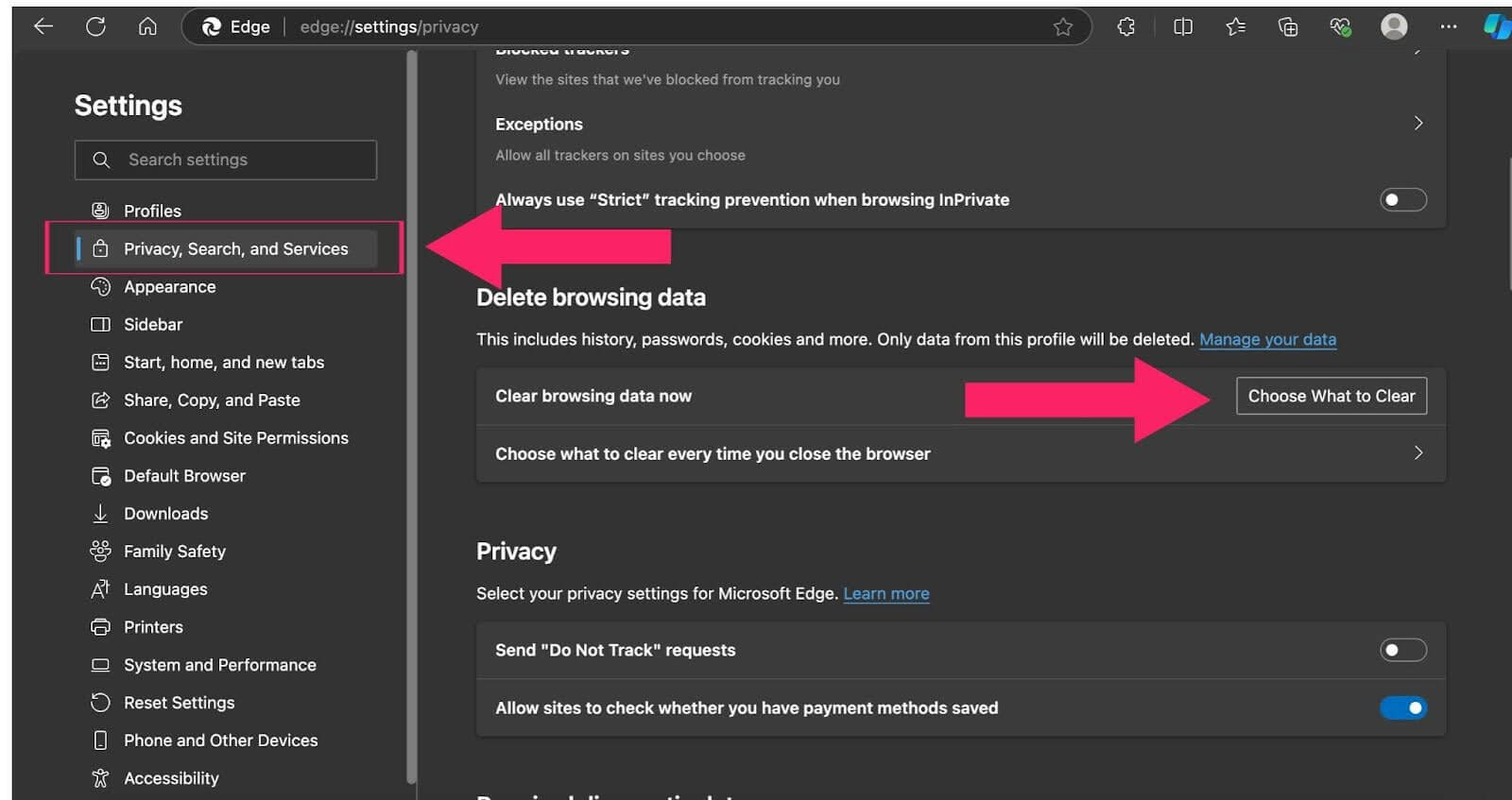
- Click on the three dots icon to the right of the address bar.
- Choose the Settings option from the dropdown menu.
- In the sidebar, navigate to the Privacy, Search, and Services section.
- In the Delete browsing data section, click on Choose What to Clear.
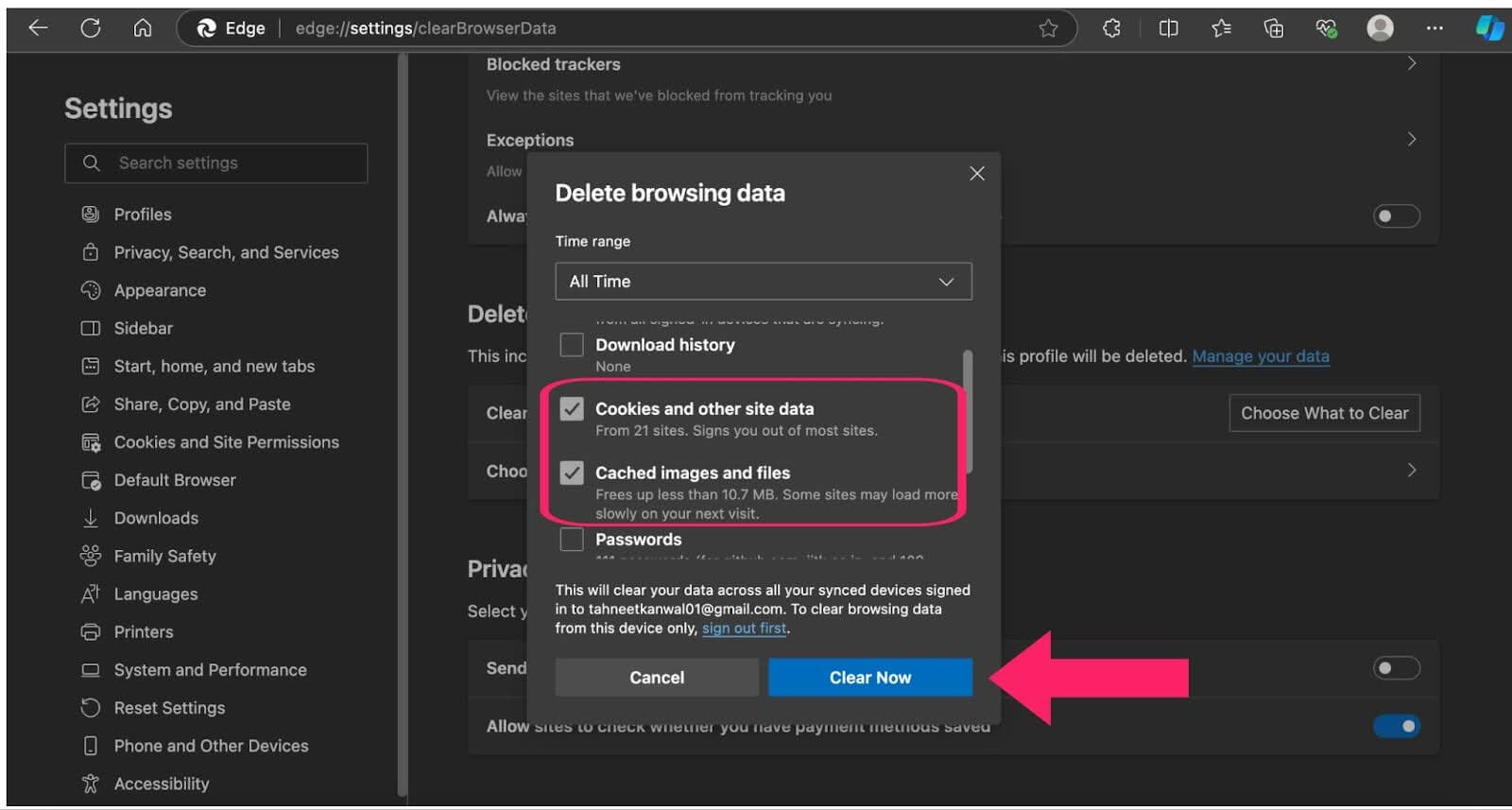
- Choose the time frame for which you want to delete browsing data.
- Ensure this option is selected, along with any other data types you wish to clear.
- Confirm your selection by clicking the Clear Now button.

Note: Clearing your cache will sign you out of most websites and may temporarily slow down your browsing as Edge rebuilds the cache.

Note: Run your tests across 3000+ browsers and OS combinations. Try TestMu AI Today!
Steps to Clear Cache in Edge Automatically
Follow these steps to configure Microsoft Edge to automatically clear browsing data, including cache, every time you exit the browser:
- Open Microsoft Edge by clicking its icon on your desktop or from the taskbar.
- Click on the three dots in the upper-right corner of the browser window to open the menu. From the dropdown, select Settings to access various configuration options.
- In the left sidebar of the Settings menu, locate and click on Privacy, Search, and Services. This section contains options related to your browsing privacy and data management.
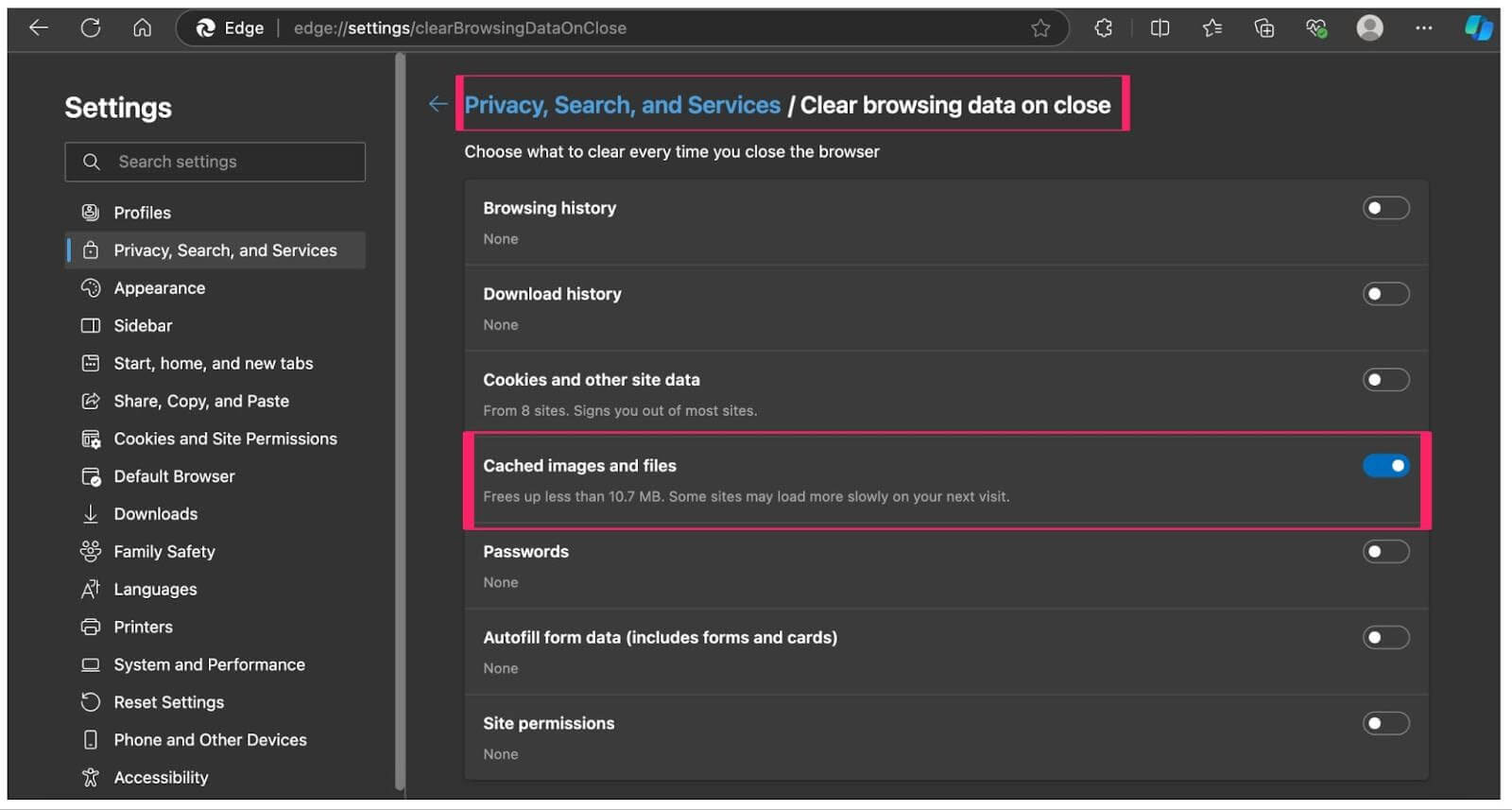
- Scroll down to the Delete browsing data section. Here, you will find an option labeled Choose what to clear every time you close the browser. Click on this option to specify the types of data that you want to clear.
- You will see a list of data types that can be cleared upon closing Edge. Make sure to check the box next to Cached images and files, along with any other data types you wish to delete, such as browsing history or cookies.


Once you’ve selected the desired options, close the settings tab. From now on, every time you close Microsoft Edge, the selected data will be automatically cleared, ensuring a more private and optimized browsing experience.
Steps to Clear Cache in Edge on Mobile
Here’s how to clear your cache in Edge on mobile:
Android Device:
- Open Microsoft Edge on your Android device.
- Tap on the menu button (three dots) at the bottom of the screen.
- From the menu, select History to view a list of the websites you’ve visited.
- Tap the Trash icon in the top right corner of the History screen to access data deletion options.
- In the new screen, select the types of data you want to delete, ensuring Cached images and files are selected.
- Choose the time range for which you want to delete the cache, such as Last hour, Last 24 hours, or All time.
- Finally, tap Delete data to clear the selected cached data from Microsoft Edge.

iPhone Device:
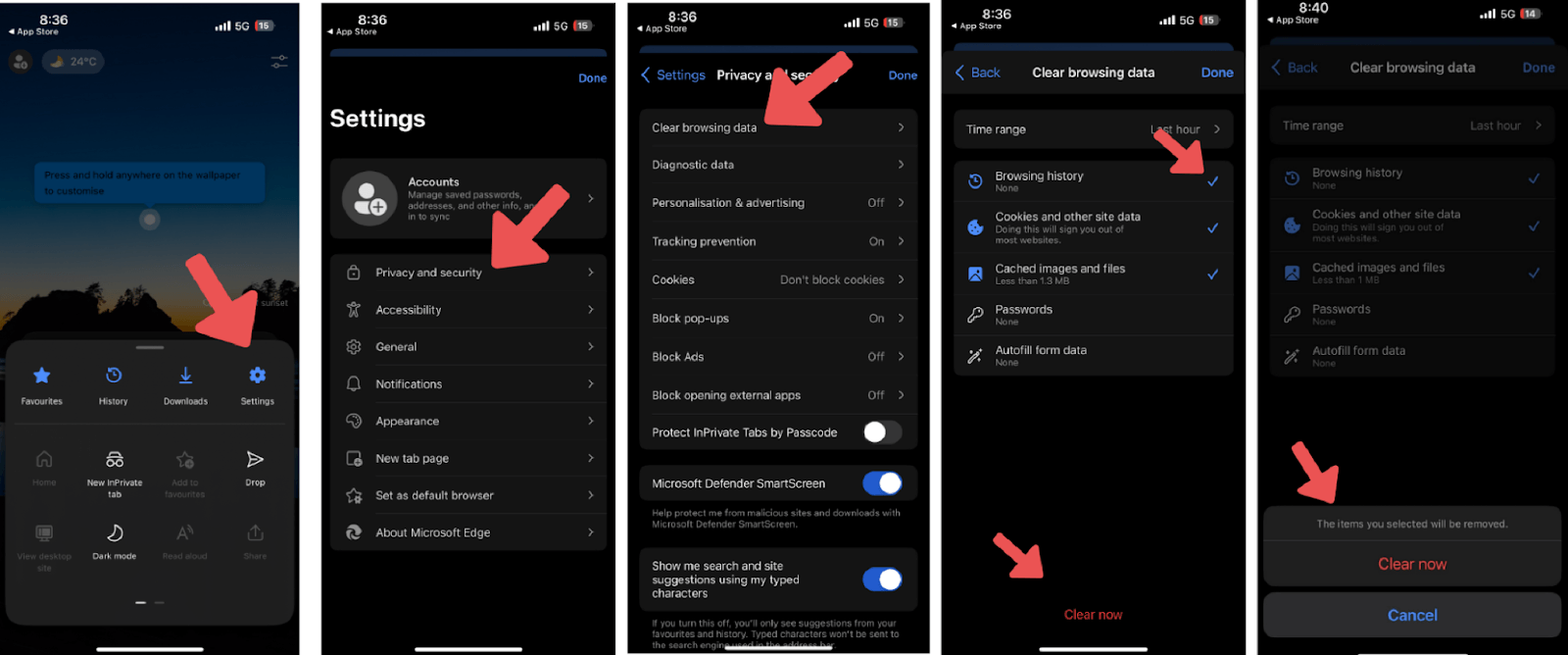
- Open Microsoft Edge on your iPhone.
- Go to Settings.
- Select Privacy and security.
- Tap on Clear browsing data.
- Choose the types of data you want to clear (ensure Cached images and files is selected).
- Tap on Clear now.
- A prompt will appear stating, “The items you have selected will be removed.” Confirm by tapping Clear now or tap Cancel if you want to withdraw the process.

Steps to Clear Cache in Edge With Keyboard Shortcuts
To clear the cache in Edge with keyboard shortcuts, follow these steps:
- Open the window to clear history by pressing Ctrl + Shift + Delete (Windows/Linux) or Command + Shift + Delete (macOS)
- Press the Tab key to navigate to the Time range dropdown and select the desired range.
- Again, press the Tab key until you reach the Cached images and files option and press the Space key to select it.
- Press the Tab key to move to the Clear now button, and then press the Enter key to clear the select the cache.
Clearing Cache on Specific Platforms
Clearing your browser cache helps improve performance, fix loading issues, and ensure you see the latest content. Cache files speed up browsing but can cause problems if outdated. Here’s how to clear the cache in Microsoft Edge on Windows 10 and 11 for a smoother browsing experience.
Windows 10:
- Open Edge, click on the three dots in the top-right corner, and select Settings.
- Go to "Privacy, search, and services" and click "Choose what to clear" under "Clear browsing data."
- Select "Cached images and files" and choose the desired time range (e.g., last hour, all time).
- Click "Clear now" or use the shortcut Ctrl + Shift + Delete.
- Pro Tip: Use Developer Tools (F12) to clear cache for specific websites.
Windows 11:
- Open Edge, click on the three dots, and go to Settings.
- Navigate to "Privacy, search, and services" and click "Choose what to clear now" under "Clear browsing data."
- Select the data types, especially "Cached images and files," and click "Clear now."
- Use Ctrl + Shift + I to open Developer Tools and clear cache for specific websites.
- Shortcut: Press Ctrl + Shift + Del to directly open the data-clear dialog.
This process helps maintain privacy, improve performance, and resolve browsing issues.
Using Developer Tools
For developers looking to manage cache in Microsoft Edge, Developer Tools offer precise control and valuable insights into cached data's impact on website performance.
- Access Developer Tools: Open Edge, click the three dots, go to "More tools" > "Developer Tools," or use Ctrl + Shift + I.
- Navigate to "Application" Tab: In Developer Tools, click the "Application" tab to explore cache storage, cookies, and session data.
- View Cache Data: Under "Storage," select "Cache Storage" to examine cached data for the active website.
- Clear Cache for a Specific Website: In "Cache Storage," choose the cache entry and click "Delete" to clear it.
- Advanced Cache Removal: Use the "Network" panel to enable "Disable Cache" during page loads for real-time testing.
These techniques help resolve site-specific issues and enable testing with a fresh cache.
Setting Automatic Clear Settings
For regular Microsoft Edge users, setting up automatic cache clearing can enhance privacy and browser performance. Edge allows you to configure automatic cache clearing upon closing, preventing issues with stored data.
- Access Settings: Click the three dots (menu icon) in the top-right or press Alt + F.
- Navigate to Privacy: Select Settings, then Privacy, search, and services.
- Set Automatic Clearing: Scroll to "Clear browsing data" and click "Choose what to clear every time you close the browser."
- Customize Data Clearing: Choose the data types to clear, such as cached images, files, and cookies.
Advanced Cache Management
Advanced users can take advantage of Edge's Developer Tools for more granular control over cache, allowing specific web content to be refreshed without disrupting all cached data.
Furthermore, it is possible to target cache clearing actions to individual websites, preventing the loss of valuable browsing data stored universally.
These advanced tools offer greater precision, ensuring that power users can maintain optimal browser performance while safeguarding important information.
Edge Performance After Clearing Cache
When you clear the cache in Microsoft Edge, it can lead to a notable improvement in browser performance by freeing up space that old cache files consume. However, it's equally important to be aware of what to expect post-clearance to manage any immediate changes.
- Initial Loading Delays: After clearing the cache in Edge, you might notice that websites load more slowly initially. This is because the browser has to download fresh copies of all content from the web, rather than using a stored version.
- Updated Information: Clearing the cache ensures that you're accessing the most recent version of a webpage. This is particularly useful for websites that frequently update their content but may not reflect changes due to a cached version.
- Improved Security and Privacy: Regularly clearing your cache can help protect your privacy by removing personal data stored in the cache.
- Issues Resolution: Often, cached data can cause websites to behave unexpectedly. By clearing the cache, you can resolve display or functionality issues that result from outdated files.
Conclusion
Clearing your cache in Edge is simple and helps your browser work better. You can either clear it yourself whenever you want or set it up so Edge clears it for you each time you close the browser. This keeps things running smoothly and protects your information.


Frequently asked questions
Did you find this page helpful?
More Related Hubs
TestMu AI forEnterprise
Get access to solutions built on Enterprise
grade security, privacy, & compliance
- Advanced access controls
- Advanced data retention rules
- Advanced Local Testing
- Premium Support options
- Early access to beta features
- Private Slack Channel
- Unlimited Manual Accessibility DevTools Tests