

Next-Gen App & Browser Testing Cloud
Trusted by 2 Mn+ QAs & Devs to accelerate their release cycles


How to Clear Browser Cache in Chrome
Learn how to clear browser cache in Chrome to improve performance and fix loading issues. Also, explore how to set up automatic cache clearing in Chrome.

Tahneet Kanwal
December 22, 2025
When you clear browser cache in Chrome, it improves your web browsing speed and fixes issues like loading errors or outdated content. The cache stores data to help browsers load pages faster.
However, outdated files can sometimes conflict with newer website updates, leading to issues. By removing the cache, it becomes easier to verify if the issue is with the website itself rather than inconsistencies in the browser’s stored data.
In this blog, let’s look at how to clear browser cache in your Chrome browser.
Steps to Clear Browser Cache in Chrome
To clear browser cache in Chrome, you can follow the steps below:
- Click the kebab (three dots) menu in the upper-right corner and click History. Alternatively, you can also press Ctrl+H to get to the History page.
- Click on Delete browsing data.
- The recommended setting is to delete all browsing history from All time along with clearing browsing history, download history, cached images, files, and cookies.
- Click Delete data.
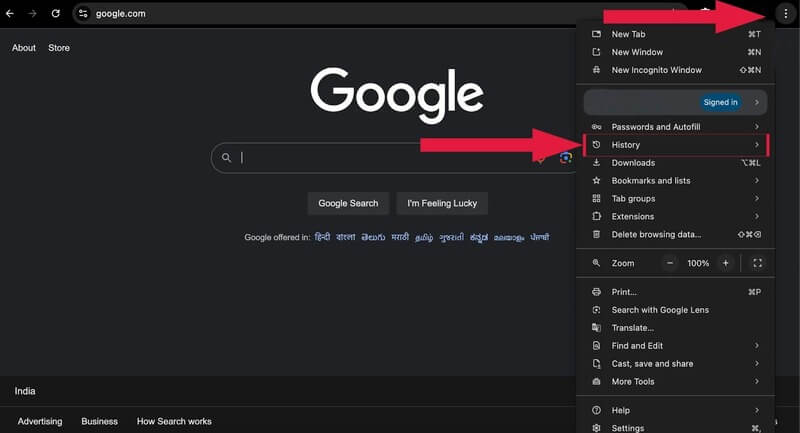
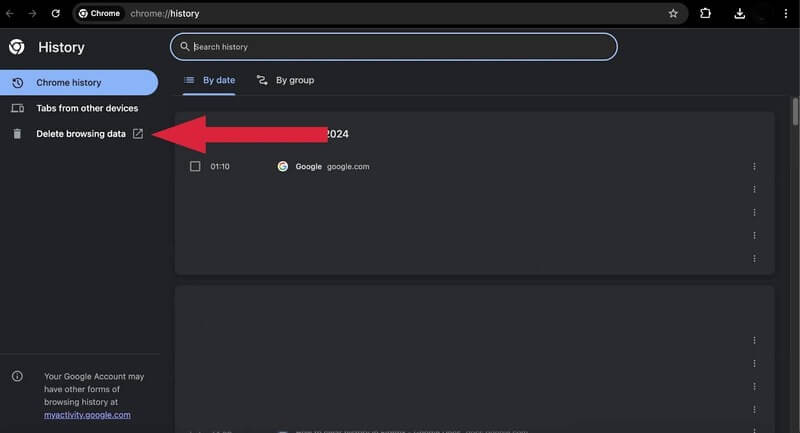
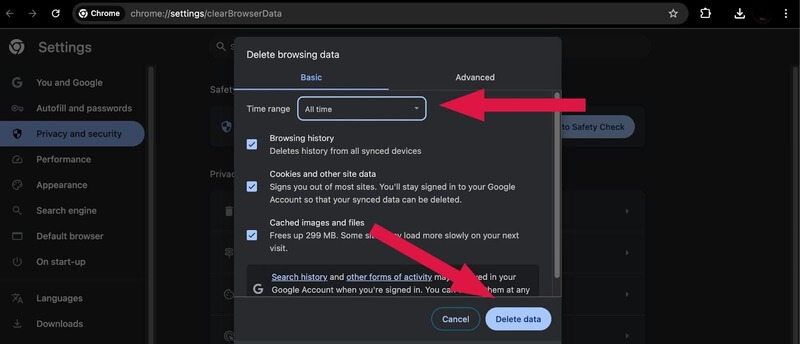
To see the changes, close the browser and restart it.

Note: Test your websites across 3000+ real Chrome browsers. Try TestMu AI Today!
Setting Up Automatic Cache Clearing in Chrome
This setting can automatically clear cache and site data each time Chrome is closed. Here’s how to set it up:
- Click the kebab (three dots) menu in the upper-right corner.
- Click Settings.
- Navigate to Privacy and security on the left menu.
- Under Privacy and security, click Site settings.
- Under Site settings, find the content section and click Additional content settings.
- Click the On-device site data option.
- Click Delete data sites that have been saved to your device when you close all windows.
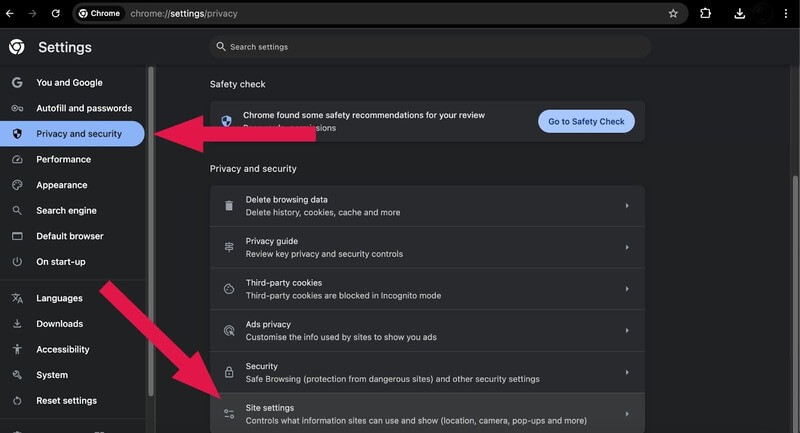
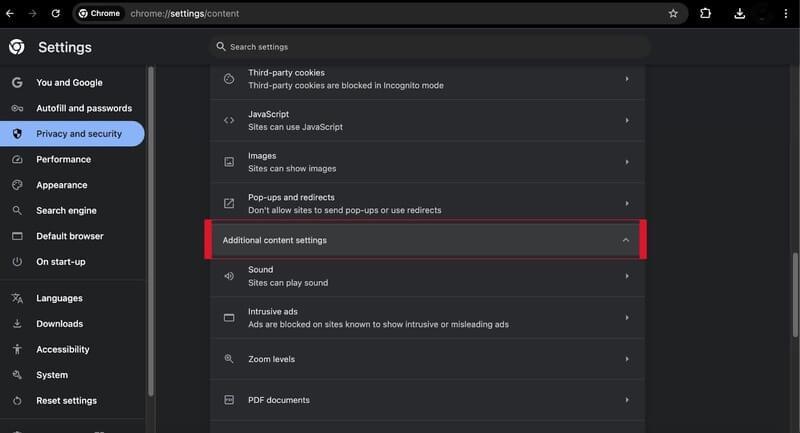
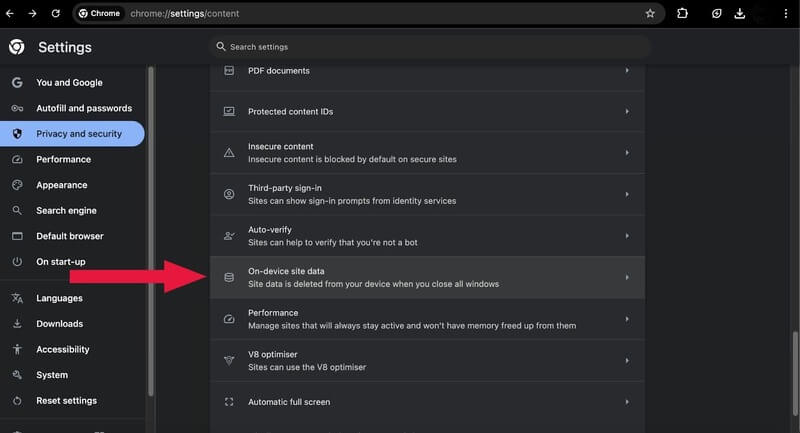
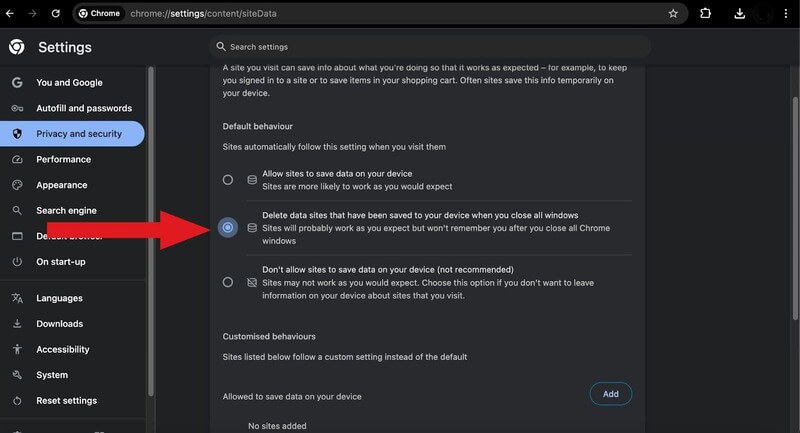
This way, you can set up automatic cache clearing in the Chrome browser.
Steps to Clear Browser Cache in Chrome With Keyboard Shortcuts
To clear the browser cache in Chrome with keyboard shortcuts, follow these steps:
- Open the window to clear history by pressing Ctrl + Shift + Delete (Windows/Linux) or Command + Shift + Delete (macOS)
- Press the Tab key to navigate to the Time range dropdown and select the desired range.
- Again, press the Tab key to navigate to the Cached images and files option and press the Space key to select it.
- Press the Enter key to clear the selected cache.
This will clear the cache for the selected time range without affecting other data types unless you select them as well.

Conclusion
Clearing your browser cache in Chrome is a simple way to fix many browsing issues. By following the given steps to remove cached files or setting up automatic clearing, you can improve how your browser works without dealing with outdated data. This simple process can make your browsing experience smoother and help with website display and performance.


Frequently asked questions
Did you find this page helpful?
More Related Hubs
TestMu AI forEnterprise
Get access to solutions built on Enterprise
grade security, privacy, & compliance
- Advanced access controls
- Advanced data retention rules
- Advanced Local Testing
- Premium Support options
- Early access to beta features
- Private Slack Channel
- Unlimited Manual Accessibility DevTools Tests