

Next-Gen App & Browser Testing Cloud
Trusted by 2 Mn+ QAs & Devs to accelerate their release cycles


A Live Intro to Python Testing [Testμ 2023]
Learn hands-on test automation with Python! Set up pytest & Playwright for the unit, API, and UI tests. Start automating tests efficiently.

TestMu AI
January 27, 2026
Python is a fantastic choice for automating tests. Its straightforward syntax and extensive package library make it perfect for test automation. This hands-on session dives into testing with Python, skipping the slides, and focusing on live coding.The session covers everything from building projects with pytest and Playwright to writing unit, API, and UI tests together. After this session, you’ll be equipped to begin automating tests using Python and will have additional resources for further learning.
Many developers want to learn how to automate tests effectively using Python due to its simplicity and versatile package ecosystem. However, finding practical guidance can be challenging. This session addresses this gap by providing a live coding demonstration and guiding participants through setting up a testing project with pytest and Playwright. The session covers writing different types of tests, ultimately empowering attendees to automate their tests using Python confidently.
About the Speaker
Andrew Knight, nicknamed “Pandy,” is the Automation Panda. He likes helping folks make good software. He’s into open-source software and is a Playwright Ambassador. Pandy makes software tools and is writing a book about testing. He’s also into old Volkswagens. You can see his blog at AutomationPanda.com and find him on Twitter as @AutomationPanda.
If you couldn’t catch all the sessions live, don’t worry! You can access the recordings at your convenience by visiting the TestMu AI YouTube Channel.
Andrew’s session gave the impression to his audience that coding and testing are not complicated. He started by providing a basic overview of Python with live coding, covering all the essential aspects anyone would need to know.
He highlighted a few advantages of why he prefers using Python. He spoke about how great and supportive the large community of Python is. The syntax is easy because it’s concise and powerful, and it’s easy to import anything you require.
With all these advantages, let’s jump further into the session with Andrew Knight.
Resource
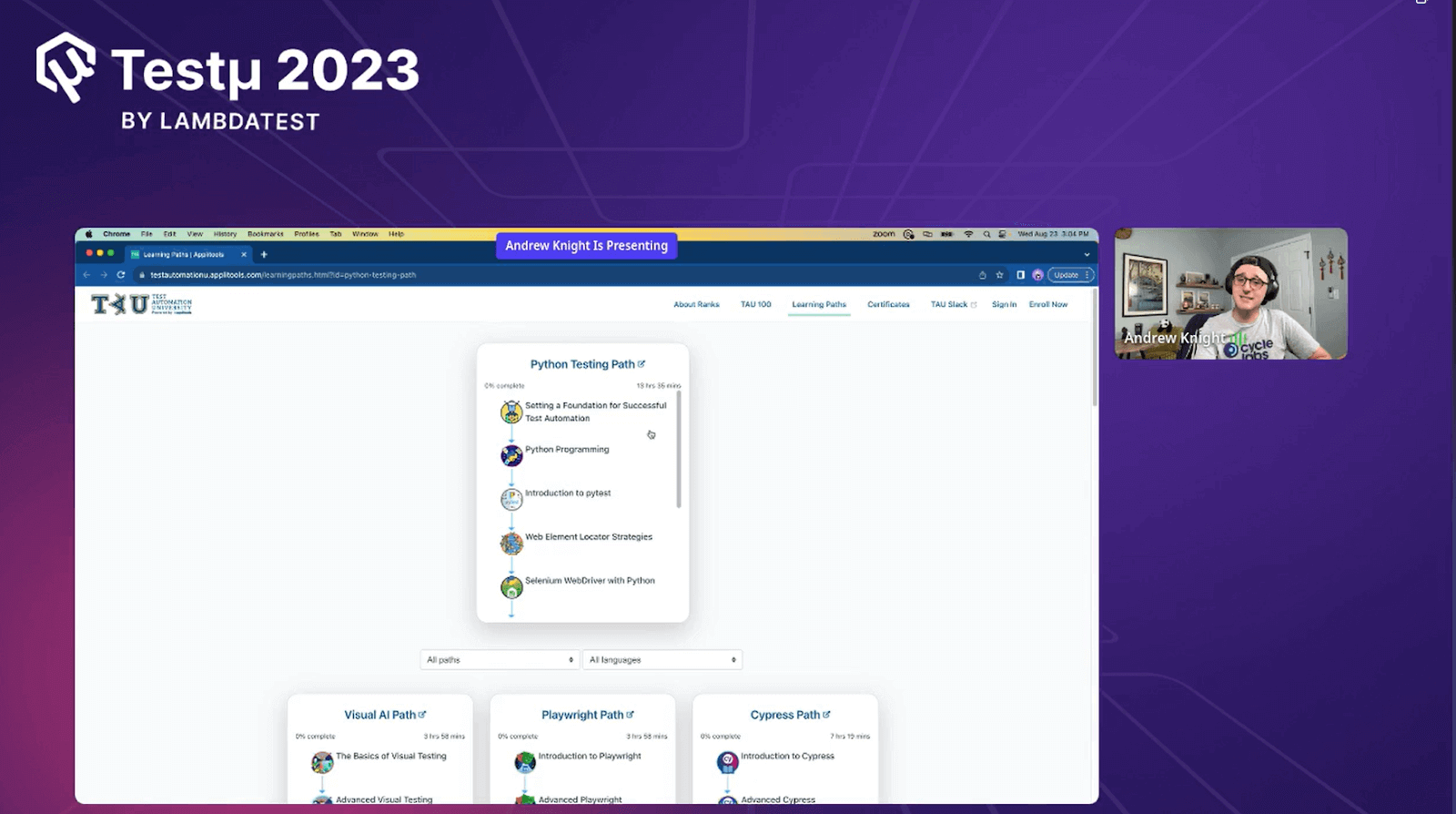
Andrew shared the learning path with his audience, where they could gain more knowledge on Python Testing.
Version Check
Andrew mentioned that in MacOS, Python is already installed. To check if Python is pre-installed on the machine, run this command to verify.
python --version
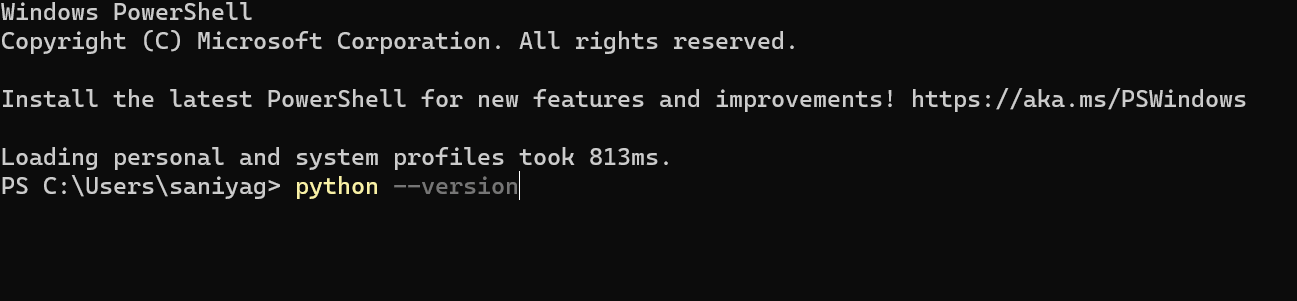
You can install Python by following the installation instructions from the official Python site.
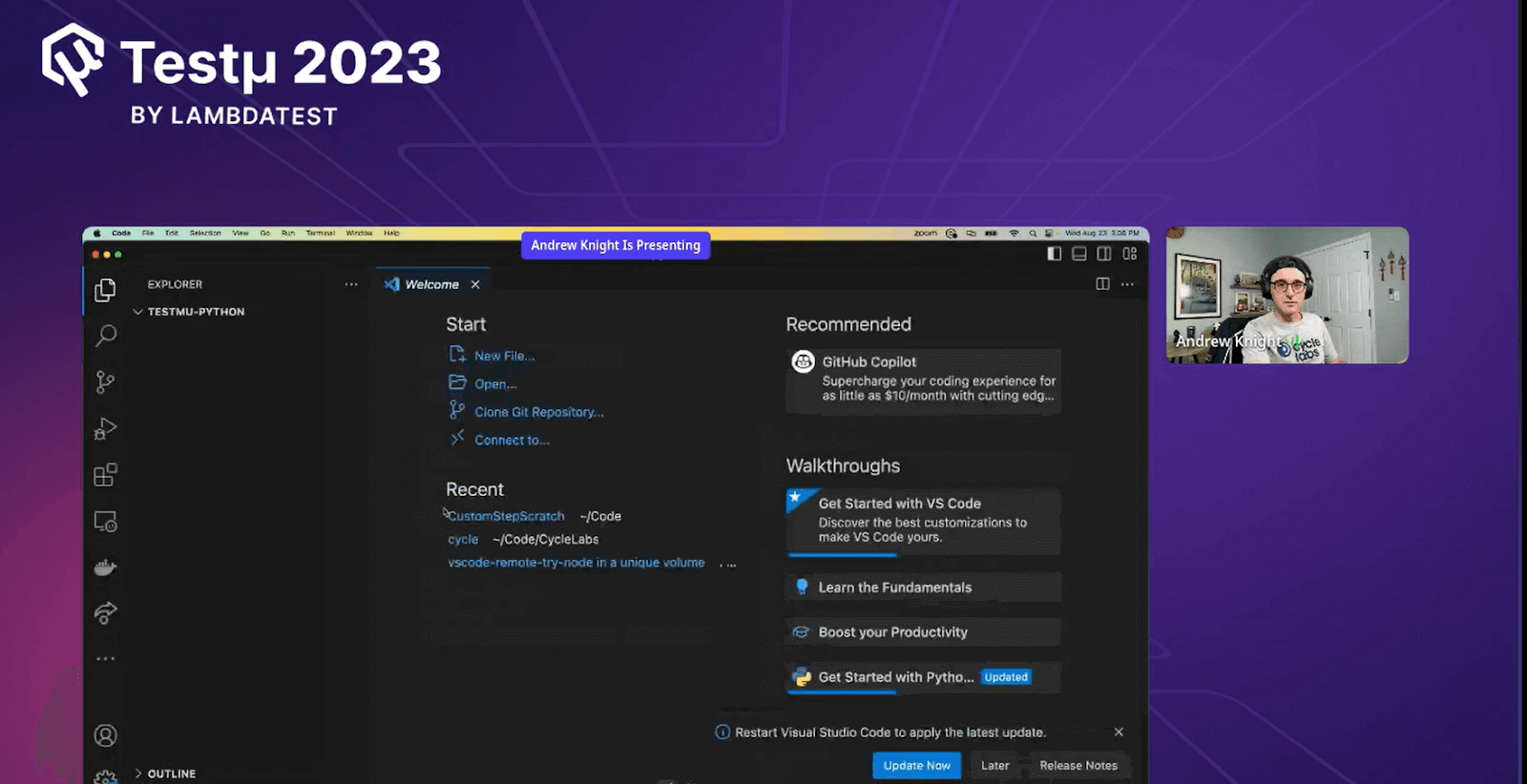
Open VS Code
Andrew navigated and launched the Python project folder in VS Code, as he preferred using VS Code for Python coding. This was due to the helpful extension provided by Microsoft for Python development.
Python Extension
Andrew had a Python extension installed already. He guided his audience on installing the Python extension if it was not installed.
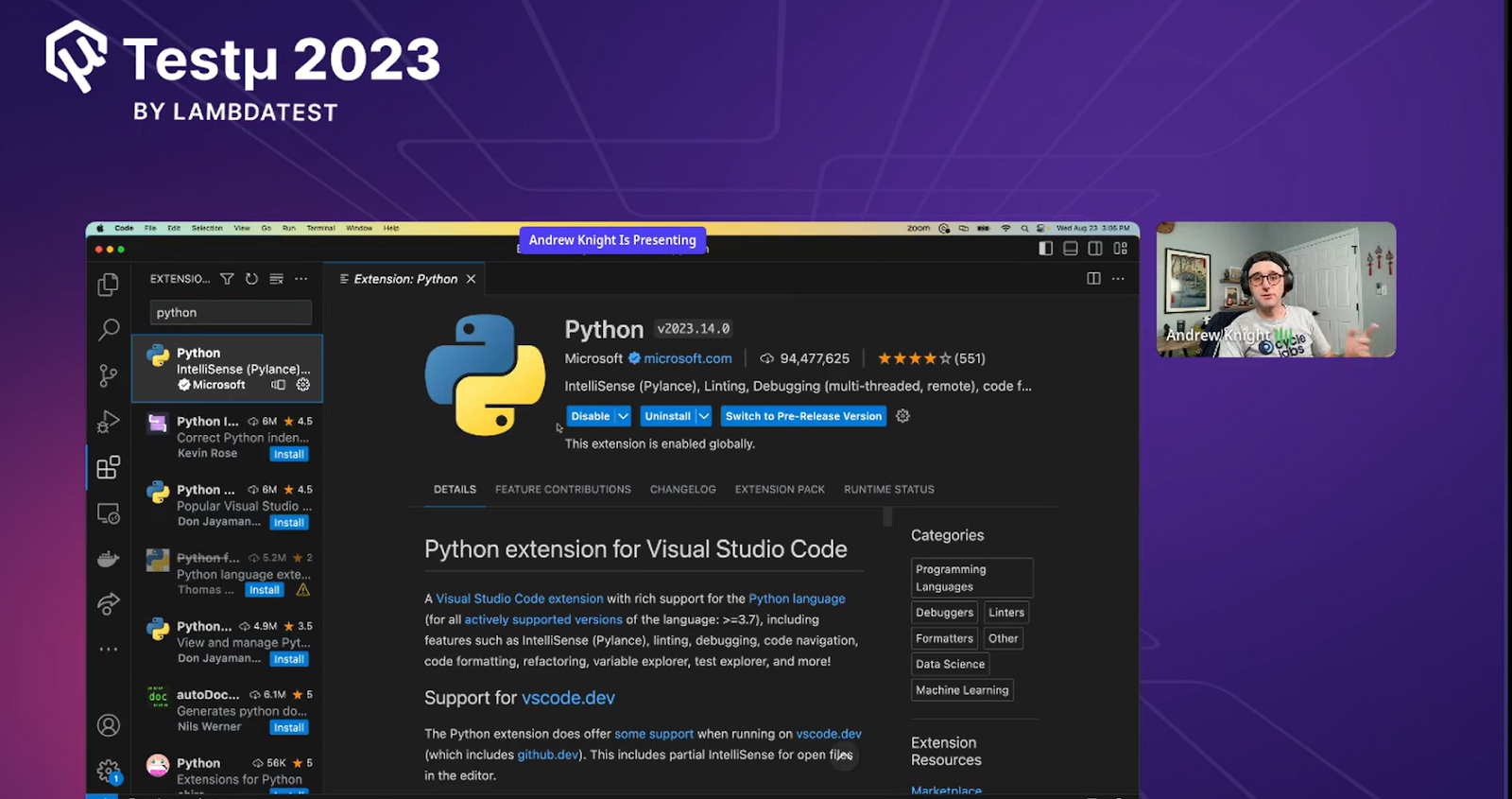
Click on the Extension icon from the left menu items on VS Code, then on the search bar, type in Python, and then click on the Install button from the right side details page.
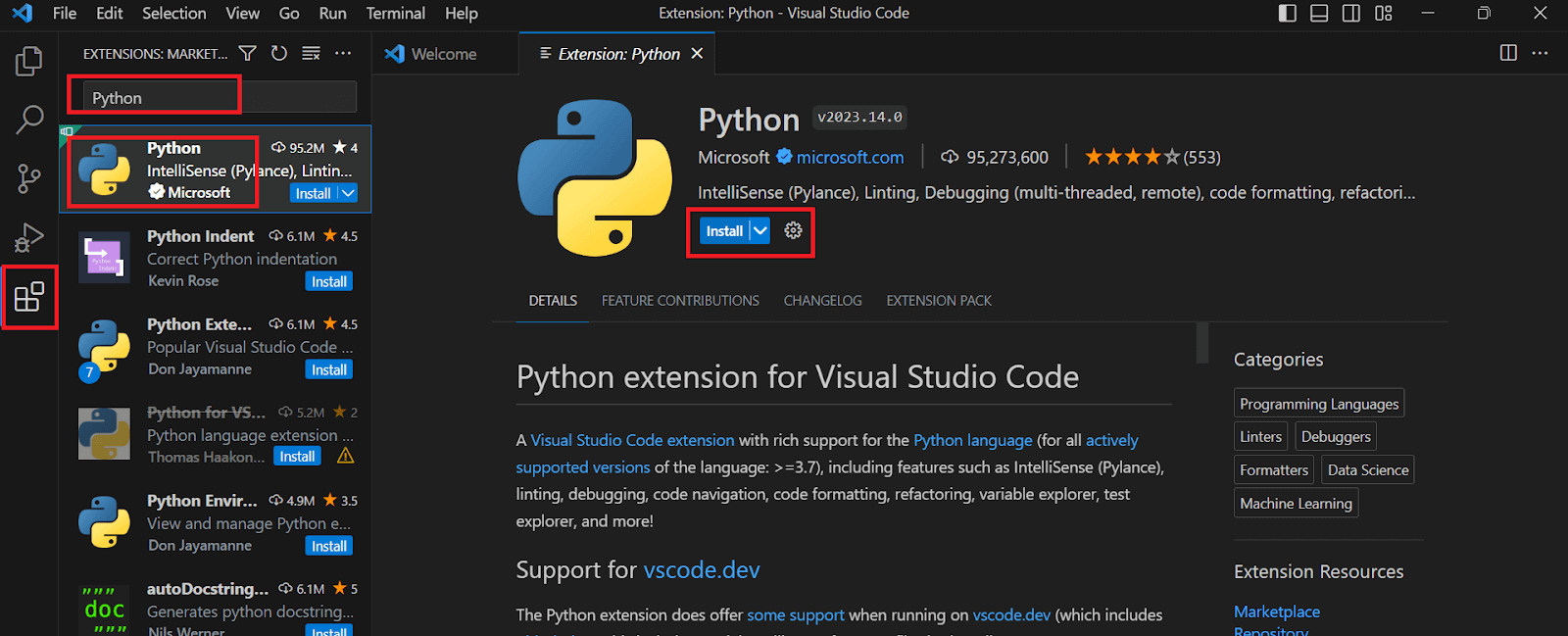
Andrew mentioned that Microsoft maintains the Python extension, a go-to extension with a large community and good support. He also mentioned that its simple syntax made Python a good starting point.
Pytest Testing Framework
Andrew preferred to use pytest as his testing framework as it provides unique advantages. Pytest comes with standard Python libraries called unittest. Before he delved into the specifics of the directory structure, he informed the audience that it was essential to grasp some key concepts related to the unittest.
Unittest
The unittest module is a pre-existing library in Python designed for testing individual parts of code. It enables developers to create and run consistent tests, ensuring their code works as intended and stays dependable over time.
- Test Case: In software testing, a test case refers to an individual assessment designed to verify a specific aspect of a piece of code. It encompasses inputs and the anticipated outcomes for those inputs. Test cases are typically authored using the unittest module and are often stored separately from the main codebase.
- Test Suite: A test suite comprises a collection of test cases executed together. Test suites can group related tests, facilitating collective execution as a single entity.
- Test Runner: A test runner is a software tool responsible for executing an entire test suite and presenting the results. In Python, various test runners are available, including the built-in unittest runner and external frameworks like pytest. Test runners help streamline running and managing tests, ensuring software behaves as expected.
Live Coding with Basic Python Code
Andrew further guided his audience through the step-by-step procedure and gave an insight into how easy it can be to write Python code and to test using the pytest framework.
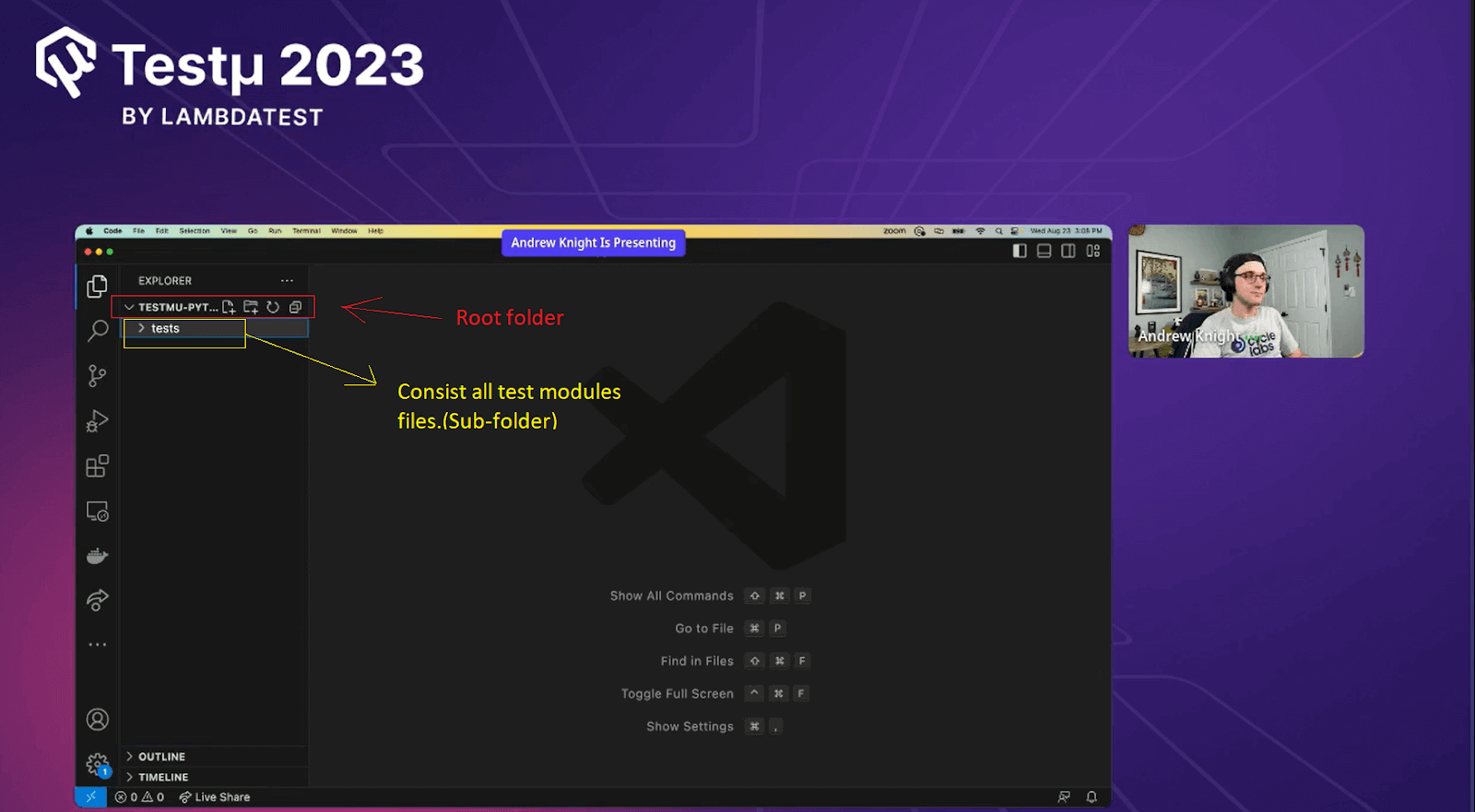
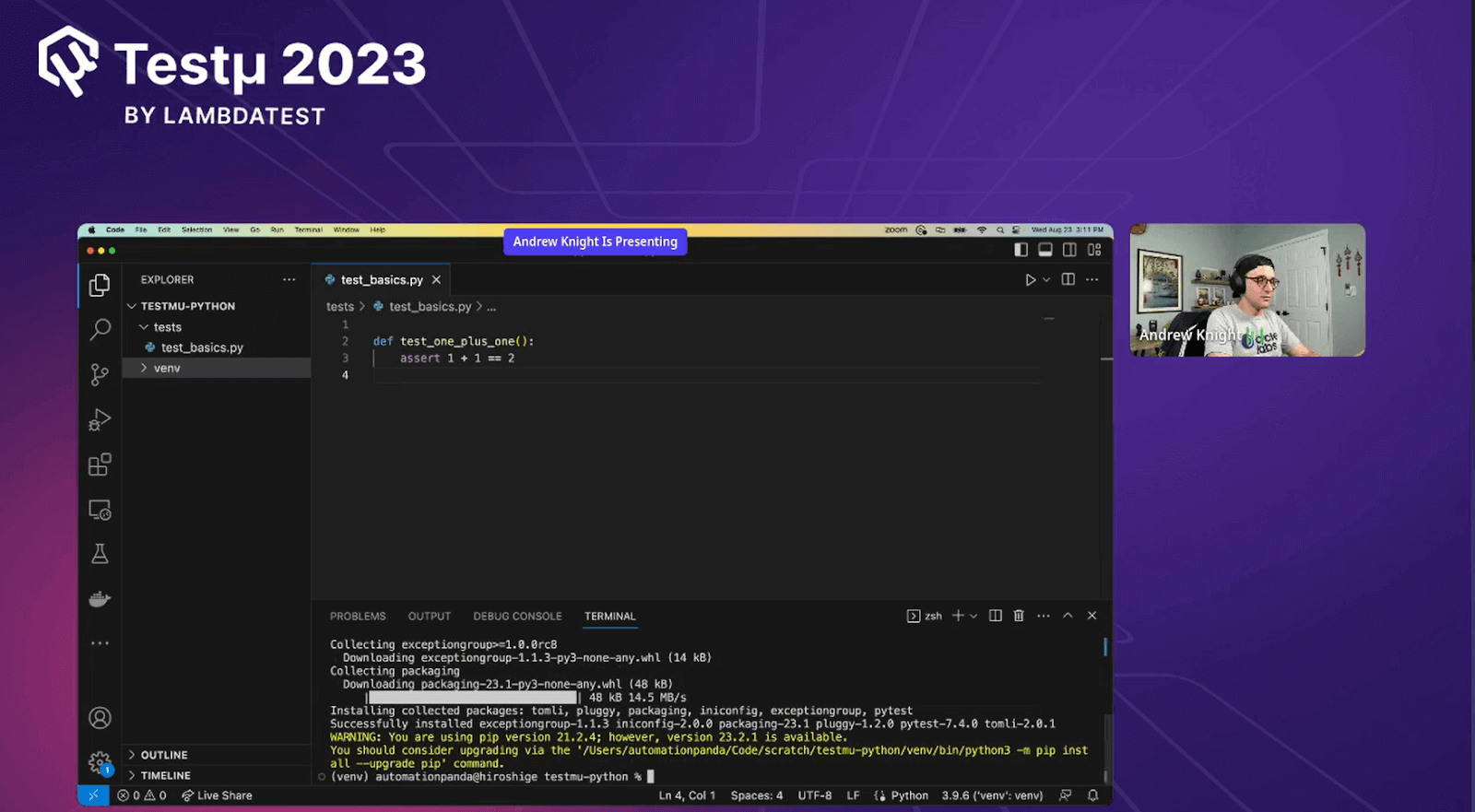
- He started by creating a folder called tests under the root folder. He mentioned that the test folder consists of all the test modules he will develop further.
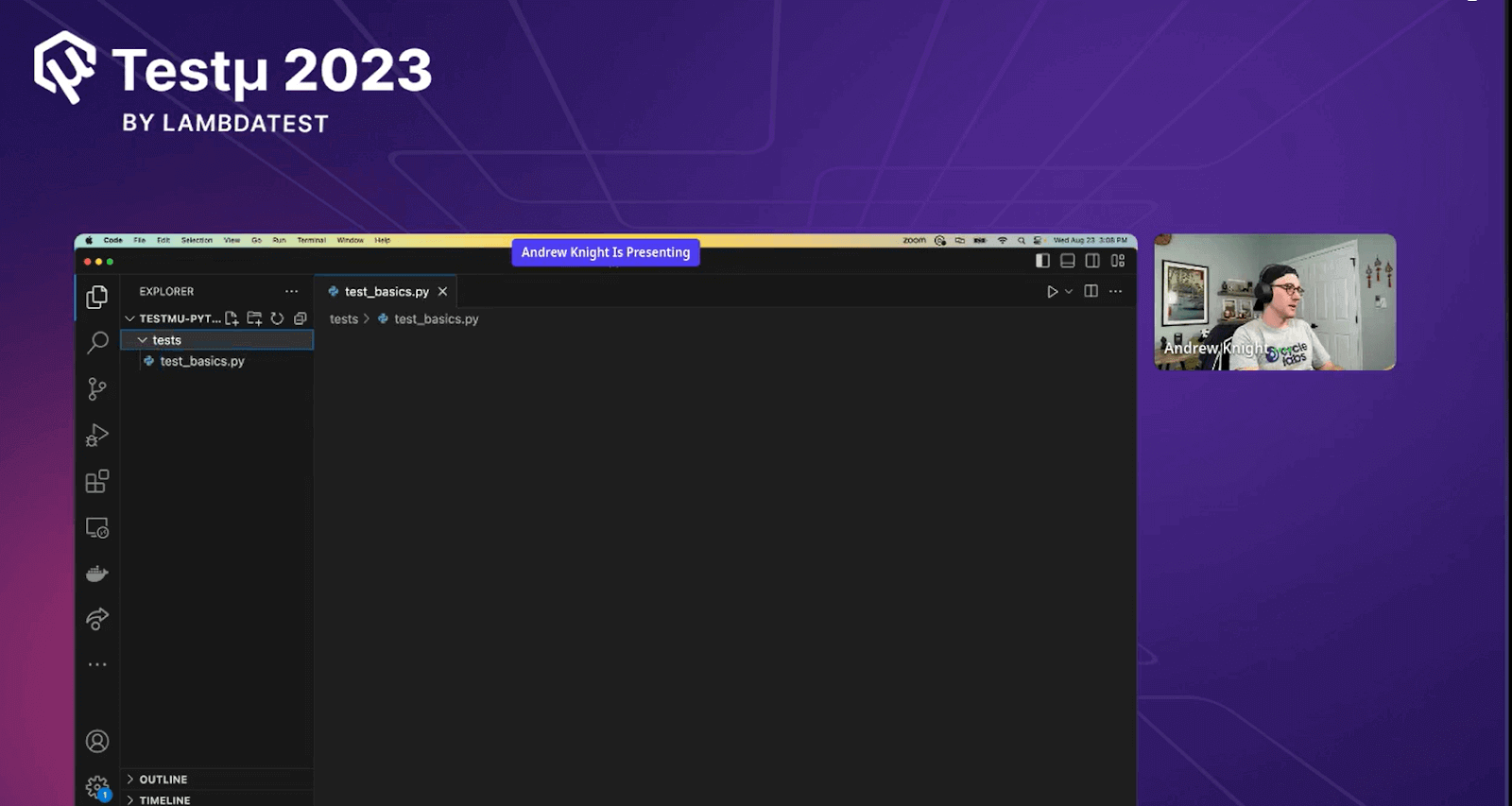
- Next, Andrew created a Python file under the test folder. The file name was test_basics.py
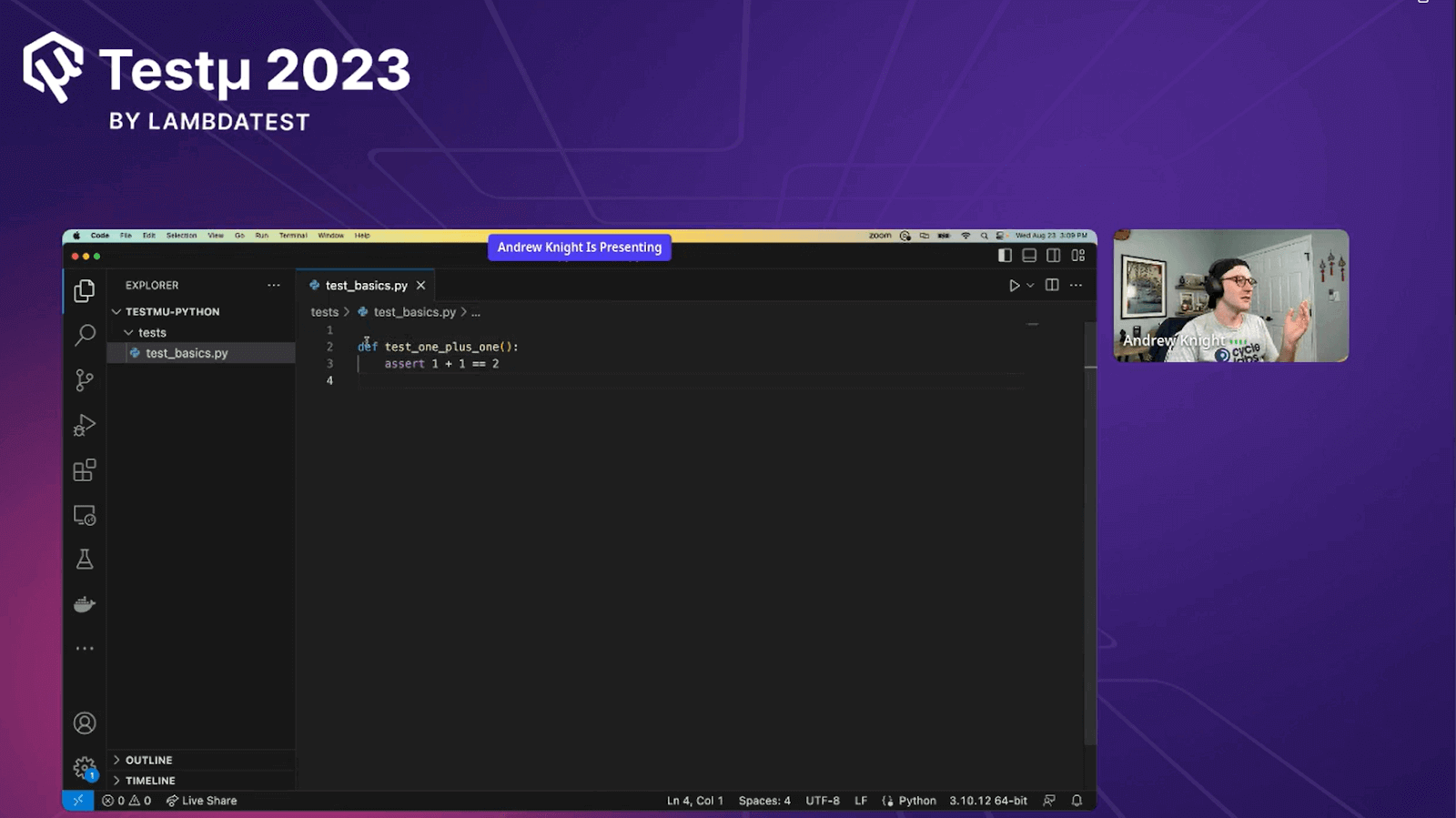
- Andrew wrote a straightforward code in Python where there was no need to create a package, as it can get complicated.
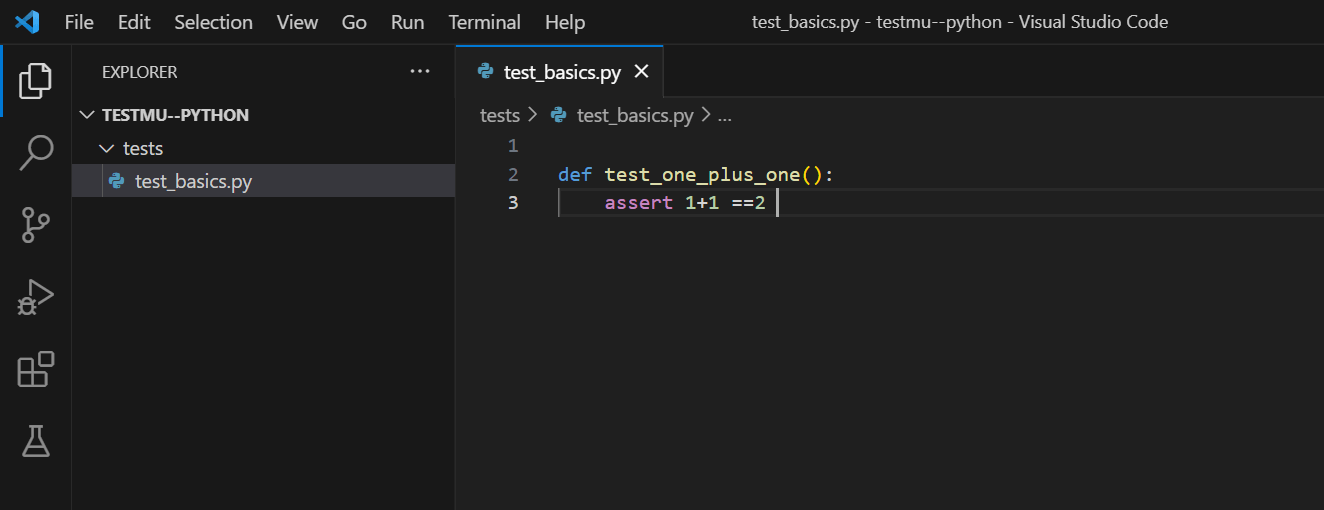
Code Explanation
Andrew explained that this simple code is a pytest code, with no need to write separate classes, methods, or test functions. He further explained each line of the code.
- def test_one_plus_one(): : This line defines a test function named test_one_plus_one(). It’s like a mini-program to check if 1 + 1 ==2 or not, test_one_plus_one() is a user-defined function in Pytest. Each function is a test function.
- assert 1+1 == 2: This line checks if the calculation of 1+1 equals 2. The assert is used for validation purposes; in this code, it ensures that if this statement is false, the test will fail.
In short, the code sets up a test to confirm if adding 1 and 1 equals 2. If it’s true, the test passes; if not, it fails.
Running the Test
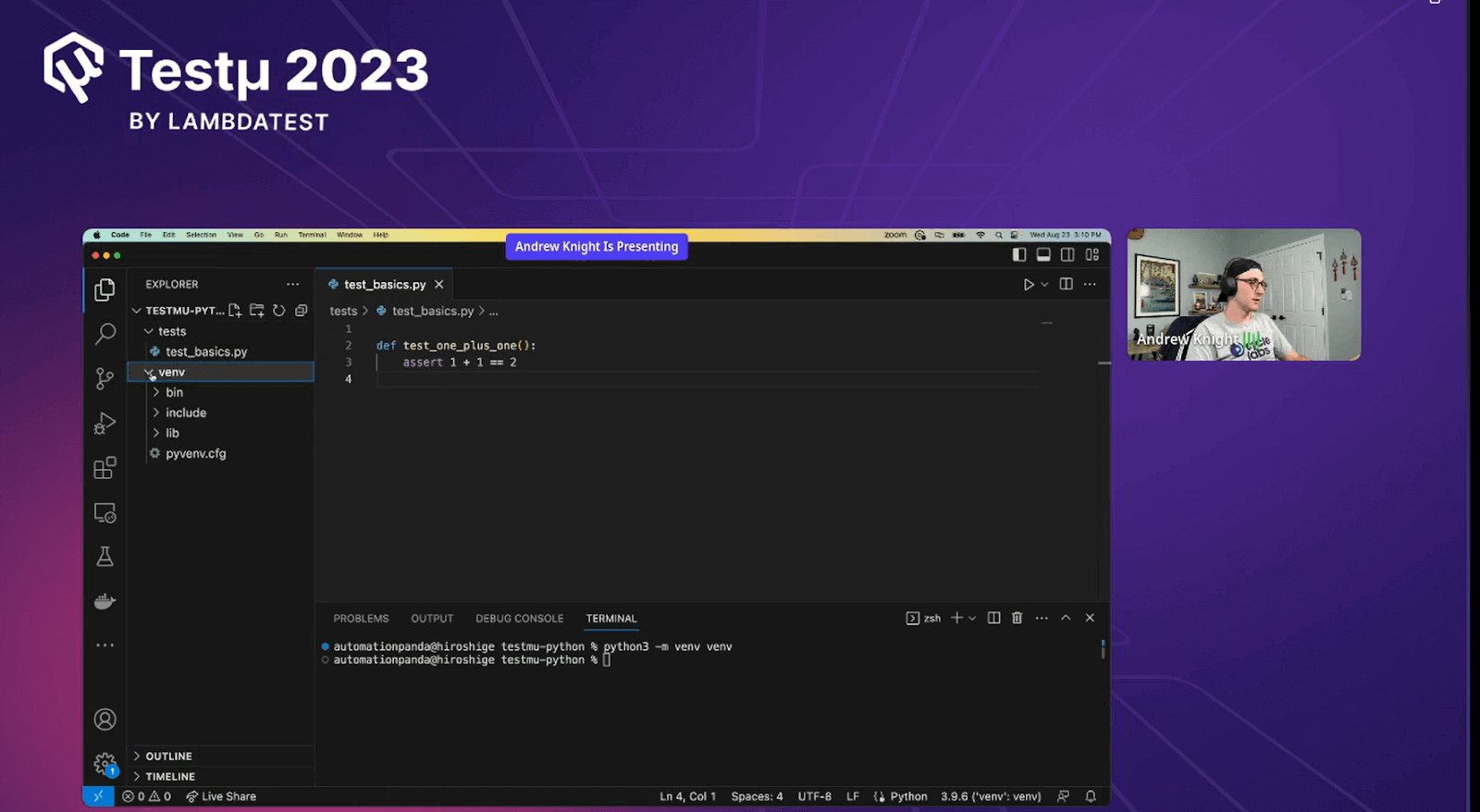
To run the above pytest code, the installation of pytest is needed. In some other testing environments, like when working with JavaScript, use npm, and for Java, there is a Maven project where all the Maven dependencies are together. Likewise, to run a Python project, There is a need to create a Virtual Environment.
What is a Virtual Environment?
Virtual Environment stores all the packages on which the Python project depends; rather than making it global for your whole machine, creating a virtual environment can make it local for your project. Andrew preferred to use the local Virtual Environment for this live coding session.
- The command installed the Virtual Environment files that support the Python project.
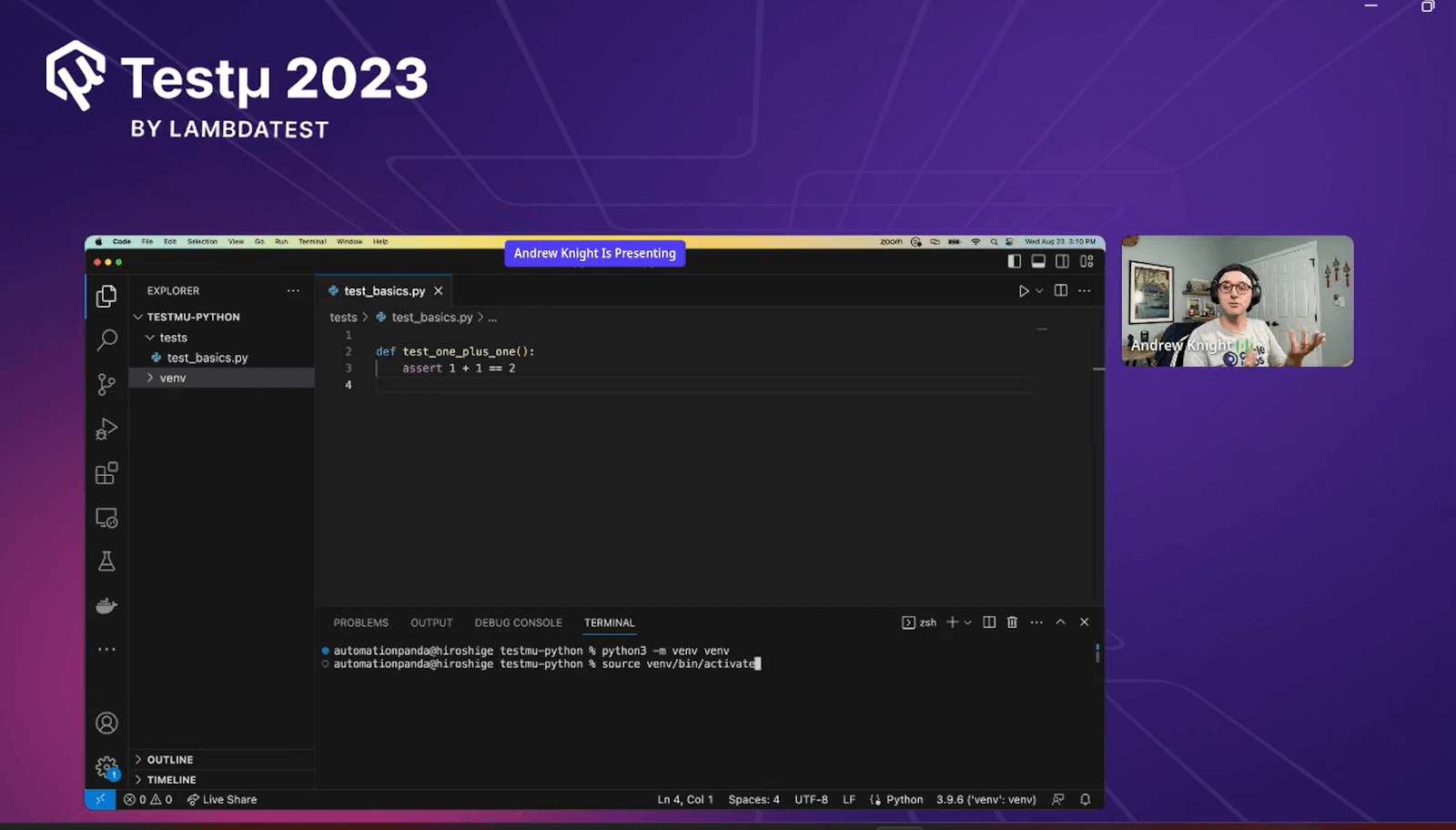
- Once the virtual environment has been created and the packages are installed, the activation of the virtual environment must be done before use and deactivated after use.
- Andrew mentioned that the command to activate the virtual environment could be different for Windows. For more details, visit the official site of venv Python.
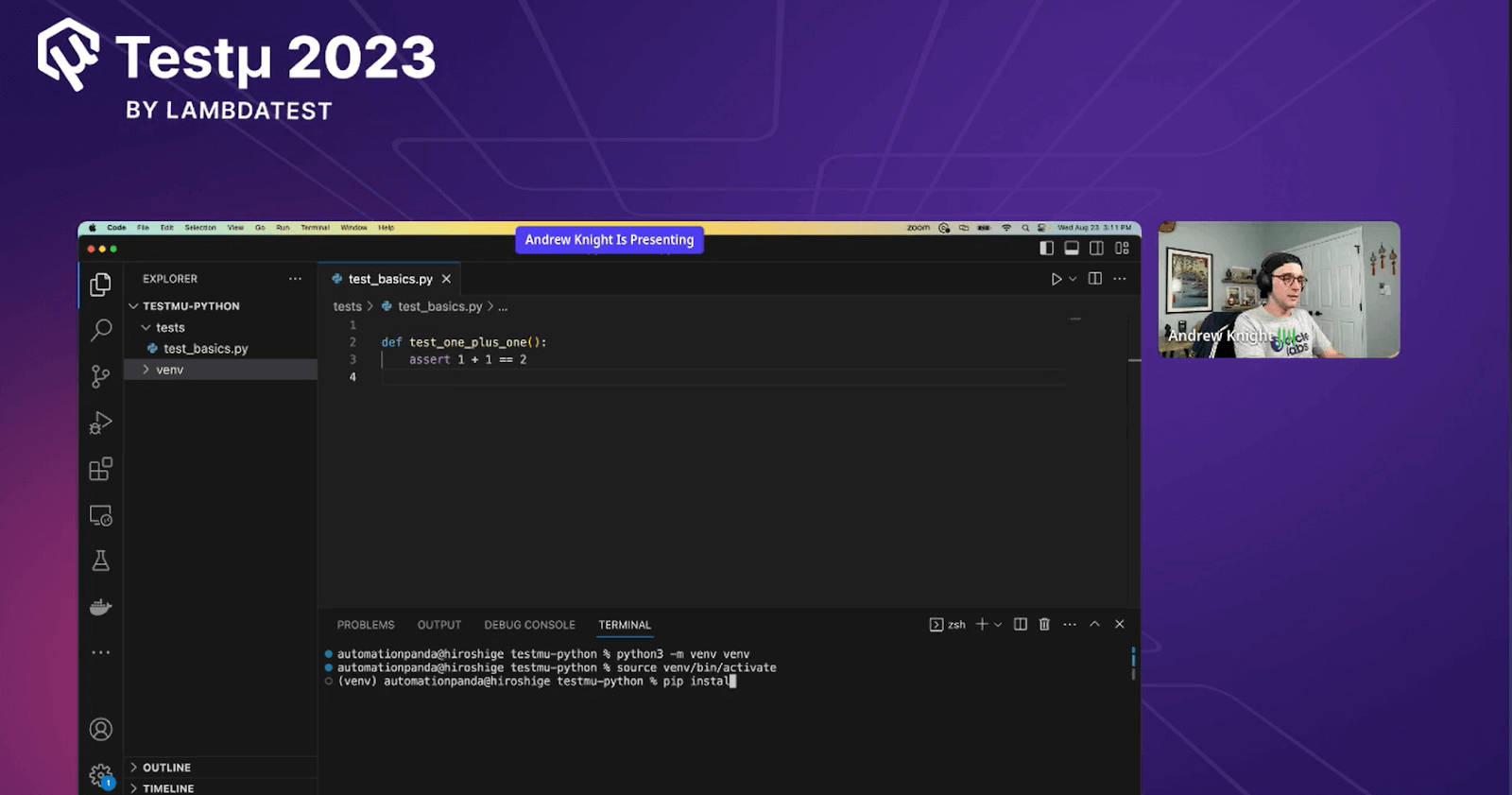
- Once you are in the virtual environment, install any needed libraries. Andrew installed the pytest package using the following command.
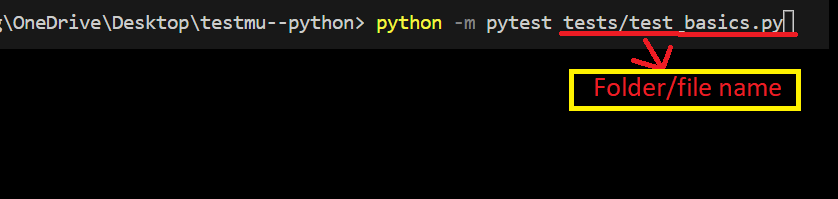
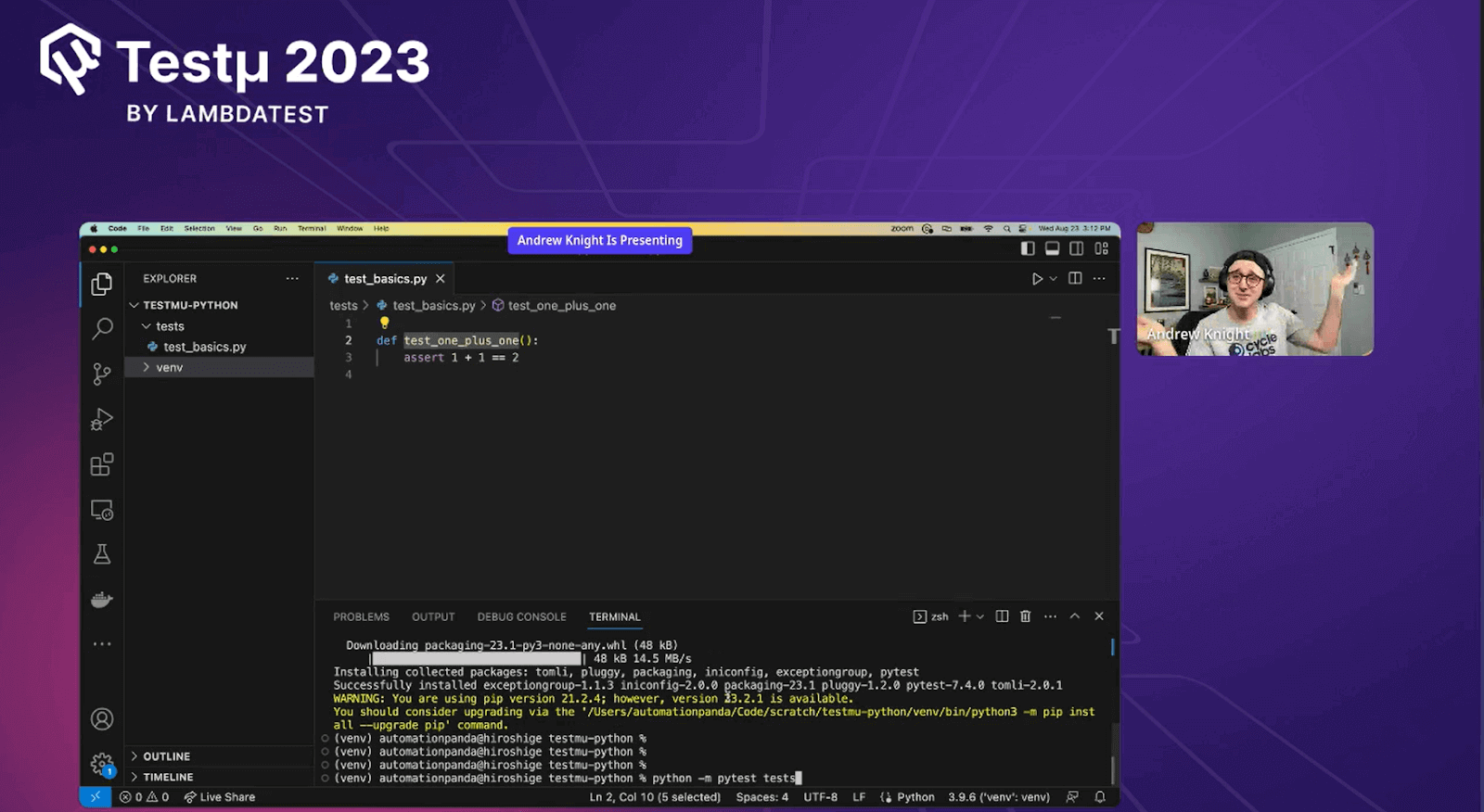
- After the installation of pytest third-party libraries, to run any test, the command is as follows: to run the particular test function, mention the file name at the end, or else, say the folder. All the files under the given folder will be executed.



Passed Test Case Output
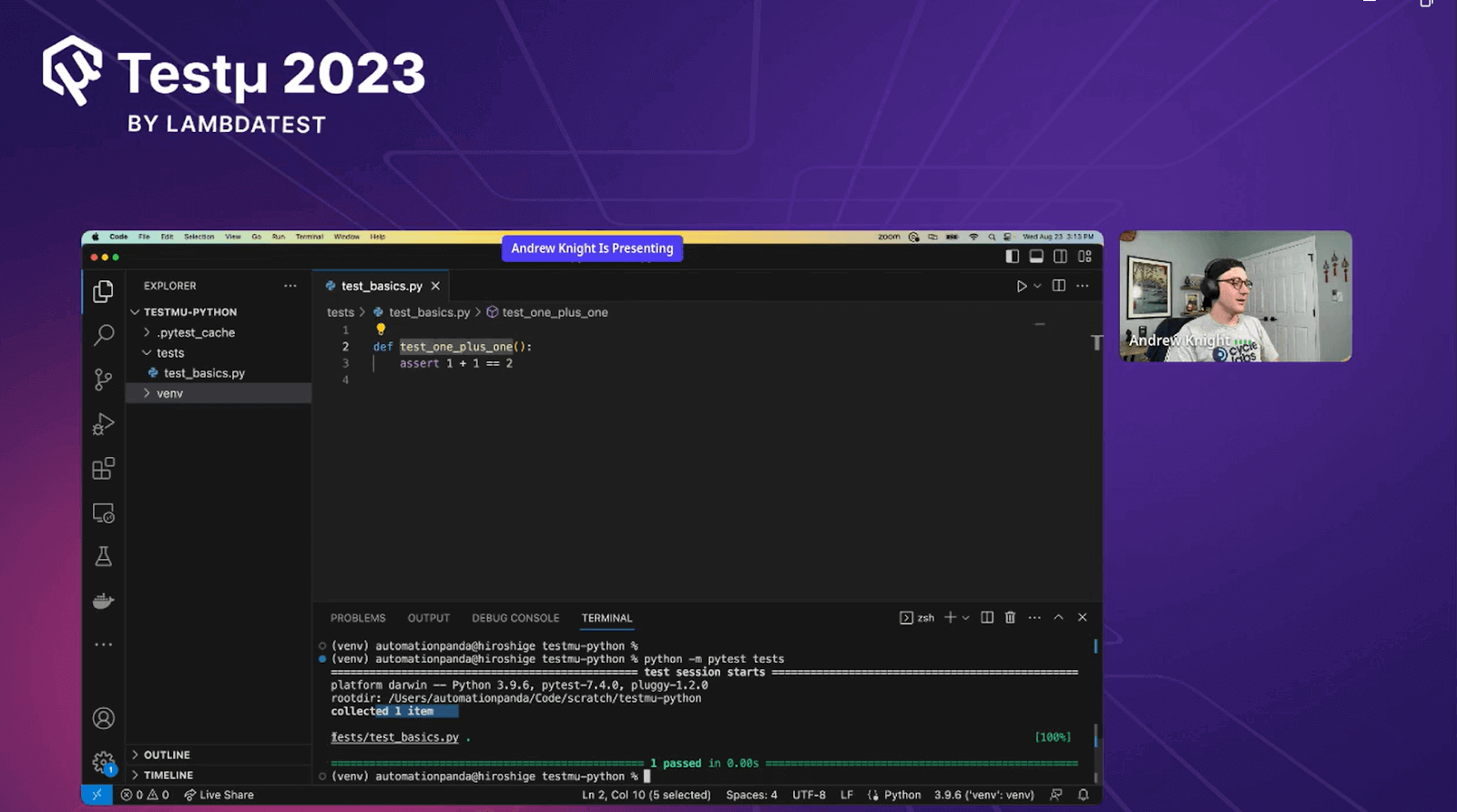
Once the command is executed, the summary of the test run is given, whether pass or fail.
Andrew further explained what the test command displays in the terminal.
- The test summary.
- The number of test cases it collected.
- The file path, along with the green dot, indicates the Pass of the test case.
Failed Test Case
Andrew wrote another test script that checks if value a + value b == value c. He explained each line of code in further detail.
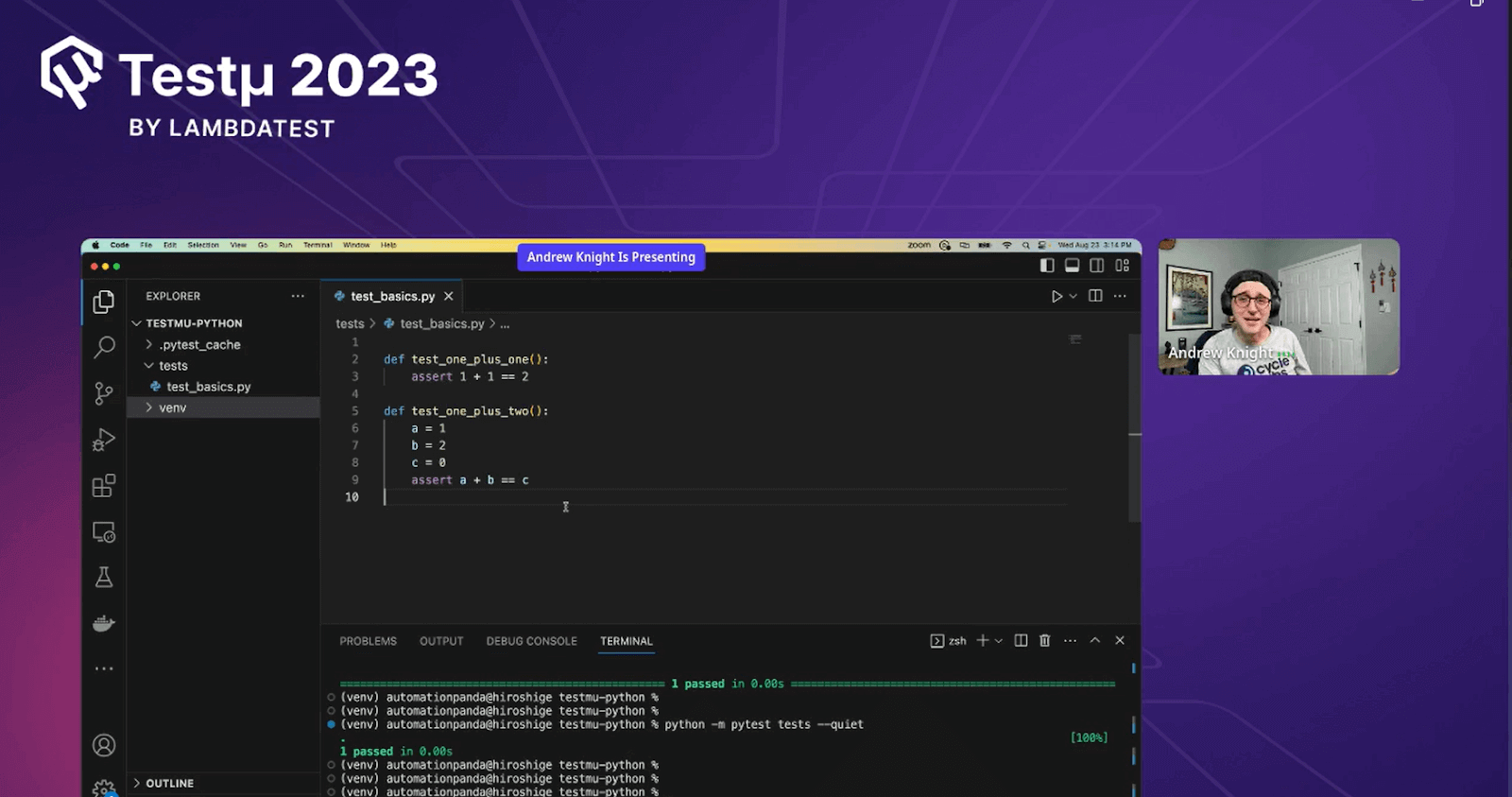
- def test_one_plus_two(): : This line defines a function named test_one_plus_two().
- a = 1: Store the value 1 in a variable named a.
- b = 2: Store the value 2 in a variable named b.
- c = 0: Store the value 0 in a variable named c.
- assert a + b == c: Check if the sum of a and b equals c (which is not true in this case).
Failed Test Case Output
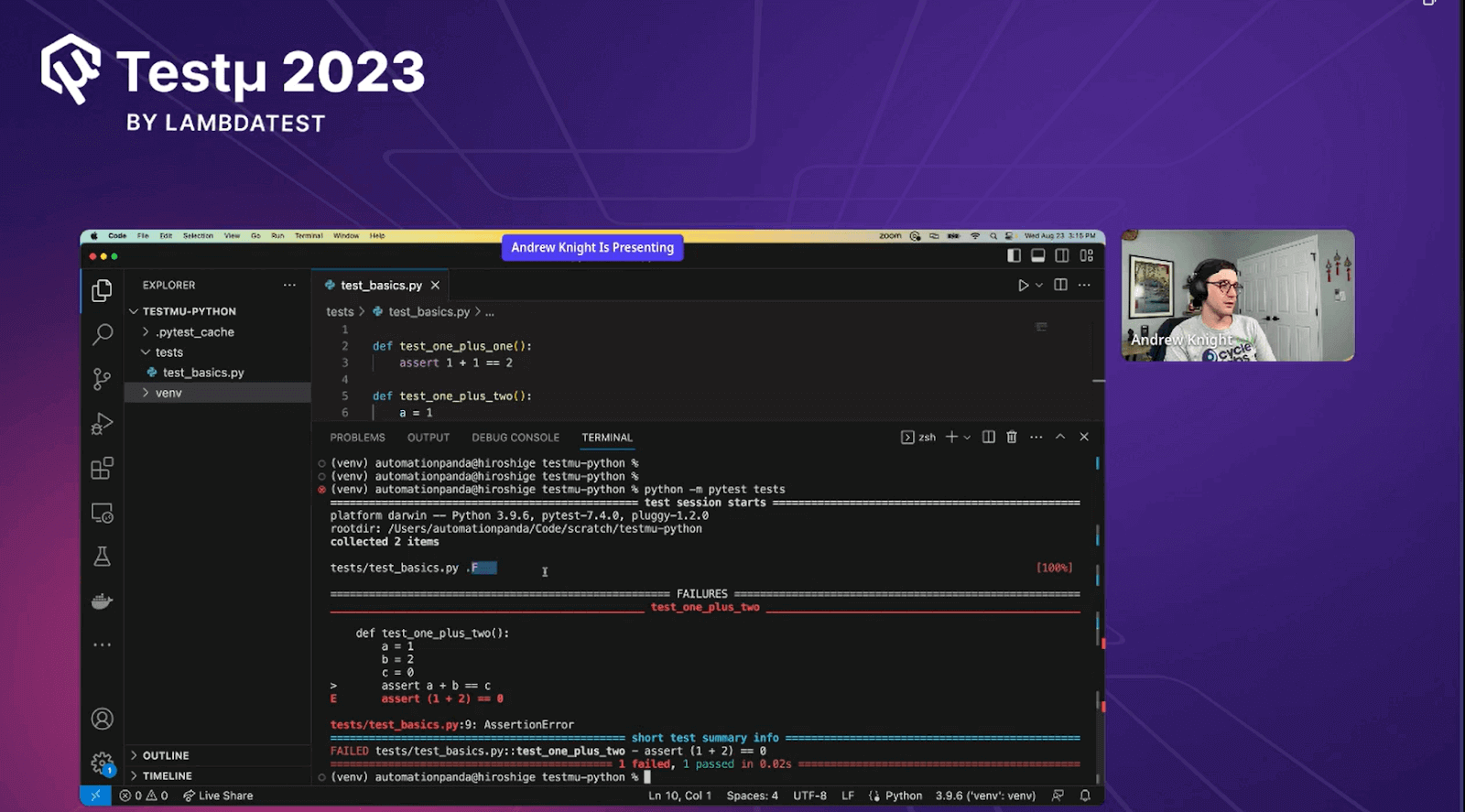
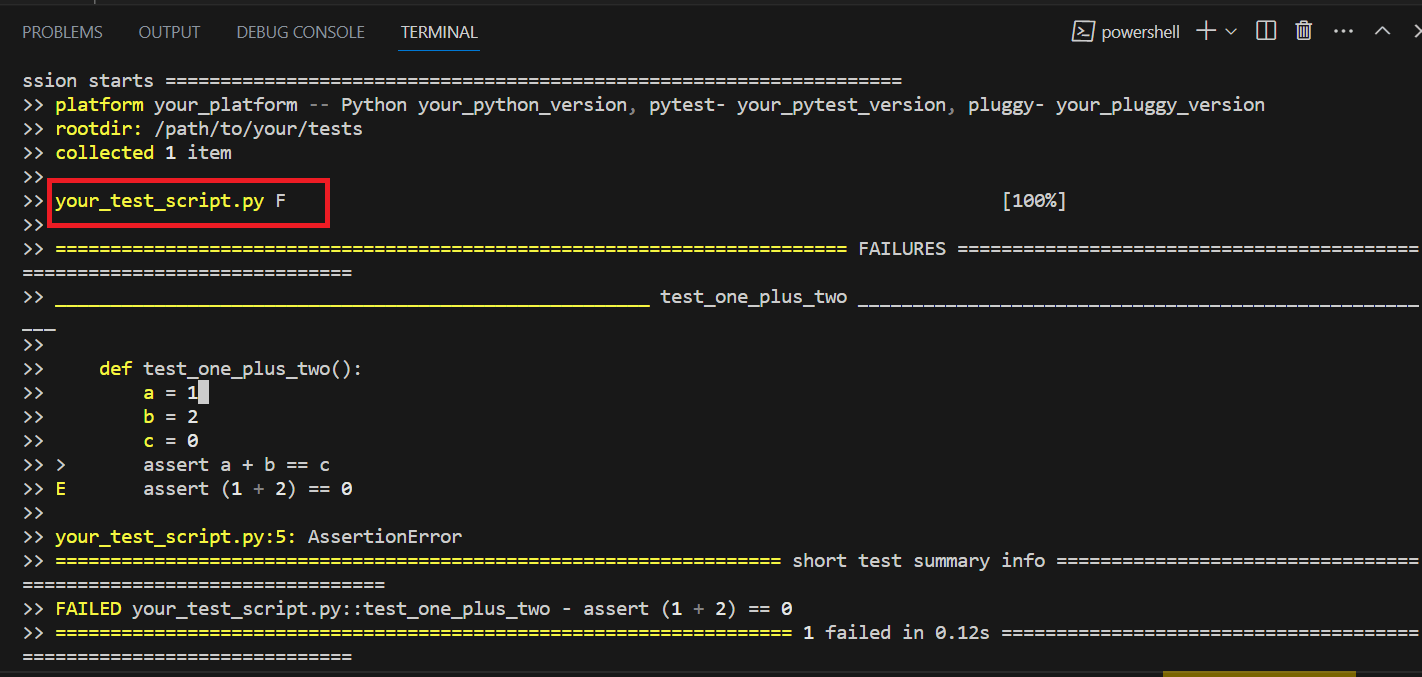
Explanation:
- test_one_plus_two is the name of the test function.
- F indicates that one test failed.
- The assertion assert a + b == c failed because 1 + 2 is not equal to 0.
- The summary at the end indicates that there was one test failure.
Pytest with Playwright
Andrew further involved Playwright in his test script, nothing too fancy, with basic details on installing third-party Playwright libraries. He installed Playwright to write the next set of test instructions to run a Playwright script with Python.
Command to Install Playwright & pytest-Playwright Library
Andrew used the pytest command to install the Playwright library.

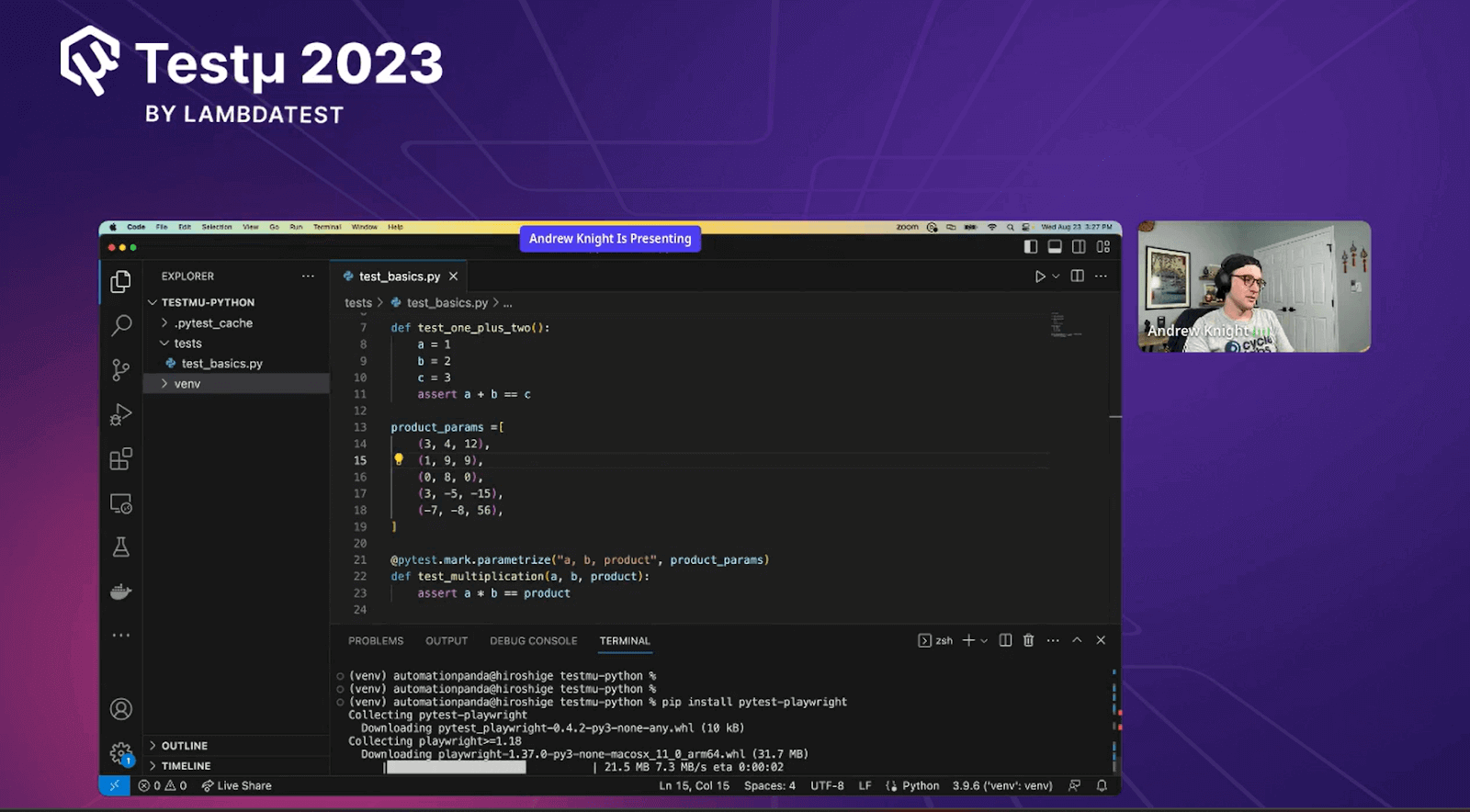
Now run the playwright install command to install the Playwright browser projects, which are three of these: Chrome, Firefox, and WebKit.

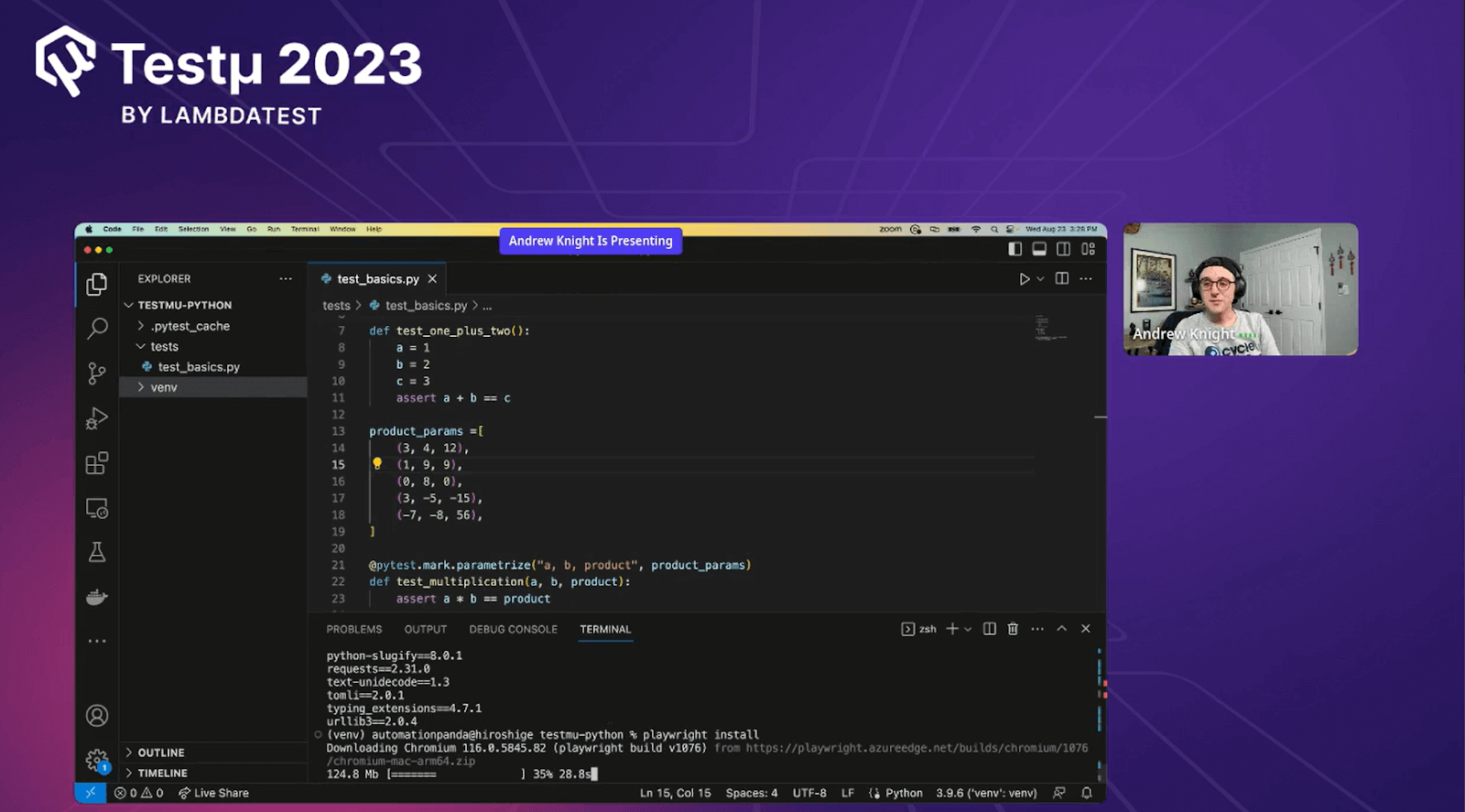
Create a New Test File
Andrew created a new project file, test_web_stuff, under the same folder called tests.
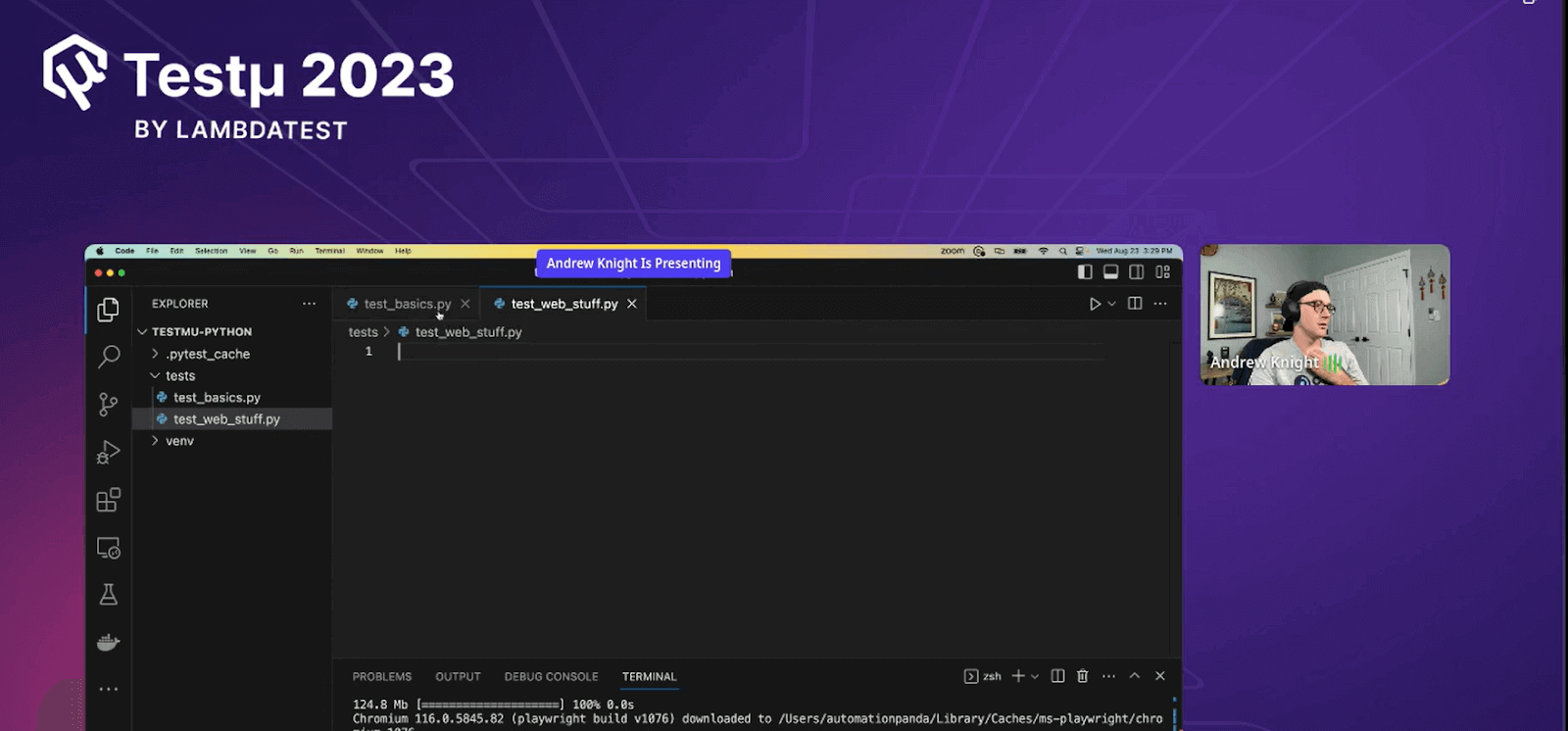
He wrote a set of Python instructions where he automated the flow of visiting Playwright’s official website.
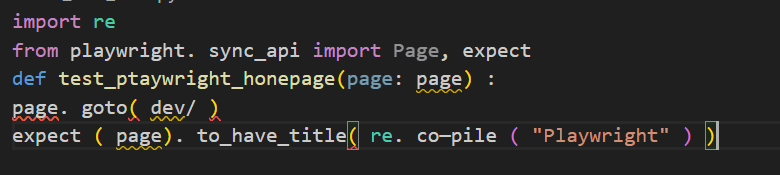
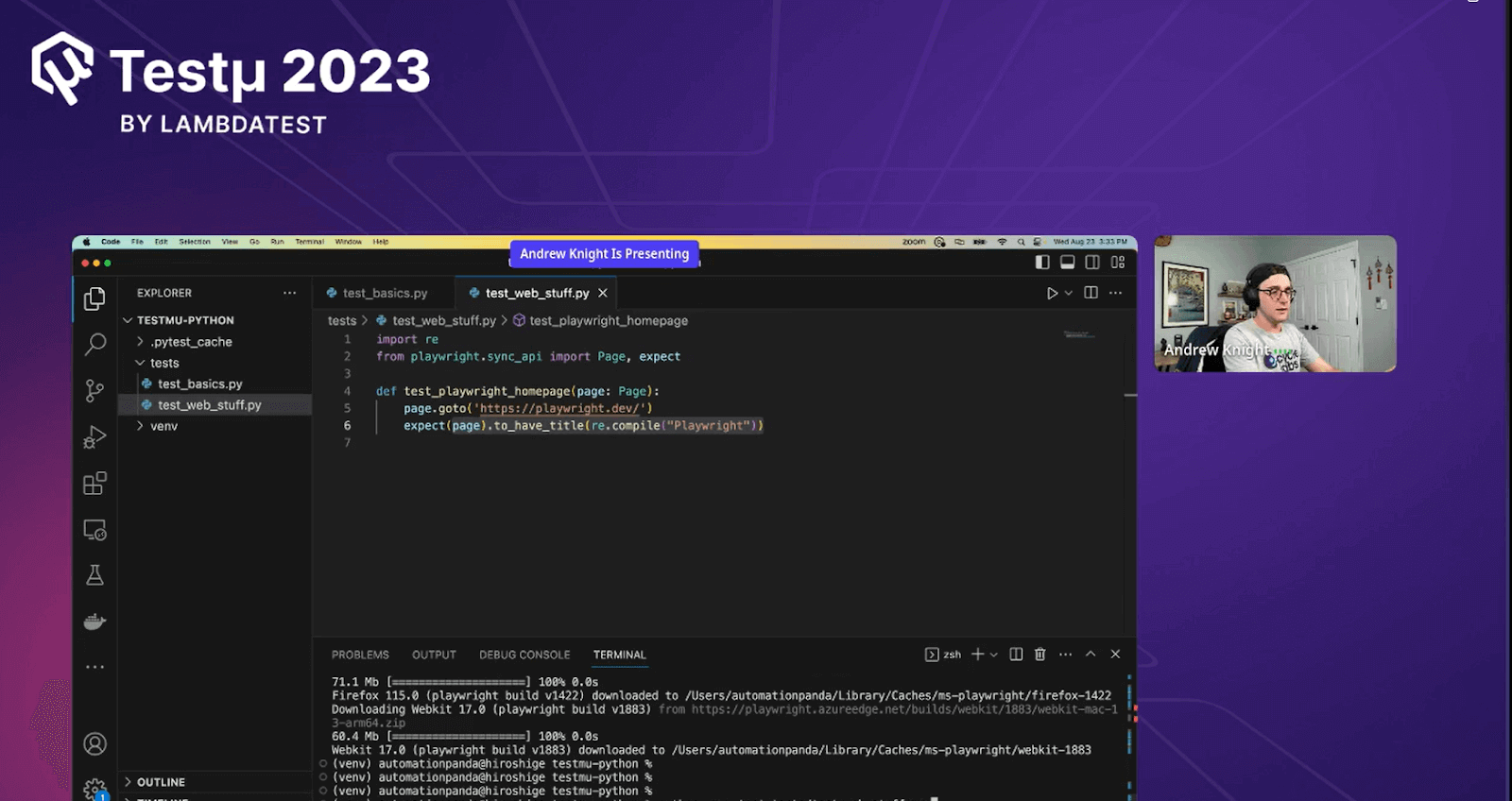
Explanation
These instructions use the Playwright library to perform automated testing on a webpage.
- import : The code imports necessary modules.
- def : Define a test function that uses a Playwright page to navigate to a specified URL (likely “dev/”)
- except : Expect the page title to match a pattern using regular expression (regex) that includes the word Playwright.
The test aims to check if the webpage’s title contains the word, Playwright.
Output
The command is the same as before: pytest followed by the file and folder names if required.

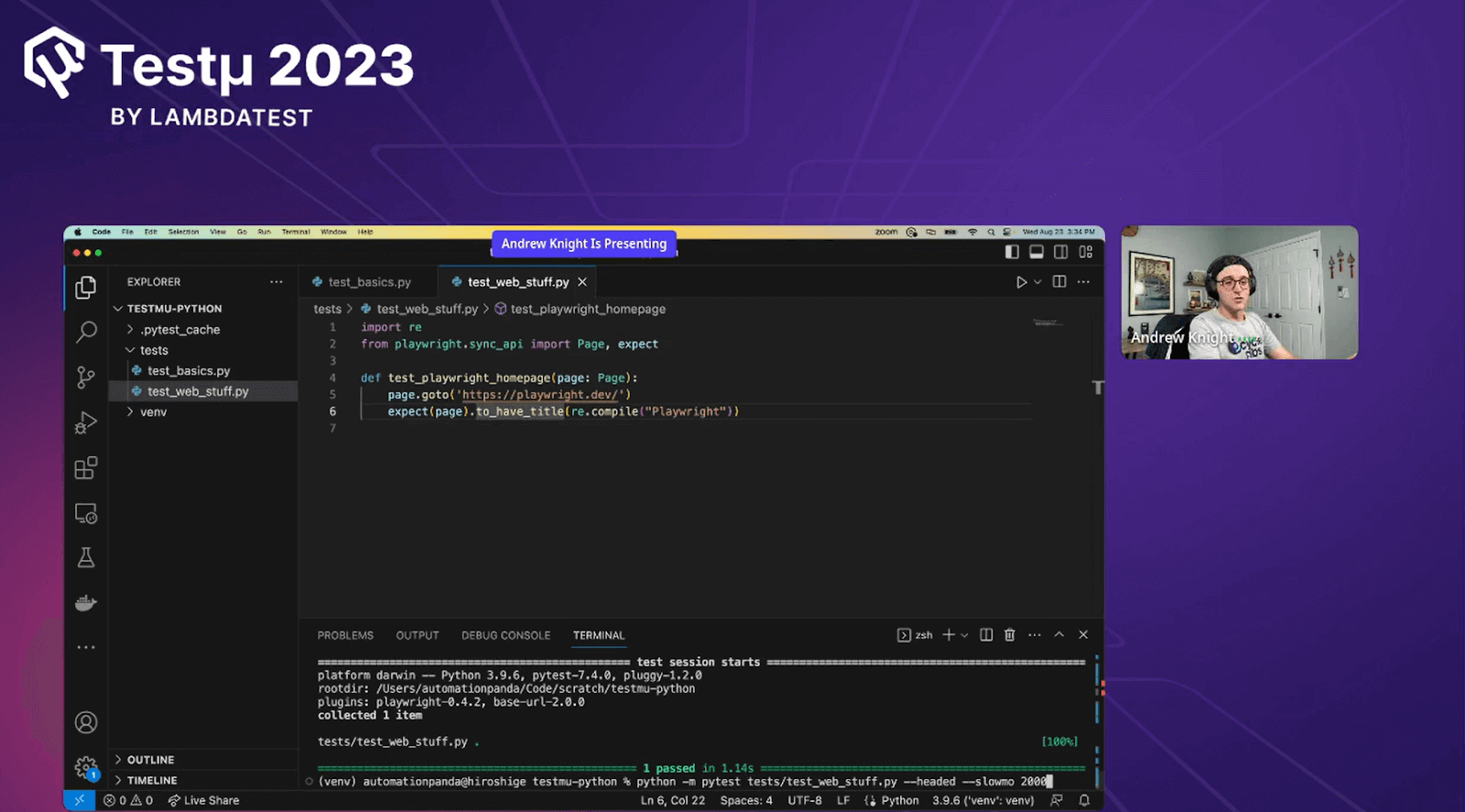
He used headed and slowmo and gave some milliseconds to grab the screen load, as the original test ran in 16 milliseconds.

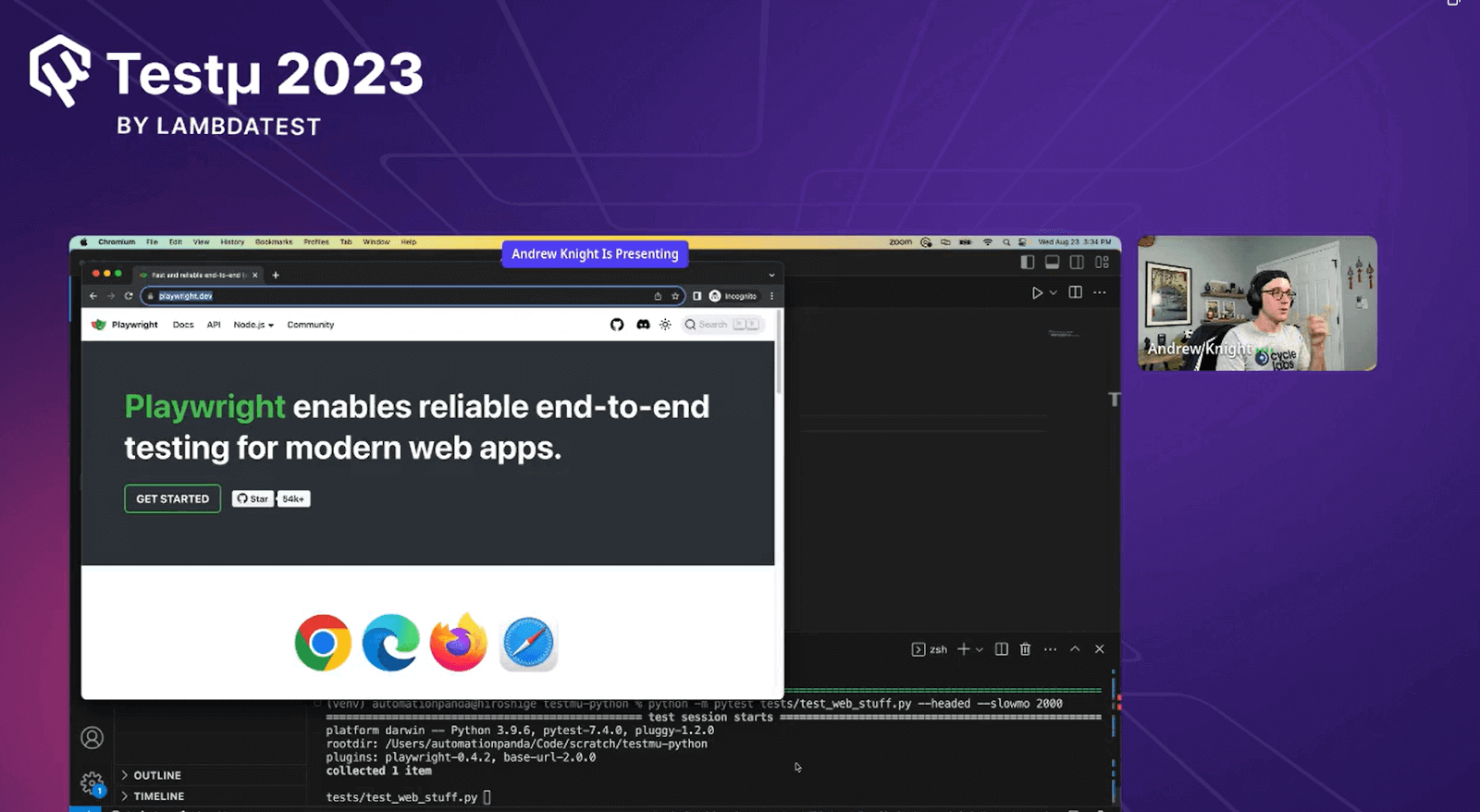
It was a wonderful warp-up by Andrew, and he hopes his audience learned and enjoyed the live coding session. It was a great opportunity for his audience to get hands-on experience with Python Testing. He ended the session with some Q&A’s
Time for Some Q&A
- What are the best practices for writing test cases in Python?Andrew: Functional testing involves creating distinct and descriptive test names, confirming results through assertions, and encompassing diverse scenarios for thorough Python testing coverage.
- What are the common challenges you face when performing automated testing in Python?Andrew: Frequent obstacles involve managing intricate dependencies, proficiently handling test data, and maintaining uniform, isolated test environments during Python’s automated testing processes.
- What are the advantages of using testing frameworks like unittest compared to writing scripts from scratch?Andrew: Frameworks such as unittest offer integrated assertion methods, test discovery, and setup/teardown tools, simplifying test development and upkeep in contrast to building tests from the ground up. This results in more structured and effective testing suites.
- In terms of extensibility and customization, how do testing frameworks like pytest enable developers to create tailored testing experiences?Andrew: Pytest and similar testing frameworks empower developers to design personalized testing workflows through adaptable plugins, fixtures, and hooks, creating custom testing experiences that suit specific project requirements.
Have you got more questions? Drop them on the TestMu AI Community.


Did you find this page helpful?
More Related Hubs
TestMu AI forEnterprise
Get access to solutions built on Enterprise
grade security, privacy, & compliance
- Advanced access controls
- Advanced data retention rules
- Advanced Local Testing
- Premium Support options
- Early access to beta features
- Private Slack Channel
- Unlimited Manual Accessibility DevTools Tests