Annotations in SmartUI Audit Logs
SmartUI audit logs now surface the annotations applied to a screenshot. When someone draws an ignore region on a screenshot, the audit log records the change and shows a preview of the annotated screenshot, so you can see exactly what was marked, on which screenshot, and by whom.
This is the first phase of annotations in audit logs. More annotation detail and controls will be added to this view soon.
The annotation
An annotation is a region you draw on a screenshot to mark it as ignored during comparison. In the captured view below, the highlighted rectangles are drawn ignore areas. Hovering an area shows its details: the label Ignored Area (Drawn), the source (Captured View, #5), and the exact coordinates and size (X: 406, Y: 38, W: 488, H: 434).
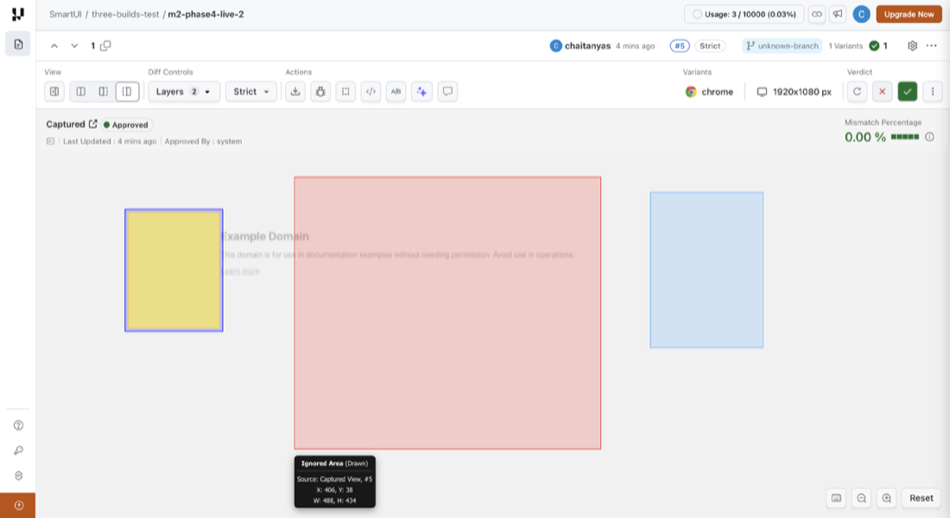
Every time these annotations are added or changed, SmartUI records the edit in the audit log.
The audit log list
Open the Audit Logs panel to see annotation edits alongside every other tracked event. Each Screenshot annotation updated row shows who made the change, when, a plain-language description, and the build and baseline it belongs to.
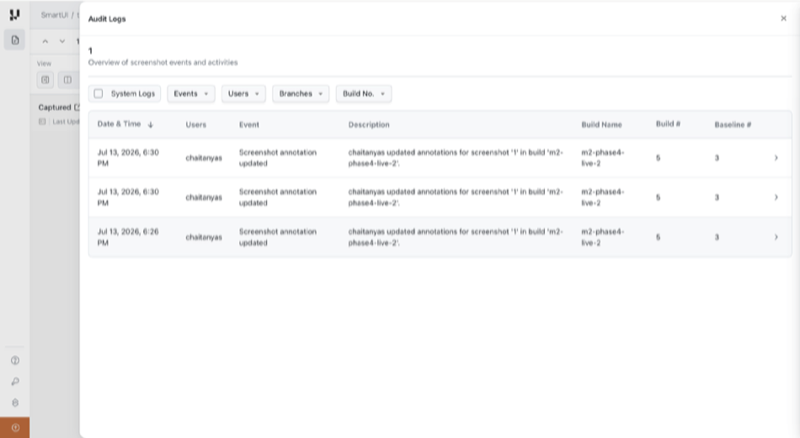
| Column | What it shows |
|---|---|
| Date & Time | When the annotation was updated (e.g. Jul 13, 2026, 6:30 PM). |
| Users | The team member who made the change (chaitanyas). |
| Event | The event type: Screenshot annotation updated. |
| Description | A readable summary, e.g. chaitanyas updated annotations for screenshot '1' in build 'm2-phase4-live-2'. |
| Build Name / Build # / Baseline # | The build and baseline the screenshot belongs to. |
Use the Events, Users, Branches, and Build No. filters at the top to narrow the list, or toggle System Logs to include automated events.
The annotation preview
Open an entry to see a preview of the screenshot exactly as it was annotated, so you can confirm the change without leaving the log.
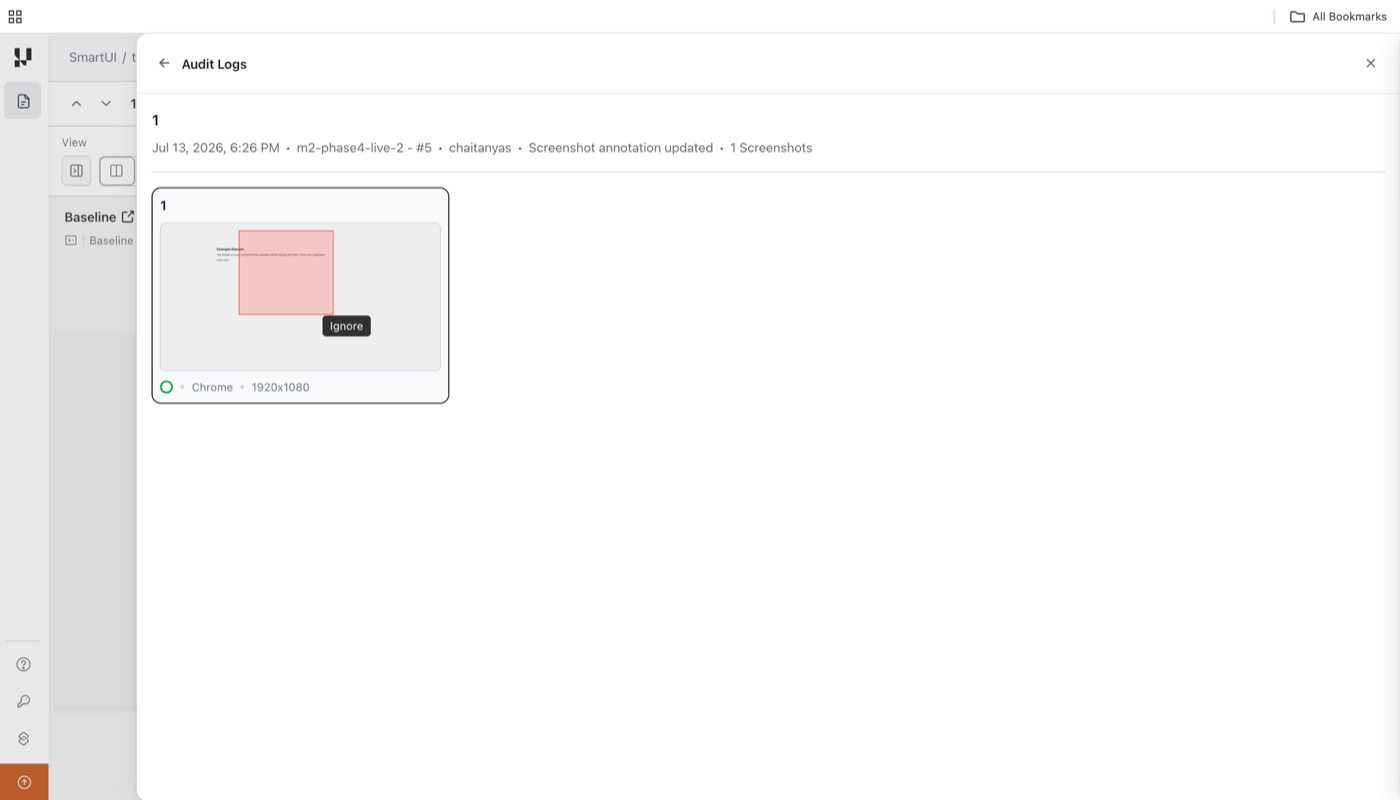
| Element | What it shows |
|---|---|
| Event header | The event line reads Screenshot annotation updated, with the date and time (Jul 13, 2026, 6:26 PM), the build and number (m2-phase4-live-2 - #5), the user who made the change (chaitanyas), and the count of affected screenshots (1 Screenshots). |
| Screenshot preview | A thumbnail of the screenshot with its annotations, captured at the time of the change. |
| Ignore region | The highlighted rectangle marks the area set to be ignored during comparison. Its Ignore label identifies the annotation type. |
| Environment | The browser and resolution the screenshot was captured on (Chrome, 1920x1080). |
When a screenshot carries more than one annotation, the preview shows every drawn ignore region together.
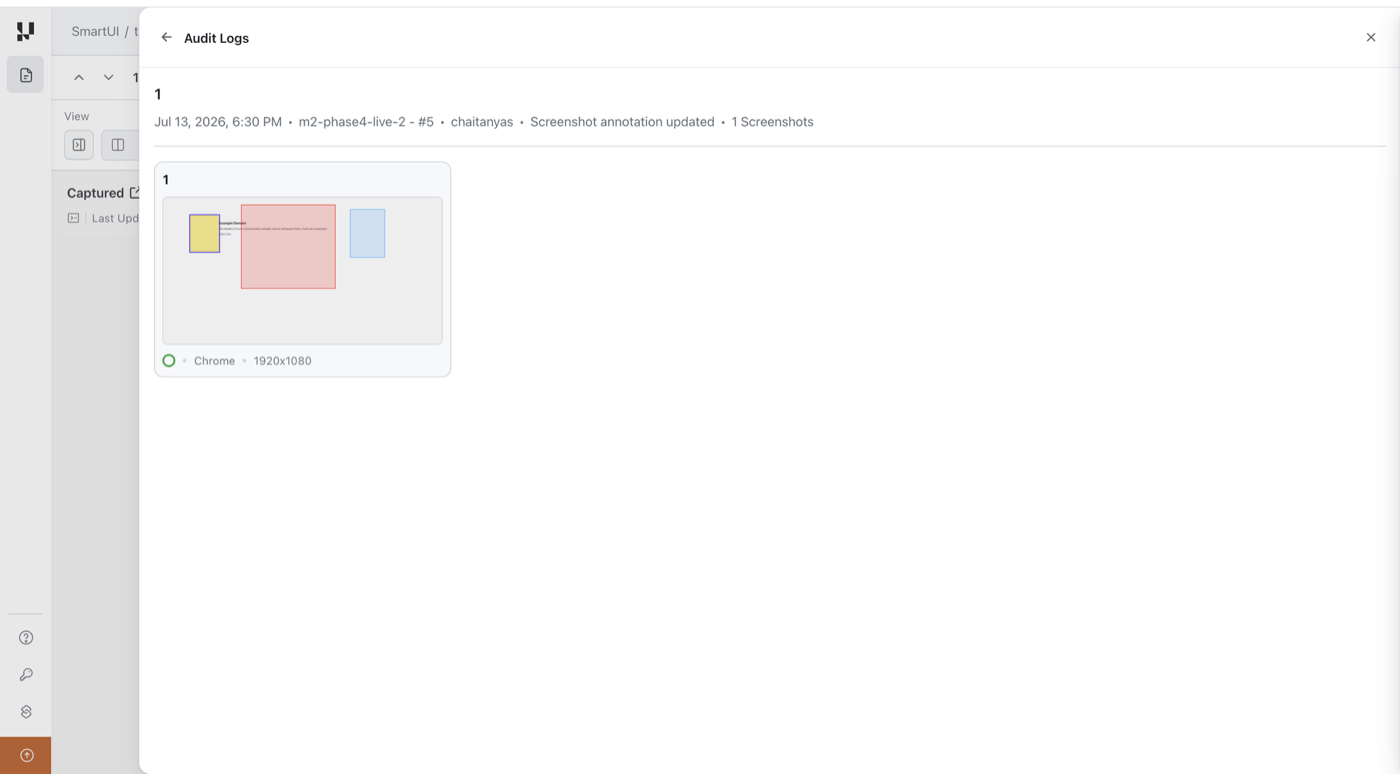
Why it helps
- Traceability: Every annotation change is attributed to a user with a timestamp, so you always know who marked a region and when.
- Context at a glance: The inline preview shows the exact region that was ignored, so you do not have to open the build to understand the change.
- Accountability: Annotation edits sit alongside approvals, rejections, and baseline changes in the same audit trail.
Related documentation
- SmartUI Audit & Activity Logs: The full audit trail across projects, builds, and screenshots.
- Ignore Regions: How to draw and manage ignore regions on your screenshots.


 Chat with Us