SmartUI SDK Environment Variables
Welcome to the world of simplified visual testing with the SmartUI SDK.
This guide is designed to provide you with comprehensive information about the various environment variables options available within the SmartUI SDK. SmartUI retrieves additional details from the environment it is running in, like the branch name, baseline branch,proxies etc. You can modify certain aspects of SmartUI behavior by configuring these environment variables within your CI environment:
1. Setting the Project Name
Set the Project Name you want to add the current build run to by exporting these enviroment variables:
Verified- MacOS/Linux
- Windows - CMD
- PowerShell
export LT_USERNAME="YOUR USERNAME"
export LT_ACCESS_KEY="YOUR ACCESS KEY"
export PROJECT_NAME="Required Project Name"
set LT_USERNAME="YOUR USERNAME"
set LT_ACCESS_KEY="YOUR ACCESS KEY"
set PROJECT_NAME="Required Project Name"
$env:LT_USERNAME="YOUR USERNAME"
$env:LT_ACCESS_KEY="YOUR ACCESS KEY"
$env:PROJECT_NAME="Required Project Name"
If you specify a project name that doesn't already exist, a new project will be created by the user whose authentication is added in the environment.
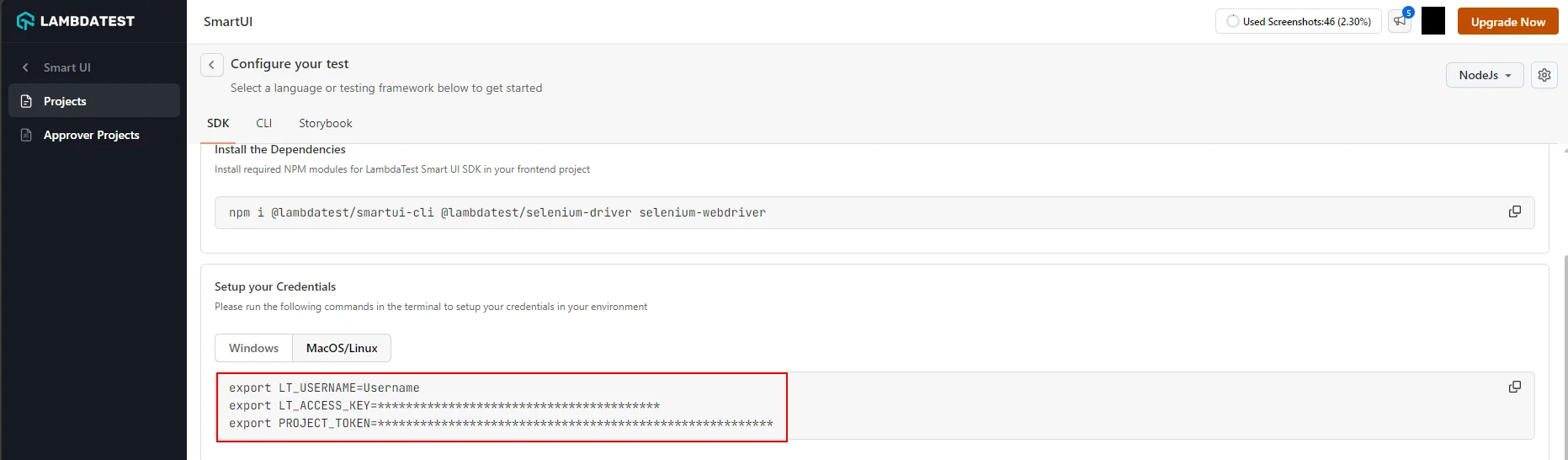
2: Set your Project Token
Setup your project token shown in the SmartUI app after creating your project.
Verified- MacOS/Linux
- Windows - CMD
- PowerShell
export PROJECT_TOKEN="123456#1234abcd-****-****-****-************"
set PROJECT_TOKEN="123456#1234abcd-****-****-****-************"
$env:PROJECT_TOKEN="123456#1234abcd-****-****-****-************"
Setting the project token environment variable does not require any user level authentication.
3. Setting the Baseline Branch
Set the baseline branch for CLI projects:
- MacOS/Linux
- Windows - CMD
- PowerShell
export BASELINE_BRANCH="Required branch"
set BASELINE_BRANCH="Required branch"
$env:BASELINE_BRANCH="Required branch"
4. Setting the current branch
Set the current branch for CLI projects:
- MacOS/Linux
- Windows - CMD
- PowerShell
export CURRENT_BRANCH="Required branch"
set CURRENT_BRANCH="Required branch"
$env:CURRENT_BRANCH="Required branch"
5. Setting proxies
In case you are accessing your network using corporate proxies, set the proxies in the environment variables as follows
HTTP_PROXY:
Verified- MacOS/Linux
- PowerShell
export HTTP_PROXY="http://<username>:<password>@<domain.com>:<port>/"
<TabItem value="Windows-4" label='Windows - CMD'>

```bash
set HTTP_PROXY="http://<username>:<password>@<domain.com>:<port>"
$env:HTTP_PROXY="http://<username>:<password>@<domain.com>:<port>/"
HTTPS_PROXY:
Verified- MacOS/Linux
- Windows - CMD
- PowerShell
export HTTPS_PROXY="https://<username>:<password>@<domain.com>:<port>"
set HTTPS_PROXY="https://<username>:<password>@<domain.com>:<port>"
$env:HTTPS_PROXY="https://<username>:<password>@<domain.com>:<port>/"
NOTE : In most cases setting only HTTP_PROXY should be enough, but if you have different proxies for HTTP and HTTPS, you can set both.The format for proxy’s is
http[s]://<username>:<password>@<domain.com>:<port>/[username and password is optional].
6. Enabling Debug mode
To enable SmartUI CLI Debug mode, use the following environment variable.
Verified- MacOS/Linux
- Windows - CMD
- PowerShell
export LT_SDK_DEBUG=true
set LT_SDK_DEBUG=true
$env:LT_SDK_DEBUG="true"
7. Ignoring captured cookies
Set the following variable to true, to stop the use of cookies captured automatically. The default is set to false.
- MacOS/Linux
- Windows - CMD
- PowerShell
export SMARTUI_DO_NOT_USE_CAPTURED_COOKIES=true
set SMARTUI_DO_NOT_USE_CAPTURED_COOKIES=true
$env:SMARTUI_DO_NOT_USE_CAPTURED_COOKIES="true"
8. Setting Server Address
For SDK integrations (non-Selenium), set the SmartUI server address:
Verified- MacOS/Linux
- Windows - CMD
- PowerShell
export SMARTUI_SERVER_ADDRESS="http://localhost:8080"
set SMARTUI_SERVER_ADDRESS="http://localhost:8080"
$env:SMARTUI_SERVER_ADDRESS="http://localhost:49152"
9. Additional Environment Variables
The following environment variables are also available for advanced configuration:
| Variable | Description | Default |
|---|---|---|
FIGMA_TOKEN | Figma API token for Figma integration | - |
NO_PROXY | Comma-separated hosts to bypass proxy | - |
SMARTUI_HTTP_PROXY | SmartUI-specific HTTP proxy | - |
SMARTUI_HTTPS_PROXY | SmartUI-specific HTTPS proxy | - |
SMARTUI_API_PROXY | API proxy configuration | - |
SMARTUI_CLIENT_API_URL | Override API URL | https://api.lambdatest.com/visualui/1.0 |
SMARTUI_UPLOAD_URL | Override upload URL | https://api.lambdatest.com |
SMARTUI_GIT_INFO_FILEPATH | Custom git info file path | - |
GITHUB_ACTIONS | GitHub Actions environment flag | - |
SMARTUI_API_SKIP_CERTIFICATES | Skip SSL certificate validation | false |
USE_REMOTE_DISCOVERY | Use remote discovery mode | false |
SMART_GIT | Enable Smart Git feature | false |
SHOW_RENDER_ERRORS | Show render errors | false |
SMARTUI_SSE_URL | Server-sent events URL | https://server-events.lambdatest.com |
LT_SDK_SKIP_EXECUTION_LOGS | Skip execution logs | false |
MAX_CONCURRENT_PROCESSING | Max concurrent processing threads | 0 (auto) |
DO_NOT_USE_USER_AGENT | Disable user agent | false |


 Chat with Us