Baseline History New
A comparison is only as trustworthy as the reference image it ran against. Baseline History answers the question that follows every surprising result: which build is the baseline today, which builds held that role before it, and what changed each reference image along the way.
It is a read only view. Nothing in it can approve, reject, promote or move a baseline, so it is safe to open during a review or hand to an auditor.
Opening Baseline History
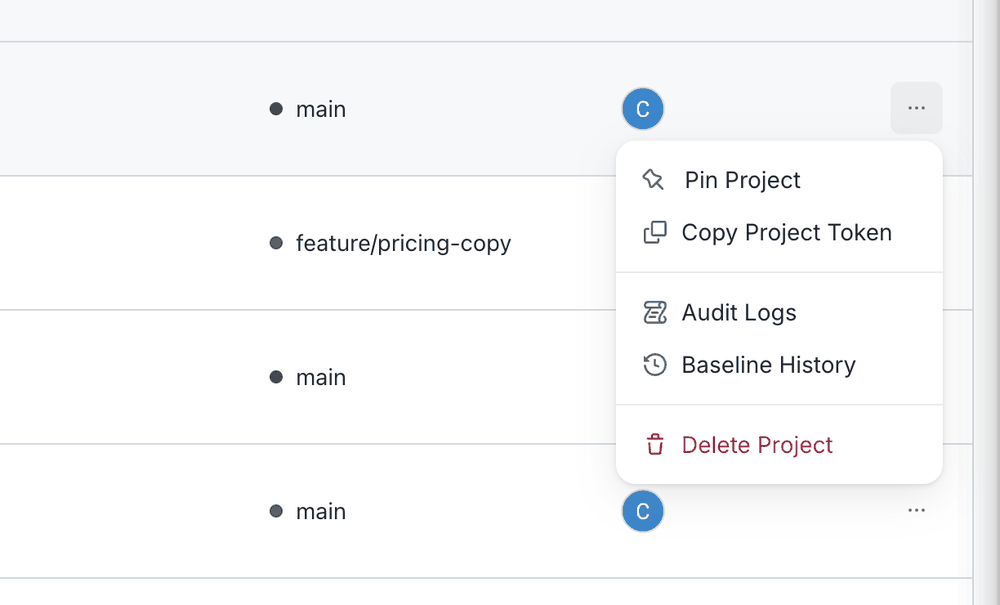
On the Projects screen, open the overflow menu on a project row and select Baseline History. It sits directly after Audit Logs.
Current and past baselines
The first screen is the project's baseline lineage.
The left rail names the current baseline, the build it points at and how long it has held the role, and lists past baselines underneath with a count. The right pane opens on the current baseline: the build name and number, the period it has been the baseline for, and the reference images that build holds, each card showing its state and how many variants it covers.
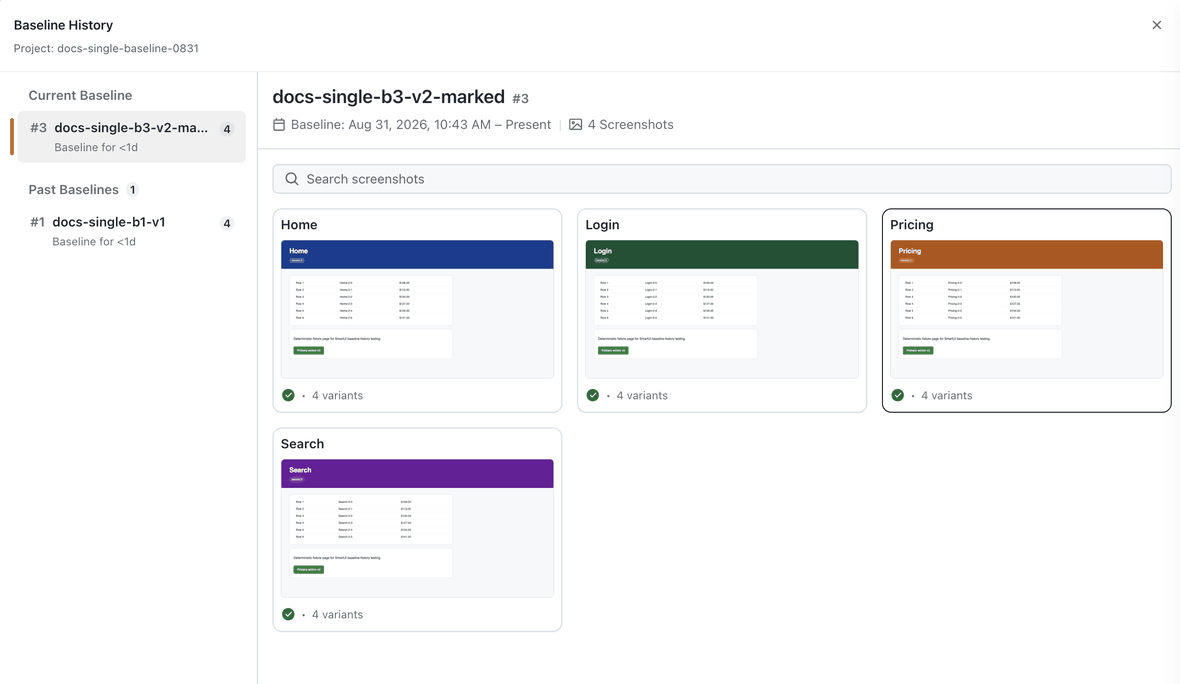
A build that ran and found changes but was never made the baseline does not appear here. Only builds that actually held the role are listed, which is what makes the rail a lineage rather than a build list.
The timeline for one variant
Selecting a reference image opens its timeline. The header states where the live reference lives right now: whether it is the current baseline, which build it belongs to, when it was captured, and the variant it belongs to.
A variant is the unit the comparison engine keys on:
Screenshot Name + Browser + Resolution
One screenshot captured on two browsers at two viewports is four variants, and each of them can have a different history. The browser and resolution dropdowns above the timeline switch between them, and Events and Users narrow a long history to the change or the person you are chasing.
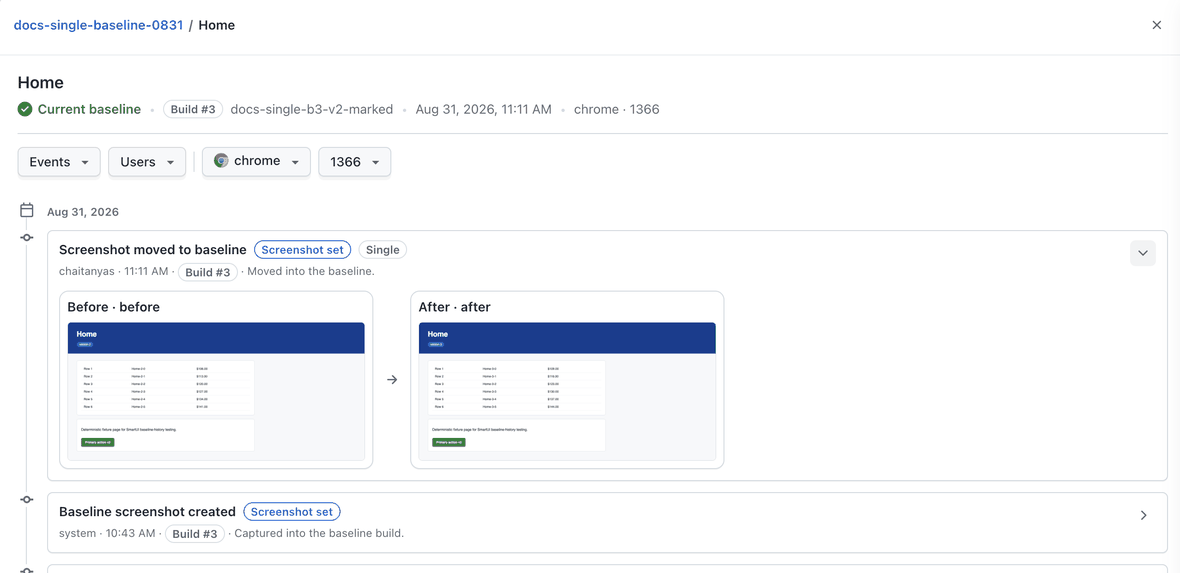
Every entry names what happened, who caused it, when, and the build it happened in, with a plain description of the effect on the baseline.
Before and after on a promotion
The entries that matter most in a review are the ones that replaced a reference image. Expanding one shows the image that was the baseline before the event beside the image that replaced it after, so a promotion can be judged without leaving the screen.
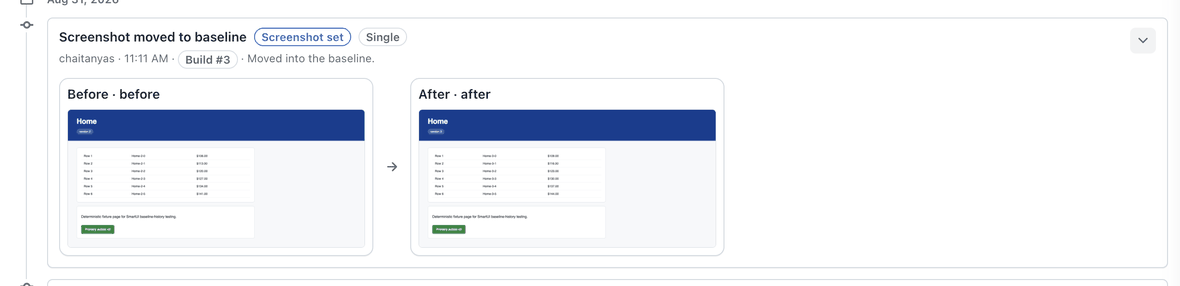
Both routes into the baseline land here as Screenshot moved to baseline:
| Action | Where you run it | What the event shows |
|---|---|---|
| Approve and Update | Comparison view, on one variant | Before and after for that variant, tagged Single |
| Merge to Baseline | Screenshot or build level, on a captured screenshot | Before and after for each variant it promoted |
The other entries you will see on a variant are Baseline screenshot created, when a build captured the image into the baseline build, and Removed from baseline, when a new baseline build did not contain that screenshot at all.
The full walkthrough, from the baseline lineage to a single event:
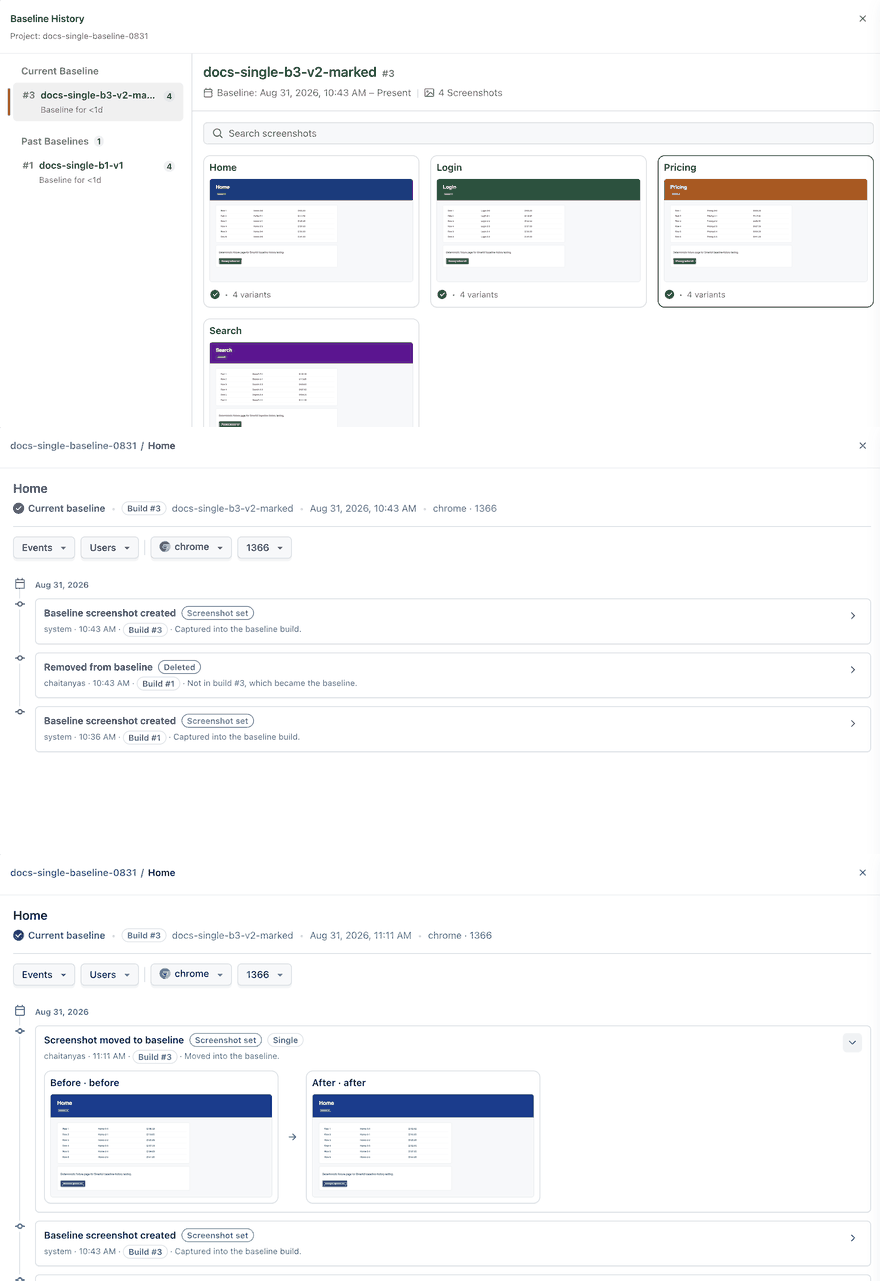
Events are recorded for the actions that actually change a reference image or move the baseline, such as a build becoming the baseline or a screenshot being promoted into it. Two things that look like they should appear here do not: approving a screenshot in a build that is not the baseline, which leaves the reference image untouched, and adding an A/B variation, which is tracked on the screenshot rather than on the baseline. For the approval and rejection trail itself, use Audit Logs.
How the history is derived
Baseline History does not maintain a separate record of its own. Every screen is derived at read time from the builds, approvals and baseline pointers the project already has, using the same rule the comparison engine uses to resolve a baseline.
The consequence worth knowing is that the lineage always agrees with what the comparison engine did, because both read the same pointers. If a build compared against a baseline you did not expect, the timeline holds the event that put that reference in place.
For the approval actions themselves, with actor and timestamp, see Audit Logs and Annotations.
Reading a baseline that moved
The pattern that brings most teams to this screen is a comparison that ran against an unexpected reference. Working through it:
- Open Baseline History for the project and read the current baseline block. If the build named there is not the build you expected, the answer is already on this screen.
- Check past baselines. The entry that superseded the build you expected names the build that took over and when.
- Open the screenshot, then set the browser and resolution dropdowns to the variant your test captured. Both are part of the key, so a different combination is a different history.
- Read the timeline from the bottom. The first event that changed the reference image after the point you trusted is the one to take back to the person who performed it.
Availability
Baseline History is rolled out progressively. If you expect it on a project row and do not see it, your organisation may not be enabled yet. Contact support at support@testmuai.com or use 24/7 Chat Support.


 Chat with Us