A/B Testing and Baseline Variations
In TestMu AI SmartUI, A/B testing lets one screenshot or PDF page keep multiple approved reference images (called variations). Each new capture is compared against every active variation; the UI shows which one matched (closest visual agreement). That cuts false failures when the same page can look different but still be correct—A/B tests, feature flags, themes, locales, or PDF layout variants—without splitting into separate names in automation or upload flows.
This guide walks through the review flow in the SmartUI dashboard: the A/B panel, the default variation, Add new, Matched with, managing variations, and ending A/B by picking a single winner.
Where A/B testing works
A/B variations use the same in-product panel whether the asset is a standard screenshot or a PDF page:
| Capture type | Typical source | Notes |
|---|---|---|
| Web / app screenshots | Automation (Selenium, Playwright, Cypress, Hooks, SDK, CLI), manual capture, Storybook, and similar | Use a stable screenshot name per page or state; open that screenshot in a build to manage variations. |
| PDF pages | PDF comparison projects (upload, Java SDK, CLI, or API) | A/B applies per PDF page in the build—the same Add new, Matched with, and End A/B testing controls as for web screenshots. |
You do not need a separate project type for A/B. Create or open the screenshot or PDF page in your existing SmartUI build, then use the A/B icon on that asset’s review screen.
Set up PDF ingestion first if you are new to PDF comparison: PDF Comparison in SmartUI, Upload PDFs via Java SDK, or PDF CLI upload.
Key terms
| Term | Meaning |
|---|---|
| Variation | An approved reference image for this screenshot. The default variation tracks the platform baseline; you can add up to 19 more. |
| Default variation | The reference tied to the current SmartUI baseline for this build (dynamic—not a user-created slot you rename as “default”). |
| Matched with | The variation that best matches the latest capture (typically lowest diff % within threshold). |
| End A/B testing | Pick one variation as the only baseline going forward; other variations are removed. |
Workflow at a glance
- Open a screenshot in a build → click the A/B icon → review the default variation in the right pane.
- Click Add new to save the current capture as another variation → A/B is active for this screenshot.
- On later builds, open the pane again → check Matched with for each new capture.
- Rename, update, or delete user-added variations as needed (up to 19 plus default).
- When the experiment ends → End A/B testing → choose the winning variation → others are deleted.
Button names may vary slightly (End experiment, End A/B testing, Pick winner). Use the action that selects one variation as the sole baseline and removes the rest. Contact support if you are unsure.
When to use A/B variations
Use this feature when:
- Your UI runs A/B experiments, feature flags, or progressive rollouts and the same
screenshotNamecan look different while still being valid. - You support locales, themes, or segment layouts with more than one acceptable visual outcome.
- You want a stable screenshot name in tests but multiple approved references for comparison.
- You are iterating on design and need several references until you commit to one winner.
- You compare PDF documents where the same page can legitimately differ (for example invoice layout A/B, regional template, or revised legal copy) without uploading separate files for every variant.
Why it helps
- Fewer false changes found when the diff is an expected variant, not a regression.
- Reviewers see which variation matched instead of guessing the intended baseline.
- You can close an experiment in one step by promoting a winner and removing the rest.
Examples:
- Web: A homepage runs a light/dark theme test. Run #1 matches the light default; run #2 flags a mismatch until you Add new for dark. Later runs auto-match light or dark; End A/B testing keeps only the winning theme.
- PDF: A statement PDF ships two footer layouts. Page 3 mismatches until you Add new from the alternate upload; later builds show Matched with the correct layout; End A/B testing promotes the winner and removes the other variation.
For build-level baselines (branches, approvals, Smart Git), see Baseline Management and Approval & Baseline Workflow.
Prerequisites
- A TestMu AI account with SmartUI access and an existing project with at least one build.
- At least one screenshot or PDF page in that build to open in review.
- Permission to review and update baselines in that project.
- No extra automation flags are required to start A/B from the UI—for web tests, keep the same
screenshotName; for PDFs, keep the same page identity in your upload or SDK flow.
Open the A/B testing panel
- Open your SmartUI project and select the build that contains the screenshot.
- Open the screenshot (comparison / review view).
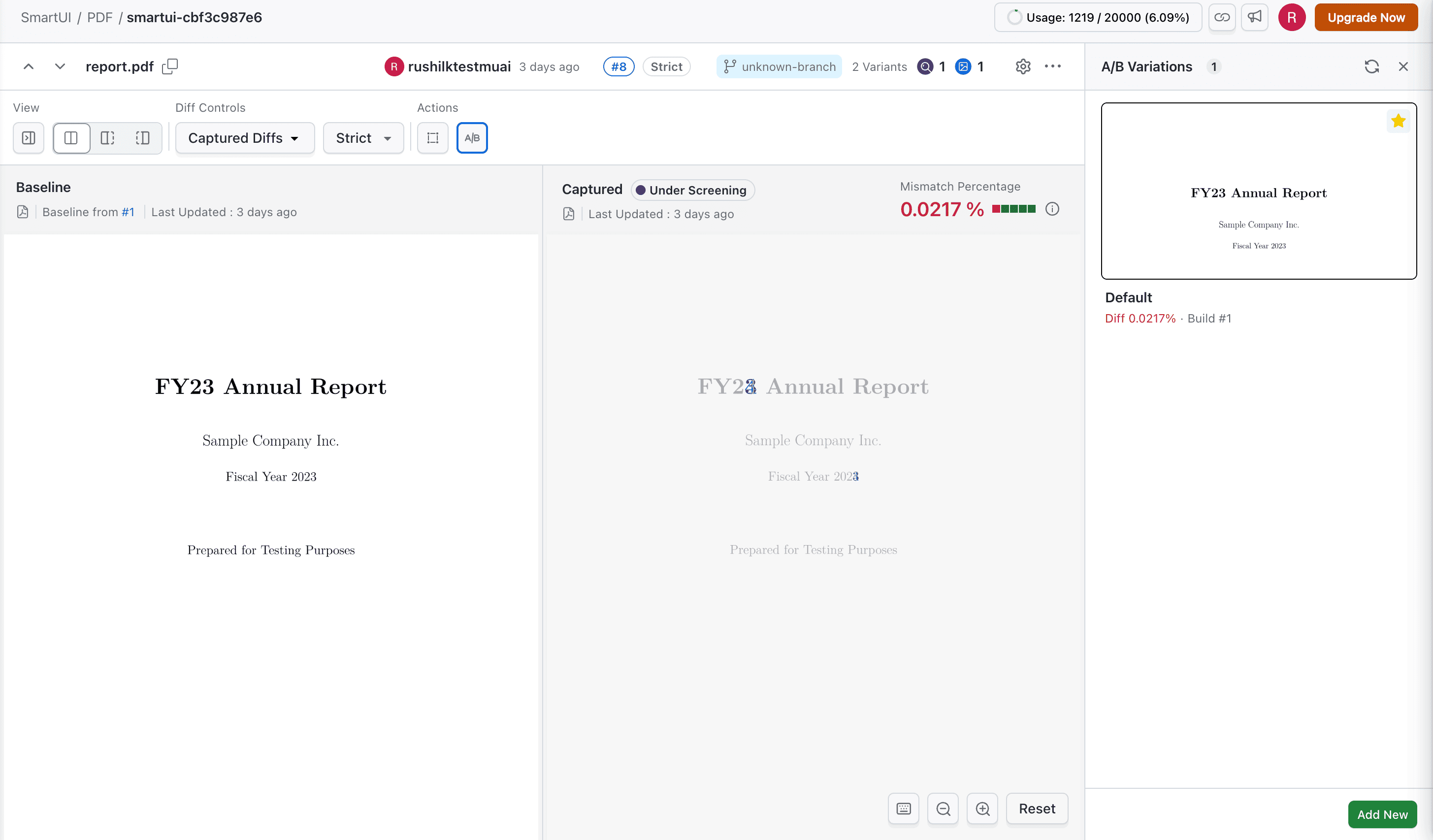
- Click the A/B icon on the screenshot toolbar.

The variations pane opens on the right. The steps below assume you stay in this pane unless noted.
Default variation (dynamic baseline)
When the pane opens, you see the default variation:

- It reflects the current baseline for this screenshot in this build context, per your project’s SmartUI baseline rules (for example the latest approved reference for that build strategy).
- It is dynamic: if the governing baseline changes (approval, move to baseline, branch rules), the default variation follows that reference—it is not a separate image you pin manually.
You cannot assign another variation to replace this default slot. Default means the platform baseline for this screenshot, not a renameable card in your list.
Activate A/B testing: Add new
- With the pane open, click Add new.
- SmartUI creates a variation from the current capture (the screenshot you are viewing).
- From the next build onward, new captures for this name are compared against the default and every user-added variation. That activates multi-baseline A/B for this screenshot.
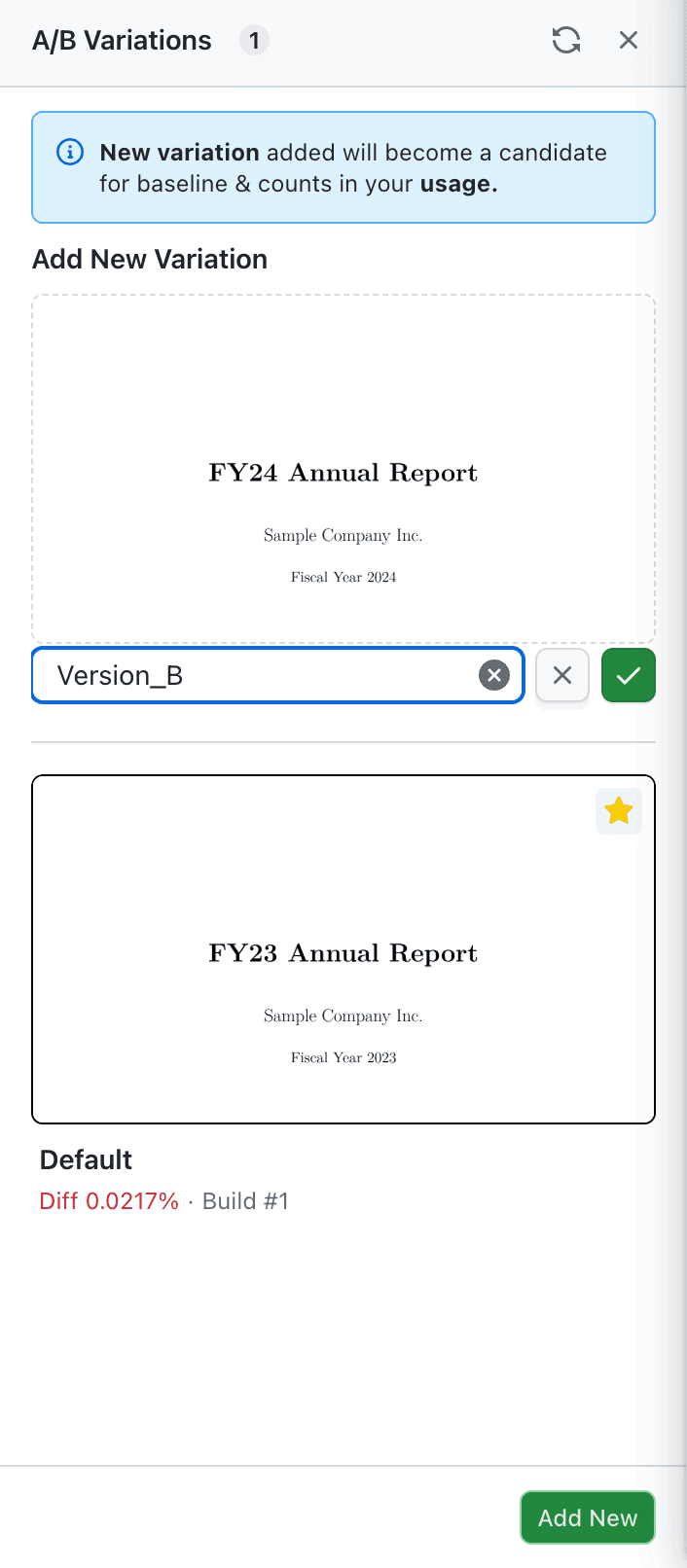
Each added variation stays active until you delete it or end A/B testing.
After new builds: Matched with and limits
Matched with
When a new build processes this screenshot, the pane shows Matched with and the variation name when a capture aligns with one of your references. SmartUI picks the closest match among active variations (typically the lowest diff percentage within your comparison threshold).

Only one variation is shown as the match for triage at a time—the best fit for that capture.
If no variation is within threshold, the screenshot may still show as changes found or unmatched. Add a new variation from that capture, adjust thresholds, or end A/B once you know the intended winner. See Mismatch Thresholds.
How many variations?
| Limit | Detail |
|---|---|
| Total | Up to 20 variations: 1 default + up to 19 user-added |
| Add new | Available until you reach 19 user-added variations |
Screenshot usage
Every active variation is used when comparing future captures for that screenshot. Usage is counted like standard baseline comparison work across the full variation set. For plan-specific metering, contact support.
Manage user variations (rename, update, delete)
For variations you added with Add new (not the dynamic default):
| Action | When to use it |
|---|---|
| Rename | Clarify the label (for example Dark theme, Locale DE). |
| Update | Replace the variation’s reference with the current capture when that alternate “good” state changed. |
| Delete | Remove a variation you no longer need. You cannot delete the default slot. |

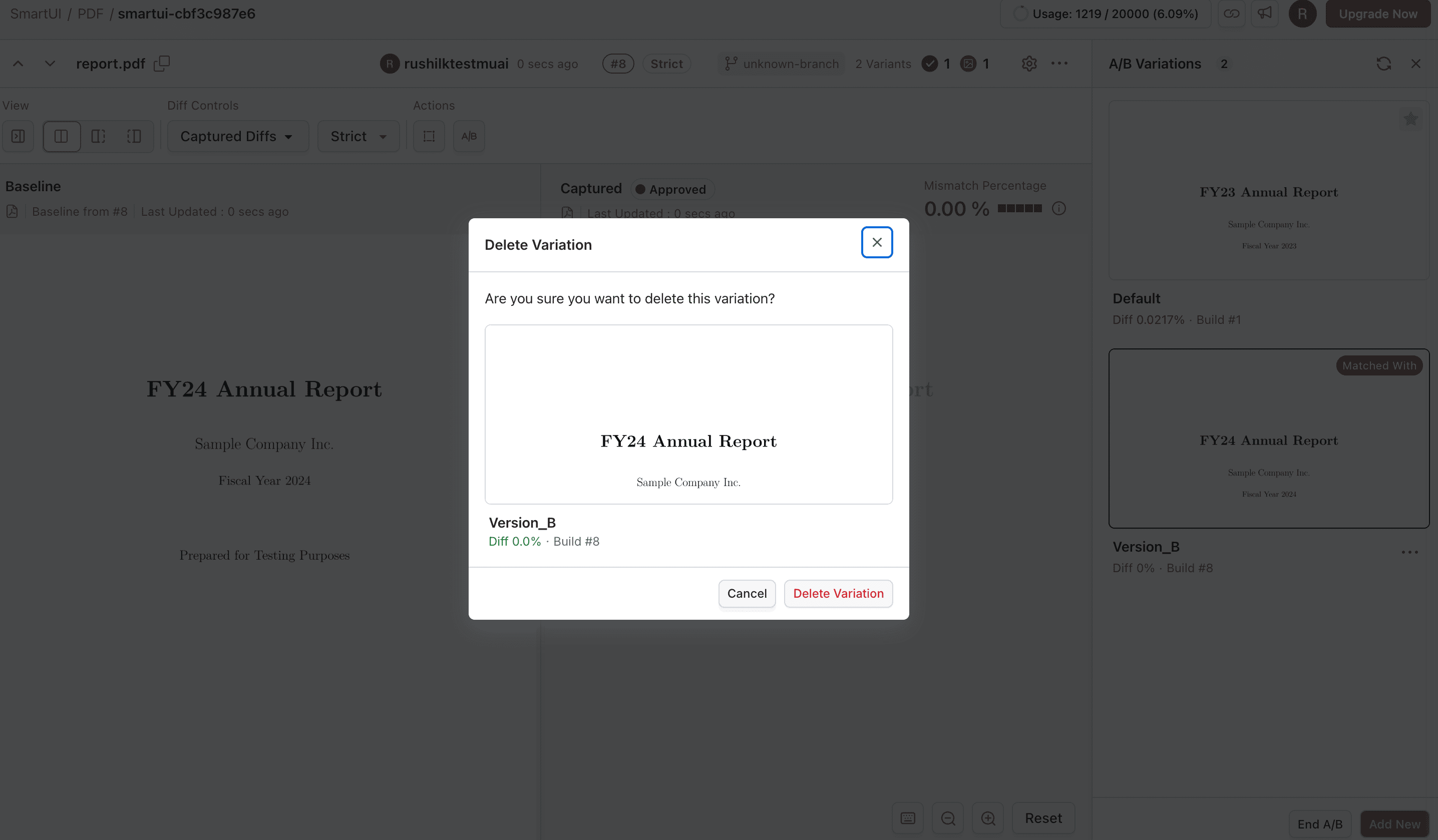
To return to a single baseline without picking a winner yet, delete user-added variations one by one. To commit to one outcome and remove the rest in one step, use End A/B testing below.
End A/B testing (pick a winner)
When the experiment is finished:
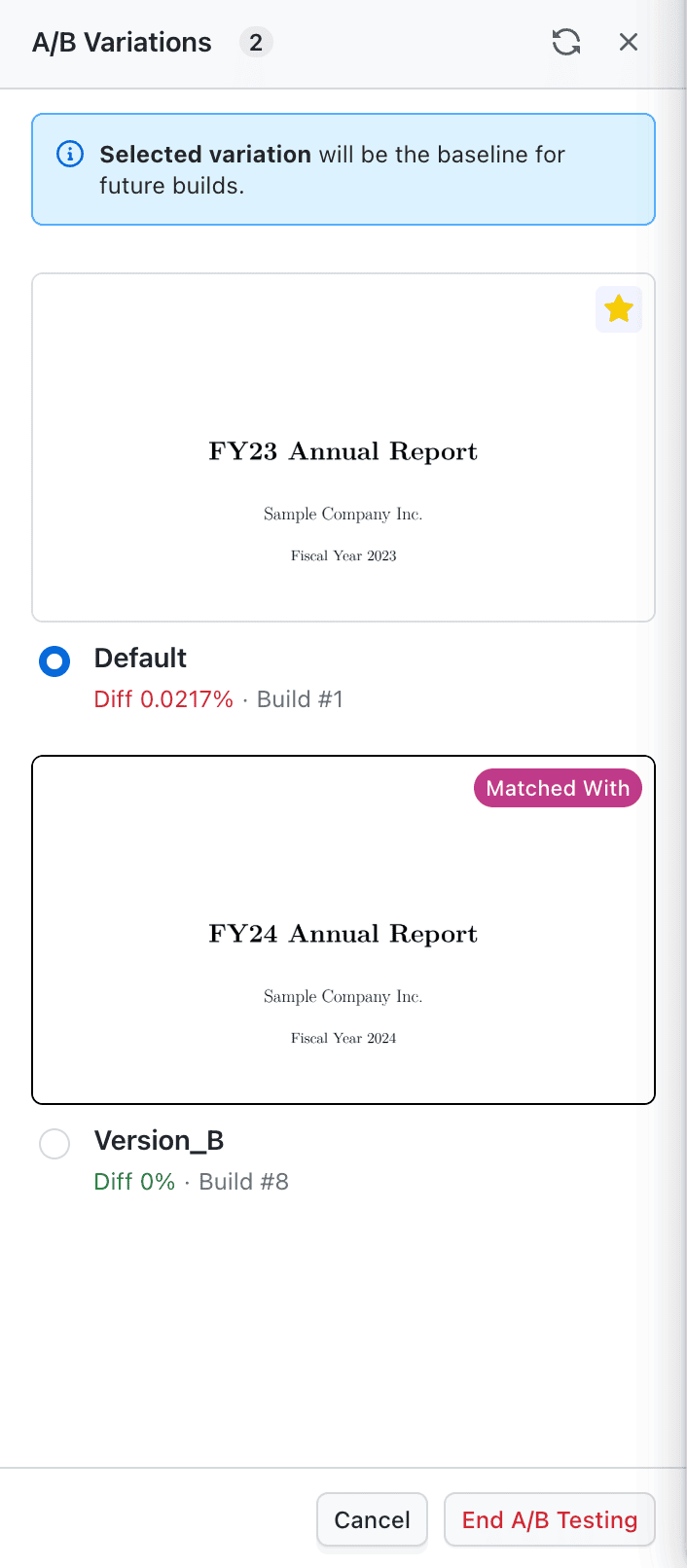
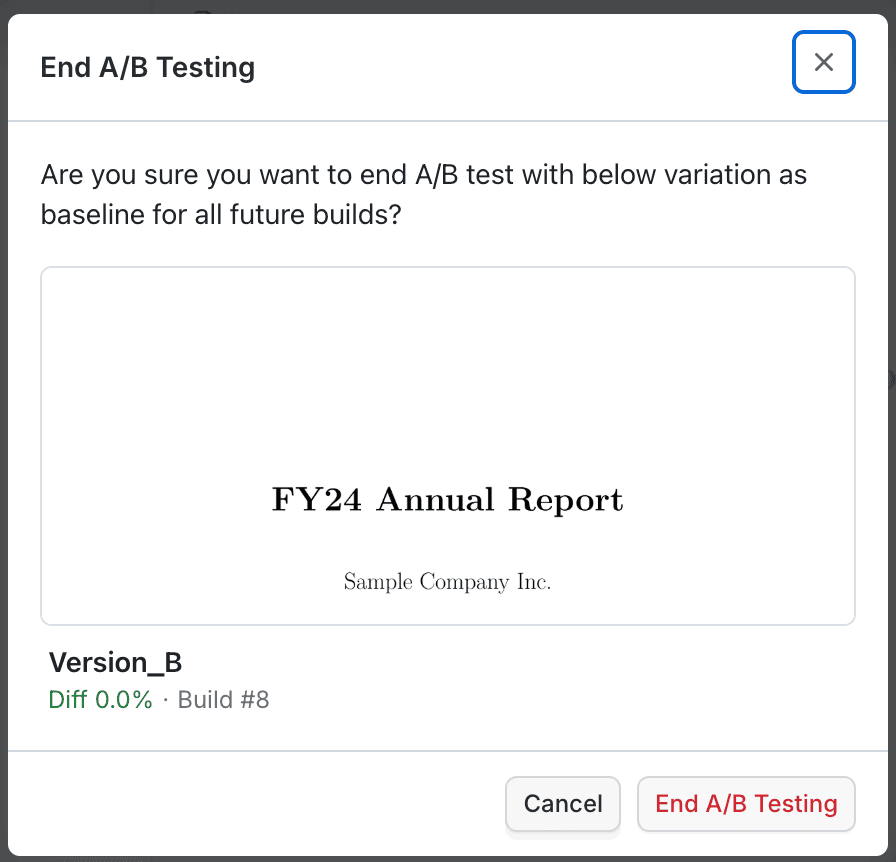
- Start End A/B testing (or End experiment / Pick winner) in the pane.
- Select the variation that should be the only baseline for this screenshot going forward.
- Confirm. SmartUI promotes that choice and deletes the other variations, returning this screenshot to single-baseline mode until you add variations again.
Limits and guardrails
- 20 variations maximum per screenshot (1 default + 19 user-added).
- Comparison mode (pixel, layout, Smart Ignore, and so on) applies at the screenshot level for all variations on that screenshot.
- Branch and merge behavior for baselines still follows your project settings; see Baseline Management and Branch merging for Git-linked workflows.
Troubleshooting
I only see one variation and no Add new
Confirm you are on the screenshot detail view with the A/B icon visible, and that your role can edit baselines in the project. Refresh the build after approvals if the default variation has not updated yet.
A new build never shows Matched with
- Ensure A/B was activated (at least one Add new besides default, or an active multi-variation state).
- Wait for the build to finish processing the screenshot.
- Check Mismatch Thresholds if diffs are above your allowed percentage.
I hit the variation limit
You can have at most 20 variations (including default). Delete unused user-added variations or End A/B testing to collapse to one baseline before adding more.
Can I mark my custom variation as default?
No. The default card tracks the platform baseline for the build. User-added variations are managed with rename/update/delete; End A/B testing is how you make one variation the sole baseline.


 Chat with Us