Export SmartUI Build Data
From the TestMu AI dashboard you can export build-level data for a SmartUI run—comparison outcomes, statuses, and related metadata—without using the CLI or API. Use it for stakeholder summaries, ticket attachments, spreadsheets, or downstream automation.
Prerequisites
- Open SmartUI and select the project that contains your build.
- Open the build you want to export (the completed run you need a snapshot of).
Export from the build view
Step 1: Open Export from the build menu
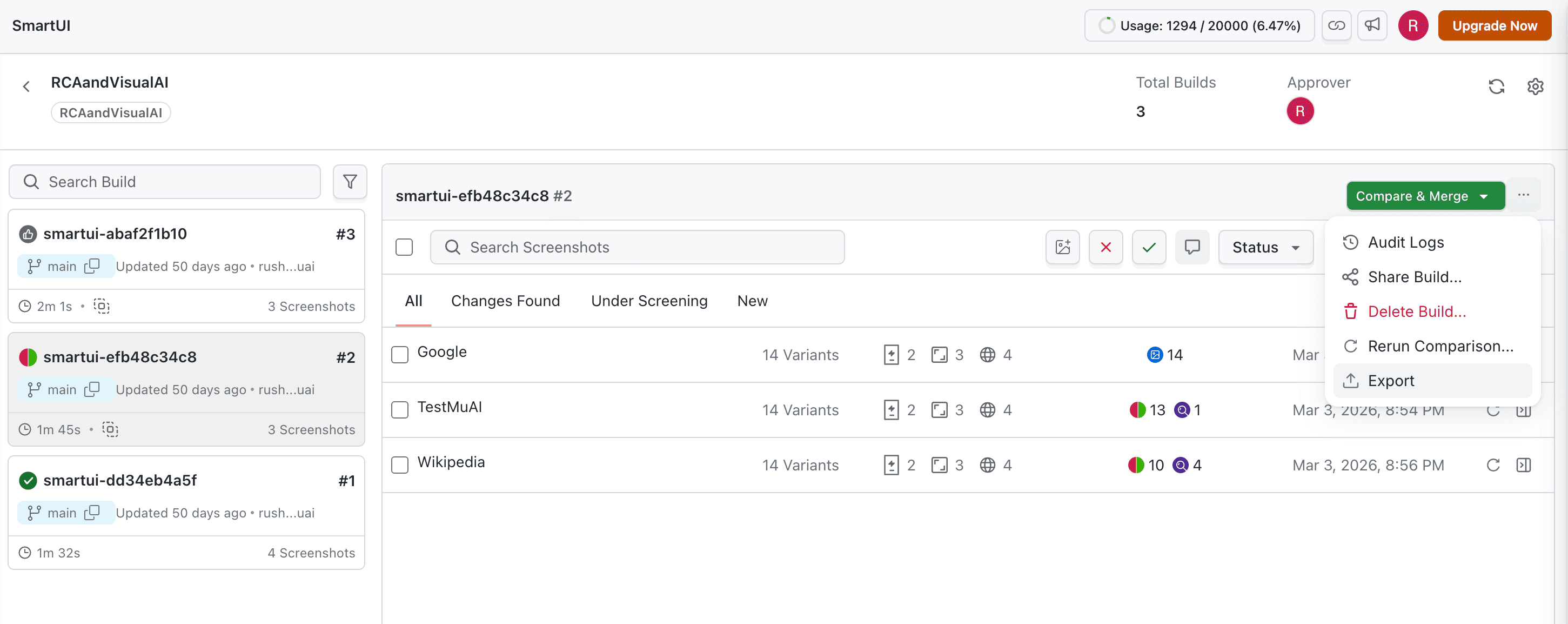
With the build page open, select the three-dot menu (⋮) in the upper-right corner, then choose Export.
Step 2: Wait for export data to load
The product gathers build data for export. Stay on the view until loading finishes (spinner or progress clears). Large builds can take longer; avoid closing the tab during this step.

Step 3: Choose a format and download
When loading completes, select PDF, CSV, or JSON. Your browser will download the file (exact name depends on the product version). Use your browser’s download bar or downloads folder if the save dialog does not appear.
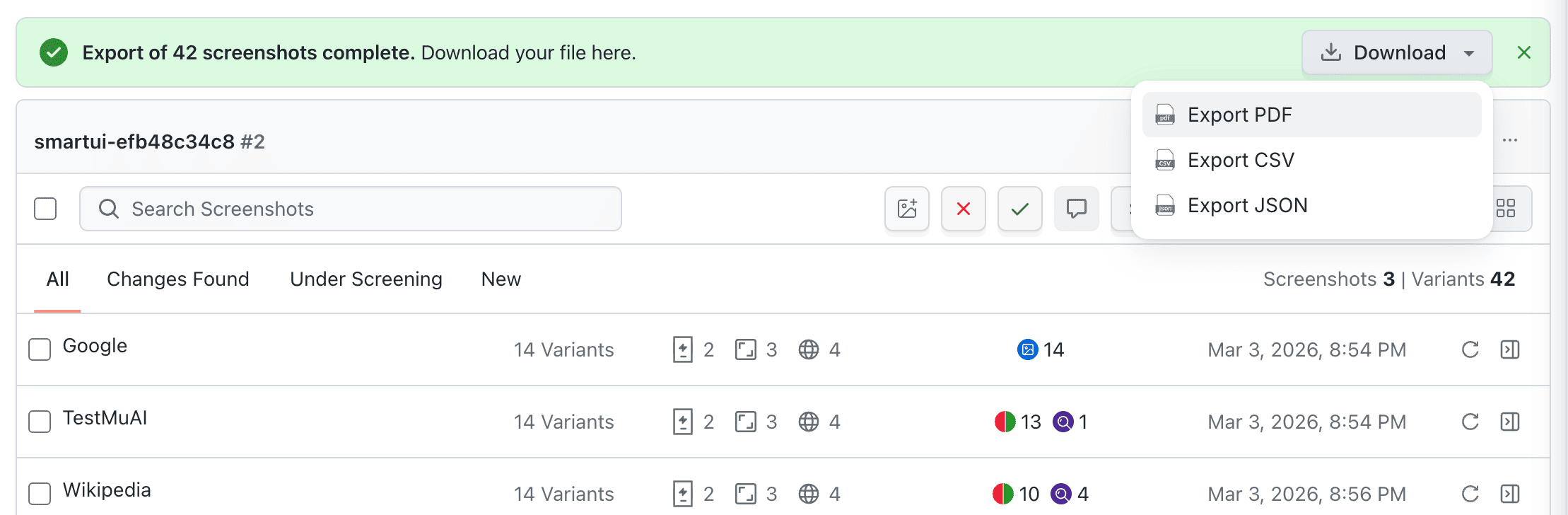
If a download does not start, check pop-up or download permissions for your TestMu AI domain, then try the same format again after a short wait.
Choose a format
| Format | Best for |
|---|---|
| Readable summaries for reviews, email, or release records. | |
| CSV | Sorting, filtering, and charts in Excel, Google Sheets, or BI tools. |
| JSON | Scripts, custom dashboards, or merging with CI metadata. |
Column and field names in CSV/JSON follow the current SmartUI release; if you automate parsing, pin expectations to a tested export sample after upgrades.
 Chat with Us