Baseline Strategy for Omni Projects New
Every Omni project is created with a baseline strategy: the rule SmartUI uses to decide which build a new build is compared against. You pick it once, in the New Project drawer, and it cannot be changed afterwards.
There are two options:
| Git Strategy | Single Baseline | |
|---|---|---|
| Tagged in the drawer | Default | |
| Baseline lookup | Per git branch. A build compares against the latest approved build on the project's baseline branch | Per project. Every build compares against the one baseline build the project holds |
| Branch on a build | Decides the comparison | Recorded as metadata, never used to resolve |
| Branch filter and branch chips in the build list | Shown | Hidden |
| Baseline Build and Non Baseline Build grouping | Not used, builds are one chronological list | Used, and Mark as Baseline is available |
| Merging branches | Available | Not applicable |
| Baseline branch and auto-approval branch in Project Settings | Available | Rejected, the project has no branch dimension |
SMART_GIT and --baselineBranch | Honoured | Ignored |
Which one to choose
Choose Git Strategy if your runs come from CI on feature branches. Each branch keeps its own baseline, so a feature branch compares against its own approved history rather than against whatever was last approved anywhere in the project. This is the behaviour every Omni project had before this option existed, which is why it carries the Default tag.
Choose Single Baseline if you do not run from branch-based CI. Manual runs, scheduled runs, PDF and design uploads, and any workflow where the branch string is either absent or meaningless all fall into this group. The project keeps one baseline, every build is compared against it, and the branch-shaped surfaces disappear from the dashboard instead of sitting there with nothing useful in them.
Single Baseline does not discard git metadata. Branch, commit and author are still stored on the build and still shown on the build card. They are simply not used to pick the baseline.
Setting the strategy
Verified- Dashboard
- API
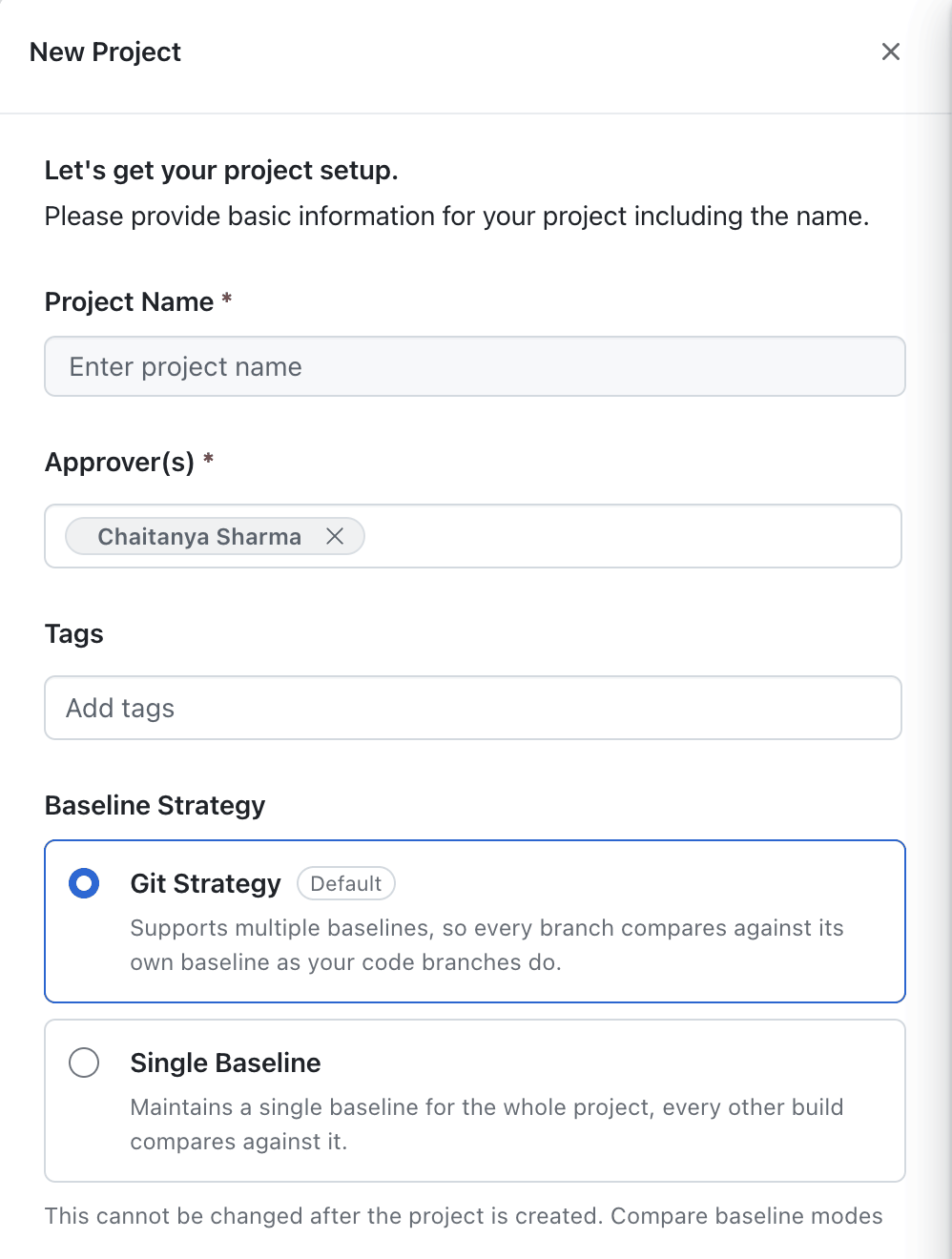
- On the Projects screen, select New Project.
- Enter the project name, approvers and tags as usual.
- In Baseline Strategy, at the bottom of the drawer, select Git Strategy or Single Baseline.
- Select Create Project.
The strategy each project uses is shown as a chip on its row in the project list, next to the build count.

Pass baselineStrategy when you create the project. Accepted values are git_branching and single_baseline.
curl -X POST "https://api.testmuai.com/des-smartui/3.0/create/project" \
  -H "Authorization: Basic <base64 of username:accessKey>" \
  -H "Content-Type: application/json" \
  -d '{
        "name": "checkout-release",
        "projectCategory": "omni",
        "platform": "omni",
        "baselineStrategy": "single_baseline"
      }'
If baselineStrategy is omitted, the project is created with git_branching.
The choice is permanent
Project Settings shows the strategy the project was created with as a read only row.

The strategy is accepted only when the project is created. A later attempt to change it through Project Settings or through the API is rejected:
Verified{ "error": "baseline strategy is set at project creation and cannot be changed" }
Two related errors you may see:
SmartUI Managed Baseline is only available for Omni projectsis returned whensingle_baselineis sent for a project that is not an Omni project. Standard Website, App and PDF projects already keep a single project baseline and have no strategy to set.git branch settings are not applicable for SmartUI Managed Baseline projectsis returned when a baseline branch or auto-approval branch is written to a Single Baseline project.
To move a project to the other strategy, create a new project with the strategy you want and point your runs at it. There is no in place conversion, and existing projects are not migrated.
How each strategy resolves a baseline
Git Strategy
At build creation SmartUI looks for the most recent build that is approved, not partial, and on the project's baseline branch, and freezes that build onto the new build as its baseline. If nothing matches, the new build becomes the baseline itself and is approved automatically.
Two controls change the lookup:
- Smart Git (
SMART_GIT=true) swaps the lookup to the build's own branch, so a branch compares against its own last approved build. --baselineBranch <name>overwrites the project's baseline branch. It is a project level setting, not a per run override.
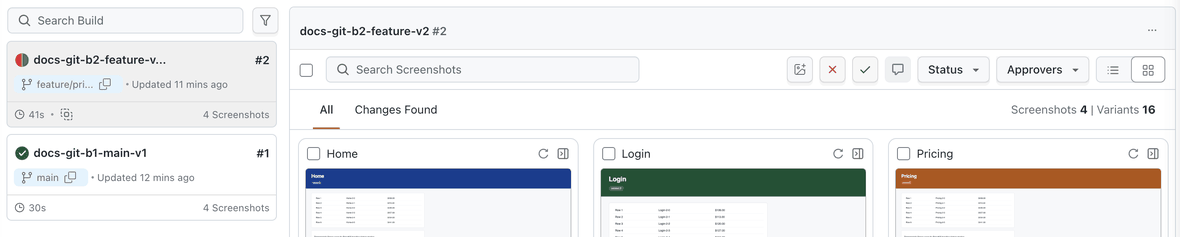
The build list stays one chronological list, and each build carries the branch it ran on.
Single Baseline
The project holds one baseline build. The first build in the project becomes it and is approved automatically. Every later build, on any branch, is compared against that same build, and the build list separates the current Baseline Build from Non Baseline Build entries.
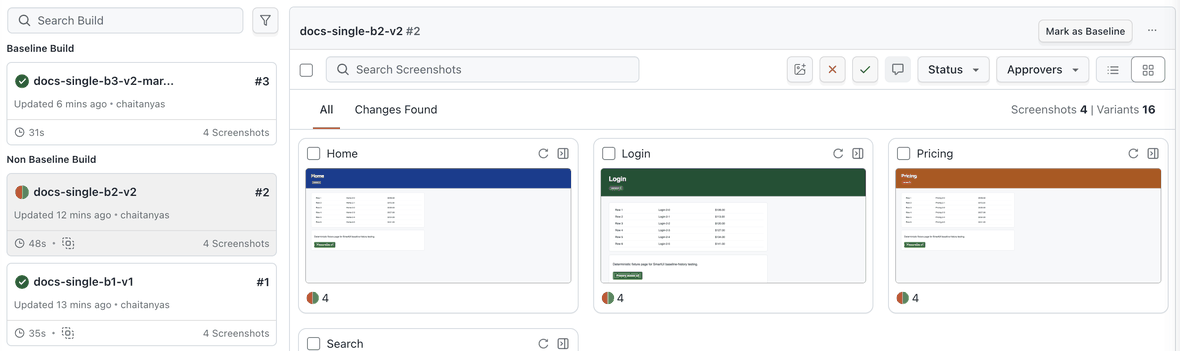
To move the baseline to a different build, use Mark as Baseline on the build, or run the build with --markBaseline. Individual screenshots can be promoted into the current baseline with Merge to Baseline, and --baselineBuild <build name> still works for a one off comparison against a named build.
In a Single Baseline project the baseline is a build you point at, not the last build anyone approved. Approving the screenshots in a non baseline build sets that build to Approved and leaves the baseline where it is, so the next run still compares against the same reference. Use Mark as Baseline when you want the new state to become the reference.
SMART_GIT and --baselineBranch have no effect in a Single Baseline project. Sending them does not fail the run, it simply does not change which build is used.
What this means for existing projects
Omni projects created before this option shipped continue to resolve baselines per git branch, exactly as they did. Nothing about their builds, baselines or comparisons changes, and their Project Settings continue to show the git branch fields.
Standard single source projects are unaffected. A Website, App or PDF project keeps one project baseline as it always has, and CLI projects keep their per branch behaviour.


 Chat with Us