Screenshot Retention and Expiry in SmartUI
SmartUI keeps each screenshot image for 365 days after it is captured. After that, the image is deleted. Build records, statuses and results stay.
Expiry matters most for your baseline. If the screenshots in your baseline build expire, SmartUI has no image to compare new screenshots against. This page explains how to see what is about to expire, how to keep a baseline, and how to get alerts before it happens.
How expiry works
- Expiry is per screenshot. Each screenshot expires 365 days after it was captured, at the next midnight UTC.
- A build's expiry date is its earliest one. SmartUI shows the expiry date of the oldest approved screenshot in the build. Screenshots added to a build later expire later.
- Only the current baseline build is shown. SmartUI shows expiry for the project's current baseline build, and only when it expires within 30 days or has already expired.
- All dates are in UTC.
See which baseline is about to expire
On the Builds page
When the current baseline build is close to expiry, the build card shows an Expires in X days label. After expiry, it shows Expired X days ago.
Open the build to see a banner with the same information:
- Before expiry: "Baseline build #N expires in X days", with the Manage Retention and Retain Build buttons.
- After expiry: "Baseline build #N expired", with the Manage Retention and Recover Build buttons.
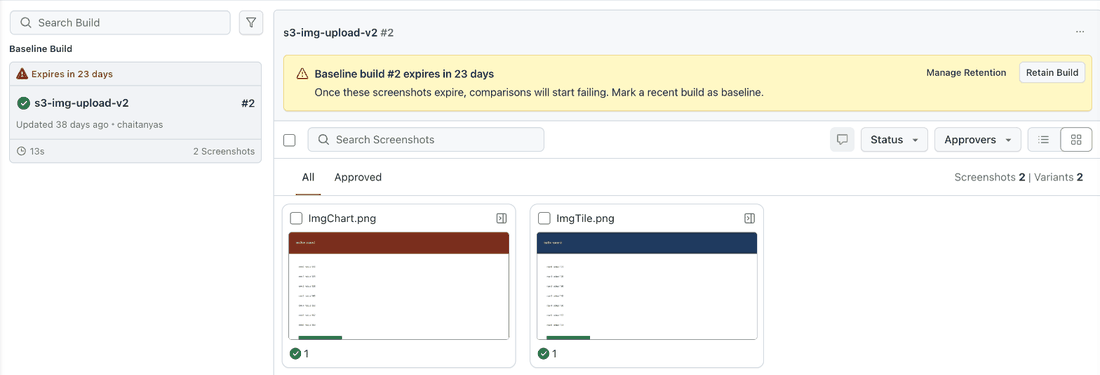
Manage Retention opens the organization setting described in Set retention for your organization.
On the comparison page
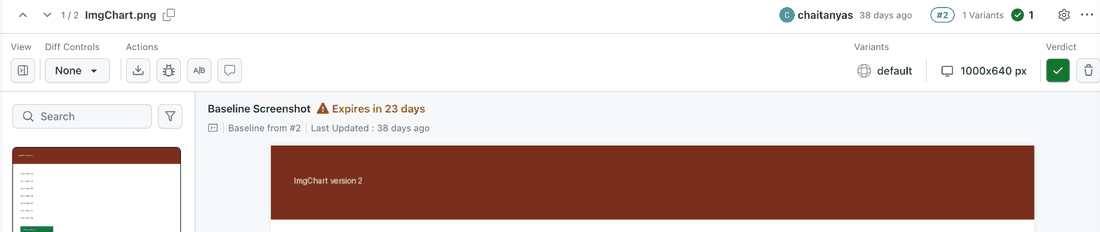
The comparison page shows Expires in X days or Expired next to the Baseline Screenshot title.
Keep a baseline from expiring
You have three options.
| Option | What it does |
|---|---|
| Mark a recent build as baseline | Your newer build becomes the baseline, so comparisons use fresh screenshots. See Baseline Management. |
| Retain Build | Restarts the 365 day period for the baseline screenshots that are about to expire. Requires permission to update builds in the project. |
| Auto Extend Baseline Expiry timer by 365 days | Renews the current baseline of every project in your organization before it expires. Set by an organization admin. |
Retain a baseline build
- Open the project and select the current baseline build.
- In the expiry banner, select Retain Build. If the build has already expired, select Recover Build.
- SmartUI shows Retaining N screenshots and tracks the progress in the build.
Each retained screenshot gets a new 365 day period, counted from the day you retain it.
Retain works only when:
- The build is the project's current baseline.
- At least one of its screenshots expires within 30 days, or has already expired.
Recover Build restores expired screenshots where their images can still be recovered. If an image cannot be recovered, mark a recent build as baseline instead.
Only one operation can run on a build at a time. If you approve, move or rerun screenshots in the same build while it is being retained, SmartUI asks you to wait for the running operation to finish.
Set retention for your organization
Organization admins can manage retention and expiry alerts for every SmartUI project in the organization.
- Go to Organization Settings.
- Open the Org Product Preferences tab.
- In the left menu, select SmartUI > Screenshot Retention.
- Change the settings and select Save Changes.
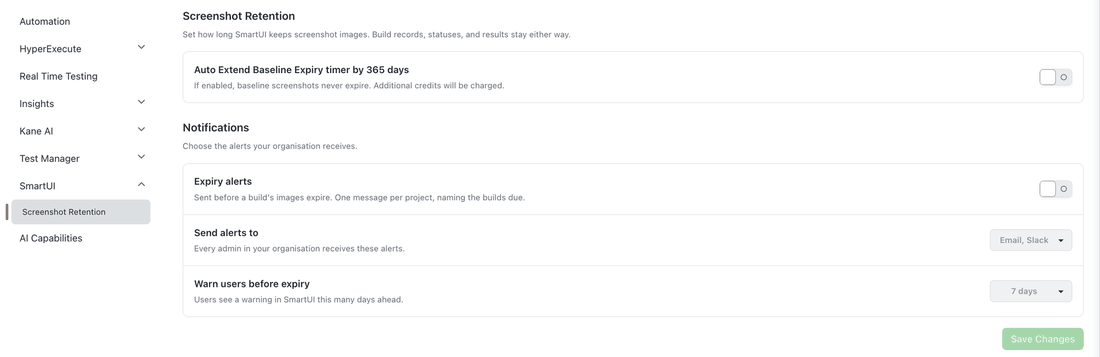
These settings apply to all users in the organization and cannot be changed per user or per project. If you do not see SmartUI under Org Product Preferences, the setting is not yet enabled for your organization. Contact TestMu AI support.
Auto Extend Baseline Expiry timer by 365 days
This setting is off by default.
When it is on, SmartUI checks every day and renews the current baseline build of each project before its screenshots expire. The baseline keeps a fresh 365 days for as long as it stays the current baseline.
- It applies to existing baselines. You do not need to capture a new baseline after turning it on.
- It follows the baseline pointer. When you mark a different build as baseline, the new build is renewed from the next daily check. The old build stops being renewed and expires 365 days after its last renewal.
- Expiry alerts are not sent while it is on.
Notifications
| Setting | What it does | Default |
|---|---|---|
| Expiry alerts | Turns expiry alerts on or off for the organization. | Off |
| Send alerts to | Where alerts are sent: Email, Slack, or both. | Email and Slack |
| Warn users before expiry | How many days before expiry the first alert is sent: 7 days, 14 days or 30 days. | 7 days |
Send alerts to and Warn users before expiry can be changed only while Expiry alerts is on.
Expiry alerts
When expiry alerts are on, SmartUI checks every day at 02:30 UTC for baseline builds that are about to expire.
- When: a build is alerted once when it enters the Warn users before expiry window, and once more when it is 1 day from expiry.
- What: one message per project that lists the baseline builds about to expire, with the branch and the number of screenshots in each build, and the expiry date.
- Which builds: only the current baseline build of each project, and only before it expires. No alert is sent after a build has expired.
Email
The email subject reads SmartUI baselines in <project name> expire in N days. It is sent to the approvers of the project, from no-reply-reports@lambdatest.com.
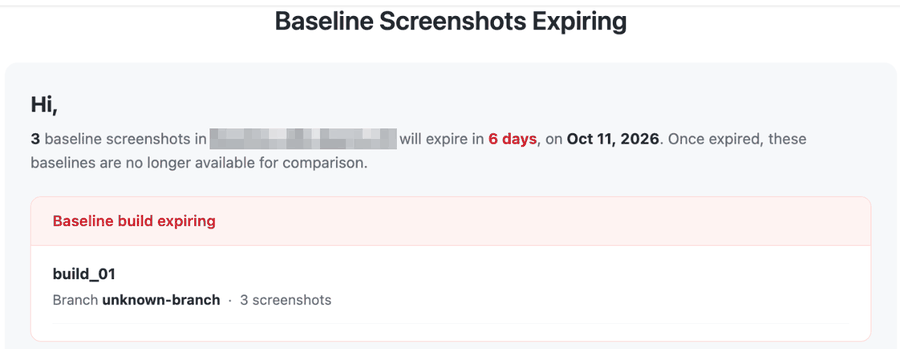
Select View Project in the email to open the project and retain the build or mark a newer build as baseline.
Slack
The Slack message has the same content as the email. It is posted to the channel set for the project, so the project must have Slack alerts turned on. See SmartUI Slack Integration.
Limitations
- Git branch projects: only the baseline used by the project's most recent build is retained and alerted. Baselines of other branches follow the normal 365 day expiry.
- A/B testing variations are not covered. A variation's image expires with the build it came from and is not renewed.
- Retain and Recover work only on the current baseline build.
Troubleshooting
| Message or symptom | What it means | What to do |
|---|---|---|
| Manage Retention opens a page that is not found | Screenshot Retention is not yet enabled for your organization. | Contact TestMu AI support. |
| This build is already retained | The build was retained recently. | No action is needed. |
| Another operation is already running on this build | Another retain, approve, move or rerun is in progress on the build. | Wait for it to finish, then try again. |
| Could not retain this build | The build is not the current baseline, or none of its screenshots expire within 30 days. | Retain is available only for the current baseline when it is close to expiry. |
| No alert arrived | Alerts are off, Auto Extend is on, the build is not the current baseline, or the build has already expired. For email, you must be a project approver. For Slack, the project must have Slack alerts on. | Check the settings in Org Product Preferences and the project settings. |


 Chat with Us