KPI Threshold Alerts
KPI threshold alerts tell you on the same day when your test health gets worse, instead of waiting for the next weekly report. You choose which test-health KPIs to watch and set a count limit for each. When a KPI goes above its limit within the window you choose, TestMu AI sends an alert by email, Slack or webhook.
KPI threshold alerts are being rolled out gradually. If you don't see the KPI threshold alerts section described below, contact support.
KPIs you can watch
You can watch the five Test States KPIs from the Insights weekly report:
| KPI | What is counted | Counts |
|---|---|---|
| New Failures | Tests that ran in both the current window and the window before it, and failed only in the current one | Tests |
| Consistent Failures | Tests that failed in both the current window and the window before it | Tests |
| Unstable | Tests with mixed results, or whose most common result is a lambda error, queue timeout or idle timeout | Tests |
| Flaky | Test runs flagged as flaky | Runs, not distinct tests |
| Retried | Test runs that were retried | Runs, not distinct tests |
New Failures and Consistent Failures compare the window with the same number of days just before it. For example, with a 7-day window, the last 7 days are compared with the 7 days before them.
The New Failures KPI is different from the New Failure smart tag. The smart tag marks a single test whose latest run failed after a run of passes. The KPI counts tests across the whole window, compared with the window before it.
Set up KPI threshold alerts
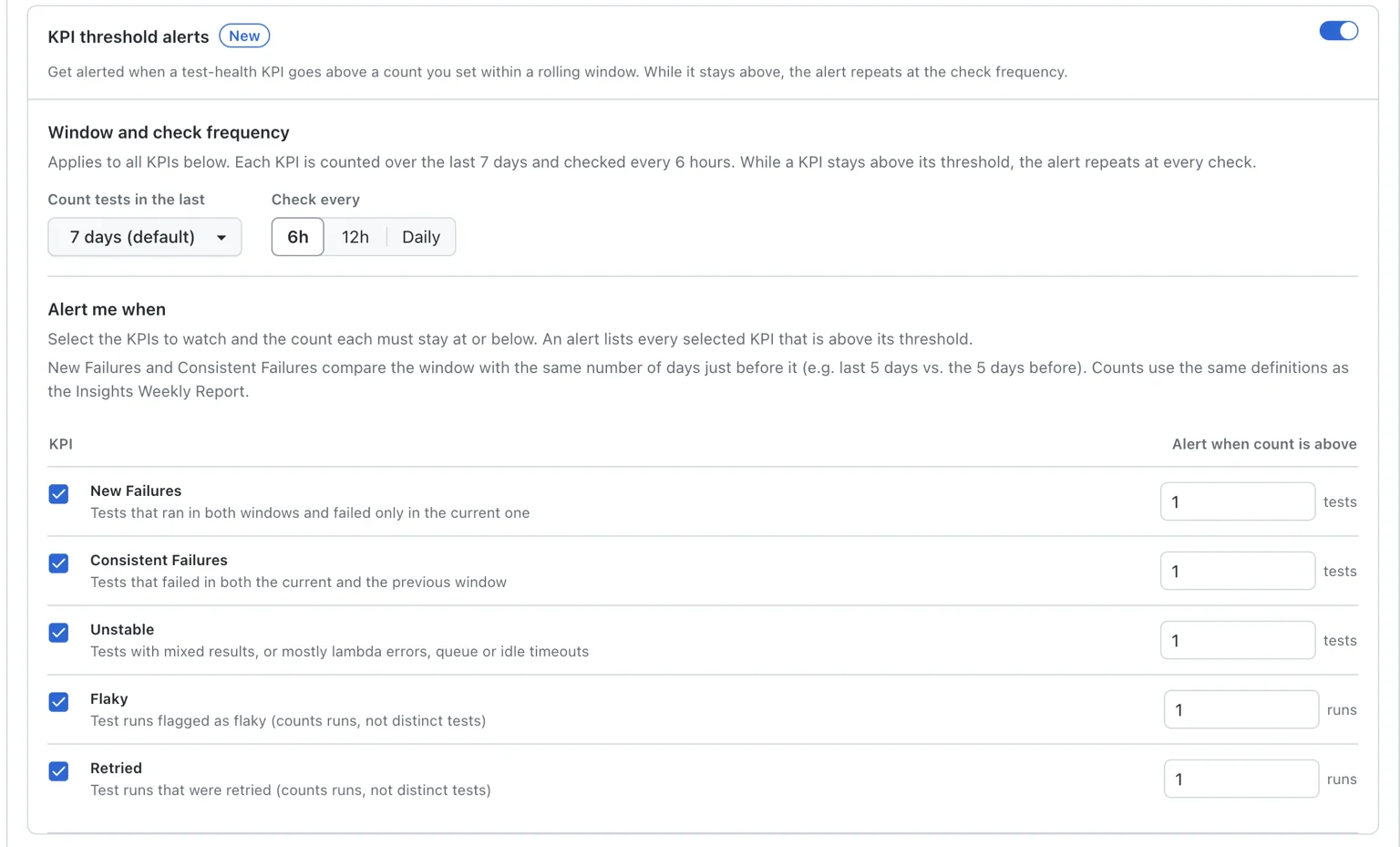
Go to Organization Settings → Org Product Preferences → Insights → Smart Tags. The Smart Tags and Anomaly Notifications card holds the settings, which apply to the whole organization:
- Turn on Enable anomaly notifications.
- Turn on KPI threshold alerts. The Build anomaly digest above it is a separate switch for anomaly notifications; you can turn on either or both.
- Under Window and check frequency:
- Count tests in the last — the window, from 1 to 15 days. The default is 7 days.
- Check every — 6h, 12h or Daily. The default is Daily.
- Under Alert me when, tick each KPI you want to watch and enter its limit in Alert when count is above. The limit is a whole number from 1 to 2,147,483,647.
- Turn on at least one channel. KPI threshold alerts use the same channels as anomaly notifications:
- Email — add up to 50 recipient addresses.
- Slack — choose a channel. Slack must first be connected under Integrations.
- Webhook — add up to 20 public
httporhttpsendpoint URLs.
- Click Update.
Update stays disabled until the settings can be saved. A message explains what is missing, for example:
- Turn on at least one of Build anomaly digest or KPI threshold alerts.
- Select at least one KPI under KPI threshold alerts.
- Enter a whole-number threshold from 1 to 2,147,483,647 for Flaky.
When an alert is sent
KPIs are checked at fixed times in UTC, based on Check every:
| Check every | Check times (UTC) |
|---|---|
| 6h | 00:00, 06:00, 12:00 and 18:00 |
| 12h | 00:00 and 12:00 |
| Daily | 00:00 |
At each check:
- Each watched KPI is counted over the window — the chosen number of days up to the check time.
- A KPI is breached when its count is above its limit. A count equal to the limit does not alert.
- If any KPI is breached, one alert is sent that lists every breached KPI. If none is breached, nothing is sent.
- While a KPI stays above its limit, the alert is sent again at every check. No message is sent when it drops back below.
After you save, the first check runs within about an hour.
What an alert contains
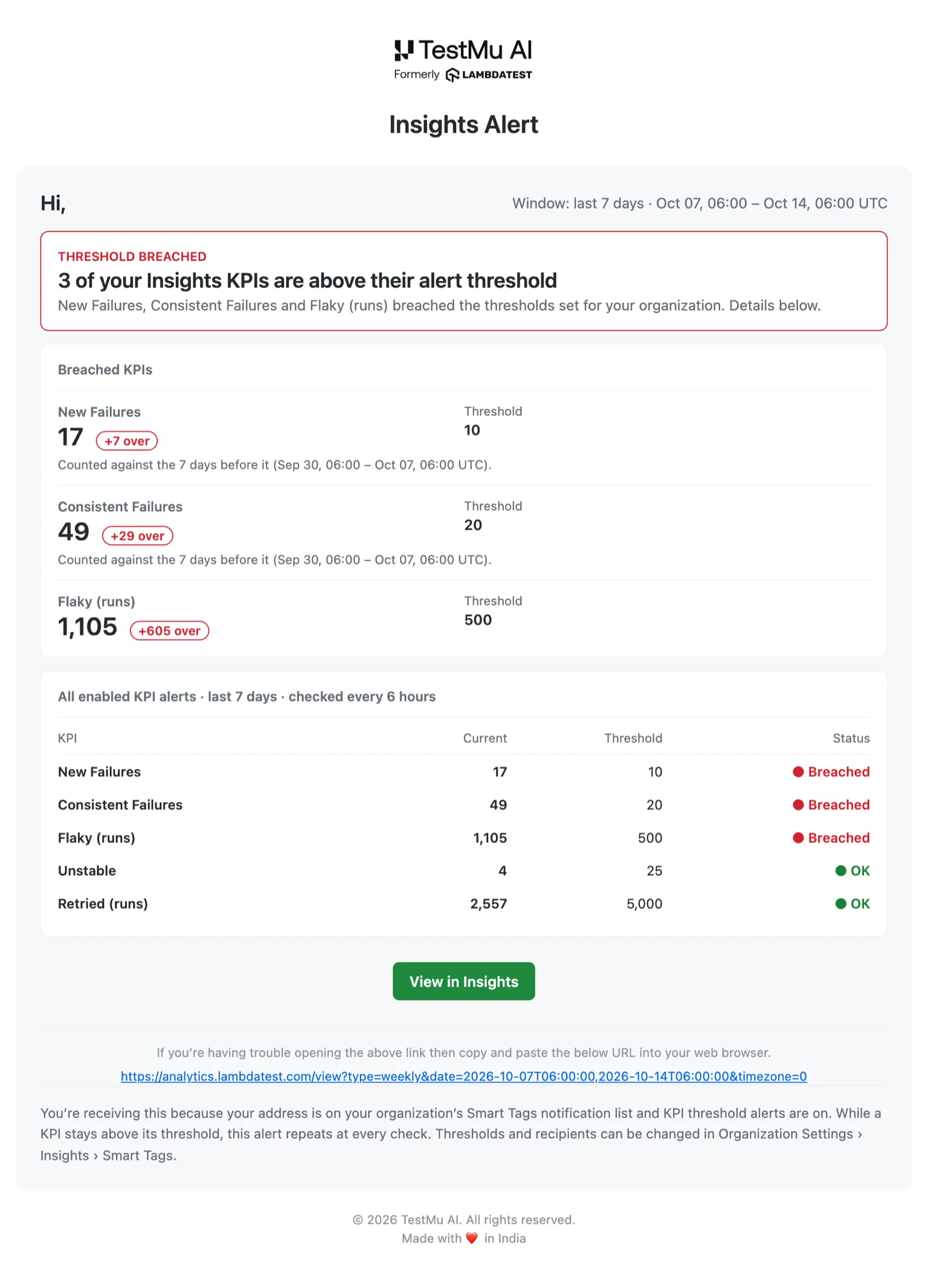
- Email — the subject gives the number of breached KPIs and the check time, for example
Insights Alert: 3 KPIs above threshold · Oct 14, 06:00 UTC. The email shows the window, then each breached KPI with its count, its limit and how far it is over. A table lists every KPI you watch with its current count, its limit and whether it is breached, followed by a View in Insights button. - Slack — the same details: the window, the check time, the breached KPIs and the KPIs within their limits, with a View in Insights button.
- Webhook — a JSON
POSTwith theX-LT-Event: insights_kpi_alertheader. The body carriesschema_version,event,environment,org_id,slot(the check time),window,frequency_hours, abreacheslist, awatchedlist andinsights_url. Each entry inbreachesandwatchedhaskpi,label,countandthreshold.org_idandslottogether identify one alert.
{
  "schema_version": 1,
  "event": "insights_kpi_alert",
  "environment": "production",
  "org_id": 123456,
  "slot": "2026-10-14T06:00:00Z",
  "window": { "from": "2026-10-07T06:00:00Z", "to": "2026-10-14T06:00:00Z", "days": 7 },
  "frequency_hours": 6,
  "breaches": [
    { "kpi": "consistent_failures", "label": "Consistent Failures", "count": 49, "threshold": 20 }
  ],
  "watched": [
    { "kpi": "consistent_failures", "label": "Consistent Failures", "count": 49, "threshold": 20 },
    { "kpi": "unstable", "label": "Unstable", "count": 4, "threshold": 25 }
  ],
  "insights_url": "https://…"
}
Related
- Anomaly notifications — a digest when a build finishes with anomalies.
- Smart Tags — smart tags for test sessions and how to configure them.
- Build Insights — the build list and build details.


 Chat with Us