AI CoPilot for Analytics Dashboards BETA
AI CoPilot is an AI agent for your TestMu AI Analytics dashboards. Ask it what your test data is telling you and it reasons over that data to answer in plain language. With the widget builder, describe the insight you want and CoPilot plans a widget, builds it, and proposes it for your approval — you stay in the loop on every change.
Prerequisites
- TestMu AI paid account with AI features enabled: AI CoPilot requires an active paid account with AI features turned on for your organization, and an AI credit balance.
- Widget builder access (beta): building widgets with CoPilot is a separate beta capability, enabled per organization on request. Asking CoPilot questions about a dashboard does not require it.
- Data and dashboard setup: CoPilot works against the data in your account and the widgets on the dashboard you open it from. To learn about widgets and dashboards, see the Analytics Widgets documentation.
To request either capability for your organization, contact support@testmuai.com.
Any role except Guest can use AI CoPilot — you do not need to be an admin.
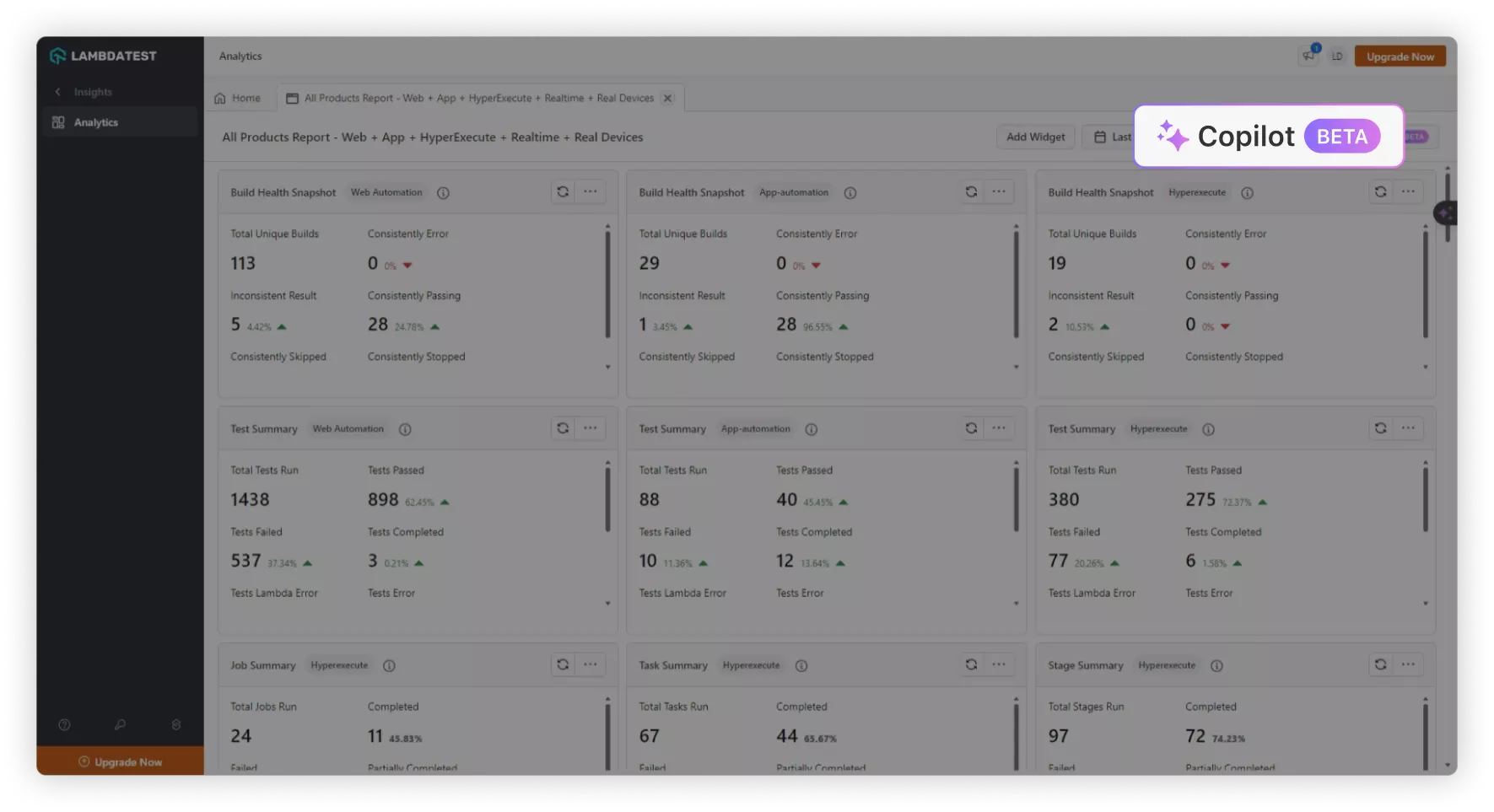
Opening AI CoPilot
- Login: Sign in to your TestMu AI account.
- Navigate to Insights: From the left navigation menu, click Insights.
- Select or Create Dashboard: Open the dashboard you want to work on.
- Launch AI CoPilot: Click the CoPilot button in the dashboard action bar, next to Add Widget. CoPilot opens as a side panel beside the dashboard.
- Start a conversation: Type your question or a description of the widget you want.
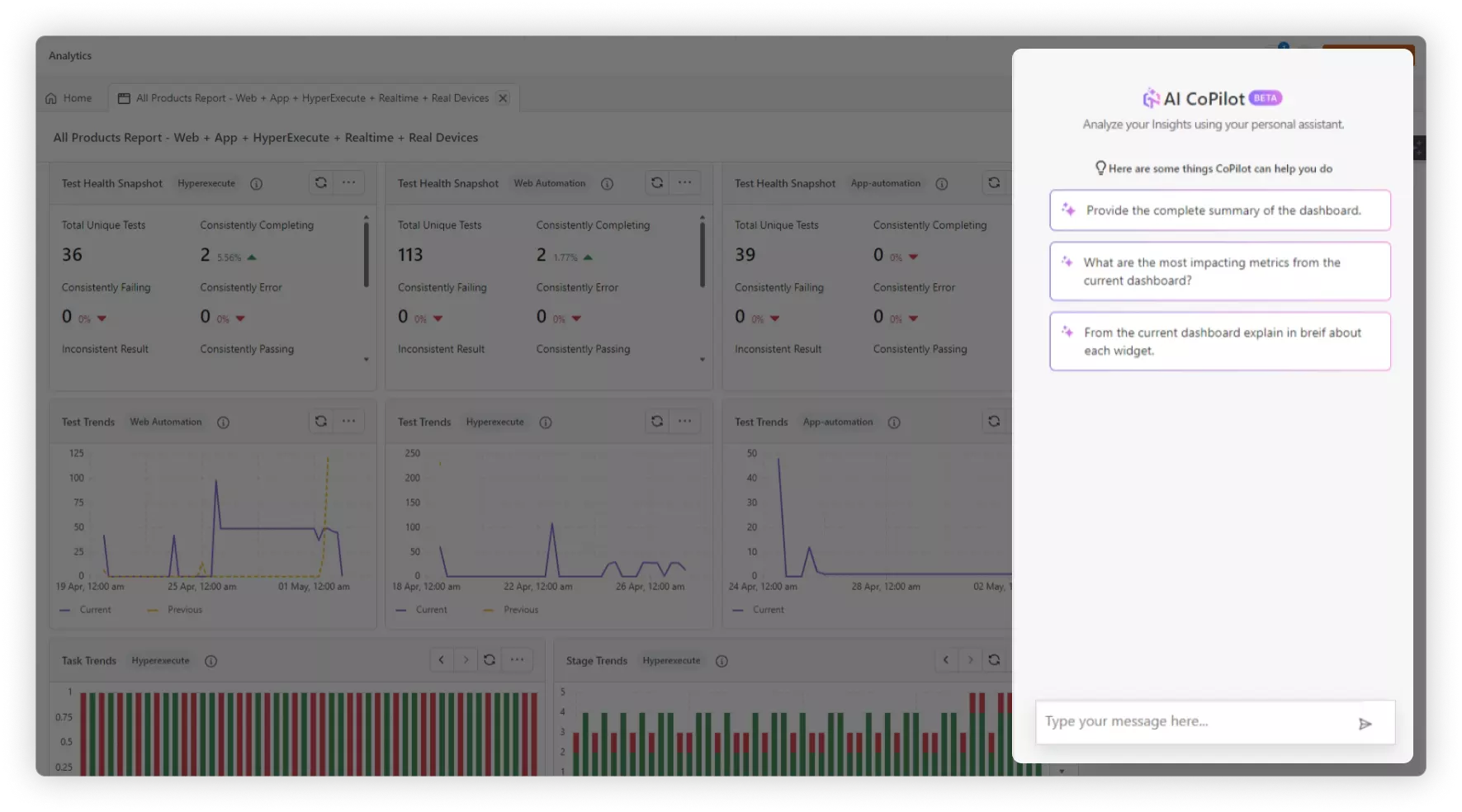
Analyzing a Dashboard with CoPilot
Ask CoPilot about the data already on your dashboard and it answers in natural language — no configuration, no query syntax.
- Natural language queries: Ask questions the way you would ask a teammate, such as "Why did the pass rate drop this week?"
- Trend and comparative analysis: CoPilot surfaces patterns over time, and compares metrics, environments and time periods.
- Grounded in your data: CoPilot reads the data behind the widgets on your dashboard, so every answer is grounded in what you are looking at rather than guessed.
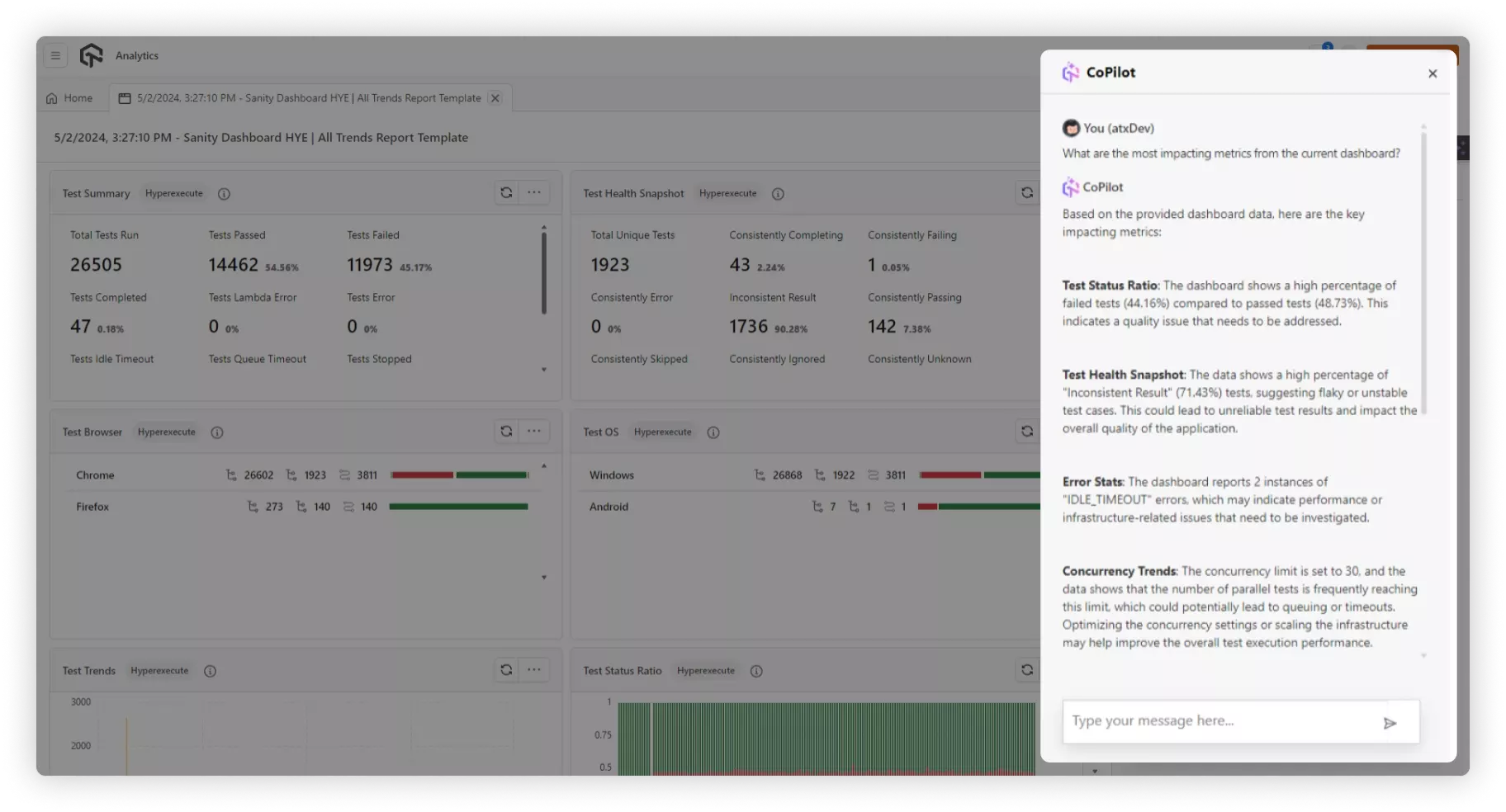
CoPilot reads the data behind custom widgets. For prebuilt module widgets it can see the widget, but not the data inside it.
Building Widgets with CoPilot
BETABuilding a widget normally means picking a product, a field, an aggregation and a chart type. With CoPilot you describe the question you want answered instead, and the agent works out the configuration for you and returns a working custom widget.
This capability is in beta and needs widget builder access — see Prerequisites. Without it, CoPilot still answers questions about your dashboard but cannot build widgets.
Always verify a generated widget against your data before relying on it.
Describe the outcome you want
With CoPilot open, describe the insight you are after in the message box at the bottom of the panel (Ask for a widget, or /summary to just answer). You do not need to know which field or chart type answers it. For example:
Show test status broken down by operating systemWhich browsers are dragging the pass rate down?Add a table of the flakiest testsShow run volume over time
If the dashboard is empty, CoPilot shows a few starter prompts matched to your data — click one to use it.
Approve before anything changes
CoPilot proposes; you decide. Nothing reaches your dashboard until you approve it. Each request returns a proposal card showing its work:
- A live preview of the widget running on your real data.
- A What changes summary of what the agent built and why.
- Any assumptions it had to make to interpret your request.
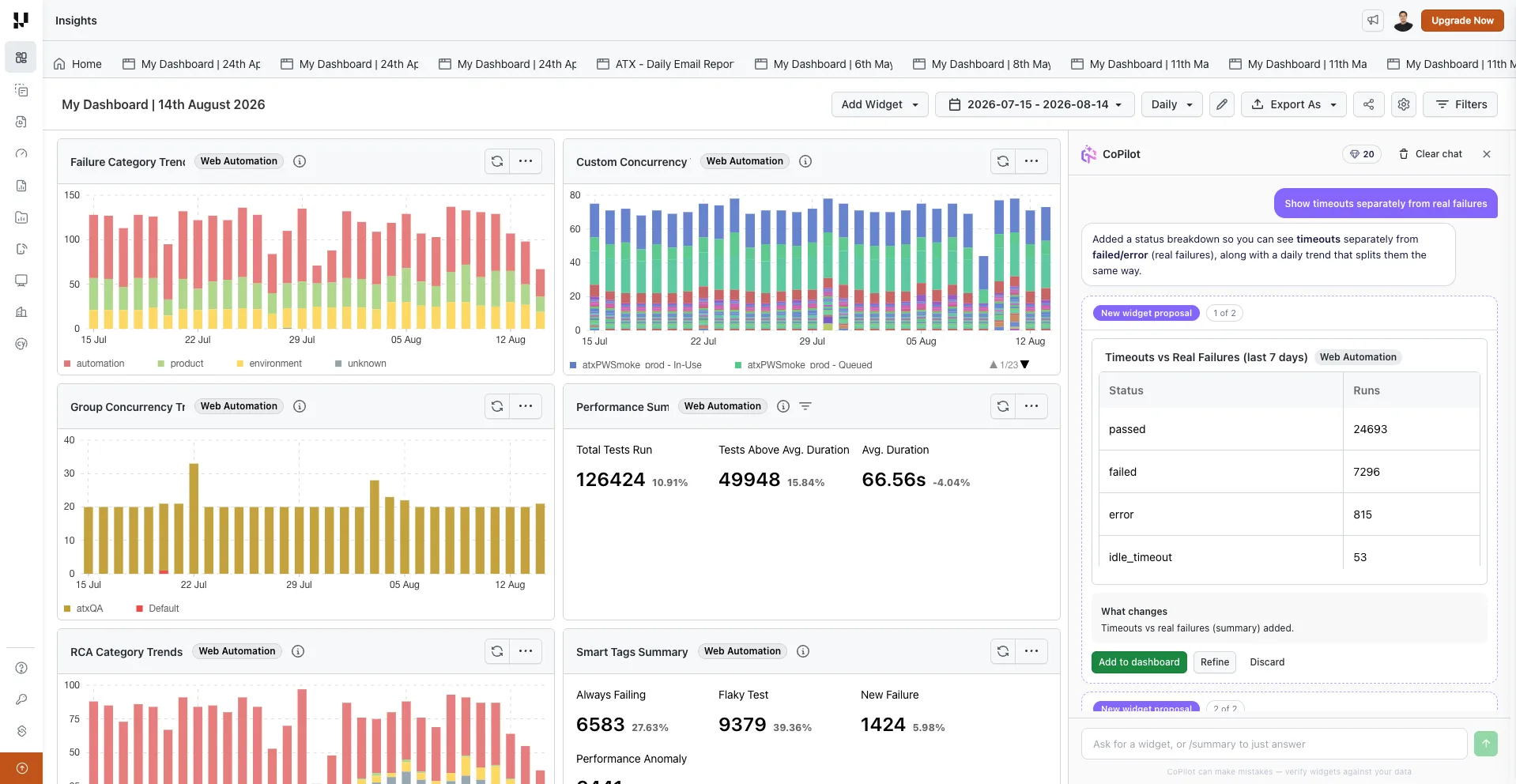
For a brand-new widget, the card offers:
| Action | What it does |
|---|---|
| Add to dashboard | Saves the proposed widget to the dashboard |
| Refine | Fills in the message box so you can adjust the widget |
| Discard | Drops the proposal; nothing is saved |
When CoPilot proposes an update to a widget it built earlier, Replace and Keep both appear in place of Add to dashboard — replace the original, or save the new version alongside it.
If a request proposes more than one widget, CoPilot asks you to pick which ones to keep.
Widgets are saved to your dashboard as soon as you approve them; there is no separate save step.
Replace overwrites the original widget's configuration and cannot be undone. Use Keep both if you want to compare the two versions before removing one.
Refine through conversation
CoPilot keeps the context of your conversation, so a follow-up message refines the widget already on screen instead of starting over. Each refinement adds a new version to the same card, so you can step back and forth to compare before deciding. When CoPilot updates an existing widget, a Before / After toggle shows both.
CoPilot also offers suggested follow-ups such as split by browser, failed only, compare with last month or as a table — click one instead of typing it.
Ask without changing anything
By default CoPilot assumes you want a widget. Use a slash command when you want it to answer a question instead — it reasons over your dashboard and replies, but adds and changes nothing:
| Command | What it does |
|---|---|
/summary | Summarize what the dashboard is showing |
/ask | Ask a direct question about the data |
/explain | Explain a metric or a widget |
/why | Dig into the cause behind a change |
Start typing / and press Tab to complete a command.
Working with generated widgets
Widgets built by CoPilot are ordinary custom widgets — they are saved, edited, shared and scheduled through the same options as any other widget. Two things mark them out:
- An AI badge on the widget header, with the tooltip Built with CoPilot.
- Configure with AI in the widget's three-dot menu, which reopens CoPilot ready to change that widget.
Supported products and visualizations
CoPilot builds widgets for Web Automation (the default), App Automation, HyperExecute, Real Time Testing, Real Device Testing, Smart UI Testing, Accessibility and Test Manager. Ask for data from another product and the agent recognises it and switches products for you.
Supported visualizations are line chart, bar chart, area chart, pie chart, gauge chart, heatmap, table and billboard.
Credits and Usage Guidelines
Every message you send to CoPilot uses AI credits from your organization's balance — including refinements and slash commands. A request uses a minimum of 5 credits; longer conversations and more complex requests cost more, because the cost scales with the amount of data and text CoPilot processes. The panel shows the cost of each reply and the running total for the conversation.
Credits are charged when CoPilot replies, not when you accept its proposal. Approving a widget costs nothing extra, and discarding one does not refund the request that produced it.
A single request adds at most four widgets. To check your balance or top up, see Credits Management.
Your conversation is stored in the browser you started it in and kept for 7 days. It is not shared with your teammates and does not follow you to another browser or device. Widgets you already added to the dashboard are unaffected by clearing the chat.
Current Limitations
The agent works inside a deliberately narrow boundary:
- It can modify widgets it built, but not widgets created another way.
- Replacing a widget cannot be undone from the chat.
- It cannot export, download or schedule a report.
- It reads only the dashboard you opened it from, and only data you already have access to.
Troubleshooting
| Symptom | Likely cause | What to do |
|---|---|---|
| You don't see the CoPilot button | AI features are not enabled for your organization, or you are signed in with the Guest role | Check the Prerequisites, then contact your account admin or support@testmuai.com |
| CoPilot opens and answers questions, but never proposes a widget | Your organization has AI CoPilot but not the beta widget builder | Request widget builder access from support@testmuai.com |
| You need at least 5 AI credits | Your organization's AI credit balance is too low to send a request | Top up your AI credits |
| AI features have been disabled for your organization | The AI entitlement was turned off | Contact your account admin or TestMu AI support |
| CoPilot could not build the widget | The request did not name a clear metric or breakdown | Rephrase with both, for example "count of failed tests by browser" |
| The preview is empty | The date range or filters on the dashboard exclude all matching data | Widen the dashboard date range, or relax its filters, then ask again |
| CoPilot built the widget for the wrong product | Your request was ambiguous, so CoPilot stayed on the current product | Name the product in your request, for example "failed tests by browser for HyperExecute" |
| No fields available for this product | No test data exists for the selected product | Run tests on that product first, or switch products |
Support and Assistance
If you run into difficulties or have questions about AI CoPilot, reach out to our 24/7 customer support for guidance and troubleshooting.


 Chat with Us