SCIM Provisioning: Users & Groups
SCIM (System for Cross-domain Identity Management) lets your Identity Provider (IDP) automatically manage users and groups within your TestMu AI organization, no manual account setup required.
| Capability | What it does |
|---|---|
| User Provisioning | Auto-create, update, and deactivate user accounts |
| Group Provisioning | Sync IDP groups and map them to TestMu AI teams, concurrency groups, or sub-orgs |
| Role Assignment | Set organization roles (Admin / User / Guest) from your IDP |
SSO is required. If you haven't set up SSO yet, see Getting Started with SSO first.
Setup
What you need: Enterprise plan, SSO configured, Admin access, and an IDP that supports SCIM 2.0 (Okta, Azure AD, JumpCloud, etc.).
Step 1: Copy SCIM Credentials
Go to Settings > Organization Settings > Security tab. Copy the SCIM Base URL and Bearer Token.
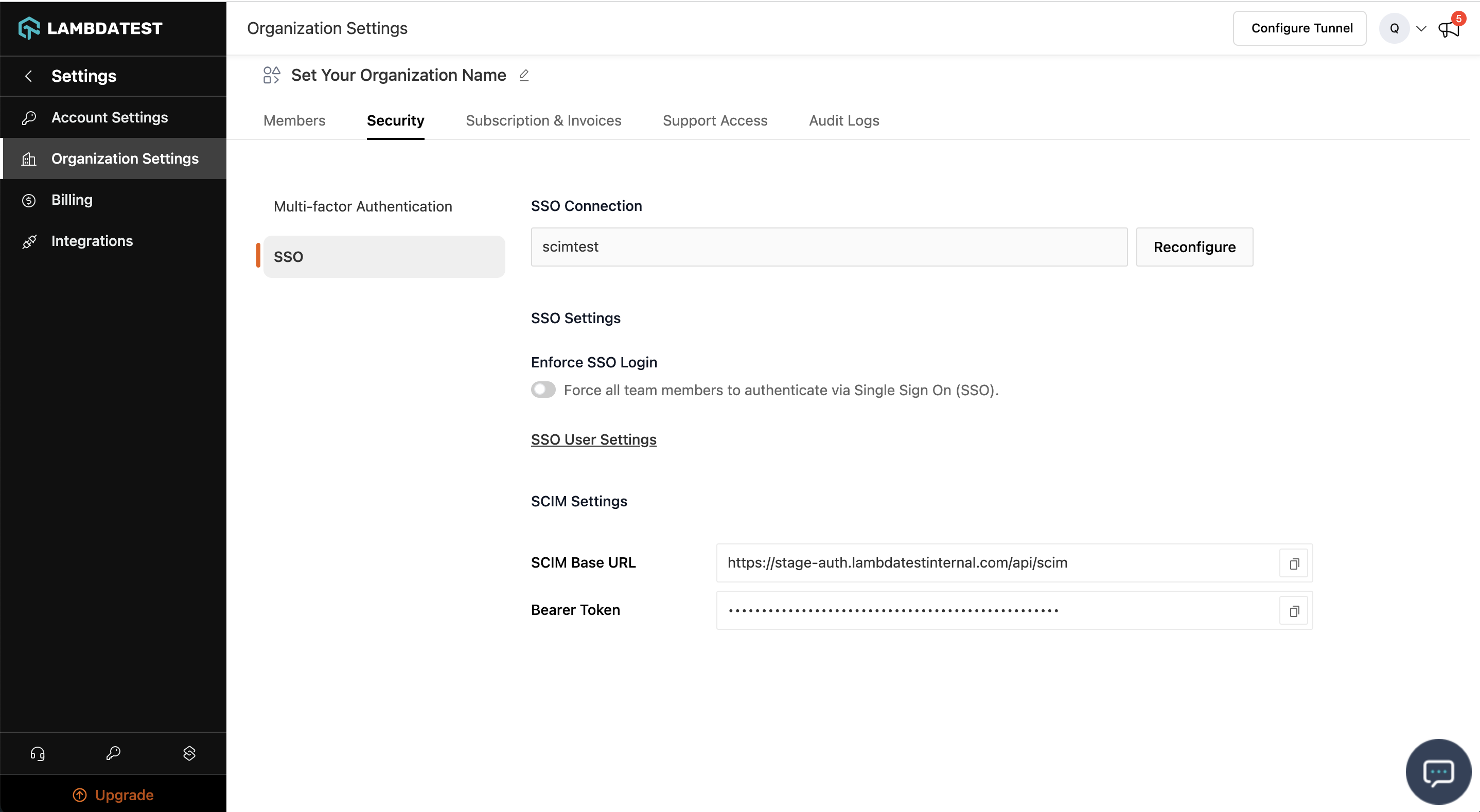
Step 2: Configure Your IDP
Paste the SCIM Base URL and Bearer Token into your IDP's provisioning settings.
- Okta
- Azure AD
- JumpCloud
- PingOne
- Other IDPs
Full walkthrough: Okta SCIM Guide
- Applications > your TestMu AI app > Provisioning tab > Configure API Integration
- Check Enable API Integration, paste credentials, click Test API Credentials > Save
- Under To App, enable: Create Users, Update User Attributes, Deactivate Users
- Assignments tab > assign users or groups
- (For groups) Push Groups tab > Push Groups > Find by name or rule
Member changes in pushed Okta groups are automatically synced to TestMu AI.
Full walkthrough: Azure AD SCIM Guide
- Enterprise Applications > your TestMu AI app > Provisioning > set to Automatic
- Under Admin Credentials, paste SCIM Base URL (Tenant URL) and Bearer Token (Secret Token) > Test Connection > Save
- Under Mappings, enable user and group provisioning
- Under Users and groups, assign what you want to provision
- Start a provisioning cycle (or wait for the 40-minute auto sync)
Full walkthrough: JumpCloud SCIM Guide
- SSO Applications > your TestMu AI app > Identity Management tab
- Enable SCIM Provisioning, paste credentials
- Configure attribute mappings (userName, name, active)
- User Groups tab > select groups > Activate > Save
Full walkthrough: PingOne SCIM Guide
- In PingOne, go to Integrations > Provisioning > create a new SCIM Outbound connection
- Enter the SCIM Base URL and Bearer Token from TestMu AI
- Configure preferences: set User Identifier to
workEmailand enable Create, Update, Disable users - Create a provisioning Rule to select which users and groups to sync
Any SCIM 2.0-compliant IDP works. Use these settings:
| Setting | Value |
|---|---|
| SCIM Base URL | From Organization Settings > Security |
| Authentication | Bearer Token (HTTP Header) |
| SCIM Version | 2.0 |
| Users Resource | /Users |
| Groups Resource | /Groups |
Custom Attribute Schema URNs: add these to your IDP's SCIM custom attribute configuration to send role and group assignments:
| Purpose | Schema URN |
|---|---|
| User extension | urn:ietf:params:scim:schemas:extension:LambdaTest:2.0:User |
| Group extension | urn:ietf:params:scim:schemas:extension:LambdaTest:2.0:Group |
- User extension attributes:
OrganizationRole(Admin / User / Guest),LambdatestGroup(concurrency group name) - Group extension attributes:
LambdatestRoles(array of Admin / User / Guest, applied to all group members)
User Provisioning
How It Works
| Scenario | What happens |
|---|---|
| New user (email doesn't exist) | Account created and added to your org |
| Existing user (same org) | Attributes (role, active) updated |
| Existing user (different org) | Not provisioned, invite via team invite first |
Schema & Attributes
Verified{
"schemas": [
"urn:ietf:params:scim:schemas:core:2.0:User",
"urn:ietf:params:scim:schemas:extension:LambdaTest:2.0:User"
],
"userName": "jane@company.com",
"active": true,
"name": { "givenName": "Jane", "familyName": "Doe", "formatted": "Jane Doe" },
"urn:ietf:params:scim:schemas:extension:LambdaTest:2.0:User": {
"OrganizationRole": "User",
"LambdatestGroup": "Engineering"
}
}
Standard Attributes
| Attribute | Required | Notes |
|---|---|---|
userName | Yes | Must be a valid email. Cannot be changed after creation. |
active | Yes | true = enabled, false = deactivated |
name | Yes | givenName, familyName, formatted |
Custom Attributes (TestMu AI Extension)
These attributes are part of the urn:ietf:params:scim:schemas:extension:LambdaTest:2.0:User extension schema. To send them from your IDP, add this schema URN to your IDP's custom attribute configuration.
| Attribute | Required | Values | Notes |
|---|---|---|---|
OrganizationRole | No | Admin, User, Guest | Sets the user's organization role. Defaults to User if not provided. |
LambdatestGroup | No | (concurrency group name) | Assigns the user to a concurrency group by name. The group must already exist. Contact support to enable concurrency groups. |
For PATCH operations, use the fully qualified SCIM path:
- OrganizationRole:
urn:ietf:params:scim:schemas:extension:LambdaTest:2.0:User:OrganizationRole - LambdatestGroup:
urn:ietf:params:scim:schemas:extension:LambdaTest:2.0:User:LambdatestGroup
What can be updated:
OrganizationRole,LambdatestGroup, andactivecan be updated via SCIM.userNameis immutable after creation.namecan only be changed from TestMu AI Account Settings.
User API Operations
Verified- Create
- Get by ID
- List / Filter
- Update (PUT)
- Update (PATCH)
- Disable
- Delete
Request: POST https://auth.lambdatest.com/api/scim/Users
{
  "schemas": [
    "urn:ietf:params:scim:schemas:core:2.0:User",
    "urn:ietf:params:scim:schemas:extension:LambdaTest:2.0:User"
  ],
  "userName": "jane@company.com",
  "active": true,
  "name": { "givenName": "Jane", "familyName": "Doe", "formatted": "Jane Doe" },
  "urn:ietf:params:scim:schemas:extension:LambdaTest:2.0:User": {
    "OrganizationRole": "User",
    "LambdatestGroup": "Engineering"
  }
}
Response: 201 Created
{
  "schemas": [
    "urn:ietf:params:scim:schemas:core:2.0:User",
    "urn:ietf:params:scim:schemas:extension:LambdaTest:2.0:User"
  ],
  "id": "23123",
  "userName": "jane@company.com",
  "active": true,
  "name": { "givenName": "Jane", "familyName": "Doe", "formatted": "Jane Doe" },
  "urn:ietf:params:scim:schemas:extension:LambdaTest:2.0:User": {
    "OrganizationRole": "User",
    "LambdatestGroup": "Engineering"
  }
}
Request: GET https://auth.lambdatest.com/api/scim/Users/{id}
Response: 200 OK
{
  "schemas": [
    "urn:ietf:params:scim:schemas:core:2.0:User",
    "urn:ietf:params:scim:schemas:extension:LambdaTest:2.0:User"
  ],
  "id": "23123",
  "userName": "jane@company.com",
  "active": true,
  "name": { "givenName": "Jane", "familyName": "Doe", "formatted": "Jane Doe" },
  "urn:ietf:params:scim:schemas:extension:LambdaTest:2.0:User": {
    "OrganizationRole": "User"
  }
}
Errors: 404 Not Found if user doesn't exist. 400 Bad Request if user belongs to a different org.
Request: GET https://auth.lambdatest.com/api/scim/Users
Filter by email: ?filter=userName eq "jane@company.com"
Response: 200 OK
{
  "schemas": ["urn:ietf:params:scim:api:messages:2.0:ListResponse"],
  "totalResults": 1,
  "startIndex": 1,
  "itemsPerPage": 20,
  "Resources": [
    {
      "schemas": [
        "urn:ietf:params:scim:schemas:core:2.0:User",
        "urn:ietf:params:scim:schemas:extension:LambdaTest:2.0:User"
      ],
      "id": "23123",
      "userName": "jane@company.com",
      "active": true,
      "name": { "givenName": "Jane", "familyName": "Doe", "formatted": "Jane Doe" },
      "urn:ietf:params:scim:schemas:extension:LambdaTest:2.0:User": {
        "OrganizationRole": "User"
      }
    }
  ]
}
Zero results: Returns "totalResults": 0 with empty "Resources": [].
Errors: 400 Bad Request if user belongs to a different org.
Request: PUT https://auth.lambdatest.com/api/scim/Users/{id}
{
  "schemas": ["urn:ietf:params:scim:schemas:core:2.0:User"],
  "urn:ietf:params:scim:schemas:extension:LambdaTest:2.0:User": {
    "OrganizationRole": "Admin"
  },
  "active": true
}
Response: 200 OK, returns the full updated user object.
Errors: 404 Not Found if user doesn't exist. 400 Bad Request if user belongs to a different org.
Request: PATCH https://auth.lambdatest.com/api/scim/Users/{id}
{
  "schemas": ["urn:ietf:params:scim:api:messages:2.0:PatchOp"],
  "Operations": [
    { "op": "Replace", "path": "active", "value": false },
    { "op": "Replace", "path": "urn:ietf:params:scim:schemas:extension:LambdaTest:2.0:User:OrganizationRole", "value": "Guest" },
    { "op": "Replace", "path": "urn:ietf:params:scim:schemas:extension:LambdaTest:2.0:User:LambdatestGroup", "value": "QA-Team" }
  ]
}
Patchable paths:
| Path | Value |
|---|---|
active | true / false |
urn:ietf:params:scim:schemas:extension:LambdaTest:2.0:User:OrganizationRole | Admin, User, Guest |
urn:ietf:params:scim:schemas:extension:LambdaTest:2.0:User:LambdatestGroup | (concurrency group name) |
Response: 200 OK, returns the full updated user object.
Errors: 404 Not Found if user doesn't exist. 400 Bad Request if user belongs to a different org.
Request: PATCH https://auth.lambdatest.com/api/scim/Users/{id}
{
  "schemas": ["urn:ietf:params:scim:api:messages:2.0:PatchOp"],
  "Operations": [
    { "op": "Replace", "path": "active", "value": false }
  ]
}
Response: 200 OK, returns user object with "active": false.
Errors: 404 Not Found if user doesn't exist. 400 Bad Request if user belongs to a different org.
Request: DELETE https://auth.lambdatest.com/api/scim/Users/{id}
Response: 204 No Content
DELETE only deactivates the account. It does not permanently delete it. For permanent deletion, the user must request it from TestMu AI Account Settings.
Errors: 404 Not Found if user doesn't exist. 400 Bad Request if user belongs to a different org.
Group Provisioning
Push groups from your IDP → approve the mapping in the SCIM Group Provisioning dashboard → members are synced automatically.
How It Works
Groups and members are stored as soon as your IDP pushes them, even before any mapping is configured. Mapping only controls where members are assigned.
Enabling & Disabling
Group provisioning is not enabled by default. Reach out to our 24/7 chat support or email support@testmuai.com to get it activated for your organization.
Once activated, you can control it from Settings > Organization Settings > Security > SCIM Group Provisioning.
When toggled OFF: New IDP group operations (create/update/delete) are rejected with
403. Existing groups, mappings, and assignments are preserved. Nothing is deleted. Toggle back ON to resume syncing.
Group Schema & Attributes
Verified{
"schemas": [
"urn:ietf:params:scim:schemas:core:2.0:Group",
"urn:ietf:params:scim:schemas:extension:LambdaTest:2.0:Group"
],
"displayName": "eng-backend",
"members": [{ "value": "12345" }, { "value": "67890" }],
"urn:ietf:params:scim:schemas:extension:LambdaTest:2.0:Group": {
"LambdatestRoles": ["User"]
}
}
Standard Attributes
| Attribute | Required | Notes |
|---|---|---|
displayName | Yes | Must be unique within your org |
members | No | Array of { "value": "<user_scim_id>" } |
Custom Attributes (TestMu AI Extension)
These attributes are part of the urn:ietf:params:scim:schemas:extension:LambdaTest:2.0:Group extension schema. To send them from your IDP, add this schema URN to your IDP's custom attribute configuration.
| Attribute | Required | Values | Notes |
|---|---|---|---|
LambdatestRoles | No | Admin, User, Guest | Assigns organization roles to all members of the group. Highest role wins if a user is in multiple groups. |
For PATCH operations, use the fully qualified SCIM path:
- LambdatestRoles:
urn:ietf:params:scim:schemas:extension:LambdaTest:2.0:Group:LambdatestRoles
Mapping Groups to TestMu AI Entities
Once a group is pushed, it needs to be mapped to tell TestMu AI what to do with its members. Select your target entity type below to see the details relevant to you:
Teams, Concurrency Groups, and Sub-Organizations are not enabled by default. Reach out to our 24/7 chat support or email support@testmuai.com to get them activated for your organization before mapping groups to these entities.
- Team
- Concurrency Group
- Sub-Organization
Teams are additive: a user can belong to multiple teams at once, so there are no conflicts.
| Auto-create | Yes, if the team doesn't exist, it's created automatically |
| On member removal | Removed from team (unless another SCIM group also maps them there) |
| On group rename | Team is automatically renamed to match the IDP group name |
| Conflicts | None, teams are never exclusive |
This is the simplest and most common mapping. If you're just starting out, Team is the recommended choice.
Concurrency groups are exclusive: a user can only belong to one at a time.
| Auto-create | Yes, if the group doesn't exist, it's created automatically |
| On member removal | User moved back to the org's default concurrency group |
| On group rename | Concurrency group is automatically renamed to match the IDP group name |
| Conflicts | Yes, if the same user is in two SCIM groups mapped to different concurrency groups. See Conflicts. |
Sub-organizations are exclusive: a user can only belong to one at a time. Sub-orgs also conflict with concurrency groups and teams from other SCIM groups (cross-type conflict).
| Auto-create | No, sub-orgs must be created manually first (they have billing and setup requirements) |
| On member removal | User moved back to the root organization |
| On group rename | Sub-org is not renamed (sub-orgs have independent naming) |
| Conflicts | Yes, two types: (1) same user in two groups mapped to different sub-orgs, or (2) same user in a sub-org group and a concurrency group/team group from a different SCIM group |
Why cross-type conflicts? Moving a user to a sub-org takes them out of the parent org's resource pool entirely. Team and concurrency group assignments in the parent org become invalid.
A single SCIM group can only be mapped to one TestMu AI entity (one team, one concurrency group, or one sub-org). To assign the same users to multiple entities, use separate IDP groups.
Mapping statuses:
Pending→Approved/Auto-Approved(members synced) orRejected(no sync). If no mapping rule matches, the group stays Pending until an admin maps it manually.
To map manually: Go to SCIM Group Provisioning dashboard > click a Pending group > select target type and entity > Approve.
Mapping Rules (Automatic Mapping)
Instead of mapping each group manually, create rules that auto-match groups by name.
- Prefix
- Regex
- Match All
Matches group names starting with a pattern (case-insensitive).
eng- matches eng-backend, eng-frontend, ENG-DevOps
Matches group names against a regular expression.
^qa-.*-team$ matches qa-mobile-team, qa-web-team
Matches every group. Use as a low-priority catch-all fallback.
Each rule has an auto-approve toggle:
- ON → finds (or creates) the target entity by name → mapping approved → members synced immediately.
- OFF → creates a Pending mapping → admin approves manually.
Rules are evaluated by priority (highest first). First match wins. If no rule matches, the group stays Pending until an admin maps it manually.
| Priority | Rule | Target | Auto-Approve | Example match |
|---|---|---|---|---|
| 3 | Prefix: eng- | Team | ON | eng-backend → auto-approved Team |
| 2 | Prefix: qa- | Team | ON | qa-mobile → auto-approved Team |
| 1 | Match All | Concurrency Group | OFF | design-ops → Pending |
To create a rule:
- Go to SCIM Group Provisioning dashboard
- Click Add Mapping Rule
- Select a rule type (Prefix, Regex, or Match All)
- Enter the pattern to match group names against
- Choose the target type (Team, Concurrency Group, or Sub-Organization)
- Toggle auto-approve ON if you want matched groups to be approved automatically
- Click Save
Role Assignment
Roles can be set per-user (User extension OrganizationRole) or per-group (Group extension LambdatestRoles). Roles work independently of mappings, even unmapped groups apply their roles to members immediately.
When a user is in multiple groups with different roles, the highest-priority role wins: Admin > User > Guest
| Group | Role |
|---|---|
eng-team | User |
org-admins | Admin |
| Effective role | Admin (highest wins) |
Roles can be upgraded and downgraded. The effective role is always the highest across all current group memberships. Removing a user from one group only downgrades their role if no other group provides it.
| Scenario | What happens |
|---|---|
User added to a group with Admin role | Role upgraded to Admin (if currently lower) |
User removed from the Admin group | Role recomputed, drops to next highest (e.g., User) if no other group gives Admin |
| All groups removed, or no roles set | Role defaults to User |
Group's LambdatestRoles changed from Admin to Guest | All members' roles recomputed, may downgrade |
One Group per Entity
Each TestMu AI entity (team, concurrency group, or sub-org) can only be mapped from one SCIM group at a time. If you try to create a second mapping to the same entity, the request is rejected. This ensures a clear ownership model: one IDP group controls one TestMu AI entity.
Conflicts
If you're only mapping to Teams, you can skip this section entirely. Teams are additive: no conflicts possible.
Conflicts happen when a user belongs to multiple SCIM groups that compete for the same exclusive slot. When a conflict occurs, the user keeps their current assignment until an admin resolves it. Nothing changes automatically.
When do conflicts happen?
- Concurrency Group
- Sub-Organization
- Cross-Type
When the same user is in two SCIM groups mapped to different concurrency groups. Example: Group A → "QA Pool" and Group B → "Dev Pool". The user can only be in one.
When the same user is in two SCIM groups mapped to different sub-orgs. Example: Group X → "US Team" and Group Y → "EU Team". The user can only be in one.
When a user is mapped to a sub-organization from one SCIM group and a concurrency group or team from another SCIM group. Example: Group A maps to Sub-Org "US Team" and Group B maps to Concurrency Group "Dev Pool".
Why does this conflict? Moving a user to a sub-org takes them out of the parent org's resource pool entirely. Team and concurrency group assignments in the parent org become invalid.
To resolve:
- Go to SCIM Group Provisioning dashboard > Conflicts tab
- Each conflict card shows the Current group (where the user is now) and the Incoming group (the one trying to claim the user)
- Click Keep Current or Use Incoming
- TestMu AI remembers this decision. The same combination won't create a new conflict
Prefer teams when users need to be in multiple groups. Teams never create conflicts. Only use concurrency groups and sub-orgs when you need exclusive assignment.
Deleted Target
If an admin deletes a team, concurrency group, or sub-org that has an active SCIM mapping, the mapping is flagged as target_deleted and the status changes to Pending.
When a target is deleted, the mapping will not auto-create a replacement, even if a matching mapping rule with auto-approve exists. This is intentional: auto-creating the same entity that was just deleted would cause a loop. An admin must manually update the mapping to point to a new (or recreated) target.
To fix a target_deleted mapping:
- Go to SCIM Group Provisioning dashboard
- Find the group with
target_deletedstatus - Click the group and select a new target entity
- Click Approve: members will be synced to the new target
Group API Operations
Verified- Create
- List / Filter
- Update
- Delete
Request: POST https://auth.lambdatest.com/api/scim/Groups
{
  "schemas": [
    "urn:ietf:params:scim:schemas:core:2.0:Group",
    "urn:ietf:params:scim:schemas:extension:LambdaTest:2.0:Group"
  ],
  "displayName": "eng-backend",
  "members": [
    { "value": "23123" },
    { "value": "23456" }
  ],
  "urn:ietf:params:scim:schemas:extension:LambdaTest:2.0:Group": {
    "LambdatestRoles": ["User"]
  }
}
Response: 201 Created
{
  "schemas": [
    "urn:ietf:params:scim:schemas:core:2.0:Group",
    "urn:ietf:params:scim:schemas:extension:LambdaTest:2.0:Group"
  ],
  "id": "50001",
  "displayName": "eng-backend",
  "members": [
    { "value": "23123", "display": "jane@company.com" },
    { "value": "23456", "display": "bob@company.com" }
  ],
  "urn:ietf:params:scim:schemas:extension:LambdaTest:2.0:Group": {
    "LambdatestRoles": ["User"]
  },
  "meta": {
    "resourceType": "Group",
    "created": "2025-01-15T10:30:00Z",
    "lastModified": "2025-01-15T10:30:00Z"
  }
}
Request: GET https://auth.lambdatest.com/api/scim/Groups
Filter by name: ?filter=displayName eq "eng-backend" | Paginate: ?startIndex=1&count=20
Response: 200 OK
{
  "schemas": ["urn:ietf:params:scim:api:messages:2.0:ListResponse"],
  "totalResults": 1,
  "startIndex": 1,
  "itemsPerPage": 20,
  "Resources": [
    {
      "schemas": [
        "urn:ietf:params:scim:schemas:core:2.0:Group",
        "urn:ietf:params:scim:schemas:extension:LambdaTest:2.0:Group"
      ],
      "id": "50001",
      "displayName": "eng-backend",
      "members": [
        { "value": "23123", "display": "jane@company.com" },
        { "value": "23456", "display": "bob@company.com" }
      ],
      "urn:ietf:params:scim:schemas:extension:LambdaTest:2.0:Group": {
        "LambdatestRoles": ["User"]
      },
      "meta": {
        "resourceType": "Group",
        "created": "2025-01-15T10:30:00Z",
        "lastModified": "2025-01-15T10:30:00Z"
      }
    }
  ]
}
Zero results: Returns "totalResults": 0 with empty "Resources": [].
PUT (full replace) to https://auth.lambdatest.com/api/scim/Groups/{id}. Replaces entire membership list. Members removed from the list are unassigned from all mapped entities.
PATCH (partial) to https://auth.lambdatest.com/api/scim/Groups/{id}:
- Add Members
- Remove Members
- Rename
- Update Roles
{
  "schemas": ["urn:ietf:params:scim:api:messages:2.0:PatchOp"],
  "Operations": [
    {
      "op": "Add",
      "path": "members",
      "value": [{ "value": "99999" }]
    }
  ]
}
{
  "schemas": ["urn:ietf:params:scim:api:messages:2.0:PatchOp"],
  "Operations": [
    {
      "op": "Remove",
      "path": "members",
      "value": [{ "value": "12345" }]
    }
  ]
}
{
  "schemas": ["urn:ietf:params:scim:api:messages:2.0:PatchOp"],
  "Operations": [
    {
      "op": "Replace",
      "path": "displayName",
      "value": "eng-platform"
    }
  ]
}
{
  "schemas": ["urn:ietf:params:scim:api:messages:2.0:PatchOp"],
  "Operations": [
    {
      "op": "Replace",
      "path": "urn:ietf:params:scim:schemas:extension:LambdaTest:2.0:Group:LambdatestRoles",
      "value": ["Admin"]
    }
  ]
}
Response: 200 OK, returns the updated group object with new membership and meta.lastModified timestamp.
Errors: 404 Not Found if group doesn't exist. 409 Conflict if renamed to an existing displayName.
Request: DELETE https://auth.lambdatest.com/api/scim/Groups/{id}
Response: 204 No Content
On delete: group is soft-deleted, roles recomputed, members safely unassigned from all mapped entities (checking other group memberships first), mappings rejected, related conflicts auto-resolved.
Errors: 404 Not Found if group doesn't exist.
What Happens When...
Quick reference for common scenarios. Everything below is handled automatically, no action needed unless noted.
- Your IDP changes
- TestMu AI Admin changes
| You do this in your IDP | What happens in TestMu AI | Action needed? |
|---|---|---|
| Rename a group | Group name updated. Mapped team/concurrency group renamed to match. Mapping rules re-evaluated. | Only if mapping reverted to Pending |
| Delete a group | Soft-deleted. Members safely unassigned. Roles recomputed. Conflicts auto-resolved. | No |
| Add a member to a group | Added to all mapped entities. Role recomputed. | Only if a conflict is created |
| Remove a member from a group | Unassigned from mapped entities (only if no other group maps them there). Role recomputed. | No |
| Re-push a previously deleted group | Group restored. Members must be re-pushed. Mapping rules re-evaluated. | Depends on rules |
| Change roles on a group | All members' roles recomputed immediately. | No |
| You do this in TestMu AI | What happens | Important |
|---|---|---|
| Rename a team / group / sub-org | Works fine, but the next IDP group rename will overwrite it. | To control names, rename in your IDP |
| Delete a mapped entity | Mapping flagged as target_deleted, reverts to Pending. Auto-create is blocked. | Manually re-map to a new target |
| Manually remove a member from a team | Removal is immediate but temporary. Next IDP sync re-adds them. | Remove in your IDP instead |
| Manually assign user to concurrency group / sub-org | SCIM overrides non-SCIM assignments on next sync. | Use SCIM groups for exclusive assignments |
| Manually change a SCIM-managed user's role | May be overwritten on next IDP sync. | Manage roles in your IDP |
Troubleshooting
API Errors
| Error | Cause | Fix |
|---|---|---|
401 Unauthorized | Invalid or expired Bearer Token | Regenerate in Organization Settings > Security |
403 Forbidden | Group Provisioning is disabled | Enable the toggle in Security settings |
404 Not Found | ID doesn't exist or belongs to a different org | Verify via a List call |
409 Conflict | Group with same displayName already exists | Rename or delete the existing group |
400 Bad Request | User exists in a different organization | Invite them via team invite first |
Common Issues
| Issue | Solution |
|---|---|
| Members not appearing in teams or sub-orgs | Group mapping is still Pending. Approve it in the dashboard or create an auto-approve mapping rule. |
| Members are in the SCIM group but not in the sub-org | Check for conflicts. The user may belong to another group with a competing exclusive mapping. |
| User has an unexpected role | Check all SCIM group memberships. Roles follow highest-wins (Admin > User > Guest). The user may inherit Admin from another group. |
| User keeps getting re-added after manual removal | SCIM is the source of truth. Remove the user in your IDP instead. |
| Group mapping reverted to Pending | The group was renamed (rules re-evaluated) or the target entity was deleted (target_deleted). If renamed, rules may auto-approve. If deleted, manual re-mapping is required. |
| Auto-approve didn't create my sub-organization | Sub-orgs are never auto-created (billing/setup required). Create the sub-org first, then approve manually. |
| Can't map two SCIM groups to the same team | Each entity can only be mapped from one SCIM group. Use a single group, or merge in your IDP. |
FAQ
| Question | Answer |
|---|---|
| Can a group be mapped to multiple targets? | No. A single SCIM group can only map to one entity (team, concurrency group, or sub-org). To assign the same users to multiple entities, use separate IDP groups. |
| Can two SCIM groups map to the same entity? | No. Each entity can only be owned by one SCIM group. This prevents conflicting membership lists. |
| Can I disable group provisioning without losing data? | Yes. The toggle only blocks new IDP operations. Existing groups, mappings, and assignments are preserved. Toggle back ON to resume. |
| Can I restore a deleted group? | Yes. Push a group with the same displayName from your IDP. The soft-deleted record is restored. Members need to be re-pushed. |
| Can roles be downgraded? | Yes. Roles are recomputed across all groups. If the highest role is removed, the effective role drops to the next highest. Defaults to User if none set. |
| What happens to a conflict when one group is deleted? | The conflict is auto-resolved in favor of the remaining group. No admin action needed. |
| What's the difference between Approved and Auto-Approved? | Both sync members identically. Auto-Approved = mapping rule matched automatically. Approved = admin approved manually. |
| Do mapping rules overwrite existing mappings? | No. Rules only apply when a group is first created or renamed. Existing mappings (manual or auto) are not overwritten. |
That's all you need to know about SCIM Provisioning with TestMu AI. In case you have any questions please feel free to reach out to us via the 24/7 chat support or email us over support@testmuai.com.


 Chat with Us