Live Interaction
Live Interaction lets you take manual control of a running automation session. Pause the automation and drive the browser yourself to debug an exception in real time, abort a test, or report the session.
Why Use Live Interaction?
Debug exceptions, respond to OS-level prompts, and track who paused a test.
- Interact with the page (for example, click a button or enter OS-specific credentials) without breaking the running automated test.
- Find the root cause of an exception by debugging it live during the session.
- Let stakeholders see who paused or stopped a test, which makes the issue easier to report.
Prerequisites and Limitations
Check the supported platforms, browsers, and time limit before using Live Interaction.
- Live Interaction is supported on:
- Windows: 11, 10, 8, and 8.1
- macOS: Big Sur, Monterey, and Ventura
- All browsers except Safari.
- You can control the browser for up to 15 minutes.
note
Support for Safari is coming in an upcoming release.
How to Use Live Interaction
Open the test detail page and click the Live Interaction button on the video panel to take manual control.
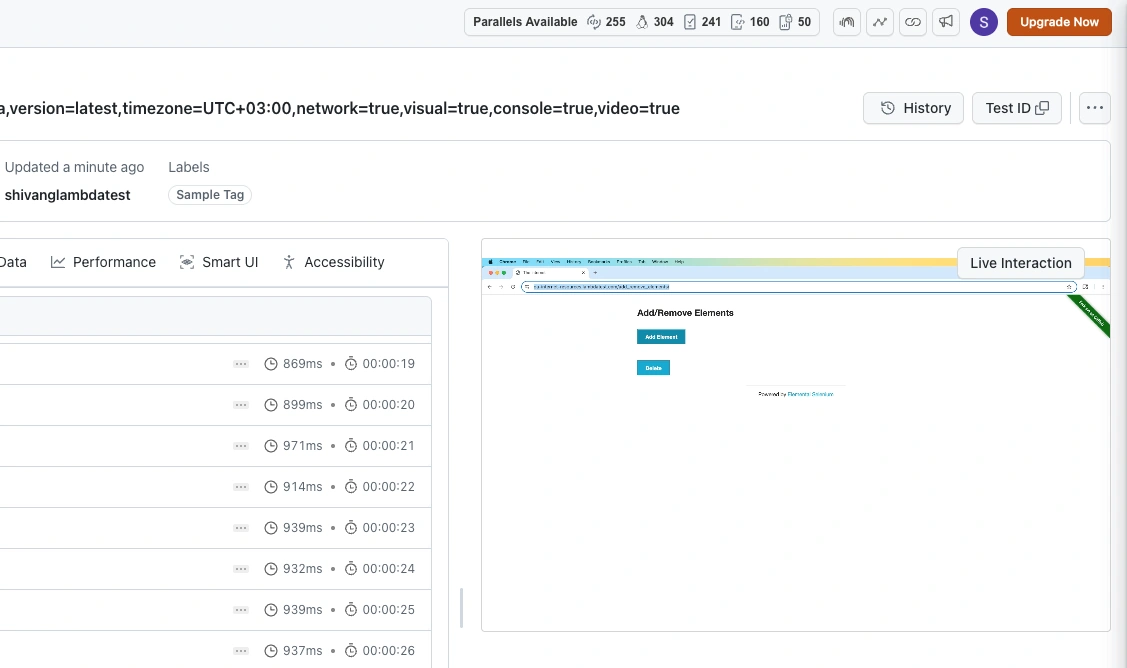
To take control during a running test:
- Open the test detail page in the TestMu AI dashboard.
- Click the Live Interaction button on the video panel.
- The test status changes to
idle_timeoutwhile you use Live Interaction. - Take control of the browser and interact with it directly.


 Chat with Us