How to Debug Selenium Tests on TestMu AI
TestMu AI supports different automation capabilities for enabling debugging log options. This documentation explains how to use various logging options for your failed tests and fix them quickly.
Command Logs
Command logs record every step executed in your test for troubleshooting failed steps.
Command logs are a record of your test. Use them to identify all the steps executed in the test and troubleshoot errors for failed steps. Command logs are accessible from the TestMu AI Automation dashboard and via the REST API.
Visual Logs
Visual logs capture screenshots at every Selenium command to help identify rendering issues.
Visual logs capture screenshots of web pages automatically generated at every Selenium command executed by your code. Visual logs help debug the exact step and how the page rendered when a failure occurred. They also help identify layout or design-related issues with your web pages on different browsers.
Video Logs
Video logs record the entire test run on the remote machine for playback.
The TestMu AI Selenium Grid records every test run exactly as executed on the remote machine. This feature is useful when a browser test fails so that you can see the entire test in action. Access these videos from the TestMu AI Automation dashboard for each session.
You can also navigate the video via command logs to view the step behavior at the time of command execution for the failed command.
Selenium Logs
Selenium logs capture information about every Selenium command and browser preferences.
Selenium logs capture information about every Selenium command in your test script, along with browser preferences. These logs provide insight into any errors that occurred during the execution of your tests.
They contain details about Selenium internal logs and downstream and upstream commands that Grid received.
Appium Logs
Appium logs provide a detailed record of your mobile test session for troubleshooting.
The TestMu AI Appium server generates Appium logs, which contain a detailed record of your test session for mobile tests. If a test fails, the logs aid in troubleshooting any errors.
Appium logs are similar to Selenium logs but have a different log structure standard to the Appium framework.
Console Logs
Console logs capture browser console output at various test steps for JavaScript and DOM debugging.
Console logs capture browser console output at various steps of the tests to troubleshoot JavaScript/DOM issues. You can retrieve console logs using both the TestMu AI Automation dashboard and REST API.
Network Logs
Network logs capture browser performance data like traffic, latency, and HTTP requests in HAR format.
Network Logs capture the browser's performance data, such as network traffic, latency, HTTP requests, and responses in the HAR format. Access network logs using the TestMu AI Automation dashboard and the REST API.
Terminal Logs
Upload terminal logs from the client machine to view stack traces for specific test sessions.
Using the Session API, you can upload the terminal logs (logs printed on the client machine) for specific tests/sessions. This helps you view the stack traces in case of failure and pinpoint actual issues in the code.
Telemetry Logs
Use Selenium 4 and OpenTelemetry integration to trace requests and visualize them with Jaeger.
Beyond the standard logs above, telemetry logs give you request-level tracing for tests run in parallel. TestMu AI Automation allows you to perform parallel test execution through a standalone mode that connects to the Selenium server, where each test can have multiple requests.
To trace each request, you can use Selenium 4 and OpenTelemetry integration to achieve greater visibility into request tracing and event logs. Tracing enables the monitoring of a request's life cycle and stores essential information about the request's critical operations. You can use this information to identify issues and optimize the performance of your web applications.
Managing several requests, tracing logs, and troubleshooting request failures in a distributed environment can be challenging. In such instances, you can integrate Telemetry logs with Jaeger - a distributed tracing system - to quickly visualize and query traces.
Supported Operating Systems
Telemetry logs are available on these operating systems.
- Windows 11
- Windows 10
- macOS Ventura
- macOS Catalina
- macOS Mojave
Enabling Telemetry Logs
Pass the seTelemetryLogs and selenium_version capabilities to activate telemetry logging.
TestMu AI Automation supports Telemetry logs on Selenium versions above 4.2.0.
By default, Telemetry logs are disabled for Selenium automation on TestMu AI. To enable them in your test sessions:
- Pass the
seTelemetryLogscapability in your test scripts and set it to true.
caps.setCapability("seTelemetryLogs", true);
- Pass the
selenium_versioncapability in your test scripts and set it to4.2.0.
caps.setCapability("selenium_version", "4.2.0");
Visualizing Telemetry Logs Using Jaeger
Integrate Jaeger to visualize request traces from your test sessions.
Jaeger is an open-source, end-to-end distributed tracing system to monitor and troubleshoot distributed systems. Using Jaeger, you can visualize the request traces of your tests run on TestMu AI.
Here are the steps to integrate Jaeger with your test suites:
-
Download Jaeger from its official website.
-
Extract the compressed (.tar.gz or .zip) Jaeger file to the directory where your test script resides. You will now have several Jaeger files like
jaeger-query,jaeger-collector, etc., in your test script directory. -
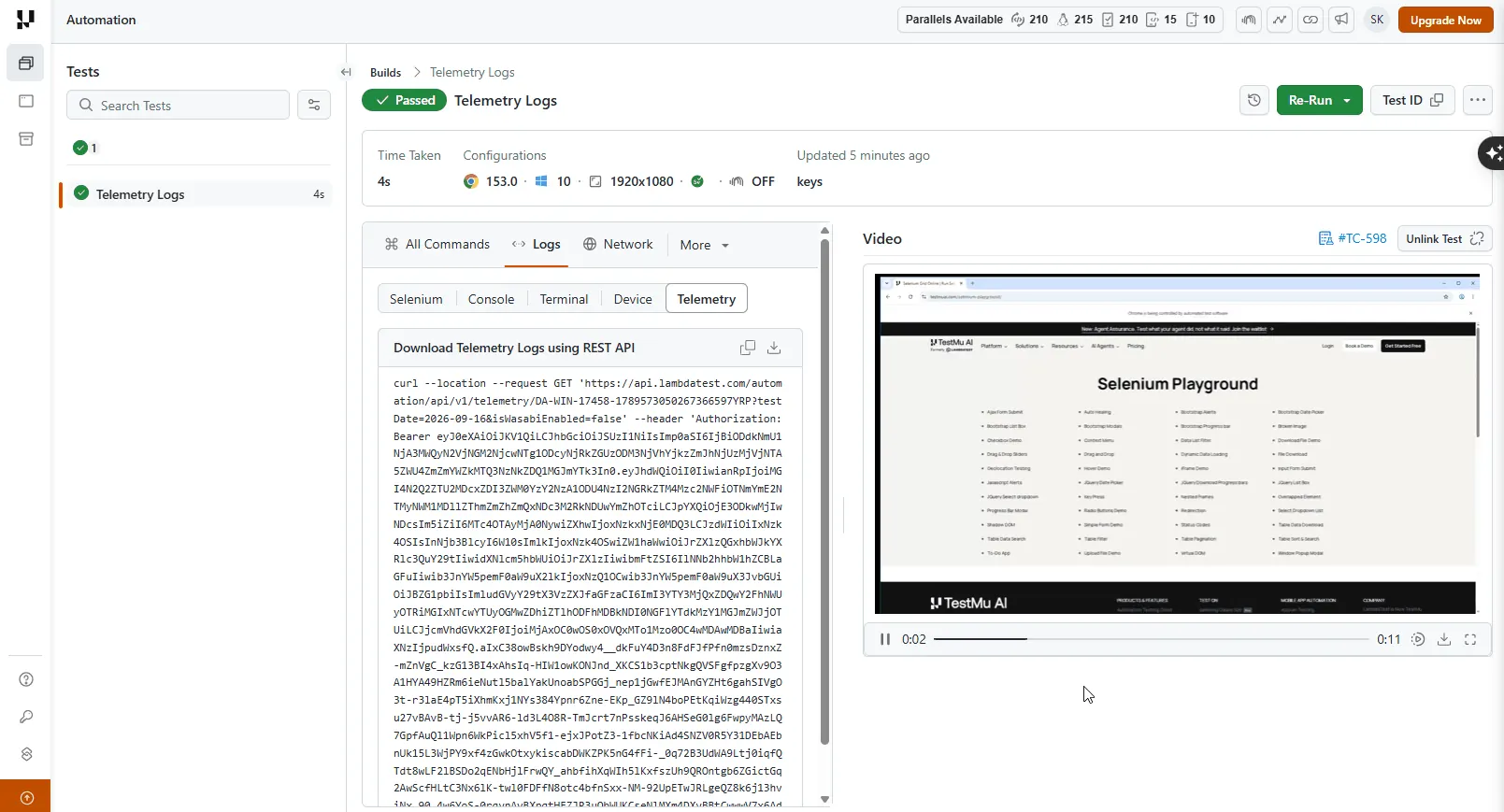
On your TestMu AI Automation Dashboard, open the test's Logs tab, select the Telemetry sub-tab, and download the telemetry logs.
- Start the Jaeger UI to visualize the Telemetry logs by running the below command.
jaeger-all-in-one
- Visit
http://localhost:16686/searchand click the Upload tab to upload the downloaded Telemetry logs from the TestMu AI Automation Dashboard.
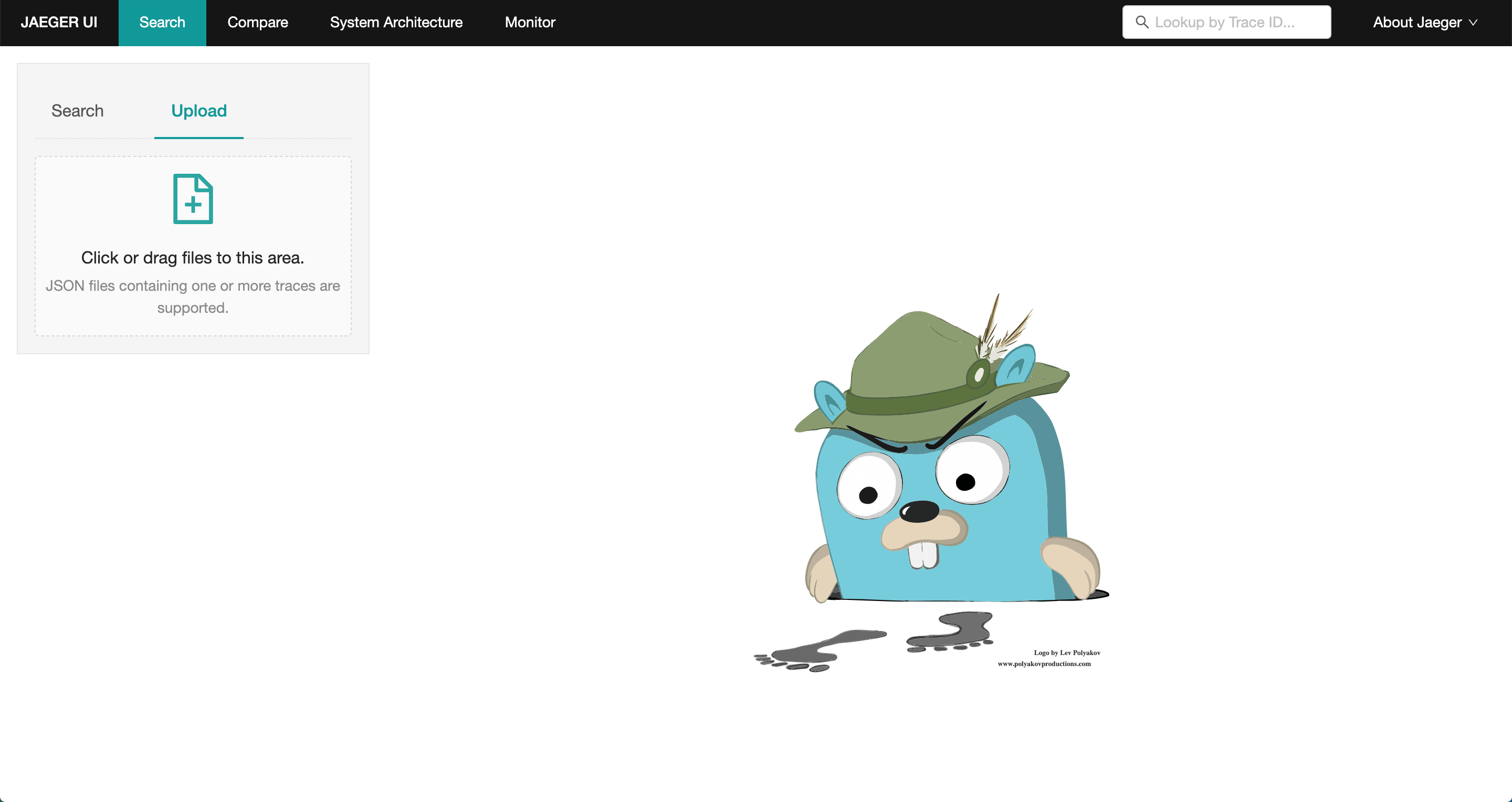
After uploading, you can view the request traces in the Jaeger UI for your TestMu AI test sessions.
Enhanced Analytics
Use analytics widgets to track test health, trends, browser distribution, and error insights.
Test Case Health Snapshot
The Test Case Health Snapshot widget allows you to quickly analyze the flakiness of the tests executed on the platform. Track the performance of the tests by viewing the count of tests that are consistently passing or failing.
Test Summary
The Test Summary widget lets you track the total tests run on the platform grouped by their status and includes information about errors like test case errors, idle timeouts, queue timeouts, and Lambda errors.
Test Browser
The Test Browser widget displays the overall distribution of tests on various browsers on the platform. Click on a particular browser to see the specific versions where the tests ran.
Test OS
The Test OS widget displays the overall distribution of tests on various operating systems. Click on a particular OS to see the specific versions where the tests ran.
Test Trends
The Test Trends widget allows you to analyze the trends of tests executed on the platform over a period of time. Compare the current trends with previous trends by clicking on the legends at the bottom of the graph.
Test Device Coverage
The Test Device Coverage widget is an App Automation-specific widget that displays the overall distribution of tests on various mobile devices on the platform. Click on a particular mobile device to see the specific models where the tests ran.
Test Status Ratio
The Test Status Ratio widget provides information about the quality of your current test cases based on the status marked on the platform. Filter the information by clicking on the relevant legends at the bottom of the graph.
Error Insights
The Error Stats widget allows you to quickly analyze the tests categorized by their status on the TestMu AI platform, including Test Case Errors, Idle Timeout, Queue Timeout, and Lambda Error. Filter the graph by clicking on the relevant legends at the bottom.
Concurrency Trends
The Concurrency Trends widget allows you to view the tests kept in the queue and the tests in a running state. Filter the information by clicking on the relevant legends at the bottom of the graph.
HyperExecute
View detailed analytics for your HyperExecute test runs.
For details about HyperExecute Analytics, refer to our tutorial - HyperExecute Analytics Modules.
Extended Debugging Options
Intercept and modify network requests, simulate CPU and network conditions, and download HAR files.
Where the logs above help you inspect what happened, Extended Debugging Options let you actively shape the conditions your test runs under. These options let you debug and optimize your Selenium tests by giving you granular control over network behavior and system performance. These debugging features allow you to intercept and modify network requests, simulate various CPU and network conditions, and download network analysis files within your test automation workflow.
With Extended Debugging Options, you can replicate real-world scenarios such as slow networks, resource-constrained devices, API failures, and connectivity issues, ensuring your application delivers a solid user experience across diverse conditions and environments.
How Extended Debugging Options Help You
Use these features to control network requests, test performance under constraints, and analyze network traffic.
Extended Debugging Options on TestMu AI provide capabilities for advanced testing and debugging scenarios:
- Network Request Control: Intercept and modify outgoing requests to test API failures, redirects, and mock responses without setting up backend infrastructure.
- Performance Testing: Simulate various CPU and network throttling conditions to understand how your application performs on low-end devices or poor network connections.
- Network Analysis: Download HAR (HTTP Archive) files to perform detailed analysis of network traffic, load times, and resource optimization.
- Realistic Test Scenarios: Create test conditions that mirror real-world user experiences, including offline modes, slow connections, and server errors.
Available Extended Debugging Methods
Reference these methods to intercept requests, throttle resources, and download HAR files.
TestMu AI supports the following extended debugging methods:
| Method | Description |
|---|---|
lt:intercept:redirect | Redirect network requests to different URLs |
lt:intercept:response | Mock responses for intercepted requests |
lt:intercept:error | Simulate error responses for requests |
lt:throttle:cpu | Simulate different CPU performance levels |
lambda-throttle-network | Configure and simulate network conditions |
lt:downloadHAR | Download HTTP Archive files for analysis |
1. Intercept Network Requests
Modify outgoing network requests to test redirect, mock, and error scenarios.
TestMu AI provides three methods to intercept and modify network requests, enabling you to test how your application behaves under different network conditions, mock API responses, and simulate error scenarios.
Method 1: Redirect Requests (lt:intercept:redirect)
Redirect outgoing requests to a different URL using the lt:intercept:redirect command.
Parameters
| Parameter | Type | Required | Description |
|---|---|---|---|
url | String | Yes | URL pattern to intercept. |
redirectUrl | String | Yes | Target URL to redirect the request to. |
Example Usage
Python:
Verifieddriver.execute_script("lt:intercept:redirect", {
"url": "https://www.google.com",
"redirectUrl": "https://www.bing.com"
})
driver.get("https://www.google.com")
Node.js:
Verifiedawait driver.executeScript("lt:intercept:redirect", {
url: "https://www.google.com",
redirectUrl: "https://www.bing.com"
});
await driver.get("https://www.google.com");
Response:
Verified{
"status": "success",
"message": "Requests to 'https://www.google.com' will be redirected to 'https://www.bing.com'"
}
Method 2: Mock Response (lt:intercept:response)
Mock a custom response for the intercepted URL using the lt:intercept:response command.
Parameters
| Parameter | Type | Required | Description |
|---|---|---|---|
url | String | Yes | URL pattern to intercept. |
response | Object | Yes | Response object containing status, headers, and body. |
response.status | Integer | No | HTTP status code (default: 200). |
response.headers | Object | No | Custom response headers as key-value pairs. |
response.body | String | No | Response body content (use JSON string for JSON responses). |
Example Usage
Python:
Verifieddriver.execute_script("lt:intercept:response", {
"url": "https://www.amazon.com",
"response": {
"status": 200,
"headers": {
"Content-Type": "application/json",
"keyheader": "valueheader"
},
"body": "{\"keybody\":\"valuebody\"}"
}
})
driver.get("https://www.amazon.com")
Node.js:
Verifiedawait driver.executeScript("lt:intercept:response", {
url: "https://jsonplaceholder.typicode.com/todos/1",
response: {
status: 200,
headers: {
"Content-Type": "application/json"
},
body: JSON.stringify({
id: 999,
title: "Custom mocked response",
completed: true
})
}
});
await driver.get("https://jsonplaceholder.typicode.com/todos/1");
Response:
Verified{
"status": "success",
"message": "Mock response configured for the specified URL"
}
Method 3: Simulate Error Response (lt:intercept:error)
Inject error responses to test how your application handles failures using the lt:intercept:error command.
Parameters
| Parameter | Type | Required | Description |
|---|---|---|---|
url | String | Yes | URL pattern to intercept. |
error | String | Yes | Error type to simulate. See supported error types below. |
Example Usage
Python:
Verifieddriver.execute_script("lt:intercept:error", {
"url": "https://www.testmuai.com",
"error": "TimedOut"
})
driver.get("https://www.lambdatest.com")
Node.js:
Verifiedawait driver.executeScript("lt:intercept:error", {
url: "https://example.com/images/*",
error: "Failed"
});
await driver.get("https://example.com/images/photo.jpg");
Response:
Verified{
"status": "success",
"message": "Error 'TimedOut' configured for the specified URL"
}
Supported Error Types
| Error Type | Description |
|---|---|
Failed | Generic network failure |
Aborted | Request was aborted |
TimedOut | Request timed out |
AccessDenied | Access to resource denied |
ConnectionClosed | Connection closed unexpectedly |
ConnectionReset | Connection reset by peer |
ConnectionRefused | Connection refused by server |
ConnectionAborted | Connection aborted |
ConnectionFailed | Connection failed to establish |
NameNotResolved | DNS name resolution failed |
InternetDisconnected | Internet connection lost |
AddressUnreachable | Network address unreachable |
2. Throttle CPU Performance
Simulate slower CPU to measure application performance under resource constraints.
The lt:throttle:cpu method simulates lower or higher CPU usage on the testing device, allowing you to measure your application's performance under resource constraints.
Parameters
| Parameter | Type | Required | Description |
|---|---|---|---|
rate | Integer | Yes | Rate of slowdown. Example: 2 equals 2x slowdown, 4 equals 4x slowdown. |
Example Usage
Python:
Verifieddriver.execute_script("lt:throttle:cpu", {"rate": 4})
driver.get("https://lambdatest.com")
Node.js:
Verifiedawait driver.executeScript("lt:throttle:cpu", { rate: 4 });
await driver.get("https://www.wikipedia.org");
Response:
Verified{
"status": "success",
"message": "CPU throttled to 4x slowdown."
}
- A rate of
1means no throttling (normal CPU performance) - A rate of
2means 2x slower than normal - A rate of
4means 4x slower than normal - Higher values simulate lower-end devices or heavy CPU load scenarios
3. Throttle Network Conditions
Simulate various network speeds and latency to test application behavior on different connections.
The lambda-throttle-network method enables you to simulate various network conditions including slower speeds, high latency, and offline modes. This helps ensure your application performs well across different connection types.
Parameters
| Parameter | Type | Required | Description |
|---|---|---|---|
download | Integer | Conditional | Download speed in kb/s (required for custom configuration). |
upload | Integer | Conditional | Upload speed in kb/s (required for custom configuration). |
latency | Integer | Conditional | Round Trip Time (RTT) in milliseconds (required for custom configuration). |
Alternatively, you can pass a predefined network profile name as a string (e.g., "Regular 3G", "Offline").
Custom Network Configuration
Python:
Verifieddriver.execute_script("lambda-throttle-network", {
"download": 1000,
"upload": 750,
"latency": 20
})
driver.get("https://lambdatest.com")
Node.js:
Verifiedawait driver.executeScript("lambda-throttle-network", {
download: 1000,
upload: 500,
latency: 40
});
await driver.get("https://www.cnn.com");
Response:
Verified{
"status": "success",
"message": "Network conditions set with 1000 kb/s download, 750 kb/s upload, and 20 ms latency."
}
Using Predefined Network Profiles
Python:
Verifieddriver.execute_script("lambda-throttle-network", "Offline")
driver.get("https://lambdatest.com")
Node.js:
Verifiedawait driver.executeScript("lambda-throttle-network", "Regular 3G");
await driver.get("https://www.nytimes.com");
Predefined Network Profiles
TestMu AI provides predefined network profiles for quick testing across common connection types:
| Profile | Download Speed | Upload Speed | Latency (ms) |
|---|---|---|---|
offline | 0 kb/s | 0 kb/s | 0 |
GPRS | 50 kb/s | 20 kb/s | 500 |
Regular 2G | 250 kb/s | 50 kb/s | 300 |
Good 2G | 450 kb/s | 150 kb/s | 150 |
Regular 3G | 750 kb/s | 250 kb/s | 100 |
Good 3G | 1 Mb/s | 750 kb/s | 40 |
Regular 4G | 4 Mb/s | 3 Mb/s | 20 |
DSL | 2 Mb/s | 1 Mb/s | 5 |
WiFi | 30 Mb/s | 15 Mb/s | 2 |
online | No Restrictions | No Restrictions | No Restrictions |
4. Download HAR File
Download network activity data in HAR format for detailed performance analysis.
The lt:downloadHAR method downloads network activity data in HAR (HTTP Archive) format, enabling detailed analysis of network performance, resource loading times, and HTTP transactions.
Parameters
| Parameter | Type | Required | Description |
|---|---|---|---|
job_id | String | Yes | Unique job identifier for the test session. |
output_file | String | Yes | Filename to save the HAR file. |
Example Usage
Python:
Verifieddriver.execute_script("lt:downloadHAR", {
"job_id": "123456",
"output_file": "network.har"
})
Node.js:
Verifiedawait driver.executeScript("lt:downloadHAR", {
job_id: "123456",
output_file: "network.har"
});
Response:
Verified{
"status": "success",
"message": "HAR file downloaded as 'network.har'."
}
HAR files can be analyzed using tools like:
- Chrome DevTools (Network tab - right-click - "Save all as HAR")
- Online HAR analyzers
- Performance monitoring tools
These files contain detailed information about request/response headers, timing data, cookies, and more.
Best Practices
Follow these guidelines when using extended debugging options in your tests.
When using Extended Debugging Options on TestMu AI, consider the following best practices:
- Use Wildcards Wisely: When intercepting requests, use specific URL patterns to avoid unintended interceptions.
- Test Incrementally: Start with mild throttling conditions and gradually increase constraints to identify performance breaking points.
- Combine Methods: Use multiple methods together (e.g., network throttling + CPU throttling) to simulate realistic low-end device scenarios.
- Analyze HAR Files: Download HAR files for failed tests to identify network-related issues and performance bottlenecks.
By using these Extended Debugging Options, you can create test scenarios that validate your application's behavior under diverse real-world conditions, ensuring a reliable user experience.
HAR Log Viewer
The HAR Log Viewer with Waterfall shows how page resources load over time so you can find bottlenecks.
Once you have captured HAR data, the built-in HAR Log Viewer lets you analyze it without leaving the platform. The HAR (HTTP Archive) Log Viewer with Waterfall displays how resources on a web page load and interact over time. Use it to identify bottlenecks and optimize page performance in your Selenium tests.
How to Use the HAR Log Viewer
Enable HAR logging by passing network.full.har = true in your test capabilities.
Once the test runs, open the Web Automation Dashboard and navigate to the Network tab to see the waterfall chart.
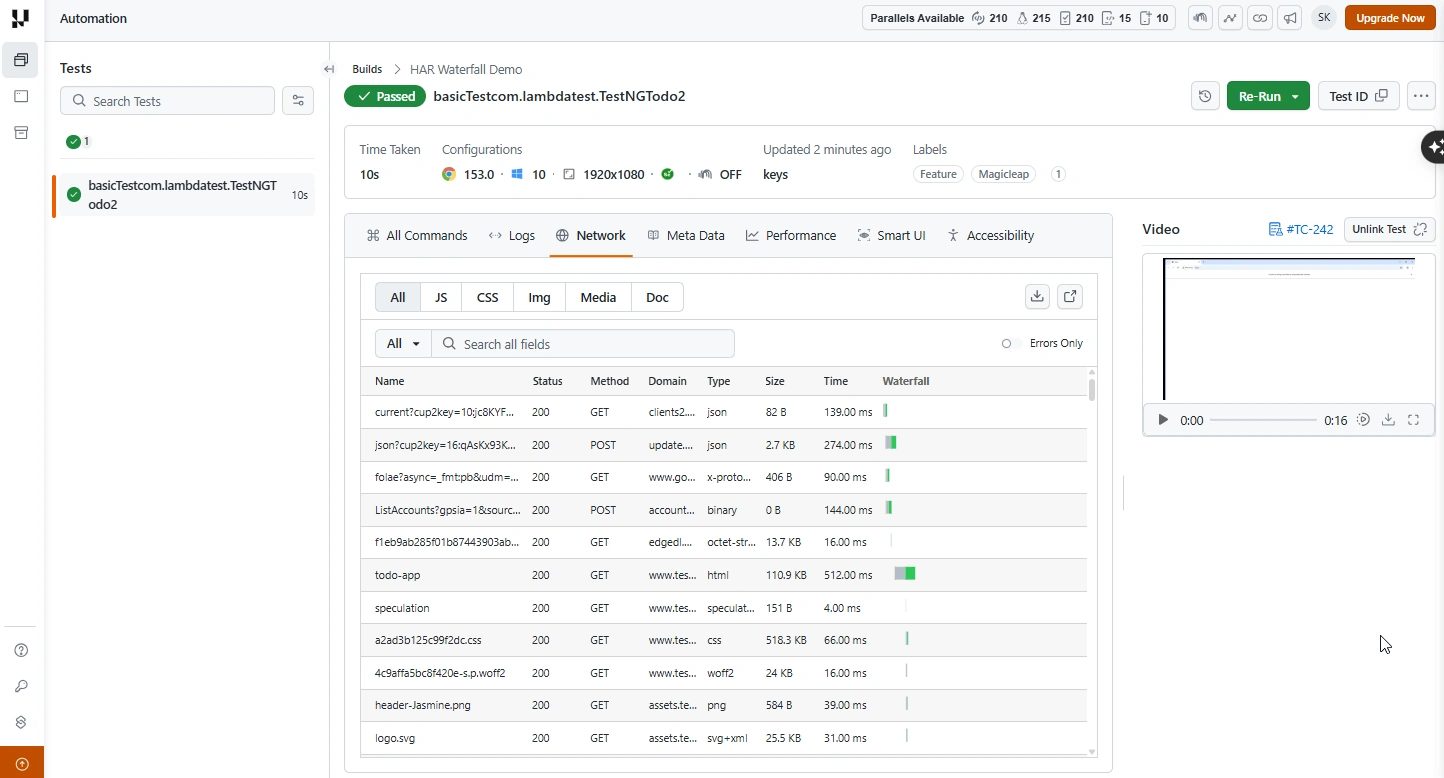
Each resource (HTML, CSS, JavaScript, images) appears as a horizontal bar. The bar length shows load time, and the sequence reflects the order the browser requested them.
Use Cases
Apply the HAR Log Viewer to diagnose and improve page performance.
- Performance optimization - Pinpoint slow-loading resources and compress images, minify CSS/JS, or improve caching.
- Load order diagnosis - Check if critical CSS and JavaScript load before non-essential resources.
- Network issue identification - Determine if delays are server-side (slow time to first byte) or network-related (slow download).
- Performance monitoring - Compare HAR logs over time to detect degradation after deployments.
- Third-party resource impact - Measure how ads, analytics scripts, and other external resources affect load time.
- Before/after comparison - Compare HAR files before and after optimization to measure improvements.
- Cross-browser analysis - Analyze HAR files from different browsers to understand loading differences.
Live Interaction
Take manual control of a running automation session to debug exceptions in real time.
Sometimes logs alone are not enough and you need to step into a running session yourself. Live Interaction makes that possible.
What Live Interaction Is
Live Interaction lets you take manual control of an active automation session.
Live Interaction is a feature within automation testing that allows you to take control of the session manually. This helps abort the automated test session, debug any exception in real time, and report the test session.
Why to Use Live Interaction
Debug exceptions, interact with OS-level prompts, and track who paused the test.
- It allows you to partially interact by clicking a button or filling OS-specific credentials without breaking the currently running automated tests.
- It helps find the root cause of exceptions raised during automated tests and allows you to debug the exception during the session.
- It works smartly by letting stakeholders know who has stopped or paused the test, which helps report the issue.
Prerequisites and Limitations
Review the supported platforms, browsers, and session time limits before using Live Interaction.
- Live interaction is available on:
- Windows: 11, 10, 8, and 8.1
- macOS: Big Sur, Monterey, Ventura
- All browsers except Safari.
- You can only interact with the browser for 15 minutes.
Safari browser will be added in upcoming releases.
How to Use the Live Interaction Feature
Open the test detail page and click the Live Interaction button on the video panel to take manual control.
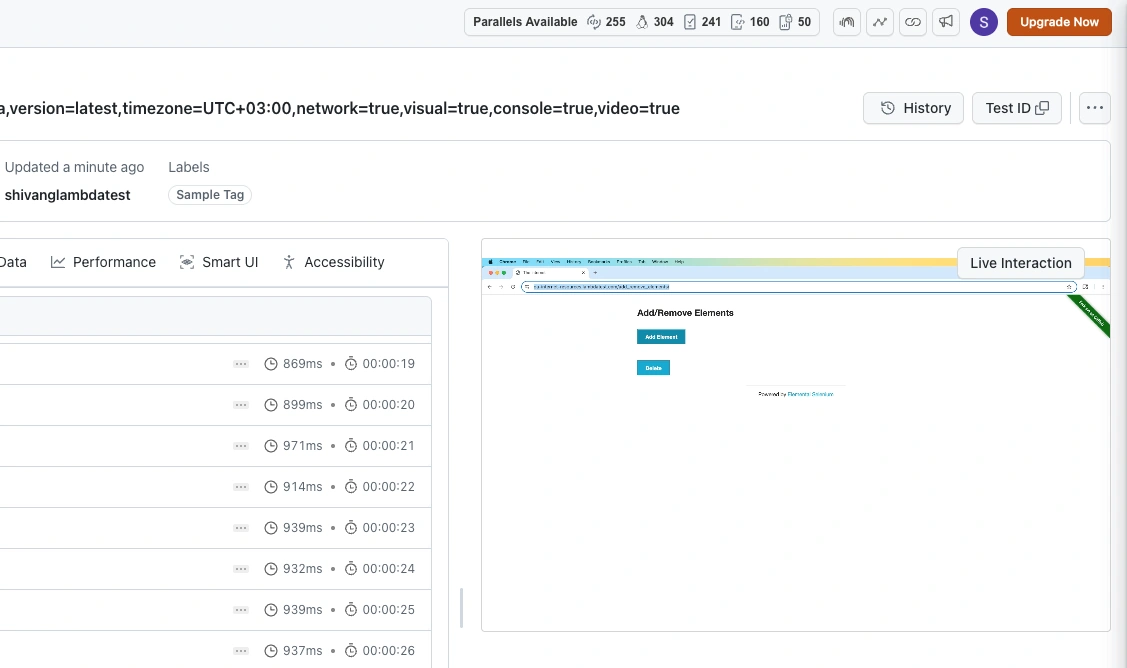
To take control during a running test:
- Open the test detail page in the TestMu AI dashboard.
- Click the Live Interaction button on the video panel.
- The test status changes to
idle_timeoutwhile you use Live Interaction. - Take control of the browser and interact with it directly.
Re-Run Automation Tests
Re-run a failed test from the dashboard using Replay or Reproduce, without re-triggering your suite.
After you have investigated a failure, the next step is often to run the test again. When a test fails, you often need to run it again, either to confirm a fix or to check whether the failure was a flake. The Re-Run button on the Test Detail Page lets you do this from the dashboard, without re-triggering your suite from CI or your local machine.
Re-Run offers two options:
- Replay - runs the test again on the grid.
- Reproduce - replays the test against the data captured from the original run. Requires HAR logging.
Re-Run is not generally available yet and may not be enabled for your account. Its behavior may change before general availability. To get it enabled for your organization, reach out to our 24/7 chat support or email us at support@testmuai.com.
Re-Run a Test
- Open the Automation Dashboard and select a build.
- Select a test from the Test List Panel to open its Test Detail Page.
- Click the dropdown arrow on the Re-Run button, in the top-right of the test summary.
- Choose Replay or Reproduce.

The Re-runs field in the test summary shows how many times a test has been re-run. Open the run history from the summary to see every previous run with its status, configuration, and duration.
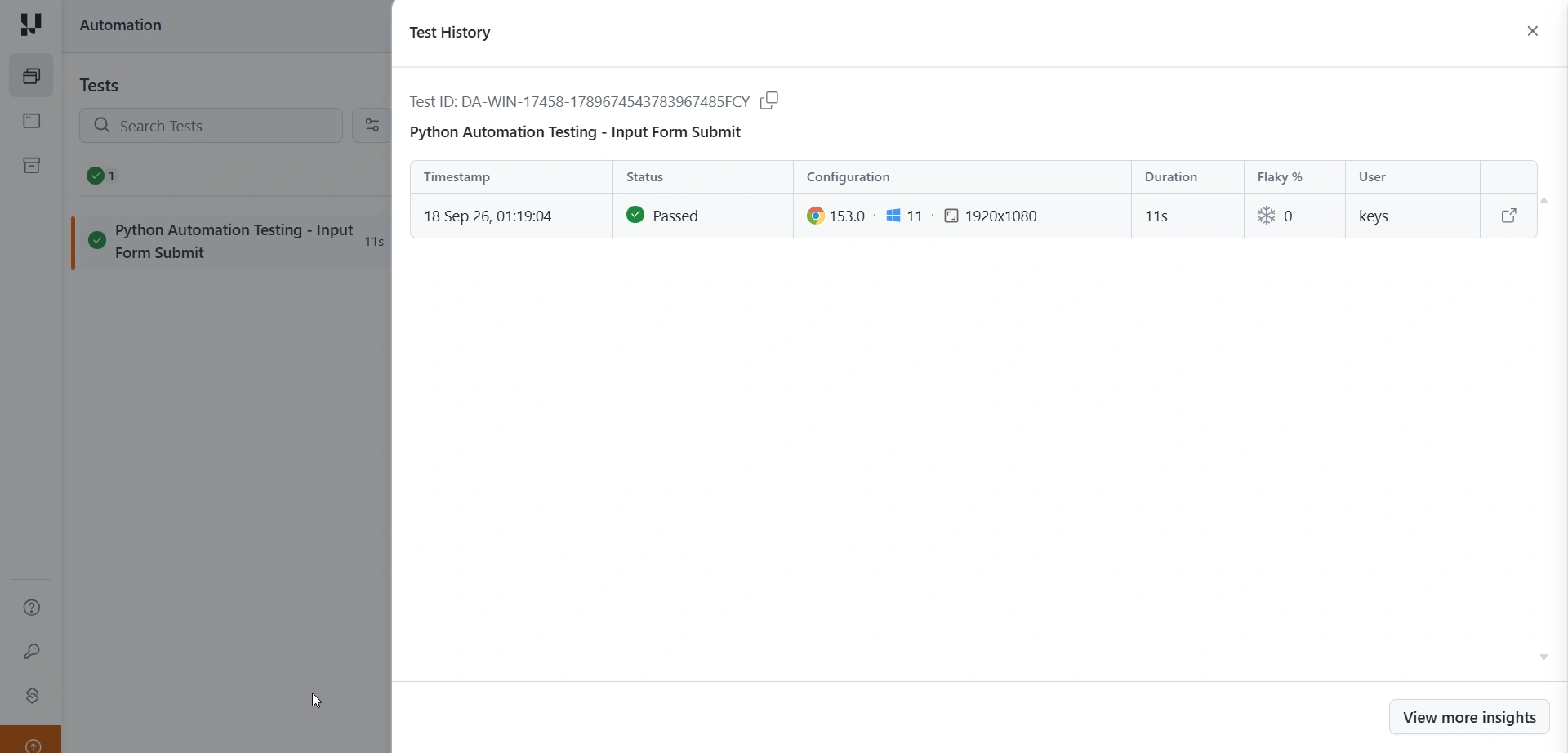
Replay
Replay runs the test again on the grid, against your application as it exists now. Unlike Reproduce, it does not use the captured data from the original run, so the result reflects the current state of your application and environment.
Use Replay to:
- Confirm a fix - re-run a previously failing test after deploying a change.
- Identify flaky tests - run the same test repeatedly to see whether failures are intermittent. For a broader view, see Flaky Test Detection.
- Re-test after an environment change - verify a test once a dependency or test environment issue is resolved.
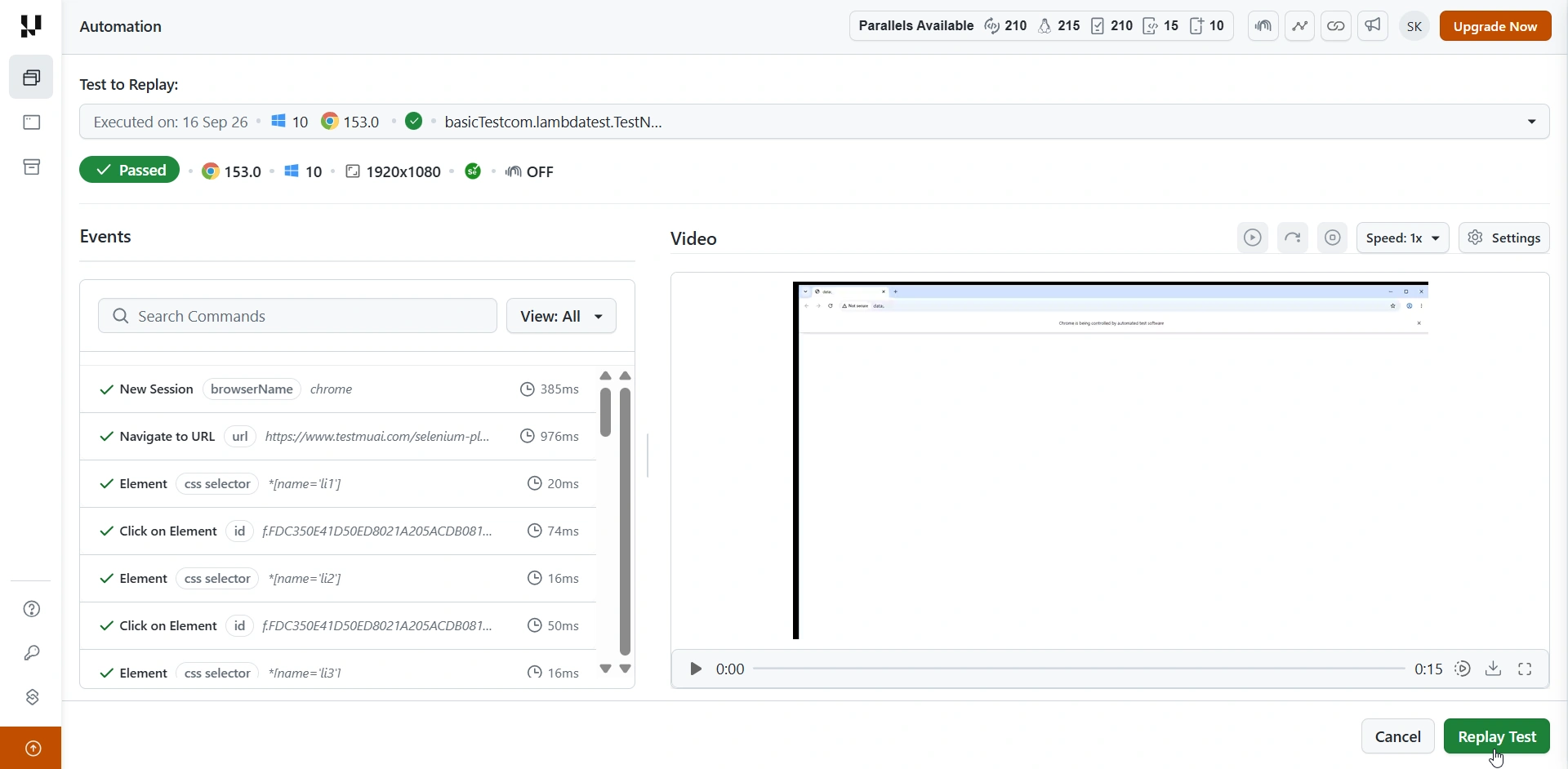
Reproduce
Reproduce replays the test against the network and DOM data captured during the original run, rather than against your live application. This replicates the conditions the test originally encountered, which is what makes it useful for intermittent failures that will not recur on demand.
Reproduce reads the HAR (HTTP Archive) network logs recorded during the original test. If those logs were not captured, the option is unavailable.
A test is eligible for Reproduce only if both of the following are true:
- It ran with the
network.full.harcapability set totrue. - It finished with a passed, failed, or completed status. Tests that did not run to completion cannot be reproduced.
Enable Reproduce
Reproduce requires HAR logging on the original run. Pass the following capability in your test:
Verified"network.full.har" : true
If the original test ran without this capability, Reproduce appears greyed out in the Re-Run menu with the tooltip:
No Network Logs found, use network.full.har:true to replicate the test states.
In this case, add the capability and run the test again. The new run is then eligible for Reproduce.
network.full.har applies to web tests. Enabling it also populates the Network tab with a waterfall chart. See HAR Log Viewer With Waterfall for how to read it.
Choosing Between Replay and Reproduce
| Replay | Reproduce | |
|---|---|---|
| Runs against | Your live application | Network and DOM data captured from the original run |
| Prerequisite | None | network.full.har : true, and a passed, failed, or completed original run |
| Reflects | The current state of your app | The state at the time of the original run |
| Best for | Confirming fixes, detecting flakes | Investigating intermittent failures that will not recur |
If you are not sure which to use, start with Replay. Reach for Reproduce when a failure will not recur on a live run and you need the original conditions back.
Next Steps
- Explore the Automation Dashboard
- HAR Log Viewer With Waterfall
Lambda Exceptions
View assertion errors from GET requests as exceptions on the dashboard to handle them effectively.
A final way to surface failures on the dashboard is to push assertion errors to it directly. While handling GET requests in your Selenium scripts, assertions might fail. Use the Lambda Exceptions feature to view these assertion errors as exceptions and handle them more effectively.
What Lambda Exceptions Are
Lambda Exceptions let you manage and display GET request errors like AssertionError on the dashboard.
Lambda Exception is a feature of TestMu AI that lets you manage and handle GET request errors, like AssertionError. The error gets displayed as an exception in the Exception tab of your test.
For example, when a test pushes an AssertionError using the lambda-exceptions command, it appears in the test's command log on the dashboard (and the test is marked failed via lambda-status):
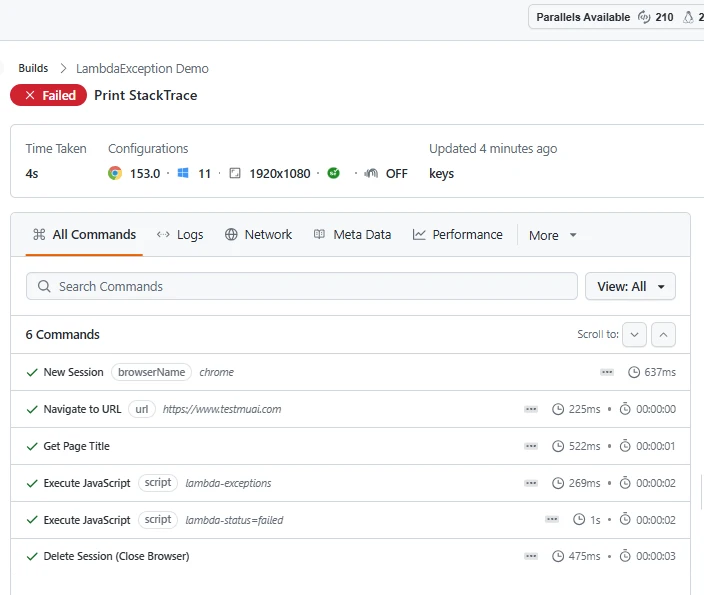
How to Use Lambda Exception
Catch assertion errors in GET requests and push them to the dashboard using JavascriptExecutor.
While performing assertions on GET requests, if the assertion fails, an AssertionError exception is thrown. Refer to the below Java syntax to catch this error and push it to TestMu AI using Lambda Exceptions.
Verifiedtry {
// some GET request
Assert.assertEquals(ActualValue, ExpectedValue);
} catch (AssertionError e) {
Status = "failed";
exceptionCapture.add(e.getMessage());
((JavascriptExecutor) driver).executeScript("lambda-exceptions", exceptionCapture);
}
In the above syntax, when the AssertionError is caught in the catch block, the exception message is added as an array of Strings. This message is then pushed to TestMu AI using the Lambda Exceptions feature via the JavascriptExecutor command.
Lambda Exception Demo
Walk through a sample script that visits a URL, fetches the title, and asserts it against an expected value.
For demo purposes, this script will:
- Visit www.testmuai.com
- Fetch the title
- Assert the title with the expected value
View Exception on the Dashboard Using Lambda Exception
Below is the full code for this script, using TestNG framework in Java.
Verifiedpackage com.lambdatest;
import java.net.MalformedURLException;
import java.net.URL;
import java.util.ArrayList;
import java.util.HashMap;
import org.openqa.selenium.JavascriptExecutor;
import org.openqa.selenium.chrome.ChromeOptions;
import org.openqa.selenium.remote.RemoteWebDriver;
import org.testng.Assert;
import org.testng.annotations.AfterSuite;
import org.testng.annotations.BeforeSuite;
import org.testng.annotations.Test;
public class LambdaException {
private static RemoteWebDriver driver;
private static String Status = "failed";
@BeforeSuite
public void setup() throws MalformedURLException {
try {
String username = System.getenv("LT_USERNAME");
String authkey = System.getenv("LT_ACCESS_KEY");
String hub = "https://hub.lambdatest.com/wd/hub";
// W3C-compliant capabilities using LT:Options (required by Selenium 4)
ChromeOptions browserOptions = new ChromeOptions();
browserOptions.setBrowserVersion("latest");
browserOptions.setPlatformName("Windows 11");
HashMap<String, Object> ltOptions = new HashMap<>();
ltOptions.put("username", username);
ltOptions.put("accessKey", authkey);
ltOptions.put("build", "LambdaException Demo");
ltOptions.put("name", "Test 2");
ltOptions.put("network", true);
ltOptions.put("visual", true);
ltOptions.put("video", true);
ltOptions.put("console", true);
ltOptions.put("w3c", true);
browserOptions.setCapability("LT:Options", ltOptions);
System.out.println("Desired Caps: " + browserOptions);
driver = new RemoteWebDriver(new URL(hub), browserOptions);
} catch (Exception e) {
System.out.println("Session creation failed: " + e);
}
}
@Test
public static void testAssertionError() {
ArrayList<String> exceptionCapture = new ArrayList<>();
try {
driver.get("https://www.testmuai.com");
// Intentionally wrong (truncated) title so the assertion fails - demo purpose
String ExpectedTitle = "Most Powerful Cross Browser Testing Tool Online | LambdaT";
String TitleValue = driver.getTitle();
if (TitleValue.equals(ExpectedTitle)) {
Status = "passed";
}
Assert.assertEquals(TitleValue, ExpectedTitle);
} catch (AssertionError e) {
Status = "failed";
exceptionCapture.add(e.getMessage());
((JavascriptExecutor) driver).executeScript("lambda-exceptions", exceptionCapture);
}
}
@AfterSuite
public void tearDown() {
if (driver != null) {
driver.executeScript("lambda-status=" + Status);
driver.quit();
}
}
}
When you run this test, the assertion fails because the ExpectedTitle is intentionally incorrect for this demo. The failure is captured and the session is marked failed on the dashboard. Open the test view and navigate to the Exception tab to see the message describing this error.
View StackTrace on the Dashboard Using Lambda Exception
You can also view the full StackTrace on the dashboard using Lambda Exceptions.
You can also push the full StackTrace to the dashboard using Lambda Exceptions. Convert the StackTrace to a String and add it as an array of Strings. Below is the full script to print the StackTrace using the TestNG framework in Java:
Verifiedpackage com.lambdatest;
import java.io.PrintWriter;
import java.io.StringWriter;
import java.net.MalformedURLException;
import java.net.URL;
import java.util.ArrayList;
import java.util.HashMap;
import org.openqa.selenium.JavascriptExecutor;
import org.openqa.selenium.chrome.ChromeOptions;
import org.openqa.selenium.remote.RemoteWebDriver;
import org.testng.Assert;
import org.testng.annotations.AfterSuite;
import org.testng.annotations.BeforeSuite;
import org.testng.annotations.Test;
public class LambdaException {
private static RemoteWebDriver driver;
private static String Status = "failed";
@BeforeSuite
public void setup() throws MalformedURLException {
try {
String username = System.getenv("LT_USERNAME");
String authkey = System.getenv("LT_ACCESS_KEY");
String hub = "https://hub.lambdatest.com/wd/hub";
// W3C-compliant capabilities using LT:Options (required by Selenium 4)
ChromeOptions browserOptions = new ChromeOptions();
browserOptions.setBrowserVersion("latest");
browserOptions.setPlatformName("Windows 11");
HashMap<String, Object> ltOptions = new HashMap<>();
ltOptions.put("username", username);
ltOptions.put("accessKey", authkey);
ltOptions.put("build", "LambdaException Demo");
ltOptions.put("name", "Print StackTrace");
ltOptions.put("network", true);
ltOptions.put("visual", true);
ltOptions.put("video", true);
ltOptions.put("console", true);
ltOptions.put("w3c", true);
browserOptions.setCapability("LT:Options", ltOptions);
System.out.println("Desired Caps: " + browserOptions);
driver = new RemoteWebDriver(new URL(hub), browserOptions);
} catch (Exception e) {
System.out.println("Session creation failed: " + e);
}
}
@Test
public static void testAssertionError() {
ArrayList<String> exceptionCapture = new ArrayList<>();
try {
driver.get("https://www.testmuai.com");
String TitleValue = driver.getTitle();
// Intentionally wrong (truncated) title so the assertion fails - demo purpose
String ExpectedTitle = "Most Powerful Cross Browser Testing Tool Online | LambdaT";
if (TitleValue.equals(ExpectedTitle)) {
Status = "passed";
}
Assert.assertEquals(TitleValue, ExpectedTitle);
} catch (AssertionError e) {
Status = "failed";
StringWriter sw = new StringWriter();
PrintWriter pw = new PrintWriter(sw);
e.printStackTrace(pw);
String sStackTrace = sw.toString();
exceptionCapture.add(sStackTrace);
((JavascriptExecutor) driver).executeScript("lambda-exceptions", exceptionCapture);
}
}
@AfterSuite
public void tearDown() {
if (driver != null) {
driver.executeScript("lambda-status=" + Status);
driver.quit();
}
}
}
When you execute the above test as a TestNG script, it produces the same result as the view exception section because of the incorrect ExpectedTitle value. Open the test view and navigate to the Exception tab to find the full StackTrace.
Below is the full StackTrace printed on the TestMu AI platform from the above script.
java.lang.AssertionError: expected [Most Powerful Cross Browser Testing Tool Online | LambdaT] but found [TestMu AI (formerly LambdaTest) | Agentic AI Testing Cloud] at
 org.testng.Assert.fail(Assert.java:99) at
 org.testng.Assert.failNotEquals(Assert.java:1037) at
 org.testng.Assert.assertEqualsImpl(Assert.java:140) at
 org.testng.Assert.assertEquals(Assert.java:122) at
 org.testng.Assert.assertEquals(Assert.java:629) at
 org.testng.Assert.assertEquals(Assert.java:639) at
 com.lambdatest.LambdaException.testAssertionError(LambdaException.java:66) at
 java.base/jdk.internal.reflect.NativeMethodAccessorImpl.invoke0(Native Method) at
 java.base/jdk.internal.reflect.NativeMethodAccessorImpl.invoke(NativeMethodAccessorImpl.java:64) at
 java.base/jdk.internal.reflect.DelegatingMethodAccessorImpl.invoke(DelegatingMethodAccessorImpl.java:43) at
 java.base/java.lang.reflect.Method.invoke(Method.java:564) at
 org.testng.internal.MethodInvocationHelper.invokeMethod(MethodInvocationHelper.java:132) at
 org.testng.internal.TestInvoker.invokeMethod(TestInvoker.java:599) at
 org.testng.internal.TestInvoker.invokeTestMethod(TestInvoker.java:174) at
 org.testng.internal.MethodRunner.runInSequence(MethodRunner.java:46) at
 org.testng.internal.TestInvoker$MethodInvocationAgent.invoke(TestInvoker.java:822) at
 org.testng.internal.TestInvoker.invokeTestMethods(TestInvoker.java:147) at
 org.testng.internal.TestMethodWorker.invokeTestMethods(TestMethodWorker.java:146) at
 org.testng.internal.TestMethodWorker.run(TestMethodWorker.java:128) at
 java.base/java.util.ArrayList.forEach(ArrayList.java:1511) at
 org.testng.TestRunner.privateRun(TestRunner.java:764) at
 org.testng.TestRunner.run(TestRunner.java:585) at
 org.testng.SuiteRunner.runTest(SuiteRunner.java:384) at
 org.testng.SuiteRunner.runSequentially(SuiteRunner.java:378) at
 org.testng.SuiteRunner.privateRun(SuiteRunner.java:337) at
 org.testng.SuiteRunner.run(SuiteRunner.java:286) at
 org.testng.SuiteRunnerWorker.runSuite(SuiteRunnerWorker.java:53) at
 org.testng.SuiteRunnerWorker.run(SuiteRunnerWorker.java:96) at
 org.testng.TestNG.runSuitesSequentially(TestNG.java:1218) at
 org.testng.TestNG.runSuitesLocally(TestNG.java:1140) at
 org.testng.TestNG.runSuites(TestNG.java:1069) at
 org.testng.TestNG.run(TestNG.java:1037) at
 org.testng.remote.AbstractRemoteTestNG.run(AbstractRemoteTestNG.java:115) at
 org.testng.remote.RemoteTestNG.initAndRun(RemoteTestNG.java:251) at
 org.testng.remote.RemoteTestNG.main(RemoteTestNG.java:77)
That’s it! You can now easily handle and manage exceptions using the Lambda Exceptions feature. If you still have any doubt, please feel free to reach out to us via 24/7 chat support or by mailing to us on support@testmuai.com. Happy testing! 🙂
Next Steps
Continue with these related guides:


 Chat with Us