Mark as Bug in Automation Testing


You can skip the steps of capturing a screenshot, annotating it, and logging onto a separate tool to create a task. TestMu AI does it all for you.
Mark as Bug is a feature that lets you highlight any UI observation from your test sessions on TestMu AI and share it with your colleagues on their favorite project management or bug tracking tools such as Jira, Trello, Hive, Paymo, and more. You can choose the assignee who handles your reported task or bug. You can also mention a description to help them understand the issue. You can do all of this while testing on TestMu AI, without hopping to any other platform or tool.

Note: Mark as Bug is available across every type of testing on TestMu AI. Below are the various types of testing we offer:

  • Real Time Testing: Test your web-app with live interaction by running it on VMs hosted by TestMu AI cloud server.
  • Screenshot Testing: Automated bulk screenshot testing on 25 (browsers + OS) combinations in a single test session.
  • Responsive Testing: Perform cross-browser testing across a variety of mobile and desktop devices to ensure your website renders well across different viewports. Run responsive testing on 46 devices in a single test session.
  • Automation Testing: Perform automated cross-browser testing with our on-cloud Selenium Grid. Execute parallel testing to reduce your test cycles. Our Selenium Grid is compatible with every test automation framework that supports Selenium.
  • Smart UI Testing: Automated visual regression testing that performs a pixel-to-pixel comparison between multiple images and highlights any UI deviations such as padding, icon, text, and more with respect to the baseline images.

Did You Know?

TestMu AI offers more than 2000 real browsers and browser versions on every type of testing so you can maximize test coverage of your cross-browser testing.

How to Mark as Bug in Automation Testing


Log a bug directly from the automation test session to your integrated project management tool.

  1. Visit the Automation tab from the left navigation menu to go to the automation console. Go to AUTOMATION LOGS.
real time testing
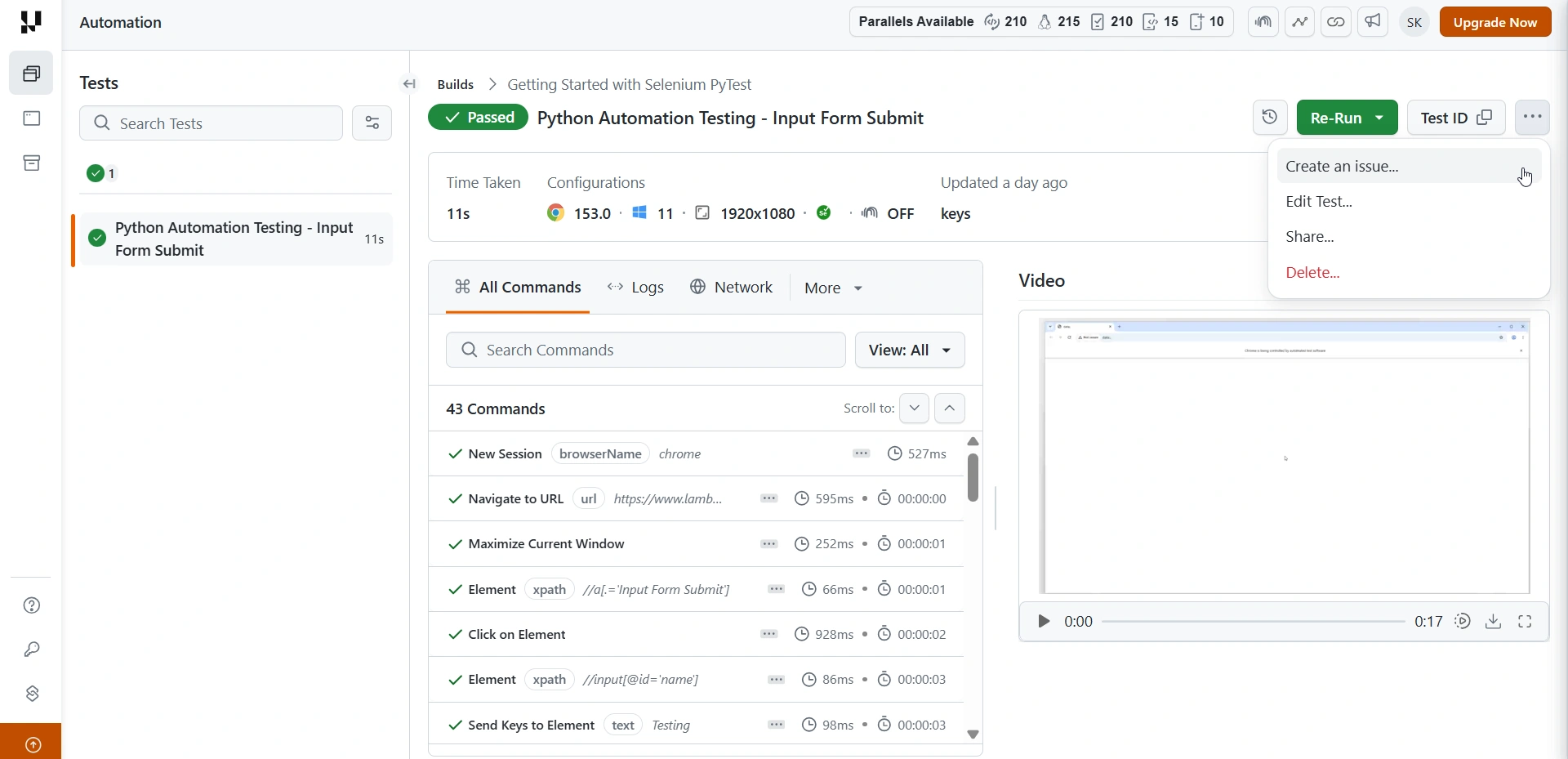
  1. In the automation logs, you can access various logs of your test script execution such as network logs, command logs, and more. By default, you are routed to SUMMARY. In summary, you will find a button to Create Issue.
automation logs

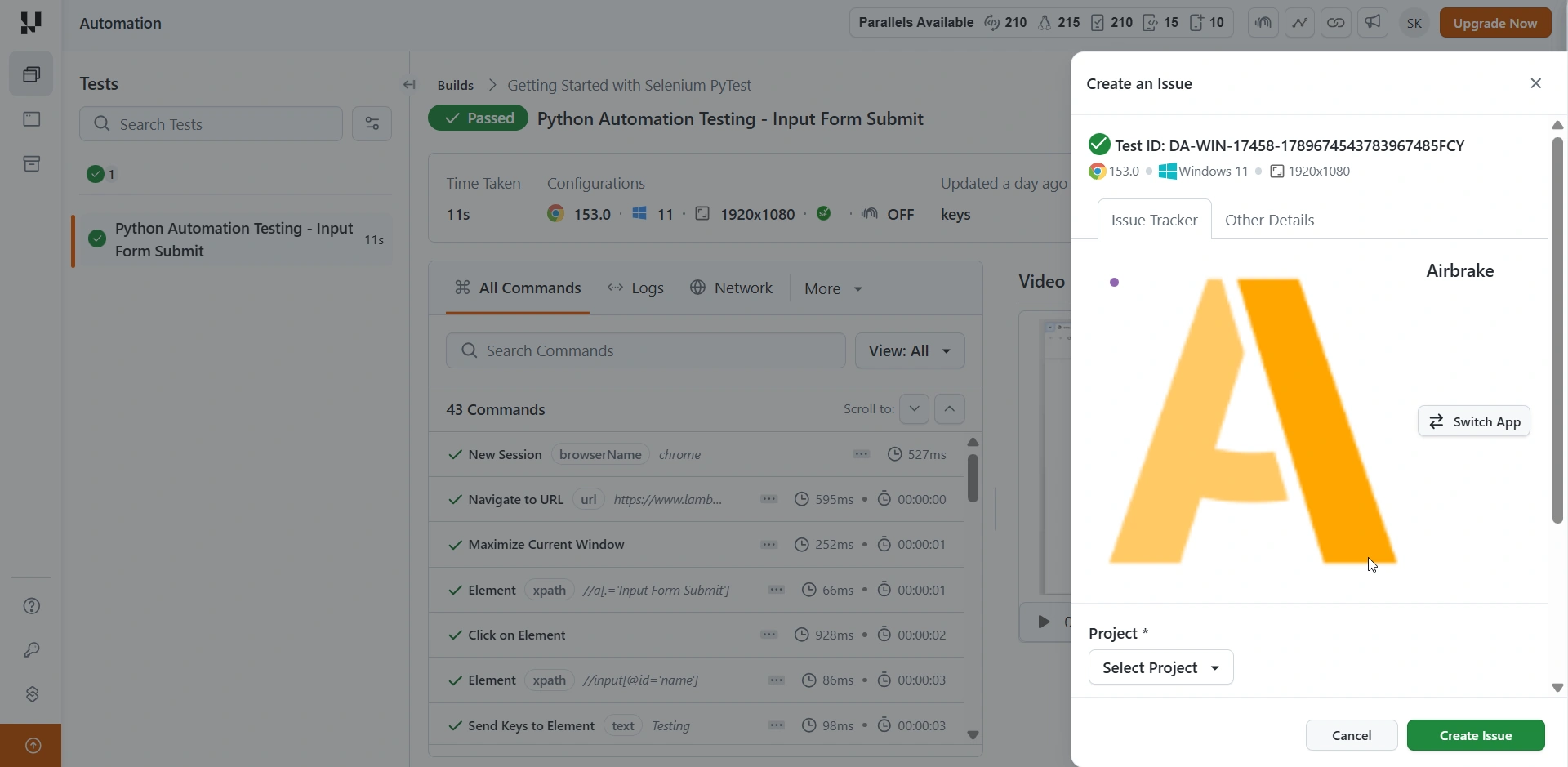
As you click on the bug icon, an integration-specific form opens up. Fill the fields as needed. For instance, if you have installed the TestMu AI + JIRA integration, you can fill the below fields:

  • Select which project should the bug go under.
  • Select the assignee for that particular task.
  • Select the issue type of the bug.
  • Post a summary to help relate the cause of the bug.
mark as bug

All the fields you populate reflect directly in your respective project based on the integration you have configured with your TestMu AI account. In the above case, the changes reflect on the respective JIRA instance.

Similarly, you can find the mark as bug button in EXCEPTION and COMMAND logs.

  • Exception logs
automation
  • Command Logs
command logs

Got any questions?
Share them with our 24/7 chat support or drop a mail at [email protected].

Test across 3000+ combinations of browsers, real devices & OS.

Book Demo

Help and Support

Related Articles