How to Run Web Automation Tests With Chrome DevTools Protocol (CDP)
The Chrome DevTools Protocol (CDP) is the interface Chrome and Chromium-based browsers expose for automation and inspection. A CDP client navigates pages, controls the DOM, intercepts network traffic, and reads performance data directly.
On TestMu AI, you connect to a cloud Chrome browser over CDP and run your web automation there instead of on your local machine, and an AI agent can drive the same browser.
Prerequisites
Before you start, make sure you have the following in place.
- A TestMu AI account. Sign up on TestMu AI if you do not have one.
- Node.js 18 or later installed.
Running Web Automation Tests With CDP
Puppeteer is a CDP client. It connects to a TestMu AI cloud browser over a CDP WebSocket, so no Browser SDK is required. The example opens a product listing on the E-Commerce Playground and reads it; swap the URL and selectors for your own target.
Requirements
- Node.js 18 or later (check with
node -v). - The
puppeteer-corepackage (installed in step 1). - Your TestMu AI Username and Access Key (set as environment variables in step 2).
These examples are written in TypeScript. You're free to use plain JavaScript instead (remove the type annotations and save the file as .js), or connect over CDP from any other language your stack supports. The connection flow is the same.
1. Install the Puppeteer client. puppeteer-core connects to a remote browser without downloading a local one.
npm install puppeteer-core
A successful install adds the package to your project:
Verifiedadded 25 packages, and audited 26 packages in 5s
found 0 vulnerabilities
2. Set your credentials. Copy your Username and Access Key from Settings → Account Settings, then set them as environment variables.
Verified- macOS / Linux
- Windows (PowerShell)
- Windows (CMD)
export LT_USERNAME="your_username"
export LT_ACCESS_KEY="your_access_key"
$env:LT_USERNAME="your_username"
$env:LT_ACCESS_KEY="your_access_key"
set LT_USERNAME=your_username
set LT_ACCESS_KEY=your_access_key
3. Create cdp-test.ts. It builds the CDP endpoint from your credentials, connects Puppeteer to the cloud browser, pages through the listing, marks the test passed or failed on the dashboard, and disconnects.
// cdp-test.ts
import puppeteer from 'puppeteer-core';

const capabilities = {
  browserName: 'Chrome',
  browserVersion: 'latest',
  'LT:Options': {
    platformName: 'Windows 10',
    build: 'CDP Web Automation',
    name: 'Product Listing',
    username: process.env.LT_USERNAME,
    accessKey: process.env.LT_ACCESS_KEY,
  },
};

const endpoint =
  `wss://${process.env.LT_USERNAME}:${process.env.LT_ACCESS_KEY}` +
  `@cdp.lambdatest.com/puppeteer?capabilities=${encodeURIComponent(JSON.stringify(capabilities))}`;

const BASE =
  'https://ecommerce-playground.lambdatest.io/index.php?route=product/category&path=25';

async function run() {
  const browser = await puppeteer.connect({ browserWSEndpoint: endpoint });
  const products: Array<Record<string, string | null>> = [];
  const page = (await browser.pages())[0];
  try {
    for (let pageNo = 1; pageNo <= 5; pageNo++) {
      await page.goto(`${BASE}&page=${pageNo}`, { waitUntil: 'domcontentloaded' });
      await page.waitForSelector('.product-thumb');

      const pageProducts = await page.evaluate(() =>
        Array.from(document.querySelectorAll('.product-thumb')).map((card) => {
          const link = card.querySelector<HTMLAnchorElement>('.caption .title a');
          const priceEl =
            card.querySelector<HTMLElement>('.price-new') ??
            card.querySelector<HTMLElement>('.price');
          return {
            name: link?.textContent?.trim() ?? null,
            price: priceEl?.textContent?.trim() ?? null,
            url: link?.href ?? null,
          };
        })
      );

      console.log(`Page ${pageNo}: ${pageProducts.length} products`);
      products.push(...pageProducts);
    }

    // Mark the test as passed on the TestMu AI dashboard
    await page.evaluate(
      (_) => {},
      `lambdatest_action: ${JSON.stringify({
        action: 'setTestStatus',
        arguments: { status: 'passed', remark: `Collected ${products.length} products` },
      })}`
    );
  } catch (e) {
    // Mark the test as failed so the dashboard reflects the real outcome
    await page.evaluate(
      (_) => {},
      `lambdatest_action: ${JSON.stringify({
        action: 'setTestStatus',
        arguments: { status: 'failed', remark: (e as Error).message },
      })}`
    );
    throw e;
  } finally {
    await browser.close();
  }

  console.log(`Collected ${products.length} products total`);
  console.table(products.slice(0, 5));
}

run().catch((e) => {
  console.error('Run failed:', e.message);
  process.exit(1);
});
4. Run it with a TypeScript runner:
Verifiednpx tsx cdp-test.ts
The scan runs on the cloud browser and prints the products it collected:
VerifiedPage 1: 15 products
Page 2: 15 products
Page 3: 15 products
Page 4: 15 products
Page 5: 15 products
Collected 75 products total
┌─────────┬─────────────────┬───────────┐
│ (index) │ name │ price │
├─────────┼─────────────────┼───────────┤
│ 0 │ 'HTC Touch HD' │ '$146.00' │
│ 1 │ 'Palm Treo Pro' │ '$337.99' │
│ 2 │ 'Canon EOS 5D' │ '$134.00' │
└─────────┴─────────────────┴───────────┘
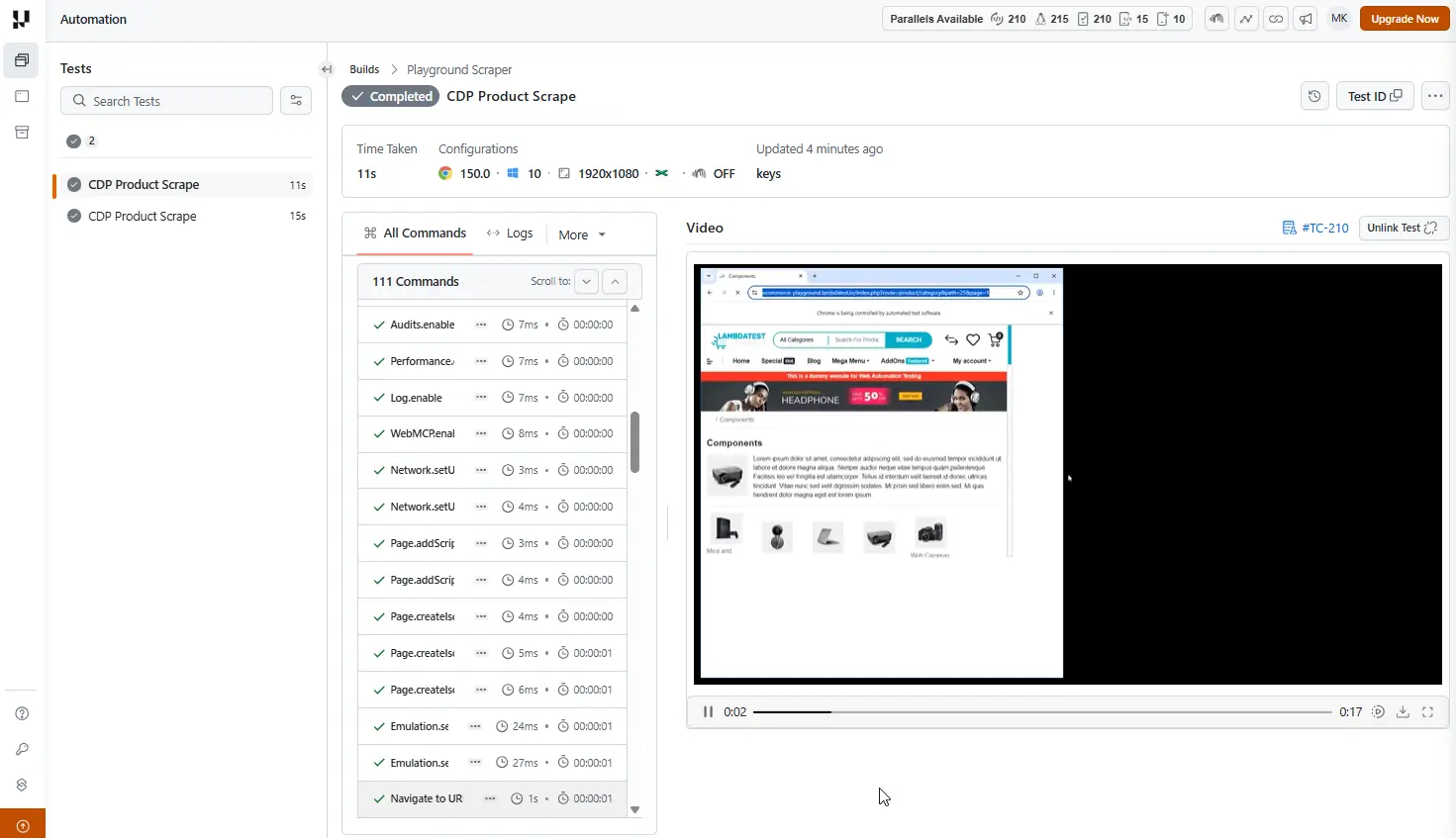
To view your test results, navigate to the TestMu AI Web Automation dashboard.
Running Web Automation With CDP From an AI Agent
AI agent workloads need more than a raw connection: stealth so a site does not flag the browser as automated, session persistence so a logged-in agent does not start cold, and managed cleanup.
The TestMu AI Browser SDK wraps the same CDP connection and adds these, so it is the path to use for agents.
1. Install the TestMu AI Browser SDK. It includes the Puppeteer client and manages the CDP session for you. The package is published on the npm registry as @testmuai/browser-cloud.
npm install @testmuai/browser-cloud
2. Create agent-scrape.ts. This is the same product-listing scan from the section above, ported to the Browser SDK: it creates a stealth session, connects over CDP, runs the scan, marks the test passed or failed, and releases the session.
// agent-scrape.ts
import { Browser } from '@testmuai/browser-cloud';

const BASE =
  'https://ecommerce-playground.lambdatest.io/index.php?route=product/category&path=25';

const client = new Browser();

async function run() {
  let session;
  const products: Array<Record<string, string | null>> = [];
  try {
    session = await client.sessions.create({
      adapter: 'puppeteer',
      stealthConfig: { humanizeInteractions: true, randomizeUserAgent: true },
      lambdatestOptions: {
        build: 'CDP Web Automation',
        name: 'Agent Product Listing',
        'LT:Options': {
          username: process.env.LT_USERNAME,
          accessKey: process.env.LT_ACCESS_KEY,
        },
      },
    });

    console.log('Session created:', session.id);
    console.log('View live session at:', session.sessionViewerUrl);

    const browser = await client.puppeteer.connect(session);
    const page = (await browser.pages())[0];

    for (let pageNo = 1; pageNo <= 5; pageNo++) {
      await page.goto(`${BASE}&page=${pageNo}`, { waitUntil: 'domcontentloaded' });
      await page.waitForSelector('.product-thumb');

      const pageProducts = await page.evaluate(() =>
        Array.from(document.querySelectorAll('.product-thumb')).map((card) => {
          const link = card.querySelector<HTMLAnchorElement>('.caption .title a');
          const priceEl =
            card.querySelector<HTMLElement>('.price-new') ??
            card.querySelector<HTMLElement>('.price');
          return {
            name: link?.textContent?.trim() ?? null,
            price: priceEl?.textContent?.trim() ?? null,
            url: link?.href ?? null,
          };
        })
      );

      console.log(`Page ${pageNo}: ${pageProducts.length} products`);
      products.push(...pageProducts);
    }

    // Mark the test as passed on the TestMu AI dashboard
    await page.evaluate(
      (_) => {},
      `lambdatest_action: ${JSON.stringify({
        action: 'setTestStatus',
        arguments: { status: 'passed', remark: `Collected ${products.length} products` },
      })}`
    );

    await browser.close();
  } finally {
    if (session) await client.sessions.release(session.id);
  }

  console.log(`Collected ${products.length} products total`);
}

run().catch((e) => {
  console.error('Run failed:', e.message);
  process.exit(1);
});
3. Run it:
Verifiednpx tsx agent-scrape.ts
The SDK creates a stealth session, prints a live-session link, and runs the same scan through Browser Cloud:
VerifiedSession created: session_1786903262009_f0ruuv
View live session at: https://automation.lambdatest.com/logs/
Adapter: Set stealth user-agent: Mozilla/5.0 (Windows NT 10.0; Win64; x64) ...
Adapter: Set stealth viewport: 1928x1065
Page 1: 15 products
Page 2: 15 products
Page 3: 15 products
Page 4: 15 products
Page 5: 15 products
Collected 75 products total
Open the TestMu AI Web Automation dashboard to watch the run and confirm it is marked Passed.
Scraping product images
Because the SDK hands you a full Puppeteer page, an agent can do more than read text. This example scrapes the primary product image from each card on the E-Commerce Playground listing and downloads the first five to disk.
Create agent-image-scrape.ts:
// agent-image-scrape.ts
import { Browser } from '@testmuai/browser-cloud';
import { mkdir, writeFile } from 'node:fs/promises';

const BASE =
  'https://ecommerce-playground.lambdatest.io/index.php?route=product/category&path=25';

const client = new Browser();

async function run() {
  let session;
  try {
    session = await client.sessions.create({
      adapter: 'puppeteer',
      stealthConfig: { humanizeInteractions: true, randomizeUserAgent: true },
      lambdatestOptions: {
        build: 'CDP Web Automation',
        name: 'Agent Image Scrape',
        'LT:Options': {
          username: process.env.LT_USERNAME,
          accessKey: process.env.LT_ACCESS_KEY,
        },
      },
    });

    const browser = await client.puppeteer.connect(session);
    const page = (await browser.pages())[0];

    await page.goto(BASE, { waitUntil: 'domcontentloaded' });
    await page.waitForSelector('.product-thumb');

    // Collect the primary product image from each card on the listing
    const images = await page.evaluate(() =>
      Array.from(document.querySelectorAll('.product-thumb')).map((card) => {
        const img = card.querySelector<HTMLImageElement>('.image img');
        return { alt: img?.alt?.trim() ?? null, src: img?.src ?? null };
      })
    );

    console.log(`Found ${images.length} product images`);

    // Download the first five images to ./images
    await mkdir('./images', { recursive: true });
    const toDownload = images.filter((i) => i.src).slice(0, 5);
    for (const [i, img] of toDownload.entries()) {
      const res = await fetch(img.src as string);
      const buf = Buffer.from(await res.arrayBuffer());
      await writeFile(`./images/product-${i + 1}.jpg`, buf);
      console.log(`Saved product-${i + 1}.jpg (${img.alt ?? 'no alt'})`);
    }

    // Mark the test as passed on the TestMu AI dashboard
    await page.evaluate(
      (_) => {},
      `lambdatest_action: ${JSON.stringify({
        action: 'setTestStatus',
        arguments: { status: 'passed', remark: `Scraped ${toDownload.length} images` },
      })}`
    );

    await browser.close();
  } finally {
    if (session) await client.sessions.release(session.id);
  }
}

run().catch((e) => {
  console.error('Run failed:', e.message);
  process.exit(1);
});
Run it with npx tsx agent-image-scrape.ts. It reads the images from the cloud browser and saves them locally:
Found 15 product images
Saved product-1.jpg (HTC Touch HD)
Saved product-2.jpg (Palm Treo Pro)
Saved product-3.jpg (Canon EOS 5D)
Saved product-4.jpg (Nikon D300)
Saved product-5.jpg (iPod Touch)
With stealth on, the SDK sets a randomized user-agent and viewport. See stealth configuration for the full list of options. To keep an agent logged in across runs, add a profileId to persist cookies and session state; see browser profiles.
Any AI agent that can call the SDK drives the browser this way, including Claude, Cursor, Gemini, OpenAI Computer Use, and custom agents. See how to configure session options for stealth, profiles, and tunnels.
To see your test results, open the TestMu AI Web Automation dashboard.
The Browser Cloud agent skills are ready-made cookbooks that teach any AI agent (Claude, Cursor, and other LLM tools) to generate production-grade Browser Cloud automation for you. Drop the skill into your assistant and it writes integrations like the ones above, so you can get started with Browser Cloud at the earliest.
Related TestMu AI Guides
- How to launch your first Browser Cloud session to verify credentials before your first run.
- How to connect Puppeteer, Playwright, or Selenium to a session for the full SDK adapter reference.
- How to install and use Browser Cloud agent skills to let a coding assistant write the integration.
- How to get started with Kane CLI to run browser tasks from natural language.


 Chat with Us