Sharing Test Results on TestMu AI
TestMu AI lets you share individual test results with team members. Share directly from the Automation Dashboard, or build a shareable URL programmatically from the Session ID.
Share from the Dashboard
Send a test's results to teammates directly from the Automation Dashboard.
-
Open the test's detail page, click the … (options) menu in the top-right of the test summary, and select Share.
-
In the Share dialog, set the Expiry Duration, enter one or more recipient email IDs, and add an optional message. Click Invite to email the link, or Copy Link to share it yourself.
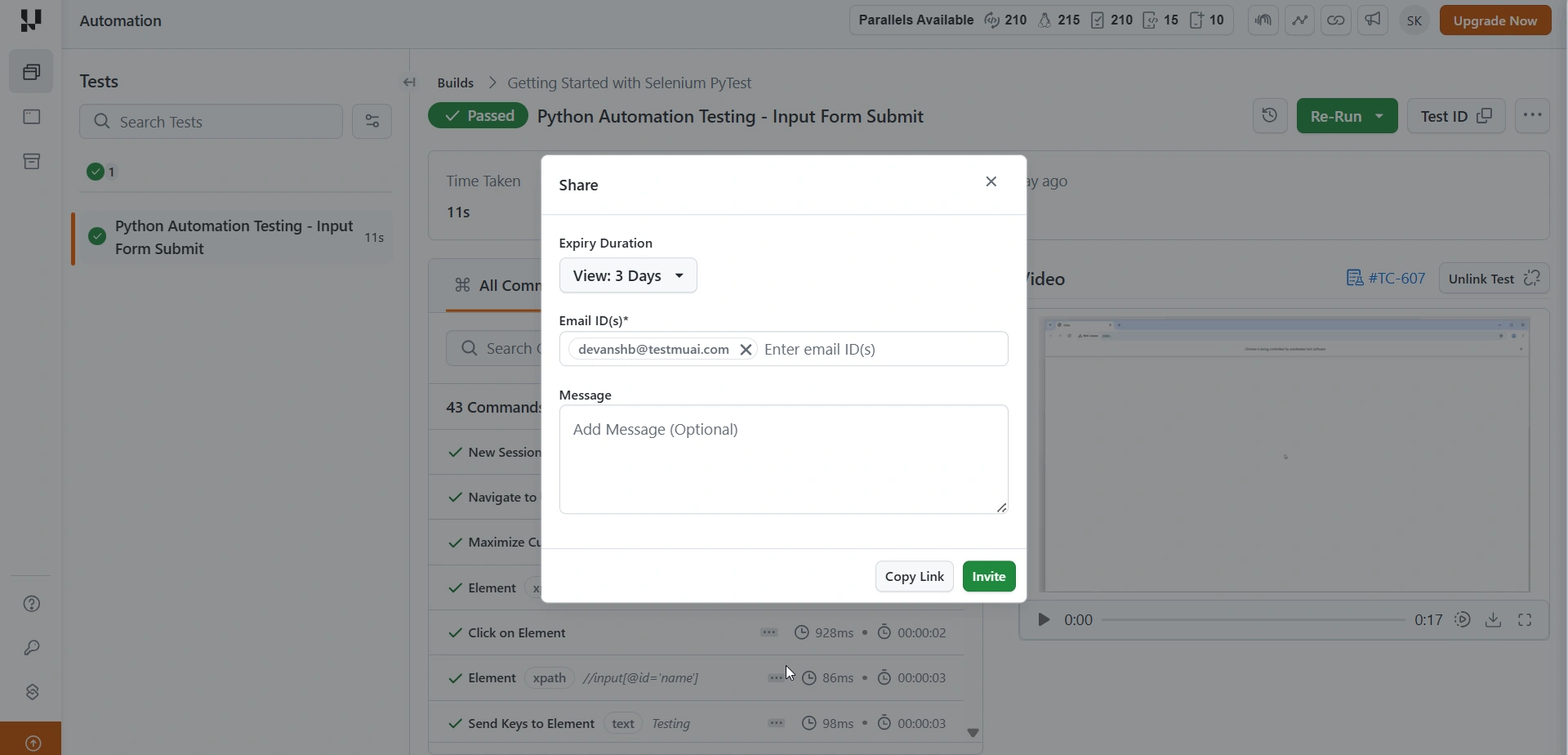
To generate a shareable URL programmatically instead, use the Session ID method below.
Get the Session ID
Retrieve the Selenium Session ID programmatically so you can build shareable result URLs.
Every test session on TestMu AI has a unique Session ID. Use the code below to retrieve it in your preferred language:
Verified- Java
- JavaScript
- Python
- C#
- PHP
- Ruby
import org.openqa.selenium.remote.SessionId;

SessionId session = ((RemoteWebDriver) driver).getSessionId();
System.out.println("Session ID: " + session.toString());
const session = await driver.getSession();
console.log("Session ID: " + session.getId());
session_id = driver.session_id
print("Session ID: " + session_id)
var sessionId = ((RemoteWebDriver)driver).SessionId;
Console.WriteLine("Session ID: " + sessionId);
$sessionId = $driver->getSessionID();
echo "Session ID: " . $sessionId;
session_id = driver.session_id
puts "Session ID: #{session_id}"
Once you have the Session ID, share the automation logs URL with your colleague:
Verifiedhttps://automation.lambdatest.com/logs/?sessionID=YOUR_SESSION_ID
Share Your Test Execution Video
Build a shareable URL using the TestID/SessionID and an MD5-generated auth token.
You can share a video recording of any test execution. Build the URL in the following format:
Verifiedhttps://automation.lambdatest.com/public/video?testID={testid/sessionid}&auth=AUTH_TOKEN
Step 1 - Get Your TestID or SessionID
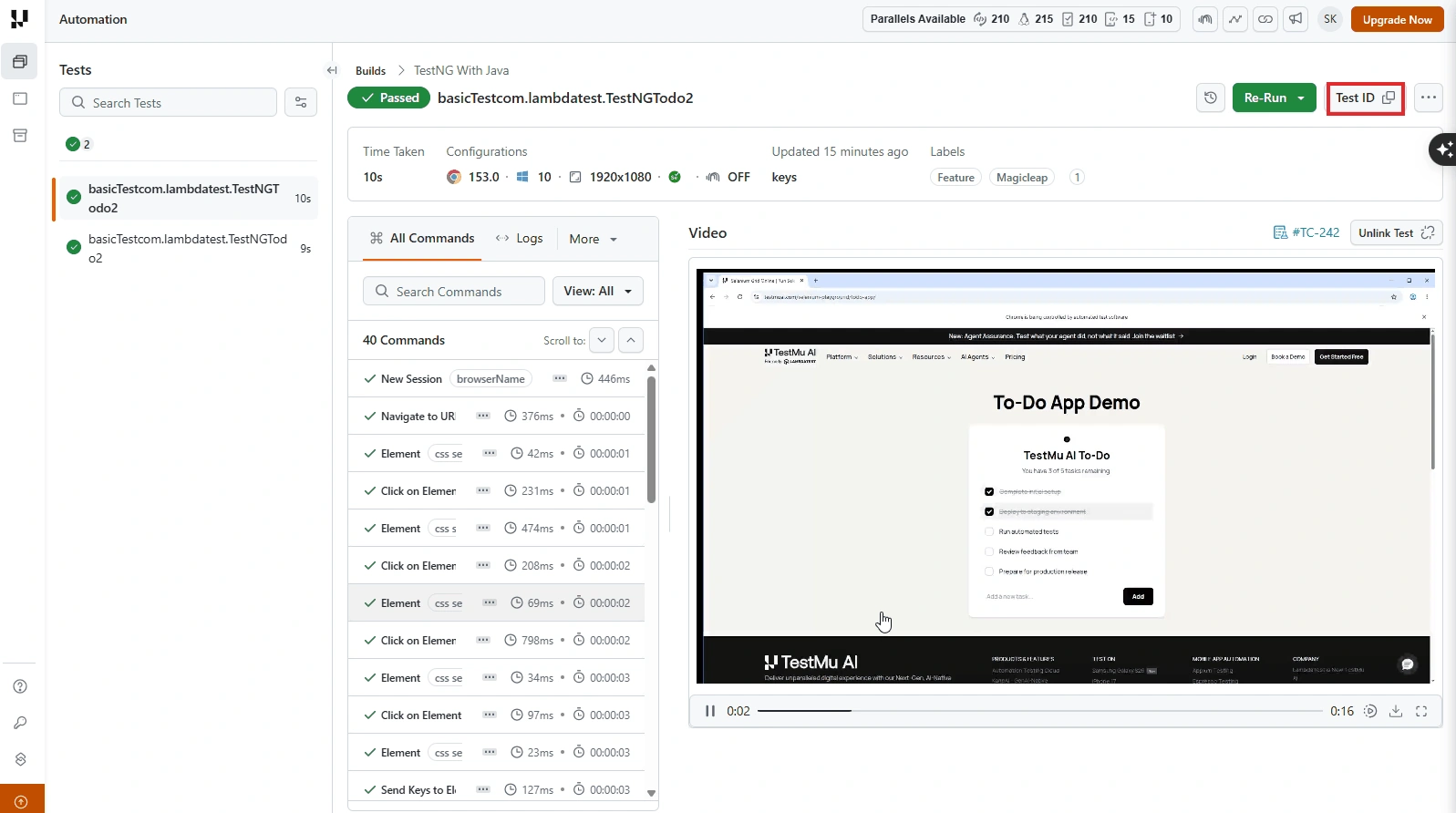
Open the test on the Automation Dashboard. In the test summary, click the Test ID button to copy the test's ID, then use it as the testID in the URL above.
For example, if your SessionID is HJKXM-RHZL1-SVPWY-AB8X6, the URL becomes:
https://automation.lambdatest.com/public/video?testID=HJKXM-RHZL1-SVPWY-AB8X6&auth=AUTH_TOKEN
Step 2 - Generate the AUTH_TOKEN
Create the AUTH_TOKEN by computing an MD5 hash of your username:access_key string.
- Java
- JavaScript
- Python
- C#
- PHP
- Ruby
MessageDigest m = MessageDigest.getInstance("MD5");
String s = "username:access_key";
m.update(s.getBytes(), 0, s.length());
System.out.println("MD5: " + new BigInteger(1, m.digest()).toString(16));
var crypto = require('crypto');
var token = crypto.createHash('md5').update("username:access_key").digest("hex");
console.log("AUTH_TOKEN: " + token);
import hashlib
token = hashlib.md5("username:access_key".encode('utf-8')).hexdigest()
print("AUTH_TOKEN: " + token)
byte[] inputBytes = System.Text.Encoding.ASCII.GetBytes("username:access_key");
byte[] hashBytes = System.Security.Cryptography.MD5.Create().ComputeHash(inputBytes);
StringBuilder sb = new StringBuilder();
for (int i = 0; i < hashBytes.Length; i++)
{
    sb.Append(hashBytes[i].ToString("X2"));
}
Console.WriteLine("AUTH_TOKEN: " + sb.ToString());
$token = md5("username:access_key");
echo "AUTH_TOKEN: " . $token;
require 'digest'
token = Digest::MD5.hexdigest("username:access_key")
puts "AUTH_TOKEN: #{token}"
For example, if the generated AUTH_TOKEN is 331k534uf3toef, the final URL becomes:
https://automation.lambdatest.com/public/video?testID=HJKXM-RHZL1-SVPWY-AB8X6&auth=331k534uf3toef
You must be logged into TestMu AI to access the sharing URL.


 Chat with Us