Upload Files Using TestMu AI Selenium Grid
In Selenium automation testing, you may need to test the upload functionality on a web app or website. TestMu AI lets you test the upload feature on the cloud-based Selenium Grid across 10,000+ browser/device combinations.
This document explains how to upload a file on the TestMu AI platform and access it via an automation test script.
How to Upload Files on TestMu AI Platform
Upload files to the cloud-based Selenium Grid using the API for uploading user-files.
- Open the user-files API reference and select the POST /user-files endpoint ("Upload files to our lambda storage").
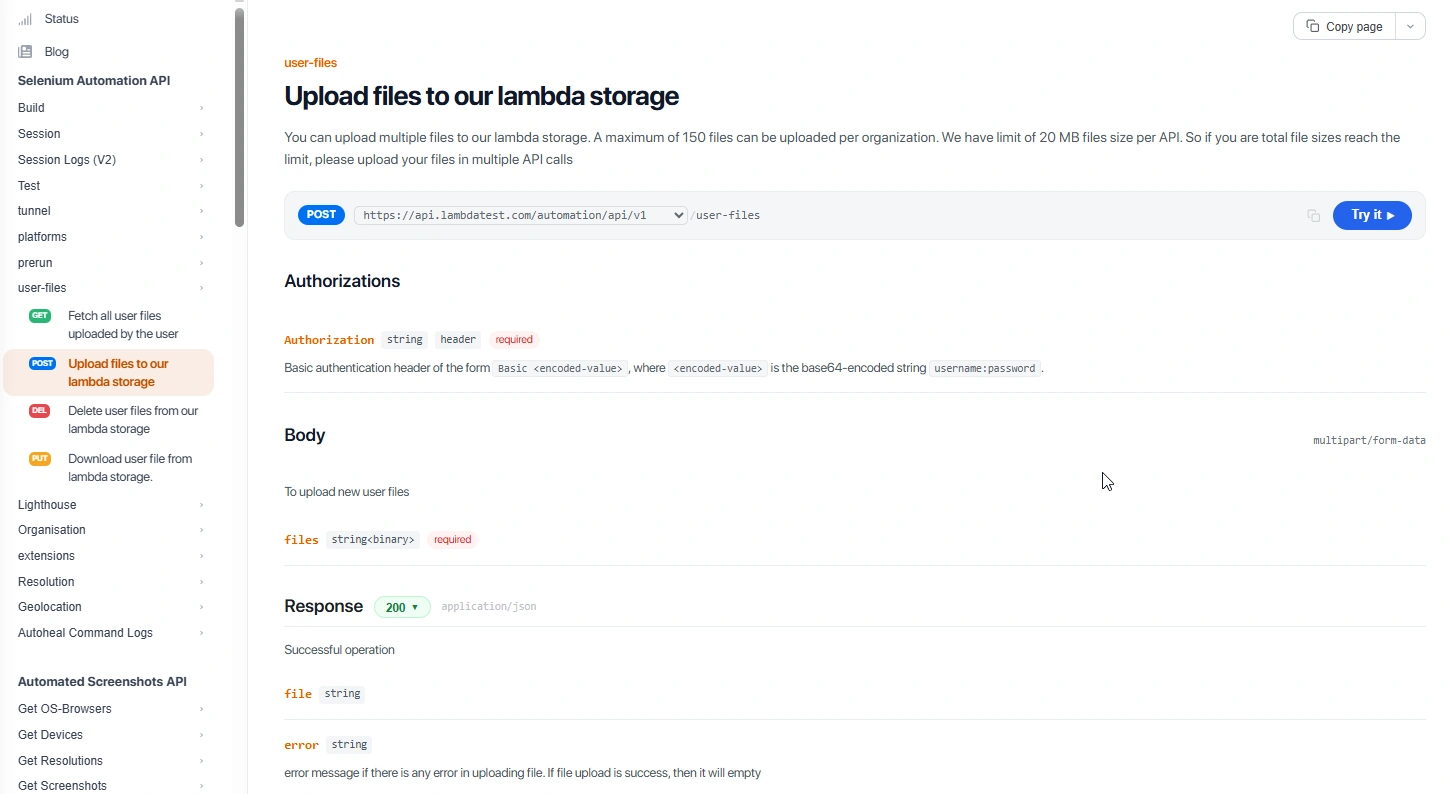
- Click Try it to open the request panel.
- Under Authorization, enter your TestMu AI username and access key (Basic auth).
- Under Body, add the file(s) to upload in the files field.
- Click Send. On success, the response returns a 200 status with the message
File have been uploaded successfully to our lambda storage.
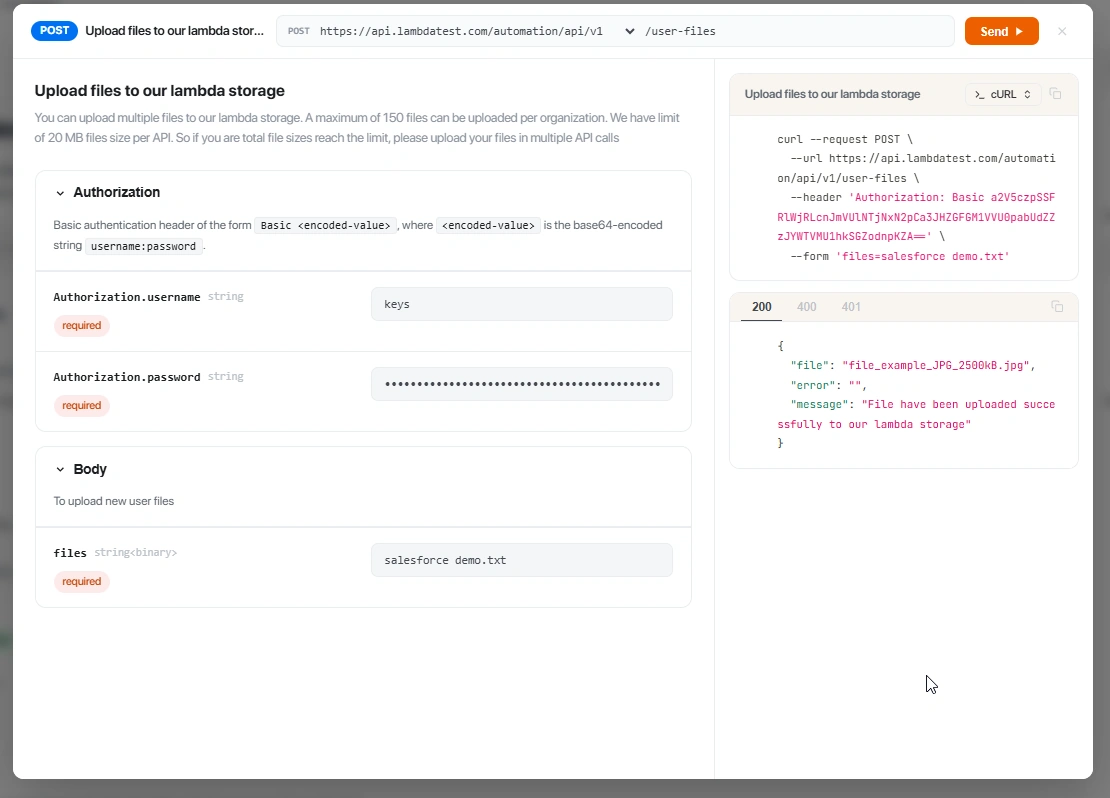
Get your TestMu AI Username and Access Key from your TestMu AI dashboard.
Note: You can upload multiple files to lambda storage. A maximum of 150 files can be uploaded per organization. The file size limit is 20 MB per API call. If your total file sizes reach the limit, upload your files in multiple API calls.
How to Test the Uploaded File on TestMu AI Platform
Test the uploaded file on the TestMu AI platform to perform automation testing on the cloud-based Selenium Grid.
Add the desired capability into your automation script for file upload.
For example: If you uploaded 3 files named "804402.png", "file_example_JPG_2500kB.jpg", and "Sample_File_To_Upload.txt", add the following desired capability:
Java
VerifiedHashSet<String> ab = new HashSet<>();
ab.add("Sample-Spreadsheet-10-rows.csv");
DesiredCapabilities capabilities = new DesiredCapabilities();
capabilities.setCapability("build","Upload");
capabilities.setCapability("name","Upload Files");
capabilities.setCapability("browserName", "Chrome");
capabilities.setCapability("browserVersion","104");
capabilities.setCapability("platformName", "Windows 10");
capabilities.setCapability("lambda:userFiles",ab);
C#
Verified//HashMap
string testName = callStack[0].ToString();
InitCaps
String[] ltFile = new string[] { "file-name.csv" };
// Capabilities
capabilities.AddAdditionalOption("lambda:userFiles", ltFile);
PHP
Verified$capabilities = array(
.
.
"lambda:userFiles" => [
"804402.png",
"file_example_JPG_2500kB.jpg",
"Sample_File_To_Upload.txt"
])
Python
Verifiedcapabilities = {
.
.
"lambda:userFiles" : [
"804402.png",
"file_example_JPG_2500kB.jpg",
"Sample_File_To_Upload.txt"
]
}
JavaScript
Verifiedvar capabilities = {
.
.
"lambda:userFiles" : [
"804402.png",
"file_example_JPG_2500kB.jpg",
"Sample_File_To_Upload.txt"
]
}
Now you can use the uploaded files in your automation test script.
The following table shows the file path for uploaded files on both desktop and mobile operating systems.
| Operating System | Default Download Path |
|---|---|
| Linux | /home/ltuser/Downloads |
| Windows | C:\Users\ltuser\Downloads |
| macOS | /Users/ltuser/Downloads |
| Android | /storage/emulated/0/Android/data/com.android.chrome/files/Download/ |
| iOS | /Users/ltuser/Downloads/ios/media |
For example, to upload a file on a web page via test script, use the following Java code (on Windows and macOS):
Verified // If the file is 804402.png, and testing environment is Windows OS
WebElement addFile = driver.findElement(By.xpath(".//input[@type='file']"));
addFile.sendKeys("C:\\Users\\ltuser\\Downloads\\804402.png");
// If the file is 804402.png, and testing environment is macOS
WebElement addFile = driver.findElement(By.xpath(".//input[@type='file']"));
addFile.sendKeys("/Users/ltuser/Downloads/804402.png");
Download Files from TestMu AI Storage During Test Execution
Retrieve files from TestMu AI cloud storage directly to the machine running your test during Selenium automation testing.
Prerequisites
Verify the following before using the download hook.
- Upload files to TestMu AI storage using the file upload API.
- Confirm the exact file names stored in lambda storage.
Download Hook Implementation
Use the executeScript command to fetch files from lambda storage.
Basic Syntax
Verifieddriver.executeScript("lambda-files-download=file_name")
You can now successfully upload files and use them with Selenium Automation testing on TestMu AI's cloud server. If you face any issues, reach out to us via our 24/7 chat support, or mail us at support@testmuai.com.
Happy Testing!


 Chat with Us