How to Run Web Automation Tests With WebDriver BiDi
WebDriver BiDi is a W3C standard protocol for browser automation. It adds bidirectional, event-driven communication on top of WebDriver, so a test both drives the browser and subscribes to its events, such as console logs and network traffic, across Chrome, Firefox, and Edge.
On TestMu AI, WebdriverIO connects to a cloud browser with BiDi enabled and runs your automation there, and an AI agent can observe the same browser's events.
Prerequisites
Before you start, make sure you have the following in place.
- A TestMu AI account. Sign up on TestMu AI if you do not have one.
- Node.js 18 or later installed.
Running Web Automation Tests With WebDriver BiDi
Setting the webSocketUrl capability to true enables WebDriver BiDi in WebdriverIO. WebdriverIO connects to the TestMu AI hub and returns a cloud browser that it controls over BiDi.
The example opens a product listing on the E-Commerce Playground, captures a screenshot, and validates that the products loaded.
Requirements
- Node.js 18 or later (check with
node -v). - The
webdriveriopackage (installed in step 1). - Your TestMu AI Username and Access Key (set as environment variables in step 2).
These examples are written in TypeScript. You're free to use plain JavaScript instead (remove the type annotations and save the file as .js), or use any other WebDriver BiDi client your stack supports. The capabilities are the same.
1. Install WebdriverIO. The package is published on the npm registry as webdriverio.
npm install webdriverio
A successful install adds the package to your project:
Verifiedadded 247 packages, and audited 248 packages in 20s
2. Set your credentials. Copy your Username and Access Key from Settings → Account Settings, then set them as environment variables.
Verified- macOS / Linux
- Windows (PowerShell)
- Windows (CMD)
export LT_USERNAME="your_username"
export LT_ACCESS_KEY="your_access_key"
$env:LT_USERNAME="your_username"
$env:LT_ACCESS_KEY="your_access_key"
set LT_USERNAME=your_username
set LT_ACCESS_KEY=your_access_key
3. Create bidi-test.ts. It connects to the hub with BiDi enabled, opens the listing, captures a screenshot, validates the products, and marks the test passed or failed on the dashboard.
// bidi-test.ts
import { remote } from 'webdriverio';

async function run() {
  const browser = await remote({
    hostname: 'hub.lambdatest.com',
    port: 443,
    protocol: 'https',
    path: '/wd/hub',
    capabilities: {
      browserName: 'Chrome',
      browserVersion: 'latest',
      webSocketUrl: true, // enable WebDriver BiDi
      'LT:Options': {
        platformName: 'Windows 10',
        build: 'BiDi Web Automation',
        name: 'Product Listing',
        username: process.env.LT_USERNAME,
        accessKey: process.env.LT_ACCESS_KEY,
        w3c: true,
      },
    },
  });

  try {
    await browser.url(
      'https://ecommerce-playground.lambdatest.io/index.php?route=product/category&path=25'
    );

    // Action: capture a screenshot of the listing
    await browser.saveScreenshot('./components.png');

    // Validation: the category rendered its products
    const products = await browser.$$('.product-thumb');
    const title = await browser.getTitle();
    if (products.length === 0) throw new Error('No products found on the page');

    console.log(`Passed: "${title}" loaded ${products.length} products, screenshot saved`);

    // Mark the test as passed on the TestMu AI dashboard
    await browser.executeScript('lambda-status=passed', []);
  } catch (e) {
    // Mark the test as failed so the dashboard reflects the real outcome
    await browser.executeScript('lambda-status=failed', []);
    throw e;
  } finally {
    await browser.deleteSession();
  }
}

run().catch((e) => {
  console.error('Run failed:', e.message);
  process.exit(1);
});
4. Run it with a TypeScript runner:
Verifiednpx tsx bidi-test.ts
WebdriverIO connects over BiDi, runs the checks, and marks the session Passed:
VerifiedPassed: "Components" loaded 15 products, screenshot saved
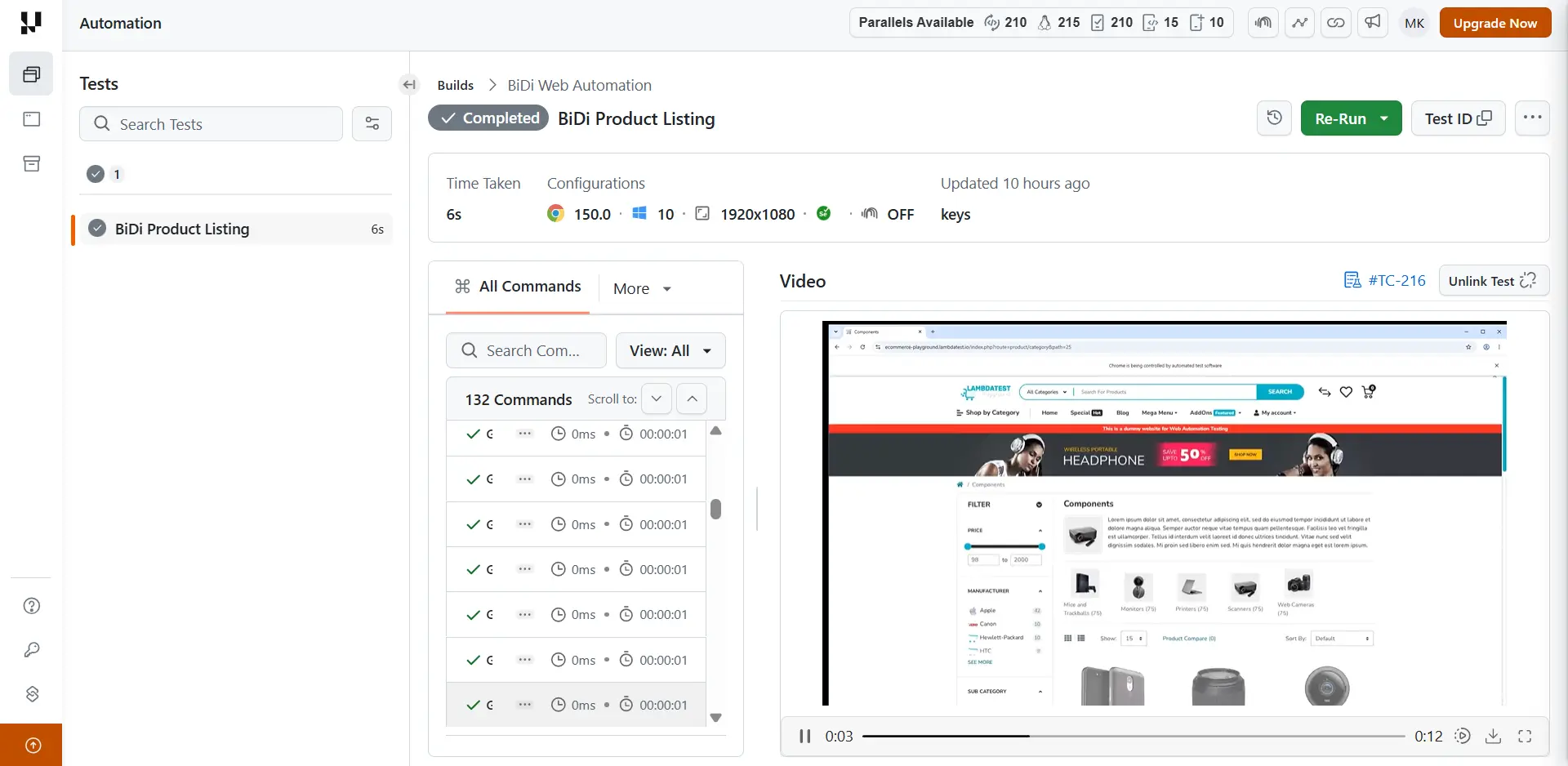
To view your test results, head over to the TestMu AI Web Automation dashboard.
Running Web Automation With WebDriver BiDi From an AI Agent
BiDi's event stream is what makes it useful for agents: the agent subscribes to browser events and validates against what the browser actually does, not just the DOM it queries.
Here the agent watches network responses to confirm the page loaded its resources.
1. Create agent-bidi.ts. It subscribes to BiDi network events, opens the listing, validates the browser's real activity, and marks the test passed or failed on the dashboard.
// agent-bidi.ts
import { remote } from 'webdriverio';

async function run() {
  const browser = await remote({
    hostname: 'hub.lambdatest.com',
    port: 443,
    protocol: 'https',
    path: '/wd/hub',
    capabilities: {
      browserName: 'Chrome',
      browserVersion: 'latest',
      webSocketUrl: true,
      'LT:Options': {
        platformName: 'Windows 10',
        build: 'BiDi Web Automation',
        name: 'Agent Event Monitor',
        username: process.env.LT_USERNAME,
        accessKey: process.env.LT_ACCESS_KEY,
        w3c: true,
      },
    },
  });

  let responses = 0;
  try {
    // Subscribe to BiDi network events so the agent sees the browser's real activity
    await browser.sessionSubscribe({ events: ['network.responseCompleted'] });
    browser.on('network.responseCompleted', () => {
      responses += 1;
    });

    await browser.url(
      'https://ecommerce-playground.lambdatest.io/index.php?route=product/category&path=25'
    );
    await browser.pause(3000);

    if (responses === 0) throw new Error('No network responses observed');
    console.log(`Validated: the page issued ${responses} network responses over BiDi`);

    // Mark the test as passed on the TestMu AI dashboard
    await browser.executeScript('lambda-status=passed', []);
  } catch (e) {
    // Mark the test as failed so the dashboard reflects the real outcome
    await browser.executeScript('lambda-status=failed', []);
    throw e;
  } finally {
    await browser.deleteSession();
  }
}

run().catch((e) => {
  console.error('Run failed:', e.message);
  process.exit(1);
});
2. Run it:
Verifiednpx tsx agent-bidi.ts
The agent subscribes to the event stream and reports what the browser actually did:
VerifiedValidated: the page issued 56 network responses over BiDi
You can view your test results in the TestMu AI Web Automation dashboard.
The Browser Cloud agent skills are ready-made cookbooks that teach any AI agent (Claude, Cursor, and other LLM tools) to generate production-grade cloud browser automation for you. Drop the skill into your assistant and it writes integrations like the ones above, so you can get started with Browser Cloud at the earliest.
Related TestMu AI Guides
- How to run web automation tests with CDP for the Chrome DevTools Protocol path on Chromium browsers.
- How to run BiDi tests with the WebdriverIO sample project for a ready-to-clone repository.
- How to run BiDi tests on HyperExecute to scale BiDi runs across a test matrix.


 Chat with Us