Organizing Your Selenium Tests and Builds
You can filter, search, and sort your tests and builds directly from the Builds list on the automation dashboard. Use the search bar to find a build by name or ID, open Configure > Sort & Filters to narrow the list, and use Sort By to order it. This document explains each option.
Filter and Sort Builds
Filter, search, and sort your builds from the Builds list on the automation dashboard.
Search Builds
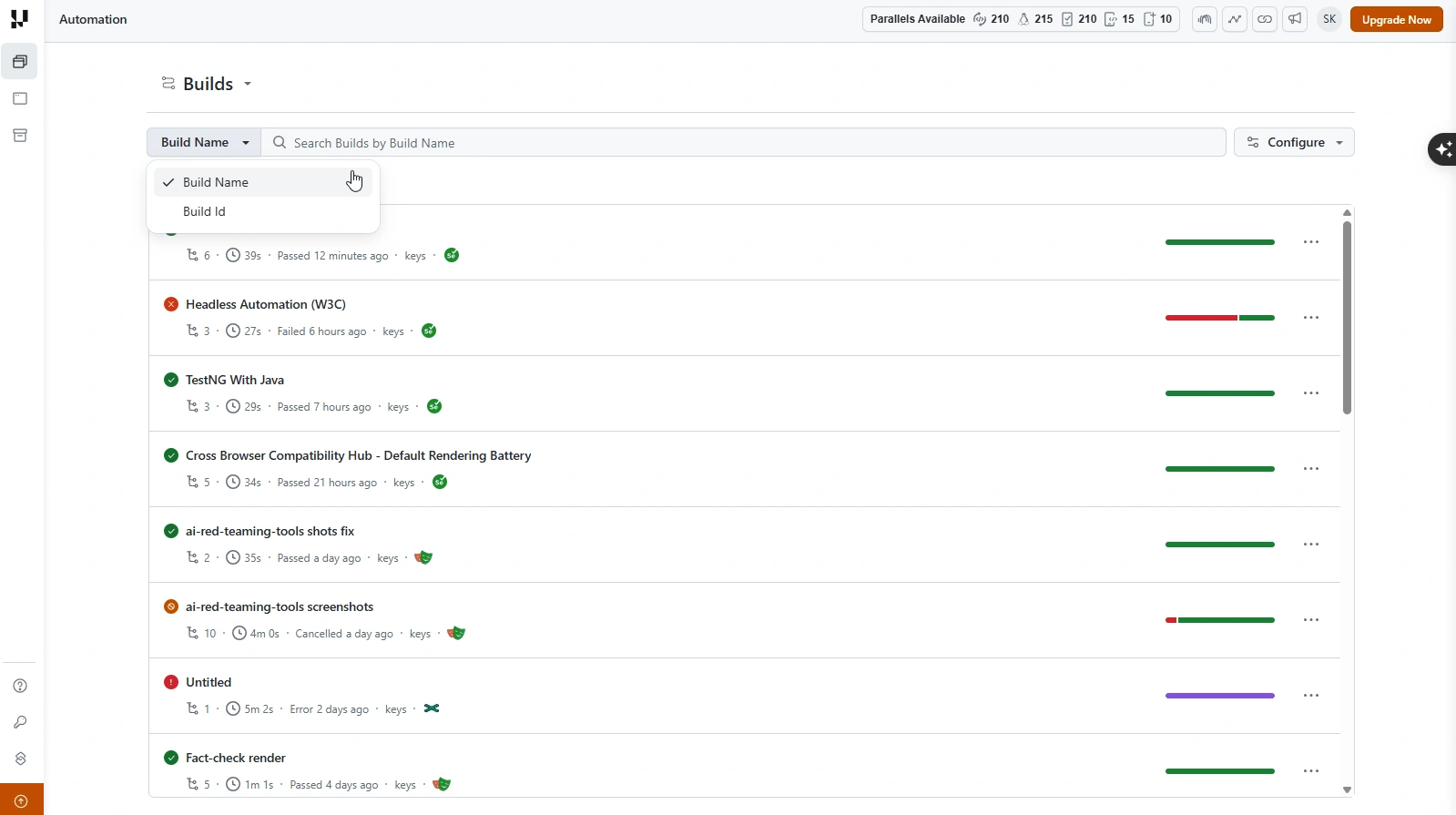
Use the search bar above the Builds list to find a build by Build Name or Build Id. Pick the field from the dropdown next to the search box.
Sort & Filters
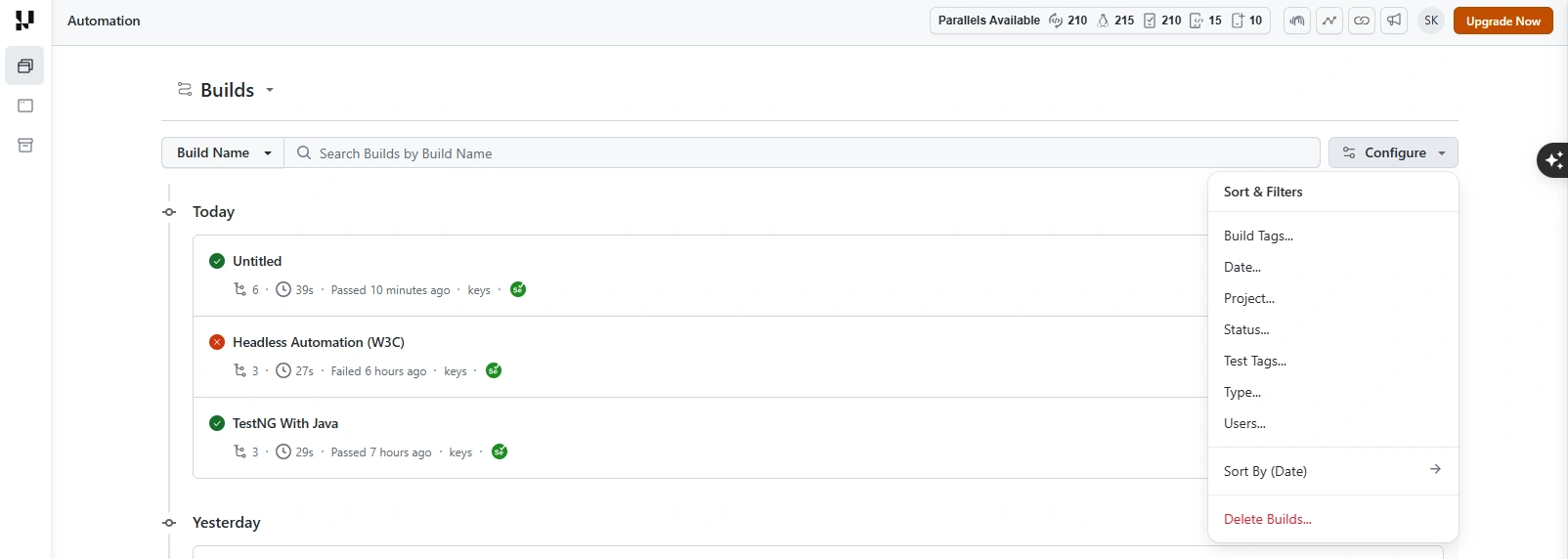
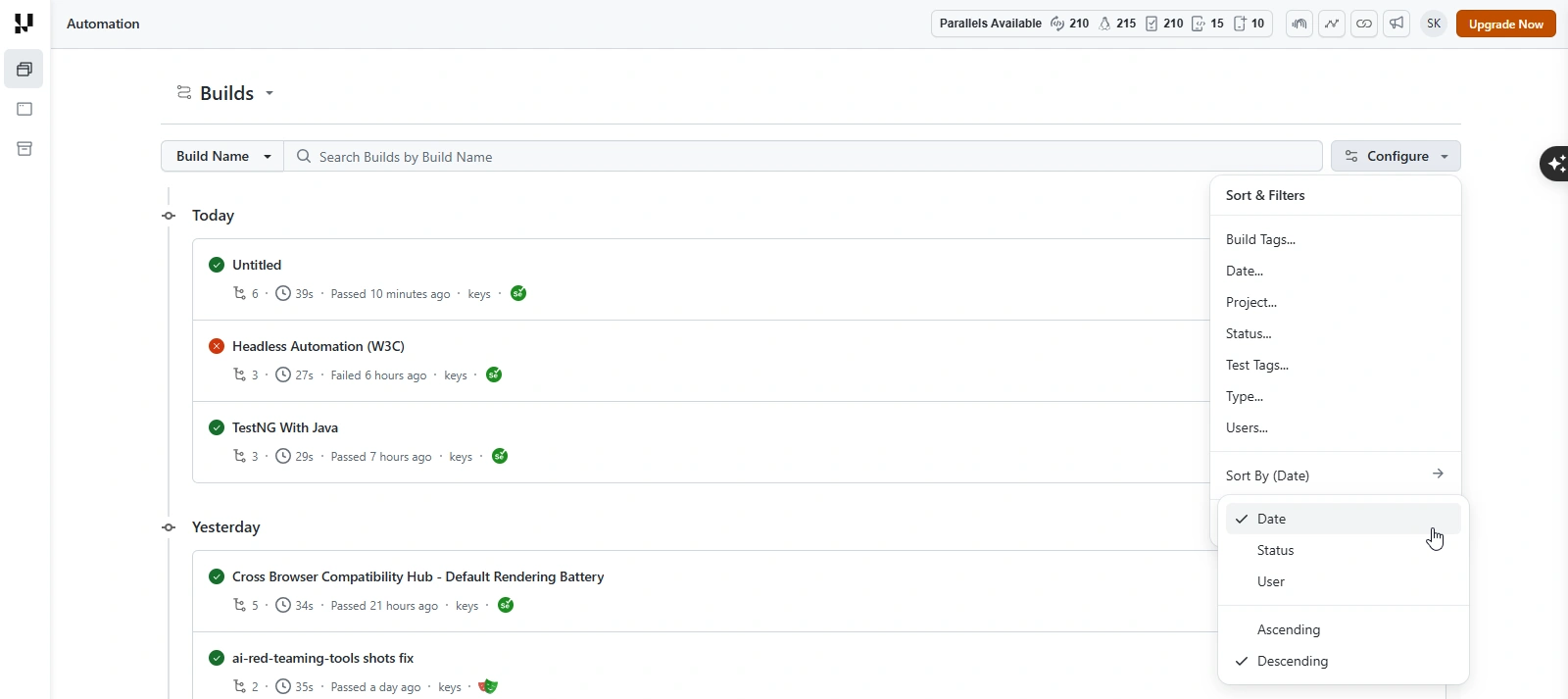
Click Configure > Sort & Filters to open the filter panel, then filter by any of the following:
- Build Tags and Test Tags - tags you set on builds or tests from your test code
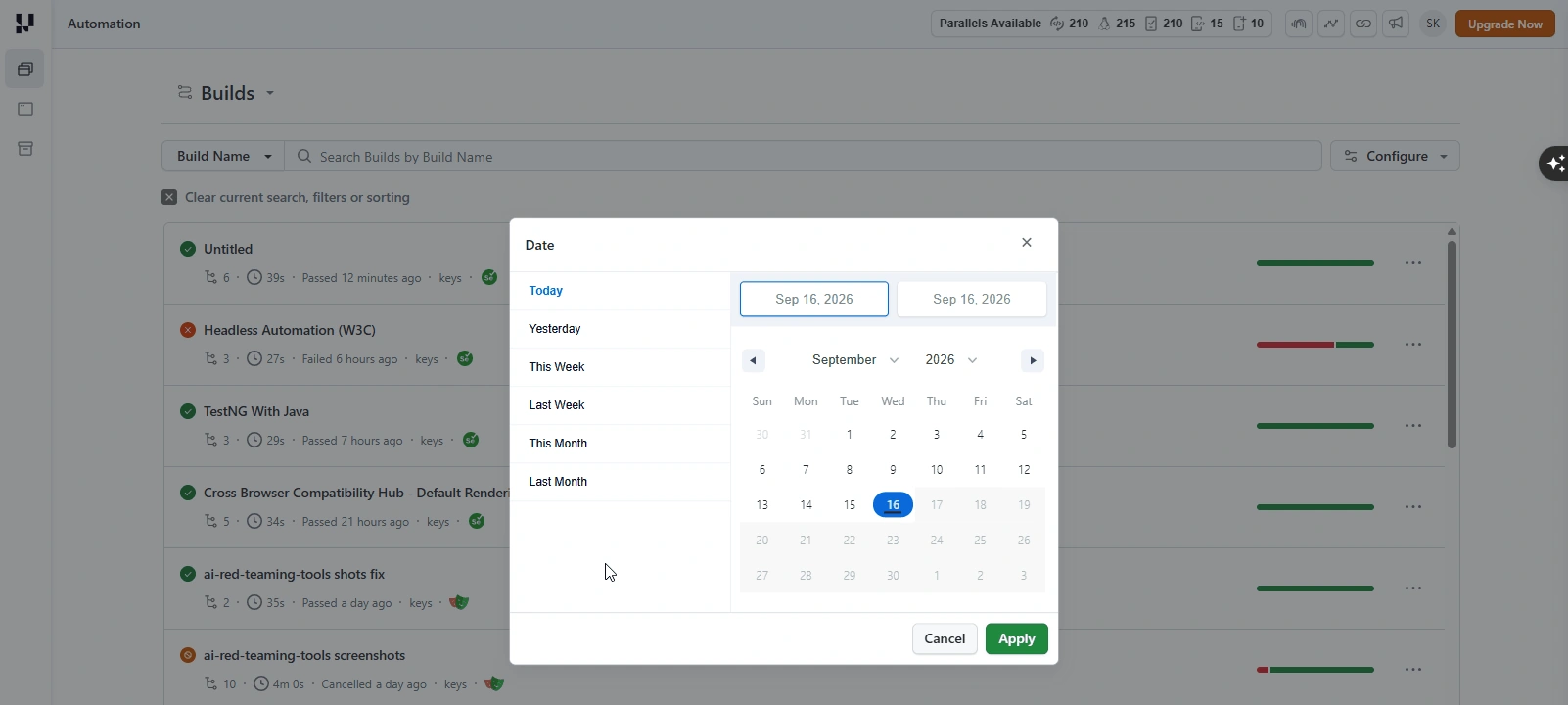
- Date - a custom date range
- Project - the project a build belongs to
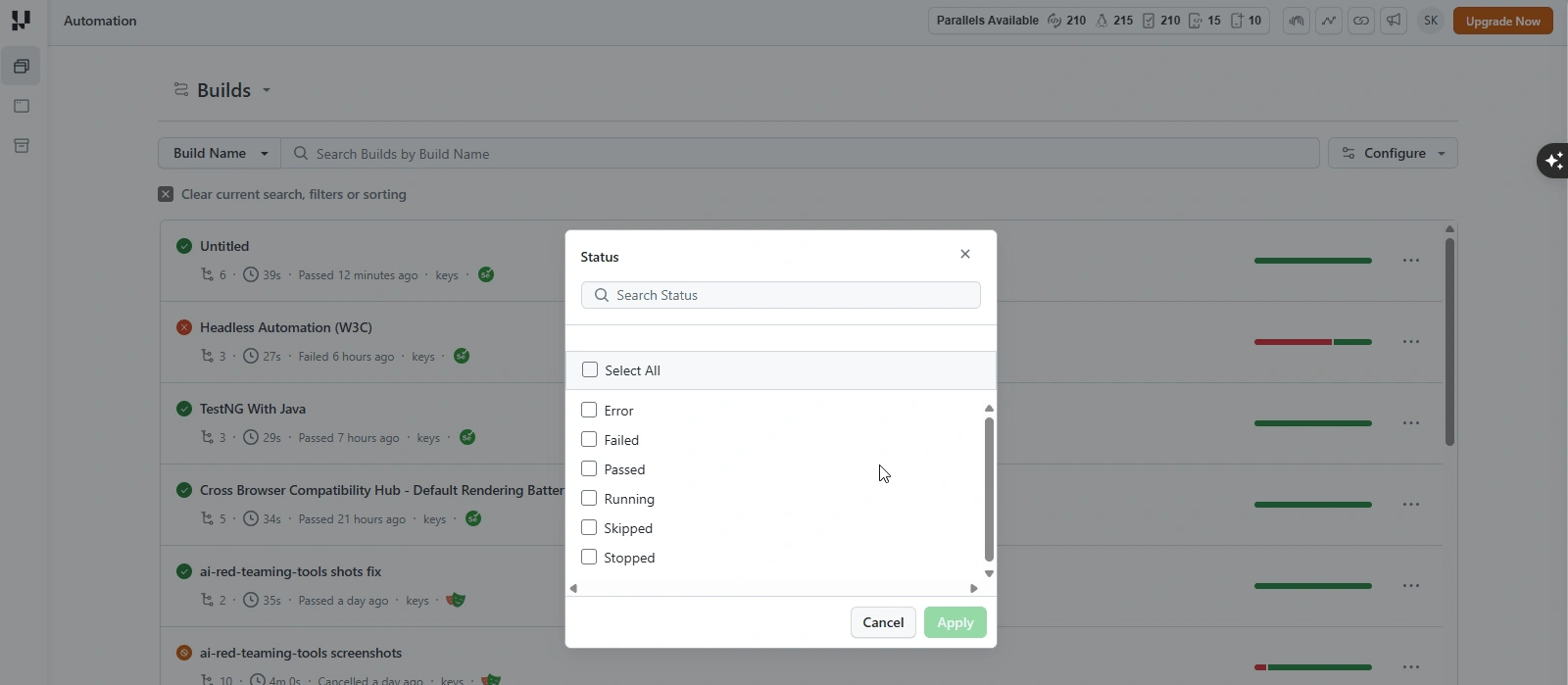
- Status - Passed, Failed, Running, Error, Skipped, or Stopped
- Type - the automation framework (Selenium, Cypress, Playwright, Puppeteer, Taiko, HyperExecute, and more)
- Users - the team member who ran the build
Each filter opens a picker where you select one or more values. For example, the Status filter narrows the list to specific run states:
The Date filter lets you pick a preset range or a custom start and end date:
To group and filter by the tags you set in code, see Group Tests Using Custom Tags and Group and Filter Builds Using Build Tags.
Sort Builds
Use Sort By to order the list by Date, Status, or User, in Ascending or Descending order.
You can now search, filter, and sort your builds from the Builds list on your automation dashboard. If you have any questions, share them with us through our 24/7 chat support or by mailing us at support@testmuai.com.


 Chat with Us