Setting Up Build Active Duration [Build Splitting]
Build Splitting lets you organize tests by controlling how they group into builds. The Build Active Duration setting (previously Build Inactivity Time) defines how long a build stays active. Tests that share the same build name and run while the build is active are grouped into the same build. A test with that build name that runs after the active duration starts a new build.
How It Works
Build Active Duration separates tests into distinct builds based on how long a build stays active.
Previously, tests that shared the same build name kept merging into a single build, making it difficult to separate runs from different sessions. Setting a Build Active Duration keeps each session's tests in its own build.
For example, if the Build Active Duration is set to 6 hours, tests with the same build name that run within that active window are grouped into the same build. Once the 6-hour window passes, the next test with that build name appears under a new build.
How to Set the Build Active Duration
Follow these steps to configure Build Active Duration for your account.
- By default, the Build Active Duration is six hours.
- Every user within the organization can set their own Build Active Duration.
-
Log in to your TestMu AI account. Don't have an account, sign up for free.
-
Open Account Settings > Product Preferences and select Automation.
-
Under Builds, set the Build Active Duration to your preferred interval.
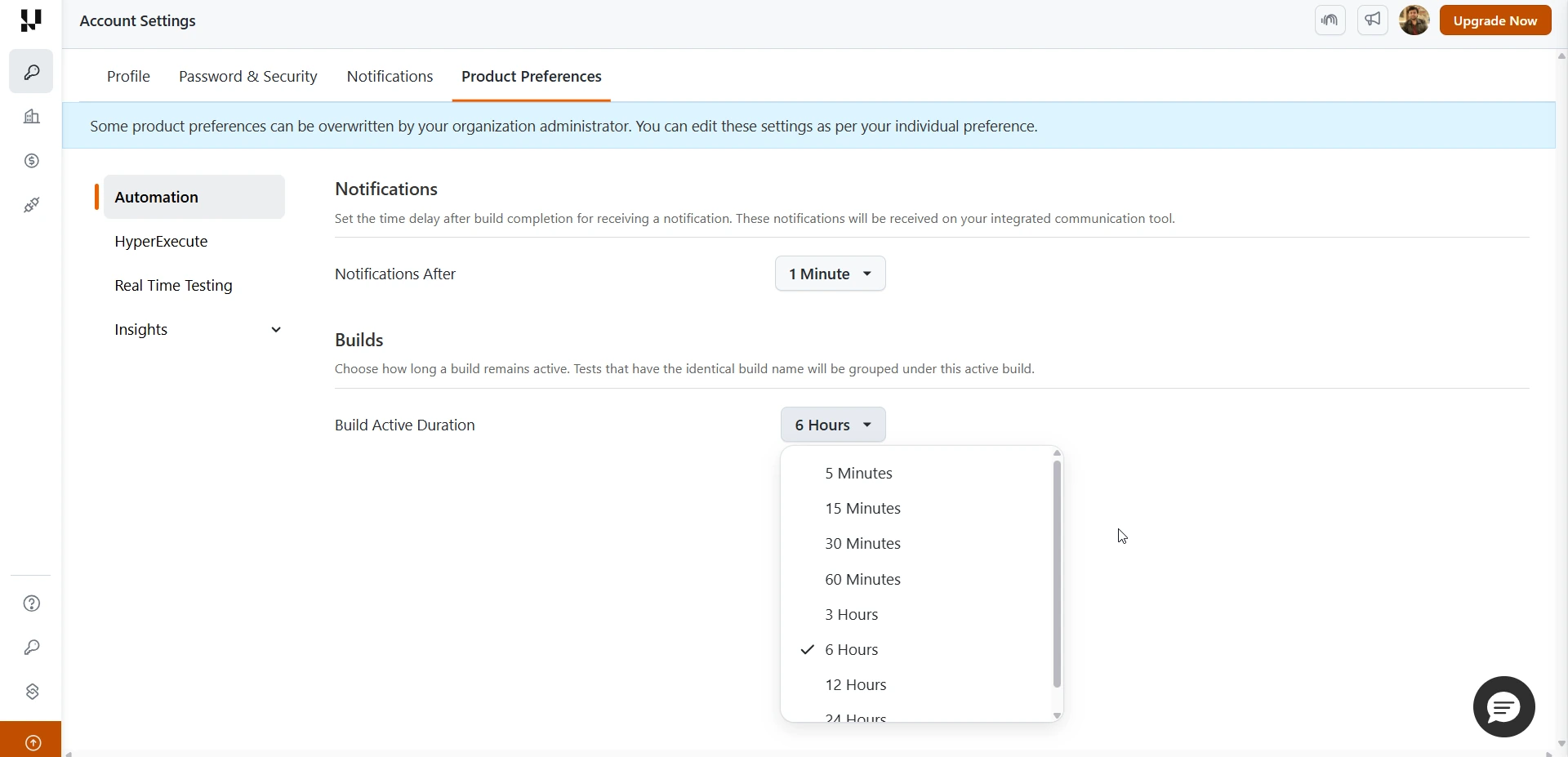
Once you save your preference, a confirmation notification appears: Build Time updated successfully.


 Chat with Us