Archive and Restore Test Cases
Test repositories collect test cases that are no longer worth running: features that were retired, flows that were replaced, cases written for a release that has shipped. Keeping them clutters every list, inflates your counts, and pulls noise into search and AI generation. Deleting them is permanent and takes their history with them, which is unacceptable when you need an audit trail.
TestMu AI Test Manager gives a test case three lifecycle states instead of two:
| State | Meaning |
|---|---|
| Active | The normal state. The test case appears everywhere and behaves as usual. |
| Archived | Retired but retained. The test case disappears from every active surface and becomes read-only, but nothing about it is destroyed. You can restore it at any time. |
| Deleted | Permanently removed, along with everything attached to it. This cannot be undone. |
Archiving is the option to reach for when you want a test case out of the way but do not want to lose it.
Archive compared to delete
| Archive | Delete | |
|---|---|---|
| Reversible | Yes, at any time | No |
| Version history | Kept in full | Destroyed |
| Past test run results | Kept | Destroyed |
| Linked issues and automation links | Kept | Destroyed |
| Tags, custom fields, and test case ID | Kept | Destroyed |
| Visible in the repository | No | No |
| Where you find it afterwards | The Archived view | Nowhere |
Archiving behaves like deleting everywhere it matters to the rest of the product. Wherever a deleted test case would be invisible or unavailable, an archived one behaves the same way. The difference is that archiving preserves the test case instead of destroying it, which is what makes restoring it lossless.
This feature is not the same as the Archived value in a test case's Status field. Status is a label you set on an active test case and has no effect on where the test case appears. Archiving is a lifecycle action taken from the test case menu. Setting Status to Archived does not archive a test case.
Archiving a test case that is shared with other projects does not unshare it. It can't be added to new test runs in any of those projects, and existing test runs keep their results. See how archiving affects shared test cases.
Permissions
Archiving and unarchiving require both Create and Delete permission on test cases in the project. If your role can read or edit test cases but cannot delete them, the archive actions are not available to you.
See RBAC Roles and Permissions for how permissions are assigned.
What changes when a test case is archived
The test case is hidden from every active surface. It leaves the test case list and all folder and tab counts, global search results, test run creation and add-to-run selection, test execution, the Insights dashboard, newly generated reports, AI test case generation context, and duplicate scans. Automation and KaneAI listings no longer show it.
The test case is frozen. While archived, you cannot:
- Edit its details, steps, or fields
- Move it to another folder
- Add it to a test run
- Record results against it in a run
- Resync a run instance from it
- Link or unlink issues and automation tests
- Automate it with KaneAI
- Revert it to an earlier version
Everything about the test case is preserved. The test case keeps its ID, its full version history, its custom fields, its tags, its past test run results, and its linked issues. Archived test cases are kept indefinitely and are never purged automatically. Restoring one returns it exactly as it was.
Archive a test case
- Open your project in Test Manager and go to the Test Cases tab.
- Click the three-dot menu on the test case you want to archive.
- Select Archive.
- Confirm the action in the dialog.
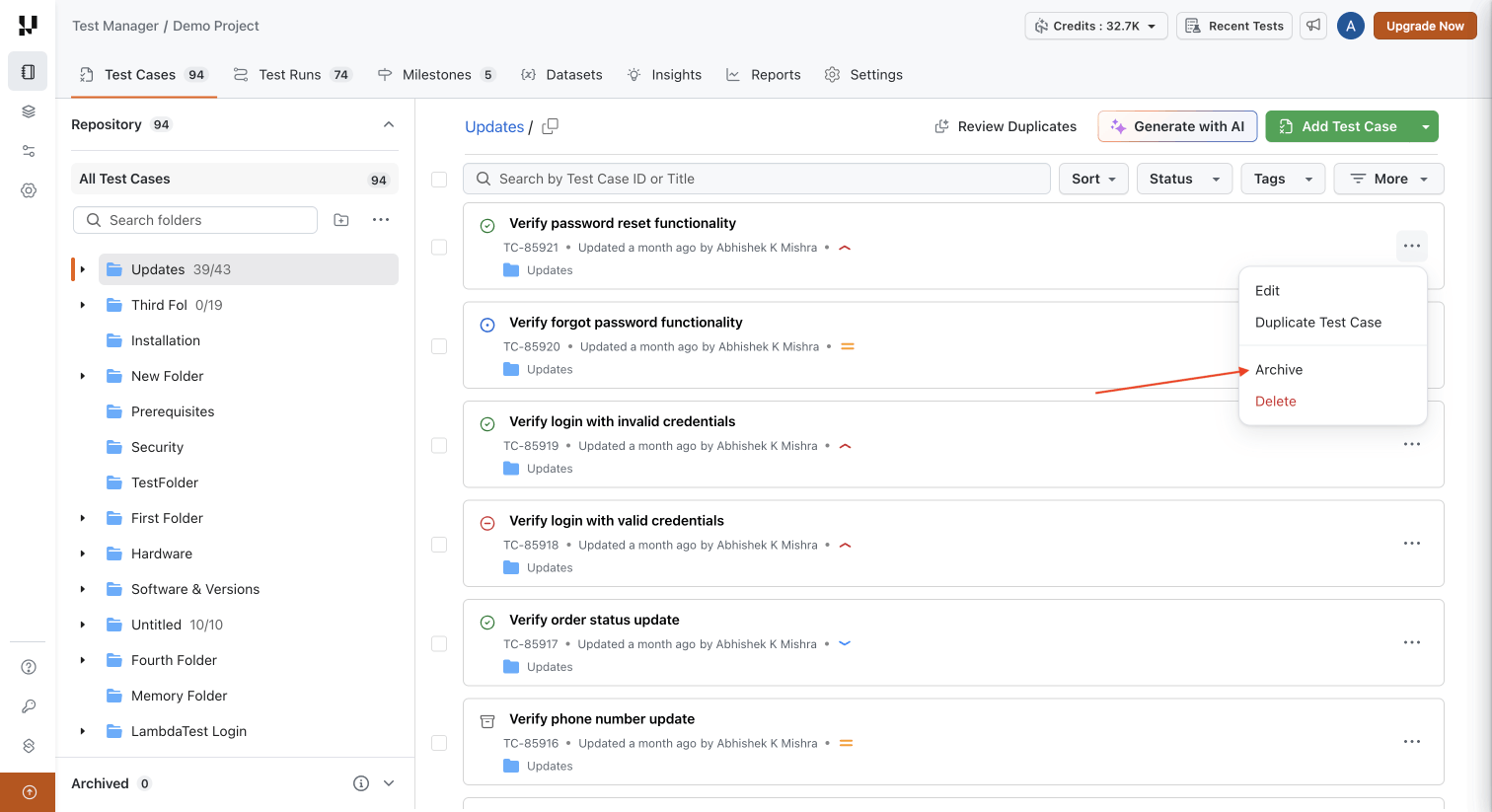
You can also archive a test case from its detail view using the three-dot menu next to Save Changes.
Archive test cases in bulk
Select test cases using the checkboxes in the list, then archive the whole selection in one action. Selections can span folders, so you can clean up across your repository from the All Test Cases view without archiving folder by folder.
Before the operation runs, a confirmation dialog states how many test cases will be archived so you can check the number against what you intended to select.
A test case can be archived even if it currently has automation or a test run in progress. The confirmation dialog warns you about this. Any live KaneAI authoring session on the test case is closed when it is archived.
Two things to know about bulk operations:
- A single operation covers up to 500 test cases. If your selection is larger, archive it in batches.
- Bulk archiving is not all-or-nothing. If an operation stops partway, the test cases already archived stay archived. Nothing is rolled back.
The Archived view
Archived test cases appear in exactly one place: the Archived section in the left panel of the Test Cases tab, alongside your repository. Expand it to see All Archived Test Cases, plus a folder tree with its own counts.
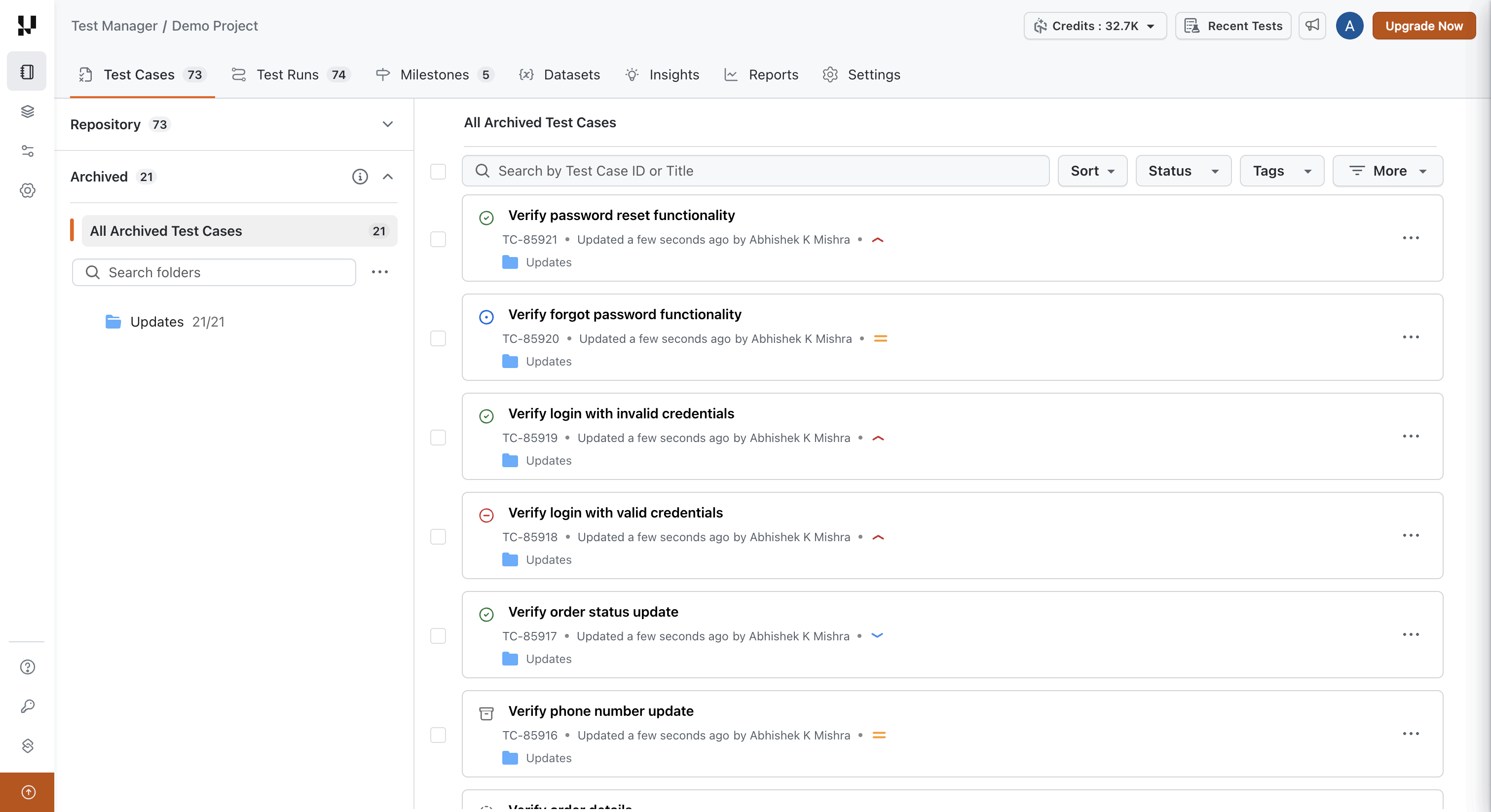
The Archived view works the same way as the repository list. You can search within it by test case ID or title, and the Sort, Status, Tags, and More filters all behave as they do for active test cases. The difference is that everything here is read-only.
Note that this search is scoped to the Archived view. Archived test cases never appear in search results anywhere else in Test Manager.
Open an archived test case
Click any test case in the Archived view to open it. It opens in a read-only state with a banner at the top confirming that it is archived and explaining that it stays out of search, test runs, Insights, and AI generation.
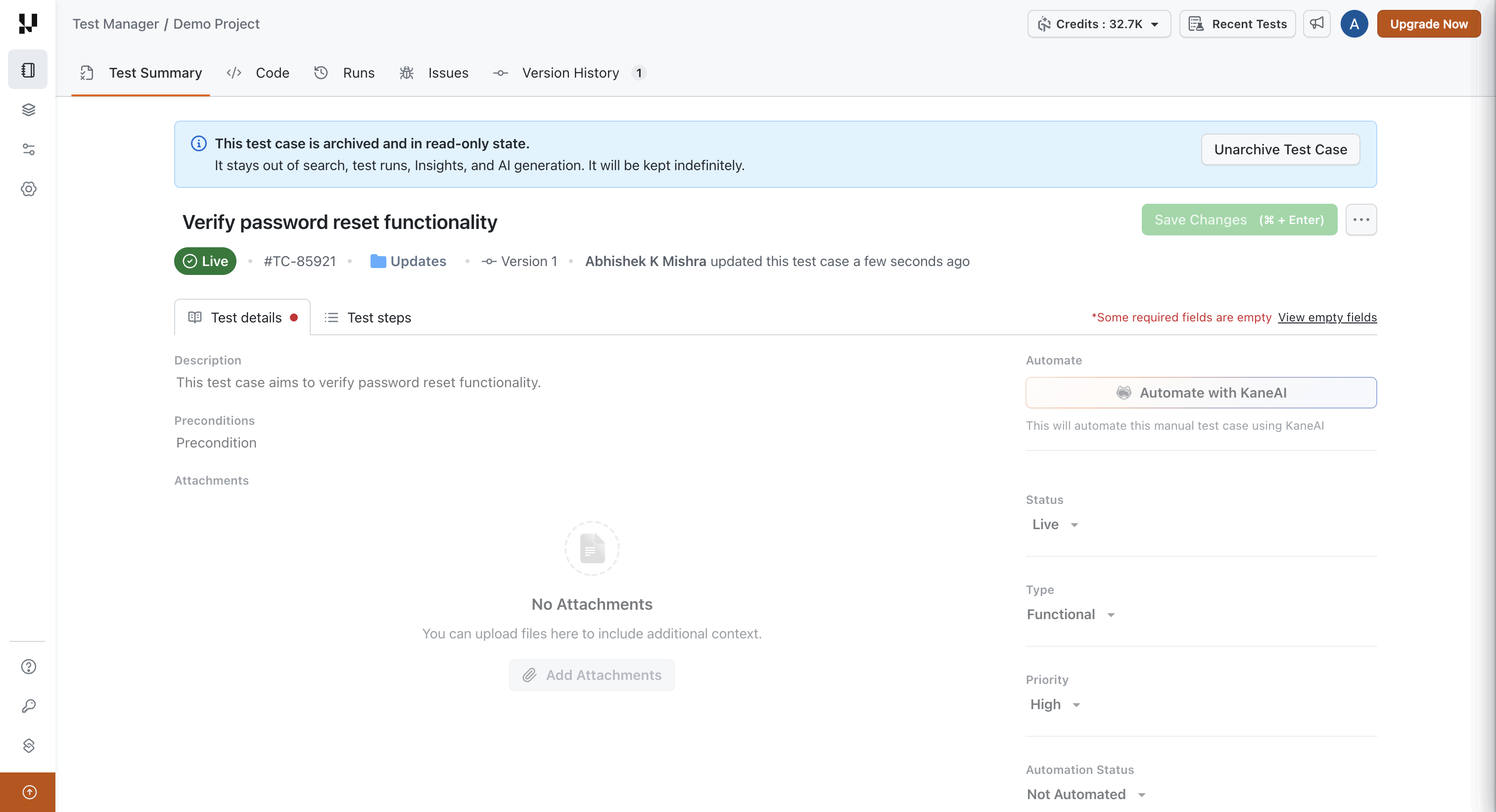
Every tab remains readable. You can review the test details and steps, the generated code, past runs, linked issues, and the full version history. Saving is disabled, and so is every other action that would change the test case.
Unarchive a test case
To restore a single test case, open it from the Archived view and click Unarchive Test Case in the banner. To restore several at once, select them in the Archived view and unarchive the selection.
The test case returns to the folder it was in, with its ID, version history, fields, tags, past run results, and linked issues exactly as they were. Because nothing about the test case was changed while it was archived, there is nothing to reconcile and nothing to choose during the restore.
Delete an archived test case
Delete is available directly from the Archived view, so you do not need to restore a test case before removing it for good. Deleting an archived test case is permanent and behaves exactly like deleting an active one.
There is no trash or recovery bin in Test Manager. Once an archived test case is deleted, it cannot be recovered.
Archive events in version history
Every archive and unarchive is attributed. The Version History tab records who performed the action and when, shown inline among the test case's versions.
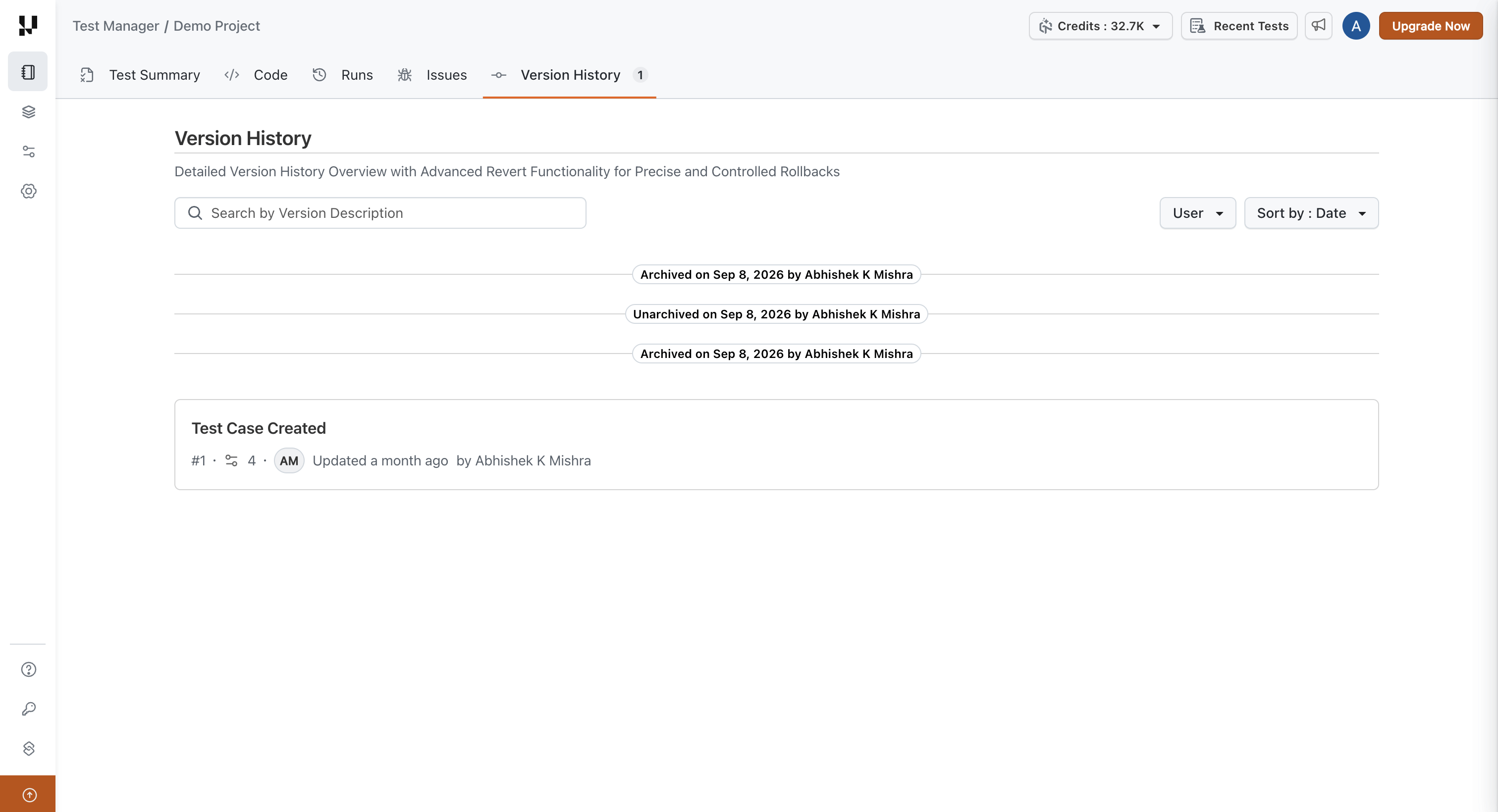
These entries are markers, not versions. They do not create a new version of the test case, the version count on the tab does not change, and they carry no Compare or Revert action of their own. Your content versions and their compare and revert behaviour are unaffected.
See Test Case Versioning for how versions themselves work.
Archived test cases in test runs
Archiving affects existing test runs and new ones differently.
Test runs that already contain the test case
The test case stays in the run and its executions are retained as history. Past results are your audit record and are left exactly as they are, so archiving never rewrites what a run already reported.
What the test case can no longer do is take part in further execution:
- It is skipped when the run executes. An execution already underway finishes and records its result.
- Results cannot be recorded against it.
- Run instances cannot be resynced from it, because its content is frozen and cannot change.
Creating or duplicating a test run
Archived test cases are excluded from test run composition entirely:
- When you create a new test run, archived test cases are not offered as options to add.
- When you duplicate or copy an existing test run, archived test cases are not carried into the new run, even if they were part of the original.
To include an archived test case in a new run, unarchive it first.
Limitations
- A single archive or unarchive operation covers up to 500 test cases. Larger selections need to be split into batches.
- Bulk operations are not all-or-nothing. Test cases archived before an interruption stay archived.
- Deleting a folder also deletes the archived test cases inside it. They are not moved or preserved first, and they cannot be recovered. Check the Archived view for a folder before you delete it.
- Insights excludes archived test cases retroactively. Archiving a test case changes historical coverage numbers on the dashboard. Reports you have already generated are not affected.
- There is no trash or recovery bin. Deleting an archived test case is still permanent.
- There is no retention window. Archived test cases are kept indefinitely and are never purged automatically.
- Test cases only. Projects and folders cannot be archived.
- Re-importing does not match an archived test case. An import that would have updated a test case creates a new one instead, because archived test cases are invisible to import matching.
- Archived test cases do not count towards module usage. A module used only by archived test cases will report as unused.
- Test run archiving is a separate capability. Archiving a test run is unrelated to archiving a test case and behaves differently. See Test Run Creation and Management.
Related resources
| Topic | Doc |
|---|---|
| Creating and editing test cases | Create and Manage Test Cases |
| Tracking changes to a test case over time | Test Case Versioning |
| Removing duplicate test cases permanently | Find and Remove Duplicate Test Cases |
| Reorganizing test cases across folders and projects | Copy and Move Test Cases |
| Using one test case in several projects | Share Test Cases Across Projects |
| Building and running test runs | Test Run Creation and Management |
| Coverage and execution metrics | Insights Dashboard |


 Chat with Us