Insights Dashboard
The insights section provides a comprehensive project level data overview of key Test Manager features, including Projects, Test Plans, Builds, and Test Cases, available at both the project and organizational levels.
Archived test cases are excluded from every count and coverage metric on this dashboard. The exclusion applies to historical data as well, so archiving a test case changes the numbers for past periods. Reports you have already generated are not affected. See Archive and Restore Test Cases.
- The insights is segregated on various parameters such as
- Total Test Cases: Provides a count of all test cases created.
- Manual Test Cases Number of manual test cases
- Automated Test Cases Number of automated test cases.
- Automation Coverage Displays the percentage of test cases that are automated.
- You can filter test cases based on specific date ranges. For instance, you can view data from July 8th to July 25th to analyze trends over that period.
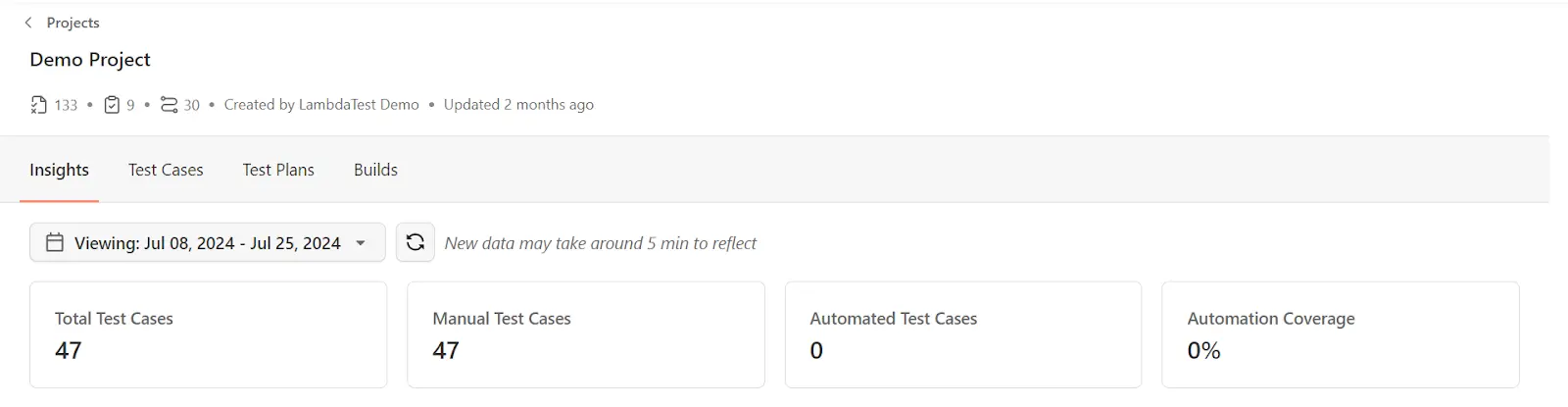
-
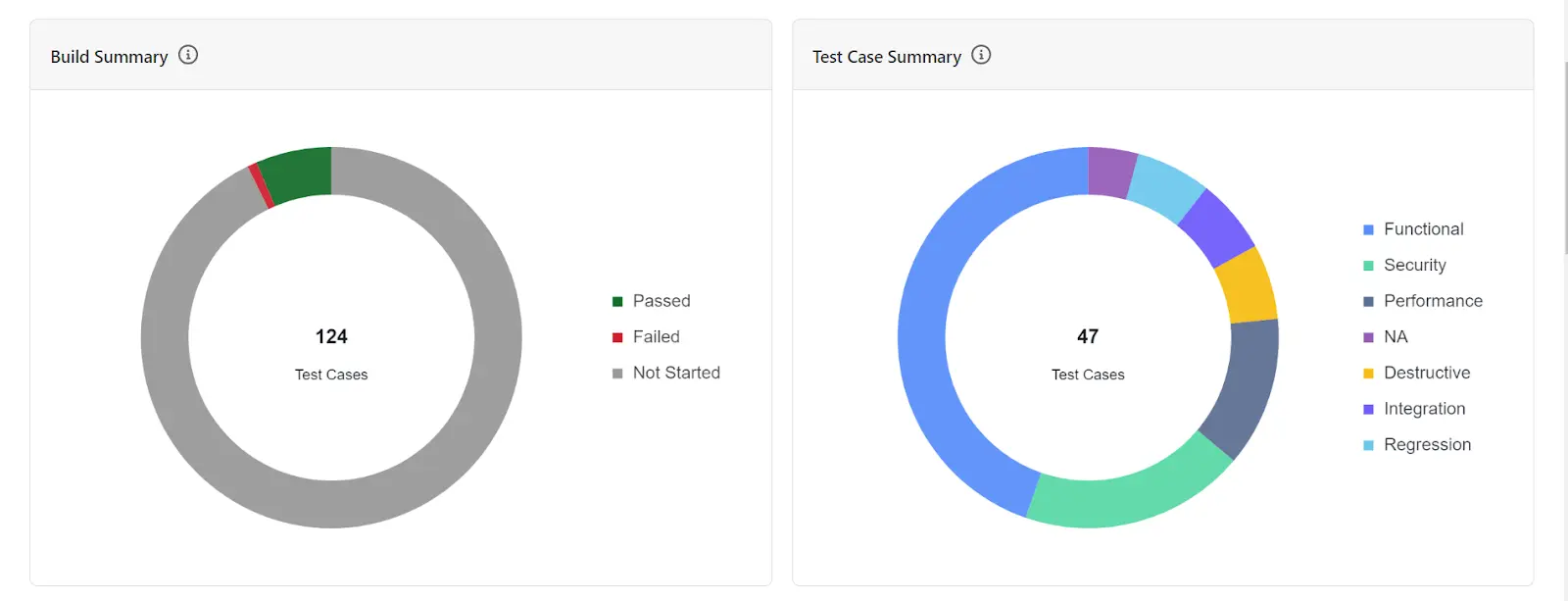
Build Summary provides details of test cases based on status that is whether the test cases have passed, Failed, Skipped or Not Started.
-
Test Case Summary provides information on the type of testing that has been chosen for different test cases.
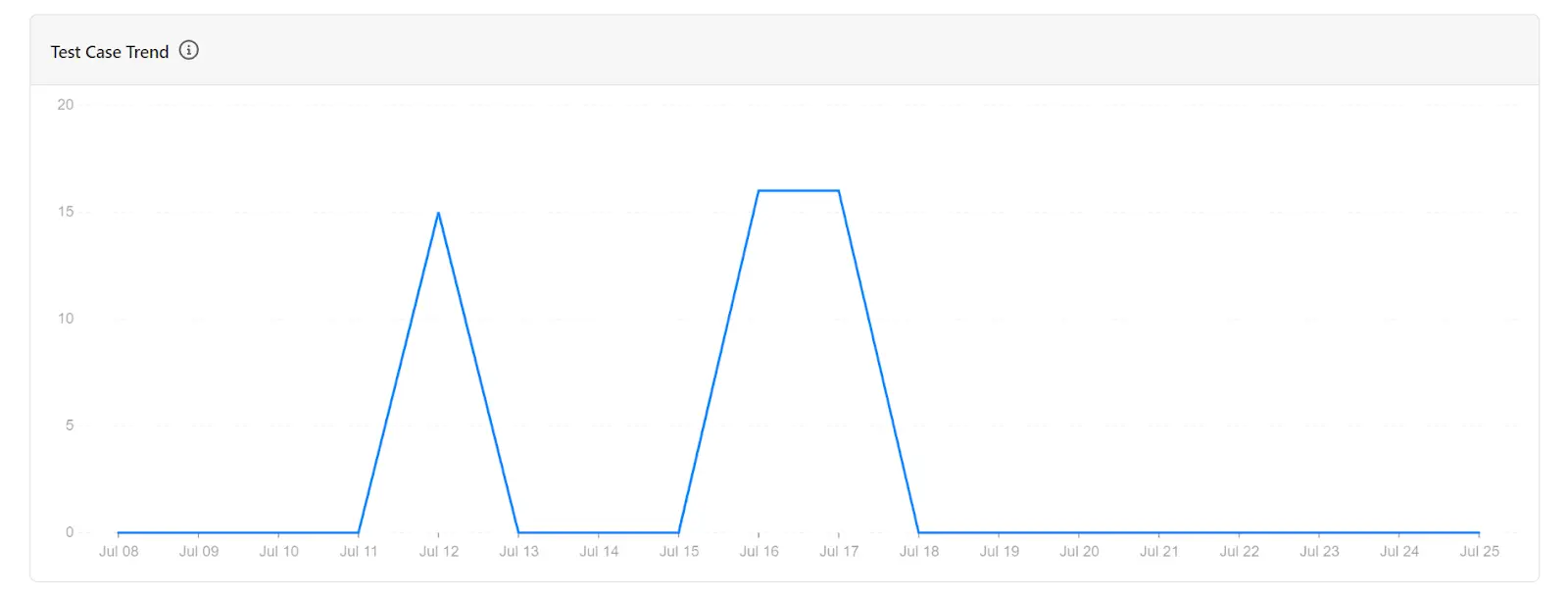
- Test Case Trend graphically represents the count of test cases created over the selected duration, offering a visual insight into test case progression and status.
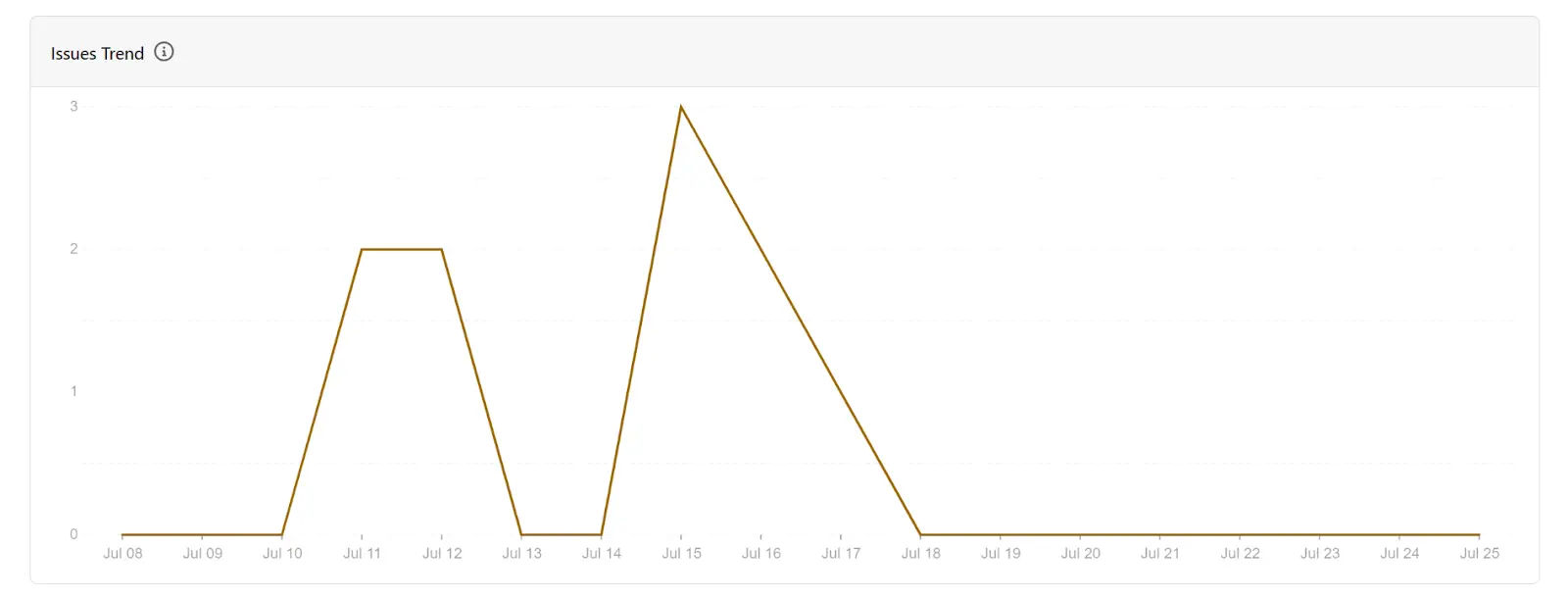
- Issues Trend provides an overview of issues linked to all test cases over the selected time frame. This helps in identifying areas that may require attention.
These insights help in monitoring and improving the testing process, ensuring comprehensive coverage and efficient test management.
Reports in Test Manager
Test Manager provides powerful reporting capabilities to help teams gain actionable insights from their testing activities. With Execution and Traceability Reports, you can measure test coverage, track progress, and ensure alignment between requirements, test cases, and defects.
To access the reports you need to go inside the Reports section present inside a Project.
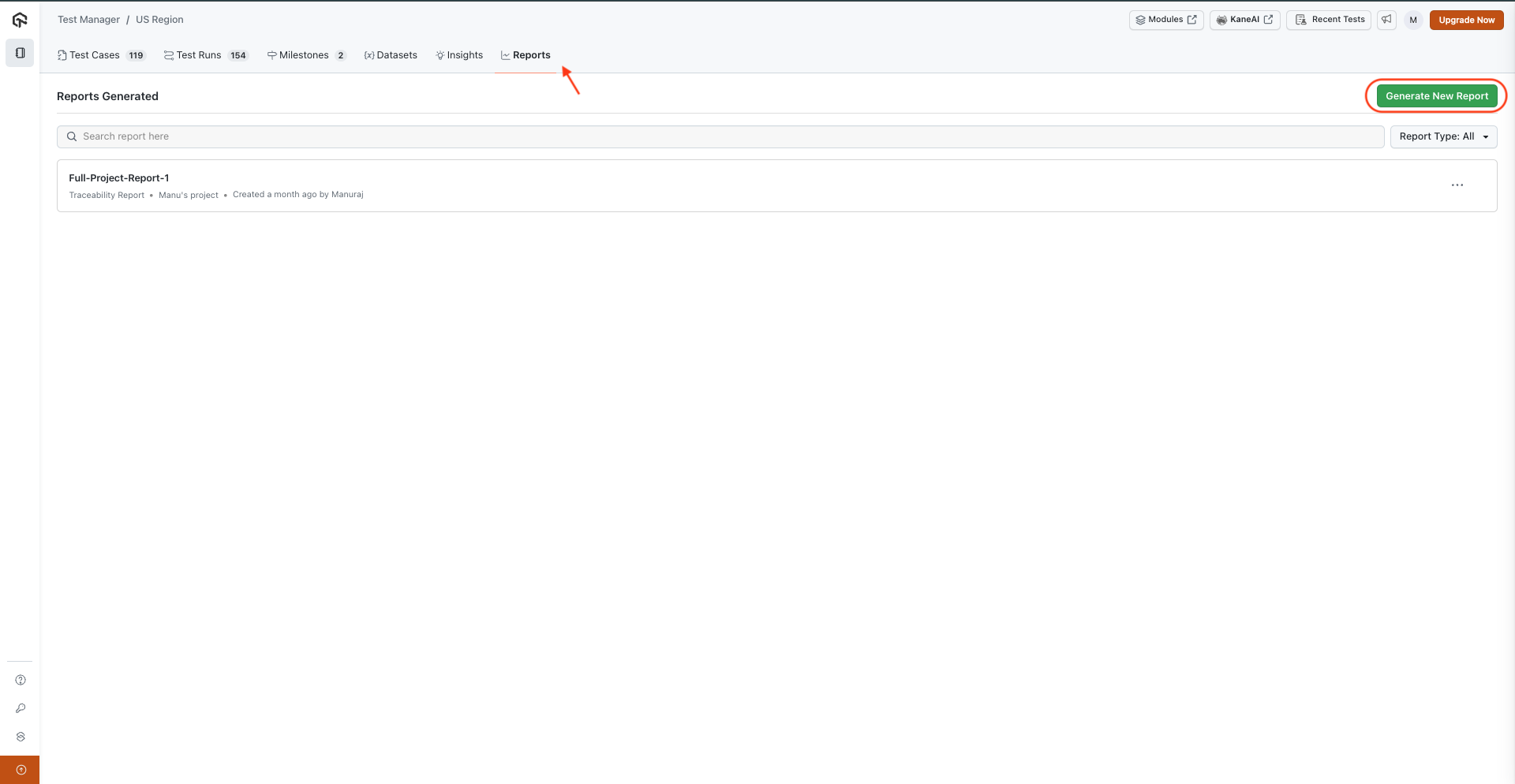
There are two type of Reports that you can create here:
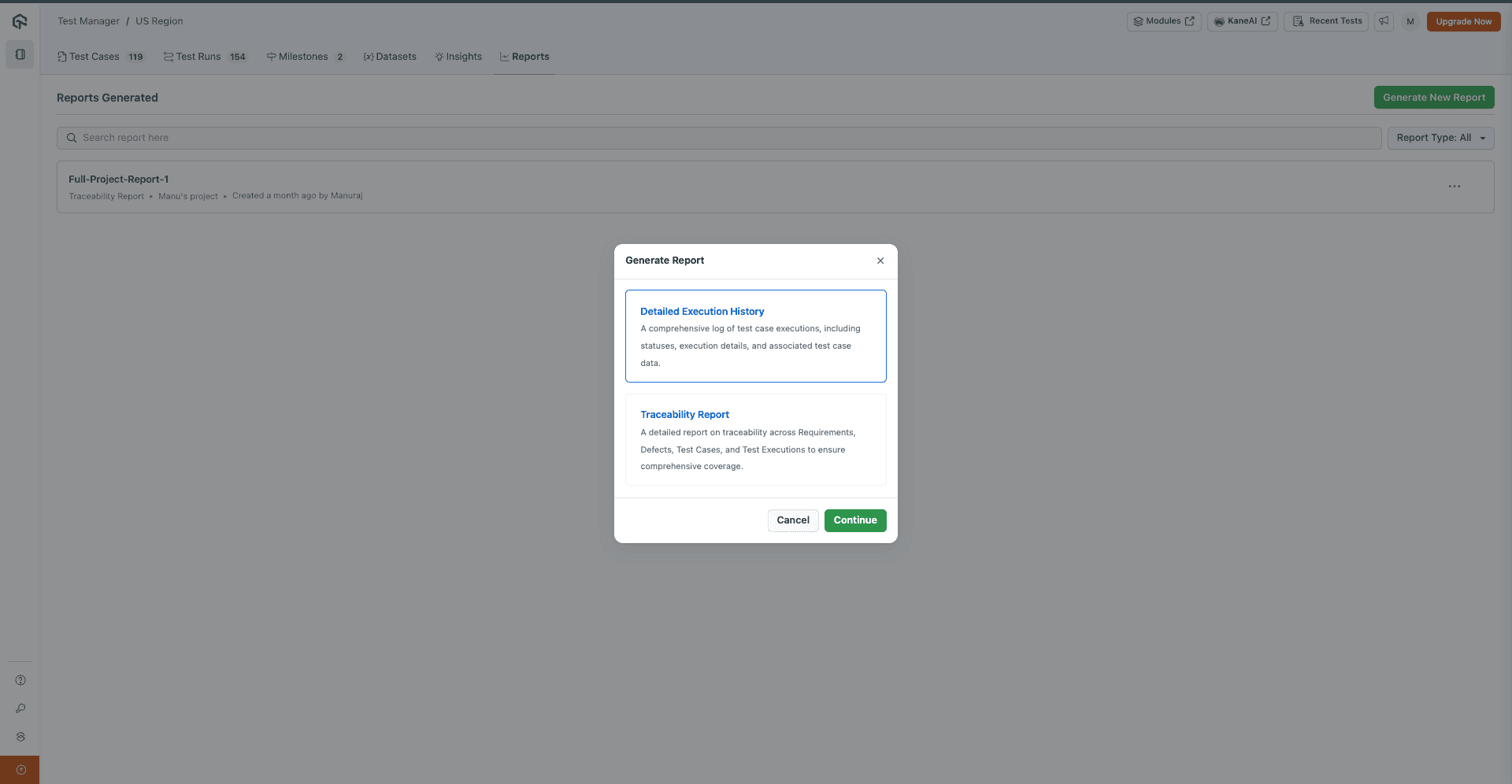
Execution Reports
Execution based reports allow you to analyze the results of your test executions and identify patterns in test execution.
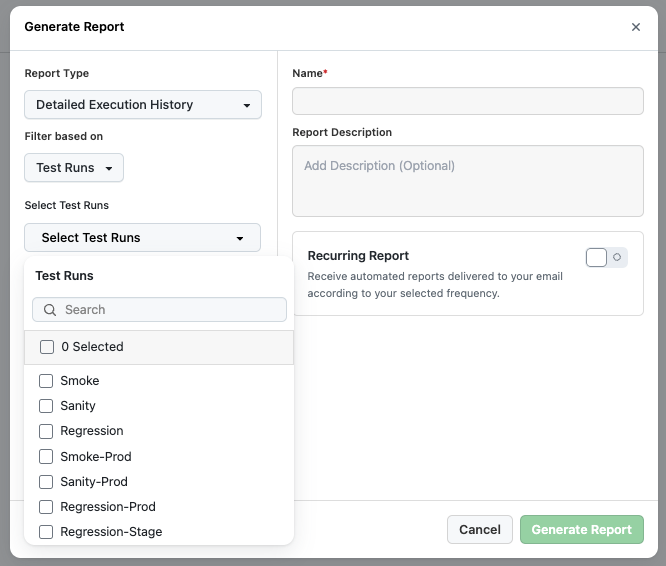
When you create an Execution Report, you have two ways to filter the data:
1. Filter By Test Runs:
This option lets you include the results from specific test runs you select.
2. Filter By Date:
This option allows you to see all test results that were generated within a specific date range.
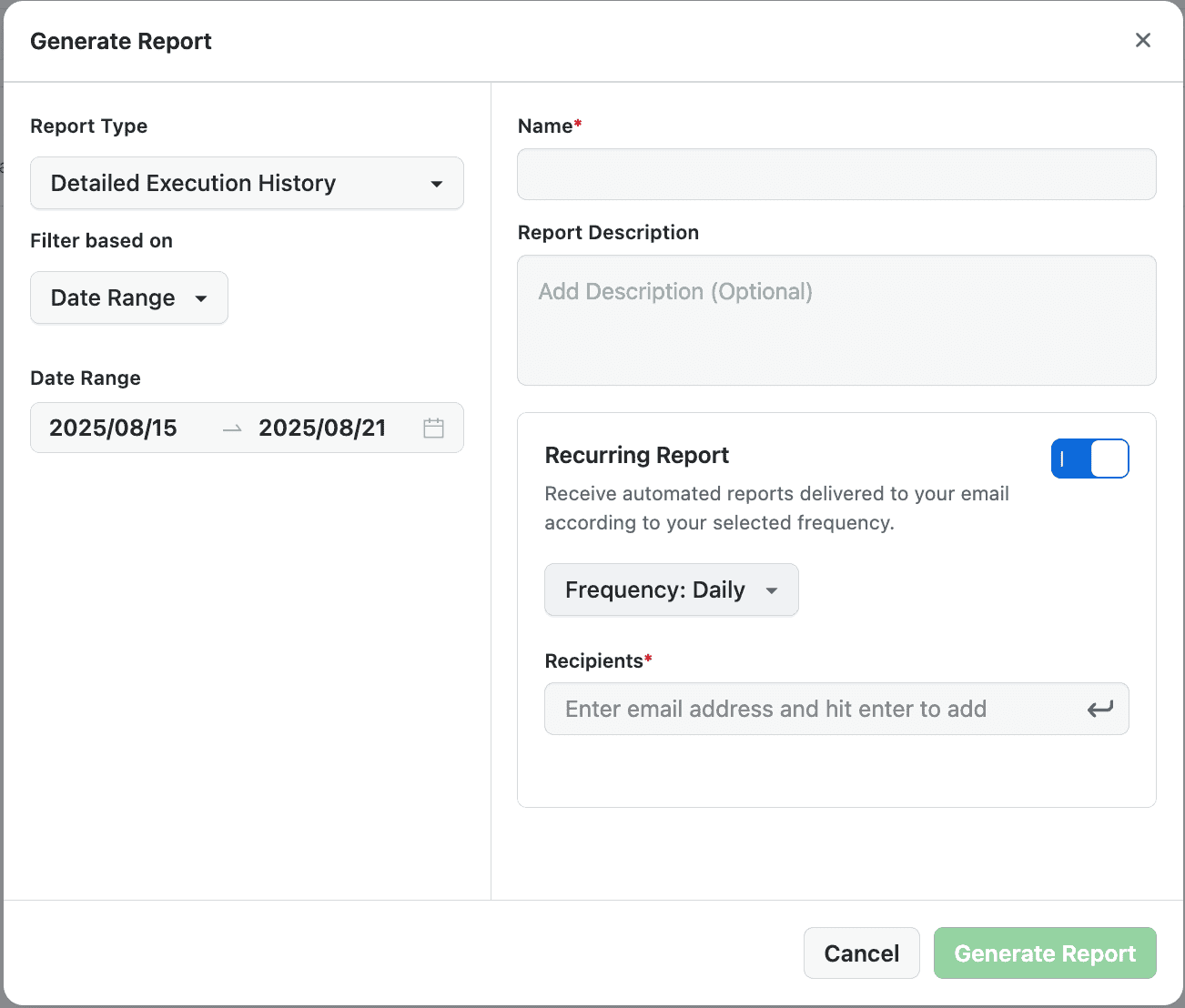
You can optionally add Description for the Report too but adding Name is mandatory to proceed here.
Recurring Reports:
You can select the Recurring option, add Recipients & Frequency to automatically get the mail notification with the reports timely.
This is how the reports will look like:
Execution History Report
The detailed Execution History Report lists each Test Instance in the selected test run(s) with the following information: Test Case ID and name, execution status, test run name, step count, configuration (platform, OS, and device), mode, executed by, and executed at. Each row includes a link to navigate directly to that test instance in the product.
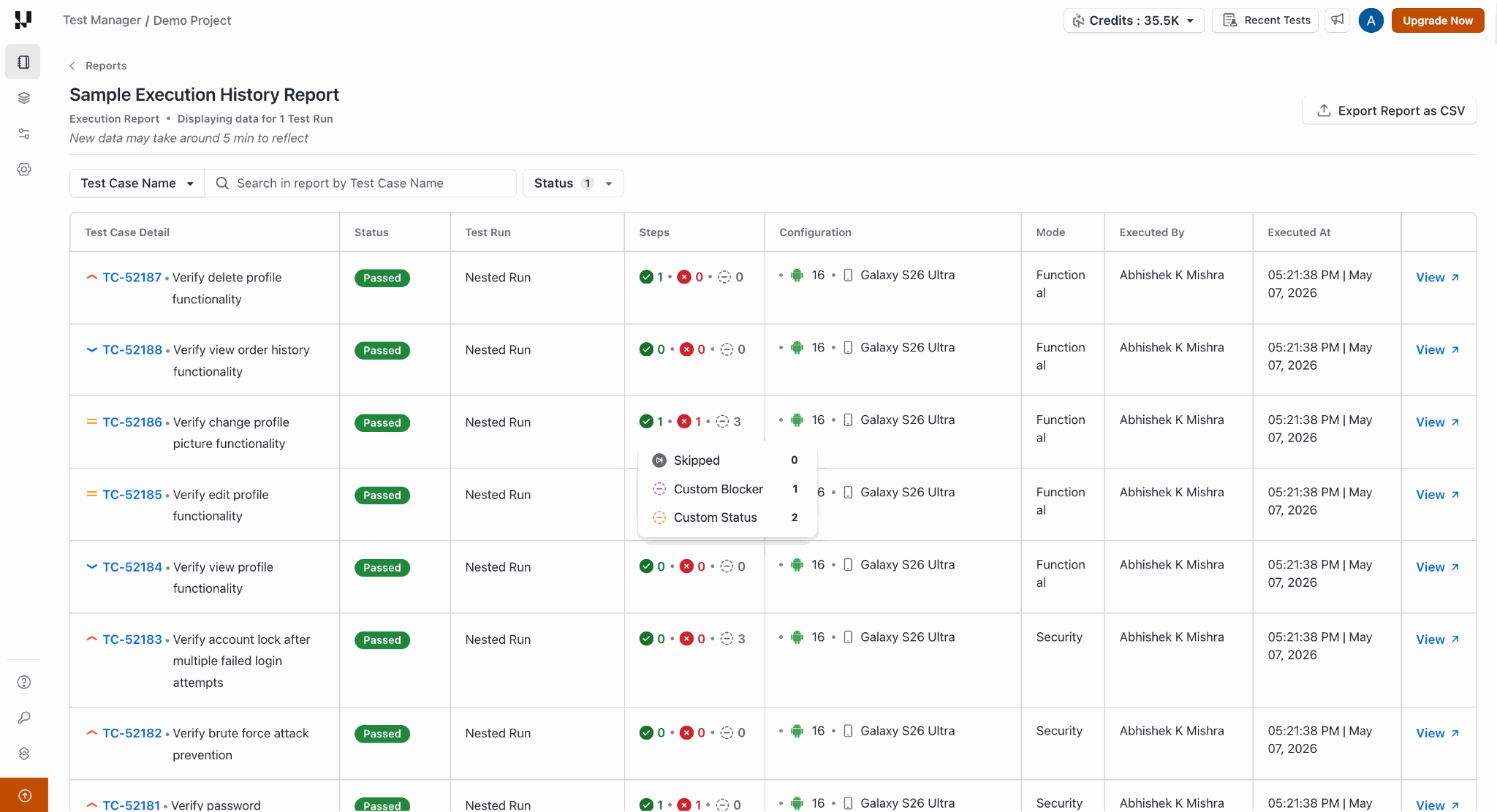
Step-level data in CSV export
When you download the report as a CSV, each step for every test instance is listed as a separate row, including:
- Step — The step description
- Expected Outcome — The expected result for that step
- Step Status — The execution status of the step, supporting standard statuses (Passed, Failed, Skipped) as well as any custom statuses configured for your project
Step-level execution tracking in reports is currently in slow rollout. To get early access, raise a request to our support team.
All the Reports can be Downloaded as CSV files.
Traceability Reports
Traceability reports provide end-to-end visibility into how your test cases align with business requirements and defects.
The Traceability reports show the Issues based test-execution report allowing you to see the Issues coverage in tests:
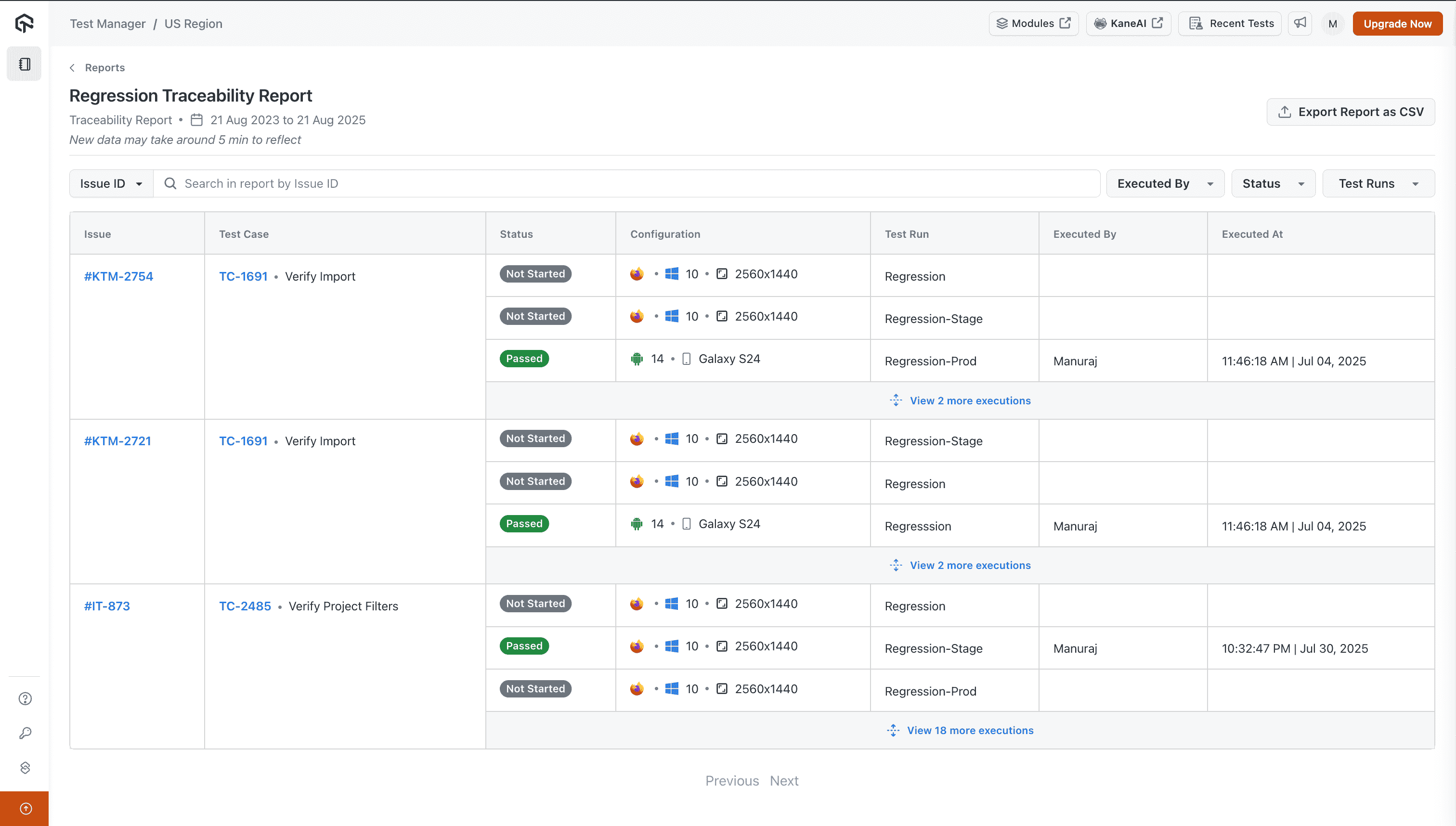
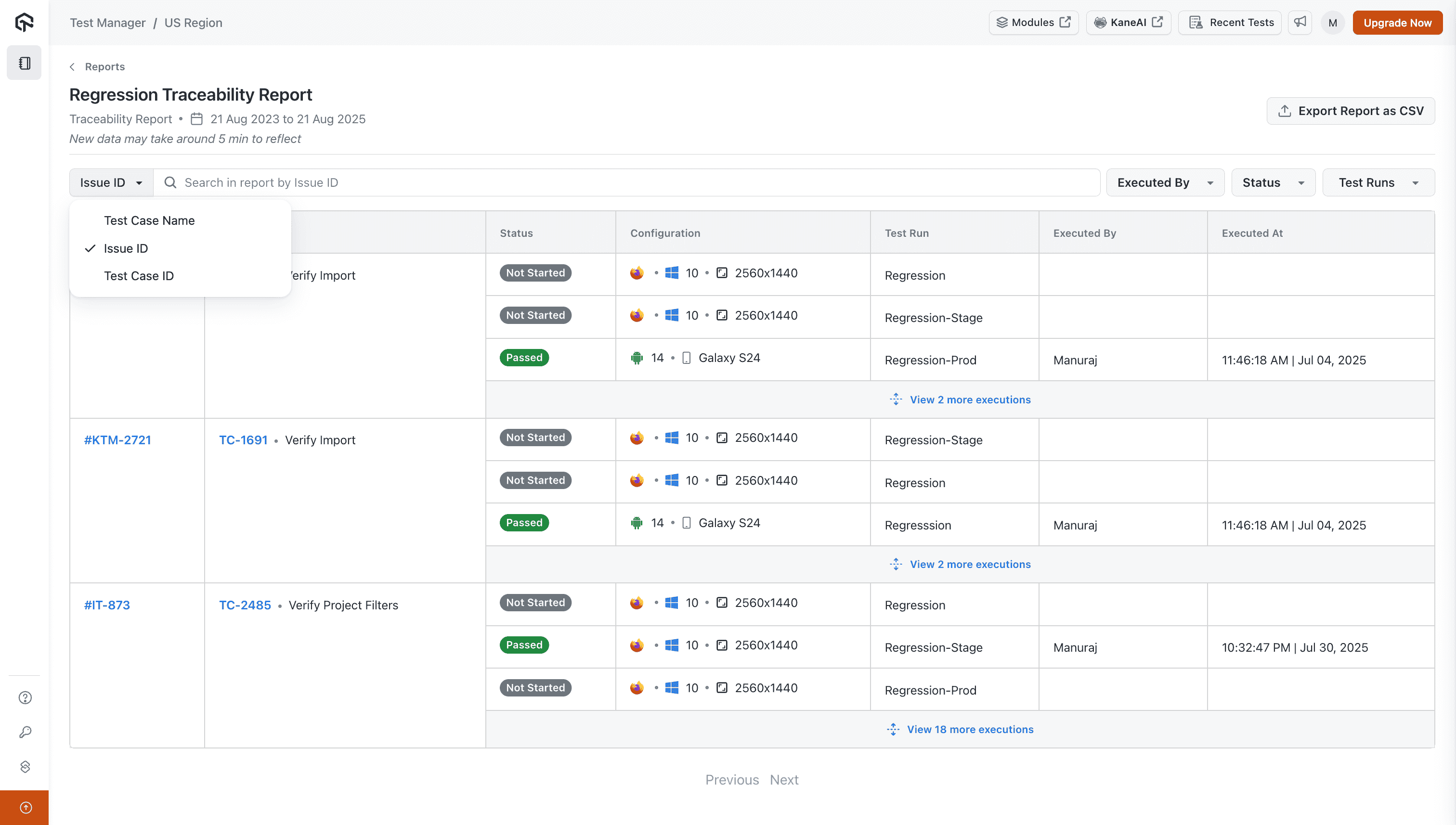
The report data can be filtered using Test, Issue, and Run metadata.


 Chat with Us