Modules - Creation and Management
Tired of recreating the same test steps for repetitive testing flows? With Modules in TestMu AI Test Manager you can streamline your workflow by reusing pre-existing test steps across multiple test cases. This powerful feature enables you to encapsulate redundant testing flows into modular, reusable components, saving time and ensuring consistency across your projects.
1.1 Module Creation from existing Test Steps
To export test steps as a module,
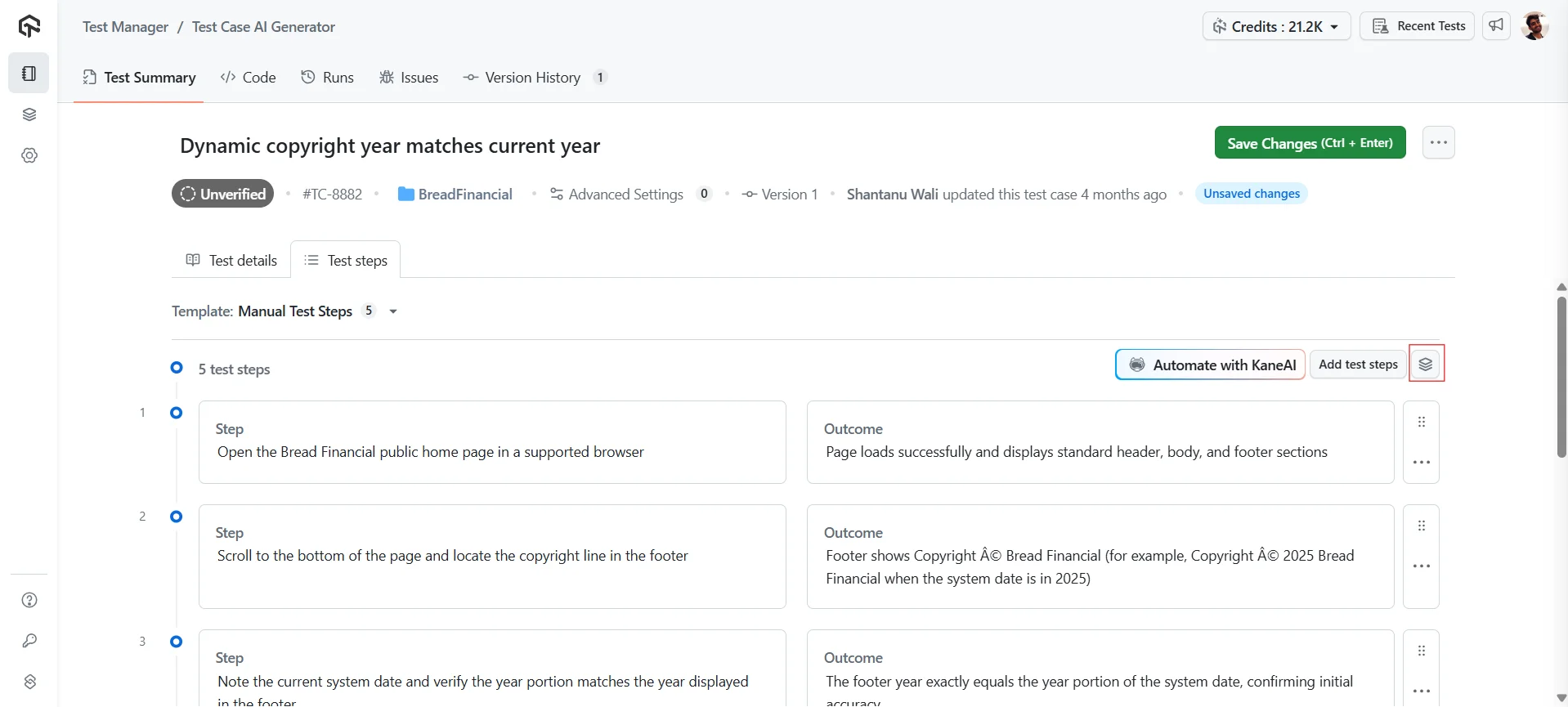
- Navigate to the Test Steps page of your desired Test Case.
- Select the test steps you wish to include in the module and click the
Create a modulebutton.
Only sequential steps can be clubbed to create a module.
- Clearly define your new module by entering a concise name and a detailed description. This will help you easily identify and understand its purpose later on.
1.2 Create Module from Modules section
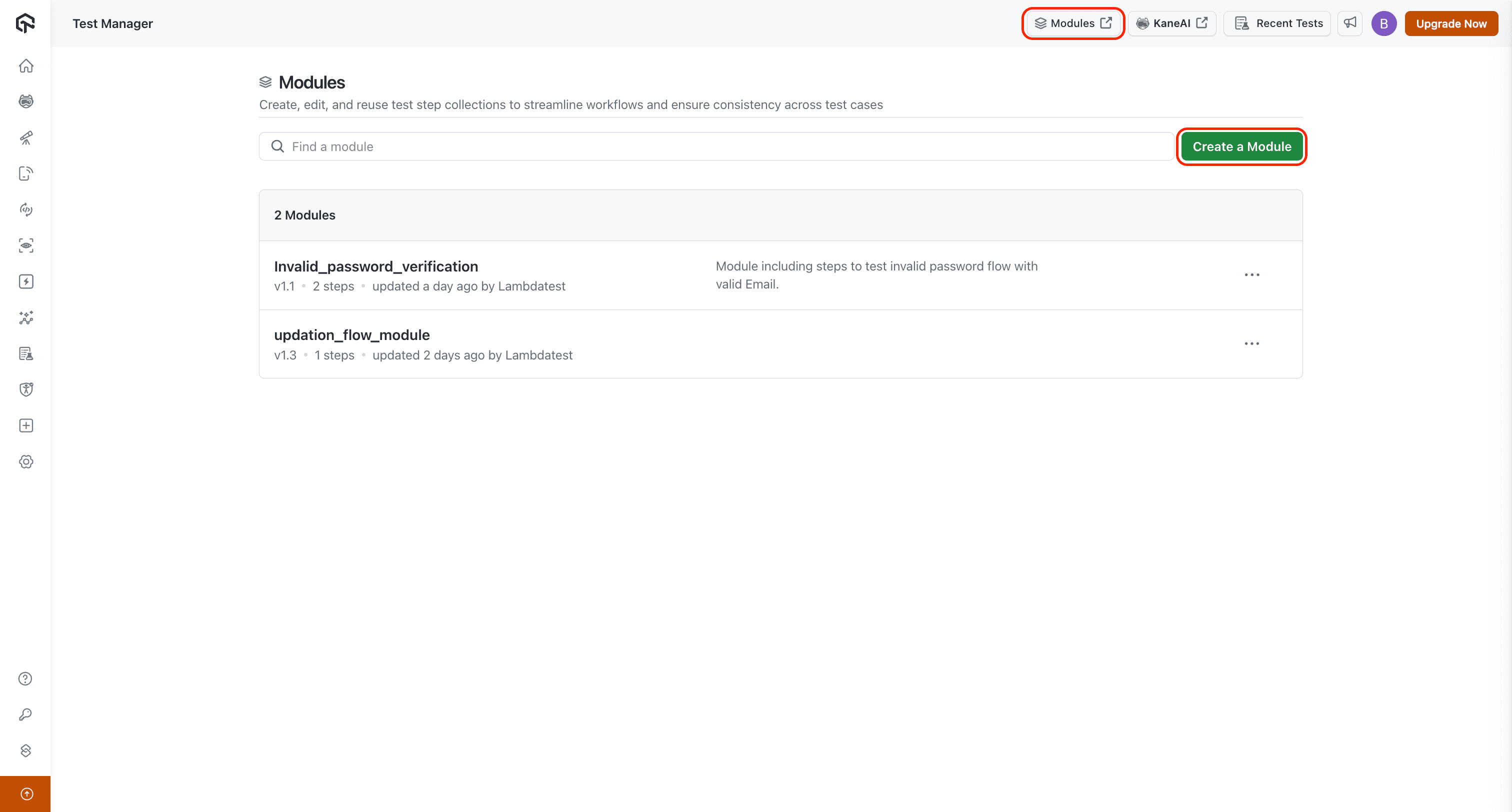
Step 1: Go to Modules page
- Click on
Modulesbutton in the navbar to go to the Modules listing page. - Click on
Create a Module.
When you duplicate a module, its steps, description, and linked projects will also be duplicated.
Step 2: Create New Module
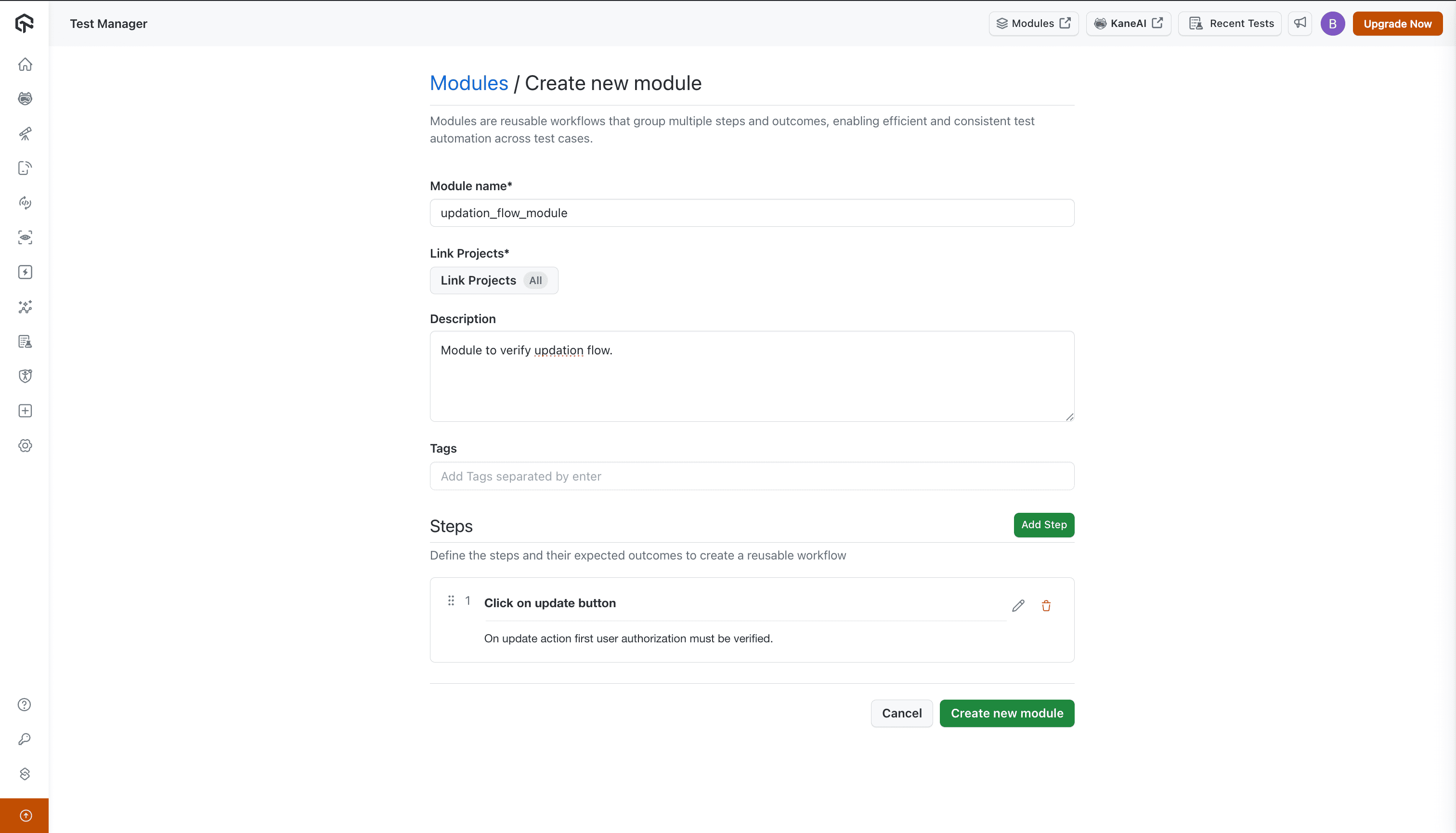
- Click on the
Create a Modulebutton. - Define your module and outline the steps you want to include.
Don't worry if you don't have all the details now; you can always edit or add them later.
You must provide Module name & create at least one test step to be able to create a new module.
Only modules that are not linked to any test cases can be deleted. If a module is used in one or more test cases, the delete option is disabled. See Delete a Module.
2. Update Module
Modules support duplication, editing and versioning; however, a new version is only triggered when specific fields are edited.
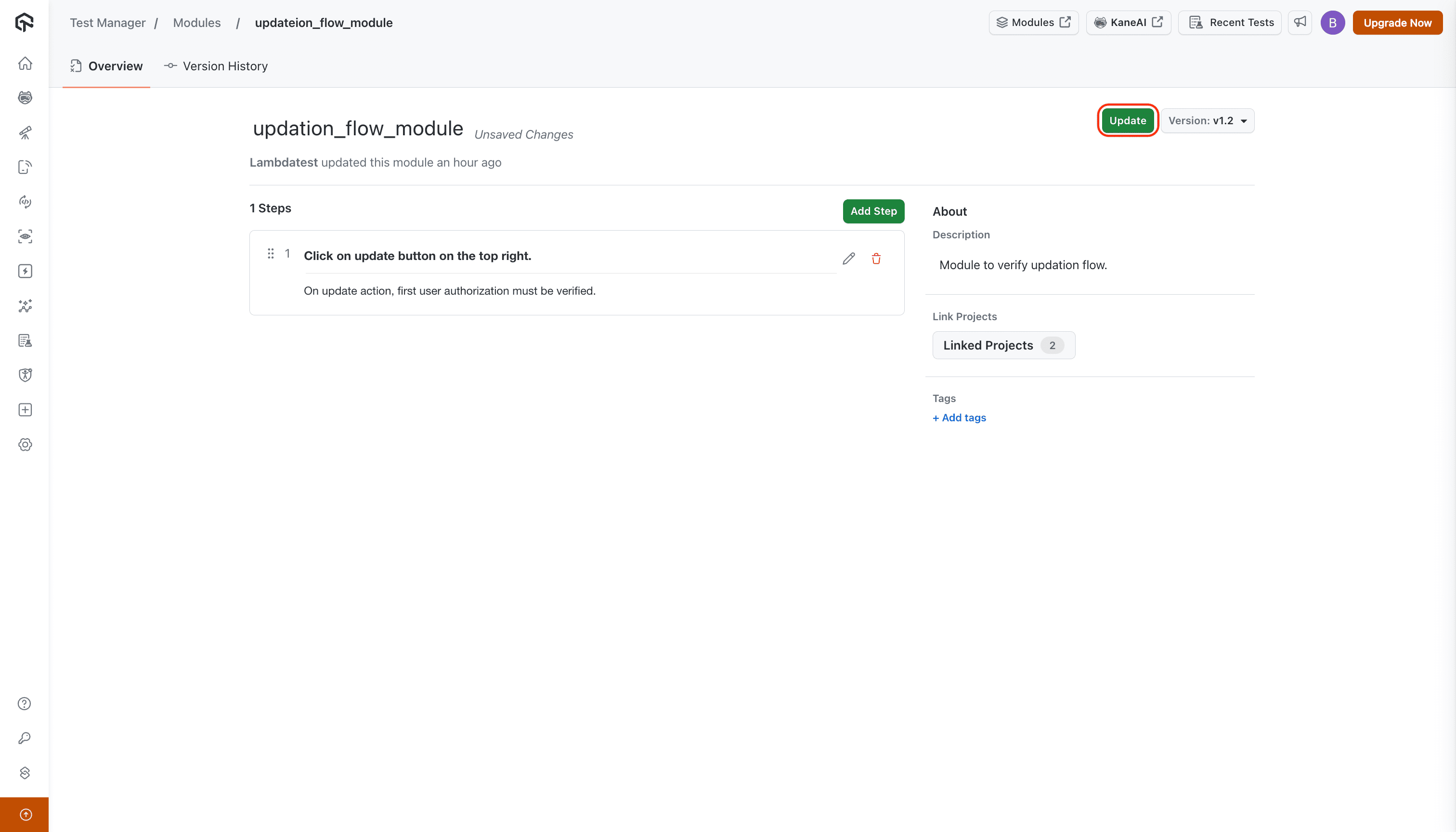
- Add a step by clicking on
Add Stepor update a step through edit icon. - In the inline editor, click
Updateto apply your change to the step. The header then shows Unsaved changes: clickSave Changeson the top right to save them, orDiscardto drop them.
Only Test Step or Expected Outcome updation will create a new version of the module.
In the Classic experience, for modules authored in KaneAI, steps that use a variable or parameter and If-Else or While Loop blocks cannot be edited, deleted, or reordered from the Modules page. Edit them from the KaneAI test case the module was authored from.
3. Module Versions
Revert to previous Version
- Click on
revertto revert your module to that version. Reverting to a previous version will create a new version in your module's history, ensuring a clear audit trail of all changes.
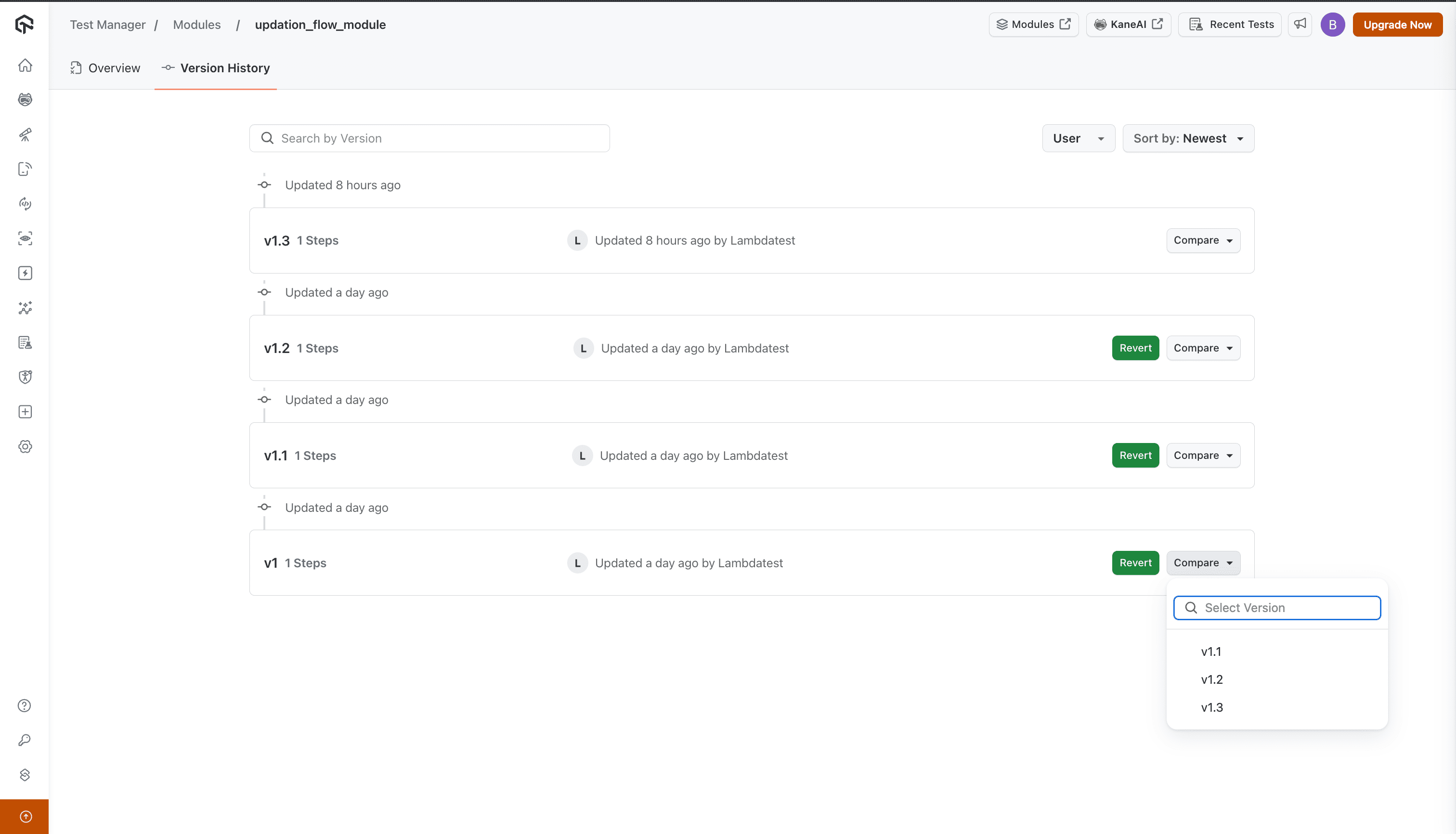
Compare Versions
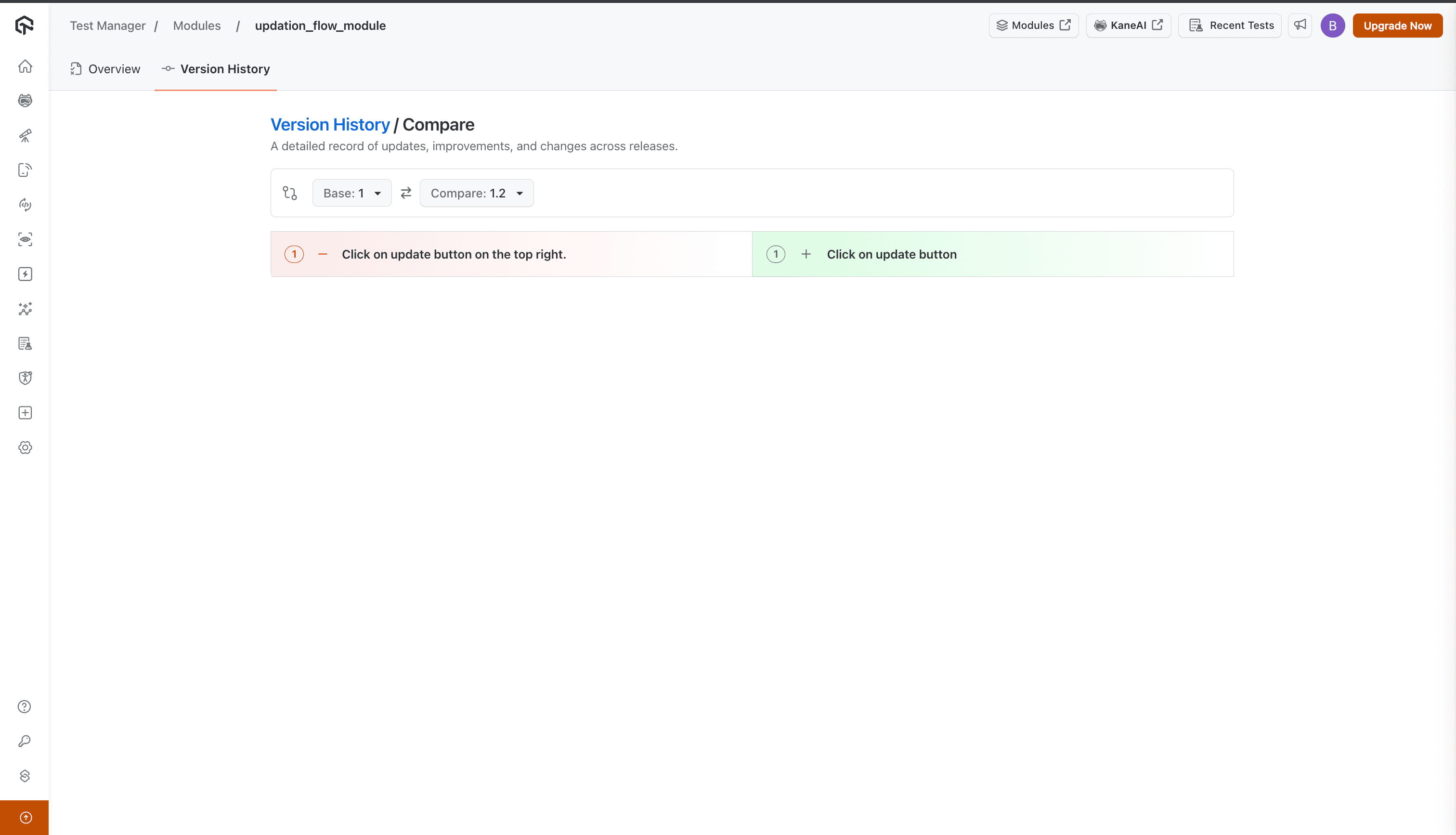
Compare your version history side-by-side to easily identify differences and track changes between various iterations of your module.
- Click on
Compare& select the version to compare with.
You will be redirected to the Version Comparison page where you can track changes:
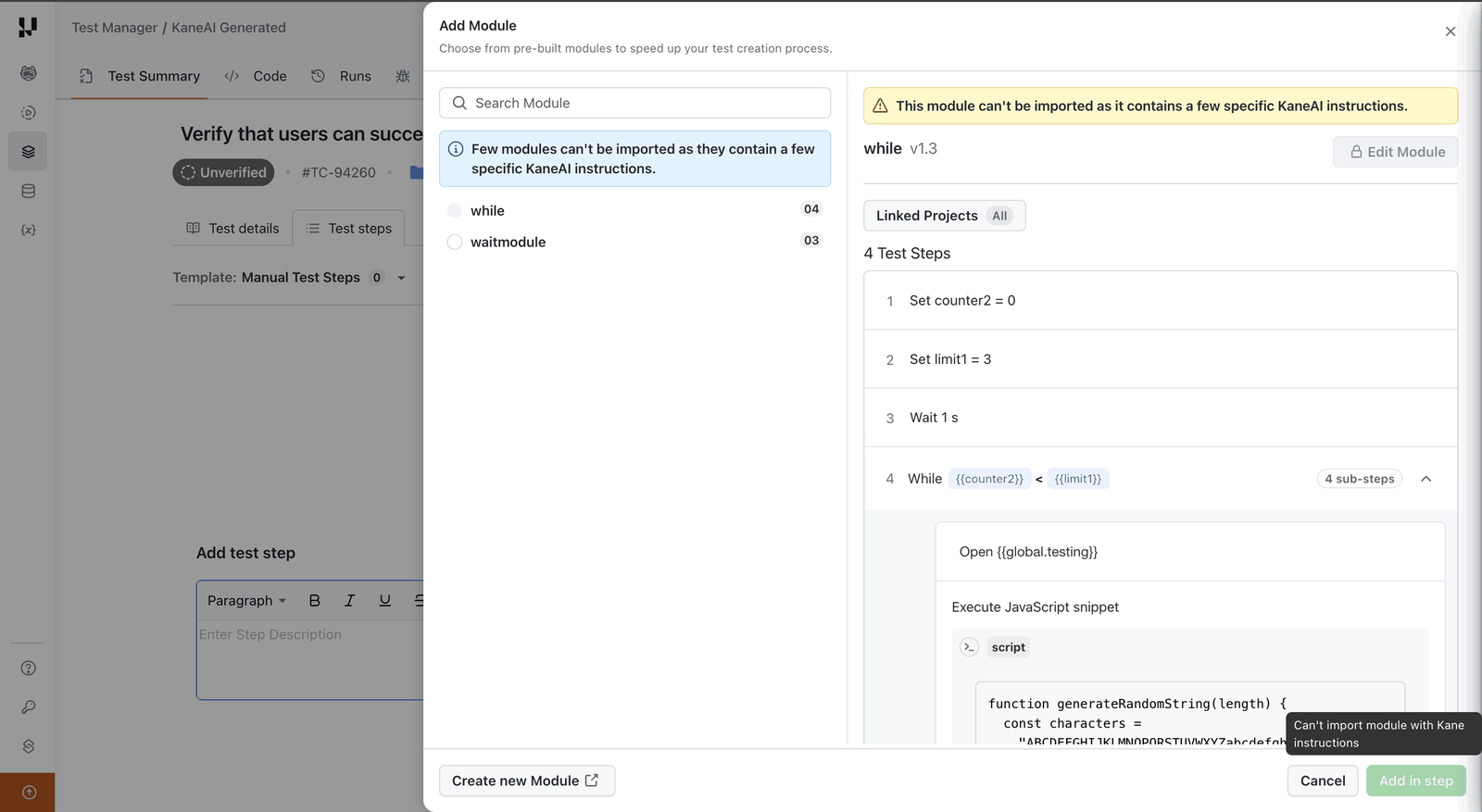
Project linking is only added for manual tests in test cases. Hence, modules linked to a particular project are only available to be added in a manual test case. However, for KaneAI test cases, all modules in all projects will be available for selection. Modules that contain KaneAI instructions, such as variable steps, If-Else blocks, or While Loops, can be imported only into KaneAI test cases. In a manual test case the Add Module dialog blocks them from being added.
Importing Modules into Test Cases
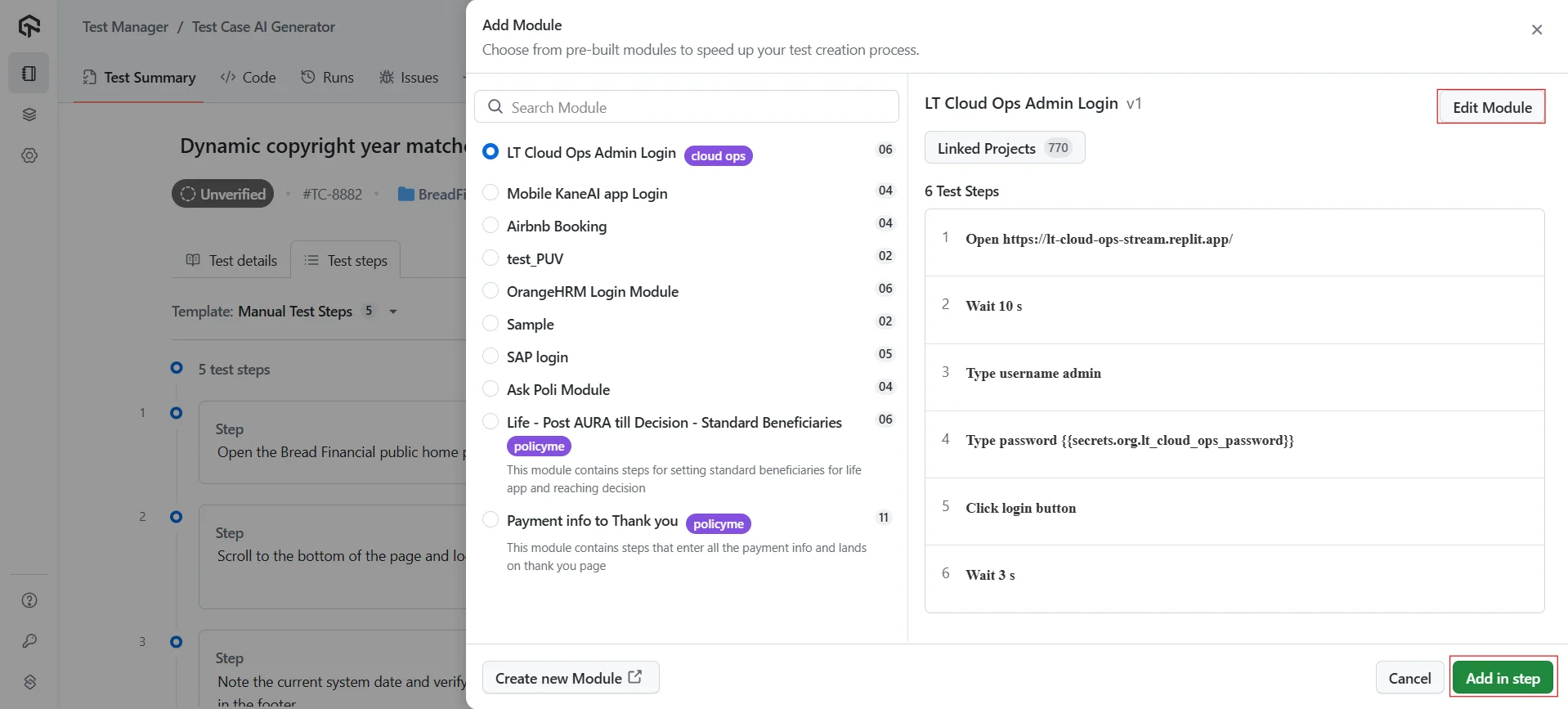
To incorporate existing modules into your test steps, simply click on the Modules Icon.
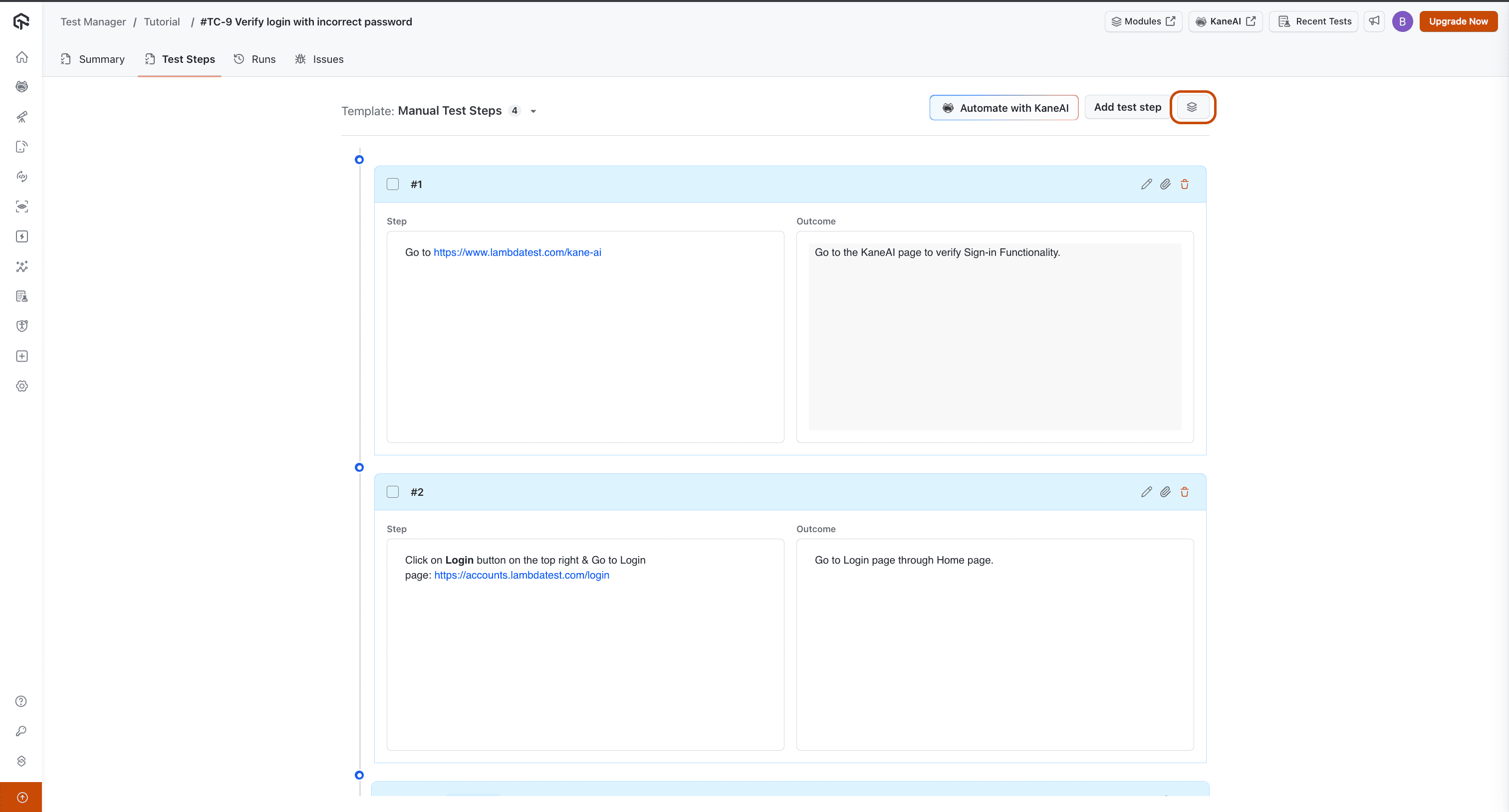
From there, you'll be able to select and import the specific module you need.
Keep in mind that only modules already linked with your project will be available for import.
In the Classic experience, modules that contain KaneAI instructions run only in KaneAI test cases. This covers steps that create or use a variable or parameter, If-Else blocks, and While Loops.
The Add Module dialog lists the modules available to the test case and selects the first one by default. When the selected module contains KaneAI instructions, the dialog shows This module can't be imported as it contains a few specific KaneAI instructions and Add in step stays disabled. Edit Module is locked for the same module.
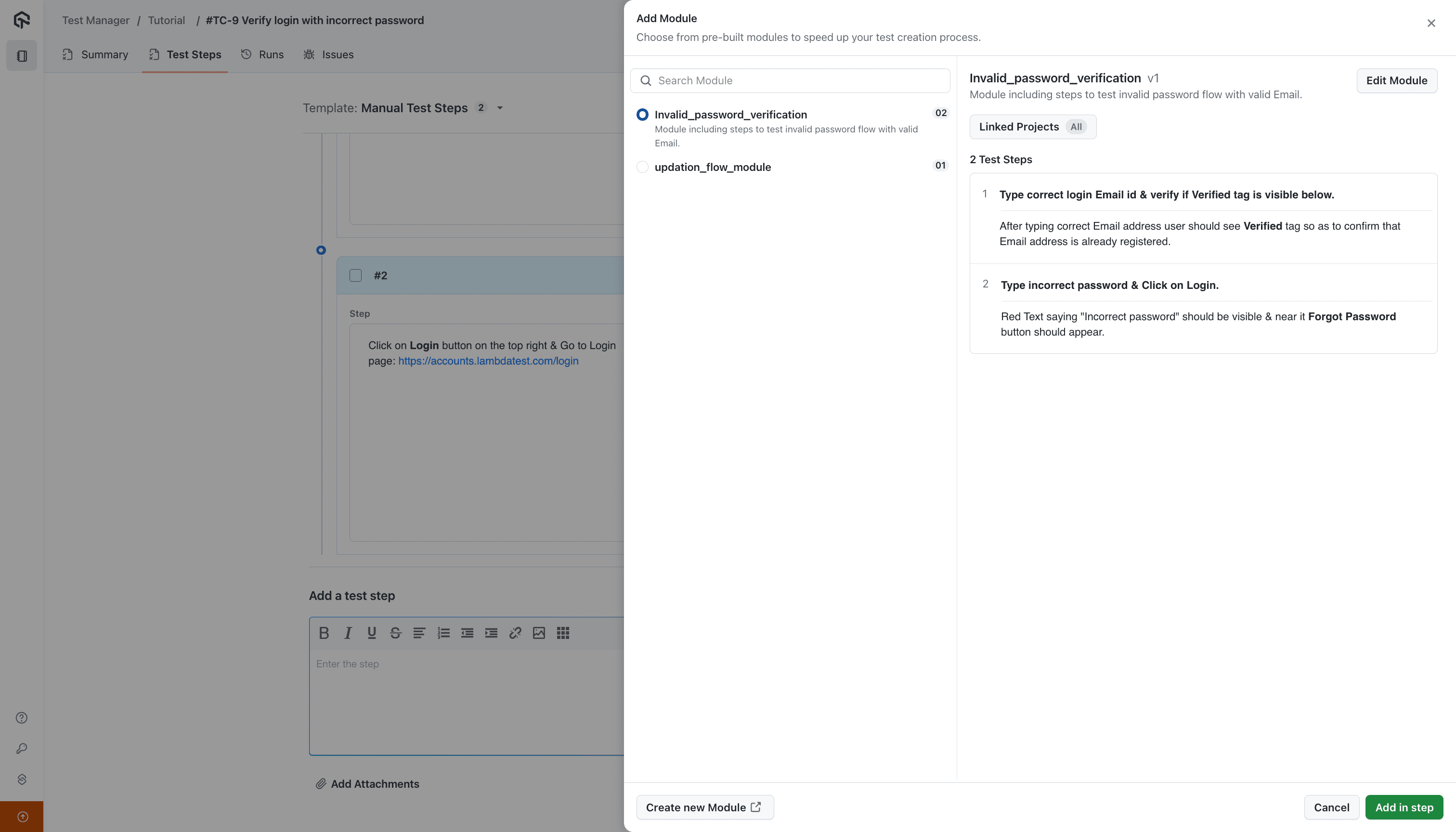
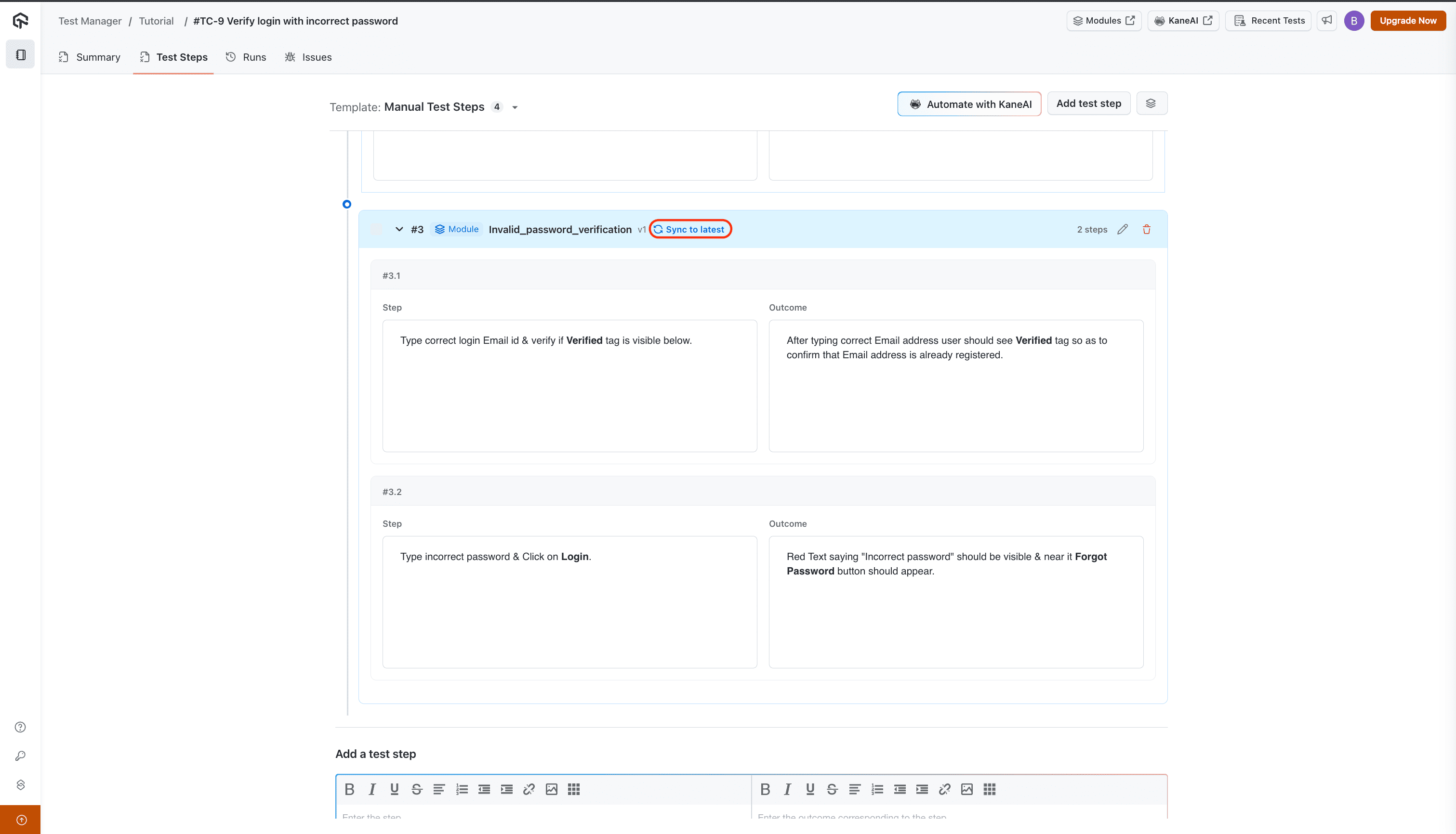
Notice that imported modules will appear visually distinct from other individual steps within your test case, making them easy to identify.
You can also edit or delete imported modules directly from this view. Making changes creates a new version of that module.
In the Classic experience, Edit Module is disabled for modules that contain variables, an If-Else block, or a While Loop. Edit these from the KaneAI test case they were authored from.
Please note that when a module is updated to a new version, its existing occurrences within your test cases will not be affected. They will remain linked to the previous version. To utilize the latest version of a module, you'll need to manually sync it by clicking the Sync to latest button. This allows you to review and confirm changes before they impact your test cases.


 Chat with Us