System and Custom Fields
Explore the structured organization of your test projects through the use of Fields and Values, accessible via the Project's dashboard. Dive into System Fields for essential categorizations or enhance your project's flexibility with Custom Fields to improve your testing workflows.
To access the System & Custom Fields settings, click on Settings in the top right hand side in the Project's dashboard.
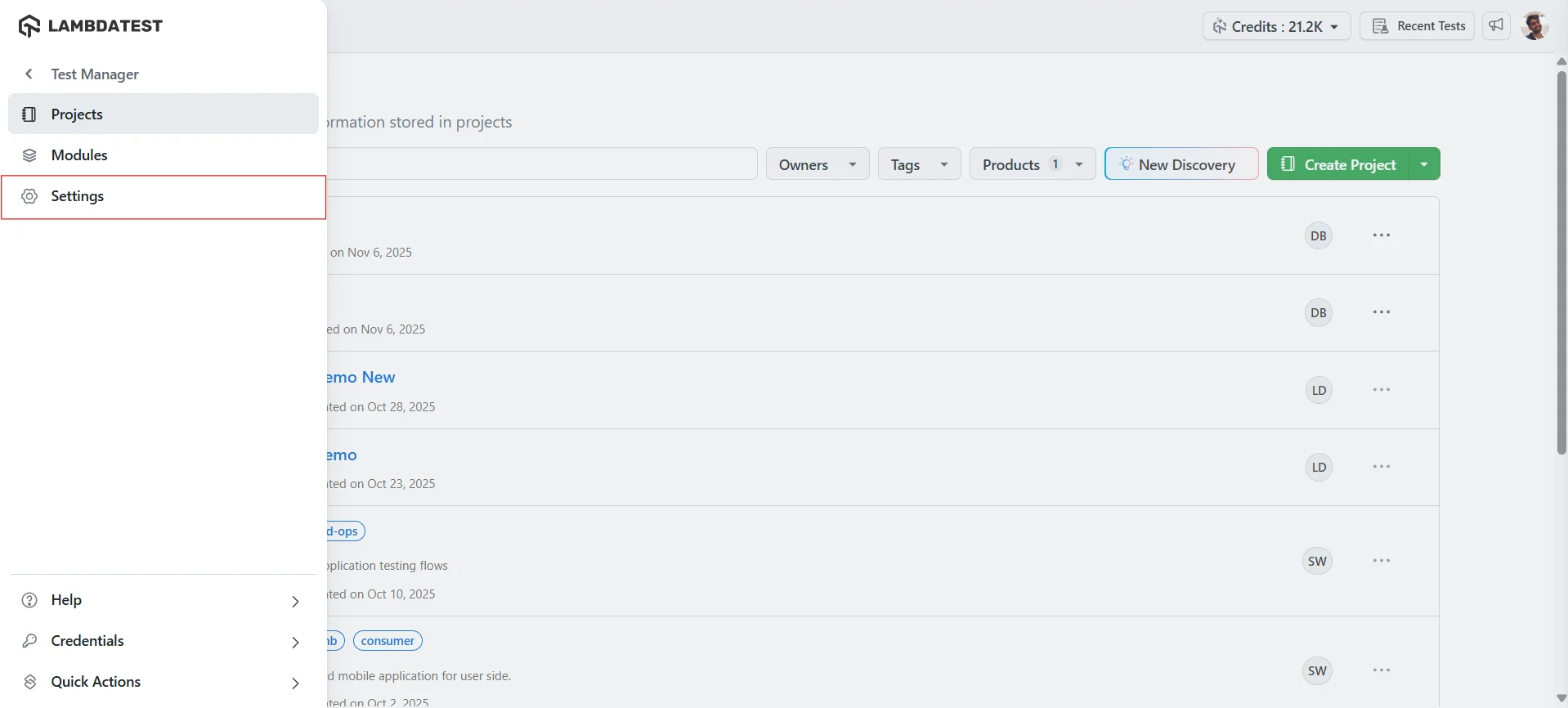
You can manage your System and Custom Fields in this Fields page.
System Fields
Are default fields present in the Test Manager. These fields help organize and track your test cases, test runs or instances. They can be seamlessly integrated into your test management process and customized by adding values. Test Cases & Test Runs have their separate System Fields.
- Test Cases have these pre defined fields: Priority, Status, and Type.
- Test Runs can have only one System Field that is the
Status.
To manage these fields, navigate to the System Fields tab, where you'll see dedicated sections for both Test Case and Test Runs fields.
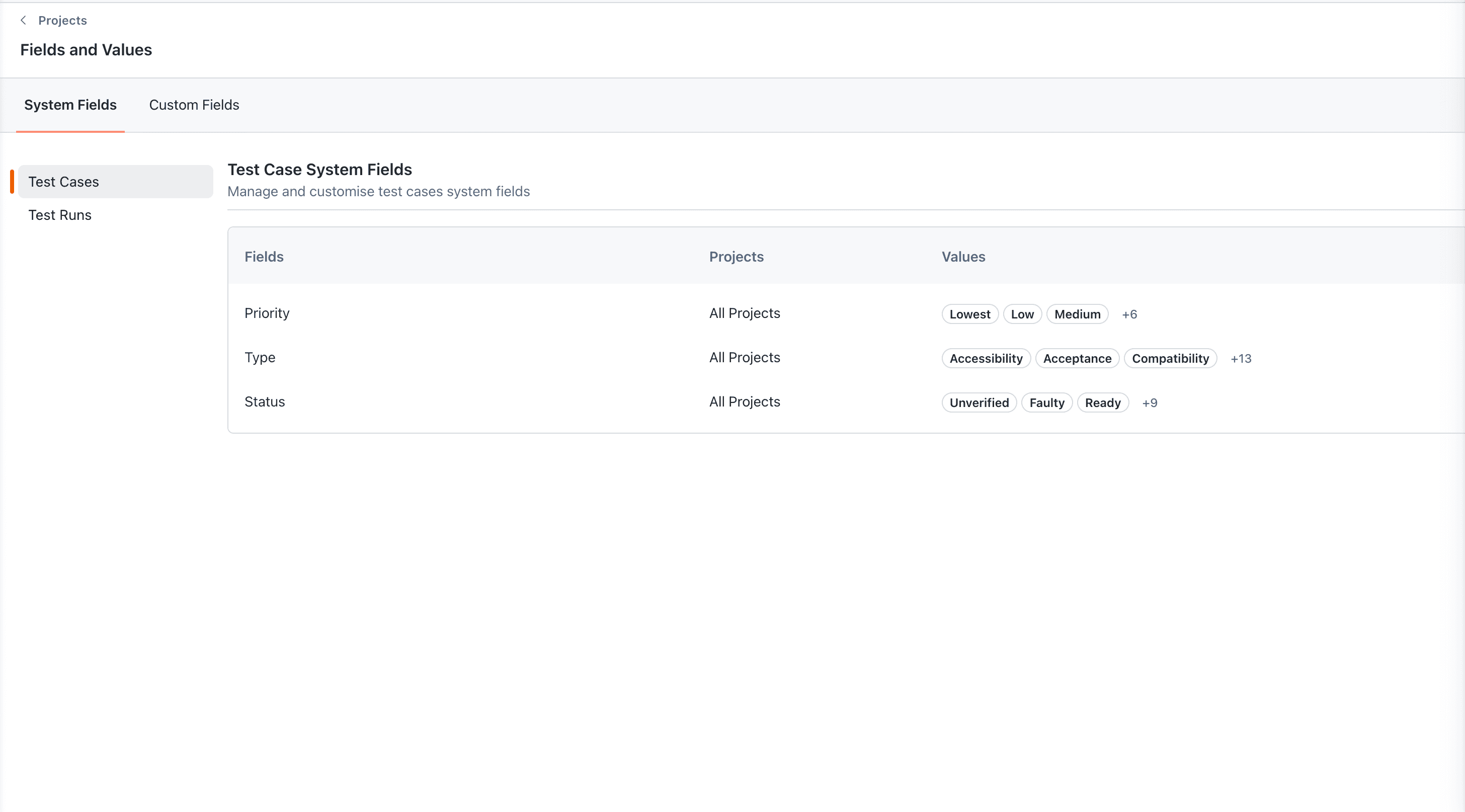
These System Fields can have Custom Values which can be added by simply selecting any field and clicking on Add Value.
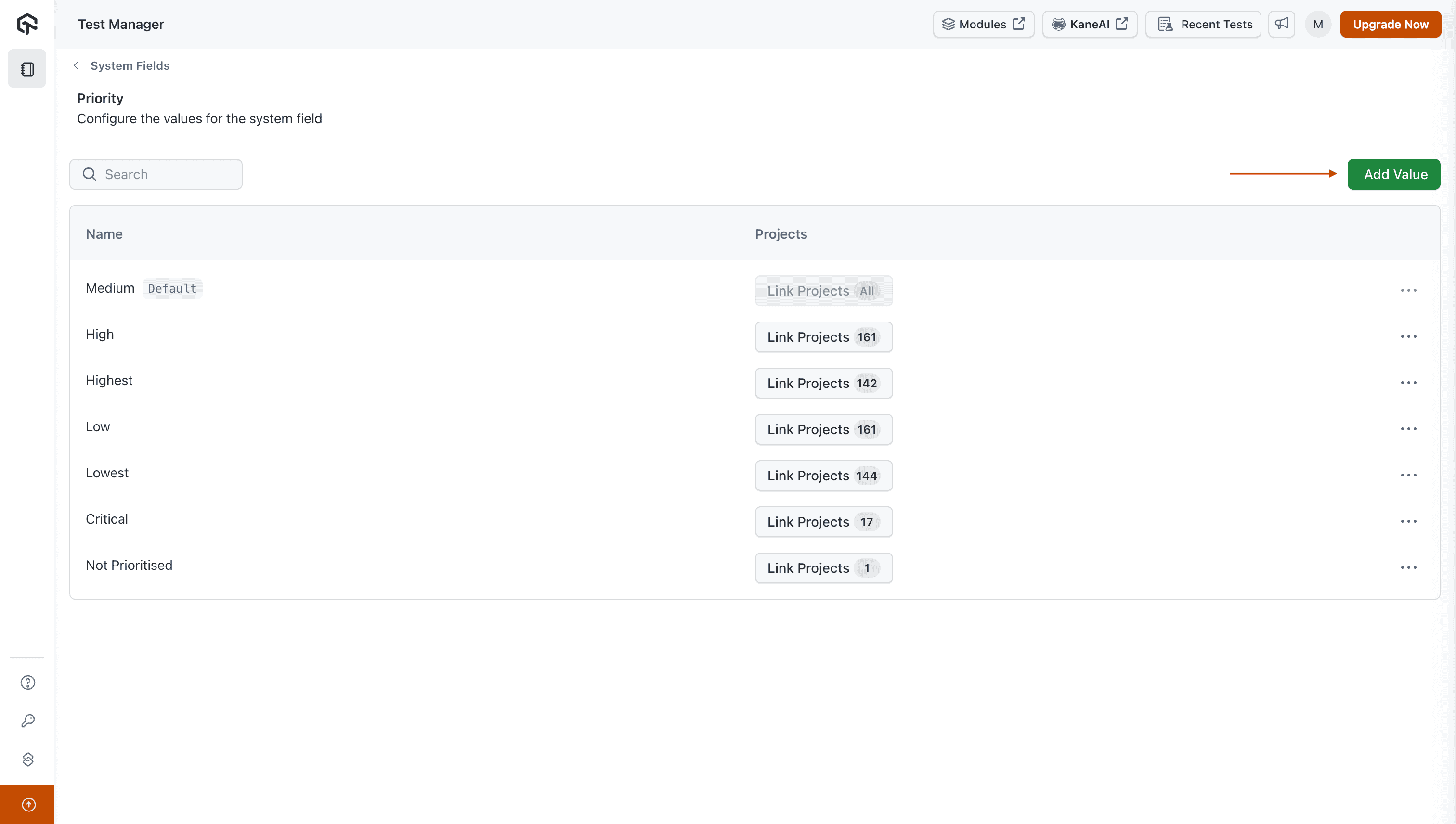
Every new Status value of Test Runs will have a unique random color defined to it on creation.
Custom Status values of Test Runs also take part in deriving the status of a manual test instance from its step results. Once every step of an instance is executed, a step carrying a custom status makes that the status of the instance, and it is never resolved into Passed. See How the Test Instance Status Is Derived.
Deleting a Status value of Test Runs, or unlinking a project from it, resets every test instance holding that status to Not Started and leaves the steps that carried it unmarked. This runs in the background and lands shortly after the delete completes, so refresh the test run if you do not see it straight away. Renaming a value instead applies the new name wherever it is in use, on instances and on steps, and resets nothing.
Custom Fields
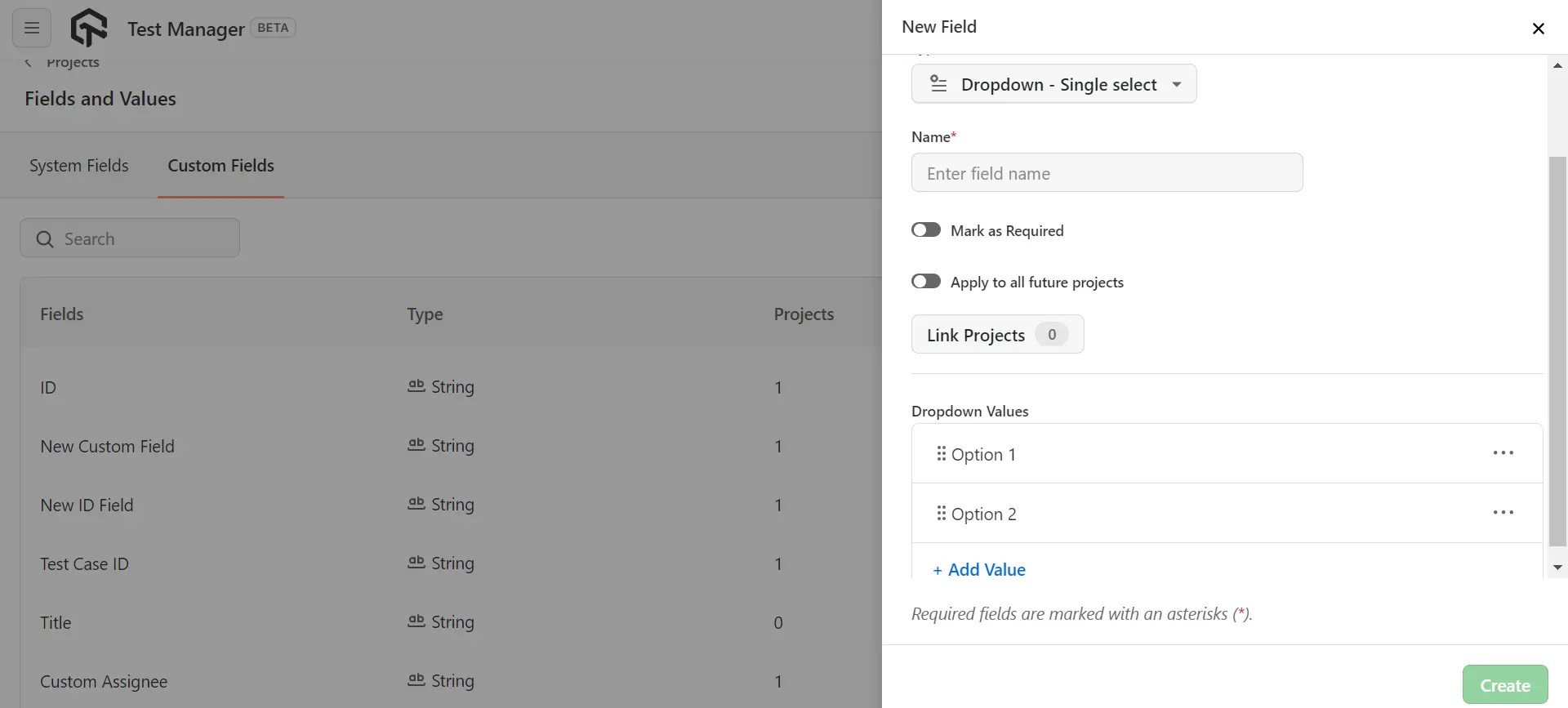
Allow you to store additional information beyond what System Fields offer. To create a new field, enter the required details and choose the appropriate data type from the Type function. Available types include String, Textarea, Number, Dropdown (Single Select), Dropdown (Multi Select), Boolean (Checkbox), Date, User, and URL.
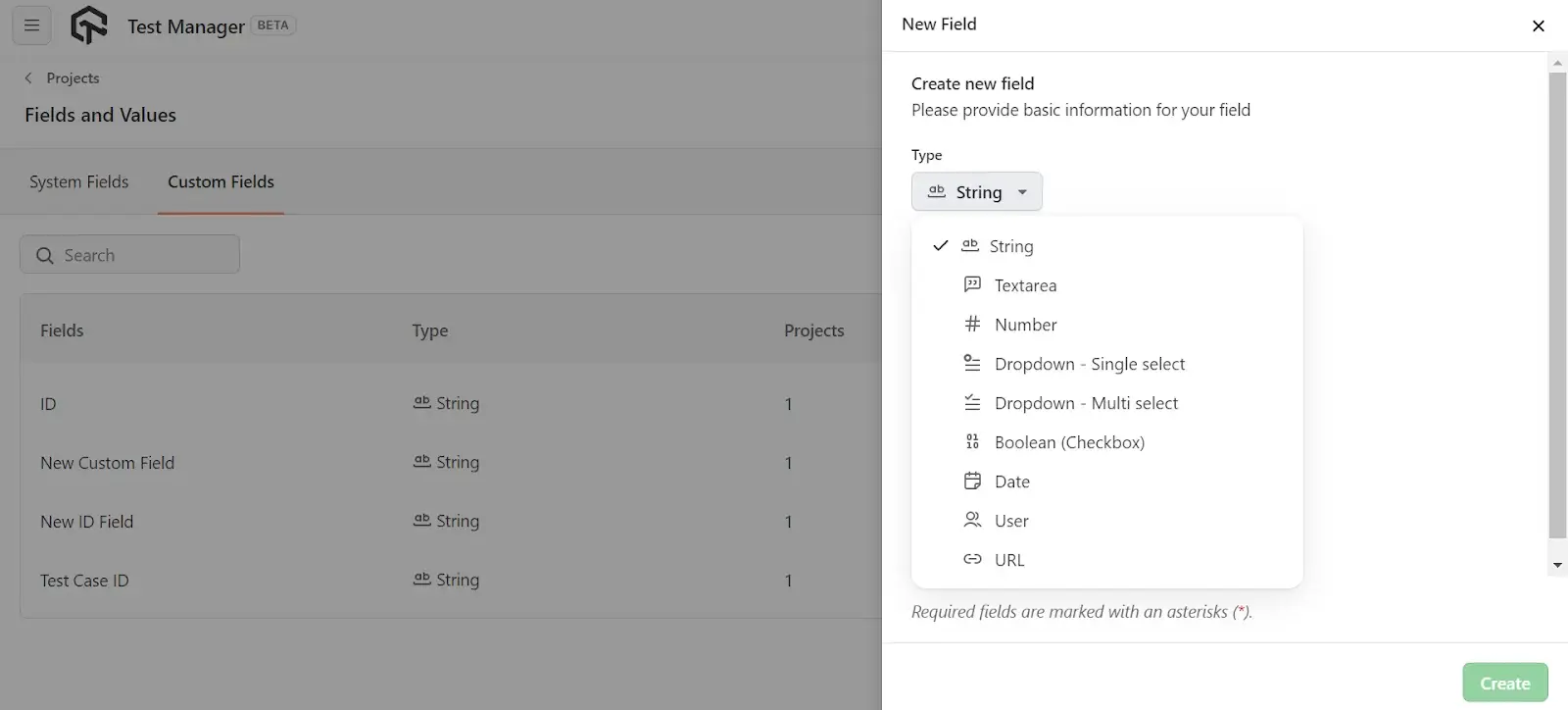
For Dropdown types (Single Select and Multi Select), you also have the option to add values.
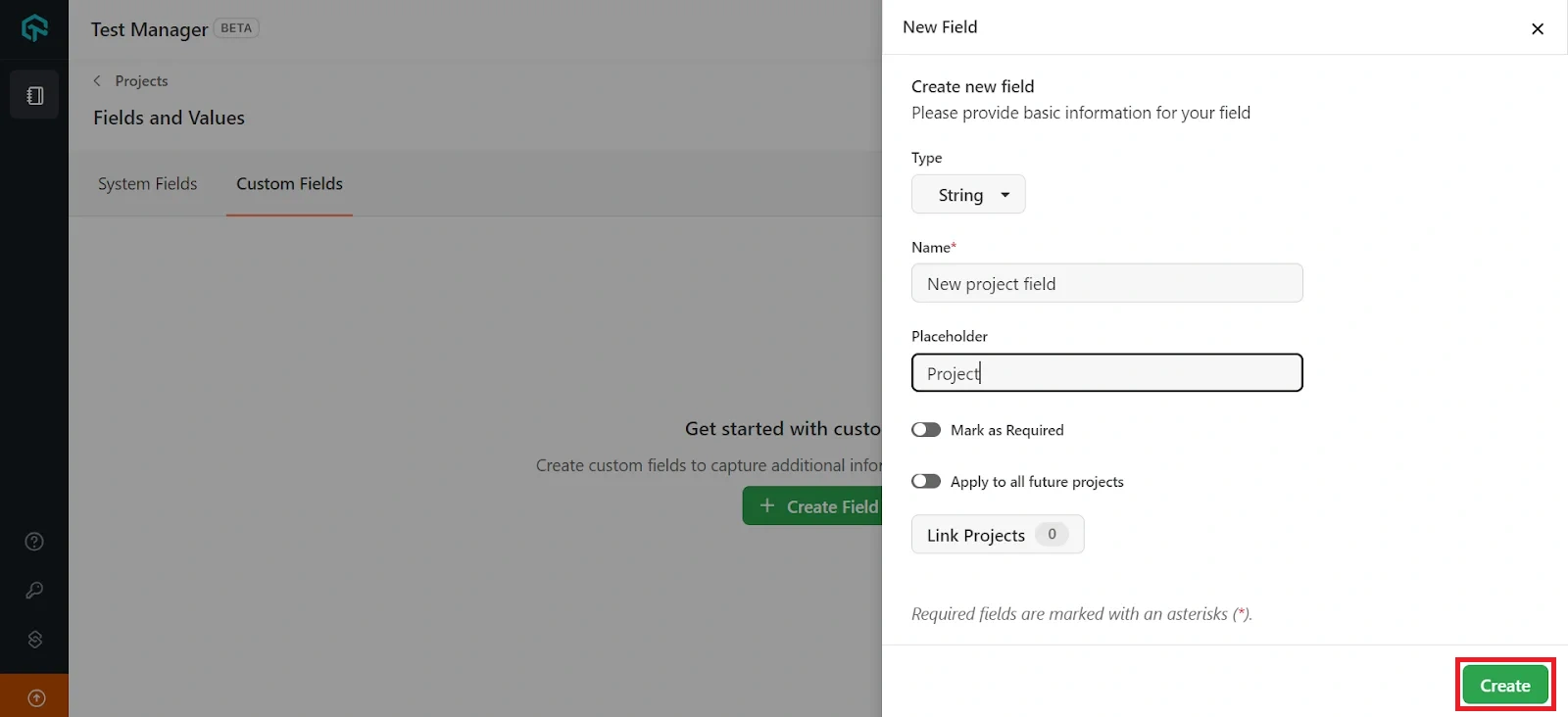
Enter the name, placeholder, mark the field, apply it to all future projects if required and click create.
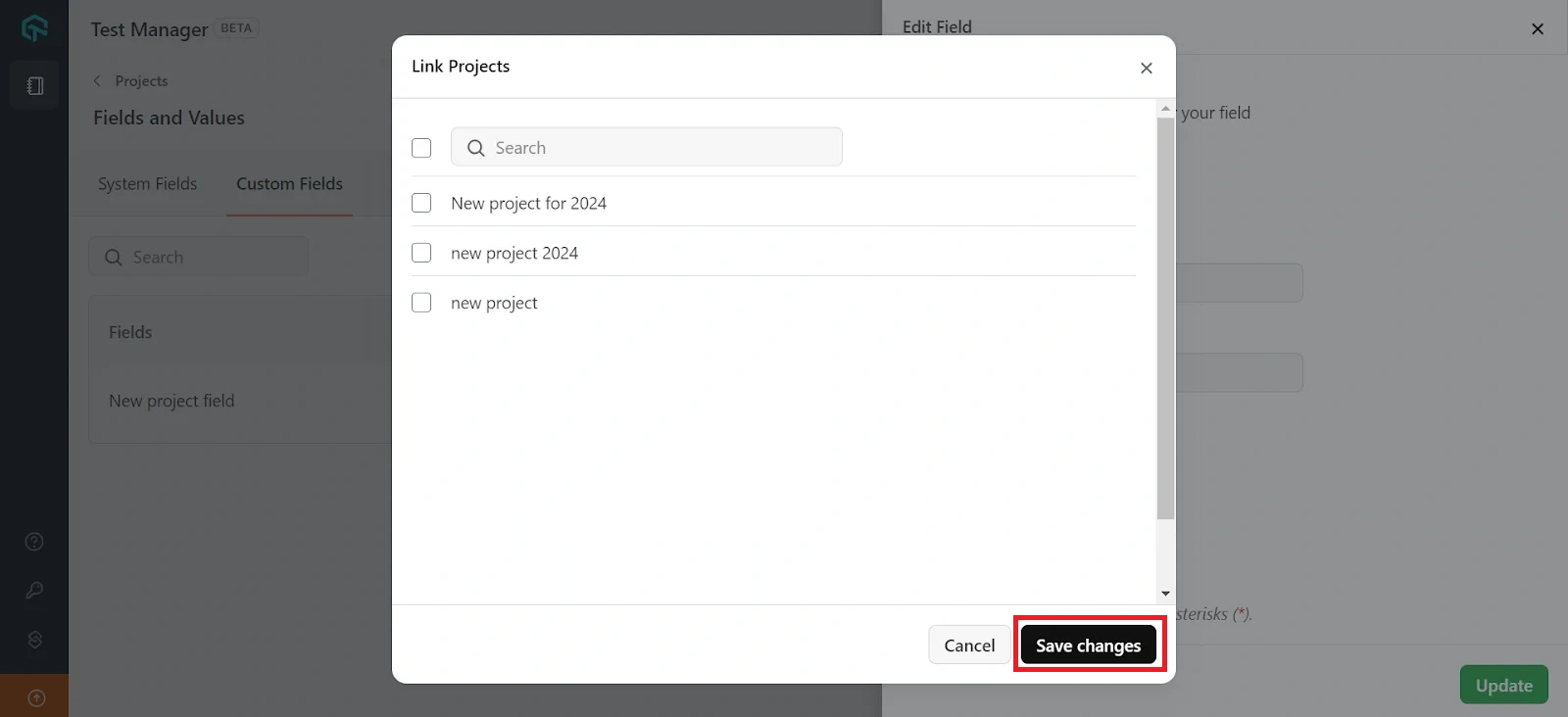
You can also link a single or multiple projects of your choice to the custom fields and click on Save changes.


 Chat with Us