Test Case Versioning
Test Case Versioning allows teams to track every change made to a test case over time. It provides a complete audit trail, ensures traceability, supports rollbacks to earlier versions, and makes collaboration across teams more reliable.
Creating Versions
Every edit to a test case whether it’s updating steps, descriptions, or fields creates a new version once saved. Here’s how the save test case flow works:
-
After making changes to a test case, the
Save Changesbutton in the top right corner will be enabled. -
When saving, you can add a commit message to help identify the change in the audit history.
-
In the
Version Historytab, you can view all commits made to that test case.
Managing Versions
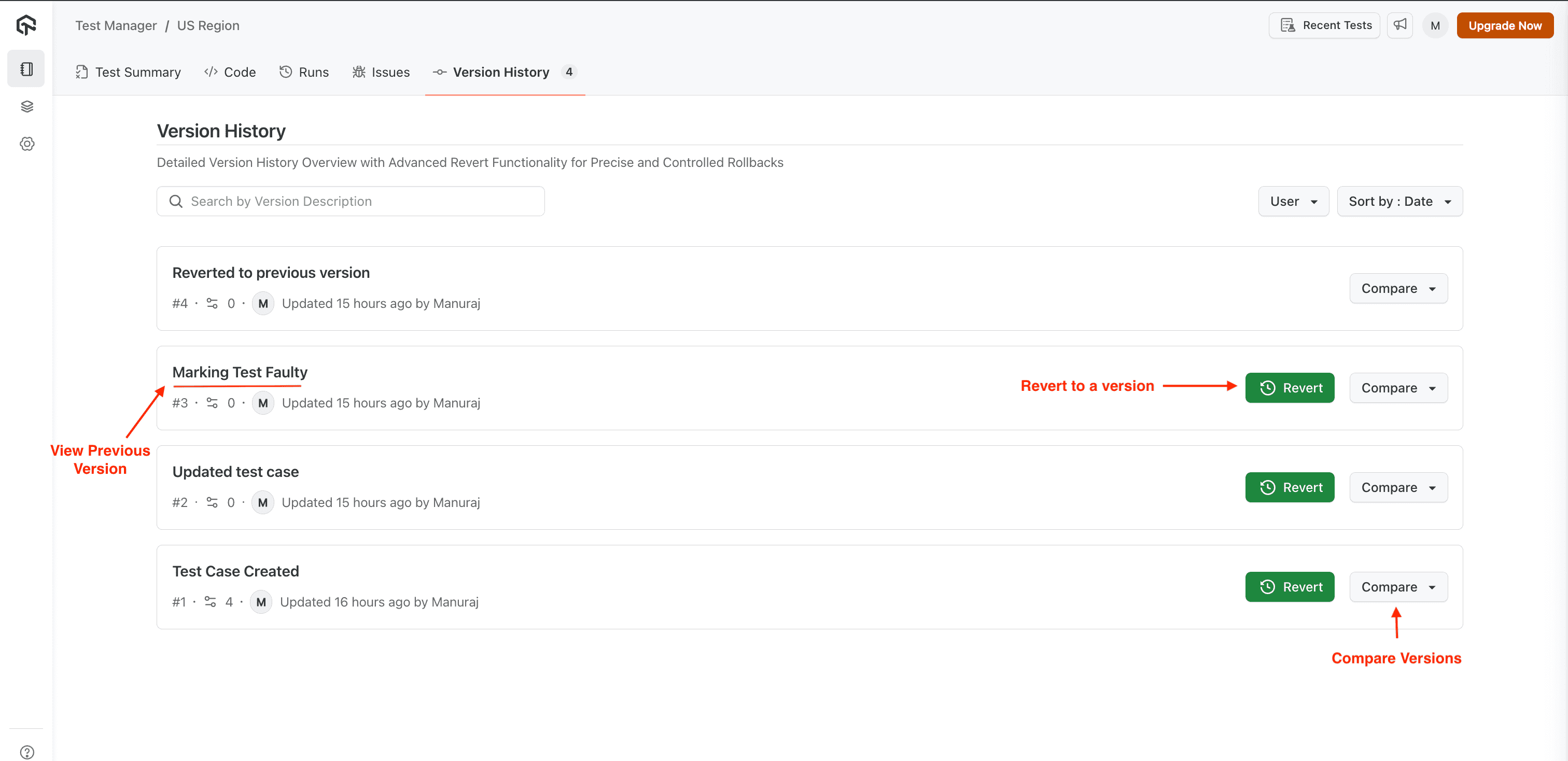
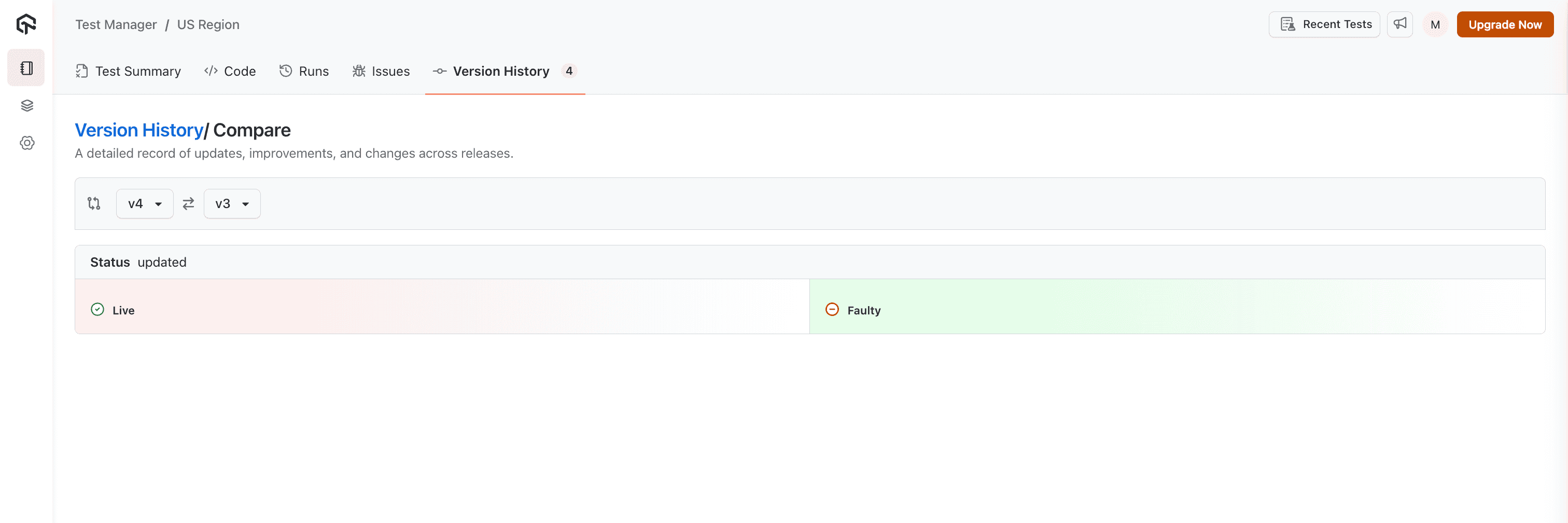
Version Comparison
To see the change log and compare different versions of a test case, click the Compare button in the Version History tab.
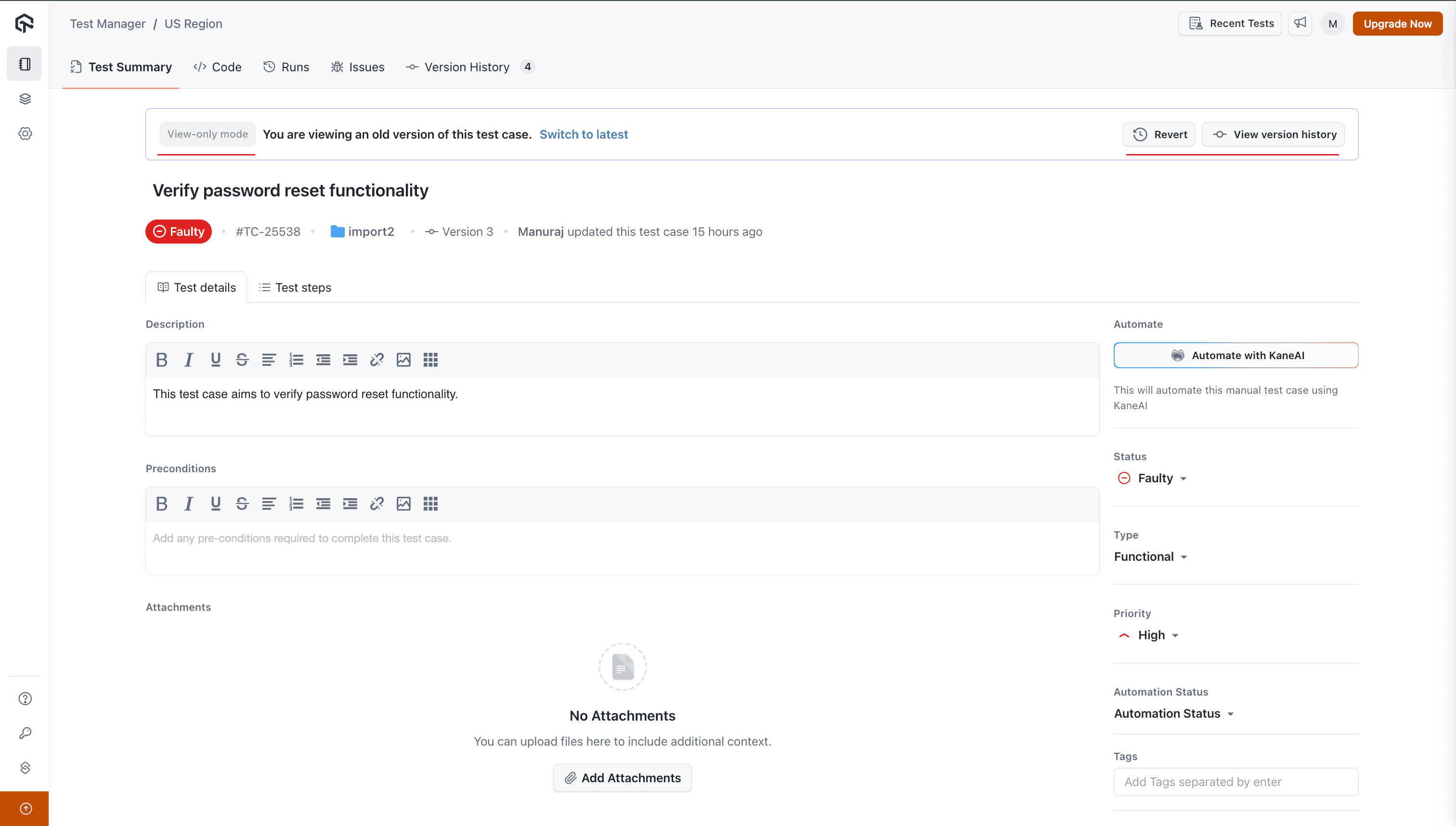
View Older Versions
To view the details of a test case at a specific version, open the desired commit and switch to View Mode. This shows the state of the test case at that point in time.
Revert to a Version
When you revert a test case to a specific version, a new version is created that copies the contents of the selected version.
Archive and Unarchive Events
Archiving and unarchiving a test case are recorded in the Version History tab with the user who performed the action and when. These entries are markers rather than versions: they do not create a new version, they do not change the version count, and they carry no Compare or Revert action. See Archive and Restore Test Cases.
Shared Test Cases
Sharing and unsharing a test case with other projects is recorded in the Version History tab without changing the version count. A test case shared with other projects is versioned only in its source project, and every project it is shared with sees the latest version. Test instances in those projects keep the version they were added with until the team updates them. See Version updates.


 Chat with Us