Use Variables, Parameters, and Secrets in Manual Test Cases and Modules
The variables, parameters, and secrets you create in KaneAI can also be used in manual test cases and in modules on the Modules page. Instead of typing a URL, a username, or a password into a step, you reference the value by name. Change the value once, and every test case and module that uses it picks up the change.
With parameters and a dataset, one manual test case can cover several data variations. For example, a single checkout test can run once each for the Basic, Premium, and Enterprise plans instead of being copied three times.
Available on request. Please reach out to Support to enable variables, parameters, and secrets in manual test cases and modules for your organization. Adding a module that contains references to a manual test case works for every organization.
What You Can Reference
All values are managed in KaneAI under Variables. A reference is written with the value's name inside the step text.
| Type | Written as | During a manual test run |
|---|---|---|
| Parameter | ${plan_type} | Uses the value from the dataset row of the test instance |
| Global variable | {{base_url}} or {{global.base_url}} | Uses the variable's value at the time the test instance was created |
| Organization secret | {{secrets.org.admin_password}} | Masked. The value is never shown |
| User secret | {{secrets.user.sandbox_token}} | Masked. The value is never shown |
| Environment variable | {{environment.api_host}} | Not filled in. Used only when KaneAI runs the test |
| Smart variable | {{smart.random_email}} | Not filled in. Used only when KaneAI runs the test |
| TOTP variable | {{totp.okta_mfa}} | Not filled in. Used only when KaneAI runs the test |
To learn how each type works, see Variables, Secrets, Smart Variables, TOTP, Parameters, and Datasets.
Insert a Reference in a Step
You can insert references in:
- The Test Step and Expected Outcome of a module on the Modules page.
- The Step Description and Expected Outcome of a manual test case.
- The scenario steps of a BDD test case.
- The steps or objective you write before handing a test to KaneAI: Quick Author, Automate with KaneAI on a manual test case, Create and Automate when generating test cases with AI, and Bulk Automate.
To insert a reference:
- Place the cursor in the step and type
{{to see variables and secrets, or${to see parameters. - Keep typing to filter the list by name. To narrow the list to one type, type a prefix such as
{{global.,{{secrets.org.,{{secrets.user.,{{environment., or{{totp.. - Select a value. The full reference replaces what you typed.
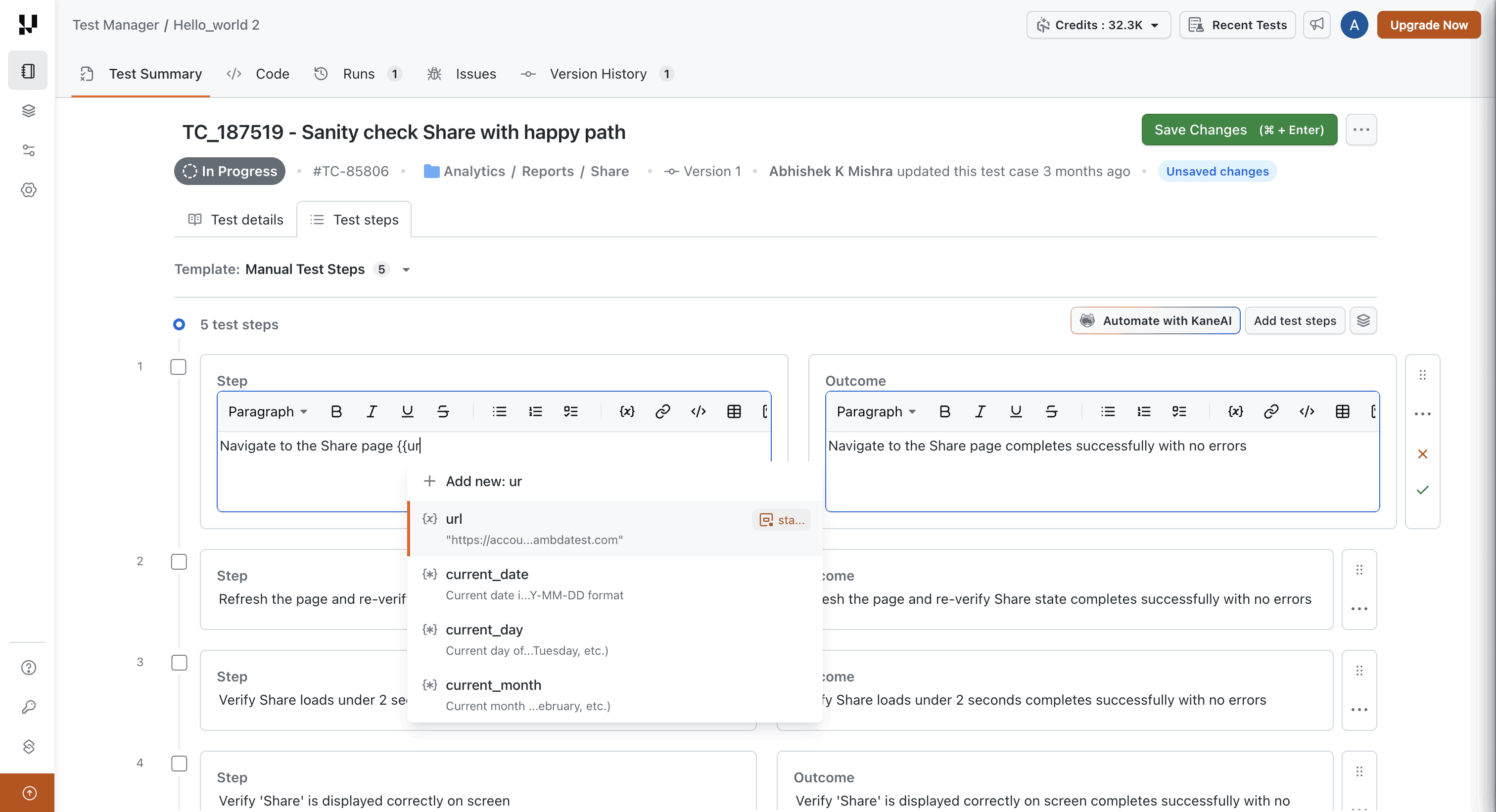
A few things to keep in mind:
- Add environment variables by typing
{{and selecting them from the list. A pasted environment variable reference is not recognized. - A reference behaves as a single unit. Deleting it removes the whole reference.
- References are not recognized in test case titles, descriptions, or preconditions, or inside inline code. There, the characters stay as ordinary text.
- The secrets list shows your organization's secrets and your own user secrets. Other users' secrets are never listed, and secret values are never shown.
Create a Missing Value
If the value you need doesn't exist yet, you can create it from the same list without leaving the step:
| Type | What you provide |
|---|---|
| Parameter | A name and a default value |
| Variable | A name, a value, and a scope: Global, or one environment to create an environment variable |
| Secret | A name, a value, a scope (Organization or User), and an optional description |
The new value is saved under KaneAI Variables, and its reference is inserted where you were typing.
- Names can contain letters, digits, and underscores, must start with a letter or underscore, and can be up to 64 characters long.
- Only organization admins can create organization secrets. Other members can create user secrets.
- On the free plan, you can pick existing parameters and secrets but cannot create new ones.
- Smart variables, TOTP variables, and JSON variables are created from the Variables page only.
Choose an Environment When Automating With KaneAI
Environment variables can hold a different value in each environment, such as Dev, Stage, or Production. In a manual test case, an environment variable stays as a reference. It gets its value when KaneAI runs the test, from the environment chosen for that session.
When you click Automate with KaneAI on a manual test case, choose the environment in the Environment field before you start testing. The environment cannot be changed once the session starts. You can also choose the environment before automating from Create and Automate and Bulk Automate.
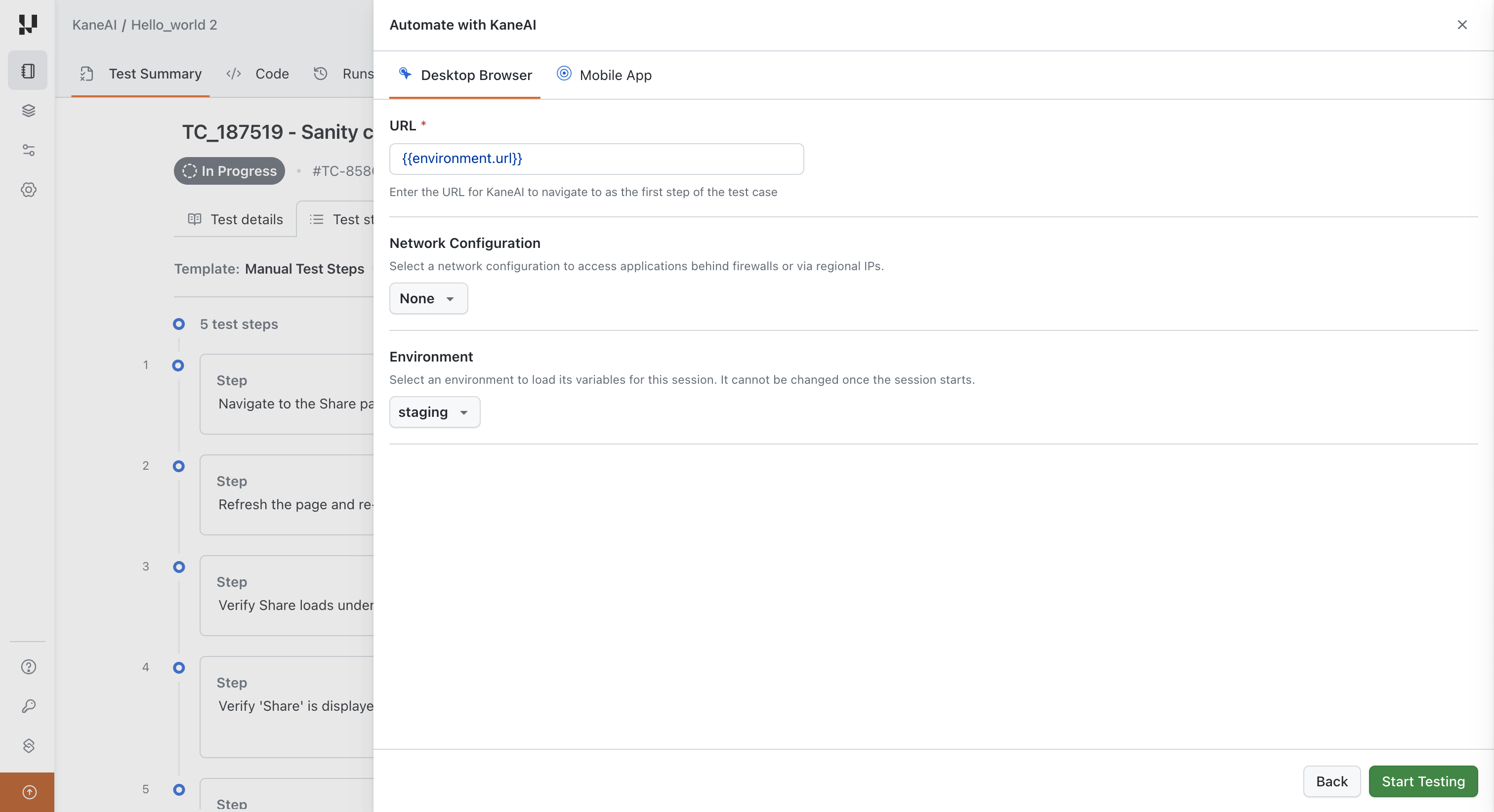
To learn how environment variables behave inside a KaneAI session, including importing modules that use them, see Select an Environment for an Authoring Session.
Edit Module Steps That Use References
On the Modules page, you can edit, delete, and reorder module steps that only use references. Previously, any step containing a reference was locked.
| Step | Edit, delete, or reorder |
|---|---|
| A plain instruction, such as Click the Login button | Yes |
| An instruction that only uses references, such as Enter the admin password secret in the Password field | Yes |
| A step that creates or stores a variable | No. Open the module in KaneAI to change it |
| API, JavaScript, database, If-Else, While Loop, and other advanced steps | No |
When you save your changes:
- A new module version is created. Manual test cases use the latest version.
- KaneAI test cases that use the module stay on their current version until you update them. The changed steps must be authored in KaneAI before KaneAI can run the new version.
- If a step references a value that doesn't exist, you're warned before saving. Tests that use the module fail validation until the value is created.
For more on module versions, see Create Modules.
Add a Module With References to a Manual Test Case
Modules that contain variables, parameters, or secrets can be added to manual test cases. The references in the module are kept as they are:
- Parameters used by the module are added to the test case, along with a column for each in the test case's dataset.
- Global variables and parameters get their values when a test run instance is created.
- Secrets stay masked during execution.
- Environment, smart, and TOTP variables are kept, but are filled in only when KaneAI runs the test.
Modules that contain If-Else or While Loop blocks still cannot be added to manual test cases.
See What a Test Case Uses
Open the Test details tab of a manual test case to see the values its steps use:
- Parameters: the parameters the test case uses. Click View linked dataset to open the dataset linked to the test case.
- Variables & Secrets: the variables and secrets the test case uses. Secret values are never shown.
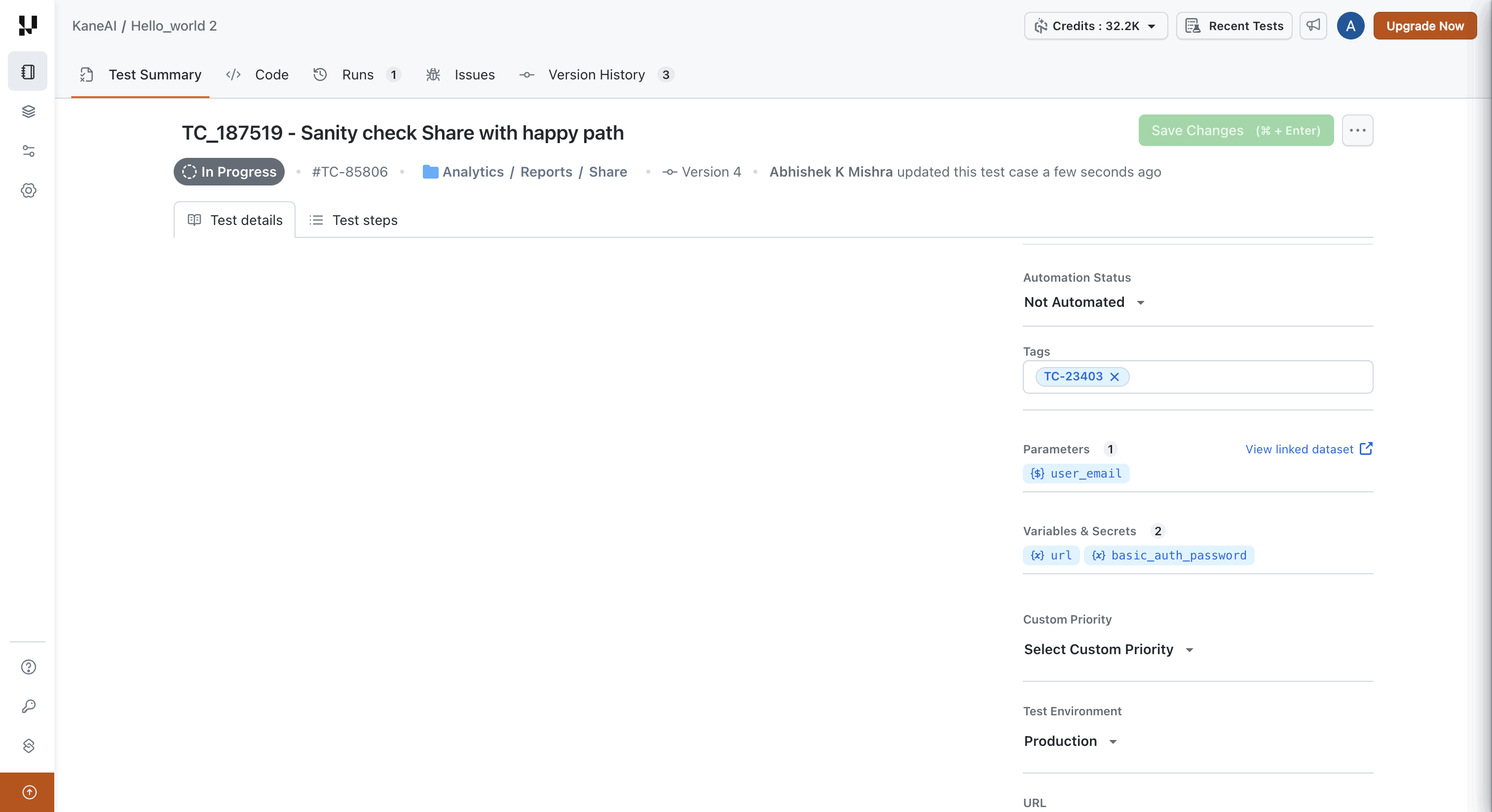
When you compare versions of a test case, steps show the references only, without values.
Use Datasets With Manual Test Cases
Manual test cases use datasets the same way KaneAI test cases do.
- Default dataset: when you save a test case with its first parameter, a dataset named after the test case is created and linked. It has one row holding each parameter's default value and is kept up to date for you.
- More variations: to cover more variations, create a dataset with the same parameters and add a row for each variation. When you add the test case to a test run, you can pick any dataset that contains its parameters.
- New parameters: when you add a parameter to a test case, a column is added to its linked dataset, and every existing row gets the parameter's default value.
To create and edit datasets, see Datasets.
Run Parameterized Manual Test Cases
To run a manual test case that uses parameters in a manual (non-KaneAI) test run:
- Create a test run and add the test case. See Test Run Creation and Management.
- In the Set Configurations and Assignee step, click Set Dataset on the test case's configuration.
- Select a dataset and click Apply. Only datasets that contain the parameters the test case uses are listed.
- Assign the test instances and save the test run.
The run creates one test instance per dataset row for each configuration. Test cases without parameters get a single instance. From the test run, you can view the dataset values each instance uses.
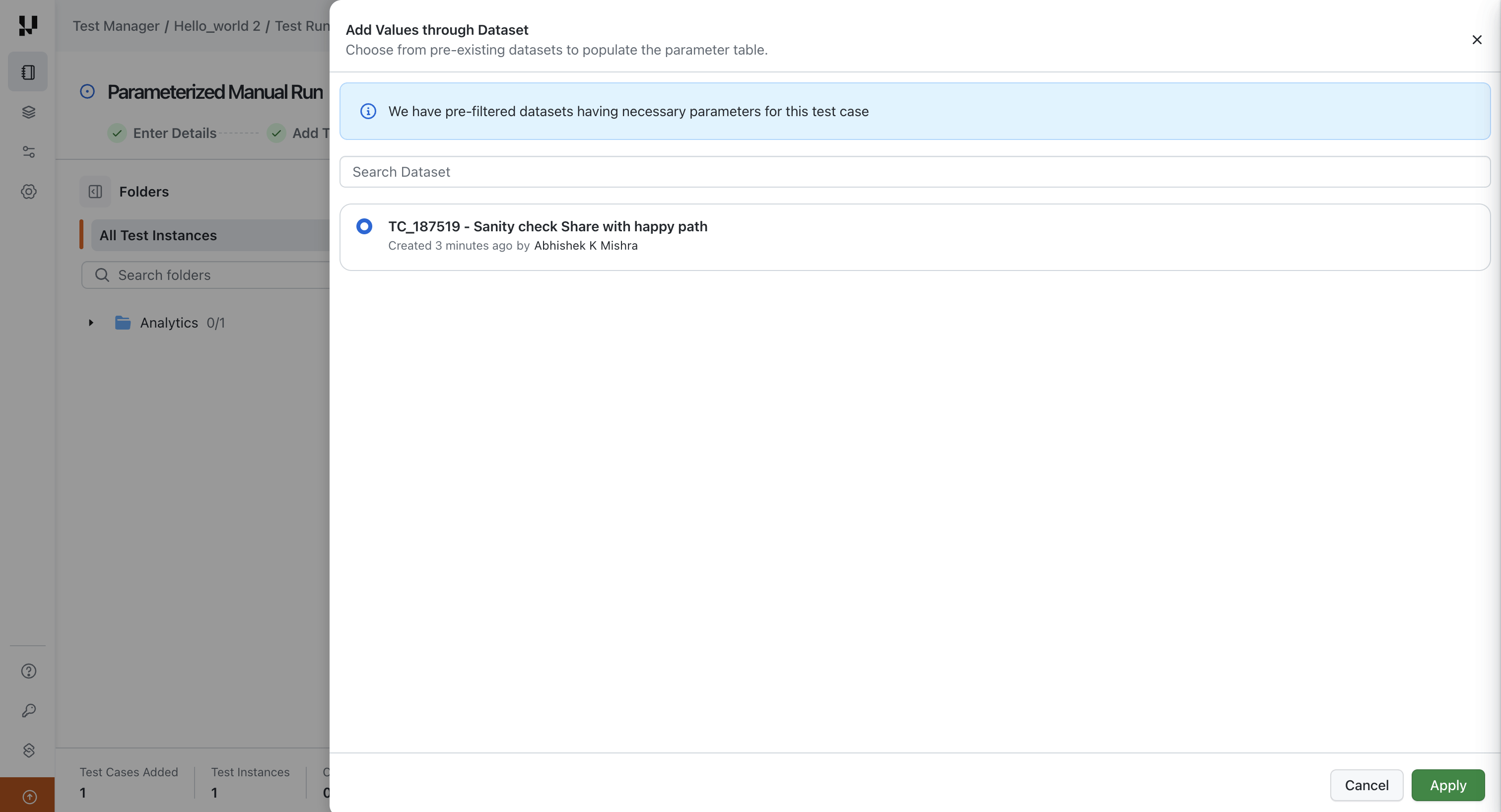
If you change the dataset for a test case that already has instances in the run, you're asked to confirm first. Confirming replaces its instances with one per row of the new dataset, and removes the results recorded on the old instances.
Execute a Test Instance
When a tester opens a test instance, its steps show the values to use in place of the references:
- Parameters show the value from the instance's dataset row.
- Global variables show their value at the time the instance was created.
- Secrets stay masked. Their values cannot be revealed or copied.
- Environment, smart, and TOTP variables stay as references. They are filled in only when KaneAI runs the test.
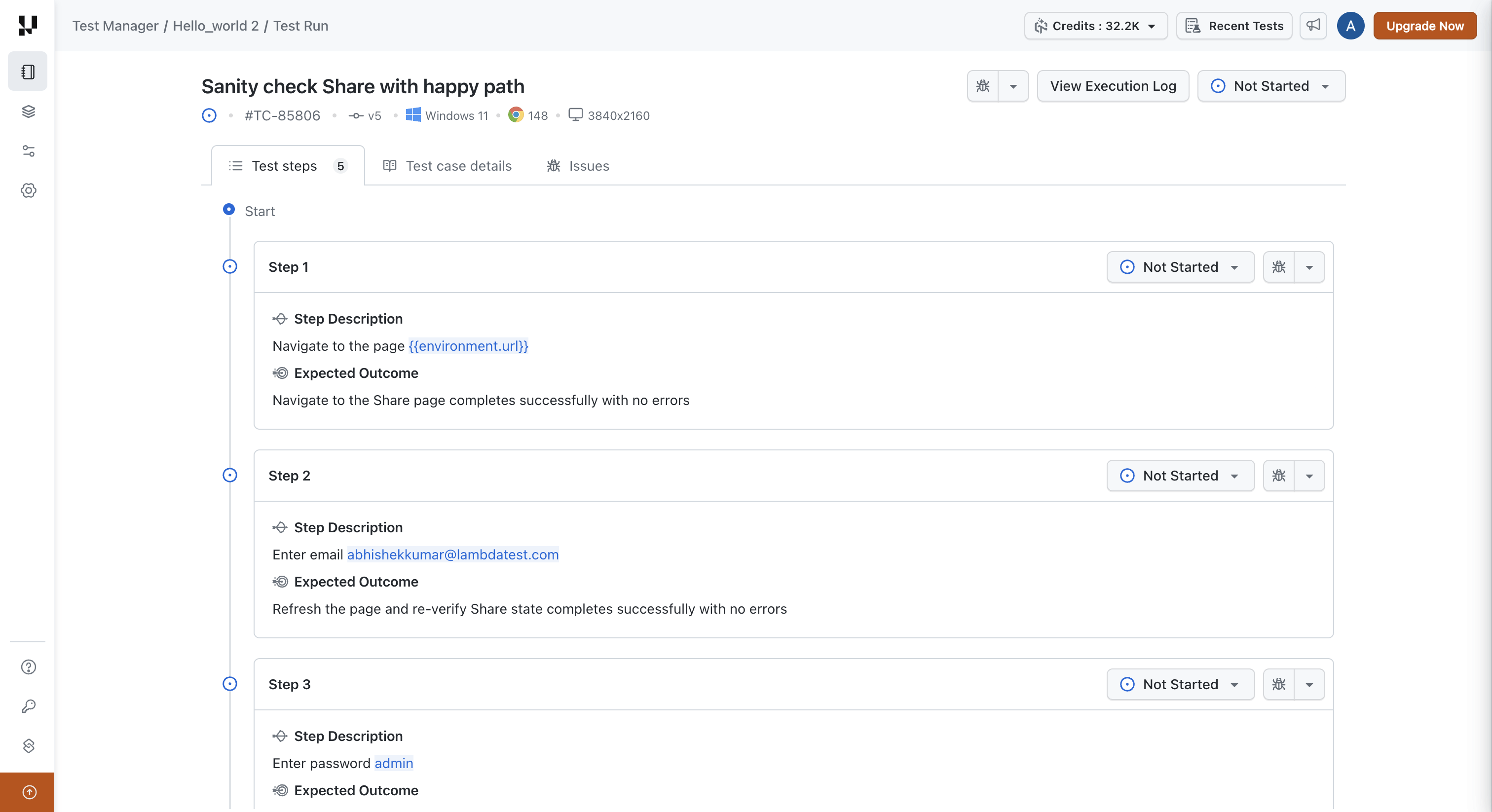
Values are fixed when an instance is created. Later changes to the dataset, a parameter's default value, or a global variable do not change existing instances.


 Chat with Us