Link Jira Issues with Test Manager
Test Manager enhances its functionality by seamlessly linking test cases with Jira issues. This integration ensures a reliable connection between your testing activities and Jira tasks, optimizing project management and collaboration across teams.
Initial Setup and Configuration
Note: If you have already integrated Jira with your TestMu AI account, you can skip this section and proceed directly to Linking Jira Issues
- Navigate to the Integration page to integrate your TestMu AI account with Jira. Search for Jira and click on Connect.

- A side drawer will open to initiate Jira integration. Click on Install to proceed.

- A prompt will appear requesting access to your Atlassian account. Click on Accept to proceed.

- Select your Jira instance site, click on Select Site & Proceed, then select your preferred project and click Integrate Projects & Install.
Requirements and defects
Where you link a Jira issue decides what it is in Test Manager:
| Where the issue is linked | What it becomes | What it tells you |
|---|---|---|
| Test case or test run | Requirement | What the test validates |
| Test instance or step in a test run | Defect | What testing found |
The issue type in Jira does not change this. A Jira bug linked on a test case is a requirement, because the test checks that bug, and a sub-task linked on a step is a defect. To change the role of a link, unlink the issue and link it in the right place.
Issues you linked before this change were given a role automatically, using the same rule.
Requirements and defects are currently in slow rollout. To get early access, raise a request to our support team. Until they are enabled for your organization, linked issues appear in a single list.
Linking Jira Issues in Test Manager
Once the integration is complete, follow these steps to link a requirement to your test cases or test runs:
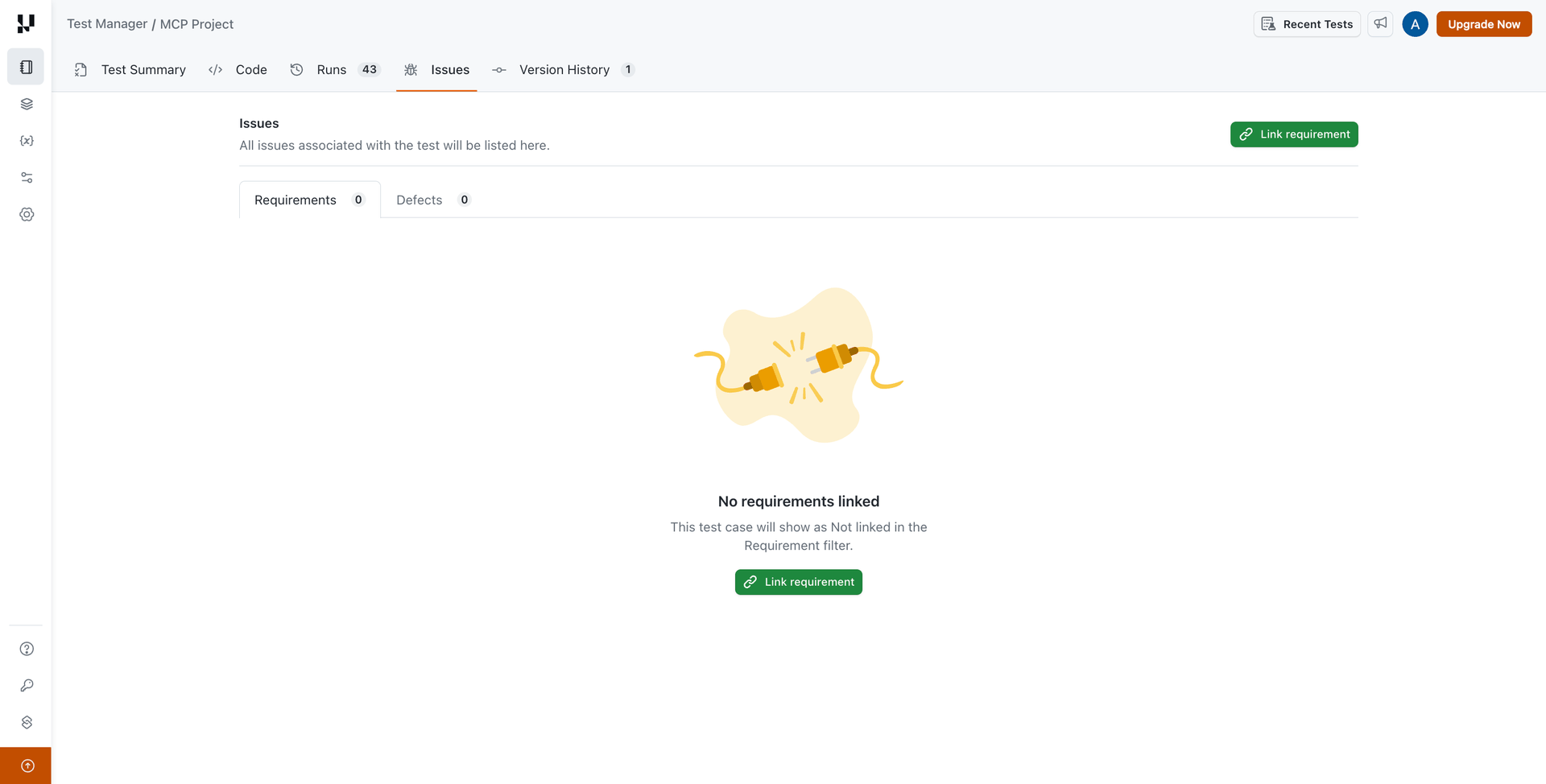
- Open the Issues tab of a test case and click Link requirement. On a test run, open its Issues tab and click Link requirement to run.
Note: To link a defect on a test instance or a step, see Track Bugs and Issues in Test Runs.
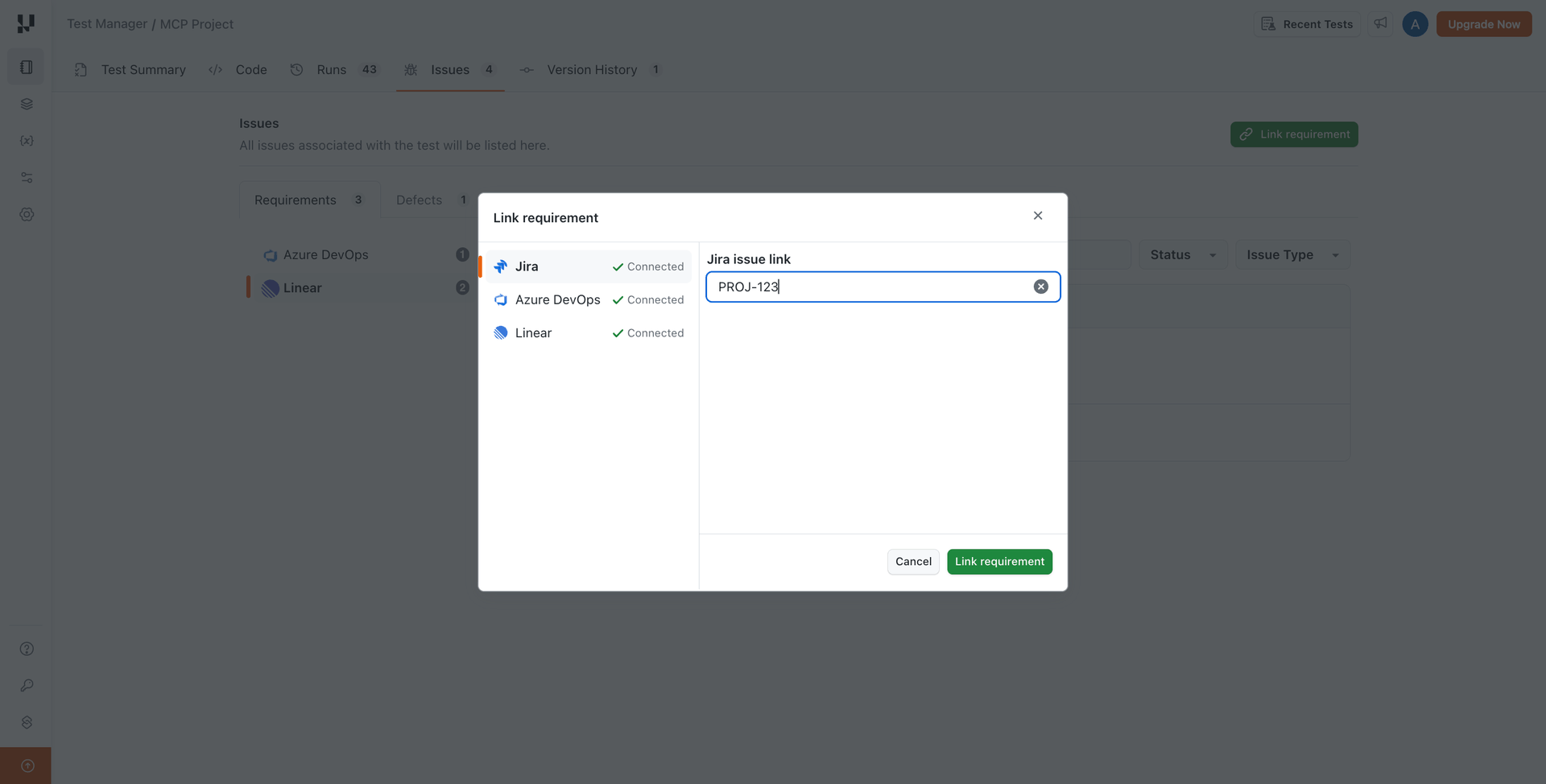
- Select Jira, enter the Jira issue key or URL, and click Link requirement.
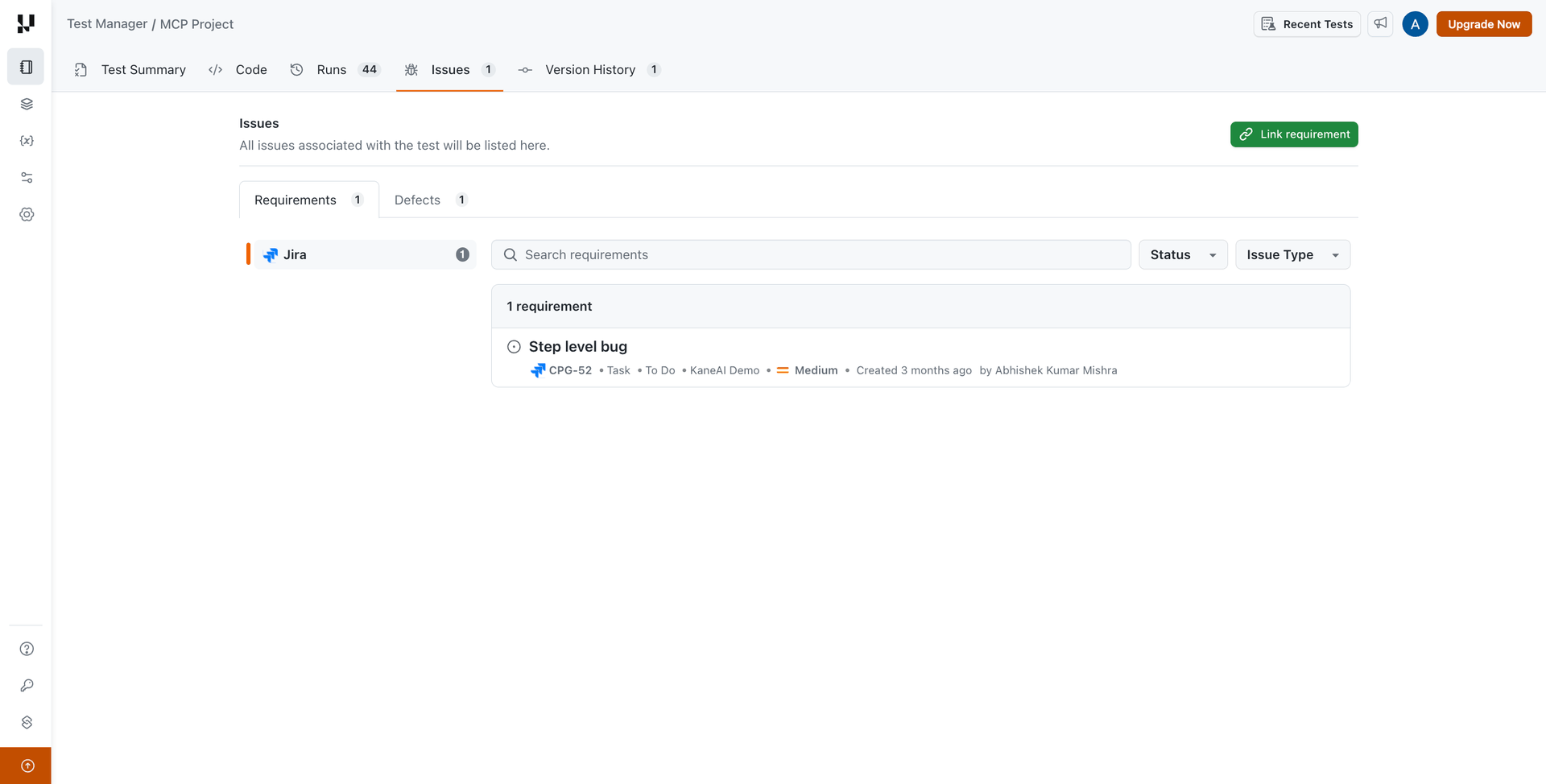
- The Jira issue from your integrated Jira Project is linked and listed under Requirements. You can view the Issue summary, ID, type, status, priority, and creator.
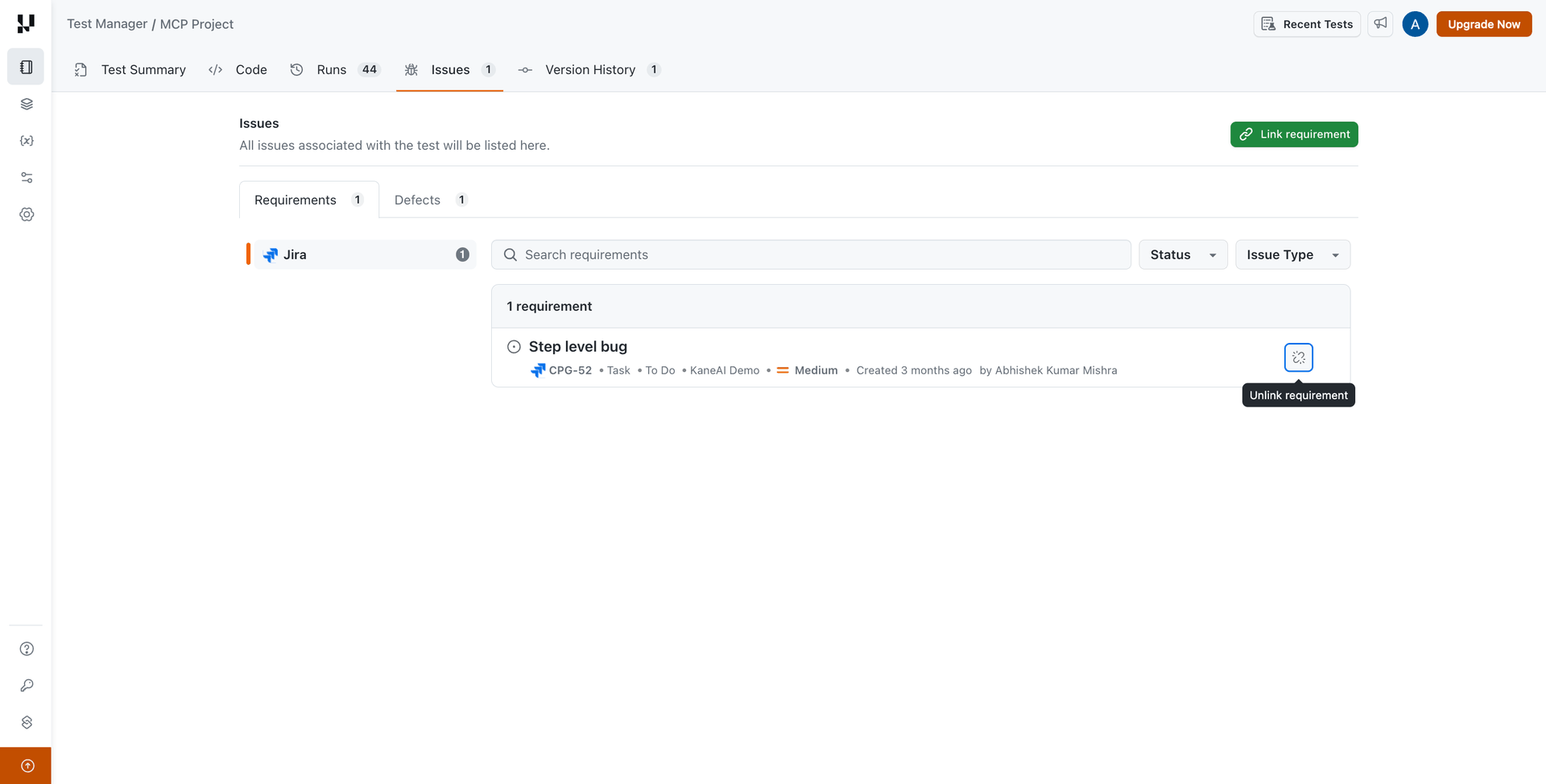
- To unlink an issue, hover over the Jira issue and click Unlink requirement on the right side of its row.
Issues on a test case
The Issues tab of a test case has two tabs, each grouped by tracker. Use the search box and the Status and Issue Type filters to narrow a long list.
- Requirements: the issues linked on this test case. You can link and unlink them here.
- Defects: the defects raised or linked on this test case's instances and steps, across its test runs. Each one shows where it was raised, and View in run opens that run. This list is read-only, so you add and remove defects from the test run.
A defect counts as open based on its status in Jira.

 Chat with Us