Share Test Cases Across Projects
Many teams keep one central set of test cases, such as a regression repository, and several product teams run the same cases in their own projects. For example, an Android team and an iOS team may run the same checkout cases in separate projects during a release. Copying the cases into each project gives every copy a new ID, and the copies drift apart as soon as the original changes.
TestMu AI Test Manager lets you keep a test case in one project, the source project, and share it with other projects in your organization:
- The test case keeps its same ID in every project it is shared with. Nothing is copied, and no new test case is created in the receiving project.
- It is maintained only in the source project. Receiving projects use it read-only.
- Every change reaches every receiving project. When the source project saves a new version, receiving projects see it straight away.
- Each project runs it independently. Every receiving project adds the case to its own test runs, and results are never visible outside the project that recorded them.
Sharing compared with copying and moving
| Share | Copy | Move | |
|---|---|---|---|
| Test case ID | Same ID in every project | The copy gets a new ID | Keeps its ID, now owned by the destination project |
| Where it is edited | Only in the source project | Each copy is edited on its own | In the destination project |
| Changes to the original | Reach every receiving project automatically | Do not reach the copy | Not applicable |
| Available in | The source project and every project it is shared with | The source and the destination, as two separate test cases | Only the destination project |
| Test runs and results | Separate in each project | Separate in each project | Belong to the project that ran them |
Use sharing when several projects need the same test case and it must stay identical everywhere. Use copy when a project needs its own version that it can change freely.
At a glance
| Topic | Behaviour |
|---|---|
| Who can share | Users who can update test cases in the source project and create test cases in each receiving project |
| In the receiving project | Listed under Shared Incoming, naming the project it is shared from. Optionally added to a folder as well |
| Editing | Only in the source project. Read-only in receiving projects for every role, including admins |
| Versions | Receiving projects always see the latest version. Test instances keep the version they were added at until the team updates them |
| Execution | Each receiving project executes the test case in its own test runs |
| Unsharing | Removes the receiving project's test instances and results for that test case permanently |
Before you start
Availability
This feature is not generally available yet. It is turned on for selected organizations and is being rolled out gradually. To have it enabled for your organization, contact TestMu AI support.
Permissions
Sharing uses the existing Test Manager permissions. There is no separate permission for sharing.
| Action | Permission needed | In which project |
|---|---|---|
| Turn project sharing settings on or off | Update project | The project whose settings you change |
| Share a test case | Update test case, and create test case | Update in the source project, create in each receiving project |
| Unshare a test case | Update test case | Source project |
| View shared test cases | List and read test cases | Receiving project |
| Add a shared test case to a test run | Update test run | Receiving project |
| Execute a shared test case | Execute test run | Receiving project |
| Remove a project's access to a shared test case | Delete test case | Receiving project |
If you don't have create test case permission in a selected receiving project, that project is skipped and the share completes for the others. For details on roles, see RBAC Roles and Permissions.
Turn on sharing in project settings
Each project has two sharing settings, one for each direction:
| Setting | What it controls |
|---|---|
| Share test cases with other projects | Whether test cases in this project can be shared out. When it is off, the share option is hidden on every test case in the project |
| Receive test cases from other projects | Whether other projects can share test cases into this project. When it is off, the project can't be selected as a receiving project |
To change them:
- Open the project in Test Manager and go to the Settings tab.
- Select Test Cases Sharing.
- Turn each setting on or off, then save the change.
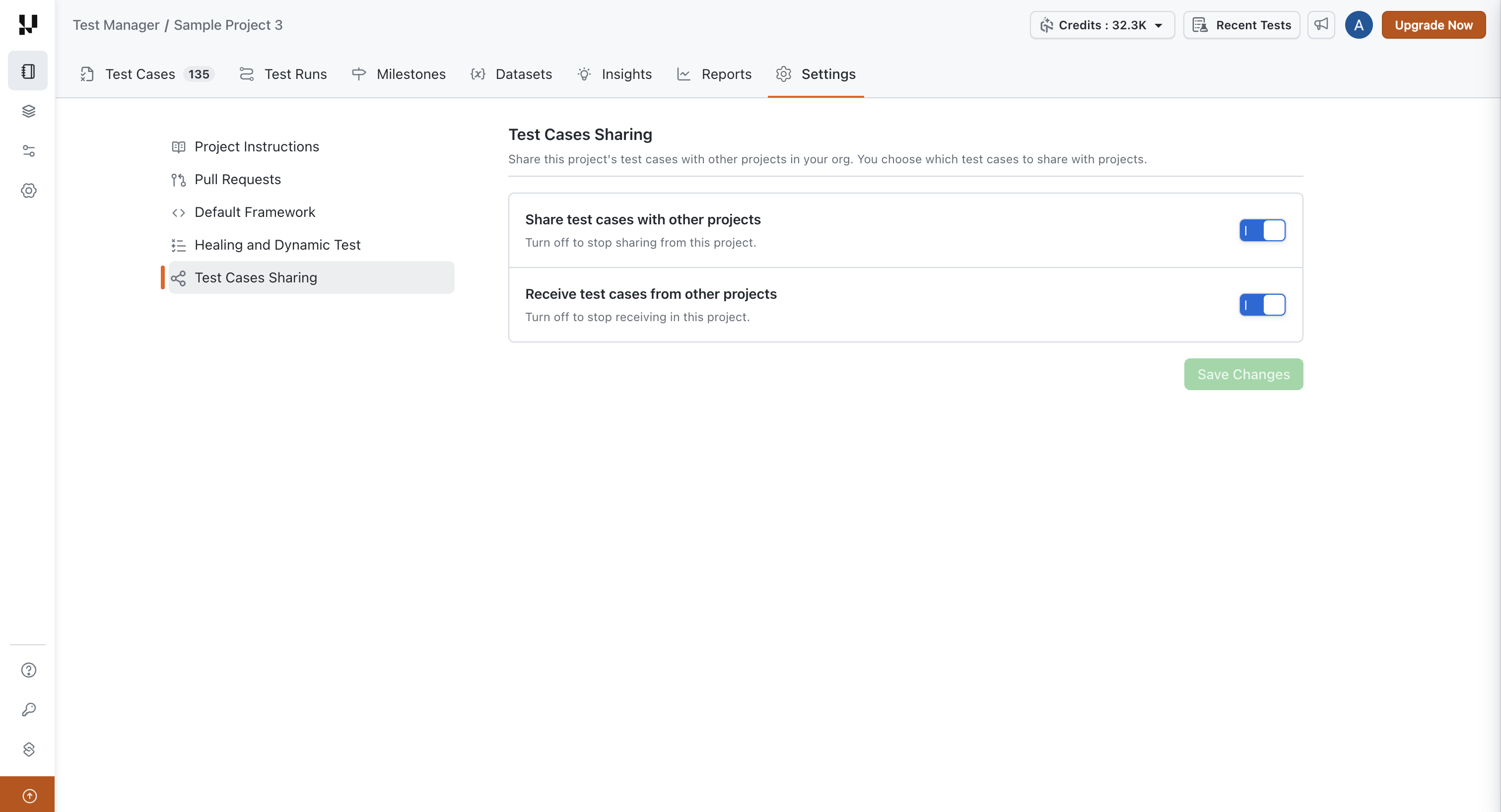
You can't turn a setting off while shares exist in that direction. To turn off sharing out, first unshare every test case this project shares with other projects. To turn off receiving, first remove this project's access to every test case shared into it. The two directions are checked separately, so test cases shared into a project don't stop you from turning off sharing out.
Share test cases with other projects
-
Open the source project and go to the Test Cases tab.
-
Start the share in one of these ways:
- One test case: open the test case's menu in the list, or the menu in the test case summary, and choose the share option.
- Several test cases: select them using their checkboxes, then choose the share option from the bulk actions.
-
Select the projects to share with. Projects that can't receive the test cases can't be selected, and show the reason. For example, the project has receiving turned off, or you don't have access to it.
-
Optionally, for each selected project, add the test cases to a folder in that project. That adds a shortcut to the folder, and you can choose one folder per project. If you don't choose a folder, the test cases are still available in that project under Shared Incoming.
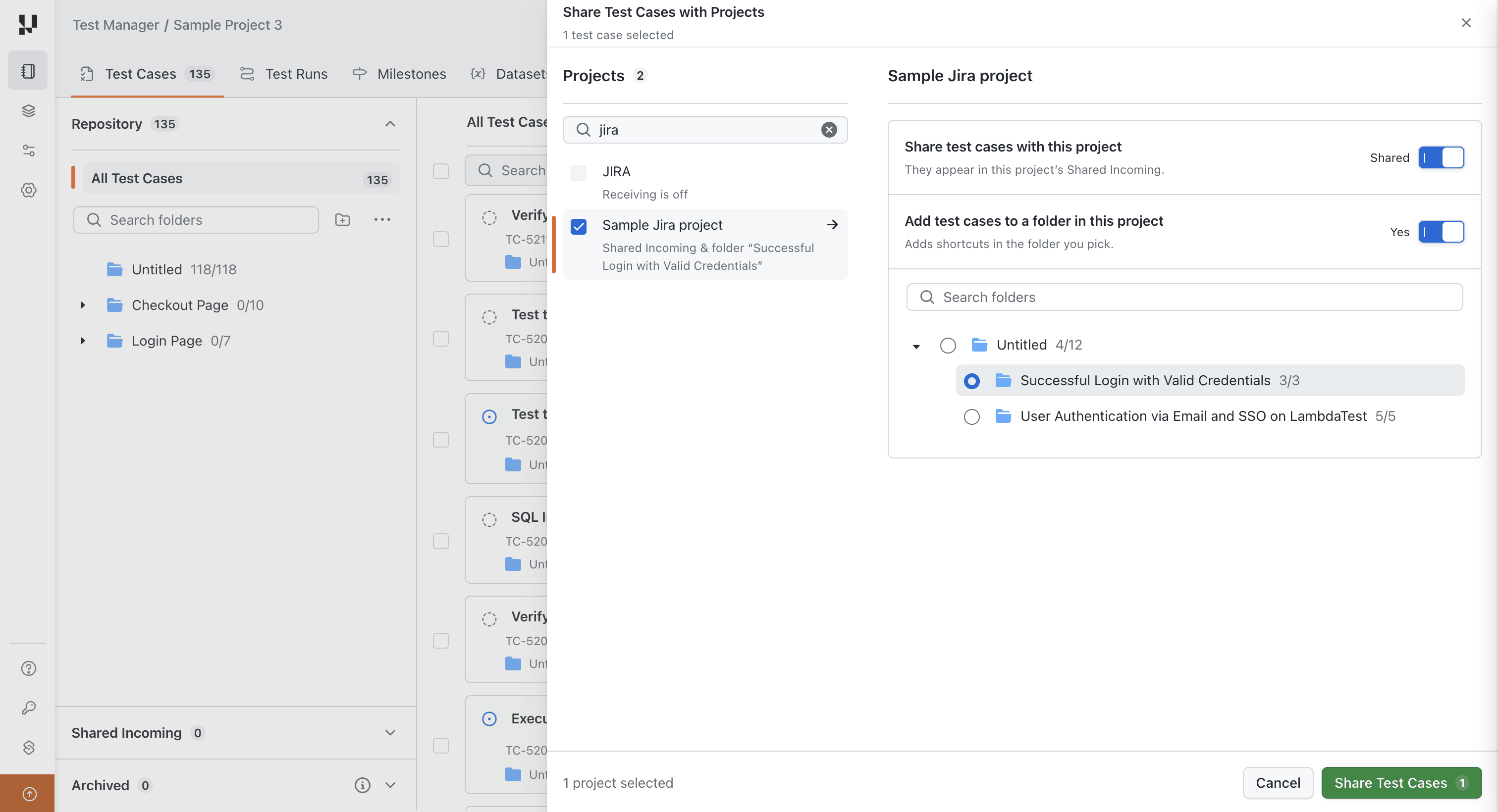
-
Click Share Test Cases. A message confirms that the test cases are shared.
In the source project, a shared test case shows how many projects it is shared with.
What can be shared
- Test cases of any status. There is no approval step. The test case's status is shown to receiving projects so they can judge whether it is ready to use.
- Test cases with automation. The automation travels with the test case, so receiving projects can execute it as well.
- Only test cases the project owns. A test case shared into a project can't be shared on to another project. Share it from its source project instead.
Change sharing for test cases that are already shared
If some of the test cases you select are already shared with a project and some are not, you choose what to do for that project. You can choose a different option for each project in the same share action.
| Option | What happens |
|---|---|
| Keep as is | Nothing changes for that project |
| Share remaining | Only the test cases not yet shared with that project are shared. Test cases already shared keep their current folder |
| Share all | All selected test cases are shared, and test cases already shared are moved into the folder you choose. If you don't choose a folder, they are removed from the folders they were in |
| Remove for all | Every selected test case is unshared from that project |
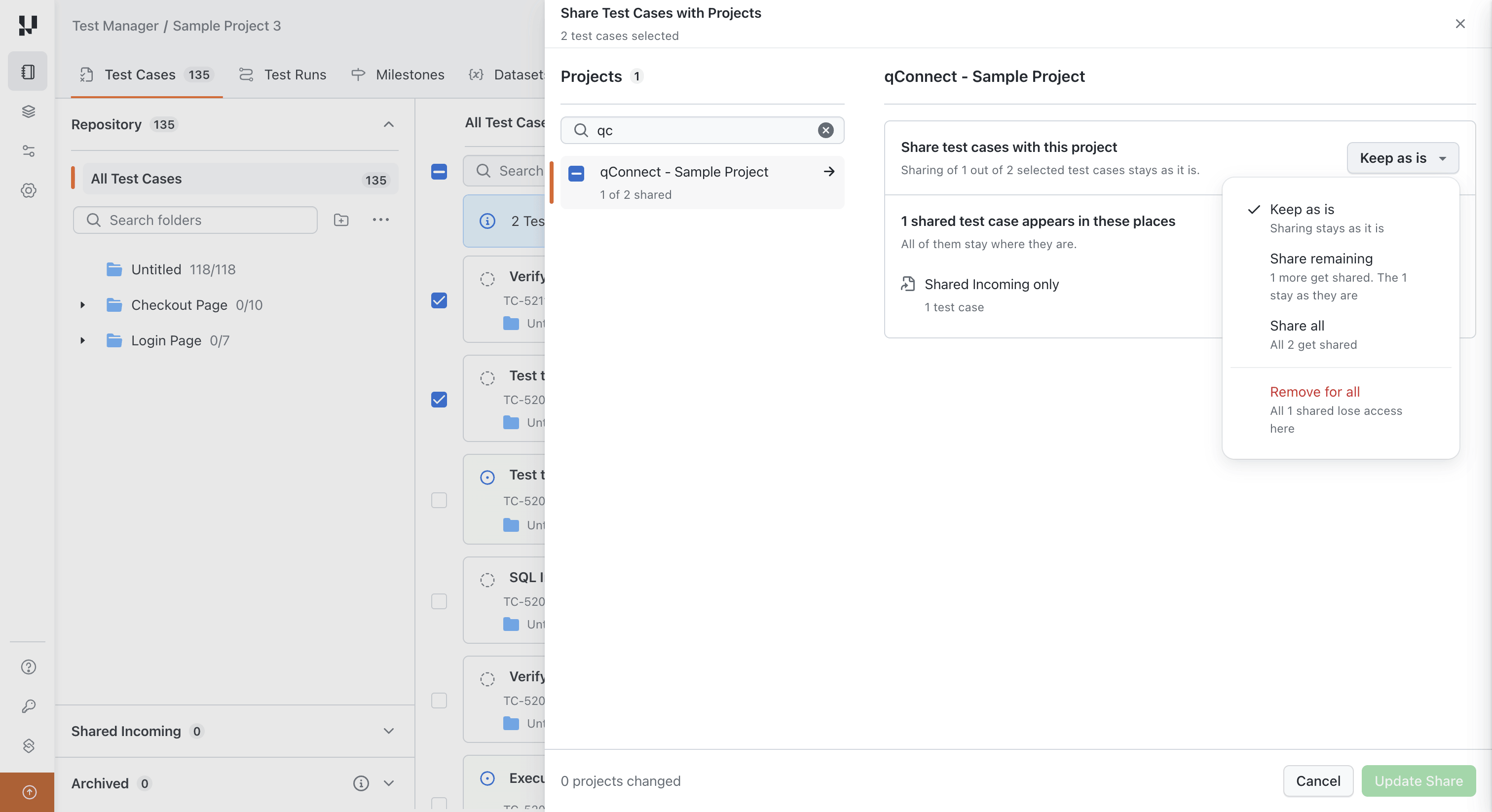
Share all reorganizes the receiving project's folders without asking that project's team. Remove for all is an unshare, and permanently removes that project's test instances and results for those test cases. See Unshare test cases.
To move a single project's folder for a test case that is already shared, share it with that project again and choose the new folder.
Use shared test cases in a receiving project
Find shared test cases
In the receiving project's Test Cases tab:
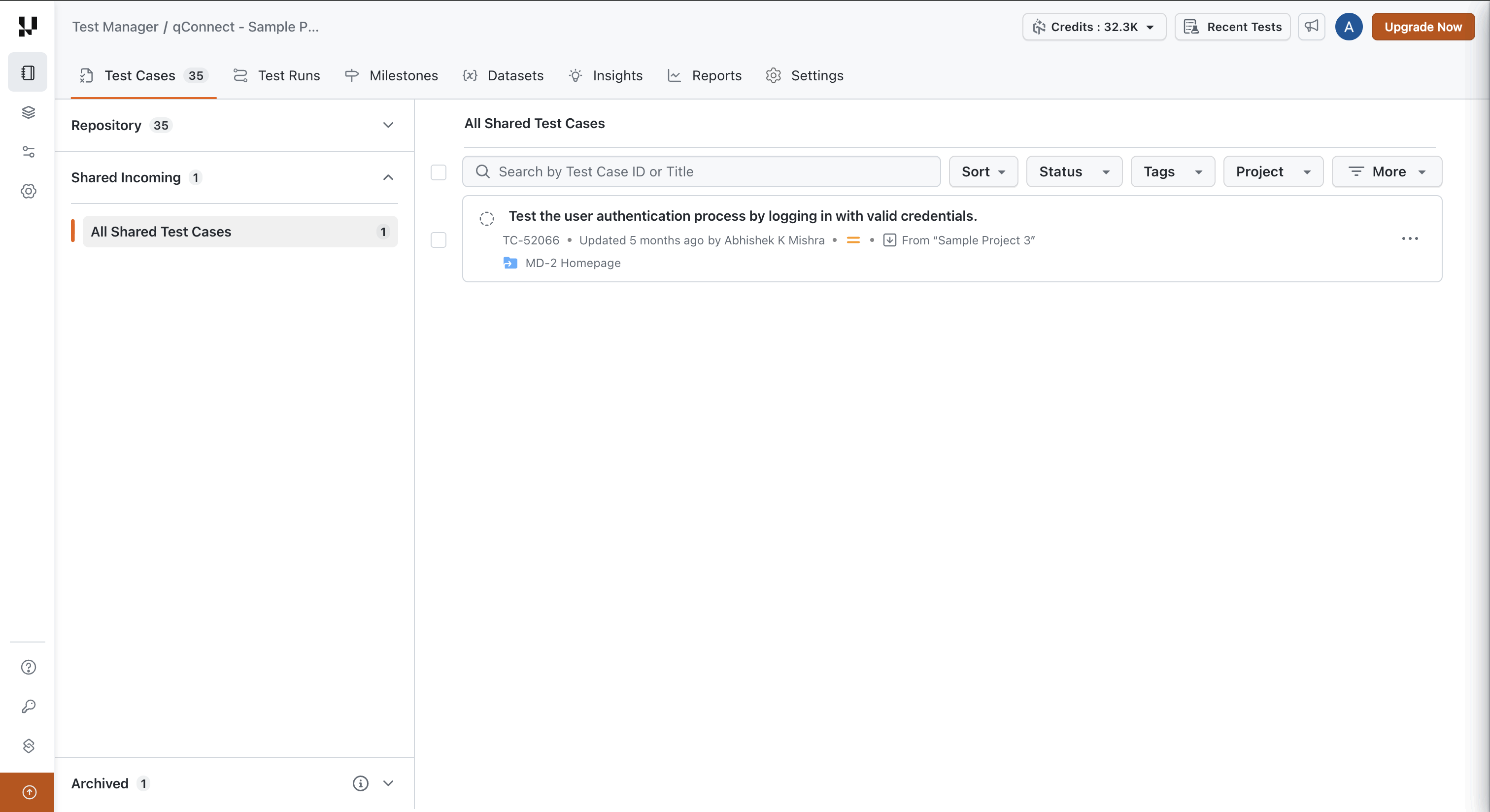
- Shared Incoming in the folder panel lists every test case shared into the project, with its own count. It is a flat list with no folders, and you can filter it by source project. Switch the Project filter to Not Equals to hide the test cases shared from the projects you select. See Include or Exclude Values.
- All Test Cases also includes shared test cases, and they can be found by title and ID in search.
- A folder includes the shared test cases added to it.
Every shared test case names the project it is shared from, wherever it is listed or opened. This helps you tell apart test cases with similar titles. If you have access to the source project, you can open the test case there from its summary.
Add shared test cases to a folder
A receiving project can add a shared test case to one of its own folders, one at a time or in bulk. This only places it in the receiving project's folder. The test case stays under Shared Incoming, and the source project and other receiving projects are not affected.
Removing a shared test case from a folder does not remove the project's access to it. It stays under Shared Incoming.
Shared test cases are read-only
In a receiving project, a shared test case can't be edited. This applies to its details, fields, and steps, and to every role, including project and organization admins. The test case summary opens in view-only mode and names the source project it is shared from, with a link to open it there.
To change a shared test case, edit it in its source project. The change reaches every project it is shared with.
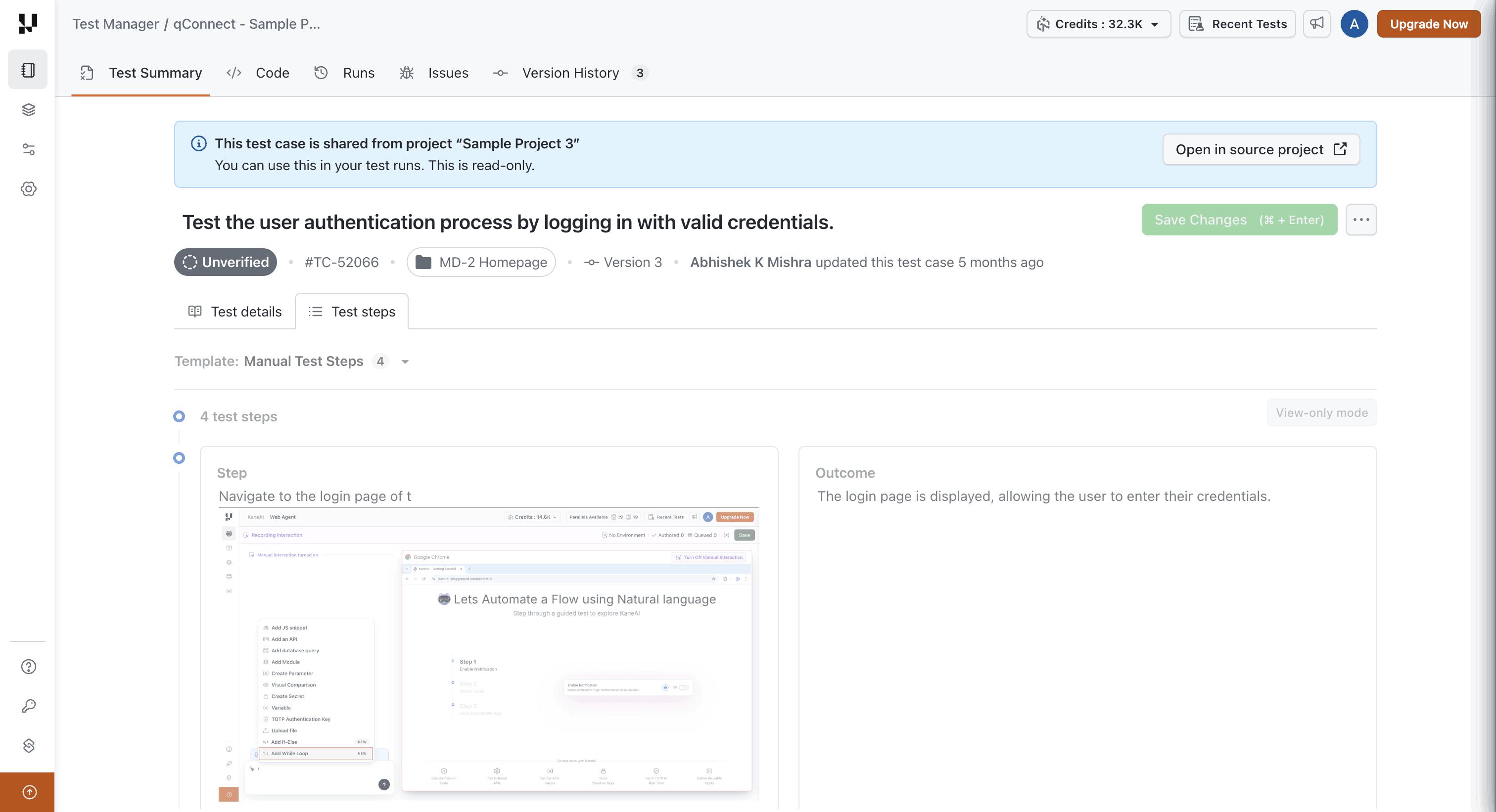
Bulk actions that change test cases, such as bulk update, move to folder, change status, and delete, skip shared test cases in a mixed selection and report how many were skipped. Actions that don't change test cases, such as search, sort, filter, and adding to a test run, include them.
Counts
- Shared Incoming carries its own count, separate from the project's folders, so you can see how many test cases are shared into the project.
- Test Run Insights covers only test cases the project owns. Shared test cases are not included there.
Add shared test cases to test runs
When you create a test run or add test cases to an existing test run in a receiving project, shared test cases can be selected like any other:
- Select Shared Incoming to see the test cases shared into the project, or filter by source project.
- Select shared test cases that are in a folder from that folder.
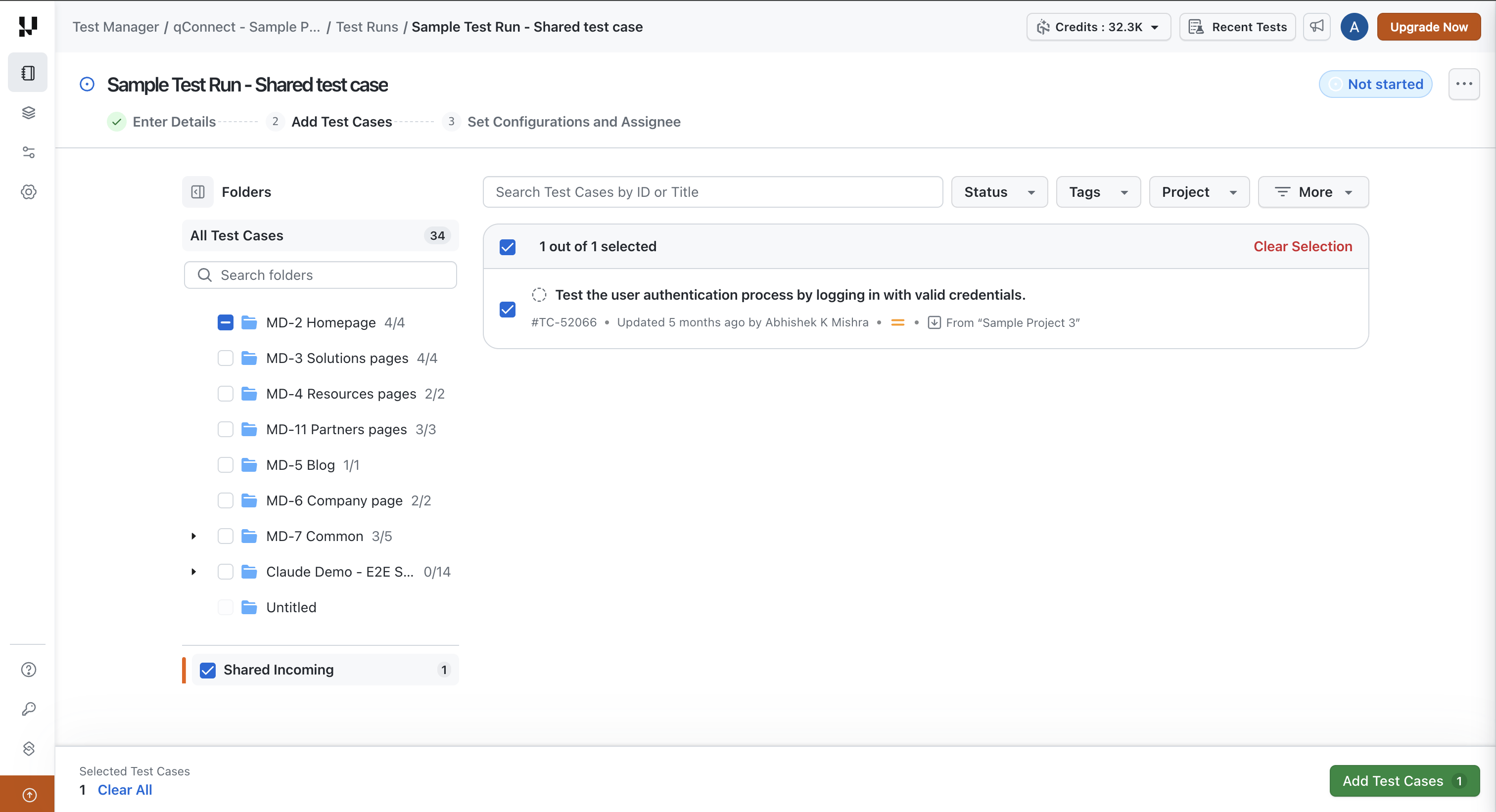
Test runs, test instances, and results belong to the project that created them. If two projects run the same shared test case, neither project sees the other's results, and the source project does not see either.
Shared test cases are executed in the receiving project like any other test case, both manually and through automated runs.
Version updates
Shared test cases use the same versioning as any other test case:
- The test case itself always shows its latest version in every project.
- A test instance keeps the version it was added to the test run with. When the source project saves a newer version, the test instance shows that an update is available. The receiving team decides when to update each test instance, even if they don't have access to the source project.
- Results already recorded stay linked to the version they were recorded against.
Each project controls its own timing. For example, the Android team can keep a release test run on version 2 while the iOS team updates to version 3. A new test instance always uses the latest version.
For more on versions, see Test Case Versioning.
Unshare test cases
A share can be removed from either side:
- From the source project: unshare a test case from one or more receiving projects. Unsharing from one project does not affect the others.
- From a receiving project: remove the project's access to a shared test case, one at a time or in bulk.
The confirmation names the test case and states that it is removed from the project along with any folder shortcuts, that test runs using it can fail afterwards, and that getting it back takes a new share from the source project.
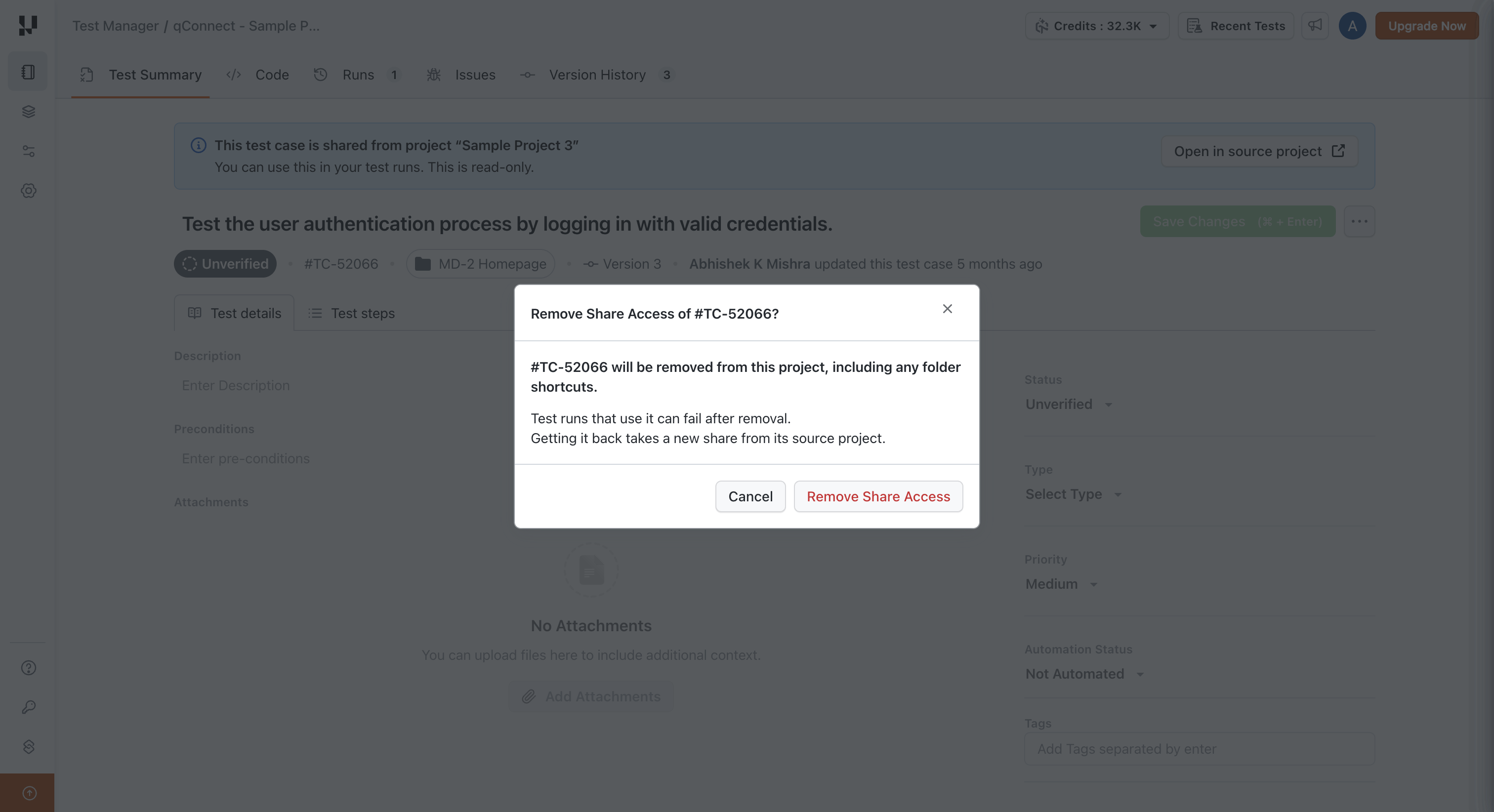
Unsharing permanently removes the receiving project's test instances of that test case, along with their results, from its test runs. They can't be restored. Sharing the test case again gives the project access again, but does not bring back the removed results.
After unsharing, the test case is also removed from the receiving project's folders. To get it back, the source project must share it again.
How other actions affect shared test cases
Archive
- Archiving a test case in the source project does not unshare it. Every receiving project keeps its access.
- An archived test case can't be added to new test runs, in the source project or in any receiving project. Test runs that already contain it keep their test instances and results.
- In receiving projects, an archived shared test case is hidden from All Test Cases and folders, and remains under Shared Incoming marked as archived.
- Only the source project can restore it. Once restored, it can be used again everywhere without sharing it again.
For more, see Archive and Restore Test Cases.
Move
| Move | What happens |
|---|---|
| To another folder in the source project | Allowed. Receiving projects keep their access, and the folder they added it to is unchanged |
| To another project | Allowed after a warning. The destination project becomes the new source project, and every share moves with the test case, so receiving projects keep their access. The original project loses access to the test case |
| To a project the test case is already shared with | Allowed. That project now owns the test case instead of receiving it. The folder it was added to in that project is pre-selected as the destination. Other receiving projects keep access |
For more, see Copy and Move Test Cases.
Delete
Deleting a shared test case, a folder that contains shared test cases, or a source project is allowed. The confirmation shows how many projects the test case is shared with.
Deleting a shared test case removes it from every project it is shared with, along with the test instances and results of every one of those projects. This can't be undone. Check the number of affected projects in the confirmation, and let those teams know before you continue. If you only want to stop using a test case, archive it instead: receiving projects keep their existing results.
Limitations
- Same organization only. Test cases can be shared only with projects in the same organization.
- No sharing onward. A test case shared into a project can't be shared from that project to another.
- Test Run Insights includes only test cases the project owns.
- Unsharing and deleting remove results permanently in receiving projects.
Frequently asked questions
Does sharing create a copy of the test case in the receiving project? No. The receiving project uses the same test case, with the same ID, maintained in the source project.
Can a receiving project edit a shared test case? No. Edit it in the source project, and the change reaches every receiving project.
Will a change in the source project change test runs that are already in progress? No. Existing test instances keep their version and show that an update is available. The receiving team chooses when to update.
Can a user without access to the source project use a shared test case? Yes. They can view it, add it to test runs, and update test instances to a newer version in the receiving project. Only the option to open it in the source project needs access there.
Why can't I turn off sharing in project settings? The project still has test cases shared in that direction. Unshare them, or remove access to them, then turn the setting off.
Related resources
| Topic | Doc |
|---|---|
| Copying and moving test cases between projects | Copy and Move Test Cases |
| Versions of a test case | Test Case Versioning |
| Archiving and restoring test cases | Archive and Restore Test Cases |
| Creating and managing test runs | Test Run Creation and Management |
| Keeping test instances up to date | Sync Test Instances |
| Assigning permissions | RBAC Roles and Permissions |


 Chat with Us