Find and Remove Duplicate Test Cases With AI Test Case Deduplication
Large test repositories accumulate duplicates over time, exact copies created by different people, and near-duplicates that describe the same behaviour in slightly different words. Once a project holds a few thousand test cases, finding them by hand stops being practical.
TestMu AI Test Manager includes an AI-powered duplicate scan that reads your existing test cases, groups them into duplicate sets, and scores every match. You review each set, compare test cases side by side, and delete the ones you no longer need.
This is different from the Smart Context: Memory Layer, which prevents duplicates from being created during AI generation. The duplicate scan finds duplicates that already exist in your repository.
How duplicate detection works
Detection is semantic, not text matching. Each test case is converted into a vector embedding built from its title, steps, and description, and the scan runs a nearest-neighbour similarity search across the scope you selected.
Every result is expressed as a % Match between 0 and 100. Results are organized around two roles:
| Term | Meaning |
|---|---|
| Base test case | The test case the rest of a group is compared against. It is the one that survives when you delete its duplicates. |
| Duplicate test case | A test case that scored above your minimum match score against a base test case. Each one carries its own % Match. |
Matches are further grouped into four bands, Above 80%, 50-80%, 20-50%, and Below 20%, which you use to triage the strongest matches first.
A test case that has only a title, with no steps or description, is still scanned, but its match score is far less reliable. Add steps and a description before you act on results for such test cases.
Run a duplicate scan
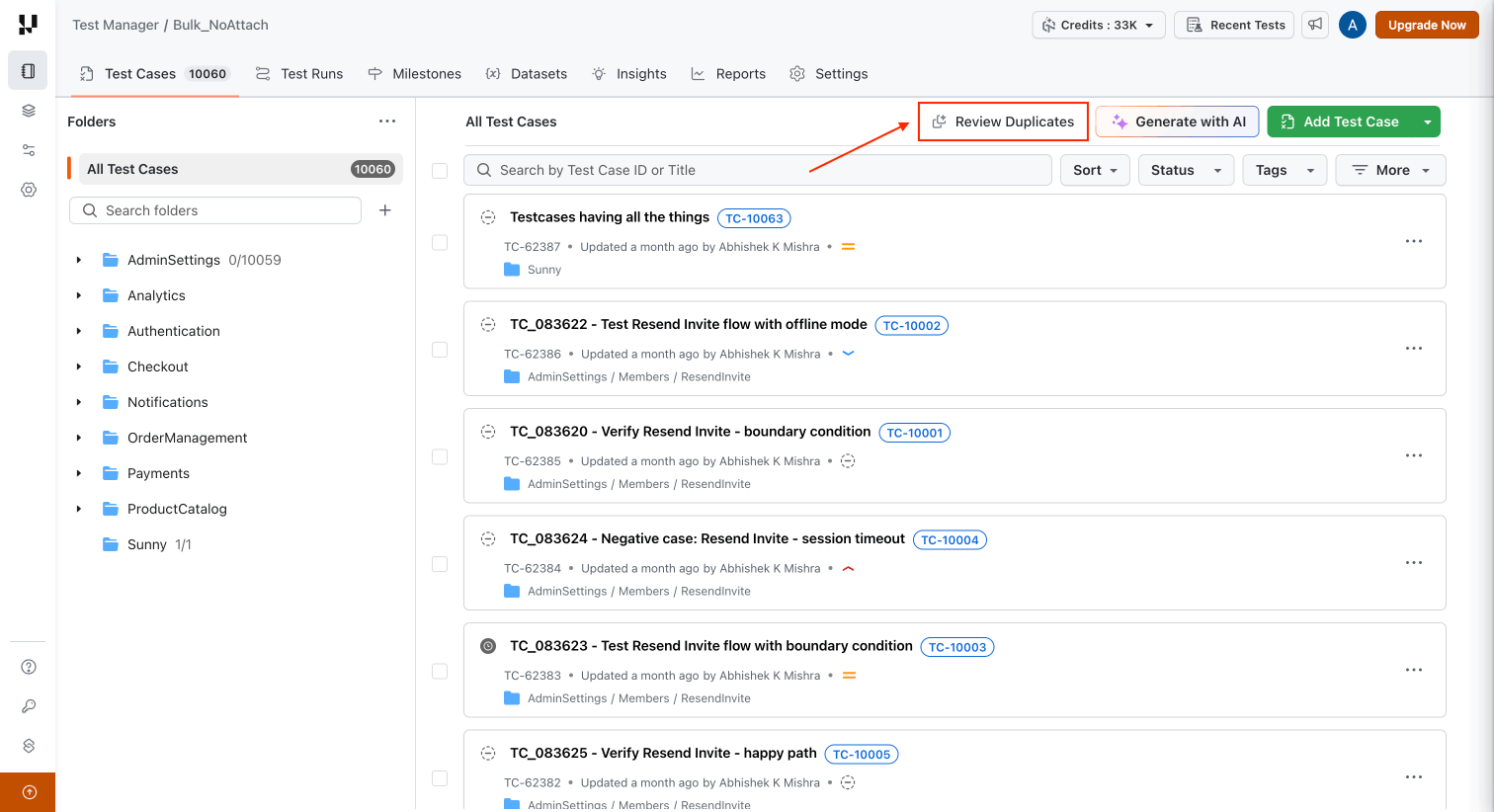
- Open your project in Test Manager and go to the Test Cases tab. Click Review Duplicates in the toolbar.
- In the Review Duplicates panel, configure Scan Settings:
| Setting | Description |
|---|---|
| Scope | Choose whether to scan the whole project or a single folder. A folder scan covers that folder and all of its sub-folders. |
| Selected Project | Confirms the project being scanned and the number of test cases in scope. |
| Minimum Match Score | The lowest score, from 1 to 100, at which the AI will return a test case as a duplicate. Drag the slider or type a value in the box. |
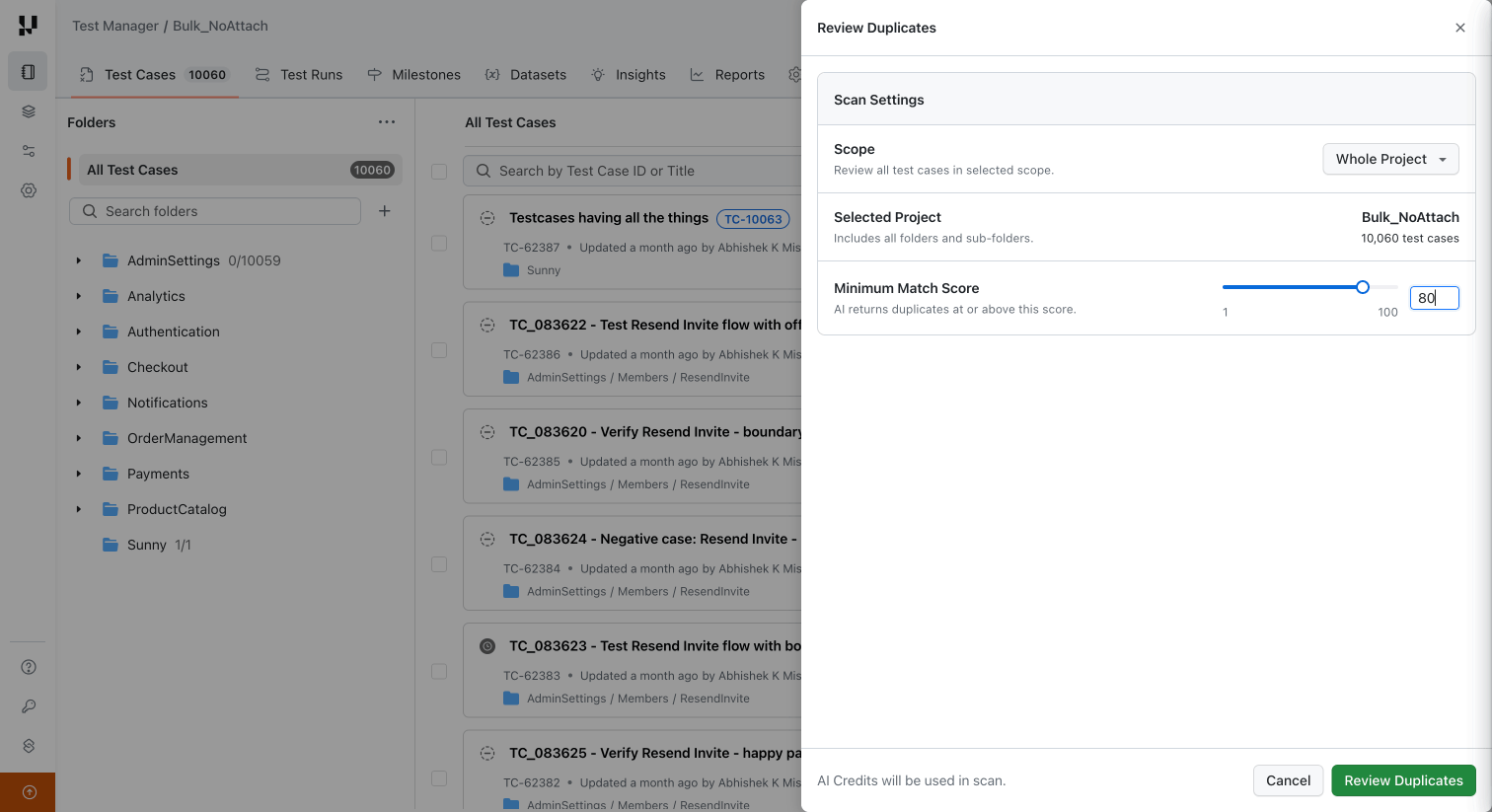
The Minimum Match Score controls the size of your review queue, not the accuracy of the scan. Set it high, around 80 and above, to surface only near-certain duplicates on a first pass. Lower it once the obvious duplicates are cleared and you want to catch tests that overlap in intent but differ in wording.
- Click Review Duplicates to start the scan.
A scan costs a flat 5 credits, and only if it finds something: credits are deducted only when the scan produces at least one duplicate group. A scan that finds no duplicates costs nothing.
The cost does not change with the size of the scan. Scanning 100 test cases and scanning 5,000 both cost 5 credits, and finding one duplicate group costs the same as finding fifty.
- Test Manager opens the Review & Resolve Duplicates page and runs the scan there. The header shows the scope and a running Tests Covered count, and the progress bar reports each stage as it completes. Click Stop Reviewing at any point to end the scan.
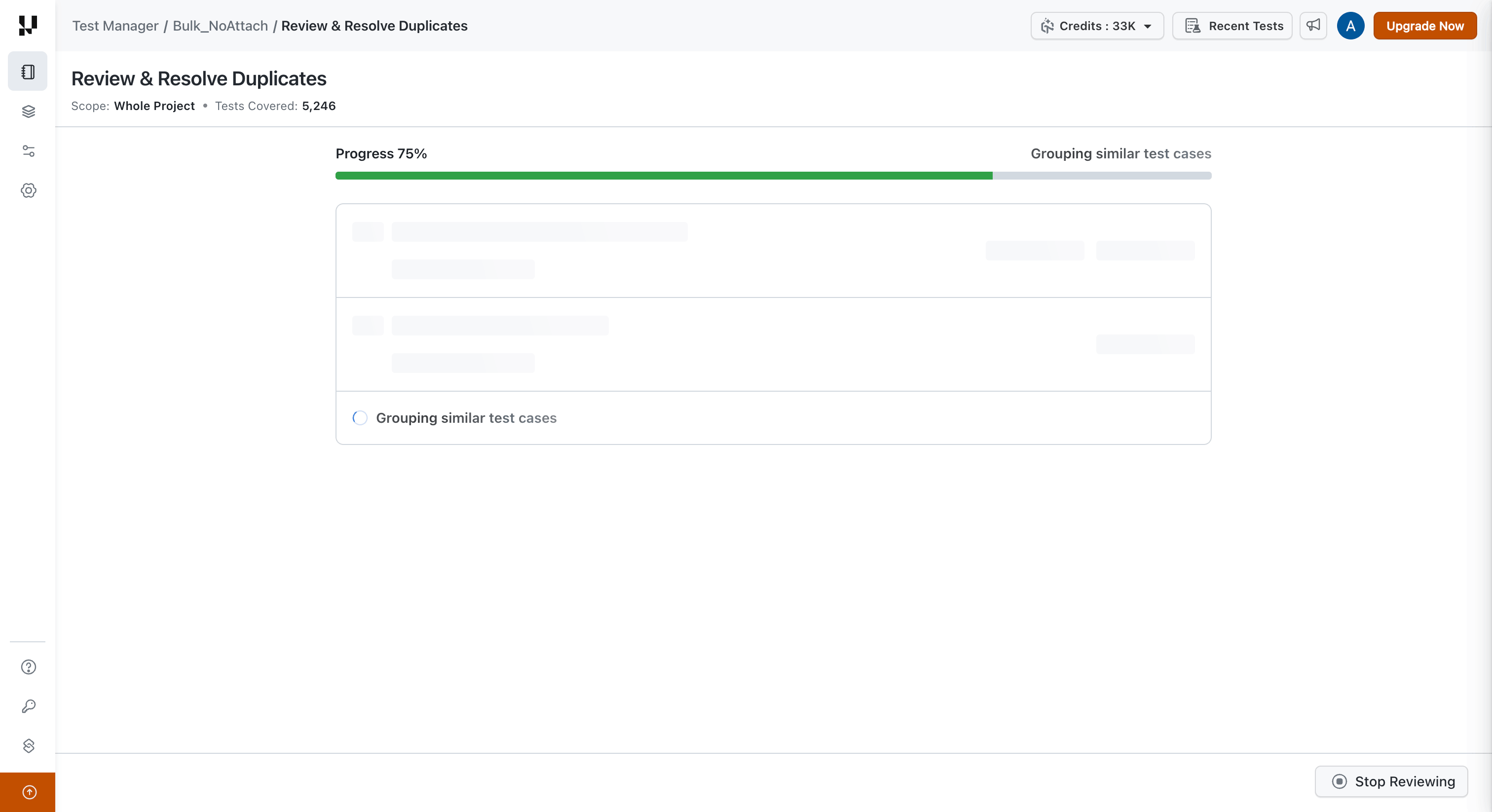
Only one scan can run in a project at a time, and a scope needs at least two test cases before a scan can start. On very large projects, scan a folder at a time instead of the whole project.
Review the results
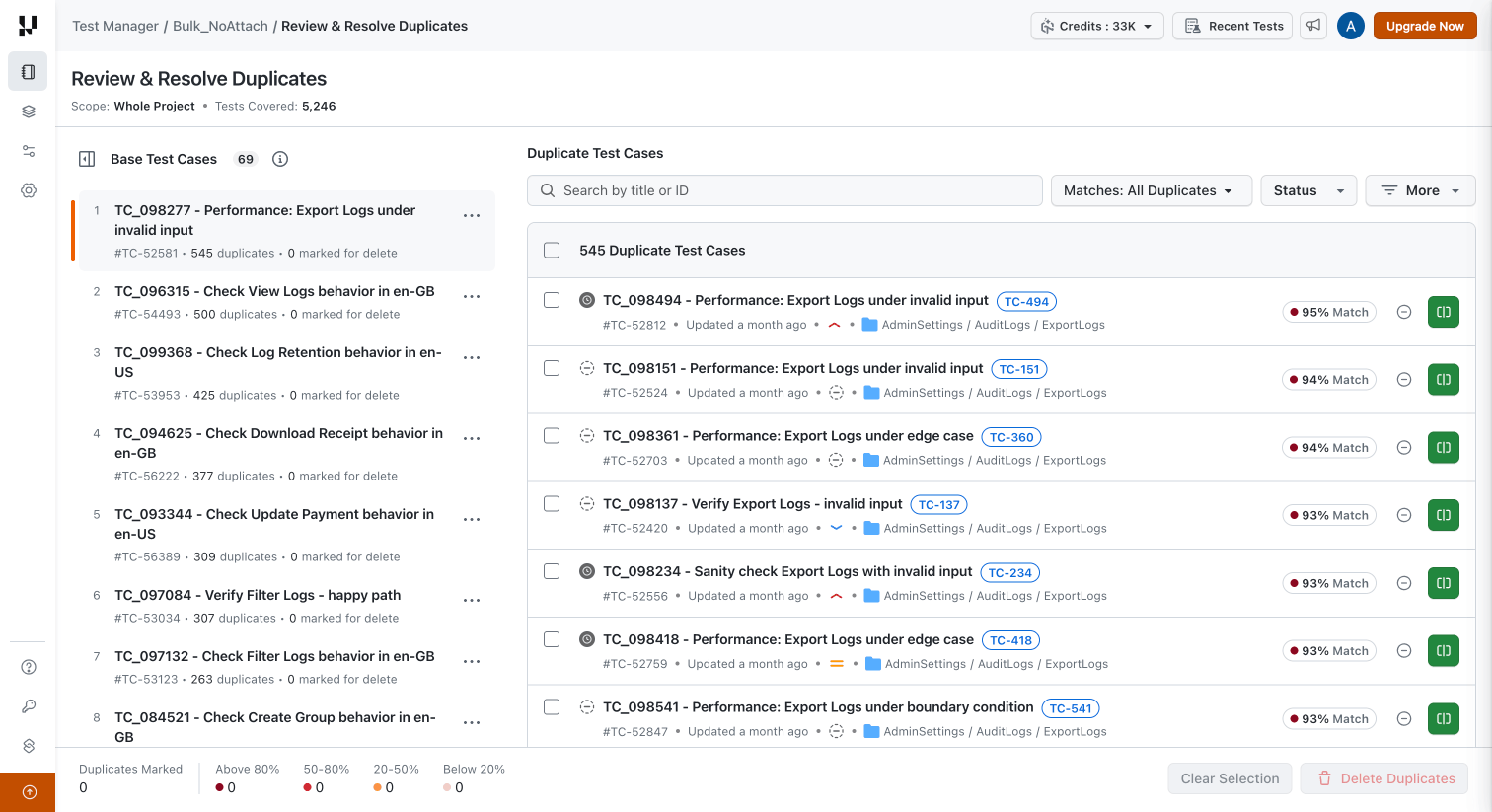
When the scan finishes, Review & Resolve Duplicates splits into two panes.
Base test cases
The left pane lists every base test case the scan produced, with a total count at the top. Each row shows the test case title and ID, how many duplicates were found for it, and how many of those are currently marked for delete. Select a base test case to load its duplicates in the right pane. The ... menu on each row is where you change the base test case.
Duplicate test cases
The right pane lists the duplicates of the selected base test case. Each row shows a checkbox for marking the test case for deletion, the title and ID, when it was last updated, its folder path, and its % Match.
Two actions are available on every row:
- Ignore, which dismisses the test case as not a duplicate.
- Compare, which opens the base test case and this duplicate side by side.
Search and filter
The controls above the list narrow what you are reviewing:
| Control | Description |
|---|---|
| Search | Find a duplicate within the current group by title or ID. |
| Matches | Filter to a single band: All Duplicates (default), Above 80%, 50-80%, 20-50%, or Below 20%. |
| Status | Filter duplicates by test case status. |
| More | Additional filters for narrowing the duplicate list. |
Work top down through the bands. Clear Above 80% first, where matches are usually exact copies you can delete without much thought, and only then move to the lower bands, where you need to read both test cases before deciding.
Compare a base test case with a duplicate
Click Compare on any duplicate row to open the comparison view, which shows the base test case and that duplicate next to each other.
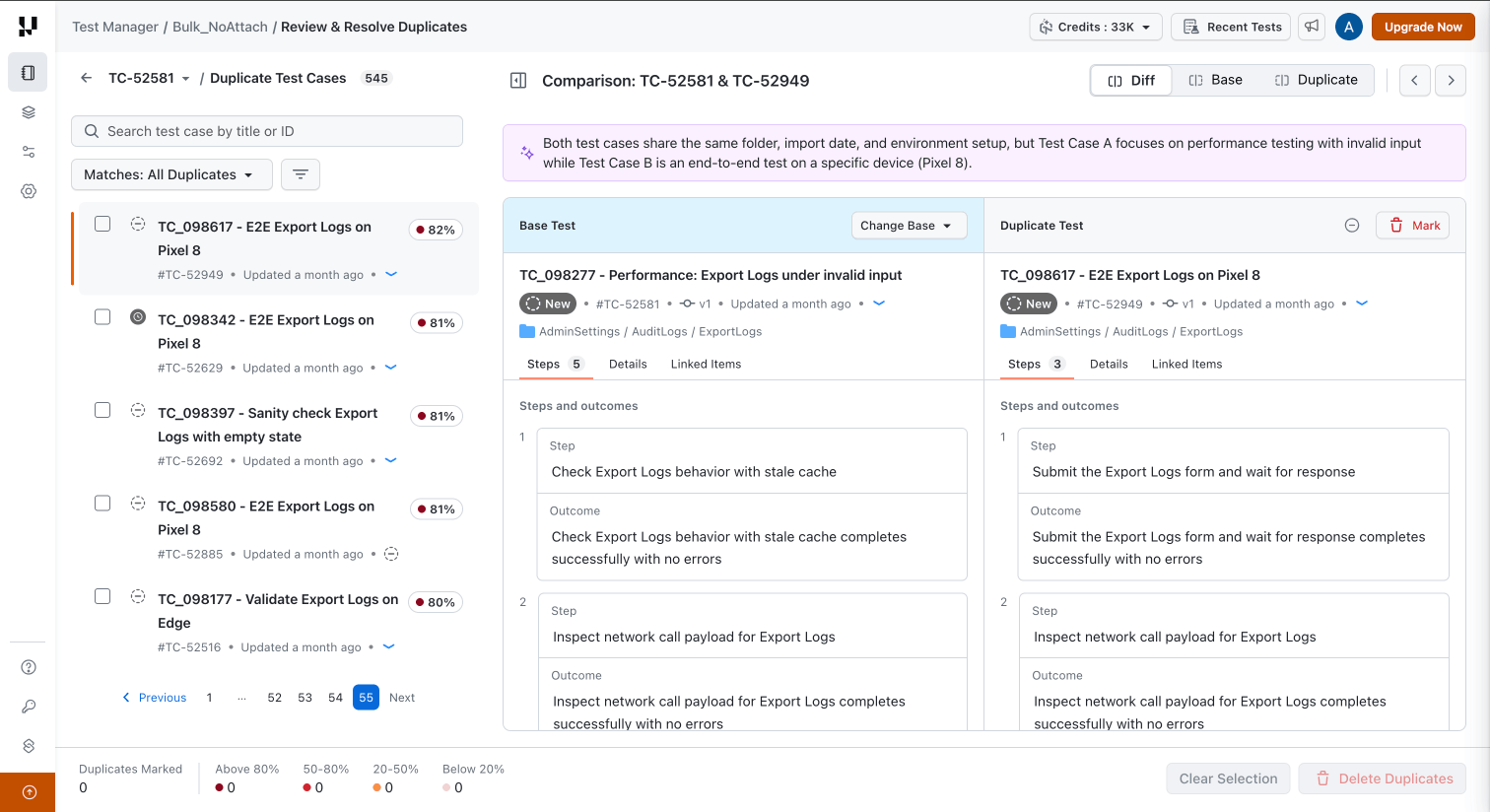
The comparison view gives you:
- An AI similarity summary at the top, explaining in plain language how the two test cases relate, for example whether their titles, descriptions, and preconditions are identical or where they diverge.
- A Diff / Base / Duplicate toggle, to view the two test cases against each other or read either one on its own.
- Navigation arrows, to move through the rest of the duplicates in the group without leaving the comparison view.
- Steps, Details, and Linked Items tabs on each pane, so you can compare the steps and expected outcomes, the field values, and anything linked to each test case.
The duplicate pane also carries its own actions. Ignore dismisses the duplicate, and Mark stages it for deletion. Once marked, the pane header changes to Duplicate Marked for Deletion and the action becomes Undo.
The left rail keeps the full duplicate list available while you compare, with the same Search and Matches filters as the results page.
Change the base test case
The scan picks a base test case for each group, but it is not always the one you want to keep. If a duplicate is better written or more current, promote it to base instead.
- In the Base Test Cases pane, click the
...menu on the base test case you want to replace, and select the option to change the base test case. - In the Change Base Test Case dialog, find the test case you want to promote using search, or pick it from the list of duplicates. Each option shows its ID and % match.
- Click View Comparison first if you want to check the two test cases side by side before deciding.
- Click Change Base to the selected ID to confirm.
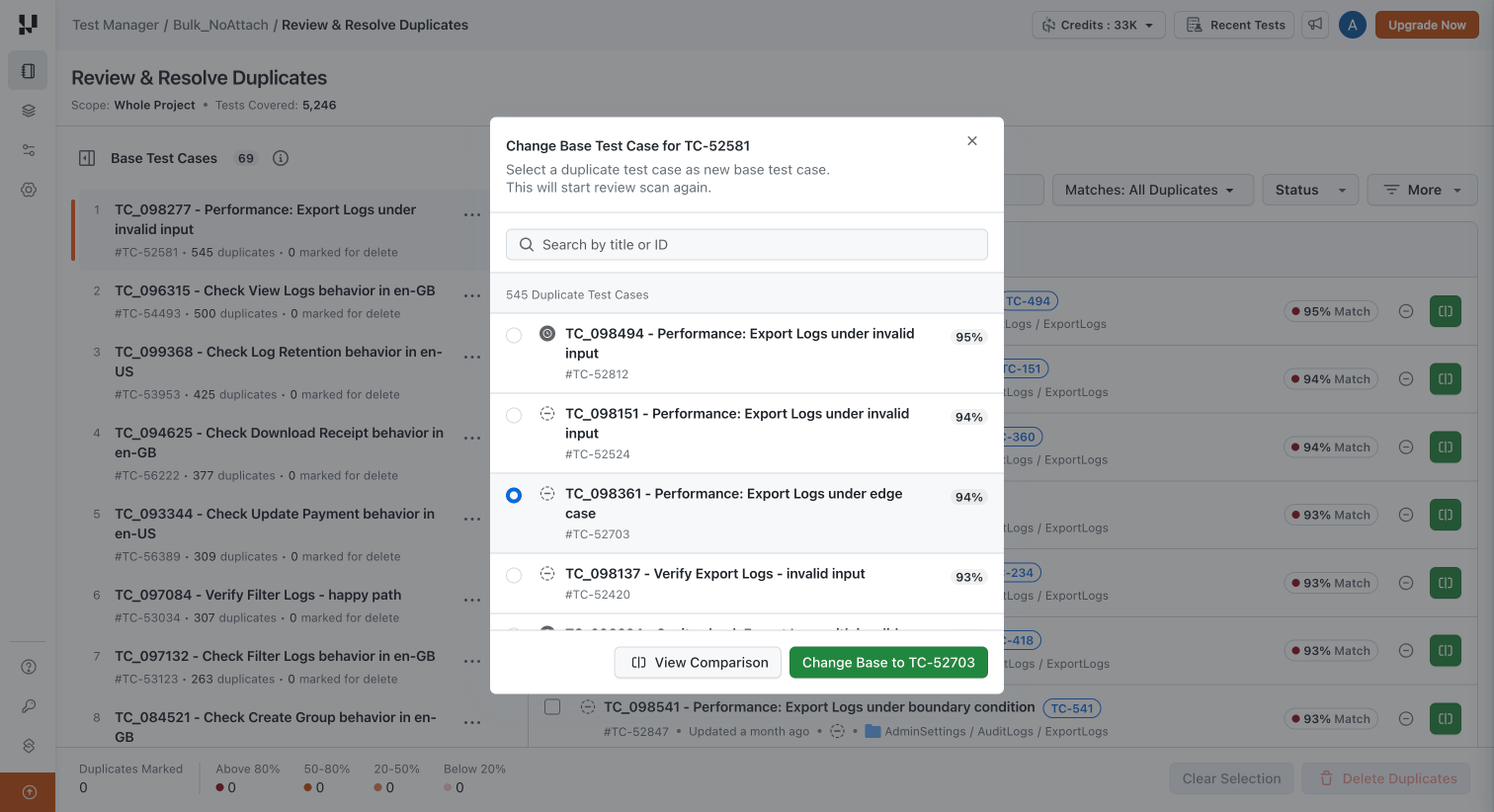
Changing the base test case starts the review scan again for that group, because every duplicate's % match is recalculated against the new base. This re-scan does not cost any additional credits.
Ignore duplicates
Ignoring tells Test Manager that a test case is not a duplicate of the current base. The test case is removed from the group and from anything you have marked for deletion, and the group's duplicate count drops. The test case itself is untouched.
- To ignore one test case, click Ignore on its row in the duplicate list, or in the duplicate pane of the comparison view.
- To ignore several at once, select them using their checkboxes and click Ignore in the selection header above the list.
Delete duplicates
Deletion is a two-part flow. You first mark the test cases you want to remove, review the selection, and then commit it in a single confirmed action.
Mark duplicates for deletion
Select the checkbox on any duplicate row, or click Mark in the comparison view. Marked test cases stay marked while you continue reviewing, and you can unmark them at any point by clearing the checkbox or clicking Undo.
The selection header above the duplicate list shows how many test cases are marked in the current group, and offers Select all to mark every duplicate of the current base test case at once.
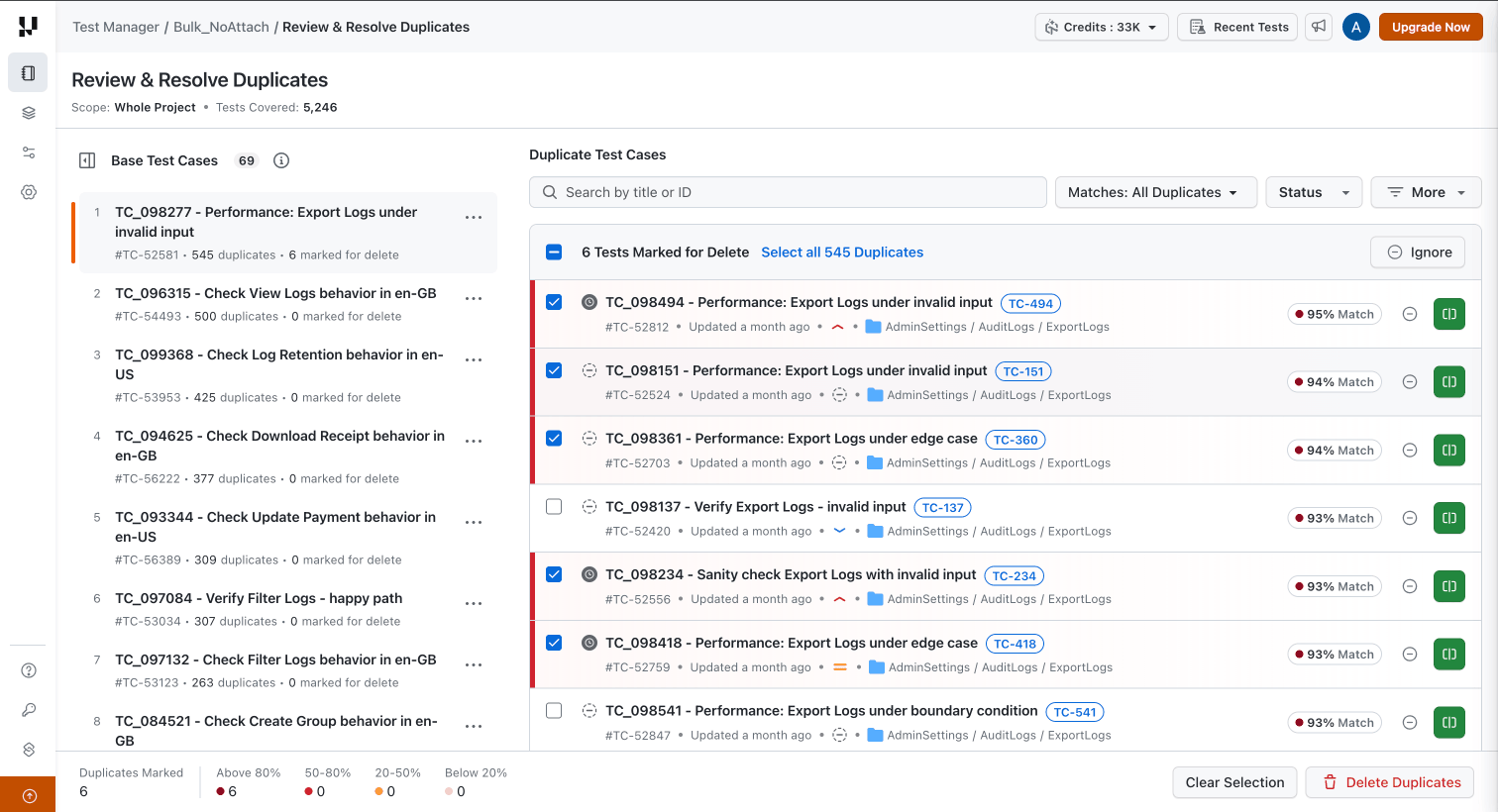
The footer bar tracks your selection across the whole scan, not just the group you are looking at. It shows the total Duplicates Marked and breaks that total down by match band, so you can confirm you are not about to delete a batch of low-confidence matches. Clear Selection discards everything you have marked.
Commit the deletion
- Click Delete Duplicates in the footer bar.
- Read the confirmation dialog. It states how many test cases will be deleted and confirms that associated test runs will continue to exist afterwards.
- Type
DELETEin all caps in the confirmation field. - Click Delete Duplicates to commit.
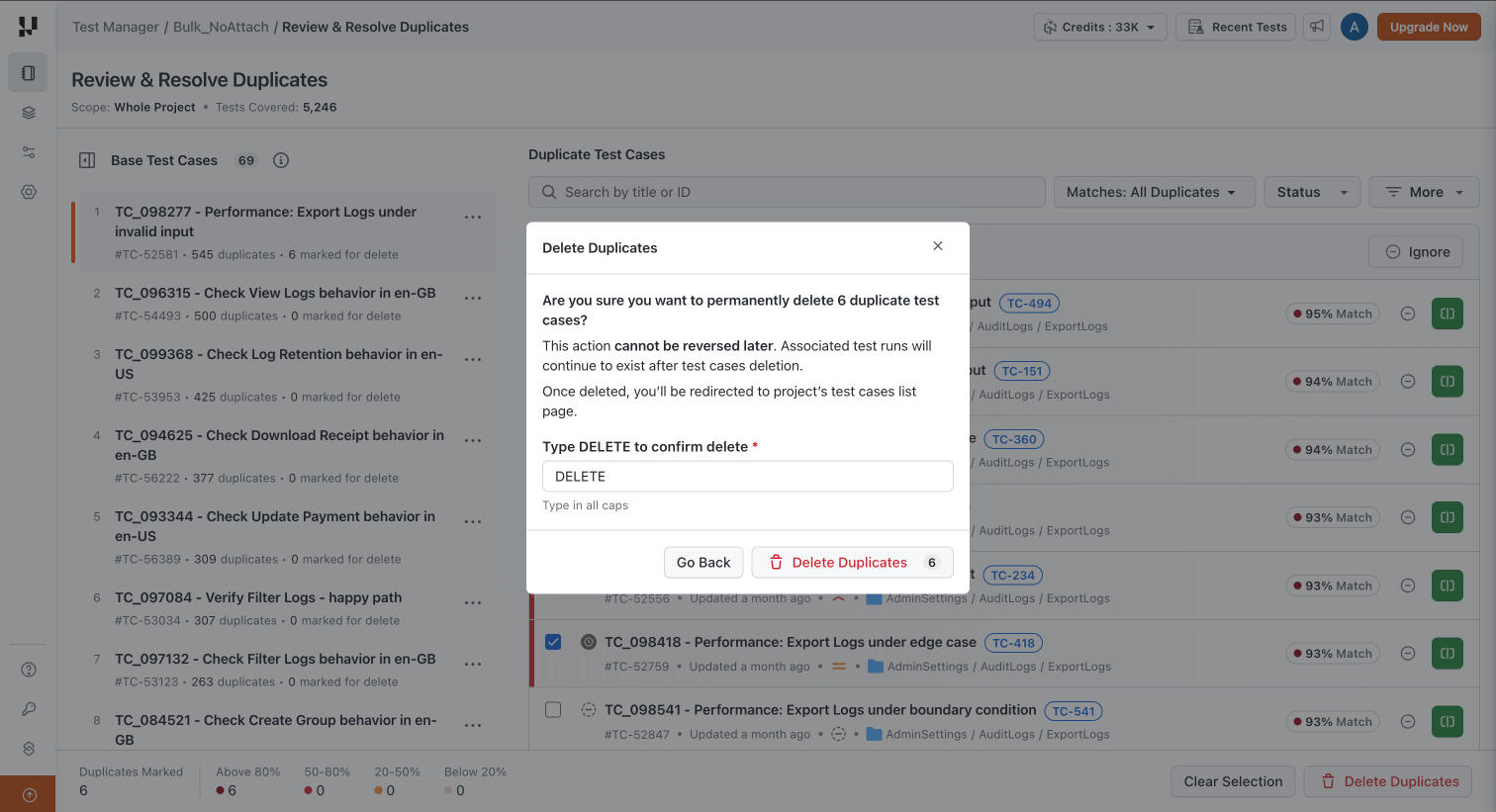
Test Manager deletes the marked test cases and returns you to the project's test cases list.
Deletion is permanent. Deleted test cases cannot be restored. Review your marked selection in the footer breakdown before you commit.
Limitations
- Deletion cannot be undone. The duplicate scan deletes the test cases you mark. There is no archive step in this flow, and removed test cases cannot be restored.
- Each scan costs 5 credits, charged only when the scan produces at least one duplicate group. The cost is flat, regardless of how many test cases are scanned or how many duplicates are found.
- One scan at a time. A project can only run a single duplicate scan at once.
- A scope needs at least two test cases before a scan can start.
- Very large projects need to be narrowed. Scan folder by folder rather than the whole project.
- Manual test cases only. The scan covers manual test cases, including KaneAI-authored test cases stored in Test Manager. Automation scripts are not analyzed.
- Single project. Duplicates are detected within one project. Test cases in other projects are not compared.
Related resources
| Topic | Doc |
|---|---|
| Preventing duplicates during AI generation | Generate Test Cases with AI |
| Reorganizing test cases across folders and projects | Copy and Move Test Cases |
| Tracking changes to a test case over time | Test Case Versioning |
| Creating and editing test cases | Create and Manage Test Cases |
| How credits are consumed across AI features | Credits Management |


 Chat with Us