Test Manager Dashboard Widgets
TestMu AI Test Manager Dashboard widgets provide comprehensive insights into your test automation or manual efforts. These widgets help you optimize your testing efforts by providing detailed insights into your test execution, test case insights, and more.
The Test Manager Widgets module is currently in BETA. If you have any feedback or suggestions, please feel free to reach out to us at [email protected].
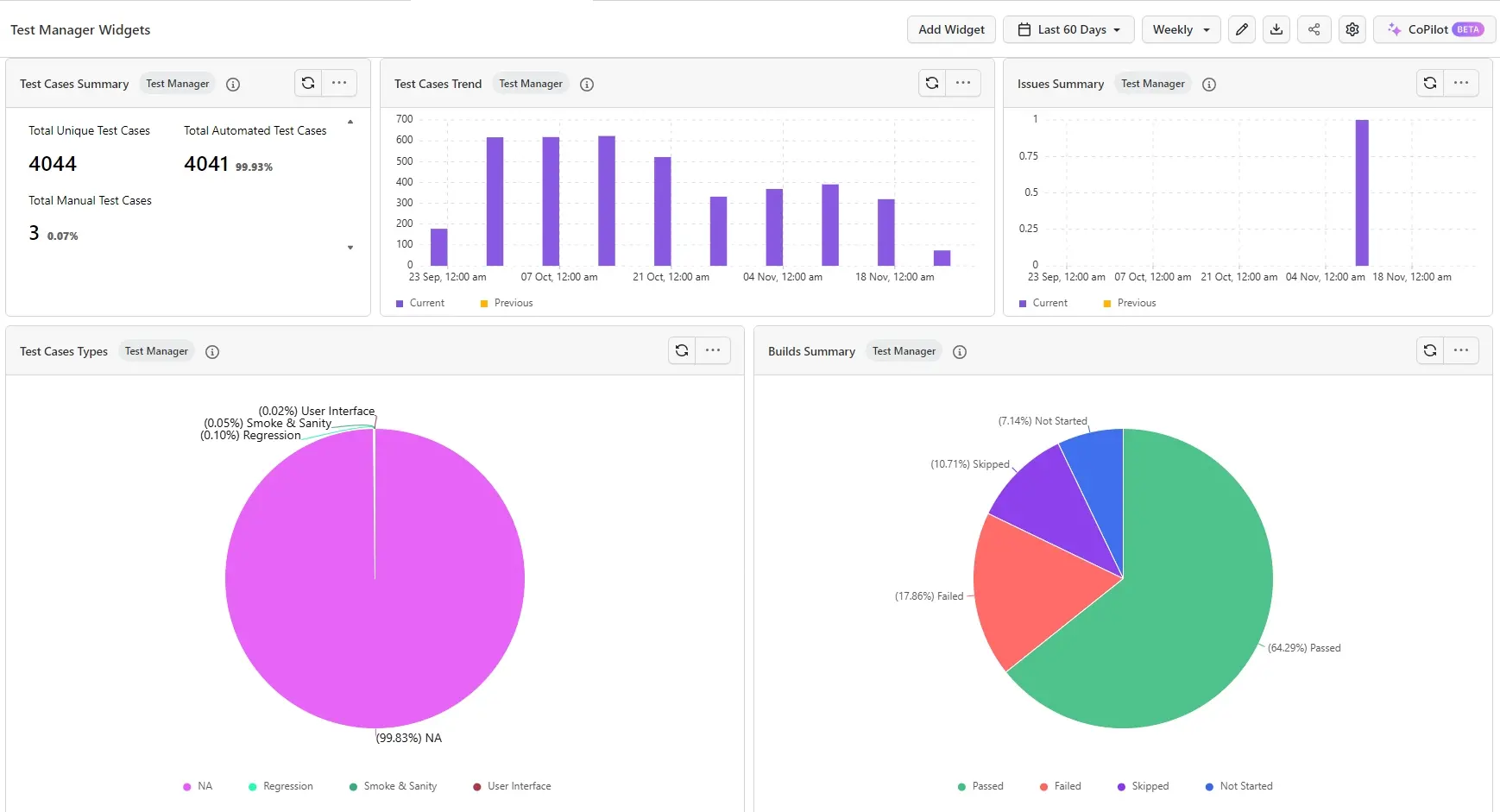
Every widget supports configurable filters. Click the three-dot menu on any widget to apply filters and narrow down the displayed results based on your specific criteria.
All widgets support drill-down. Click on any data point in a chart — such as a segment in a pie chart, a bar in a bar chart, or a status value — to view the underlying list of associated records (e.g., test cases, test runs, or issues) that make up that data point.
Test Cases Summary
The Test Cases Summary widget displays the total count of test cases and the split between Automated and Manual test cases. The classification is determined by the Automation Status field on each test case — if set to Automated, it is counted under Automated; all others fall into the Manual category.
How it works?
- View the total number of unique test cases created in your project.
- See the breakdown between Automated and Manual test cases based on the Automation Status field.
Value Proposition
This widget gives you a quick snapshot of your test case inventory and the balance between automated and manual coverage, helping you plan your testing strategy.
Test Cases Trend
The Test Cases Trend widget tracks the number of test cases created over a period of time, helping you visualize how your test suite is growing.
How it works?
- Displays a trend line of test cases created over the selected time period.
- Use this to monitor the pace of test case creation across your team.
Value Proposition
This widget helps you track how your test suite evolves over time, identify periods of high or low activity, and ensure consistent test coverage as your product grows.
Test Runs Summary
The Test Runs Summary widget provides an overall summary of your test runs, with the data split by test instance statuses and their counts.
How it works?
- Displays the total number of test runs and the breakdown of test instances by status (Not Started, Passed, Failed, Skipped, and custom statuses).
- Quickly identify test runs with the highest number of failed or pending instances.
Value Proposition
This widget gives you a high-level view of test run health across your project, helping you prioritize runs that need attention and track overall execution progress.
Milestone Trends
The Milestone Trends widget displays a stacked bar chart of milestones, with each bar broken down by test instance statuses from the associated test runs.
How it works?
- Each bar represents a milestone, with stacked segments showing the count of test instances by status.
- Supported statuses include Not Started, Passed, Failed, Skipped, as well as any custom statuses created for your manual test runs.
- Filter the data by date range to analyze milestone performance over specific time periods.
Value Proposition
This widget helps you quickly assess milestone health, identify milestones with high failure rates, and monitor release readiness. By tracking status trends across milestones, you can spot regressions early and make data-driven decisions about testing effort.
Issue Summary
The Issue Summary widget shows the trend of issues and requirements linked to test cases or raised during test runs in Test Manager.
How it works?
- Tracks issues linked to test cases as well as issues raised directly within test runs.
- Visualize whether issues are increasing or decreasing over time.
Value Proposition
This widget helps you monitor the volume and trend of issues across your testing efforts, enabling you to identify patterns and prioritize resolution.
Test Cases Types
The Test Cases Types widget displays a pie chart of test cases split by their Type field (e.g., Regression, Smoke, Sanity, or any custom type defined in your project).
How it works?
- Each segment of the pie chart represents a test case type, based on the Type field of each test case.
- Quickly see the distribution of test case types across your project.
Value Proposition
This widget helps you understand the composition of your test suite and ensure the right balance of test types (Regression, Smoke, Sanity, etc.) for effective coverage.

 Chat with Us
 Ask the Community