Track Bugs and Issues in Test Runs
Overview
Test Manager connects the bugs found during testing to the test instances that exposed them. Every test instance in a Test Run carries its own issues, so the run becomes a traceable map of test results and the defects behind them. You can see which tests have known bugs and open any of them in one click.
There are two ways to put a bug on a test instance:
- Link an existing issue: connect a Jira, Azure DevOps, or Linear issue that already exists.
- Raise a new bug with Mark as Bug: create a new ticket in your bug tracker while you execute the test.
This works in Manual, KaneAI, and Automation Test Runs.
Before you begin
- To link or raise bugs that are visible inside Test Manager, integrate Jira, Azure DevOps, or Linear with your TestMu AI account:
- Mark as Bug can also create tickets in other bug tracking tools. See Supported trackers and visibility for what that means inside Test Manager.
How bug tracking works in a Test Run
A bug is always associated with a test instance, one test case running with one configuration inside a Test Run. Whether you link an existing issue or raise a new one, the association is the same, and the bug becomes visible in three places:
- On the test instance level.
- In the Test Run's consolidated Issues tab, which lists every bug in the run.
- Inside the Issues tab of the corresponding Test Case.
You can add a bug from any of these points: from the run's instance list, from inside an instance, or from a specific step of an instance. A bug added at a step is listed with its parent instance, so you always see the complete picture at the instance level.
Link an existing issue to a test instance
Use this when the defect is already tracked in Jira, Azure DevOps, or Linear and you want to connect it to the test that found it.
- Open the Test Run and stay on the Test Instances tab.
- On the test instance you want, open the bug menu on its row and select Link Issue.
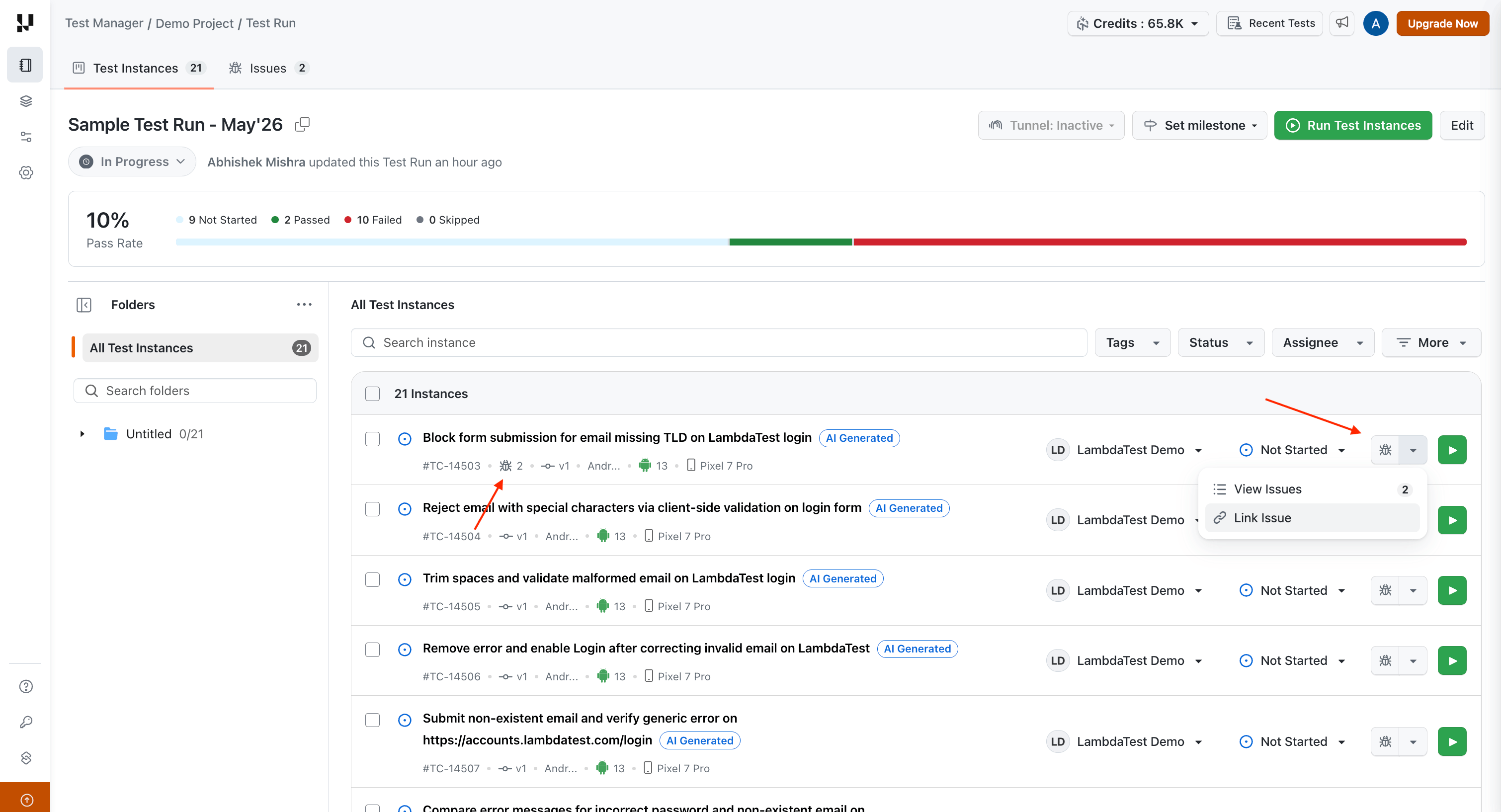
- In the Link Issues dialog, choose the tracker: Jira, Azure DevOps, or Linear. Only trackers you have integrated are available.
- Enter the issue key or paste its URL.
- Click Link Issue.
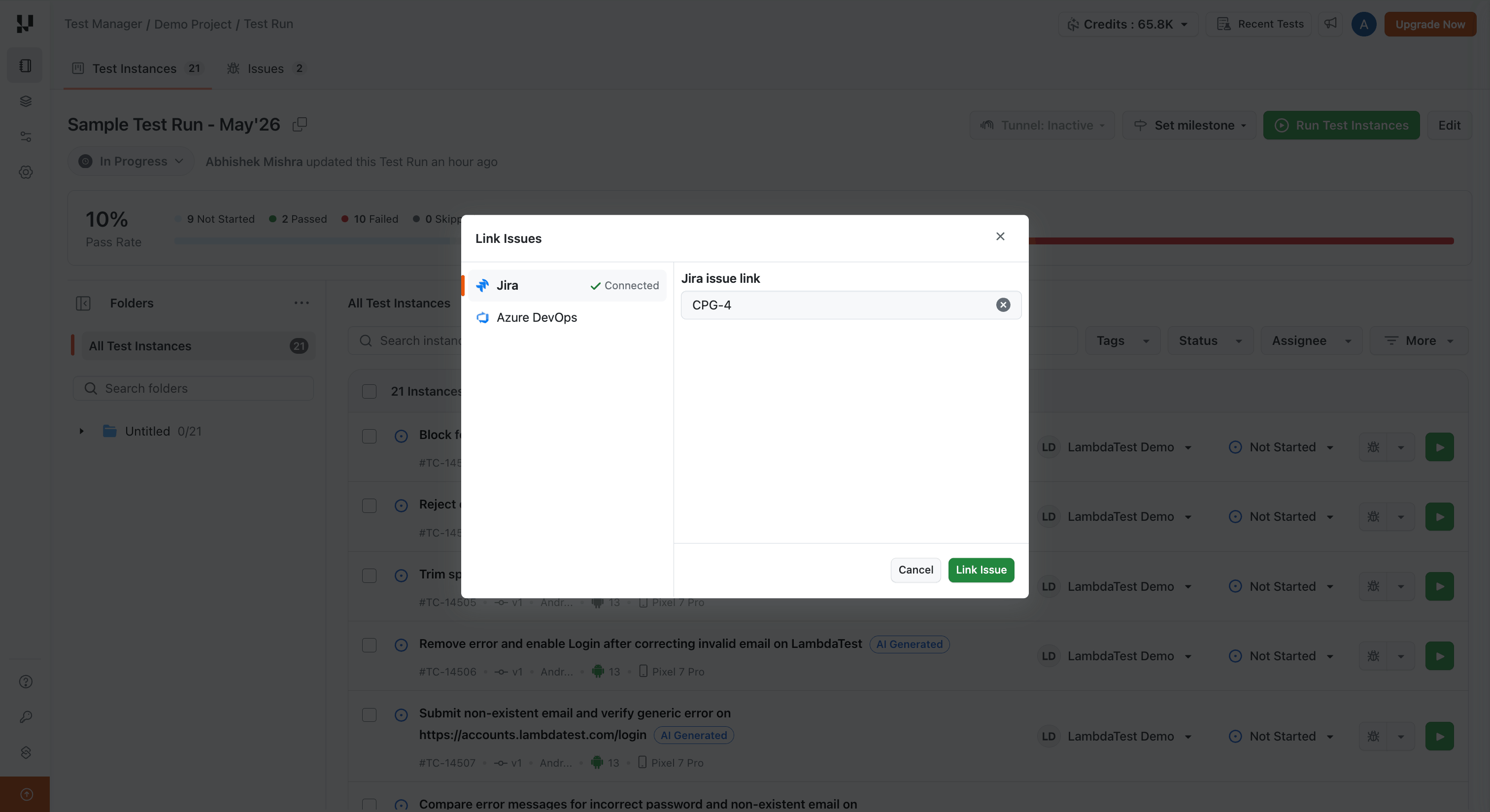
The issue is now linked, and the test instance row shows a bug count. That count is your at-a-glance signal for which tests in the run have known defects.
Raise a new bug with Mark as Bug
Use this when you find a defect while executing a test and no ticket exists yet.
- On a test instance, or a specific step within it, choose Mark as Bug.
- In the Create an Issue panel, confirm the bug tracker. Use Switch App to file the bug in a different connected tracker.
- Fill in the issue details, such as the project, issue type, and summary. Required fields are marked. The panel already carries the test instance's context.
- Click Create Issue.
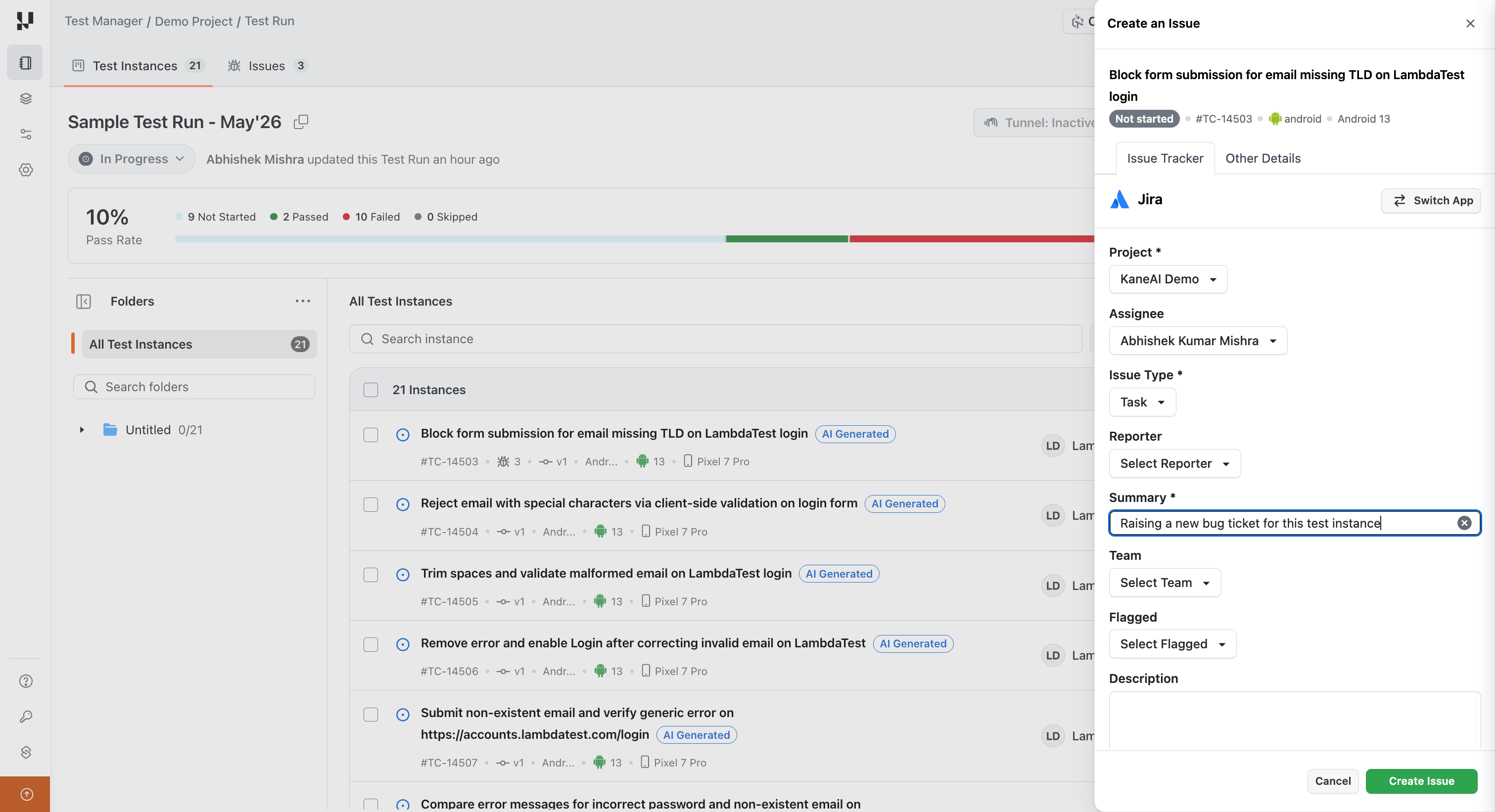
Test Manager files the ticket in your bug tracker without leaving the run. When the ticket is created in Jira or Azure DevOps, it is associated with the test instance and appears in the same views as a linked issue.
Mark as Bug can file tickets in several bug trackers, but only Jira and Azure DevOps tickets are tracked back to the test instance. See Supported trackers and visibility.
Review the issues on an instance
You can review the bugs on a test instance in two ways:
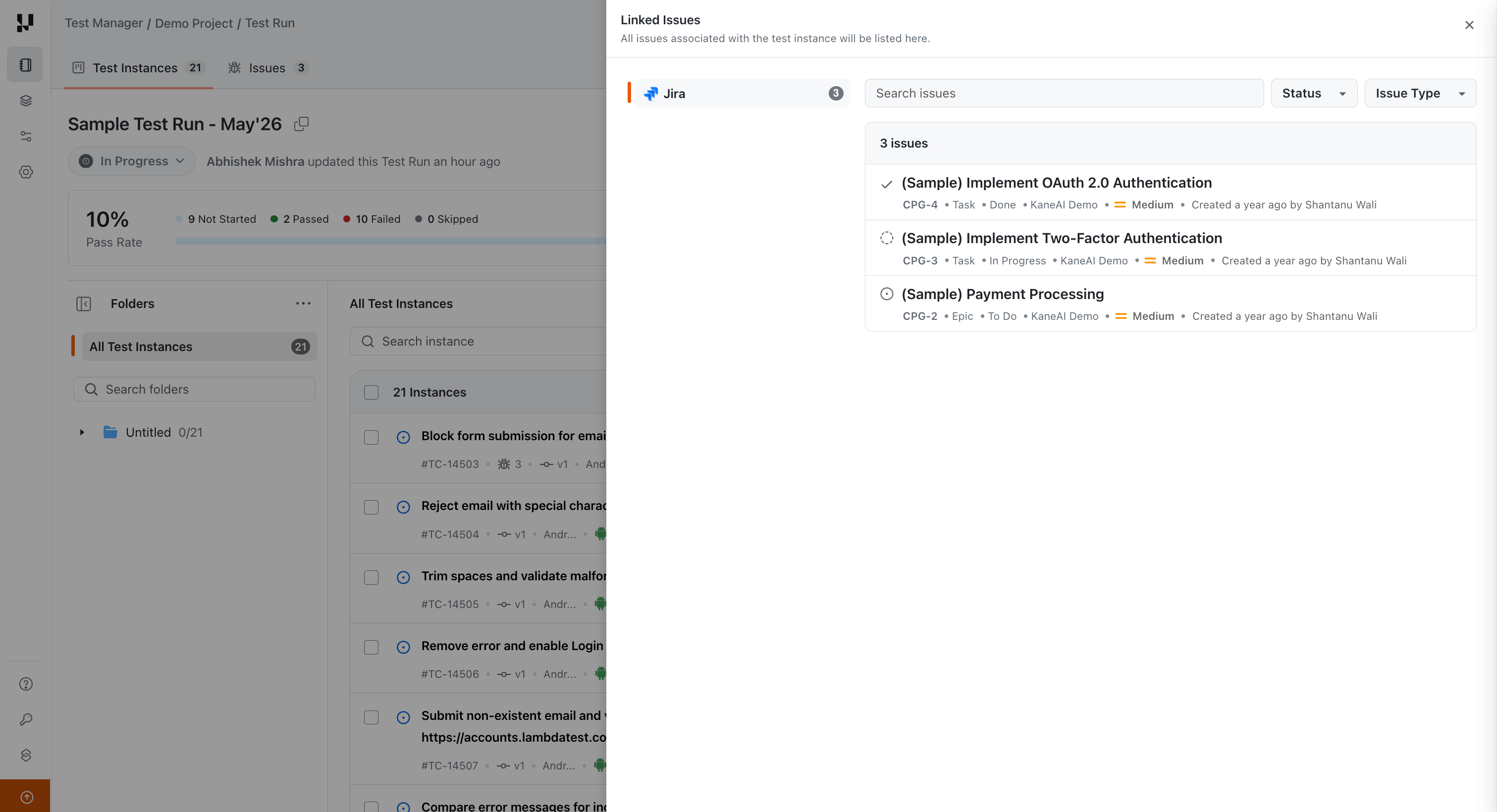
- From the run list: open the bug menu on the instance row and select View Issues. A side panel lists every issue associated with that instance.
- From the instance: open the test instance and go to its Issues tab, the last of its three tabs, after Test steps and Test case details. The tab header shows how many issues the instance carries. This is only possible in Manual Test Runs.
Each issue entry shows its title, key, type, status, priority, the project it belongs to, and who created it, enough to triage without opening the tracker. Use the search box and the Status and Issue Type filters to narrow a long list.
Add a bug while reviewing an instance or a step
You do not have to act from the run list. Inside a test instance you can link an existing issue or raise a new bug at two levels:
- At the instance: for a defect that affects the test case as a whole.
- At a step: open the Test steps tab and use the bug action on the step where the failure occurred, so the defect is recorded against the exact point of failure.
A bug added at a step is listed on the instance's Issues tab along with every other issue for that instance, so the instance always reflects the full set of defects found.
See every issue in the run
The Test Run's Issues tab is the consolidated view of every bug raised or linked across all of its test instances, useful for a defect triage or a run sign-off.
- Open the Test Run and go to the Issues tab.
- To add a bug that is not yet tied to a specific instance, use Link Issue on this tab.
- To focus the list, filter by Test Case, for example, to see only the bugs behind one failing test case. You can also filter by Status and Issue Type, or search by keyword.
Unlink an issue
If a bug no longer belongs on a test instance, open the instance's Issues tab (or the View Issues panel), find the issue, and use its unlink action. Unlinking removes the association in Test Manager only. The ticket itself stays in Jira, Azure DevOps, or Linear.
Supported trackers and visibility
The two ways of putting a bug on a test instance do not cover the same set of trackers.
Linking an existing issue is available for Jira, Azure DevOps, and Linear.
Mark as Bug can create tickets in several bug tracking tools, but only Jira and Azure DevOps tickets are associated with, and visible in, Test Runs, Test Cases, and test instances. A bug raised in any other tracker, Linear included, is created successfully but does not appear in these views. To track a Linear issue against a test, link it instead.


 Chat with Us