Test Cards in Linear
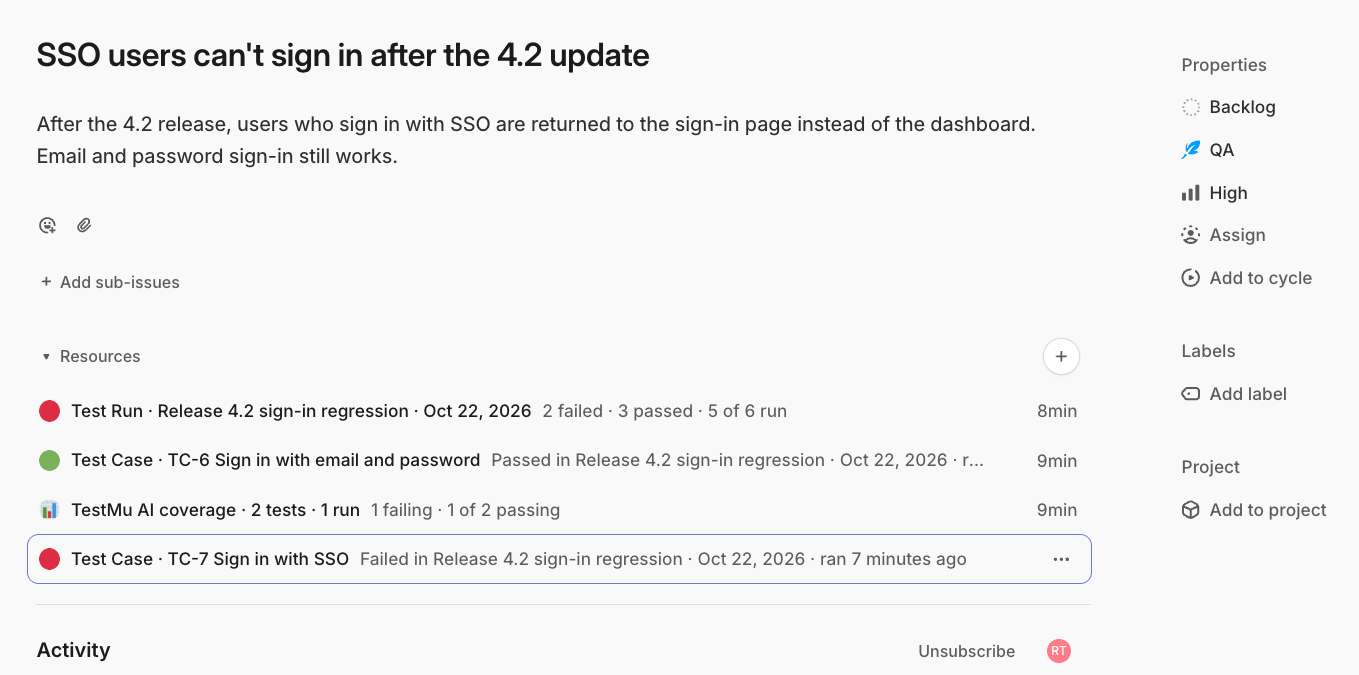
Test cards bring your Test Manager results into the Linear issues your team works on. When you link a test case or a test run to a Linear issue, the issue shows a card with the latest results, steps, and progress. Cards update on their own as your team tests, so everyone in Linear sees the current state of testing without switching tools.
Why Use Test Cards in Linear
- See test results where the work happens. Developers and product managers see whether a fix or feature passed testing directly on the Linear issue.
- Always current. Results, names, and steps update within seconds of a change in Test Manager. Nobody has to copy results by hand.
- Know what is covered. A coverage card on each issue sums up every linked test, what failed, and which runs they belong to.
- One click back to the details. Every card links to the same test case or test run in Test Manager.
How It Works
- An admin connects Linear to TestMu AI, shares the connection with the organization, and turns on test cards.
- Anyone on the team links a test case or a test run to a Linear issue in Test Manager.
- TestMu AI adds cards to that issue under Resources and keeps them up to date as results come in.
Prerequisites
- A Linear account with access to the issues you want to link, and a Linear personal API key.
- Access to Test Manager in TestMu AI.
- An admin role in TestMu AI, to share the Linear connection with your organization.
Set Up Test Cards in Linear
Step 1: Connect Linear
If Linear is already connected to your account, skip to Step 2.
- In TestMu AI, go to Integrations.
- Find Linear App under Project Management and click Connect.
- In Linear, open Settings > API. Under Personal API keys, create a key and copy it.
- Back in TestMu AI, paste the key into API Token and click Install.
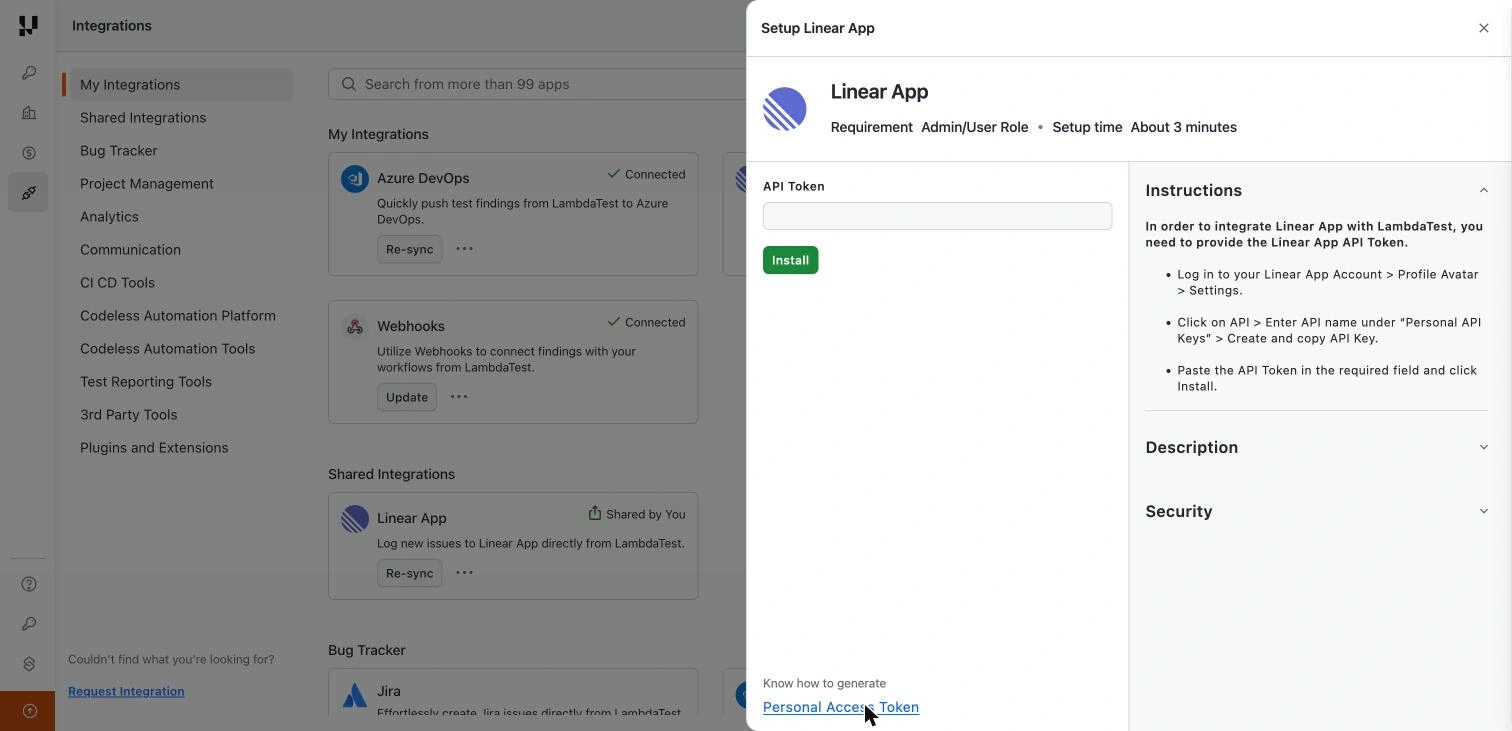
When the connection is ready, the Linear App card shows Connected. For more details, see Linear App Integration.
Step 2: Share the Linear Connection With Your Team (Recommended)
Share the connection so everyone in your organization gets test cards from one setup. Teammates do not need to connect Linear themselves.
- In Integrations, click ⋯ on the Linear App card.
- Click Share.
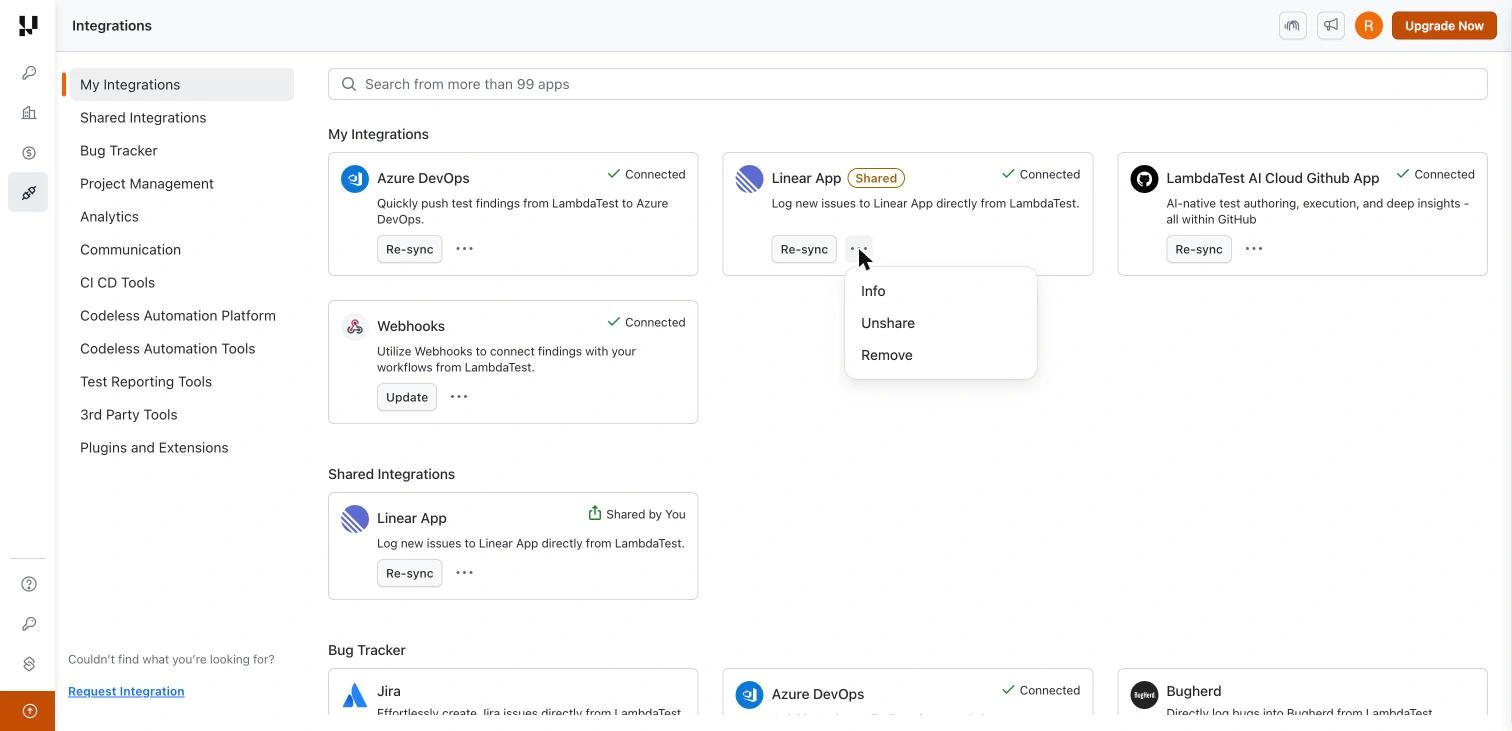
With a shared connection, the admin turns test cards on once, and the setting applies to every test your team links. You manage one API key and one place to check the sync health.
Step 3: Turn On Test Cards
Test cards are off by default. The owner of the Linear connection turns them on.
- In Integrations, click ⋯ on the Linear App card and choose Info.
- In the Test cards in Linear section, switch the toggle on.
- Wait a few seconds until the section shows Healthy.
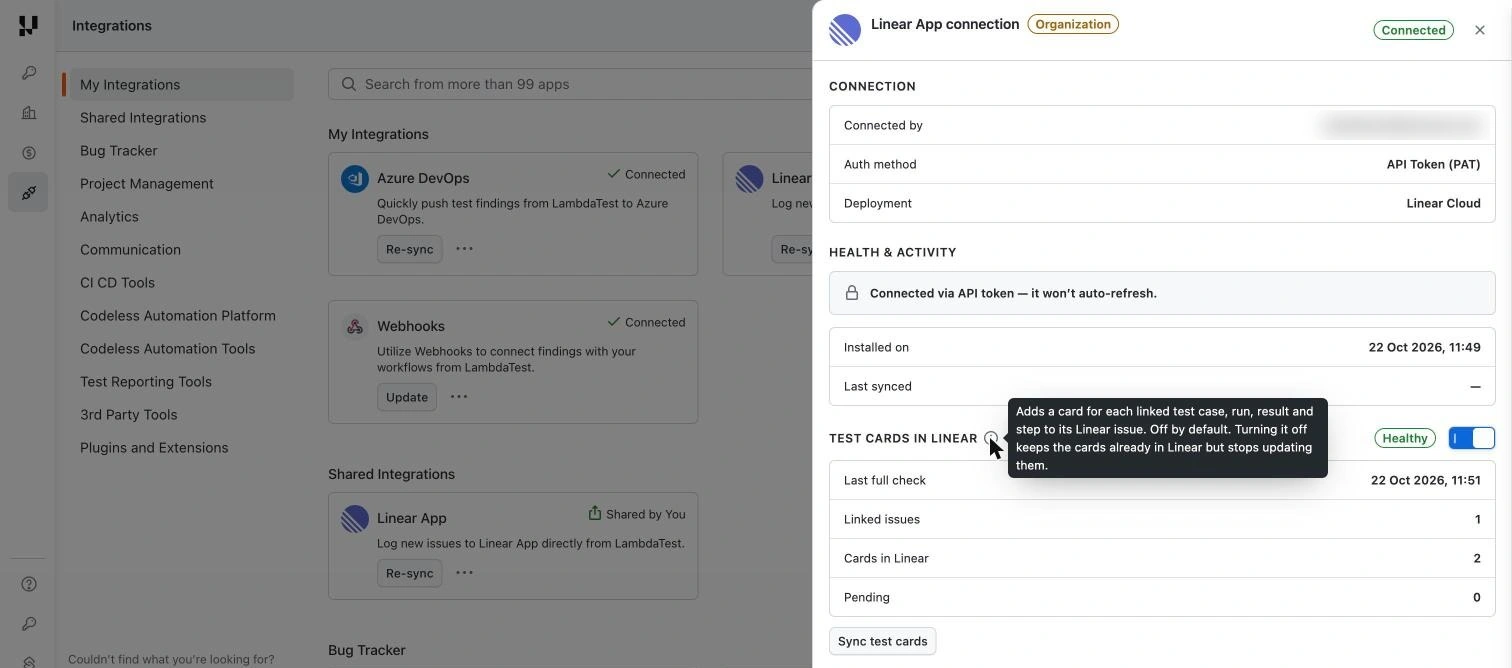
When you turn test cards on, every Linear issue that already has tests linked in Test Manager gets its cards.
If a teammate connected Linear with their own API key, their links use their own connection. They need to turn on test cards for their connection too, or remove it and use the shared connection.
Link Tests to a Linear Issue
You can link a single test case or a whole test run to a Linear issue. You can link several test cases and test runs to the same issue.
Link a Test Case
- In Test Manager, open the test case.
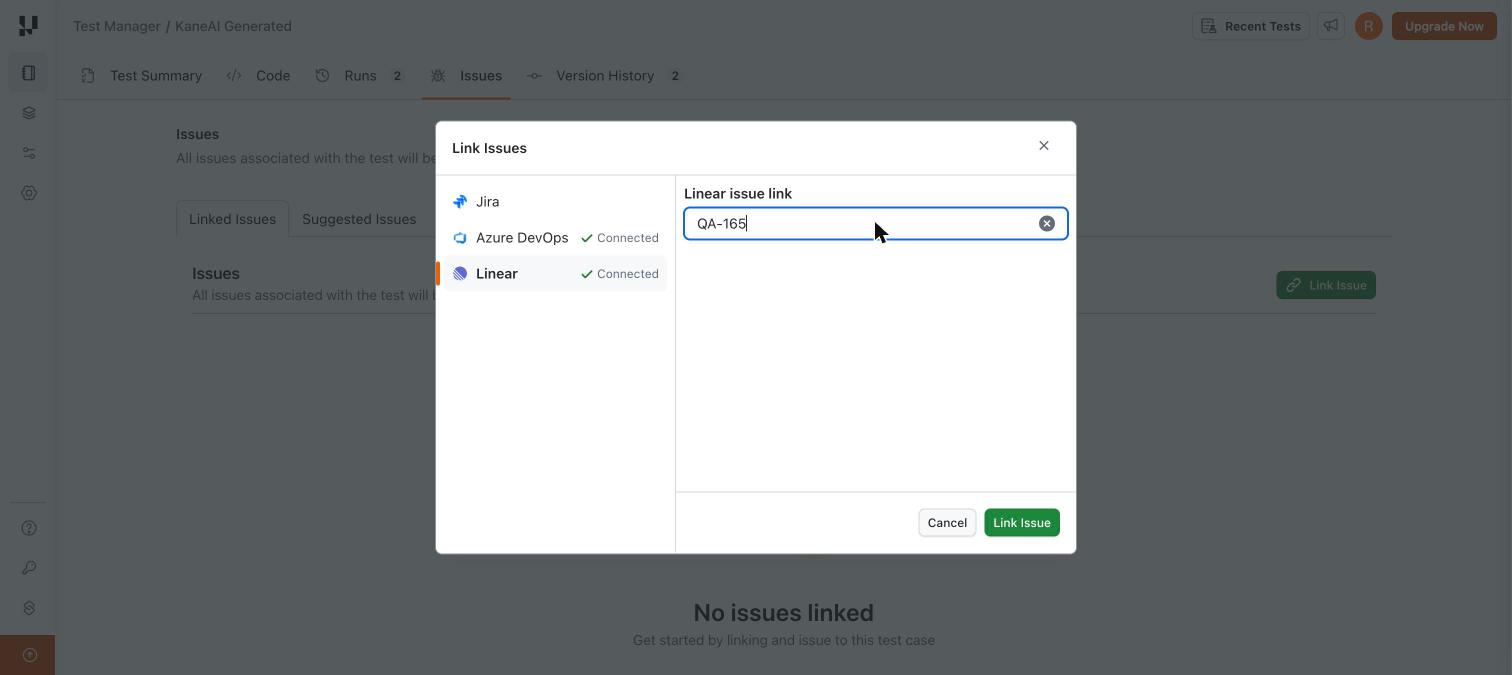
- Open the Issues tab and click Link Issue.
- Select Linear.
- Enter the issue key (for example,
QA-165) or paste the issue link, and click Link Issue.
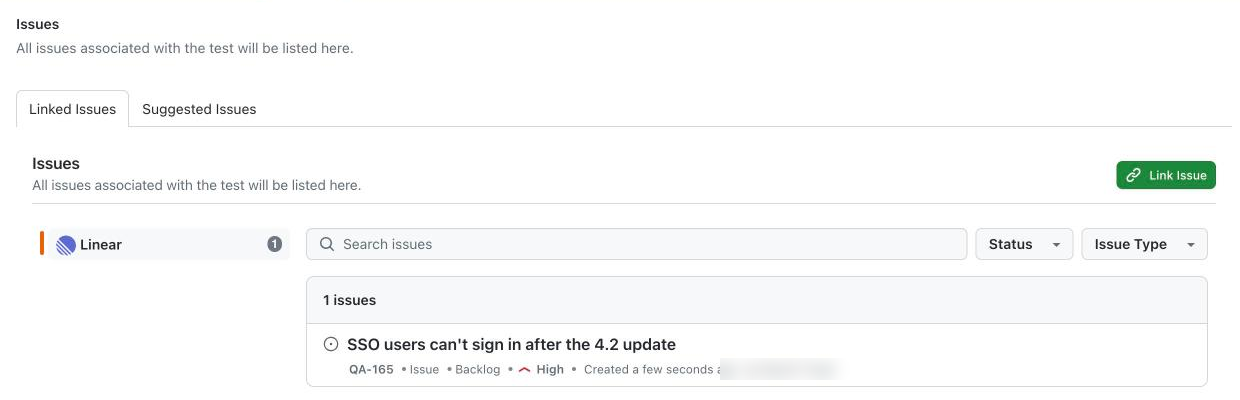
The issue appears in the test case's list of linked issues.
Link a Test Run
- In Test Manager, open the test run.
- Open the Issues tab and click Link Issue.
- Select Linear, enter the issue key or link, and click Link Issue.
Within a few seconds, the cards appear under Resources in the Linear issue. To learn more about linking, see Link Linear Issues with Test Manager.
Understand the Cards
Each linked Linear issue can show three kinds of cards. Click a card in Linear to open it, and click Open in on the card to go to the same item in Test Manager.
| Card | Added when you link |
|---|---|
| Test case card | A test case |
| Test run card | A test run |
| Coverage card | Anything (one per issue) |
Test Case Card
The test case card shows the latest result of a test case and everything needed to run it again.
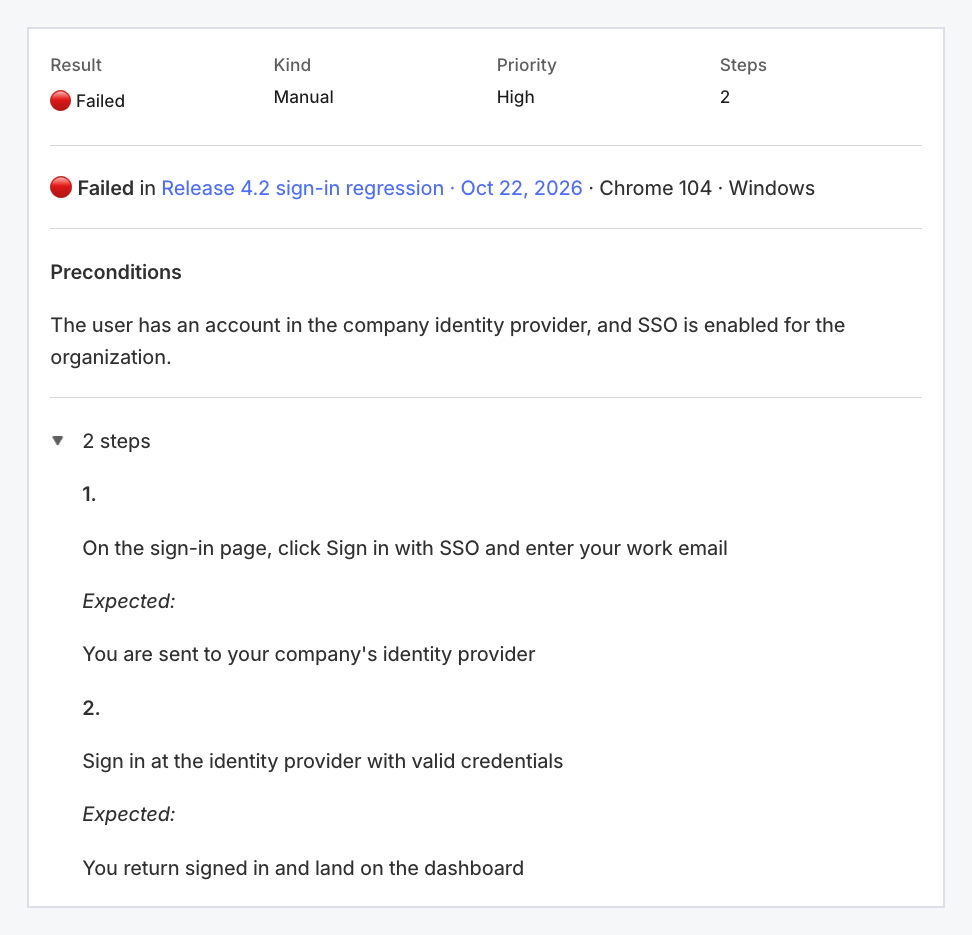
- Result, Kind, Priority, Steps: The latest result, the type of test case, its priority, and how many steps it has.
- Latest result: The result, the test run it came from, and the browser and OS it ran on.
- Earlier results: When the test case ran in more than one test run, each run with its result.
- Preconditions and steps: Each step with its expected outcome. Click steps to expand them.
Test Run Card
The test run card shows how a test run is going.
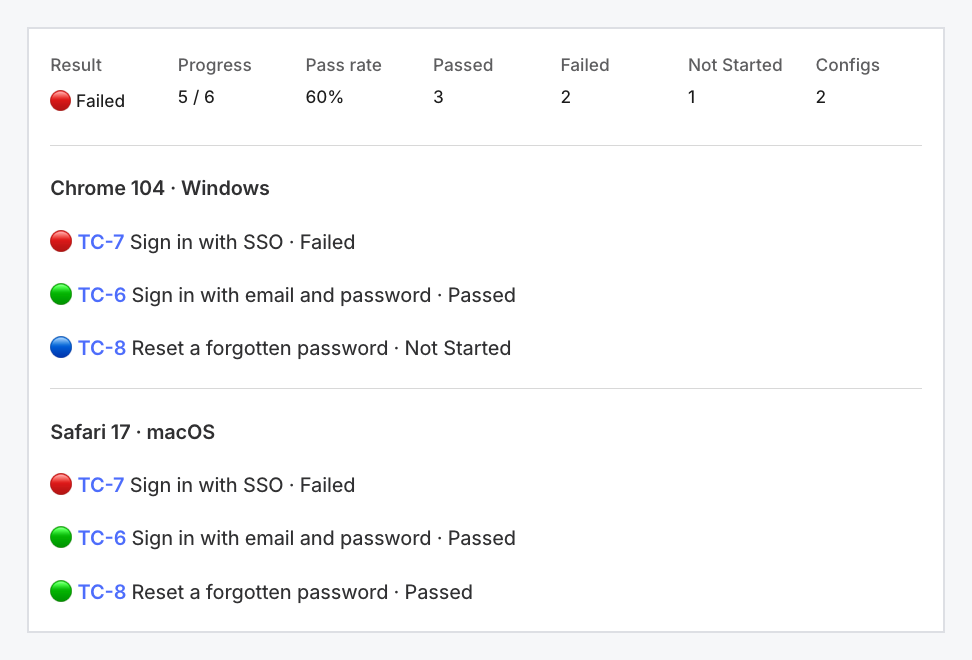
- Result: The worst result in the run so far. For example, Failed if any test failed.
- Progress and Pass rate: How many tests have a result out of the total, and the share of those that passed.
- Passed, Failed, Not Started: How many tests are in each state.
- Results by configuration: Every test in the run with its result, grouped by browser and OS.
Coverage Card
The coverage card gives one summary of everything linked to the issue.
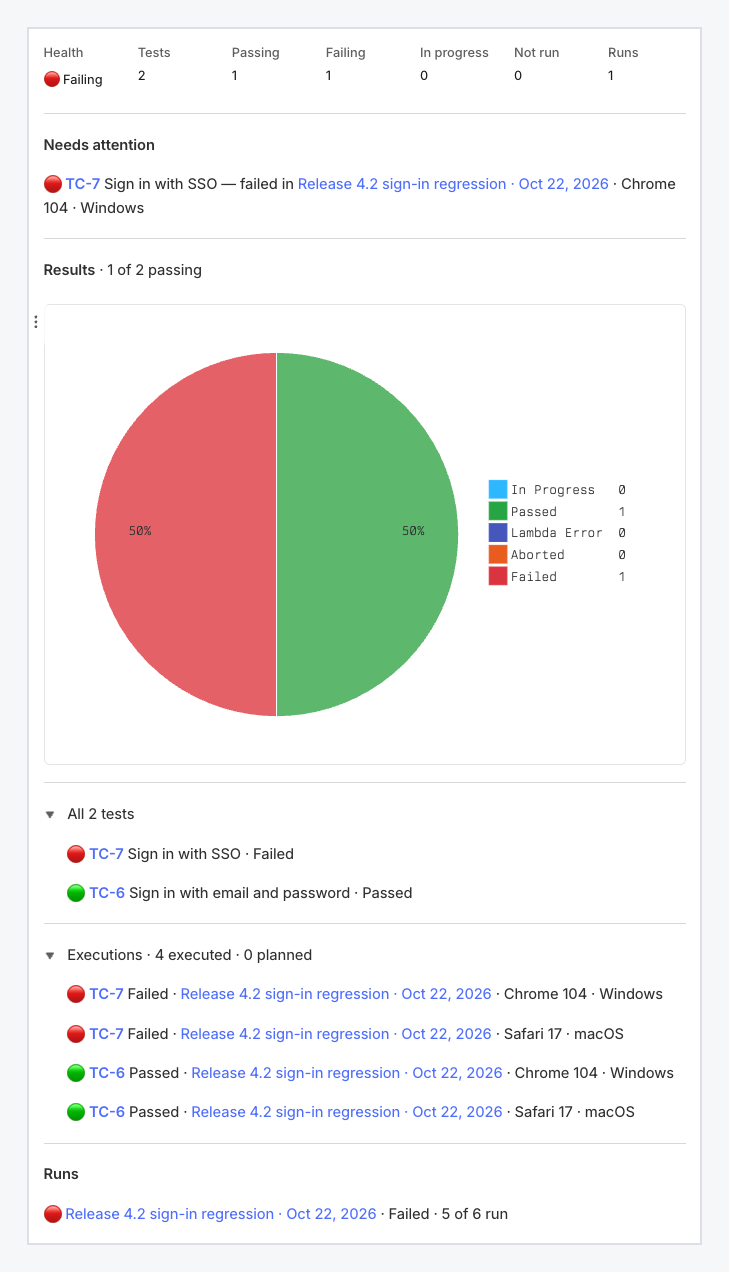
- Health: Healthy when all linked tests pass, Failing when any test fails, and Incomplete when some tests have not passed yet.
- Needs attention: The tests that failed, with the run and the browser and OS where they failed.
- Results: A chart of the linked tests by their latest result.
- All tests, Executions, and Runs: Every linked test with its latest result, every result in every run, and each run with its progress.
Result Colors
Every result on a card has a colored marker:
| Marker | Result |
|---|---|
| 🟢 | Passed |
| 🔴 | Failed |
| 🔵 | Not Started or In Progress |
| 🟡 | Timed Out |
| 🟣 | Lambda Error |
| 🟠 | Aborted |
| ⚪ | Skipped, or not yet added to a test run |
Keep Cards Up to Date
Cards update on their own within seconds when you:
- Record a result in a test run.
- Rename a test case or a test run.
- Edit a test case's steps, preconditions, or priority.
- Link or unlink a test case or a test run.
Refresh All Cards
If a card looks out of date, refresh every linked issue at once.
- In Integrations, click ⋯ on the Linear App card and choose Info.
- Click Sync test cards.
Remove a Card
Unlink the test case or test run from the issue in Test Manager. Its card is removed from the Linear issue. When nothing is linked to an issue anymore, all of its cards are removed.
Turn Off Test Cards
Switch off Test cards in Linear in the Linear App connection details. Updates stop, and the cards already in Linear stay as they are. When you turn it back on, every linked issue is brought up to date.
Best Practices
- Share one connection with your organization, so every link your team makes gets cards from a single setup.
- Link the test run to release or feature issues, so the issue shows the overall progress and pass rate of that release.
- Link individual test cases to bug issues, so developers see the exact failing test, its steps, and where it failed.
- Check the Test cards in Linear section in the connection details after setup, and click Sync test cards if a card looks stale.
Troubleshooting
Cards Do Not Appear on an Issue
- Check that test cards are on: The Test cards in Linear section in the Linear App connection details should show Healthy.
- Check the link: Make sure the test is linked to the correct issue key in Test Manager.
- Check whose connection is used: If you connected Linear with your own API key, turn on test cards for your connection, or remove it and use the shared connection.
The Connection Shows Needs Attention
- Follow the next step: The Test cards in Linear section shows a Next step, for example, reconnecting Linear with an API key that can write to Linear.
- Ask the connection owner: Only the owner of the connection can reconnect it or change its settings.
A Card Looks Out of Date
- Refresh the cards: Click Sync test cards in the Linear App connection details.
- Check that test cards are on: Cards stop updating while test cards are turned off.
FAQ
Who can see the test cards?
Anyone who can see the Linear issue.
Can I edit a card in Linear?
Make the change in Test Manager instead. The card follows within seconds. Cards only carry information from Test Manager to Linear.
Does turning off test cards delete existing cards?
No. The cards stay in Linear but stop updating until you turn test cards back on.
Do teammates need their own Linear connection?
No. When an admin shares the Linear connection with the organization, everyone gets test cards from that one connection.
Can one Linear issue show results from several tests?
Yes. Link as many test cases and test runs as you need. Each gets its own card, and the coverage card sums them up.
Support
For any queries or issues related to test cards in Linear, reach out to our 24/7 customer support.
Related Documentation:


 Chat with Us