Bulk Move, Copy, and Delete Test Runs
Teams organize test runs into folders that mirror their releases, sprints, or modules. Those structures change over time. A release gets renamed, sprints get merged, or a module is split in two. At the same time, the same scope is often run again every cycle, such as a regression suite, a release sign-off, or a per-environment pass. And once a release is closed, its folder fills up with runs that nobody needs any more.
TestMu AI Test Manager lets you act on many test runs at once:
- Move runs to another folder. They keep their ID, URL, and full execution history.
- Copy runs into another folder as fresh runs with the same test cases, ready to execute again.
- Delete a selection of runs in one action.
You can move or copy runs using the bulk action options, or by dragging them straight onto a folder.
At a glance
| Move | Copy | Delete | |
|---|---|---|---|
| Source run | Relocated to the destination folder | Left unchanged in its current folder | Removed |
| Run ID and URL | Unchanged | The copy gets a new ID and URL | Removed |
| Execution results and history | Kept with the run | Not copied. Every test instance in the copy starts at Not Started | Removed |
| When it completes | Immediately | In the background, run by run | Immediately |
| Runs that are In Progress | Moved | Copied | Skipped and reported |
All three actions work within a single project. Test runs cannot be moved or copied to a different project.
Select test runs
- Open your project in Test Manager and go to the Test Runs tab.
- In the Folders panel, choose the section to work in. Use search or the Status, Tags, and Creator filters to narrow the list if needed. Switch a filter to Not Equals to hide the test runs with the selected values.
- All Test Runs lists test runs across all folders in the project.
- A folder lists only the test runs in that folder.
- Select the test runs you want to act on using their checkboxes. The number of selected runs is shown above the list.
- To select every test run in the chosen section, use the checkbox at the top of the list, or click Select all N test runs. From All Test Runs, this selects runs across all folders. From a folder, it selects only the runs in that folder.
- With runs selected, the bulk action options Move test runs, Copy test runs, and Delete test runs appear above the list. Hover over an option to see its name.
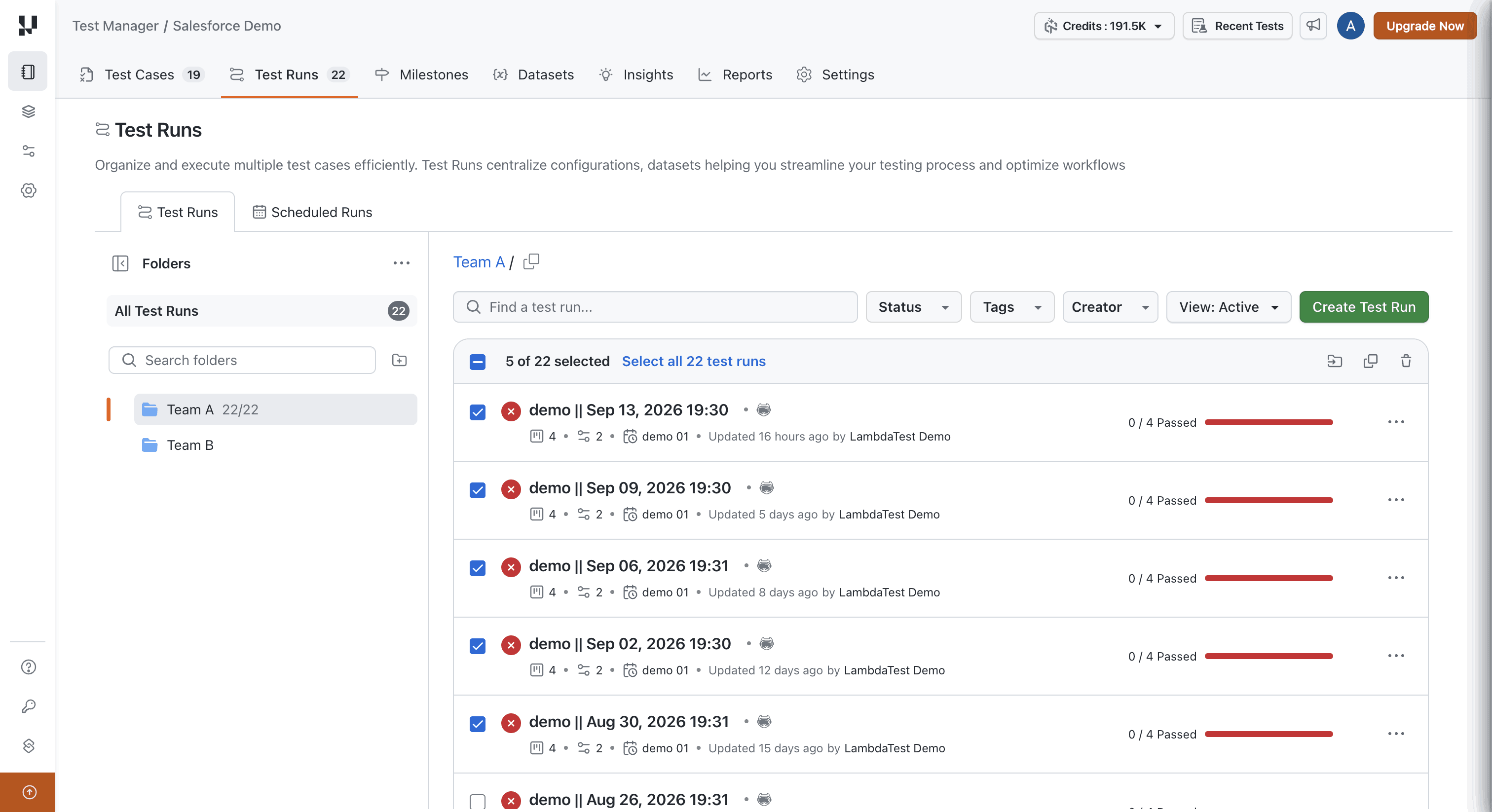
A single bulk action covers up to 1000 test runs. If you use Select all N test runs and the selection comes to more than 1000 runs, the action is rejected and you are told about the limit. Narrow the list with a folder, search, or filters, or work in batches.
Drag test runs to a folder
Instead of using the bulk action options, you can drag your selection straight onto a folder to move or copy it there.
-
Select the test runs you want to move or copy.
-
Drag the selected test runs onto the destination folder in the Folders panel and drop them.
-
In the dialog that opens, choose what to do with the selected runs:
- Move relocates the test runs from their current folders to the destination folder.
- Copy creates a new copy of each test run in the destination folder.
To drop the runs without making any change, close the dialog.
Dragging behaves exactly like the bulk action options. The same rules apply as described in Move test runs and Copy test runs, including the 1000-run limit.
Move test runs
Moving a test run changes only the folder it lives in. Nothing else about the run changes.
- Select the test runs and click Move test runs.
- In the folder picker, choose the destination folder.
- Confirm the move.
You can also drag the selected runs onto a folder and choose Move. See Drag test runs to a folder.
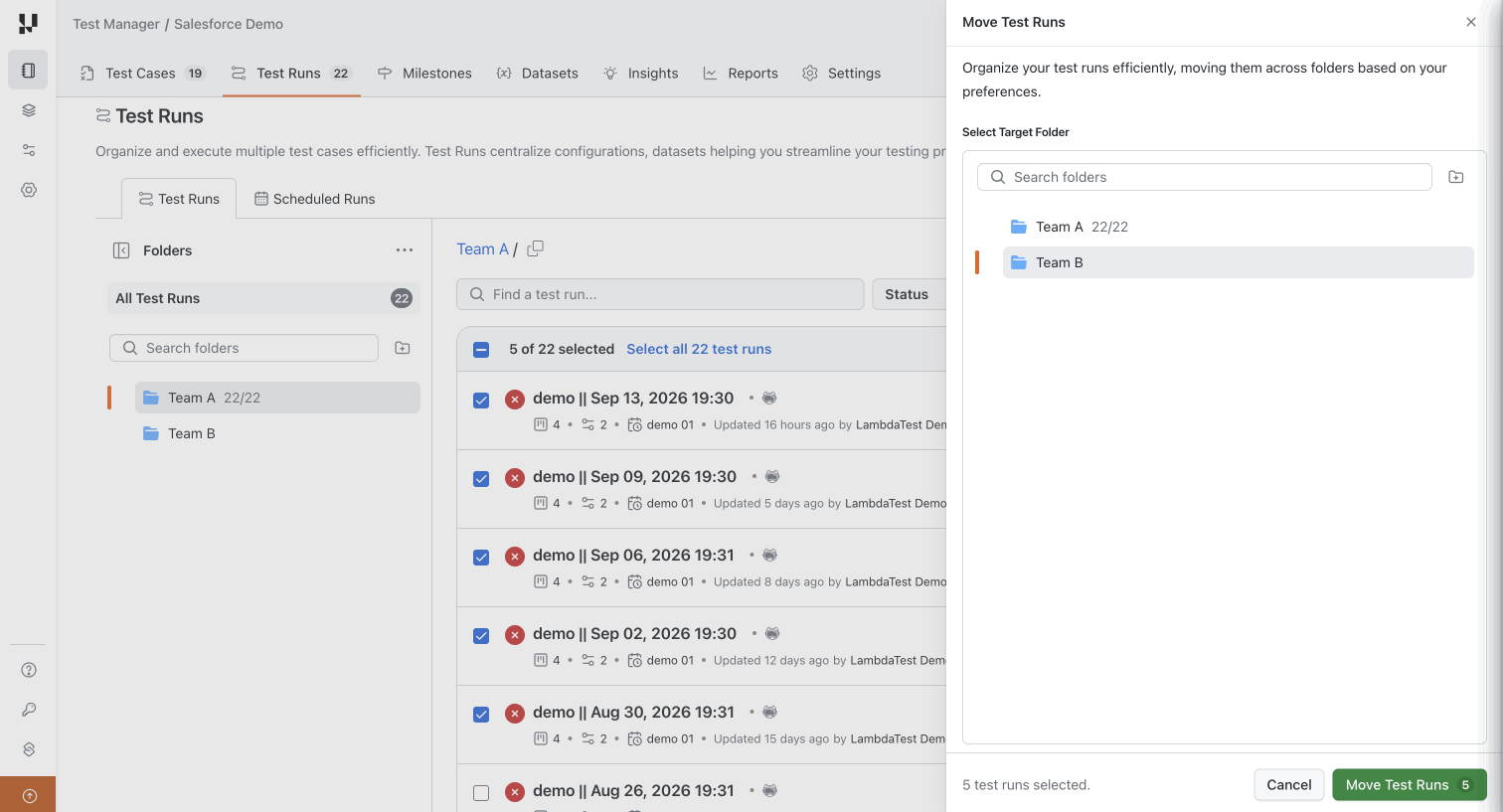
What to expect:
- The run is the same run. Its ID, URL, test instances, statuses, remarks, attachments, and linked issues all stay as they were. Any link or bookmark to the run keeps working.
- Runs already in the destination folder are left as they are. They are reported as already in that folder, not as a failure.
- The move completes straight away. You do not need to wait for a background job.
- Runs that are In Progress can be moved. Anyone executing the run can carry on.
Copy test runs
Copying creates a new test run that has the same scope as the original but no results. Use it to repeat a regression suite, a release pass, or an environment-specific run without rebuilding it by hand.
- Select the test runs and click Copy test runs.
- In the folder picker, choose the destination folder. This can be the same folder the runs are already in.
- Confirm the copy.
You can also drag the selected runs onto a folder and choose Copy. See Drag test runs to a folder.
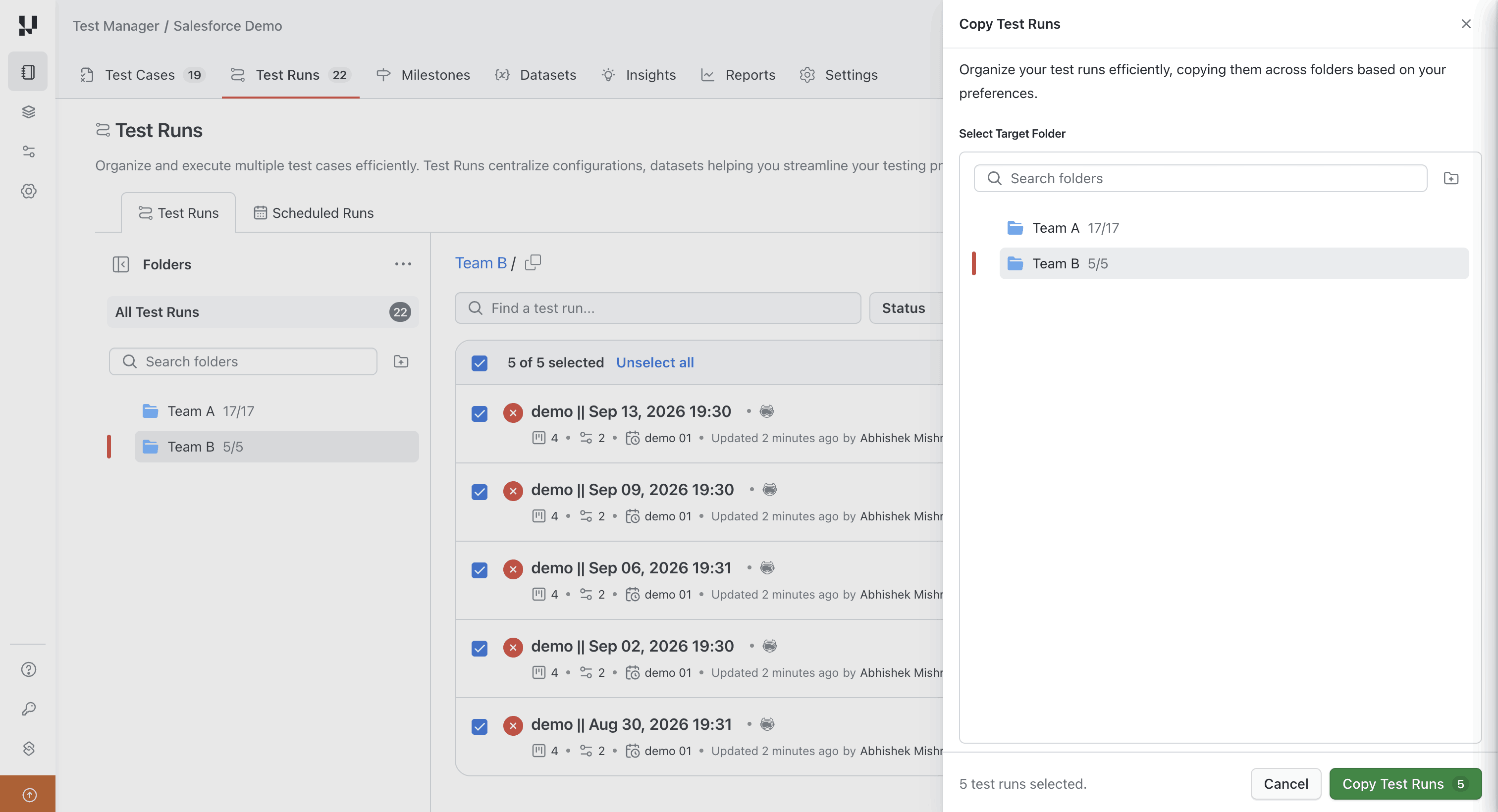
What a copy contains
| Carried into the copy | Not carried into the copy |
|---|---|
| Test cases in the run | Test instance statuses. Every instance starts at Not Started |
| Configurations for each test instance | Who executed each instance, and when |
| Assignees | Remarks and actual results |
| Order of test instances | Linked issues |
| Tags | Archived test cases |
Archived test cases are left out of a copy. See Archive and Restore Test Cases.
How copies are named
Each copy is named Copy of <original name>. If a run with that name already exists in the destination folder, a number is added, for example Copy of Regression Suite (2). A run with the same name in a different folder does not count as a clash.
Very long names are shortened so the copy stays within the title length limit, and the Copy of prefix is always kept.
Tracking a copy
Copies are created in the background, so you can keep working while they run.
- New runs appear in the destination folder one by one as each copy starts. A run that is still being built shows as being prepared until its copy finishes.
- A progress summary shows how the copy is going. When it finishes, the summary lists how many runs were copied, how many failed and why, and how many were skipped.
- A failed copy leaves nothing behind. If a run cannot be copied, its partial copy is removed and the other runs in the selection carry on.
- A run deleted before its turn is skipped. If one of the selected runs is deleted after you start the copy but before it is reached, it is reported as skipped and the rest of the selection is unaffected.
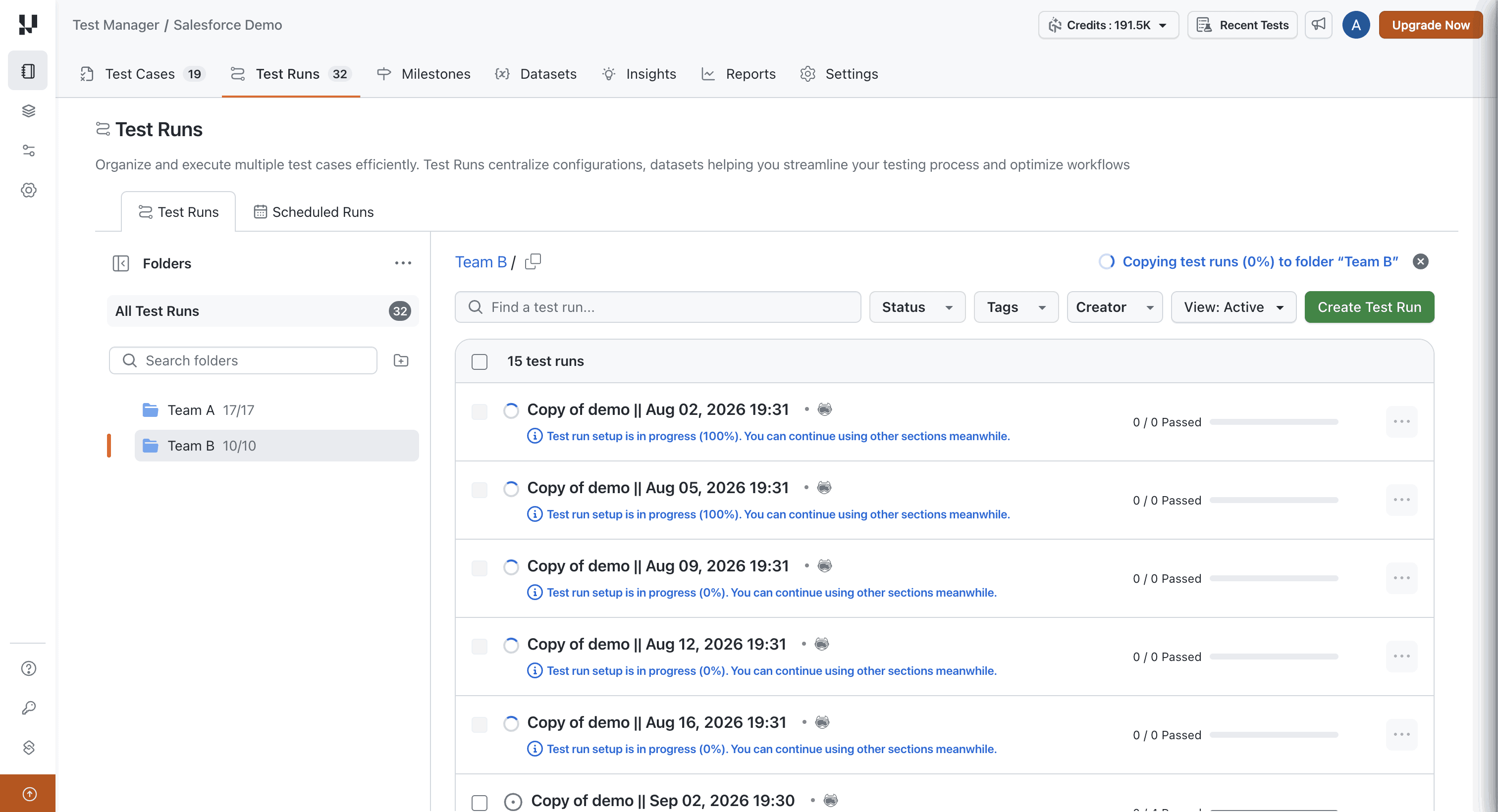
You can copy the same test run more than once, and you can copy a run while someone is executing it. The copy takes only the run's structure, so results recorded during the copy never reach it.
Delete test runs
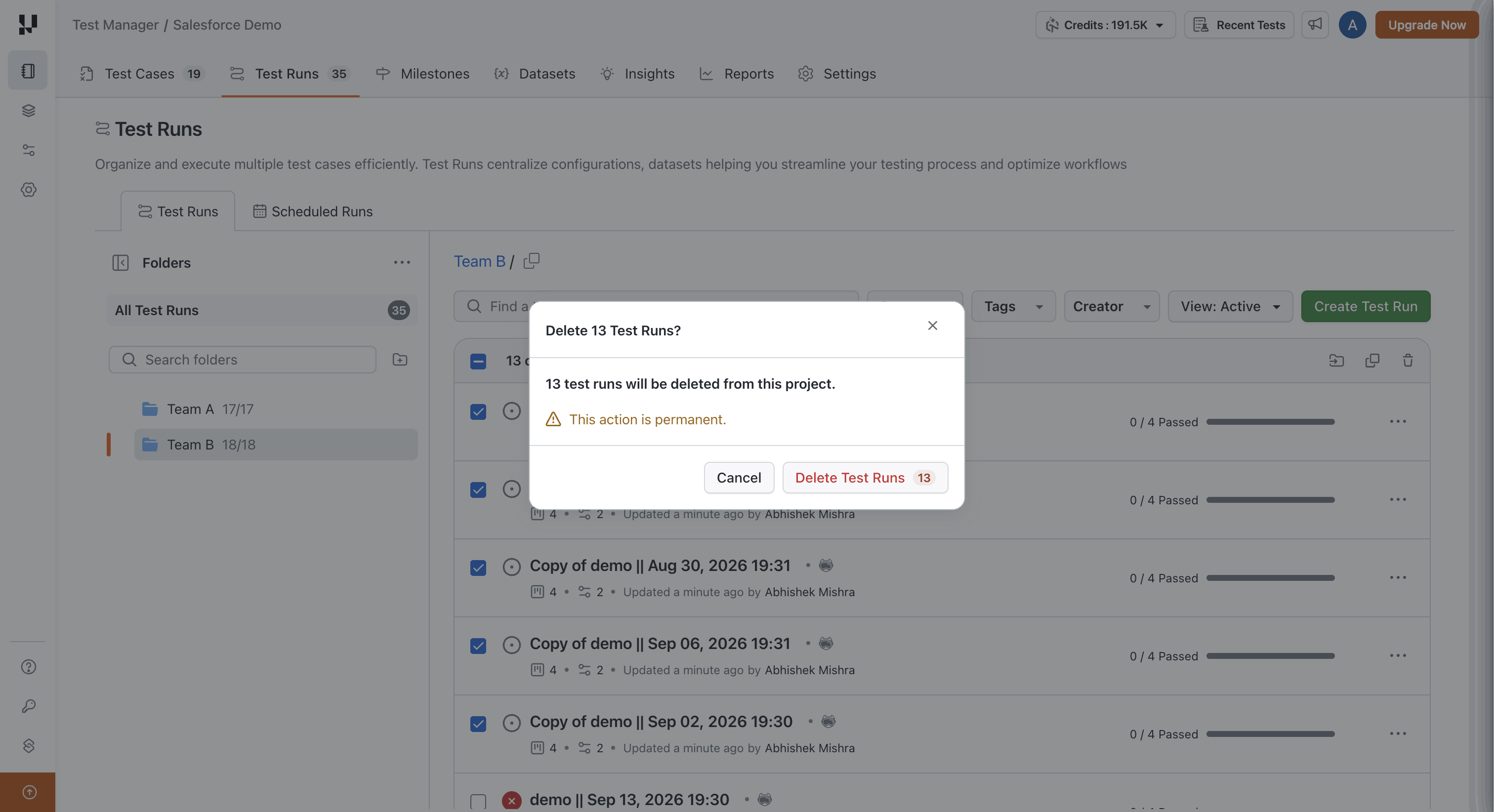
- Select the test runs and click Delete test runs.
- Review the confirmation and confirm the deletion.
What to expect:
- Deletion is permanent. Deleted test runs cannot be restored from Test Manager.
- Runs that are In Progress are never deleted. They are skipped and listed as skipped, and the rest of the selection is deleted. This also applies to a run that starts executing after you confirm the deletion, so nobody loses work they are in the middle of.
- The deletion completes straight away.
If you want a completed run out of the way but still available for reference, archive it instead of deleting it. See Test Run Options.
While a bulk action is running
One bulk action per project
A project runs one bulk action on test runs at a time. While a move, copy, or delete is running, any other bulk action in that project is blocked with a message that a bulk operation is already in progress. This applies whoever starts it and whichever action it is. Wait for the current action to finish, then try again.
Bulk actions in other projects are not affected.
Runs being copied are protected
Until a run's own copy finishes, changes that would alter what gets copied are blocked on that run. For a run in a bulk copy, you cannot:
- Edit the run, for example to add or remove test cases
- Archive or delete the run
- Move the run to another folder
- Change a test instance's assignee, configuration, test case, or order
Execution is not affected. On the same run you can still:
- Execute test instances
- Update the status of test instances and test steps
- Add remarks and actual results
Each run is released as soon as its own copy completes, so you do not need to wait for the whole selection to finish. Runs in the selection that are still waiting for their copy are protected from the moment you start the copy. Every other test run in the project stays fully editable and executable throughout.
Permissions
Bulk actions use the same test run permissions as their single-run equivalents:
| Action | Permission required on test runs in the project |
|---|---|
| Move | Update |
| Copy | Create |
| Delete | Delete |
Permissions apply across the whole project. If you can copy or move test runs, you can use any folder in that project as the destination.
See RBAC Roles and Permissions for how permissions are assigned.
Limitations
- Up to 1000 test runs per action. Larger selections, including Select all N test runs when the view holds more than 1000 runs, need to be split into batches.
- Within one project only. Test runs cannot be moved or copied to another project.
- One bulk action per project at a time. A second bulk action in the same project is blocked until the first finishes.
- Delete skips runs that are In Progress. To delete them, wait until they finish, then delete them again.
- Copies start without results or linked issues. Only the run's structure is copied.
- Deleting a folder is not blocked during a copy. If you delete a folder that contains runs waiting to be copied, those runs are reported as skipped.
- Runs with the same name copied together can end up with the same name. If two selected runs share a name, both copies may be given the same numbered name, such as
Copy of Smoke Suite (2). Rename one afterwards if you need to tell them apart.
Related resources
| Topic | Doc |
|---|---|
| Creating, editing, and archiving a single test run | Test Run Creation and Management |
| Linking bugs and issues to test runs | Track Bugs and Issues in Test Runs |
| Moving and copying test cases | Copy and Move Test Cases |
| Retiring test cases without deleting them | Archive and Restore Test Cases |
| Assigning permissions | RBAC Roles and Permissions |


 Chat with Us