Safari Settings on Real Devices
TestMu AI provides Safari Settings that allow you to configure Safari browser behavior on real iOS devices during manual testing sessions in App Live and Browser Live. You can toggle Prevent Cross-Site Tracking and Block All Popups to match the real-world conditions your end users experience.
Overview
Safari on iOS enables Prevent Cross-Site Tracking by default, which automatically restricts cookies and website data from being shared across different websites. This prevents third-party content providers and advertisers from tracking user activity across sites.
Similarly, Safari's Block All Popups setting prevents websites from opening pop-up windows, which can interfere with testing flows that rely on pop-ups for authentication, payment gateways, or multi-window interactions.
With TestMu AI's Safari Settings feature, you can disable these restrictions during your manual testing sessions to accurately test scenarios that depend on cross-site cookies or pop-up windows.
Use Cases
- Test OAuth and SSO login flows that rely on third-party cookies across domains.
- Validate ad-tech, analytics, or tracking pixel integrations that require cross-site cookie access.
- Test payment gateway redirects and pop-up based authentication flows.
- Debug issues where Safari's default privacy settings block expected application behavior.
- Verify that your application gracefully handles both enabled and disabled states of these Safari settings.
Supported Devices
| Device Type | Supported OS Version |
|---|---|
| iPhone | iOS 16 and above |
| iPad | iPadOS 16 and above |
Safari Settings Available
| Setting | Default State | Description |
|---|---|---|
| Prevent Cross-Site Tracking | Enabled | When enabled, Safari limits third-party cookies and cross-site tracking. Disable this to allow cookies and data to be shared across websites. |
| Block All Popups | Disabled | When enabled, Safari blocks all pop-up windows. Enable this to test how your application behaves when pop-ups are blocked. |
Steps to Configure Safari Settings
Step 1: Start a manual testing session on a real iOS device (iPhone or iPad running iOS 16+) in App Live or Browser Live.
Step 2: In the left sidebar, click on iOS Settings to expand the menu.
Step 3: Select Safari Settings. A panel will appear with two toggle options:
- Cross-Site Tracking
- Block All Popups
Step 4: Toggle the settings as needed:
- Check Cross-Site Tracking to disable Safari's "Prevent Cross-Site Tracking" setting, allowing third-party cookies and cross-site data sharing.
- Check Block All Popups to enable Safari's pop-up blocker.
Step 5: Click the Update button to apply the changes. Click Cancel to discard.
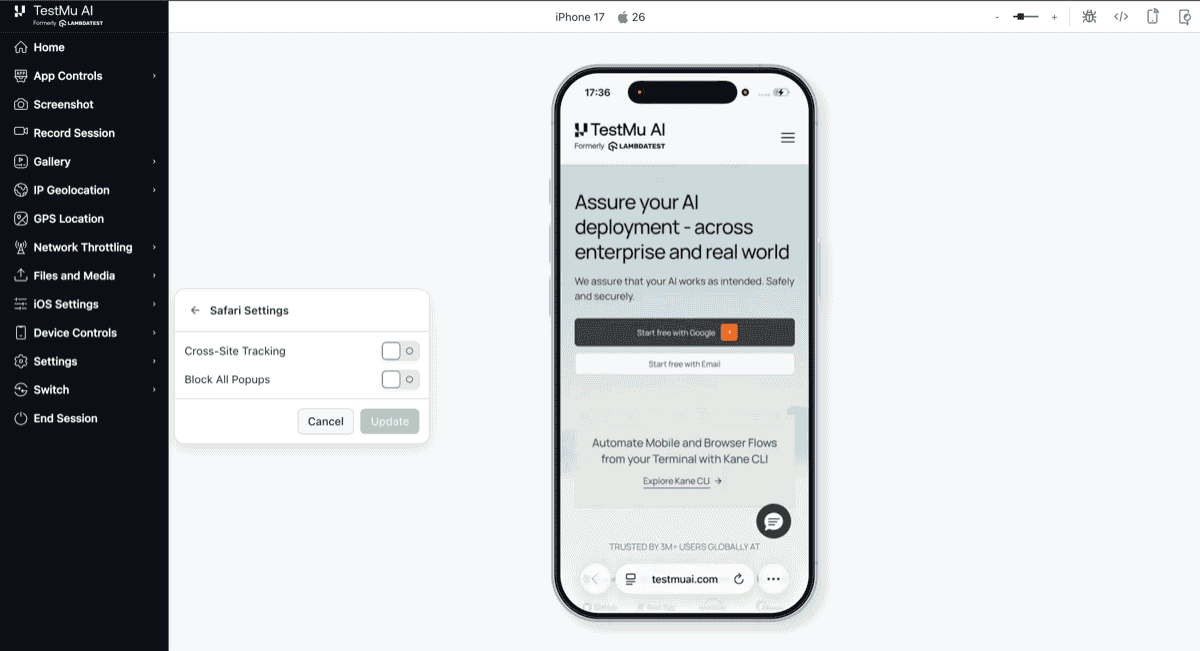
The settings are applied immediately to the Safari browser on the device. You can continue your testing session with the updated configuration.
- Safari settings changes are applied at the browser level and take effect immediately for new page loads.
- These settings reset to their defaults when the session ends, so your changes do not persist across sessions.
- The Prevent Cross-Site Tracking setting does not allow interacting with 3rd-party iFrames blocked due to CORS. This is a restriction from Apple and cannot be overridden.
This feature is available for App Live and Browser Live sessions on real iOS devices running iOS 16 and above.


 Chat with Us