How to Test Apps Installed via Play Store?
TestMu AI enables developers to test their mobile applications and websites across a range of real devices and browsers. It allows for direct installation of apps from the Google Play Store, facilitating testing of apps on real android devices to ensure optimal performance and compatibility.
Let's dive in to learn how to test apps installed from Play Store.
Step 1: Login to your TestMu AI account. Visit Real Device from the left panel and navigate to the App Testing.
Step 2: Next, choose the OS version. In this case lets choose Android.
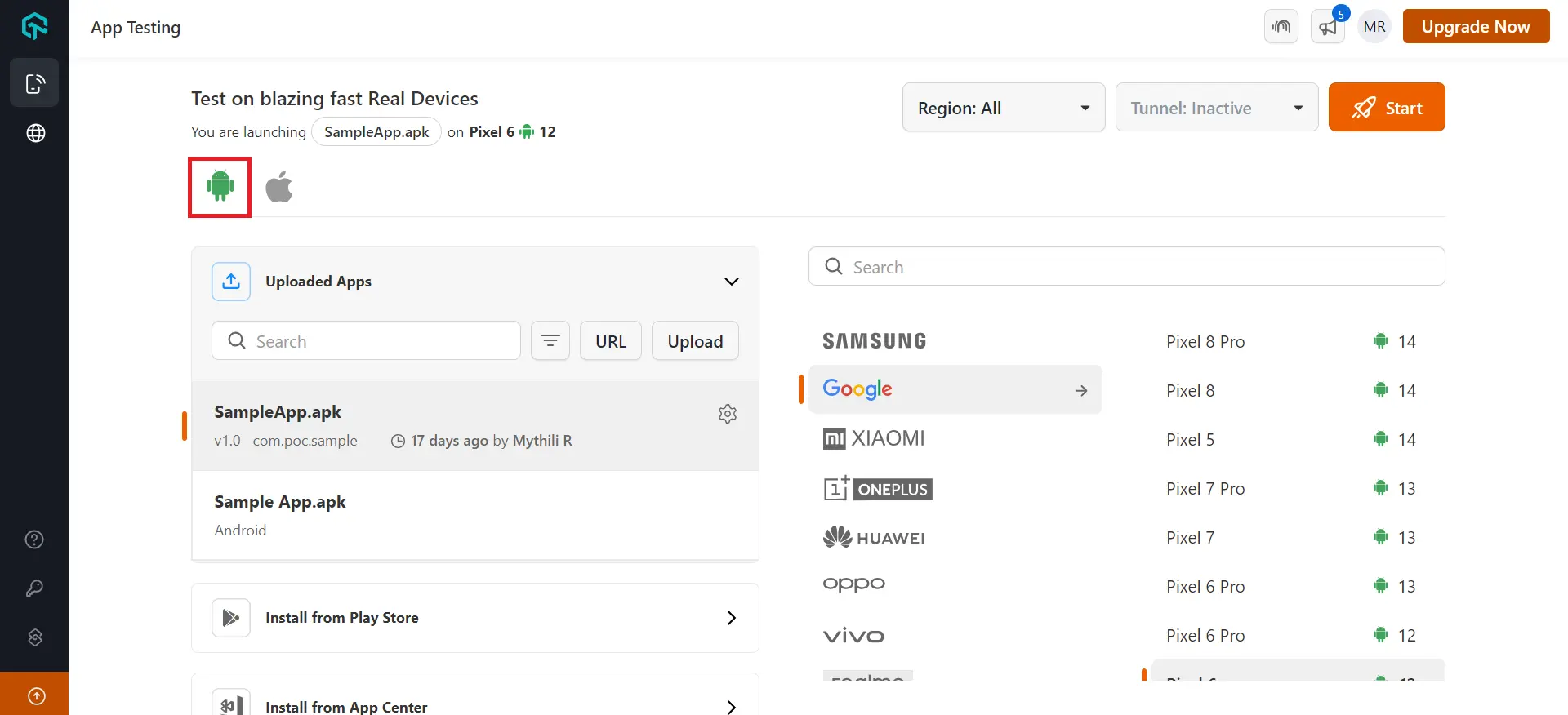
Step 3: From the uploading apps section choose Install from Play Store.
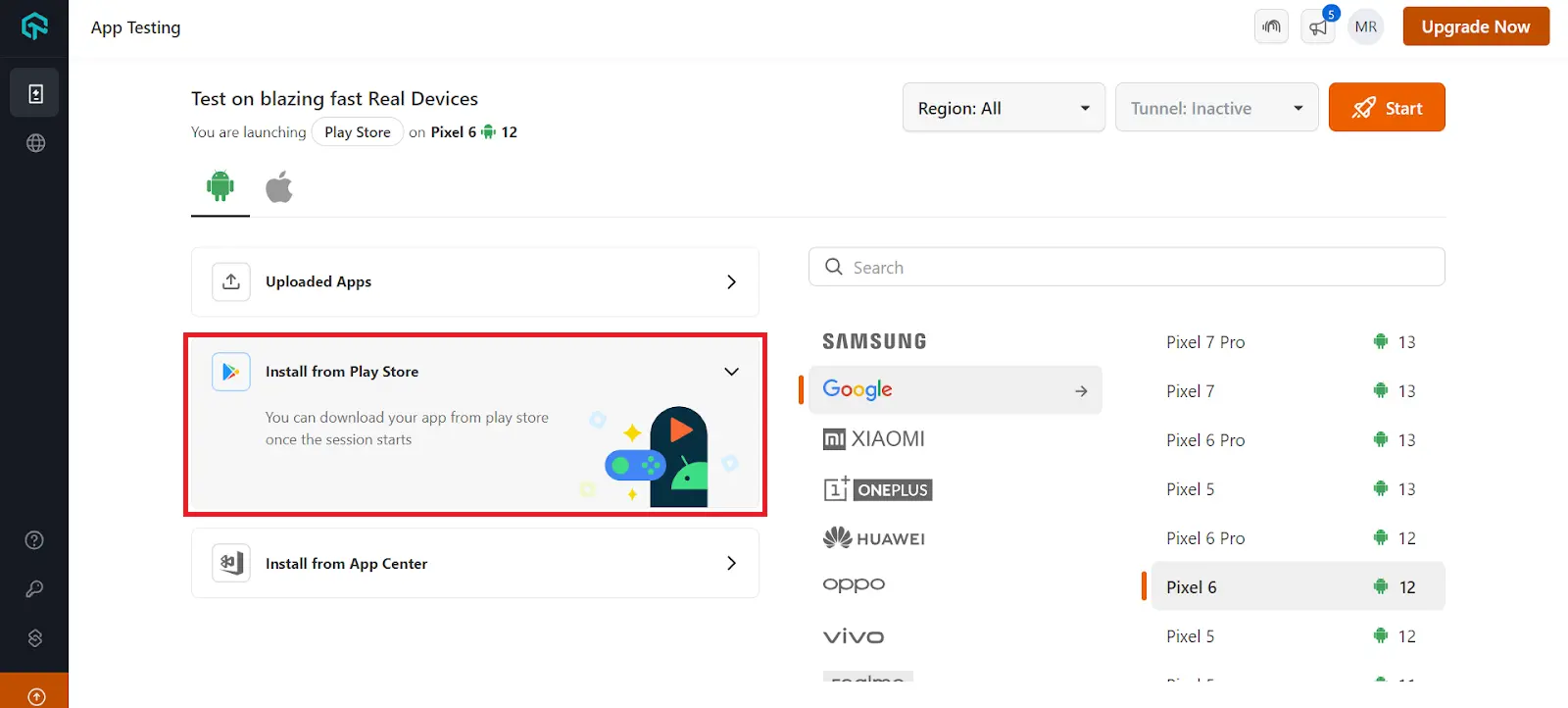
Step 4: Select the Device and OS Version of your choice to launch the test session.
Step 5: Log in to the Play Store with your Google account to install and test your app.
-
If you can't find an app on the Google Play Store, ensure you're signed in with a Google account from the region where the app is published. For example, if the app is available only in India, sign in with an Indian Google account and search again.
-
App availability may also depend on the device's region. If the app isn't visible on devices from one region, try launching a device from the region where the app is available (for example, a US-region device for apps published only in the United States).


 Chat with Us