Appium Inspector on Real Devices
TestMu AI integrates the open-source Appium Inspector directly into manual app testing sessions on real devices. You can inspect your app's element hierarchy, find locators, and run element actions from the same session panel, without installing Appium Inspector on your machine or configuring desired capabilities.
Appium Inspector opens next to UI Inspector in the same docked panel, so the device screen stays visible and your session layout doesn't change. The integrated version works the same as the standalone tool, so locators and workflows you already use carry over unchanged.
Use Cases
- Find reliable locators (
id,-android uiautomator,xpath, and more) for your automation scripts while you test manually. - Understand the structure of your app screen by browsing the full element tree.
- Verify that an element can be found and interacted with before you add it to a test.
- Run quick element actions such as tap, send keys, and clear on the live device.
- Inspect hybrid apps by switching between native and web contexts.
Appium Inspector vs. UI Inspector
Both inspectors are available in the same panel, and you can switch between them at any time.
| UI Inspector | Appium Inspector | |
|---|---|---|
| Built by | TestMu AI | Appium open-source project |
| Best for | Quick element lookup and XPath generation | Full Appium workflow: locator strategies, commands, gestures, and session details |
| Element selection | Tap elements on the device screen | Click elements on the captured screenshot in the panel |
| Setup | Available as soon as the session starts | Click Start Appium Inspector once per session |
Steps to use Appium Inspector
Step 1: Start a manual app testing session on a real device. For more information, see App Testing on Real Devices.
Step 2: In the top toolbar of the session, click the Inspect icon to open the inspector panel.
Step 3: Select the Appium Inspector tab. The tab shows the Appium Inspector version available in your session.
Step 4: Click Start Appium Inspector.
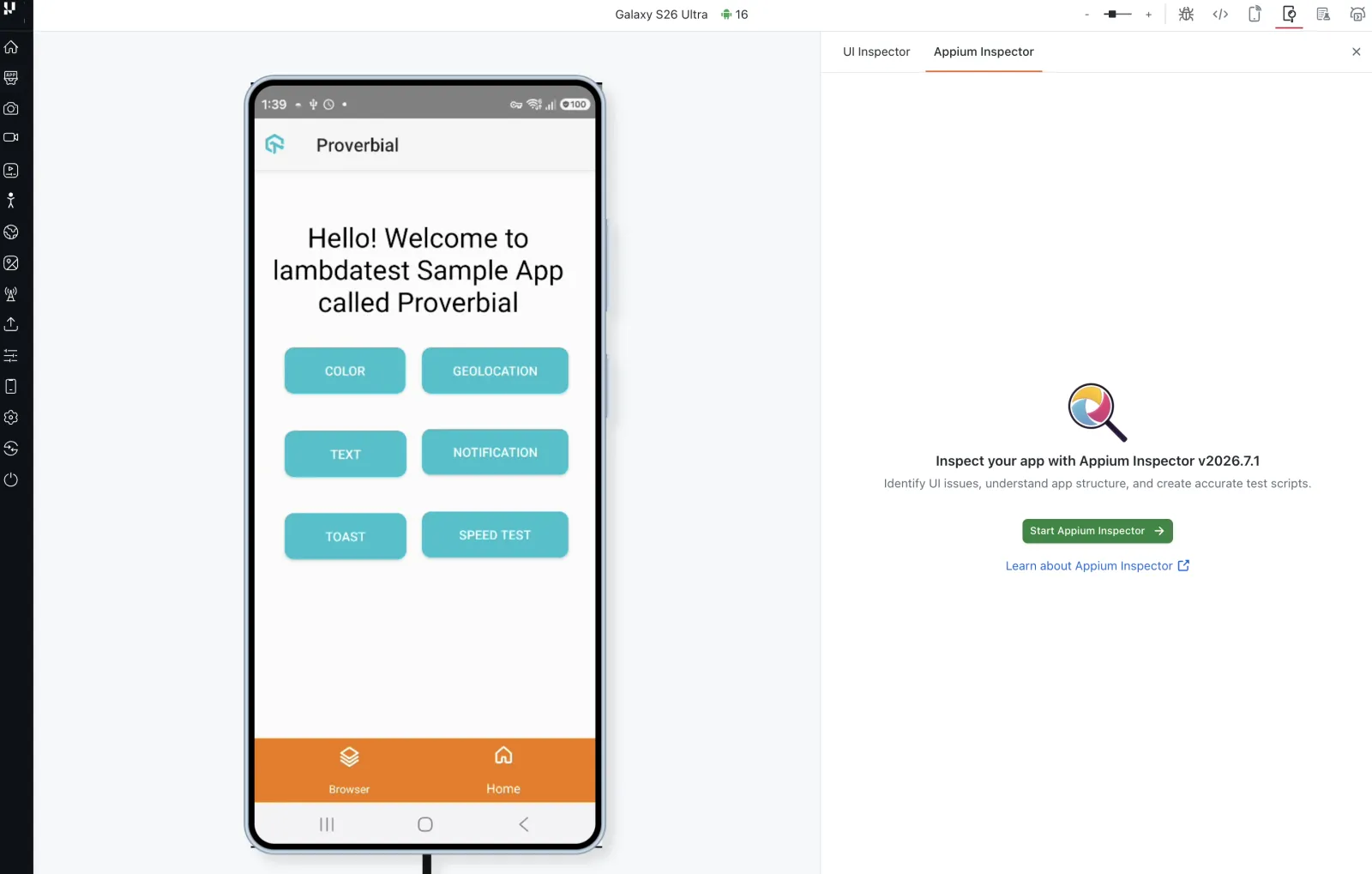
Step 5: Appium Inspector loads in the same panel and shows a screenshot of the current screen with the app source tree next to it. Click any element on the screenshot or in the tree to inspect it.
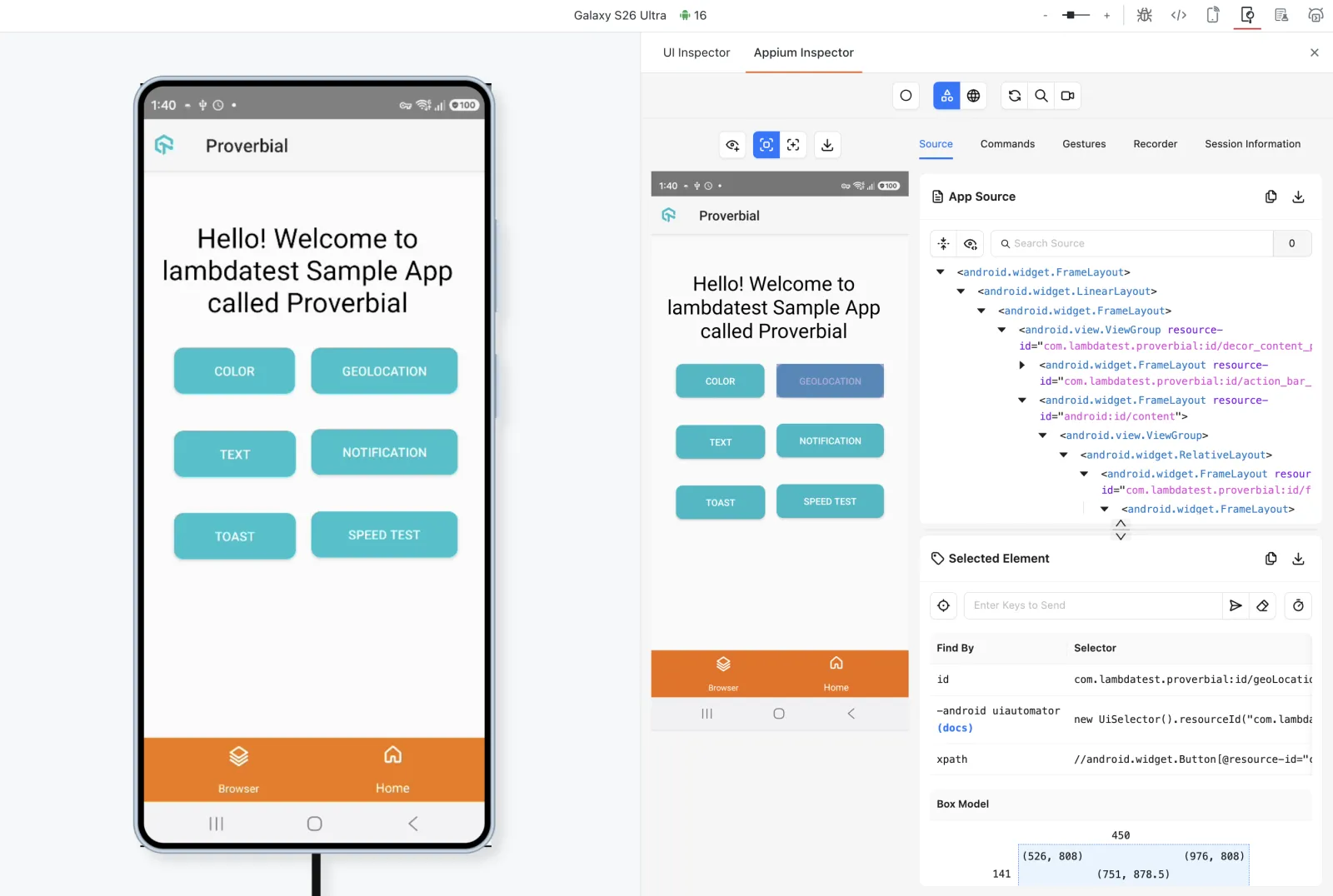
Appium Inspector interface
Top toolbar
- App mode: Switch between Native App Mode and Web/Hybrid App Mode to inspect native views or web views in a hybrid app.
- Refresh Source & Screenshot: Capture the current screen again after you navigate in the app.
- Search for element: Find elements by locator strategy and selector.
- Start Recording: Record the actions you perform in the inspector.
Screenshot view
The screenshot view shows the app screen at the time of the last capture. Click an element on the screenshot to select it in the App Source tree and in the Selected Element section. Use the controls above the screenshot to:
- Show element handles on the screenshot.
- Select elements (default mode).
- Tap or swipe by coordinates.
- Download the screenshot.
Source tab
- App Source: The element hierarchy of the current screen as an expandable tree. You can search the source, copy it, or download it as XML.
- Selected Element: Details of the element you selected:
- Element actions: Tap the element, send keys to it, clear its value, or get the time taken to find it.
- Find By / Selector: Locators for the element, such as
id,-android uiautomator, andxpath. Copy these into your automation scripts. - Box Model: The element's coordinates, width, and height on the screen.
- Attributes: All attributes of the element, such as
text,resource-id,class,enabled, andbounds.
Other tabs
| Tab | What it does |
|---|---|
| Commands | Run Appium commands against the session, such as device, app, and context commands. |
| Gestures | Create and run custom touch gestures, such as swipes and multi-finger actions. |
| Recorder | View the actions you recorded and the matching code in your chosen language. |
| Session Information | View the session details and the capabilities the session is running with. |
- The screenshot and source don't update automatically. After you navigate to a new screen in the app, click Refresh Source & Screenshot to inspect it.
- Closing the inspector panel ends the Appium Inspector view. When you reopen it, click Start Appium Inspector again.
- For details on any Appium Inspector feature, see the Appium Inspector documentation.


 Chat with Us