Certificate Injection on Real Devices
Many apps connect to servers that use certificates issued by a private or corporate certificate authority. Some apps also pin a self-signed certificate, or present a client certificate to authenticate themselves before a server will respond. On a standard device, these connections fail because the device does not trust your organization's certificates.
TestMu AI's Certificate Injection allows you to upload your own certificates and install them on a real device during a manual App Testing session. Your app then behaves on the TestMu AI cloud exactly as it does on your internal network. Certificates are installed for a single session and are removed when the session ends.
Use Cases
- Test apps that use self-signed certificates in development and staging environments.
- Verify app behavior when SSL pinning is enabled, and debug related network issues.
- Test mutual TLS (mTLS) login flows where your app must present a client certificate.
- Access internal or pre-production endpoints signed by a corporate certificate authority, without disabling TLS validation in your build.
Availability
| Device type | Real devices only |
| Platforms | Android and iOS |
| Session types | App Testing (Manual) and App Automation |
| Certificates per session | Up to 3 |
| Maximum file size | 15 MB per certificate |
Certificate Injection is enabled per organization. If the Certificates section is not visible on your dashboard, the feature is not yet switched on for your account.
To unlock this feature, please contact your TestMu AI support representative, reach out to our [24×7 Chat Support], or email us at support@testmuai.com.
Certificate Injection applies to app testing sessions on real devices. It is not available on virtual devices or emulators, and it is not supported in real device browser testing sessions.
Supported Certificate Formats
The file extension determines how a certificate is installed, so make sure you upload it with the extension that matches its contents.
| Extension | What it is | Installs as | Platform | Password |
|---|---|---|---|---|
.crt .cer | A CA or server certificate | Trusted CA certificate | Android, iOS | Not used |
.pfx | A PKCS#12 bundle containing a private key and its certificate chain | Client identity, granted to the app under test | Android, iOS | Required |
.mobileconfig | An Apple configuration profile | Installed profile | iOS only | Not used |
Android does not have an equivalent of an Apple configuration profile, so a .mobileconfig file can only be used in an iOS session.
Upload Certificates Before a Test Session
Certificates are saved to your account and reused across sessions, so you only need to upload each certificate once.
Step 1: Open the App Testing dashboard and select the app and device you want to launch.
Step 2: In the left panel, expand the Certificates section. It appears below your app sources: Uploaded Apps, Install from Play Store, and Install from Firebase.
Step 3: Click Upload and select the certificate file from your machine. If you are uploading a .pfx bundle, enter its password. The password is stored securely against the certificate, so you do not need to enter it again for later sessions.
Step 4: Turn on the toggle next to each certificate you want installed for this session. You can select up to 3 certificates per session.
Step 5: Click Start to launch the session. The selected certificates are installed on the device as the session starts.
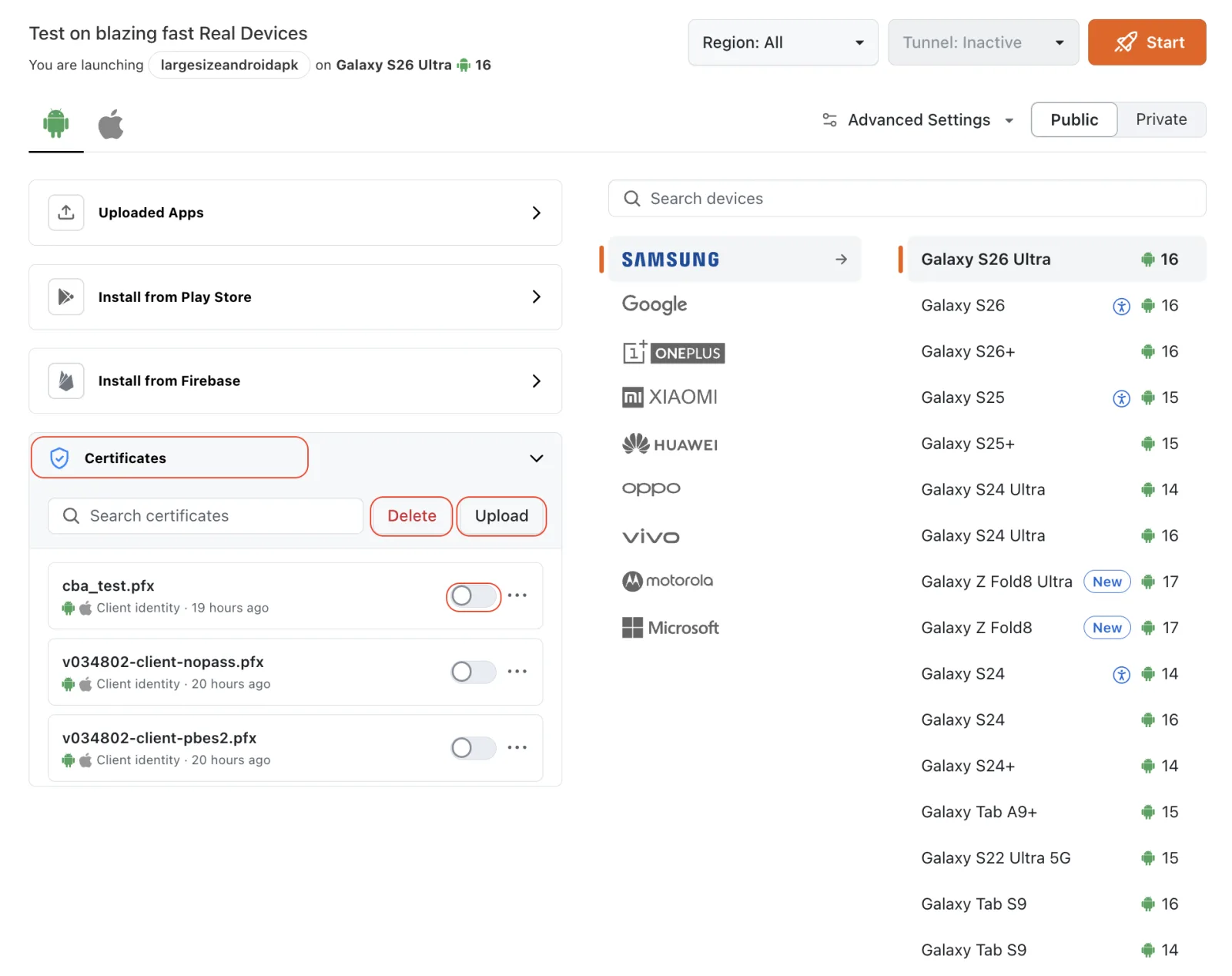
Each certificate in the list shows the platforms it applies to, what it installs as (for example, Client identity for a .pfx bundle), and when it was uploaded. Use Search certificates to find a certificate quickly.
If a certificate fails to install, the session still starts. Each certificate reports its own status, so you can check which ones installed successfully before you begin testing.
Manage Certificates During a Test Session
You can also manage certificates inside a running session. This allows you to check which certificates are installed, install one that you did not enable at launch, and upload a new certificate without restarting the session.
Step 1: In the session sidebar, open Android Settings (or iOS Settings on an iOS device) and click Certificates. The badge shows how many certificates are currently installed on the device.
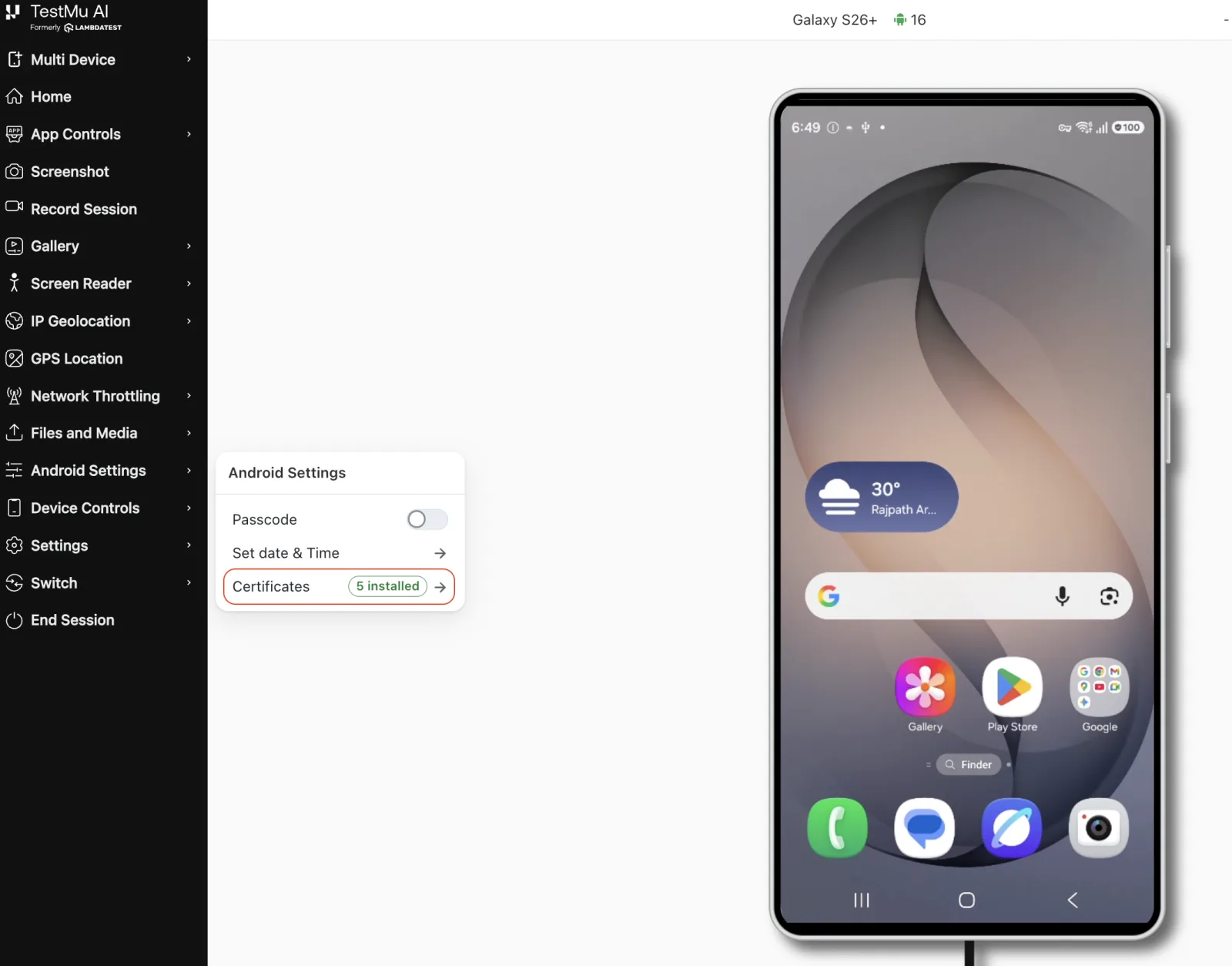
Step 2: The Certificates panel lists your uploaded certificates, with an Installed or Not installed status next to each one.
Step 3: To install a certificate that is not yet on the device, click the ⋯ menu next to it and select Install certificate.
Step 4: To add a new certificate, click Upload at the bottom of the panel and select the file. The certificate is added to your account and can be installed immediately.
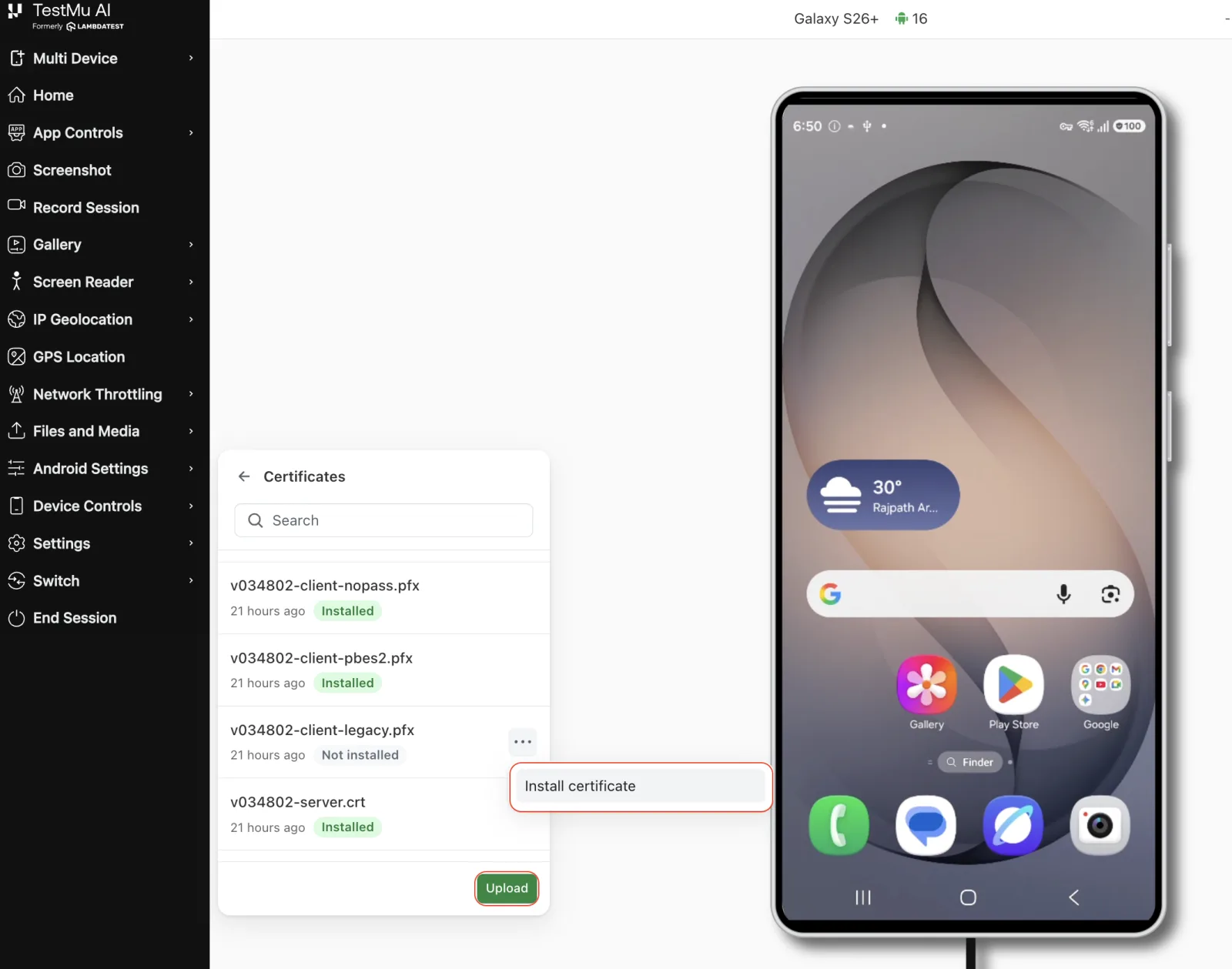
Use the Search field at the top of the panel to find a certificate quickly if your account has a long list.
Delete Uploaded Certificates
Certificates remain on your account until you remove them. To delete a certificate, open the Certificates section on the App Testing dashboard, select the certificate, and click Delete.
Deleting a certificate only removes it from your account. It does not affect a session that is already running.
What Happens on the Device
The behavior differs by platform, because Android and iOS handle certificate trust differently.
Verified- Android
- iOS
- A CA certificate is added to the device's user trust store, under a name derived from your filename. Existing trusted certificates on the device are not removed.
- A PKCS#12 identity is installed into the device keystore and then granted to the app under test. On Android, an app cannot access a key unless it has been granted access to it.
To confirm that a CA certificate is present, go to Settings > Security > Encryption & credentials > Trusted credentials > User on the device during your session.
Since Android 7, an app trusts user-installed CA certificates only if its network security configuration allows it. Installing the CA on the device is not enough on its own. If your app uses the default configuration, it will still reject the connection.
In the build you are testing, add a network_security_config.xml file that trusts the user certificate store:
<network-security-config>
    <base-config>
        <trust-anchors>
            <certificates src="system" />
            <certificates src="user" />
        </trust-anchors>
    </base-config>
</network-security-config>
- Certificates are delivered to the device as a managed configuration profile, installed and trusted without any manual step on the device.
- A
.mobileconfigfile keeps its own identifier and payload, so a profile that you have already validated in your own environment behaves the same way here.
To confirm that a profile is present, go to Settings > General > VPN & Device Management on the device during your session.
Installation is asynchronous on iOS, so a certificate may briefly show as pending. This means the device management channel has accepted it, but the device has not confirmed it yet. The status updates automatically shortly after the session starts.
Limits and Rules
| Rule | Value |
|---|---|
| Certificates per session | 3 |
| Certificate file size | 15 MB |
| Device type | Real devices only. Not available on virtual devices or emulators |
| Session type | App testing sessions only. Not supported in real device browser testing |
Password on .pfx | Required at upload time |
.mobileconfig | iOS sessions only |
| Organization entitlement | Must be enabled for your account |
FAQs
Q: My CA installs successfully but the app still rejects the connection. Why?
On Android, this is almost always caused by the network security configuration. Since Android 7, apps do not trust user-installed CA certificates unless their network_security_config.xml explicitly allows it. The certificate is installed on the device, but your app is not configured to trust it.
Build a test variant that trusts the user certificate store, and use that build for these sessions.
Q: One of my certificates shows as Not installed. What now?
Open the Certificates panel from the session sidebar, click the ⋯ menu next to it, and select Install certificate. If it still fails, the most common cause for a .pfx bundle is an incorrect password, which prevents the identity from being read. Verify the password by opening the bundle on your local machine, then re-upload the certificate with the correct password.
Q: Will another customer's session see my certificate?
No. Certificates are installed for a specific session on a specific device, and are removed when that session ends, including when a session times out or is stopped early. Each device is verified before it returns to the device pool. If a certificate is still present, the device is held back instead of being allocated to another user.
Additional Links
- Certificate Injection in App Automation on Real Devices
- App Testing on Real Devices
- How to Use Testing Tools in a Session
Need help with something this page does not cover, such as an unlisted certificate format, more than three certificates in a session, or a failed installation? Reach out to our [24×7 Chat Support] or email support@testmuai.com.


 Chat with Us