API Response Assertions in KaneAI
API response assertions verify the data returned by an API step. Use JSONPath to check specific values in a JSON response, or Schema to validate the response against a JSON Schema.
Overview
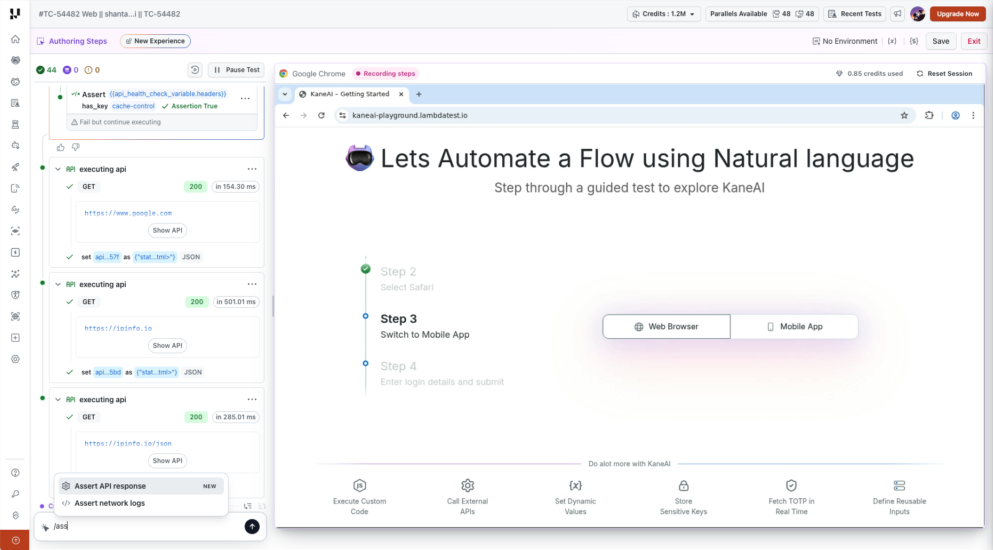
Open Assert API response from the instruction input's slash menu. The assertion modal provides JSONPath and Schema tabs, both of which create assertion steps in your test.
| Validation | Use it to check | Example |
|---|---|---|
| JSONPath | A field, nested value, array item, or filtered set of items. | A product's price is greater than zero. |
| Schema | The response's structure and the rules defined in a JSON Schema. | Each product has a required ID and a numeric price. |
You can add these assertions after an individually authored API call or an API created through Bulk API Import.
Before you begin
- Add an API step to your test and execute it to capture a response.
- Identify its response variable in the test steps or Variables panel.
- For JSONPath, ensure the response body contains valid JSON and decide which values to check.
- For schema validation, decide whether to generate a schema from the captured response or reuse an existing schema.
The source API step must run before an assertion that uses its response.
Add a JSONPath assertion
1. Select the response
- Type
/in the instruction input and select Assert API response. - Open JSONPath.
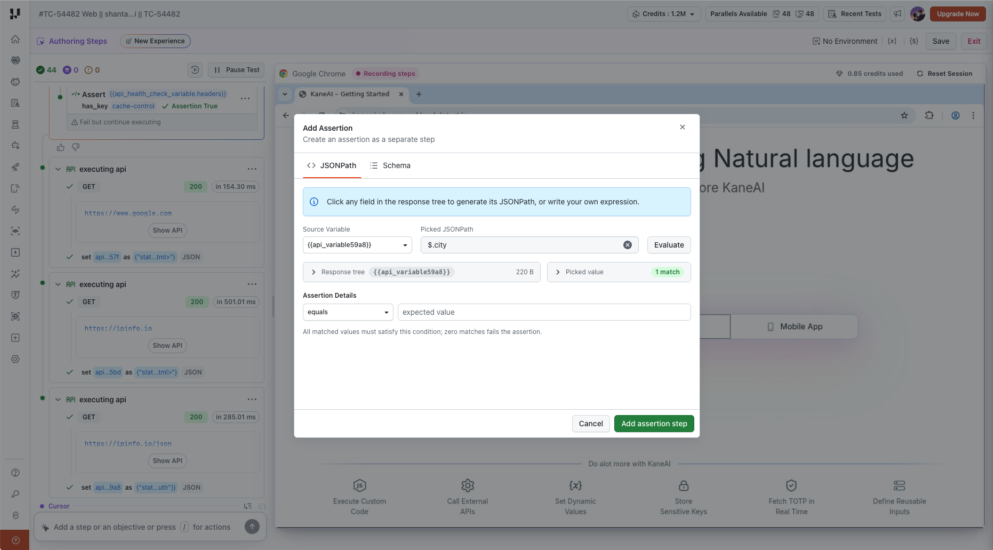
- In Source Variable, select the API response variable.
2. Choose a value
Expand Response tree and select a field to populate Picked JSONPath, or enter a JSONPath expression directly. A path starts with $, which represents the response body being evaluated.
For a response containing "city": "Pune", select the city field or enter $.city. Select Evaluate, then expand Picked value to inspect the result and match count.
For example, consider this response body:
{
  "data": {
    "total": 2,
    "products": [
      { "id": 101, "name": "Keyboard", "price": 49.99, "available": true },
      { "id": 102, "name": "Mouse", "price": 19.99, "available": false }
    ]
  }
}
| JSONPath | Selects |
|---|---|
$.data.total | The total: 2. |
$.data.products[0].name | The first product's name: Keyboard. Array indexes start at zero. |
$.data.products[*].price | The prices of all products. |
$.data.products[?(@.available==true)] | The products whose available value is true. |
$..price | Values of properties named price at any depth. |
Use Evaluate to inspect the match count and matched values before adding the assertion. Confirm the path selects the intended field, especially when filtering arrays.
3. Configure the comparison
Under Assertion Details, select an operator and provide the expected value when required. For the city example, choose equals and enter Pune. For the product response above:
| JSONPath | Operator | Expected value | Purpose |
|---|---|---|---|
$.data.total | equals | 2 | Check the returned total. |
$.data.products[0].name | equals | Keyboard | Check a specific product. |
$.data.products[*].price | greater than | 0 | Check that all matched prices are positive. |
$.data.products[?(@.available==true)] | is not empty | Not required | Check that an available product exists. |
Every matched value must satisfy the comparison, and zero matches fails the assertion. Use is not empty when your requirement is that a filter finds at least one item.
Select Add assertion step to add the check to your test.
4. Review the result
Execute the assertion after its source API step. Review the assertion outcome and compare the path, operator, actual value, and expected value. If a comparison fails, evaluate the same path against the captured response to inspect its matches.
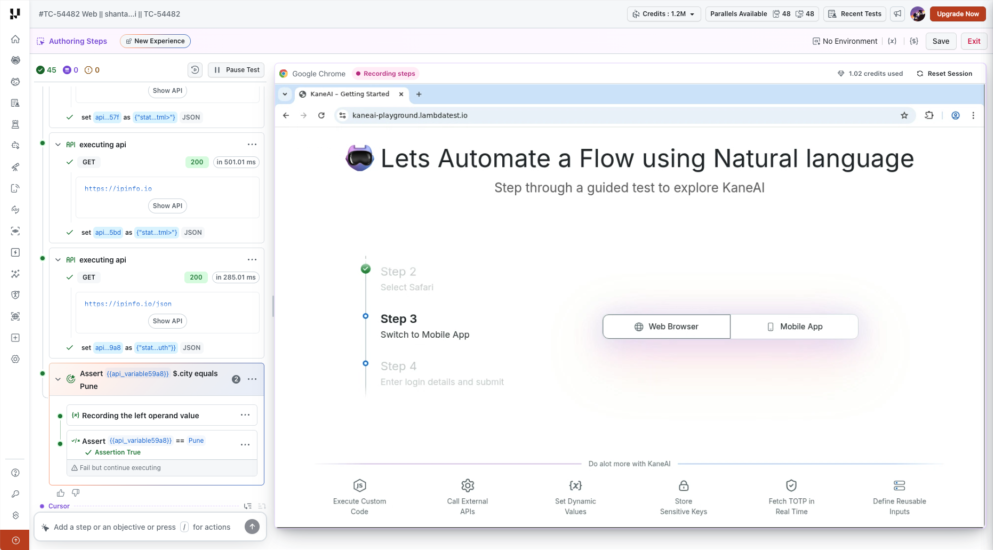
Large responses can show a sampled response tree. The visible preview can contain less data than the stored response used for evaluation. Use the JSONPath expression and evaluation results to check values beyond the visible sample.
Add a schema validation
A JSON Schema describes the response structure you expect, including property types and required fields. Schema validation checks the response against those rules; it does not require an expected-value comparison.
1. Select the response to validate
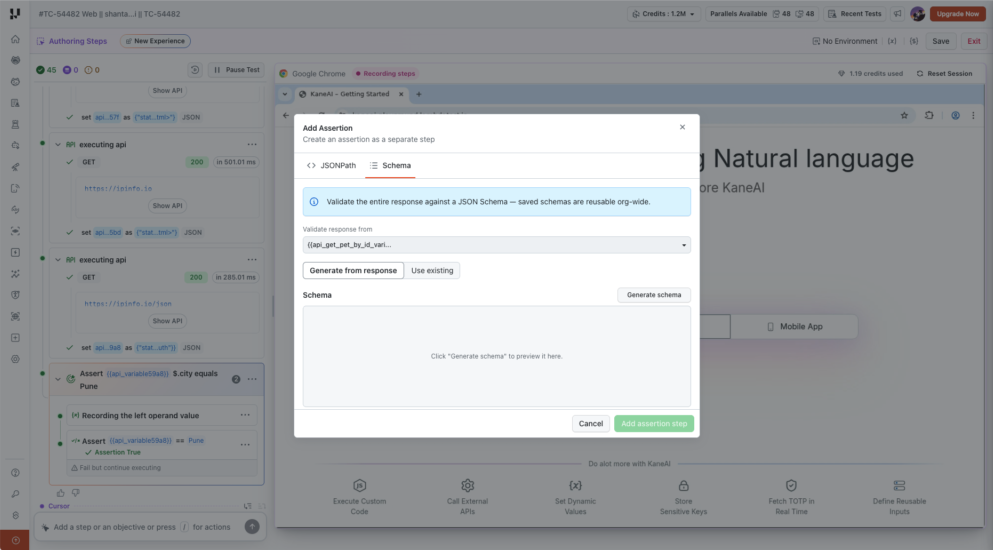
- Open Assert API response from the slash menu.
- Select Schema.
- Under Validate response from, select the API response variable.
2. Generate or reuse a schema
Choose the workflow that matches your test:
- Generate from response: Choose Generate schema for the selected response. Review and edit Schema JSON, check the Valid JSON indicator and property/required counts, then enter a Schema name. Use Regenerate to generate the schema again from the selected response.
- Use existing: Select a saved schema that represents the contract for this API response.
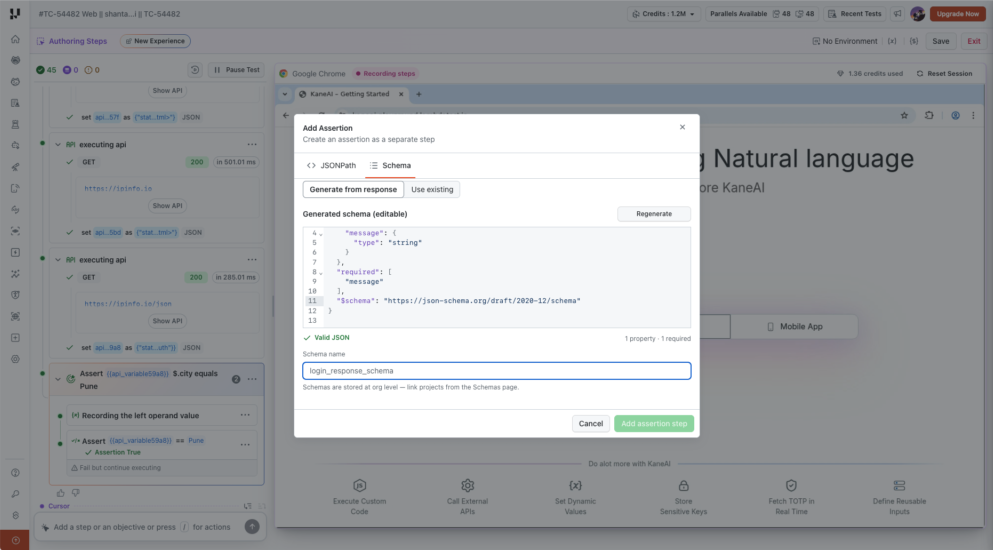
A generated schema is a starting point inferred from a sample response. Review required properties, optional fields, array item types, and rules for additional properties. Arrays containing different object shapes or mixed value types may need manual changes before the schema represents the intended contract.
For example, the following schema requires a product ID and price, and accepts an optional name:
{
  "type": "object",
  "properties": {
    "id": { "type": "integer" },
    "name": { "type": "string" },
    "price": { "type": "number" }
  },
  "required": ["id", "price"],
  "additionalProperties": false
}
This schema applies to a response body that is a single product object. If the API returns an object containing data or an array of products, the schema must describe that surrounding structure too.
In this example, additionalProperties: false rejects undeclared properties. Extra fields are not automatically errors in every JSON Schema; the schema must forbid them.
3. Add and execute the assertion
Select Add assertion step, then execute the assertion after the API response is available. On failure, review the reported paths and validation messages to identify the mismatch.
Select the schema name on the assertion step to open its preview and inspect the saved JSON Schema.
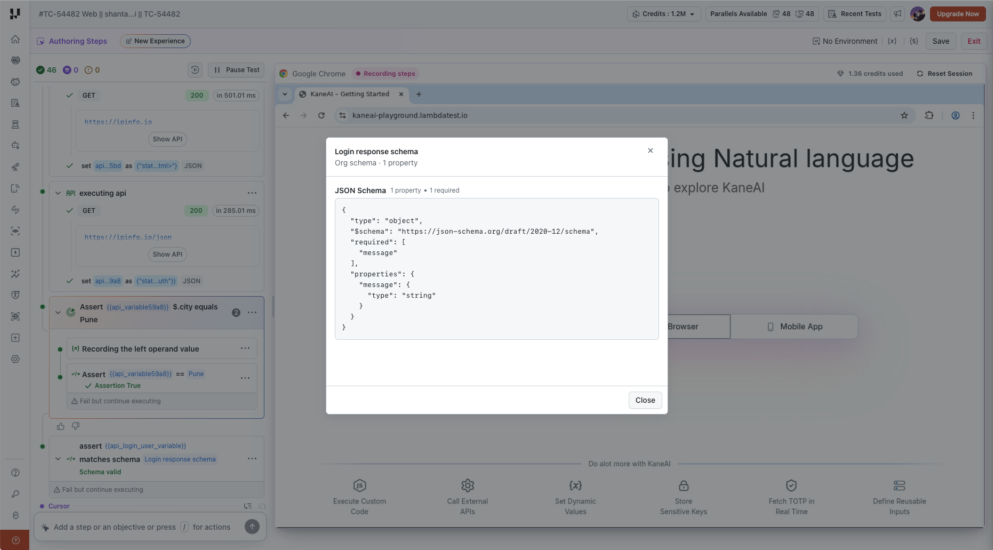
Typical schema issues include:
| Issue | What to review |
|---|---|
| Missing required property | A field listed in required is absent. |
| Type mismatch | A value has the wrong type, such as a string where the schema requires a number. |
| Unexpected property | The response includes an undeclared field where the schema forbids additional properties. |
| Enum mismatch | A value is outside the schema's allowed values. |
Manage shared schemas
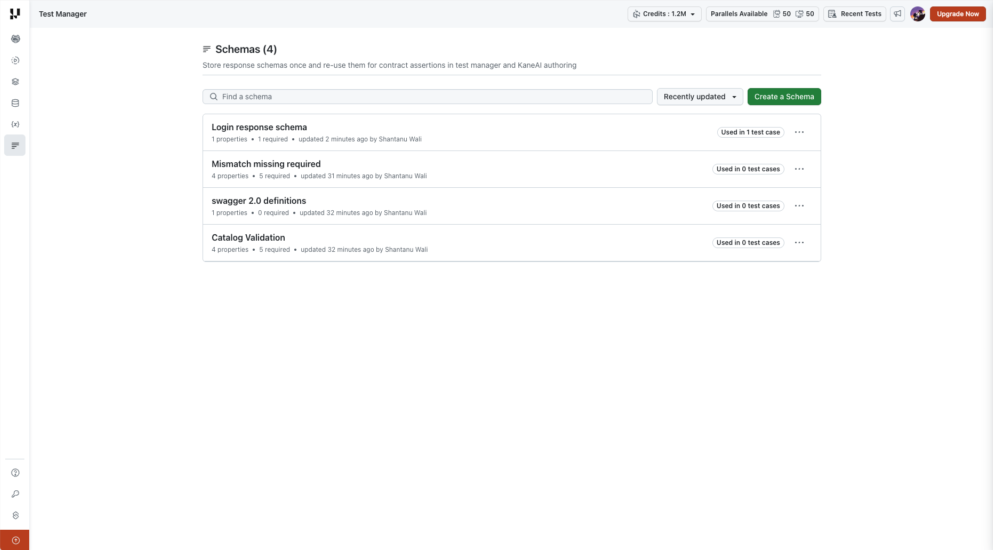
Schemas are stored at organization level and can be reused across test cases. Use Schemas in the Test Manager navigation to find, review, and maintain them.
Find a schema
Use Find a schema to search the list, or use the sort menu to change its order. Each row shows the schema name, property and required counts, update information, and Used in N test cases. Open a schema by selecting its name.
Review and edit a schema
The Overview tab contains the editable Schema JSON and its usage information. You can also:
- Select the schema name to rename it.
- Add a Description to explain the response contract.
- Use Link projects to manage its project links.
- Add Tags to organize schemas.
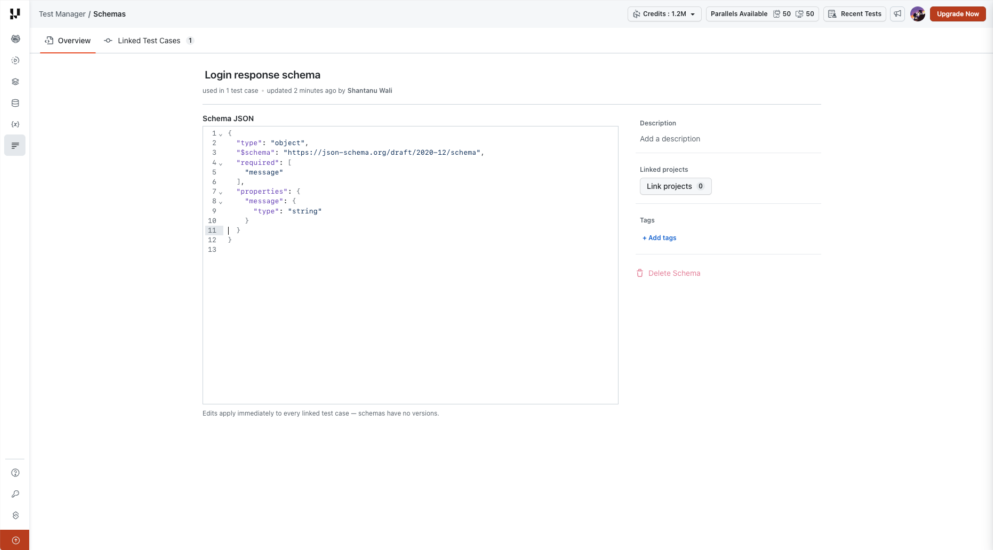
Schema edits apply immediately to every linked test case. Schemas have no versions. Check usage before editing, and use a separate schema when you need to maintain different contracts.
Check linked test cases
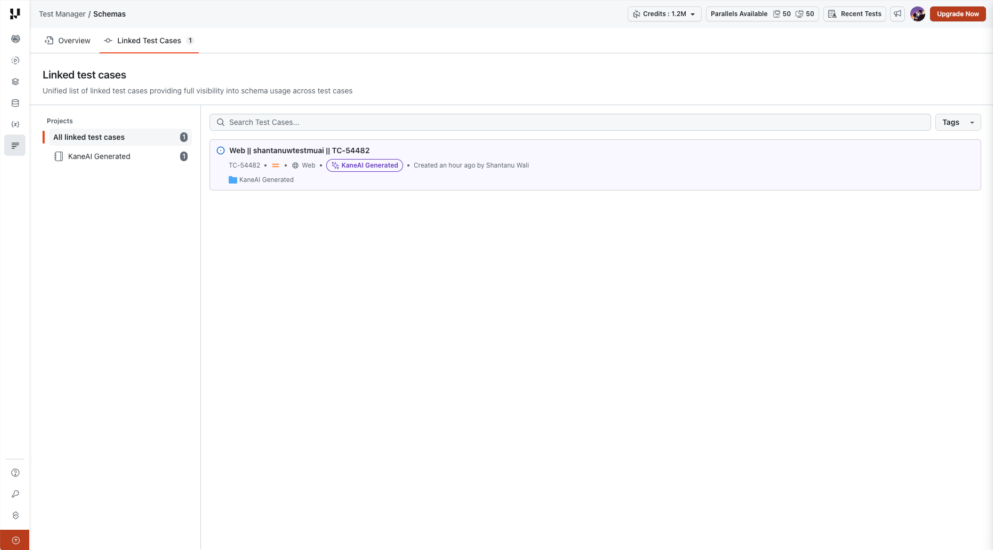
Open Linked Test Cases to see the cases using the schema. Use the Projects panel, Search Test Cases, and Tags to find affected cases. Select a test case to open it.
Delete an unused schema
Use Delete Schema on the Overview tab when the schema is no longer used. Deletion is unavailable while a test case references it; the disabled action shows the usage count. Remove those references before deleting the schema.
Common issues
| Issue | What to check |
|---|---|
| The response variable has no data. | Execute the source API step before opening or running its assertion. |
| A JSONPath matches nothing. | Check the selected variable, property names and capitalization, array indexes, and filter condition. Use Evaluate to inspect the result. |
| An array-wide comparison fails. | Inspect every matched value; the comparison applies to all matches. Use a filter with is not empty for an existence check. |
| A generated schema rejects a valid response. | Review inferred required fields and array item definitions, especially for arrays with different shapes or types. |
| A schema passes but the business value is wrong. | Add a JSONPath assertion for that value. A type check alone does not establish the expected value. |
| An assertion fails and execution continues. | Review the step's configured failure handling. See Failure Conditions. |
Related resources
Have any feedback or request? Reach out to us via support@testmuai.com and we would be happy to hear from you.


 Chat with Us