Modules
Modules in KaneAI let you group a sequence of test steps into a single reusable unit. Instead of re-authoring the same steps in every test case, you create a module once and import it wherever it is needed. This reduces duplication, improves consistency, and makes maintenance easier. When a workflow changes, you update the module and propagate the change across test cases.
Modules support variables, parameters, and secrets, so you can pass dynamic data into each module execution rather than hard-coding values.
Module Listing Page
The Modules section shows all available modules in your project. From here you can:
- Browse existing modules and see how many test cases each module is linked to
- Click on any module to view its details, version history, and linked test cases
- Create a new module
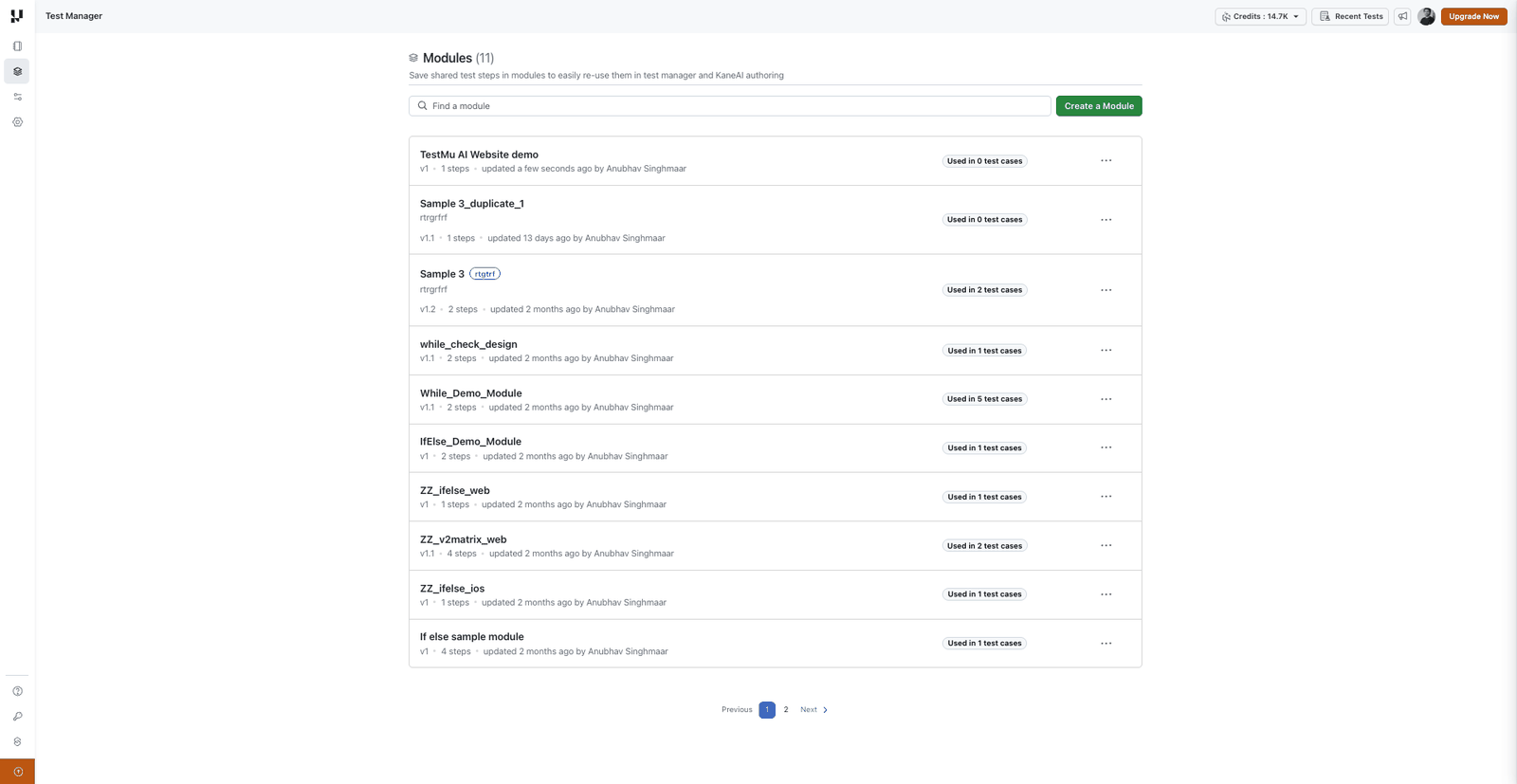
Create a Module
You create modules by extracting test steps from an active KaneAI session.
Step 1: Author Test Steps
Begin by authoring your test in KaneAI and executing the steps that you want to turn into a module.
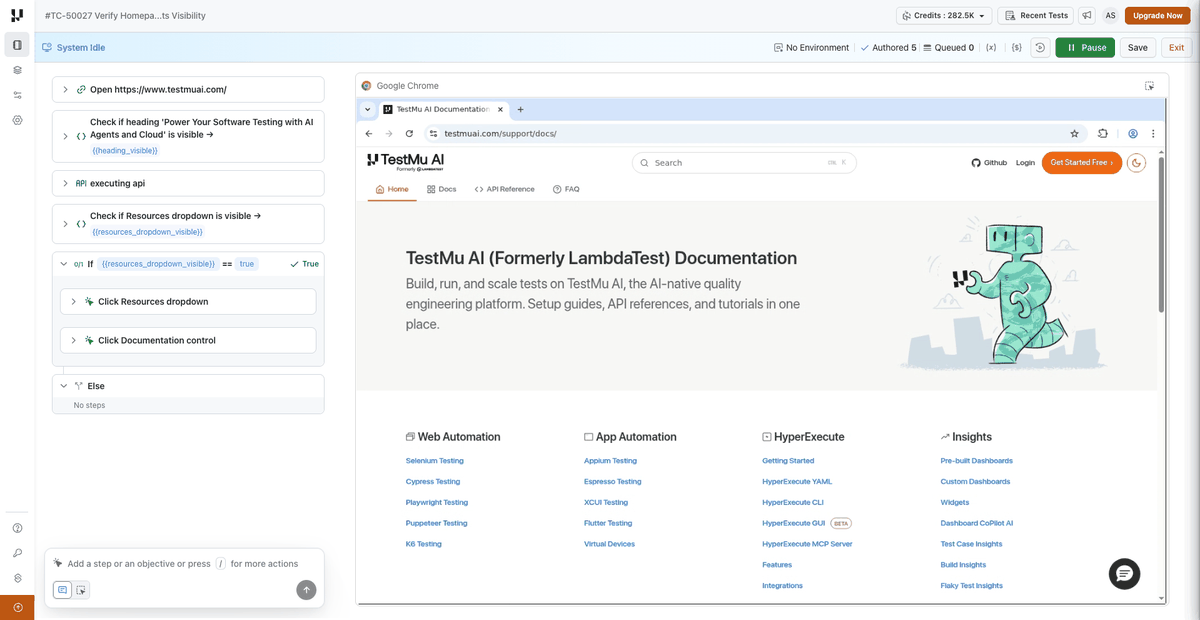
Step 2: Select Test Steps
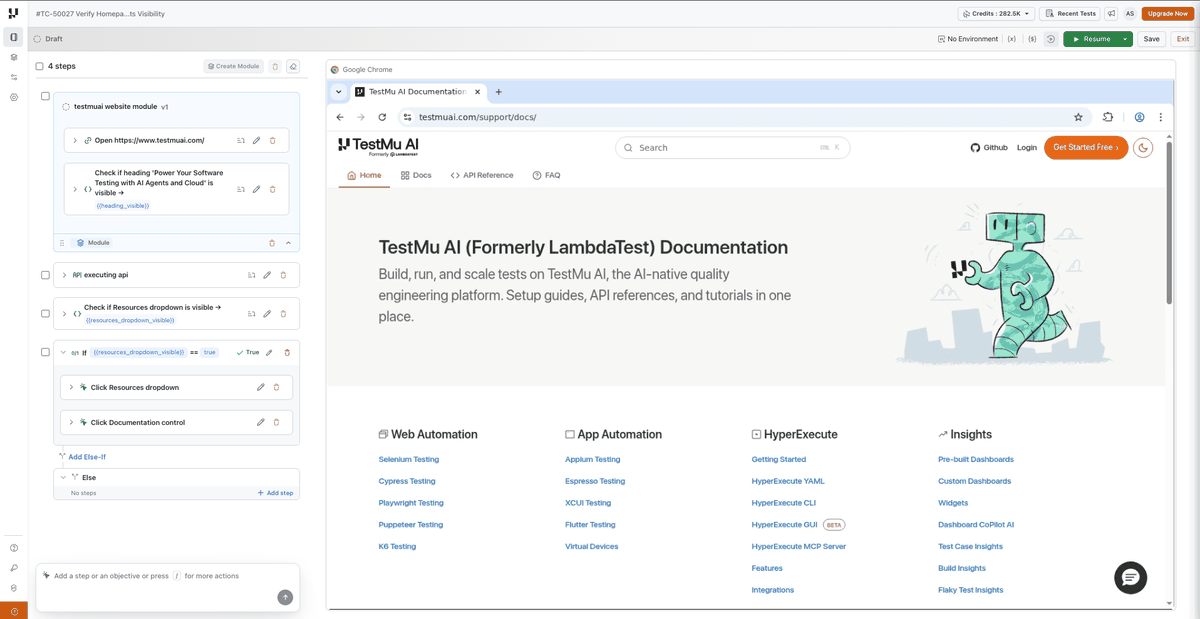
- Pause the session. Multi-select is available only while the session is Paused.
- Tick the checkbox on each step you want to include in the module — for example, the steps that handle login. A select-all checkbox sits in the panel header if you want every step.
- A selection toolbar appears showing how many steps are selected, with Create Module and Delete actions.
The selection must be contiguous — adjacent steps with no gaps — and must not already sit inside a conditional block, While loop, module, or generative instruction. If it does not qualify, an explanation tells you why.
Checkboxes do not appear in Authoring Steps, Running, or Setting up, and any selection is cleared when you leave Paused. Selecting steps is independent of the cursor — ticking a checkbox does not move it.
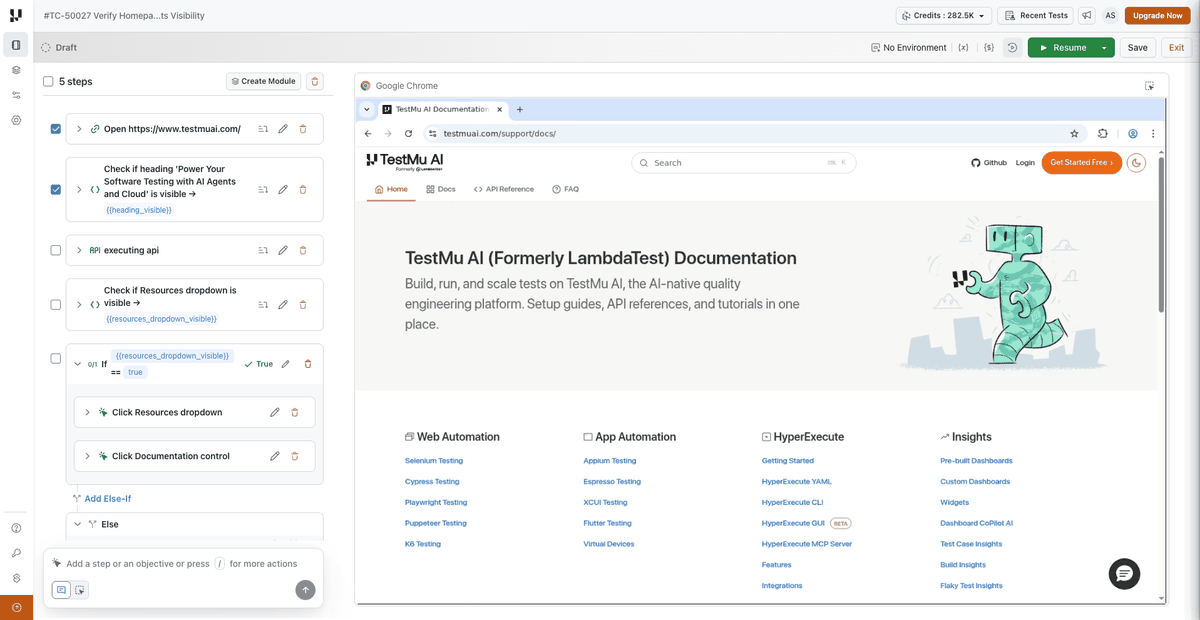
Step 3: Define Module Properties
- Click Create Module.
- Enter the module details:
- Name: A descriptive name (e.g.,
[Web] Login Flow) - Description: What the module does and when to use it
- Tags: Keywords for easier discovery
- Name: A descriptive name (e.g.,
- Click Create Module to save.
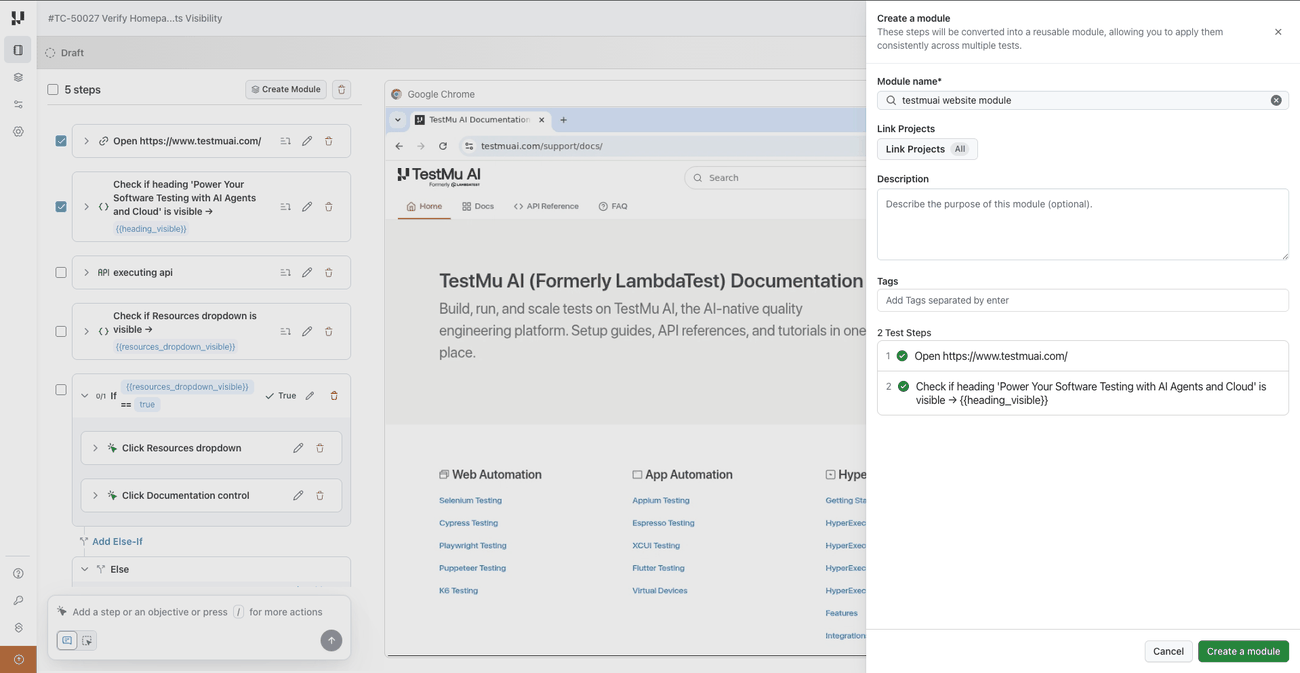
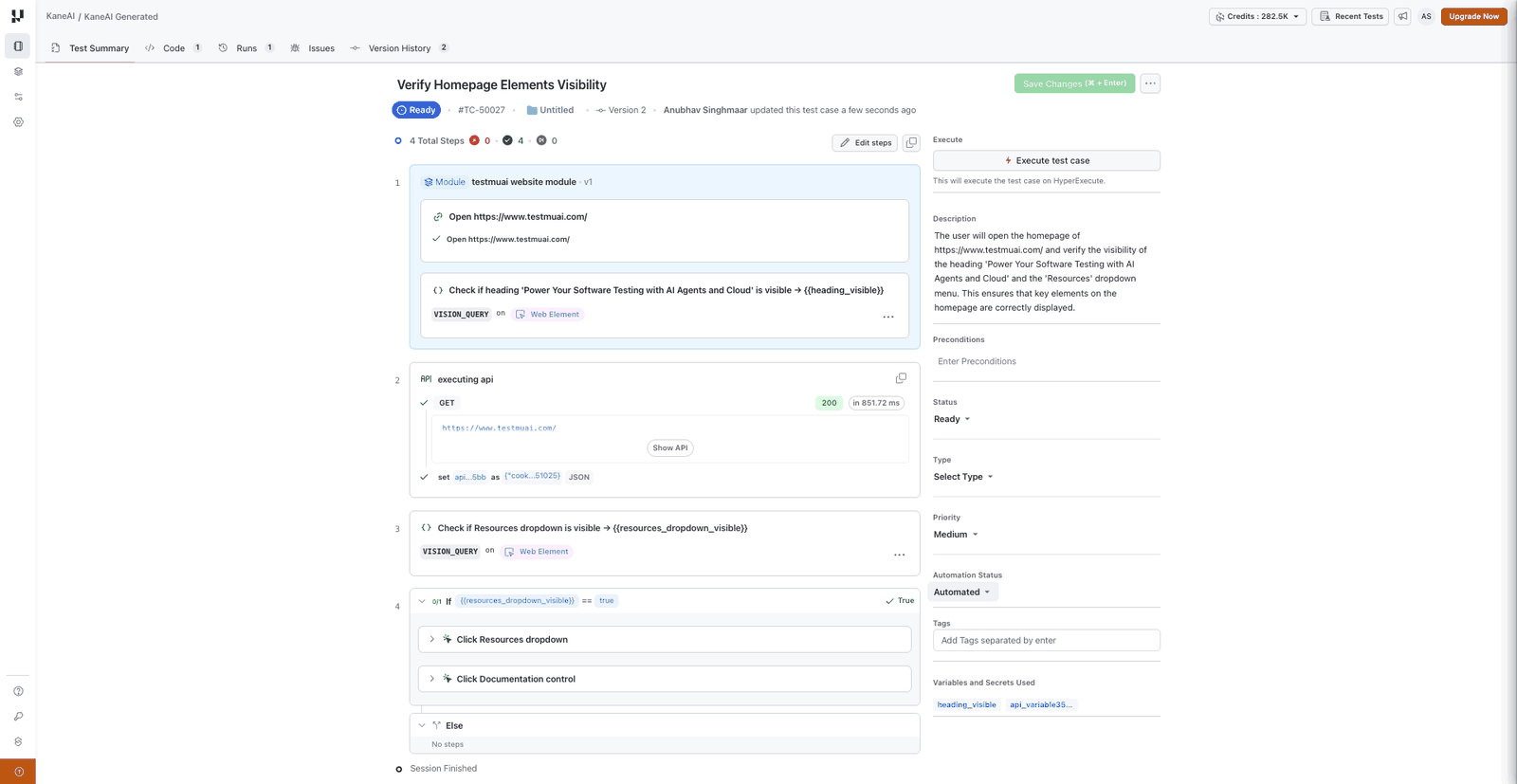
The selected steps are now saved as a reusable module with an initial version.
Use a Module in a Test
Once a module exists, you can import it into any KaneAI test.
Step 1: Open a Test
Create a new test or open an existing one in the KaneAI web agent.
Step 2: Import the Module
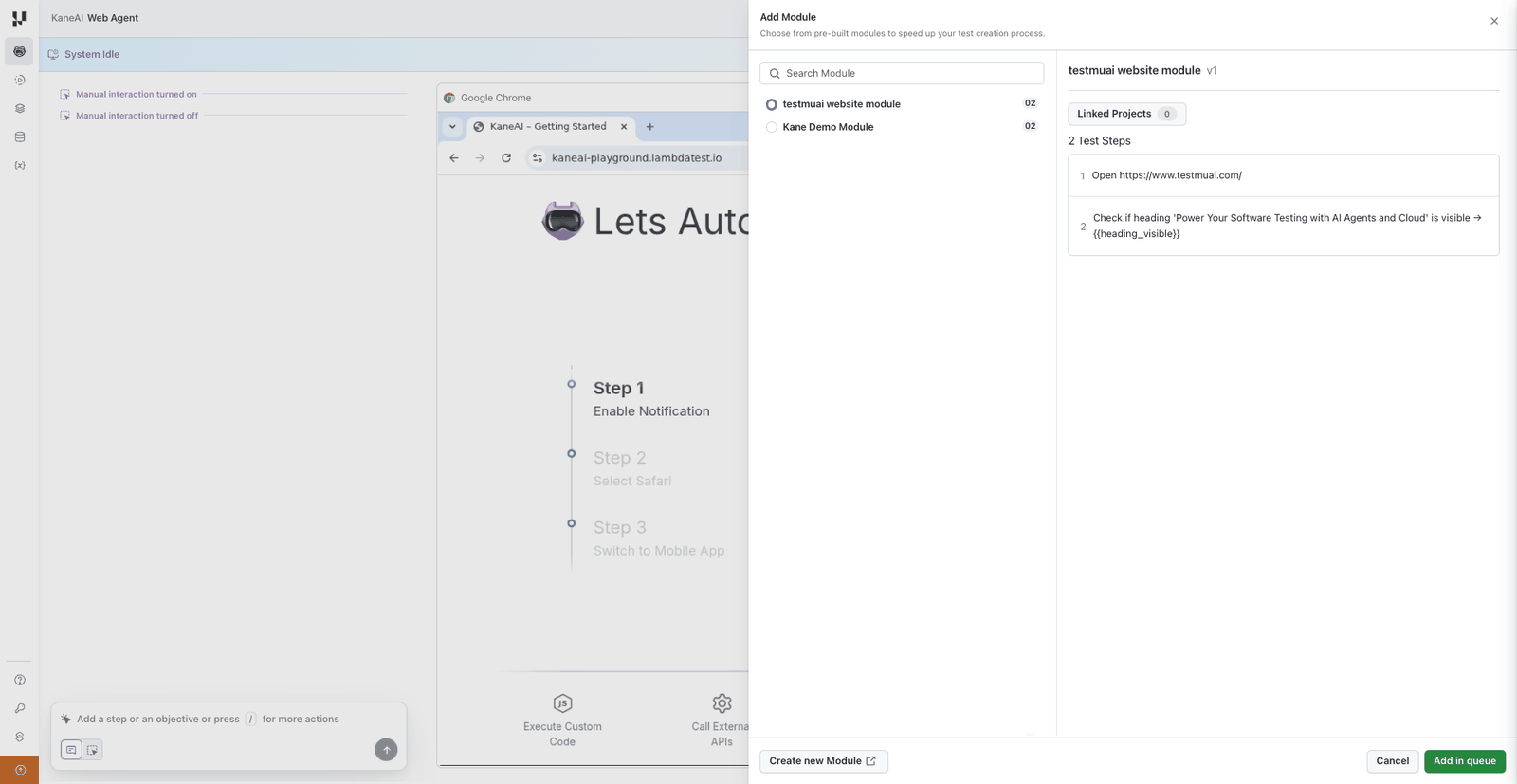
Type a slash (/) to invoke the command menu and select Add Module.
Browse the list of available modules and select the one you need.
Modules that contain KaneAI instructions, such as variable steps, If-Else blocks, or While Loops, can be imported only into KaneAI test cases, not into manual test cases in Test Manager. This applies to the Classic experience. See Importing Modules into Test Cases.
Step 3: Execute
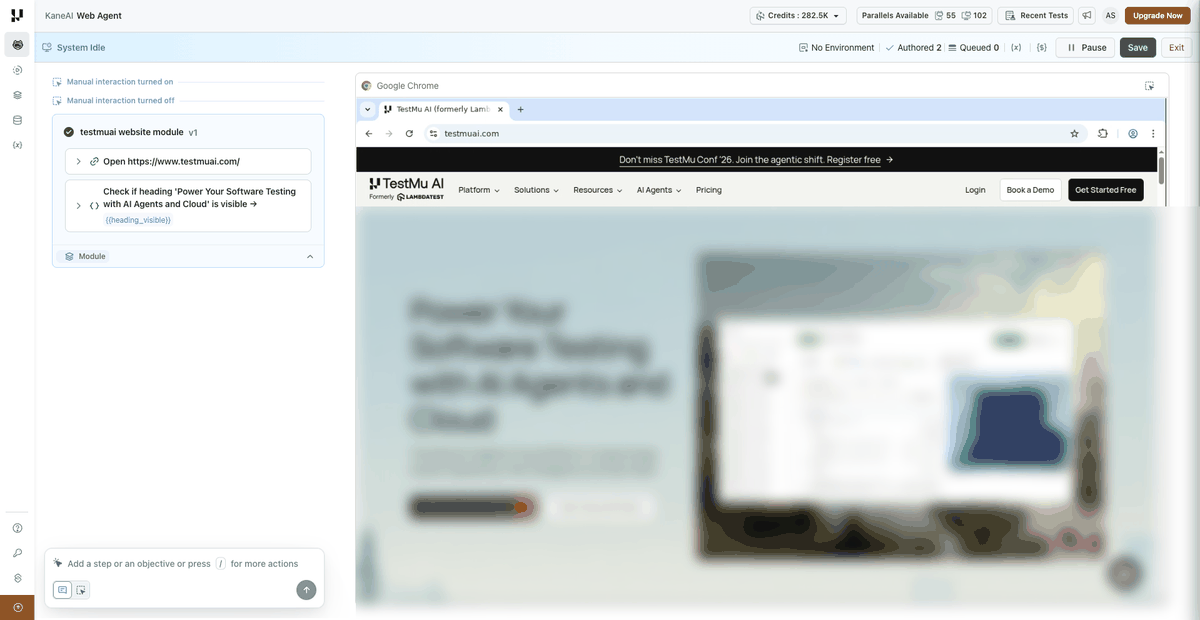
Click Add in Queue to execute the module's test steps. The steps run automatically as part of the test. Any step that has not run yet carries the Queued status until it does — see Step Statuses.
Include a Network Assertion in a Module
A Network Logs Assertion can be included in a module, so a network-layer check you author once is reused across every test that imports the module instead of being re-authored in each one.
Available on Desktop Web, Mobile Web, and Mobile App sessions in the Classic experience. On Mobile Web and Mobile App, enable Capture Network Logs before starting the session, as described in Network Logs Assertions.
Select the Assertion
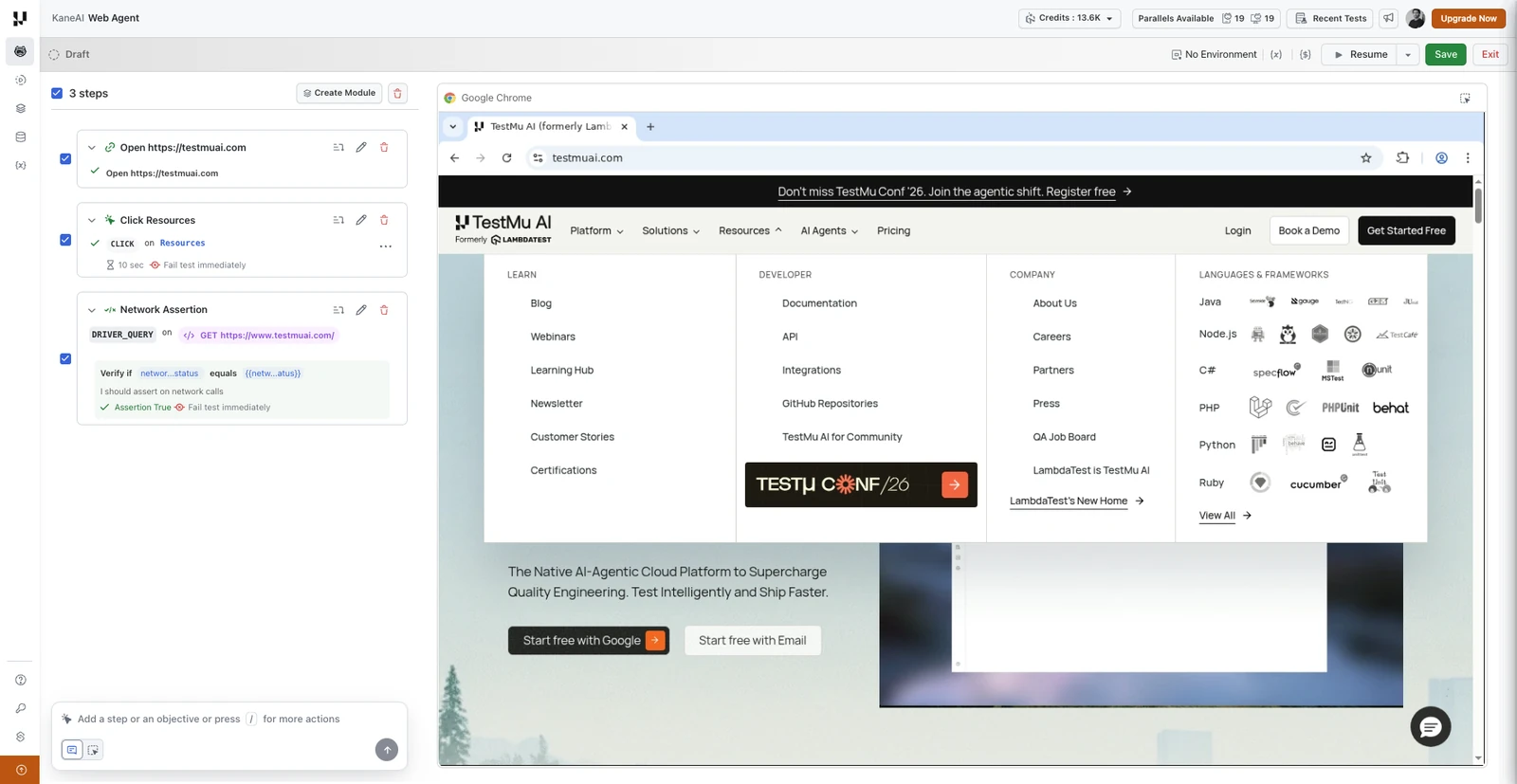
Author the assertion as usual, then click Pause Test and tick its checkbox along with the other steps you want in the module. A network assertion travels as a single step: every Verify if condition it carries is included, and the conditions cannot be split across modules.
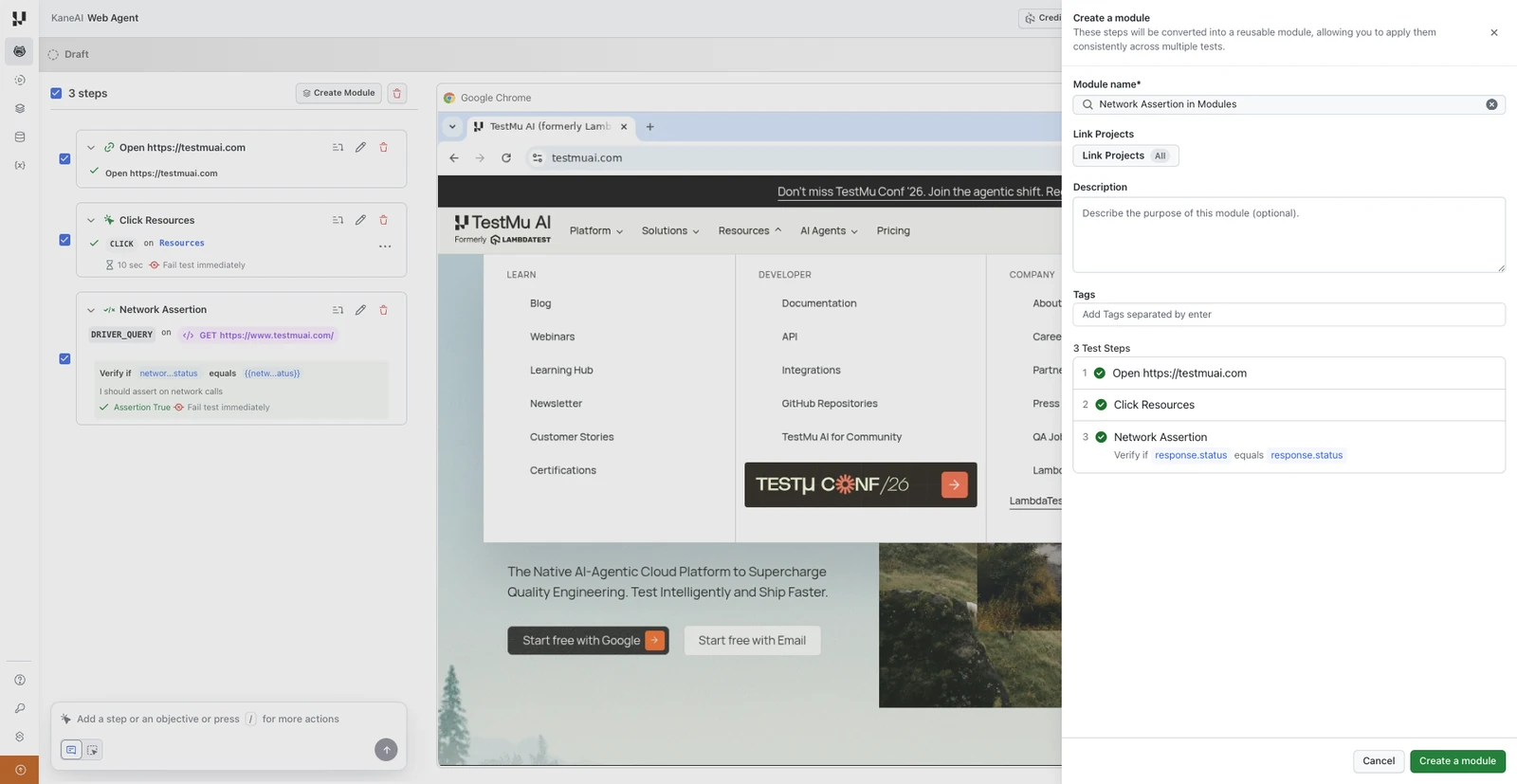
Click Create Module and the assertion appears in the step list of the creation drawer with its conditions, alongside the rest of the selected steps.
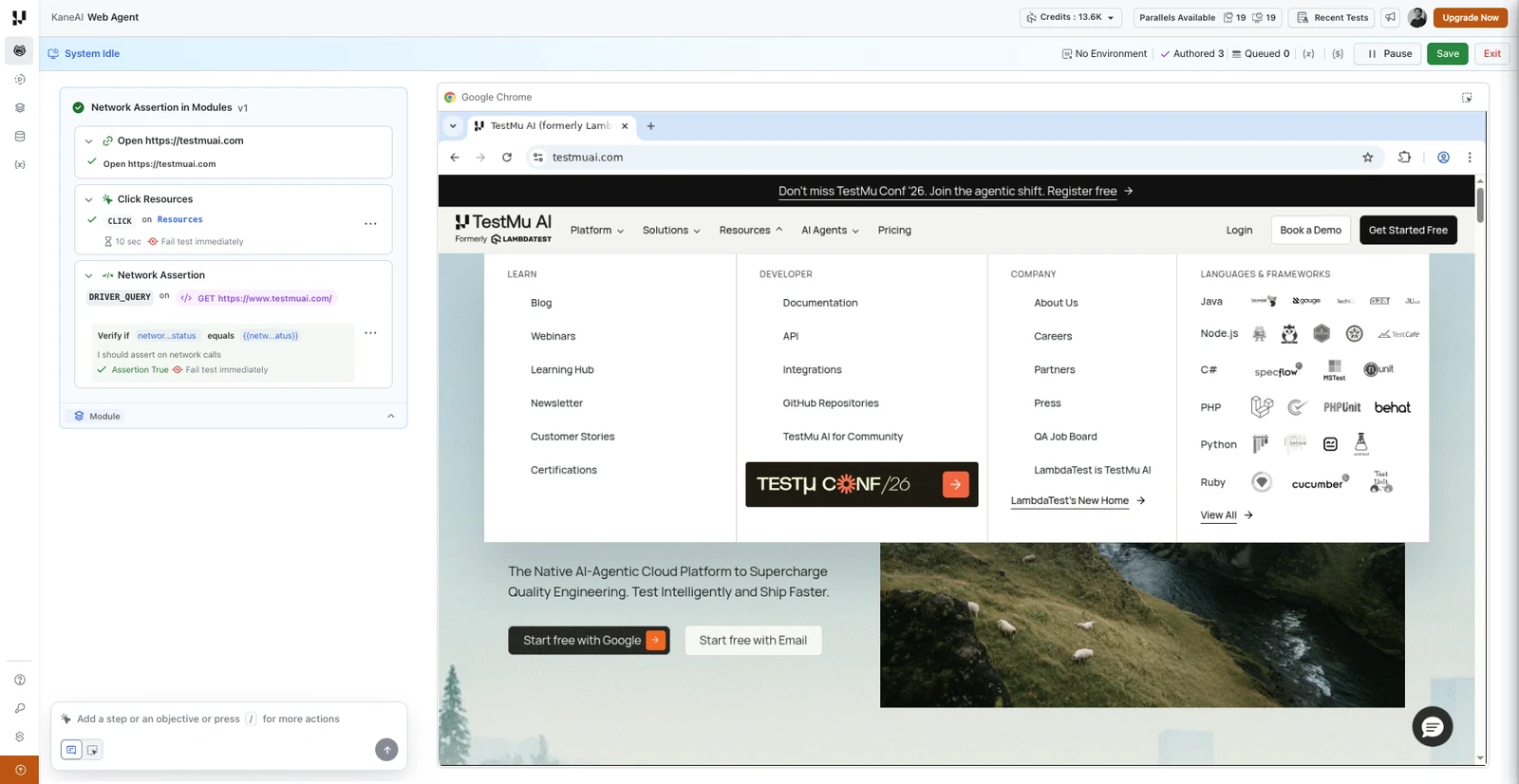
Once saved, the module carries the assertion as one of its steps.
Include the Step That Triggers the Traffic
An assertion can only check a request that the test actually makes. Include the step that triggers the network call in the same module as the assertion that checks it.
If you create a module that contains the assertion but not its triggering step, KaneAI warns you at creation. The module is still valid, but it will check whatever traffic the importing test happens to produce, so it is not self-sufficient.
Mobile Sessions
The same flow works in Mobile Web and Mobile App sessions. Enable Capture Network Logs under Advanced Settings > Session Settings before starting the session, author the assertion, then select it into a module exactly as you would on desktop.
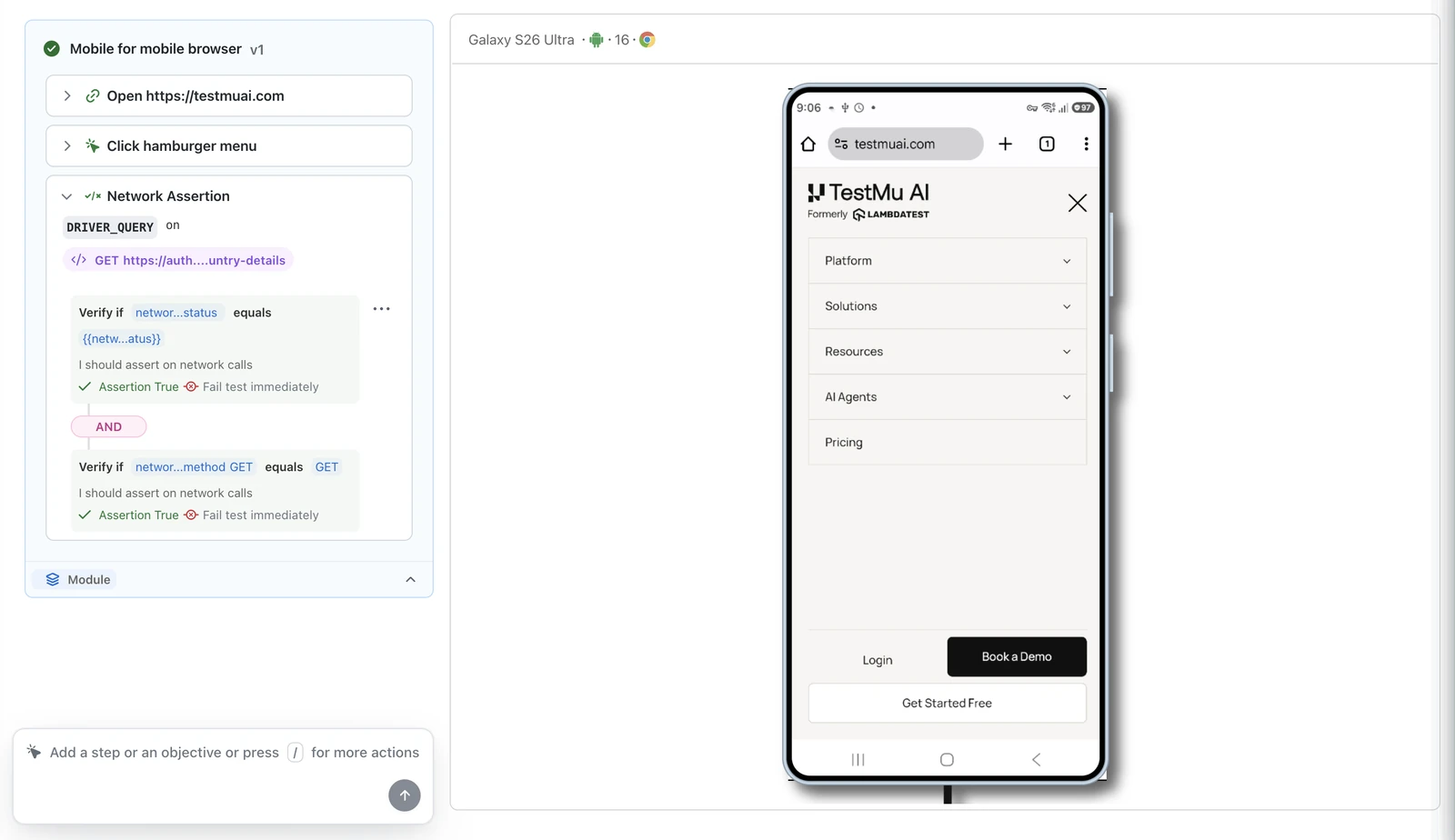
The example below is a module built in a mobile browser session, carrying an assertion with two conditions combined with AND: one on the response status and one on the request method.
Keep the Module Platform-Specific
Modules are platform-specific, and a module containing a network assertion is no exception. Create a separate module for each platform you test, and name it accordingly, for example [Web] Checkout API Check and [Android-App] Checkout API Check. See Create Platform-Specific Modules.
A network assertion can only be added from a KaneAI session, so it cannot be added to a simple module created directly on the Modules page. Where the assertion cannot apply, KaneAI blocks the action and states the reason inline rather than adding a step that would check nothing.
How Modules Behave in a Session
A module is a labelled group of ordinary steps, not a single execution unit. This is what separates it from conditional blocks, While loops, and generative instructions, which all run as a whole.
- Steps inside a module run individually. Run This Step, Run From Here, and Run Till Here all work on them, and a run range may start or end inside a module.
- The cursor moves freely inside a module. You can place it between any two internal steps and insert a new step there.
- Editing inside a module updates the module. Adding, editing, or reordering steps creates a new module version, following normal versioning behavior.
- A module cannot contain another module.
For how this compares with the other block types, see Blocks run as a unit.
Edit a Module
Click on an existing module from the Module listing page to modify its steps or properties.
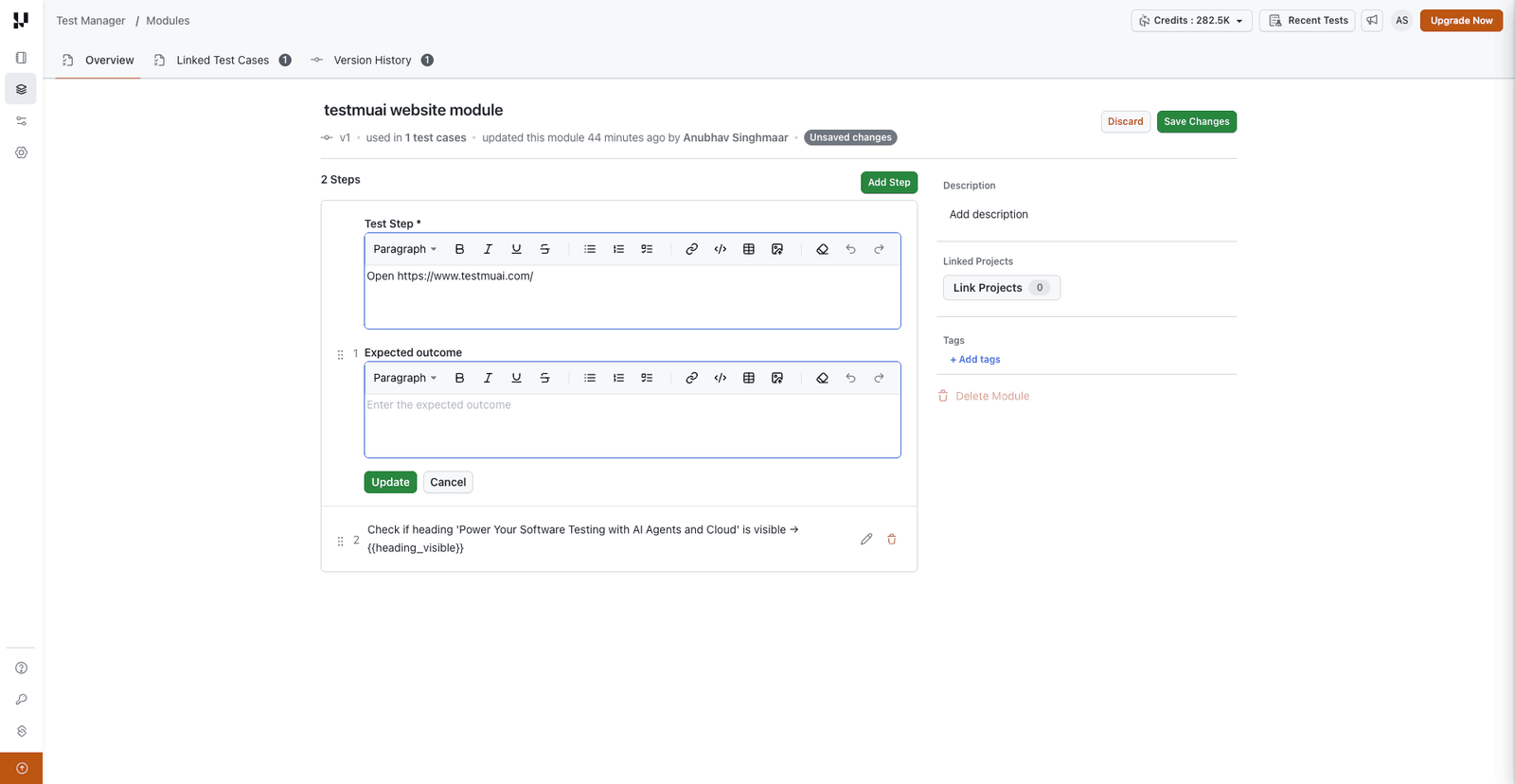
Editing a step opens it inline, where you can change the test step and its expected outcome. Update applies the change to the step, and the module header then shows an Unsaved changes label. Click Save Changes to commit them, or Discard to drop them.
When you save changes to a module, a new version is created automatically. See Versioning and Enhancements for details on how version history works.
Editing Restrictions
The editing, reordering, and deletion restrictions described in this section and in Deleting Steps Inside a Module apply to the Classic experience.
Some steps carry a Read-Only label on the module's step listing. Editing, deleting, and reordering are all disabled for:
- Steps that create or use a variable or parameter
- If-Else blocks
- While Loop blocks
Hovering the edit icon on one of these steps shows Editing Kane instructions is not allowed.
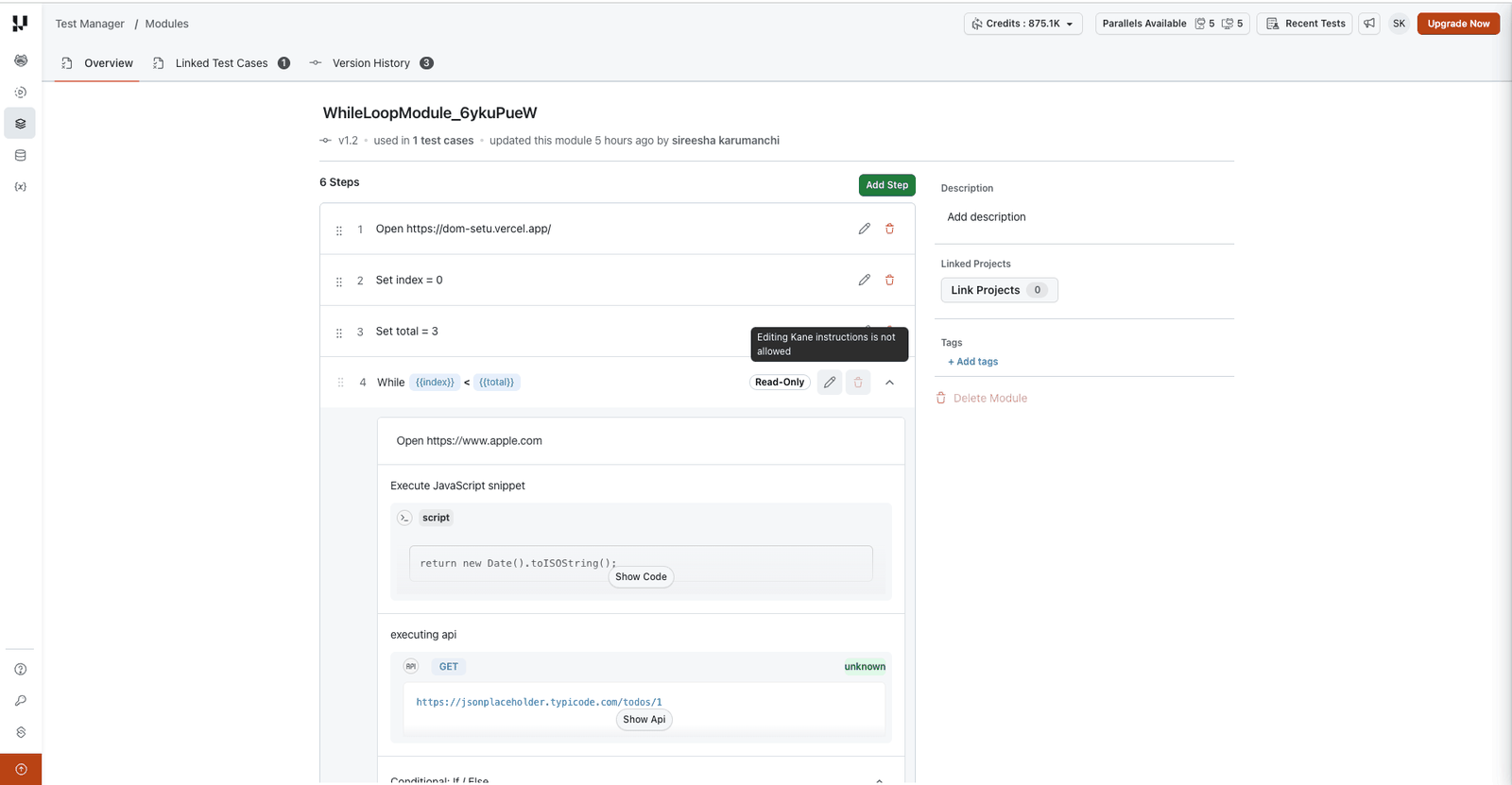
These steps are part of a larger flow. A variable step feeds values to later steps, and a control flow block carries branches and nested steps that must change together. To modify them, open the test case the module was authored from, make the change there, and save. The module receives a new version automatically. All other steps can be edited, deleted, and reordered as usual.
Modules authored in a KaneAI session also show an Author Module to Update Test Cases banner on the Linked Test Cases tab, noting that linked test cases are updated by authoring and validating the module in a KaneAI session.
Delete a Module
You can delete modules that are no longer needed from the module listing page.
- Navigate to the Modules section.
- Locate the module you want to delete.
- Click the meatball menu (...) icon on the module card.
- Select Delete.
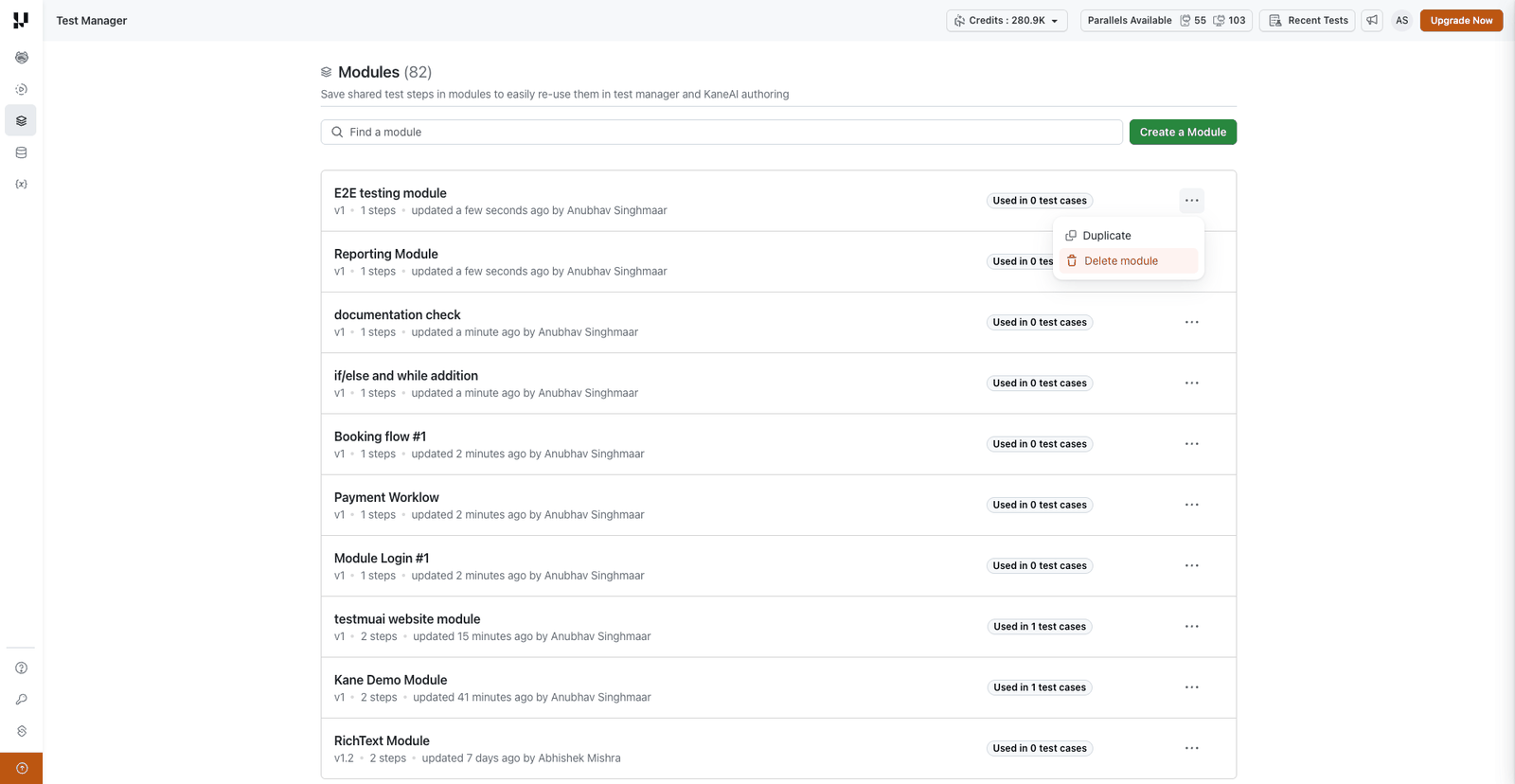
Only modules that are not linked to any test cases can be deleted. If a module is currently used in one or more test cases, the delete option will be disabled. You must first remove the module from all linked test cases before deleting it.
Deleting Steps Inside a Module
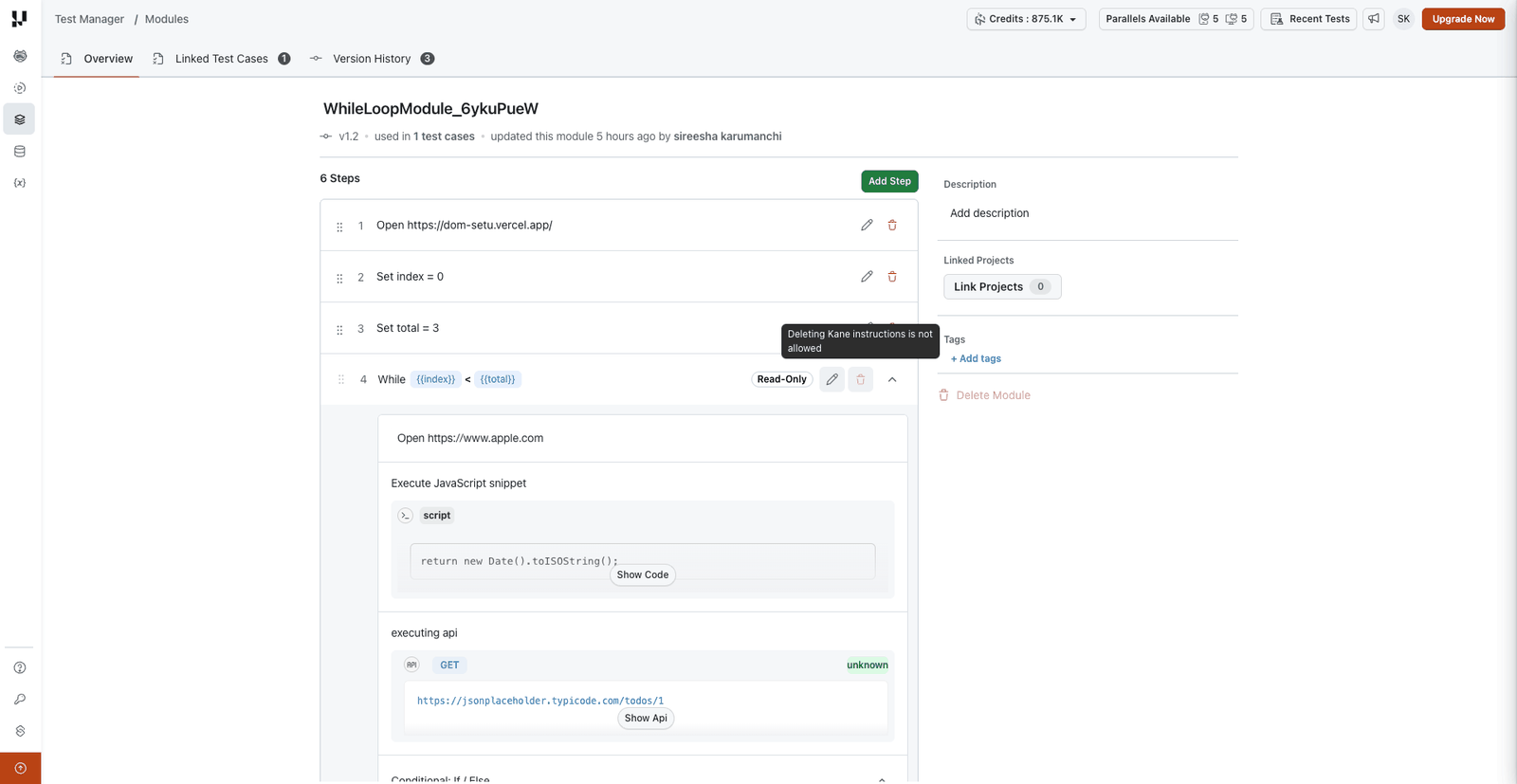
The delete action is disabled for the same steps. Hovering it shows Deleting Kane instructions is not allowed. These steps can be deleted only while authoring, in the KaneAI test case the module was authored from. All other steps can be deleted directly.
Best Practices
Create Platform-Specific Modules
Modules in KaneAI are platform-specific. Each platform has distinct interaction patterns, element selectors, and navigation flows, which means the same user action (e.g., tapping vs. clicking, scrolling behavior, keyboard input) behaves differently across platforms. A module authored on one platform may produce unexpected results when used on another.
Create separate module copies for each target platform. For example, if you have a login workflow that needs to run across platforms, create a distinct module for each:
| Module Name | Platform |
|---|---|
[Web] Login Flow | Desktop Web |
[Android-App] Login Flow | Android App |
[Android-Browser] Login Flow | Android Browser |
[iOS-App] Login Flow | iOS App |
[iOS-Browser] Login Flow | iOS Browser |
Use Prefixes and Tags Together
Adopt a consistent name prefix and tag strategy to make platform context immediately clear and modules easy to filter.
Name prefixes: Add a platform prefix at the start of every module name:
[Web]: Desktop Web modules[Android-App]: Android native app modules[Android-Browser]: Android browser modules[iOS-App]: iOS native app modules[iOS-Browser]: iOS browser modules
Tags: Add platform tags to each module so you can filter the module listing by platform:
desktop-web,android-app,android-browser,ios-app,ios-browser
Using both prefixes and tags together gives you the best of both worlds: prefixes make the platform obvious at a glance when importing a module into a test, while tags let you filter the module listing page to show only modules for a specific platform.
You can extend this convention for other distinctions:
[Web][Staging]: Environment-specific modules[Android-App][Auth]: Feature-area grouping- Tags like
login,checkout,onboarding: Workflow-based categorization
Keep Modules Focused
Each module should represent a single, cohesive workflow (e.g., login, checkout, form submission). Avoid creating overly large modules that combine unrelated steps. They become harder to maintain and less reusable.
Use Variables and Parameters
Instead of hard-coding values like usernames, URLs, or test data into module steps, use variables and parameters. This lets you reuse the same module across different test scenarios by passing in different data at execution time.
Write Clear Descriptions
Add a meaningful description to every module so other team members understand what it does without reading every step. Include the target platform, expected preconditions, and what state the application will be in after the module runs.
Related Guides
- Versioning and Enhancements: Track changes, compare versions, and revert modules
- Bulk Module Update: Update a module version across multiple test cases in one action
- Authoring Session: Session states, the cursor, and how steps are run and verified


 Chat with Us