While Loops in KaneAI
Introduction
KaneAI supports repeating a block of steps using While Loops. A While Loop executes the steps inside its body for as long as a user‑defined condition evaluates to true, and re‑checks the condition before every iteration.
This feature is being rolled out gradually. If you don't see While Loop in the slash command menu, contact your TestMu AI support representative to get it enabled.
How It Works
- Insert a While Loop block from the / slash command menu. This is the only entry point for adding a loop.
- Define the loop condition, either in natural language (default) or using the operand & operator editor.
- Confirm the condition. The loop body opens.
- Add steps inside the loop body: natural language steps, modules, JavaScript, API, DB, or manual interaction.
- Click End While to finalize the block. Until you finalize, the loop is an authoring‑only placeholder and does not run.
- Once finalized, each run of the loop follows the same cycle on every iteration:
- The condition is evaluated.
- If the condition is true, the loop body runs once.
- If the condition is false, the loop exits successfully and execution moves on to the next step in the test.
- A hard safety cap of 30 iterations per execution prevents runaway loops. See Max Iteration Safety Limit.
Prerequisites
- An active KaneAI authoring session.
- Familiarity with Conditional Logic (If / Else). While Loops reuse the same condition editor.
- Any variables, smart variables, or dataset parameters you plan to reference in the loop condition or body.
Step‑by‑step Guide
Step 1: Insert a While Loop Block
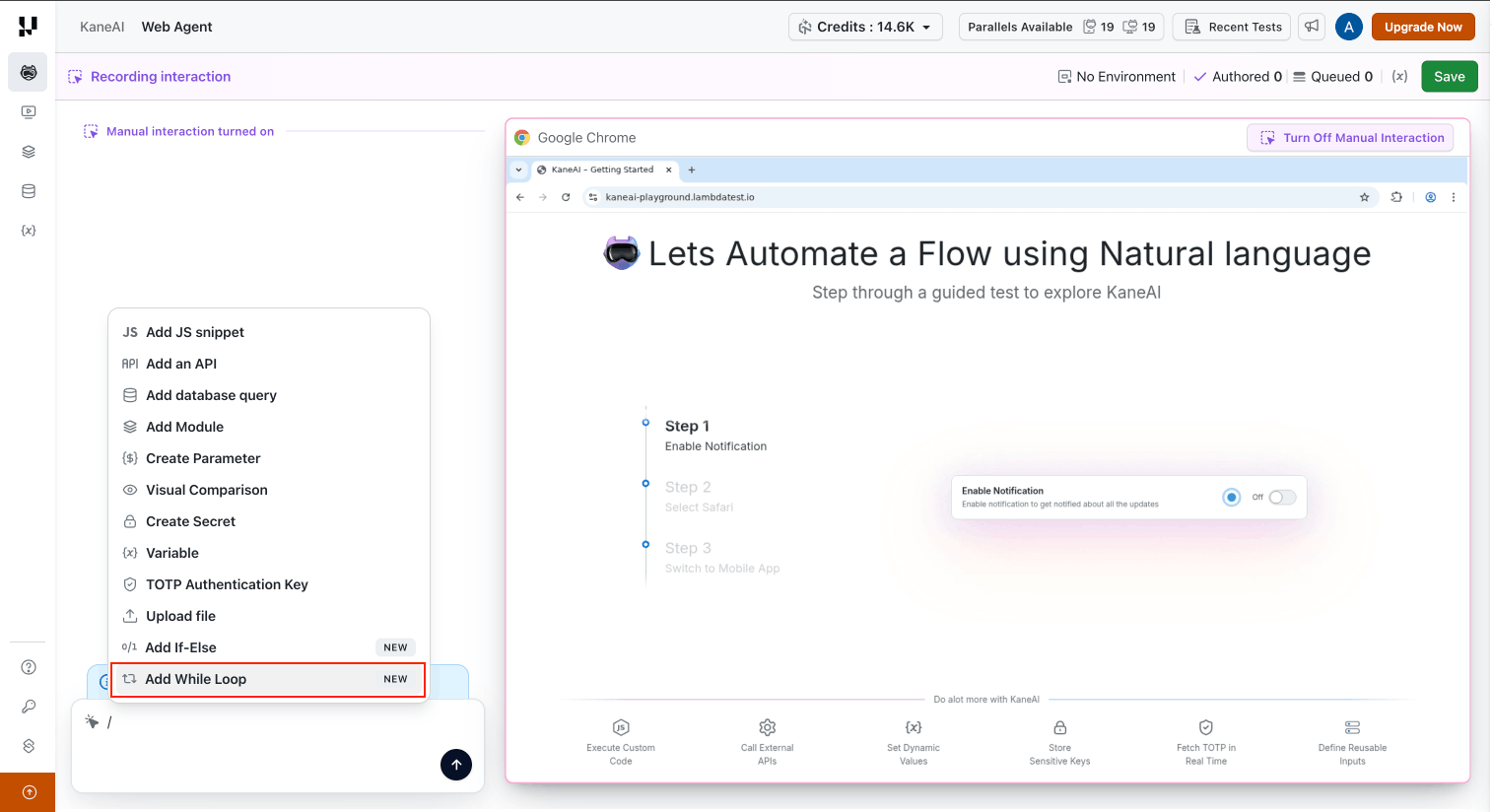
A While Loop can only be added through the / slash command menu.
- In your authoring session, press / to open the slash command menu.
- Select Add While Loop.
- KaneAI inserts an empty While Loop block at the current position in your test flow. The block contains a header, an empty condition editor, and an End While control.
A newly inserted block starts in an empty state with no condition and no body steps.
Step 2: Define the Loop Condition
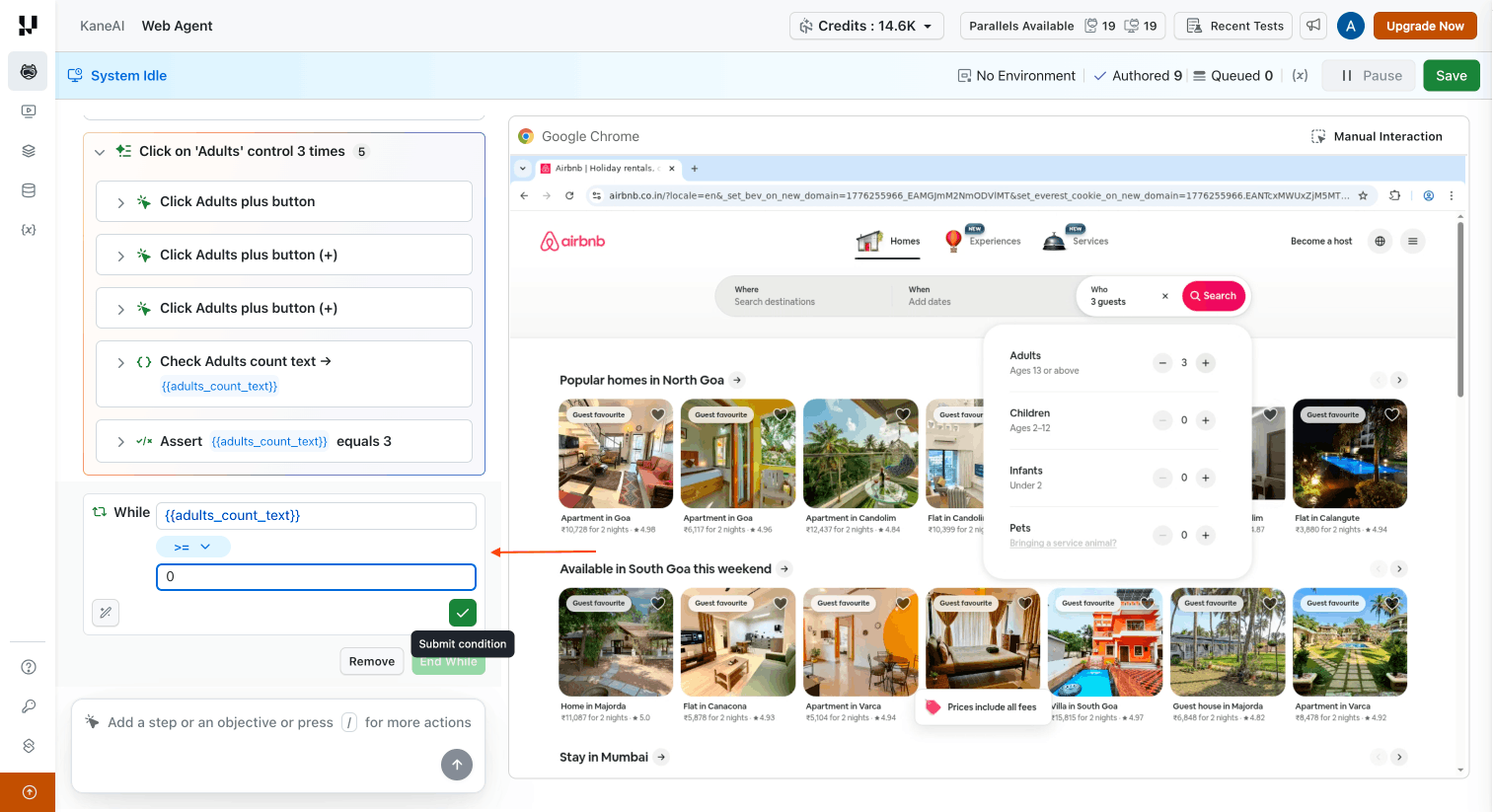
The condition editor opens in natural language mode by default, matching KaneAI's NL‑first authoring philosophy. You can switch to operand & operator mode at any time.
Option A: Natural Language
Type your condition as a plain‑English sentence. KaneAI interprets the intent and re‑evaluates it at runtime. Examples:
while the loading spinner is visiblewhile the Next button is presentwhile {{count}} is greater than 0while {{job_status}} is not "complete"
Option B: Operand & Operator
Build the condition explicitly using a left operand, a comparison operator, and a right operand:
- Enter a left operand: this can be a variable (e.g.,
{{active_count}}), a dataset parameter (e.g.,${max_attempts}), extracted text, or a literal value. - Choose a comparison operator from the dropdown:
| Operator | Description |
|---|---|
== | Equals |
!= | Not equals |
> | Greater than |
< | Less than |
>= | Greater than or equal to |
<= | Less than or equal to |
contains | Left operand contains the right operand |
not_contains | Left operand does not contain the right operand |
starts_with | Left operand starts with the right operand |
ends_with | Left operand ends with the right operand |
is_visible | Target element is currently visible on the page |
is_not_visible | Target element is not currently visible on the page |
- Enter the right operand: a literal, variable, dataset parameter, or extracted value.
Both operands support variables ({{var_name}}), dataset parameters (${param_name}), extracted text, and literal values.
Confirming the Condition
Confirm the condition to open the loop body. Once confirmed, the condition remains editable until the loop begins executing. You can reopen it to adjust operators, operands, or the natural‑language expression.
Step 3: Add Steps Inside the Loop Body
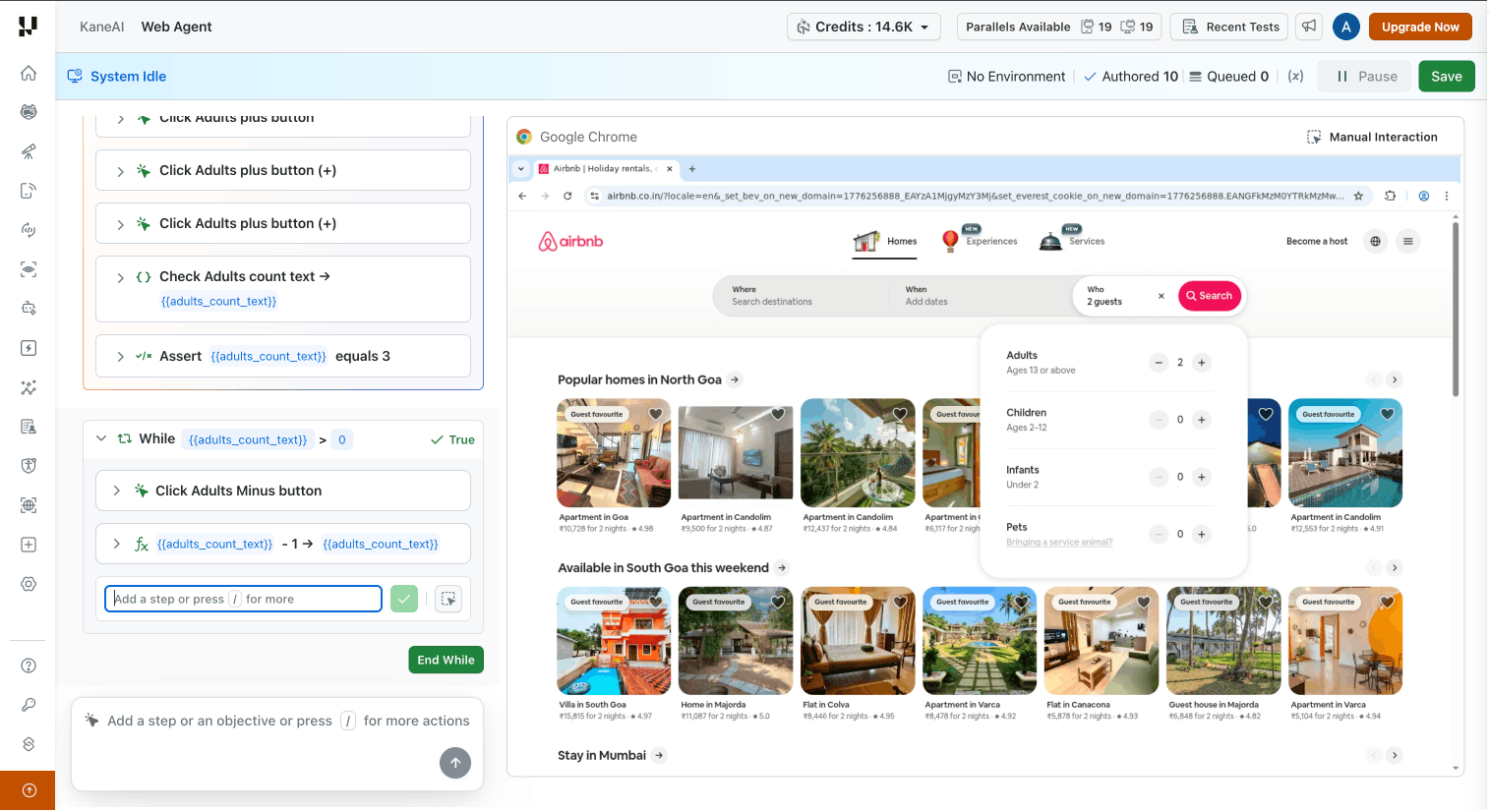
The loop body becomes available only after the condition is confirmed. Inside the body you get the standard KaneAI step input, the same one used in the main authoring flow, where you can type a natural‑language step or press / to open the slash command menu.
You can add any of the following inside a loop body:
- Natural language steps: type your instruction in plain English.
- Modules: reuse existing modules by adding them via the slash command menu.
- JavaScript steps: execute custom JS for data extraction, array handling, or index management.
- API steps: make API calls as part of the iteration.
- DB steps: run database queries inside each iteration.
- If / Else blocks: insert a conditional block inside the loop body via the slash command menu to add branching logic within iterations.
Where steps land inside the loop body
The cursor decides whether a new step joins the loop body or sits outside it:
| Cursor position | Allowed | The inserted step lands |
|---|---|---|
| Between two steps inside the loop body | Yes | In the body, at that point — it runs on every iteration |
| Immediately after the While header | Yes | As the first step of the body |
| Immediately before End while | Yes | As the last step of the body |
| Before the While header | Yes | Outside the loop, above it |
| After End while | Yes | Outside the loop, below it |
| On the condition row | No | The cursor snaps to the nearest valid position |
For the full set of cursor rules, see Cursor in While loops.
Step 4: Finalize the Loop with "End While"
When your loop body is ready, click End While at the bottom of the block to finalize it.
Unlike If / Else blocks (which evaluate the moment you confirm a condition), a While Loop accumulates steps first and is only executed once you finalize it with End While. Until finalization it exists as an authoring‑only placeholder so you can keep adding body steps. The End While button is active only after the condition is confirmed and at least one step has been added to the body.
Clicking End While starts execution immediately. KaneAI re‑evaluates the condition before every iteration and stops when the condition becomes false or when the max iteration safety limit is reached.
Executing a While Loop
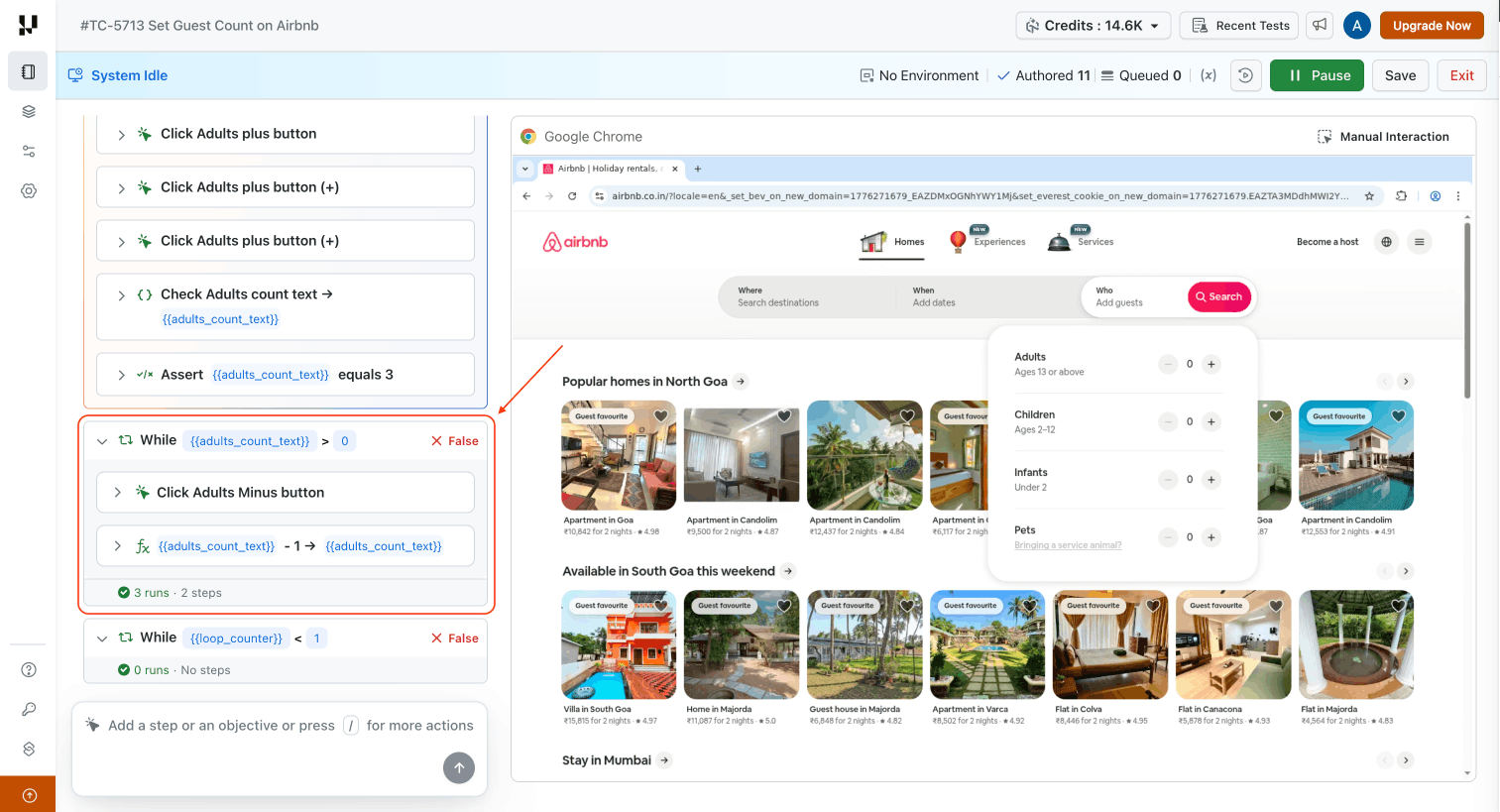
Once a While Loop has been finalized, KaneAI runs it inline in the Playground. Each iteration evaluates the condition, runs the body steps in order if the condition is true, and then re‑evaluates. Execution finishes the moment the condition becomes false or the safety cap is reached.
A While Loop executes as a single unit. Steps inside the body have no individual run control — to run the loop again later, use the Run block control on the block header, which evaluates the condition and runs the loop to completion. A run range that passes over the loop runs the whole loop in sequence. See Blocks run as a unit.
While the loop is running, the session is in the Running state: the step list is read‑only and the application view is covered. The block header shows the current iteration so you can follow progress as it happens. A Pause While control is available during execution, which you can use to interrupt a run and inspect intermediate state.
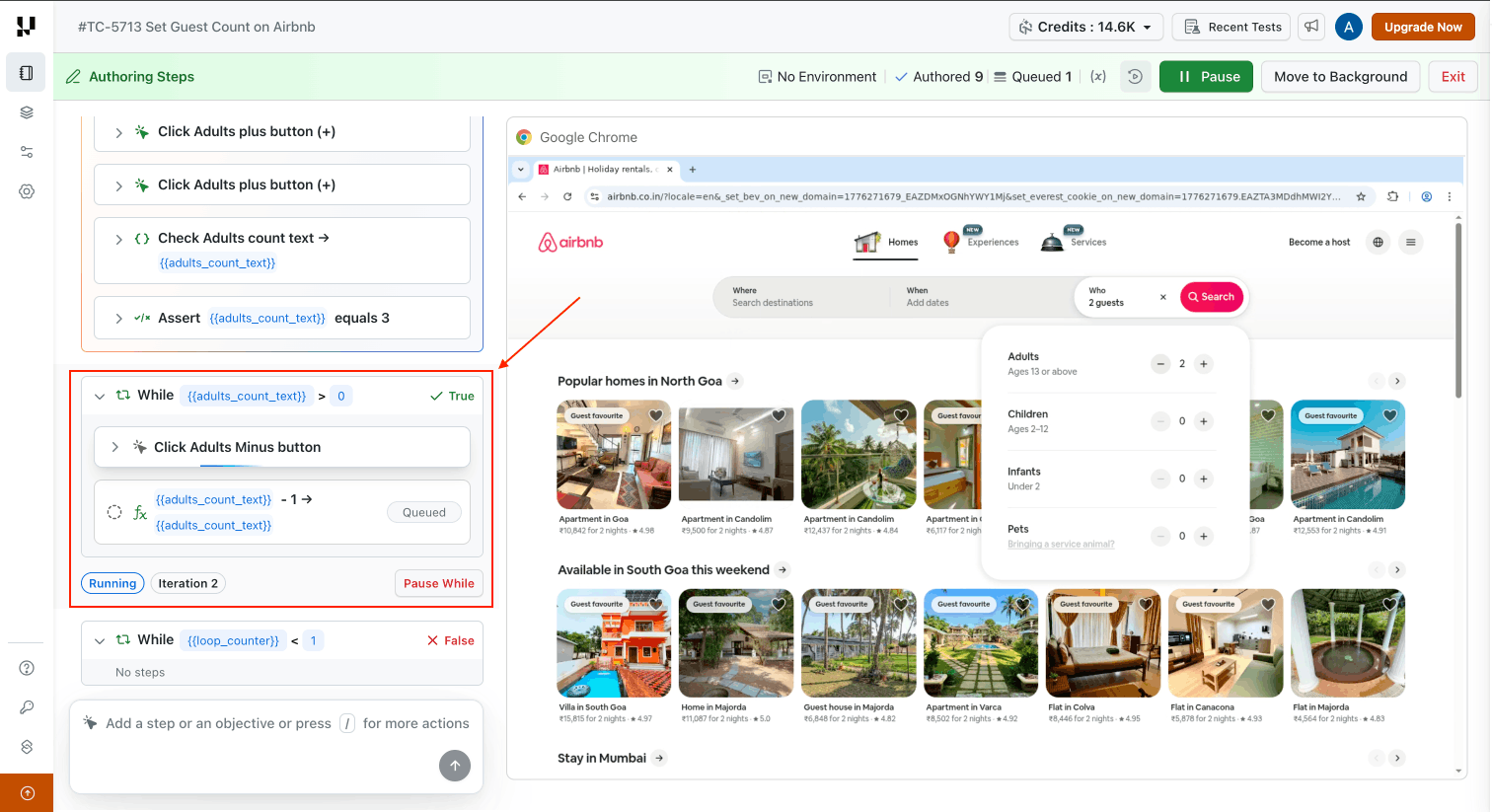
When the loop finishes, the block switches to a completed state and reports the final outcome of the condition along with the total number of iterations that ran. Every body step inside the block reflects the status it had on the most recent iteration, so you can review what happened in the final pass without re‑running the test.
Using the {{loop_counter}} Variable
Every While Loop exposes a built‑in {{loop_counter}} variable inside its body. The counter is 1‑indexed and increments by 1 on each iteration (first iteration → 1, second → 2, and so on).
{{loop_counter}} is available to all step types inside the loop body, including natural language steps, JavaScript snippets, API and DB steps, and element selectors.
Example: clicking each row of a table one at a time:
Click the row at position
{{loop_counter}}in the bookings table
KaneAI substitutes the counter into the underlying element selector before it is resolved, so a selector like tr:nth-of-type({{loop_counter}}) targets row 1 on the first iteration, row 2 on the second, and so on.
Using Dataset Parameters and Variables in Loops
All existing KaneAI variables and dataset parameters are fully usable inside loop conditions and loop body steps. No special configuration is required.
- Variables use the
{{variable_name}}syntax, for example,{{active_count}},{{job_status}}, or a value extracted from a previous step. - Dataset parameters use the
${parameter_name}syntax, for example,${max_retries}.
Dynamic iteration count pattern. You can extract a count from the page or an API response into a variable using a JavaScript step, then reference that variable in the While condition:
- Add a JS step that reads the count and stores it in
{{total}}. - Add a While Loop with the condition
{{loop_counter}} <= {{total}}. - Add the steps you want to repeat inside the body.
Both operands of a condition cannot be parameters at the same time. If one operand is a parameter (for example, a dataset parameter like ${max_retries}), the other operand must be a runtime‑updated value: a local variable, a smart variable, a value read from the UI, or a literal. If both operands are parameters, KaneAI rejects the condition with the BOTH_OPERANDS_AS_PARAMETERS error. See Error Messages and Troubleshooting for details.
Element Presence / Absence Conditions
While Loop conditions can reference the visibility of UI elements directly, useful for polling, waits, and spinner handling.
- Natural language mode:
while the loading spinner is visiblewhile the Next button is present
- Operand & operator mode: use the
is_visibleoris_not_visibleoperator with an element reference as the operand.
Example use case: after triggering a data‑heavy action, repeat a short wait step while a loading spinner element is visible, so the test resumes automatically the moment the spinner disappears.
For UI‑based conditions you do not need to add a manual query step inside the loop body. KaneAI automatically inserts the underlying visual / DOM query and re‑runs it at the start of every iteration, so the condition is always evaluated against fresh page state.
Max Iteration Safety Limit
Every While Loop is capped at a hard maximum of 30 iterations per execution. If the condition has not become false by the 30th iteration, execution stops and the step is marked as failed with the message:
While loop exceeded maximum iterations (30)
This safety cap prevents a mis‑configured or non‑terminating condition from consuming unlimited execution time.
- The maximum iteration value is not shown during normal authoring or execution. Only the current iteration number is displayed.
- When a loop hits the cap, execution stops and an error is reported. The error clearly indicates that termination was caused by the safety limit and not by the exit condition becoming false.
- The underlying error code is
LOOP_MAX_LIMIT_REACHED.
Use the safety cap as a last line of defense. Design your condition so the loop exits naturally well before the 30th iteration. If your scenario legitimately requires more than 30 iterations, reach out to your TestMu AI support representative.
Common Use Cases
- Deactivate active items. Repeat a deactivation step
while {{active_count}} > 0to drain a queue of active bookings, alerts, or records. - Poll a status endpoint. Trigger an async operation, then poll
while {{job_status}} != "complete"with a short wait inside the body and the max iteration cap as a safety net. - Wait for a loading spinner. Use the natural‑language condition
while the loading spinner is visibleto resume the test the moment the spinner disappears. - Validate paginated table rows. Iterate
while the Next button is enabled(orwhile {{has_next_page}} == "true") and validate each page's rows inside the body. - Click each row by position. Use
{{loop_counter}}inside element targeting (tr:nth-of-type({{loop_counter}})) to walk a table row by row without hand‑writing selectors.
Tips and Recommendations
- Design for a natural exit. Write conditions that terminate deterministically. Treat the max iteration limit as a safety net, not a control flow mechanism.
- Keep loop bodies small. Extract repeated logic into a module and call the module inside the loop body instead of duplicating steps.
- Validate the body first. Author the steps you intend to repeat outside a loop first, confirm they work, and then move them inside the While block.
- Use
{{loop_counter}}for position‑based targeting. Prefer{{loop_counter}}in selectors over hand‑writingnth-of-type(…)indexes. It keeps the intent obvious and avoids off‑by‑one errors. - Extract dynamic counts into variables. Read the number of items from the page or API into a variable first, then reference it in your condition, rather than hard‑coding an iteration count.
Editing an Existing While Loop
Once a While Loop has been finalized, you can still change it. The loop itself stays in sync automatically.
- Add, remove, or reorder body steps. Use the edit instruction action on any step inside the loop; the loop updates automatically to reflect the change. Editing, duplicating, and deleting steps is available while the session is Paused.
- Change the condition. Edit the While Loop step directly. The new condition applies on the next test run.
- Finalize later. If you closed the authoring view before clicking End While, the loop remains unfinalized. Re‑open the test, add the remaining body steps, and click End While when ready.
- Loops inside modules. When a While Loop is part of a module, any change to the loop condition or body creates a new module version. Other tests using that module stay on the version they already reference until they accept the new one. In the Classic experience, the loop is read-only on the module's Overview tab. Make changes from the test case the module was authored from, and modules containing While Loops cannot be added to manual test cases in Test Manager.
Nesting Rules
While Loops can contain regular If / Else conditional blocks inside their body, which lets you branch within each iteration. The maximum supported nesting depth is two levels: a While Loop containing a conditional, which in turn contains ordinary steps.
The following nesting patterns are not supported:
- A While Loop directly inside another While Loop.
- A While Loop directly inside a conditional branch (If, Else‑If, or Else).
These are refused at insert time: if the cursor is inside a conditional branch or another loop body, adding a While Loop is blocked with an explanation rather than creating an unsupported structure.
Limitations
- No For‑Each loop construct. Collection iteration can be handled using a While Loop with JavaScript steps for index management.
- Hard cap of 30 iterations per execution. The safety cap is fixed and not user‑configurable. Contact support if you have a scenario that legitimately requires more.
- Nested While Loops are not supported. You cannot place a While Loop inside another While Loop (see Nesting Rules).
- While Loops cannot live inside conditional branches. A While Loop cannot be placed inside an If / Else branch.
- No Break / Continue commands. There is no way to exit a loop early or skip to the next iteration; structure your condition to terminate naturally.
- Natural language cannot create a loop. Phrases like "repeat this 10 times" or "while the spinner is visible, do X" will not create a loop. You must use the slash command and select While Loop. KaneAI surfaces this as the
WHILE_NOT_SUPPORTED_VIA_NLerror. - Both operands in a condition cannot be parameters at the same time. At least one side must be a runtime‑updated value. See
BOTH_OPERANDS_AS_PARAMETERSin Error Messages and Troubleshooting. - Local variables must be defined inside the block. If a local variable referenced inside a While block was created outside the block, KaneAI shows an error when you click End While.
- New While Loops cannot be created while the session is Paused. The / slash command menu does not offer Add While Loop in that state. A While Loop that already exists in the test can still be edited while paused.
- Body steps cannot be run individually. The loop executes as a whole through the Run block control on the block header.
- Queued steps in a loop body count as unverified. Unlike steps in a non‑matching conditional branch, the loop body is on the main path, so a step added there but never run keeps the test out of the Ready save state.
Error Messages and Troubleshooting
Below are the user‑facing error codes you may encounter when authoring or running a While Loop, together with what each one means and how to resolve it.
1. LOOP_MAX_LIMIT_REACHED
Error message
While loop exceeded maximum iterations. This may be due to an issue with the loop condition or the actions within the loop.
Suggestion
Review the loop condition and the actions being performed within the loop to ensure they are correct and will allow the loop to terminate properly.
When you see it. The loop ran the maximum allowed number of iterations (30) without the condition ever becoming false.
How to resolve.
- Verify that the condition can become false. Typical causes:
- A variable used in the condition is never updated inside the body.
- The UI state being checked (element visible, value present, etc.) is never reached.
- Add or correct a body step that advances the condition toward termination.
- If your scenario legitimately requires more than 30 iterations, contact your TestMu AI support representative.
2. INFINITE_LOOP_DETECTED
Error message
The while loop appears to be an infinite loop. Please review the loop condition and the actions within the loop to ensure that the loop will terminate properly.
Suggestion
Review the loop condition and the actions being performed within the loop to ensure they are correct and will allow the loop to terminate properly.
When you see it. KaneAI detected a condition / body combination that cannot terminate, typically a condition that is independent of anything the body changes, or a comparison that is always true.
How to resolve.
- Ensure the body contains at least one step that changes a value referenced by the condition, for example, increment a counter, click a control that updates the UI state, or wait for a status transition.
- If the condition uses constants only (e.g.
1 == 1), rewrite it so it depends on a variable or UI state that evolves during the loop.
3. BOTH_OPERANDS_AS_PARAMETERS
Error message
Both operands in the while loop condition are parameters. Only one operand should be a parameter.
Suggestion
Please modify the loop condition to ensure that only one operand is a parameter.
When you see it. Both sides of the loop condition are test parameters (for example, ${max_retries} > ${default_retries}). Parameter values are fixed for the lifetime of a run, so such a condition cannot change between iterations. It would either be an infinite loop or never enter.
How to resolve. Replace one operand with a runtime‑updated value:
- A counter variable incremented in the body.
- A value read from the UI via a query.
- A literal.
Example valid forms: {{counter}} < ${max_retries}, ${status} == "ready", {{cart_empty}} == false.
4. WHILE_NOT_SUPPORTED_VIA_NL
Error message
Looping is supported via slash commands only. Type / and select While Loop to add a loop.
Suggestion
Use the while loop button in slash commands to create a loop instruction.
When you see it. You added a natural‑language step that describes a loop, for example, "repeat until the cart is empty", "while the spinner is visible, do X", or "keep clicking Next". The natural‑language pipeline does not expand these phrases into loops.
How to resolve.
- Remove the looping phrase from the plain‑English step.
- Open the slash menu (
/) and select While Loop. - Enter the loop condition in the While Loop authoring dialog.
- Add the per‑iteration action as a body step inside the loop.
FAQ
How do I exit a While Loop early?
Early exit (Break) and skip‑to‑next‑iteration (Continue) are not supported. Structure your exit condition (for example, combine it with an additional flag variable you set from inside the loop) so the loop terminates naturally on the next re‑evaluation.
Can I nest a While Loop inside another While Loop?
No. Nested loops are not supported, and a While Loop cannot be placed inside an If / Else branch either. A While Loop can contain conditional (If / Else) blocks in its body. See Nesting Rules. If you need multi‑level iteration, split the logic across multiple test cases or use a single loop combined with JavaScript for inner bookkeeping.
Can I run one step inside my loop?
No. A While Loop executes as a whole through the Run block control on the block header. You can still insert a step anywhere in the body — run the block to verify it, and the step runs in real loop context. Steps inside a module are the exception and do run individually.
What happens if my condition is already false on the first check?
The loop body is skipped entirely, zero iterations run, and execution continues with the next step after the block.
What is the maximum number of iterations allowed?
Every While Loop is capped at a hard maximum of 30 iterations per execution. The limit is fixed and not user‑configurable. If a scenario legitimately requires more, reach out to your TestMu AI support representative.
Can I use {{loop_counter}} outside the loop body?
No. {{loop_counter}} is only defined inside the While Loop body it belongs to. If you need to reference the final iteration count after the loop completes, store it in a variable of your own inside the loop body.
Does the Test Summary page show each iteration?
No. The live iteration counter is a Playground‑only view. On the Test Summary page, the While block shows only its final completed state along with the total number of iterations that ran. Step‑level screenshots and statuses inside the block reflect data from the most recent iteration that was executed.
Do dataset parameters and variables work inside loops?
Yes. Both {{variable}} and ${dataset_parameter} syntaxes are fully supported inside loop conditions and body steps with no special configuration. The only restriction is that both operands in a single condition cannot be parameters at the same time. At least one must be a runtime‑updated value such as a local variable, a smart variable, a UI‑derived value, or a literal. See the BOTH_OPERANDS_AS_PARAMETERS entry in Error Messages and Troubleshooting.
Why is nothing happening when I click "End While"?
The End While action is only available once the condition has been confirmed and at least one step exists in the loop body. Confirm the condition and add at least one body step, then End While becomes available.
 Chat with Us