Import Test Cases from a Feature File
If your team writes tests in Gherkin, your scenarios already live in .feature files. Instead of pasting each scenario into a BDD test case by hand or rebuilding the suite as a CSV, you can upload a .feature file to TestMu AI Test Manager. Every scenario in it becomes one BDD test case, with no field mapping.
Before anything is saved, a preview lists every scenario in the file and what will happen to it. You can check the result, fix anything that will be skipped, and only then start the import.
Before you begin
- One file per import. Each import takes a single
.featurefile of up to 10 MB and up to 10,000 scenarios. To import several files, import them one after another. - Permissions. You need permission to add test cases to the project.
- Choose the destination first. Test cases go into the folder selected in the Test Cases repository when you start the import. To import somewhere else, select that folder before you start. See Choose where the test cases go.
- Need an example? The import page has a Sample Feature File you can download. It shows the structure the import expects.
How a scenario becomes a test case
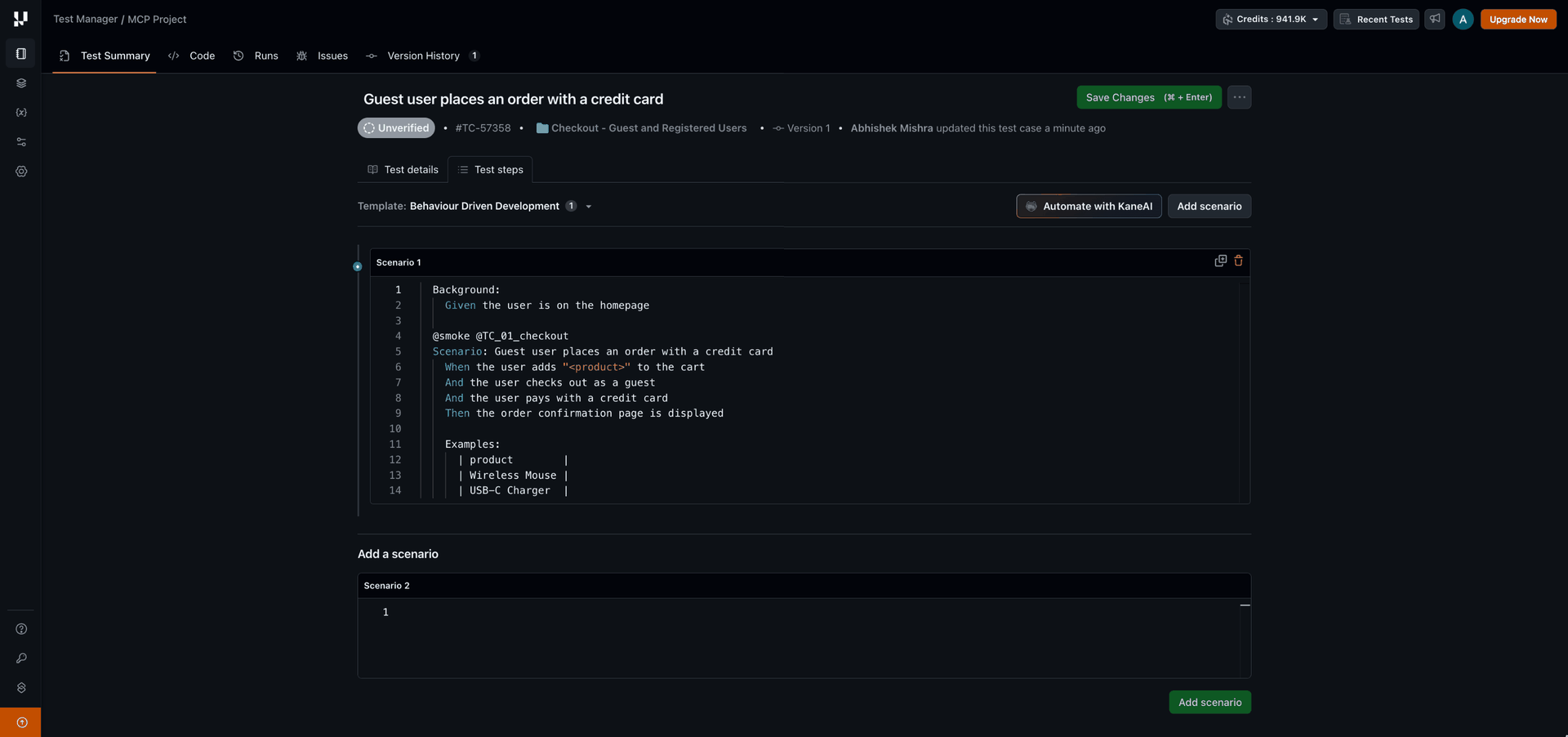
Each Scenario, Scenario Outline or Example in the file becomes one BDD test case. The text is imported word for word: nothing is rewritten, translated or generated.
From the .feature file | Into the test case |
|---|---|
| Scenario name, without leading or trailing spaces | Title |
Scenario tag line, Scenario: line, steps, data tables, doc strings and Examples | Test steps, as a BDD scenario, in their original order |
Background | Top of the BDD scenario, on every test case from that file |
| Feature name and description; Rule name and description, if the scenario is under a Rule | Description |
| Tags on the Feature, Rule, Scenario and Examples | Tags, without the @ and without duplicates |
| Comments outside a scenario | Not imported |
| Every other field | The same defaults as a new test case |
Examples stay inside their test case. A Scenario Outline with three rows of examples is one test case, not three, and placeholders such as <product> are kept as written.
Every imported test case also gets a first entry in its Version History that records the file it came from and the import date. From then on, an imported test case behaves like any other BDD test case: you can edit it, tag it, move it, add it to test runs and automate it with KaneAI.
Import a feature file
1. Open the import
- Open your project and go to Test Cases.
- In the repository, select the folder you want to import into, or All Test Cases.
- Open the Add Test Case dropdown and select Import Feature File.
2. Upload the feature file
Drop your .feature file onto the upload area or browse for it. Once it uploads, Test Manager reads the Feature name from the file.
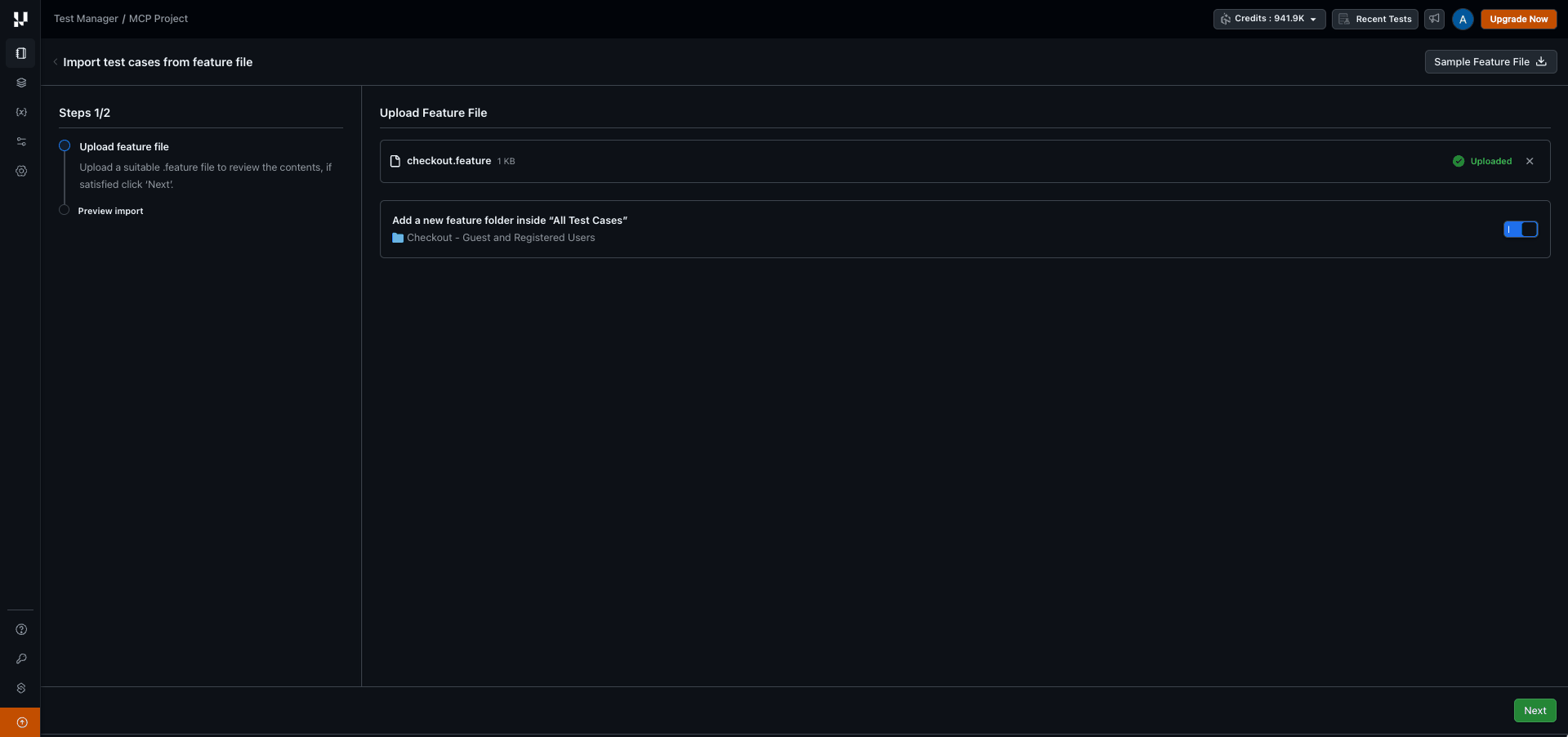
To use a different file, remove the uploaded one and upload again.
Choose where the test cases go
The upload step has one folder option: whether to create a folder named after the Feature. It is on by default.
| Where you started the import | Feature folder option on | Feature folder option off |
|---|---|---|
| A folder, for example Regression | Test cases go into a folder named after the Feature, inside Regression. If that folder already exists, it is reused. | Test cases go directly into Regression. |
| A folder that already has the Feature's name | Test cases go into that folder. No nested folder is created. | Test cases go into that folder. |
| All Test Cases | Test cases go into a new top-level folder named after the Feature. | Test cases go into Untitled. |
If the file has no Feature name, the folder is named after the file, without its extension.
Click Next to prepare the preview.
3. Preview the import
Test Manager reads the file and validates every scenario. Preparing a large file can take a few minutes; keep the tab open until it finishes.
Nothing is saved during the preview. If you leave the page at this point, no test cases are created.
The preview shows:
- The destination folder.
- How many test cases are ready to import, how many will be created new, and how many need attention (skipped).
- The scenarios in the file, each with its number of steps, the line it starts on, and its outcome.
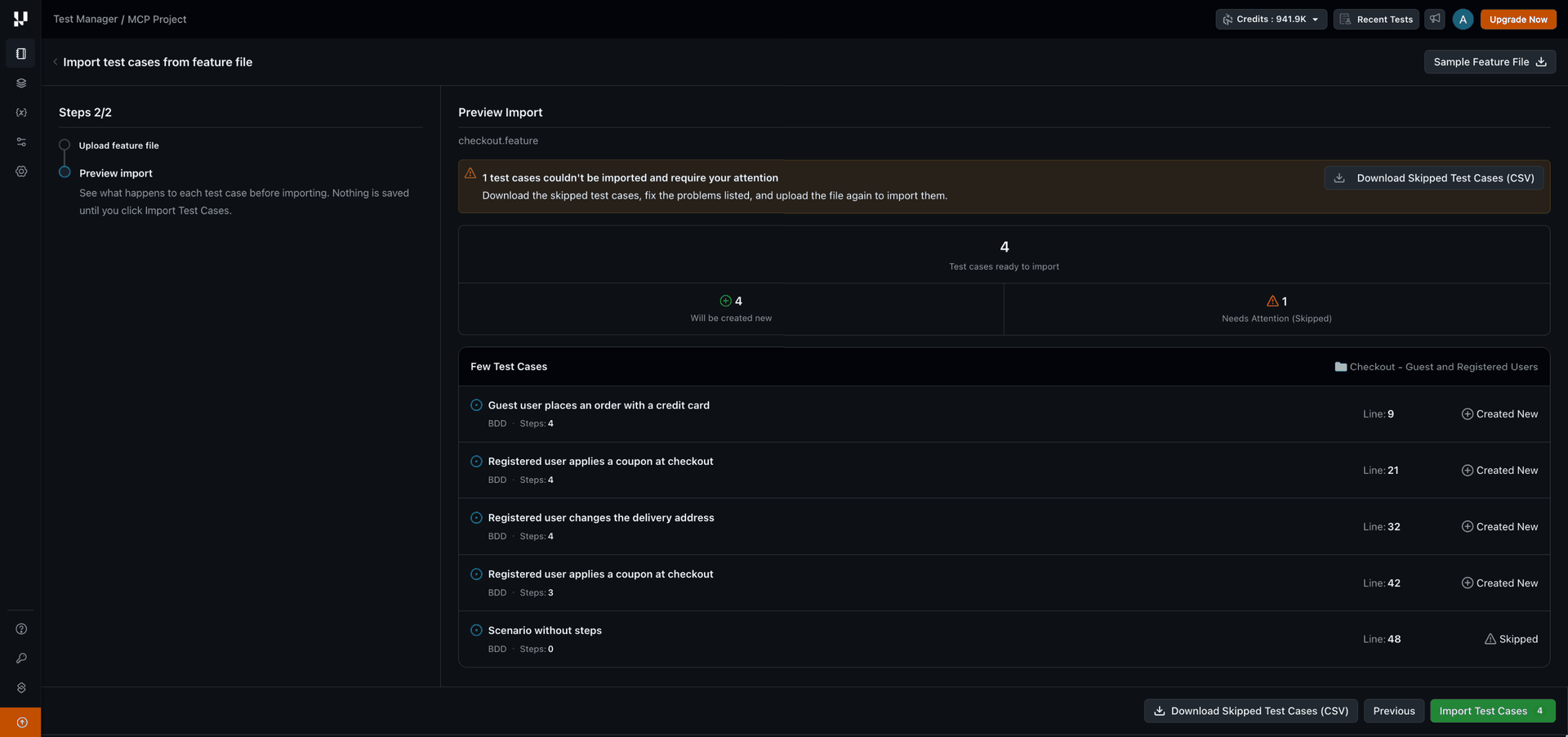
A skipped scenario does not stop the rest of the file from importing. To see why scenarios were skipped, click Download Skipped Test Cases (CSV). The file lists each skipped scenario with the reason. If you fix the skipped scenarios before you start the import, upload the corrected file instead. If you fix them afterwards, import a file that contains only those scenarios, because importing the whole file again creates the other test cases a second time. See Why a scenario is skipped.
4. Import the test cases
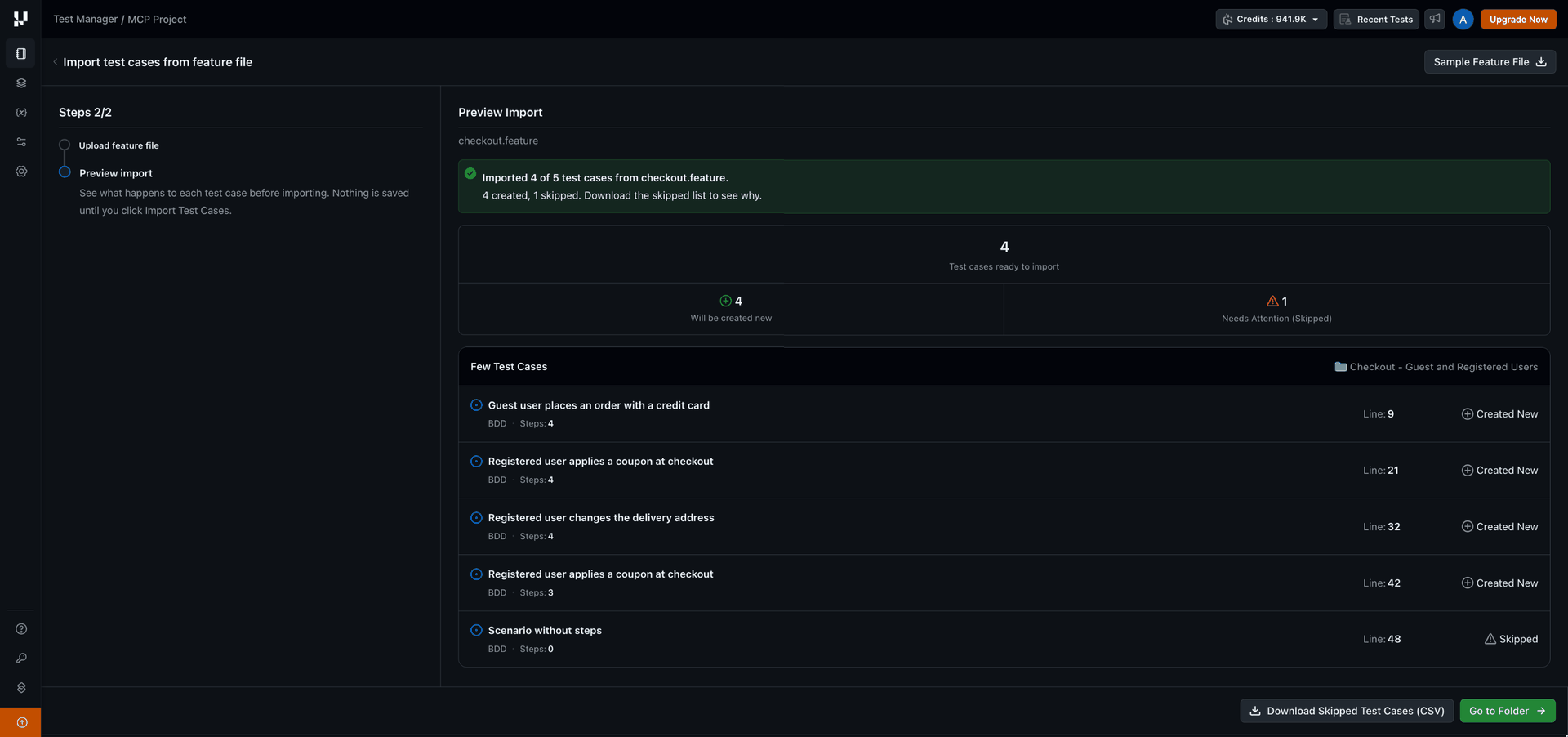
Click Import Test Cases. The import runs in the background, so you can keep working while it finishes.
When the import completes, you see how many test cases were created out of the scenarios found in the file, and how many were skipped. Click Go to Folder to open the folder the test cases went into.
Importing the same file again
Every feature file import creates new test cases. The import doesn't compare scenarios with the test cases already in your project, and it never updates or removes existing test cases.
- Importing a file again creates new copies. If you import the same
.featurefile twice, each scenario is created twice. Test Manager allows test cases with the same name, so these are not treated as duplicates. - Scenarios with the same name in one file are each imported as separate test cases.
- Nothing is deleted. Removing a scenario from the file doesn't remove its test case from Test Manager.
To bring in only what changed, import a .feature file that contains just the new scenarios, or edit the existing test cases directly in Test Manager.
To update existing test cases in bulk, with a new version recorded for each change, use Import from CSV with a match key.
Why a scenario is skipped
A scenario is skipped when it fails the same checks Test Manager applies whenever a test case is created. The rest of the file still imports. For example, a scenario is skipped when:
- It has no steps.
- Its name is longer than the test case title limit.
- Its BDD scenario is larger than the size a test case can hold.
The skipped test cases CSV, available from the preview and after the import, gives the exact reason for each skipped scenario.
When the whole file can't be imported
Some problems stop the entire file from importing, because the file as a whole can't be read:
- Gherkin syntax error. If any line in the file isn't valid Gherkin, none of its scenarios are imported. The preview reports the line number and the problem. Fix that line and upload the file again.
- No scenarios. The file has no
Scenario,Scenario OutlineorExample. - Not readable text. Save the file as UTF-8 and upload it again.
Troubleshooting
| What you see | Why it happens | What to do |
|---|---|---|
| The file is refused when you upload it | Only .feature files can be imported here. | To import a CSV, use Import from CSV. |
| The file is over the size limit | Each import accepts one file of up to 10 MB. | Split the file into smaller .feature files and import them separately. |
| You can't add a second file | Each import takes exactly one file. | Remove the current file to upload a different one, or import the files one after another. |
| The file has more scenarios than one import allows | Each file can have up to 10,000 scenarios. | Split the file into smaller .feature files and import them separately. |
| Test cases went into Untitled | The import started from All Test Cases with the feature folder option off. | Move the test cases, or select a folder before importing next time. |
| The same scenario appears twice in Test Manager | The file was imported more than once. Every import creates new test cases. | Delete or archive the extra copies. To add new scenarios later, import a file that contains only those scenarios. |
| A scenario was skipped | It failed one of the checks Test Manager applies when creating a test case, such as the title length limit. | Download the skipped test cases CSV to see the reason, fix the scenario, and import a file with only the fixed scenarios. |
 Chat with Us