One Click Migration from qTest
TestMu AI Test Manager supports one-click migration from qTest, allowing you to import your entire test library — including projects, test cases, folder structures, custom fields, attachments, and linked Jira requirements — directly into Test Manager without manual data entry.
Key Benefits
- Zero manual effort — Projects, test cases, steps, and folder structures are automatically migrated.
- Folder hierarchy preserved — qTest module and folder ordering is carried over into Test Manager.
- Custom fields carried over — Custom fields are detected and created automatically, including dropdowns, multi-selects, user fields, checkboxes, and more.
- Attachments migrated — File attachments at the test case and step level are downloaded from qTest and stored in LambdaTest. Inline base64 images in step content are uploaded and served with auto-refreshed links.
- Jira requirement links preserved — Linked Jira issues on test cases are migrated (requires Jira integration to be configured in TestMu AI).
Prerequisites
TestMu AI Account
An active TestMu AI account with access to Test Manager.
qTest Account
An active qTest account with read access to the projects you want to migrate.
qTest Instance URL
Your qTest instance URL (e.g., https://yourorg.qtestnet.com).
qTest API Token
To obtain your API token:
- Log in to your qTest instance.
- Navigate to your profile or account settings.
- Generate a new API Bearer token, or copy an existing one.
Jira Integration in TestMu AI (Optional)
To migrate linked Jira requirements, the corresponding Jira instance must be integrated with TestMu AI. Without this, Jira links will not be carried over. See TestMu AI Jira Integration for setup steps.
Permissions
- Your qTest account must have read access to the projects being migrated.
- The API token must have permission to access test cases, modules, and attachments.
Step-by-Step Migration Guide
Step 1: Open the Migration Tool
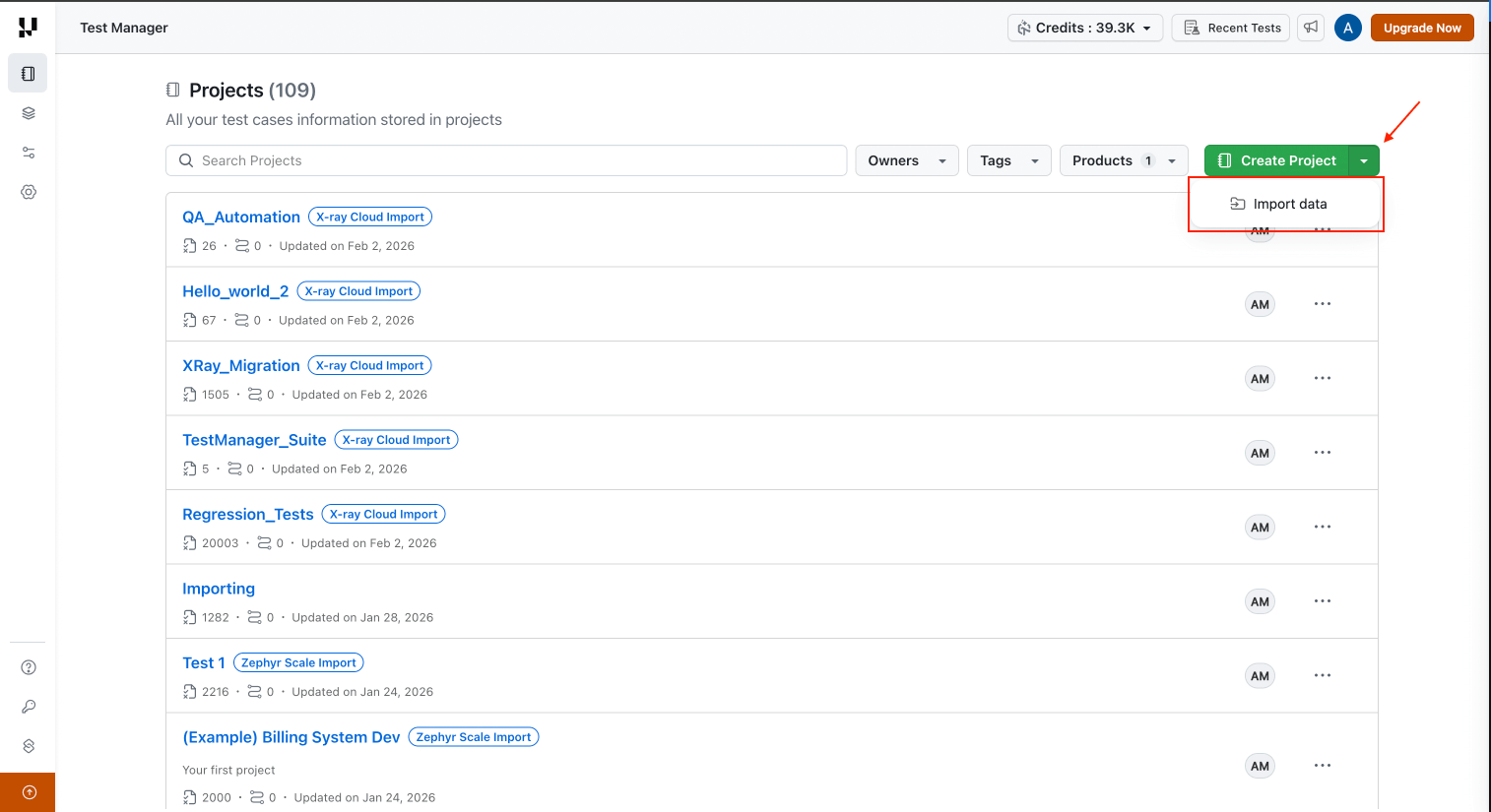
- Log in to your TestMu AI account.
- Navigate to Test Manager Projects from the left sidebar.
- Click the Import data option on the Project Listing page.
- Select qTest as the migration source from the Import from dropdown.
Step 2: Enter Your Credentials
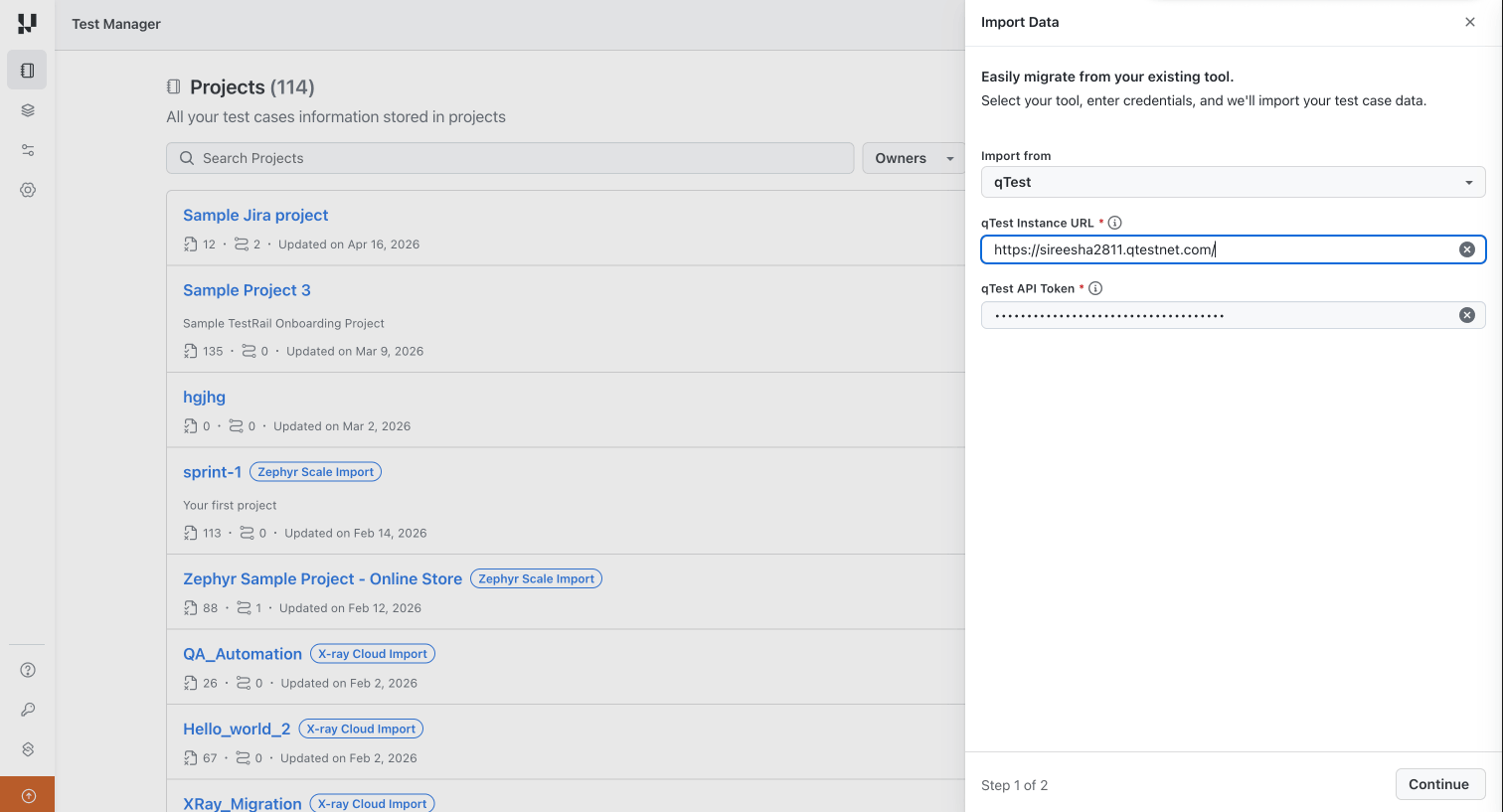
Enter your qTest Instance URL and qTest API Token, then click Continue. The system validates your credentials. If either is invalid, an error message specifies what needs to be corrected.
Step 3: Select Projects
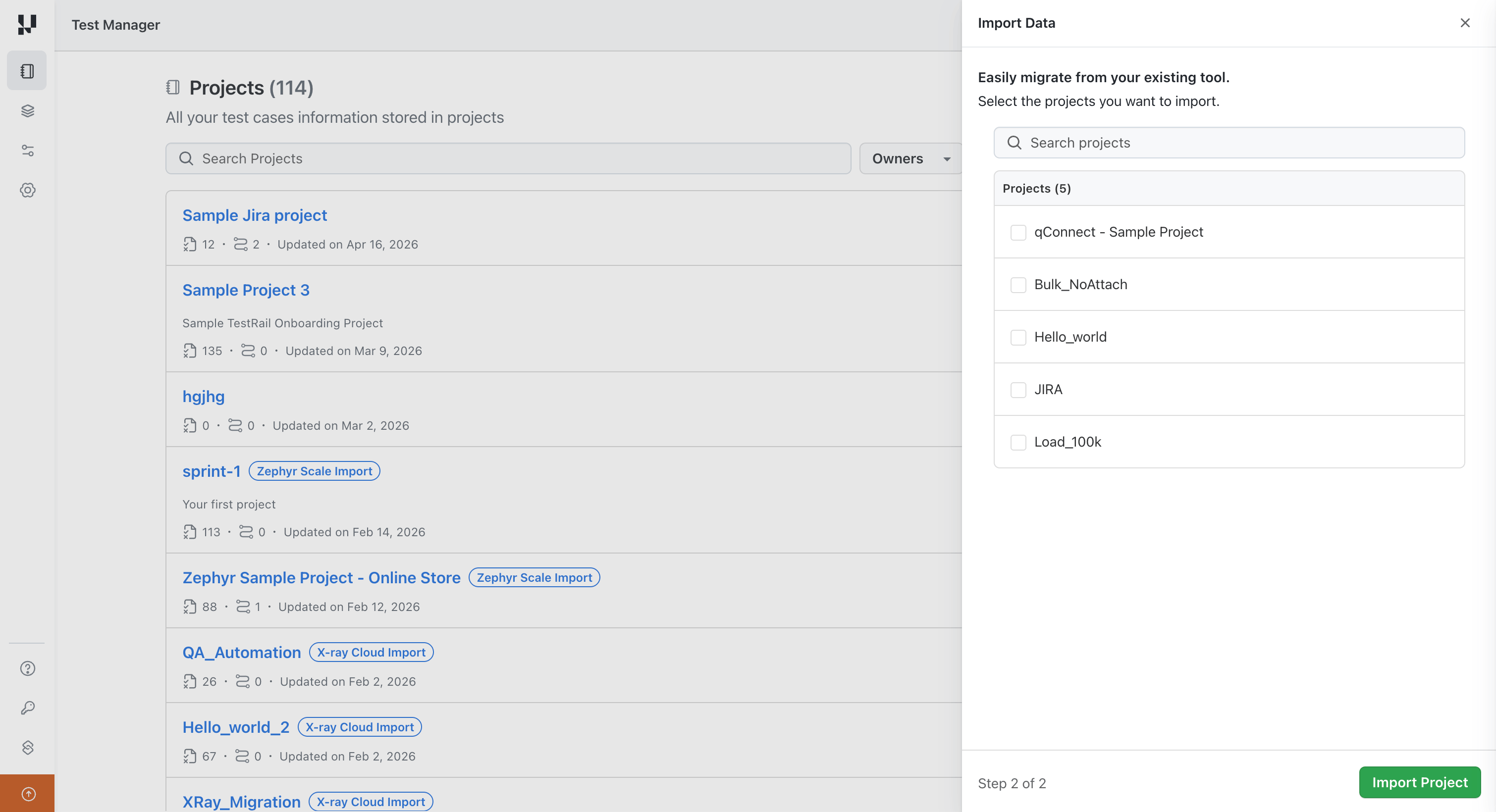
After successful validation, a list of your accessible qTest projects is displayed. Select the project(s) you want to migrate — multiple projects can be selected at once — and click Start Migration.
Step 4: Monitor Progress
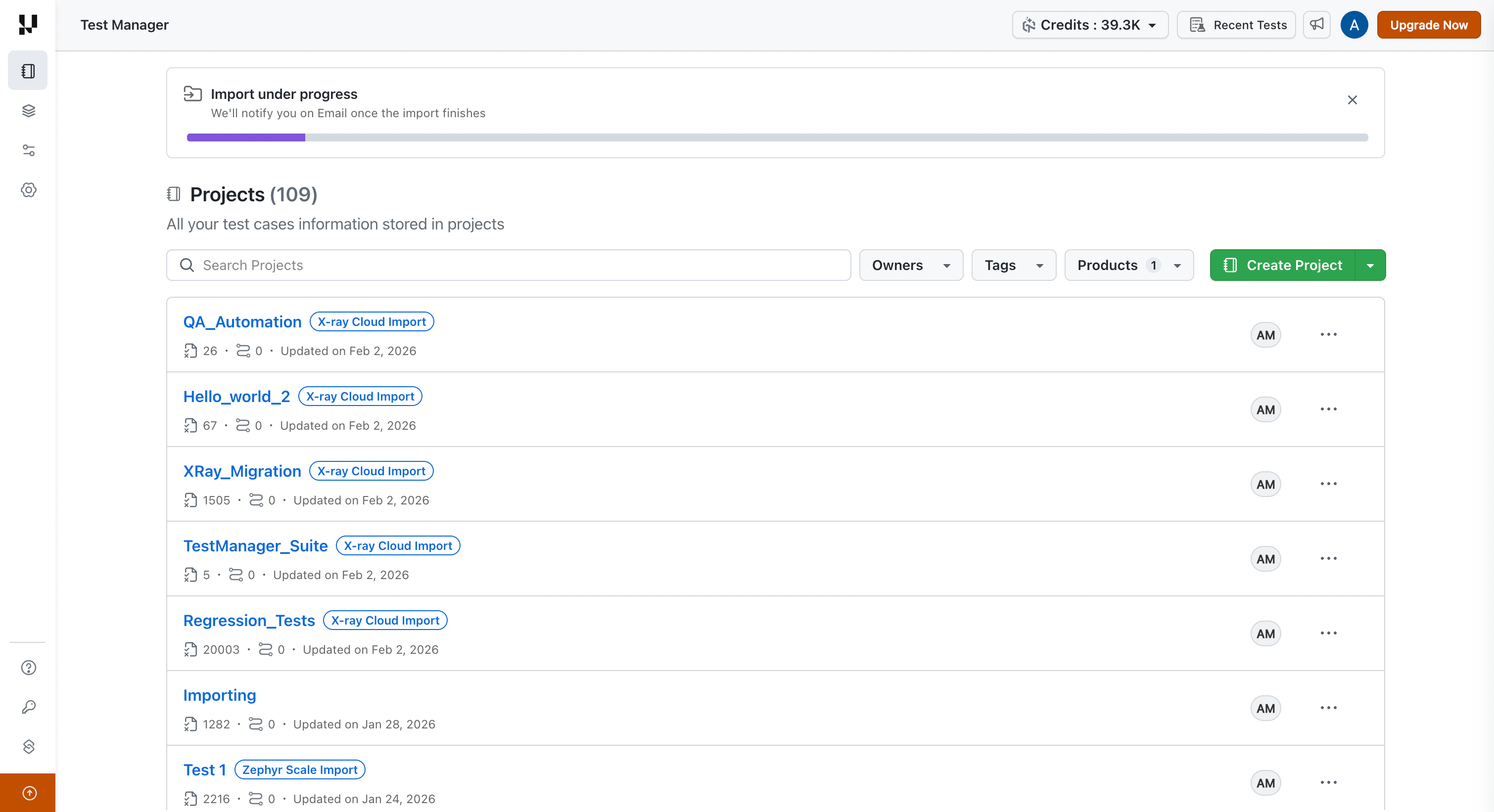
A progress bar shows real-time migration status. You can navigate away at any time — the migration continues in the background and survives page reloads. An email notification is sent when the migration completes or fails.
Step 5: Review the Results
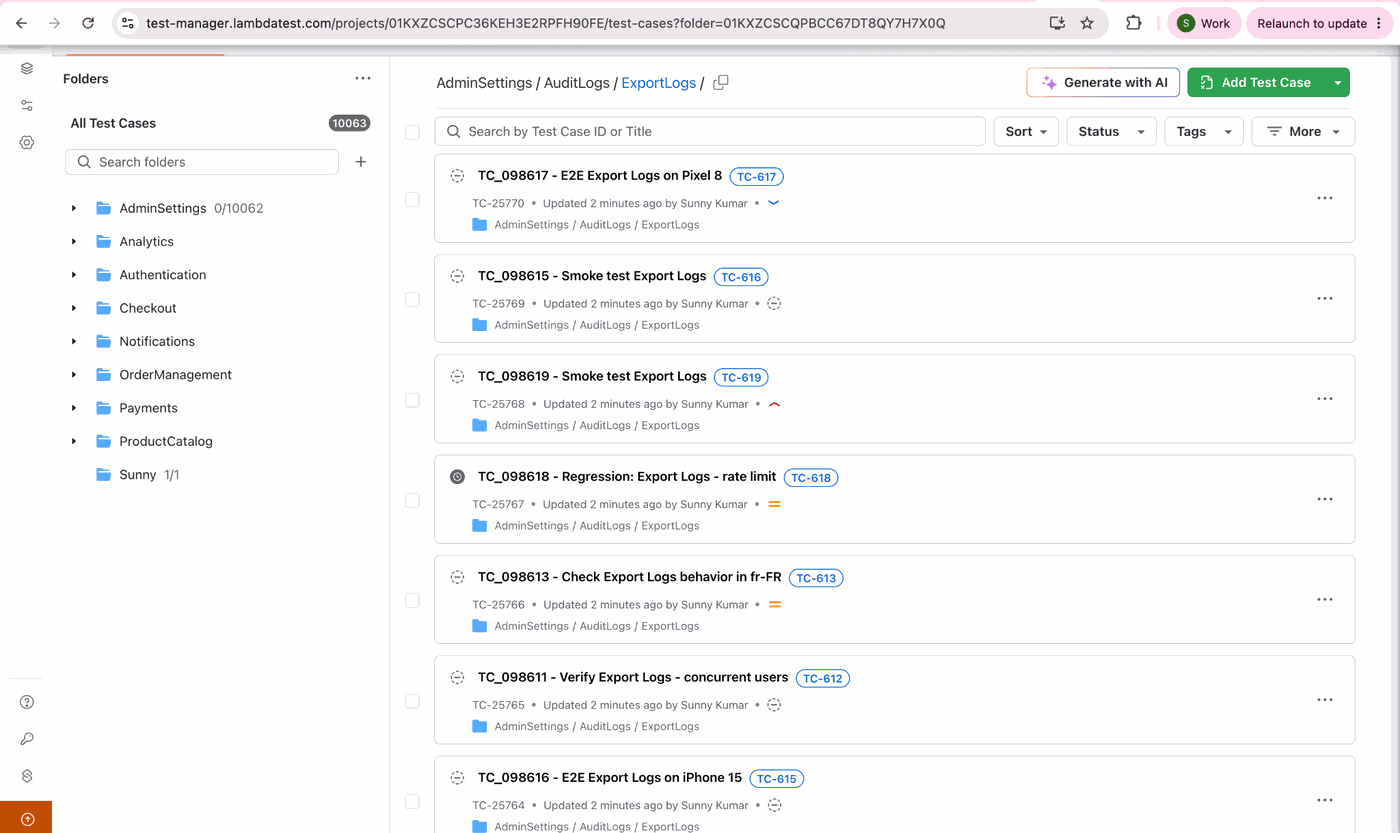
- Migrated projects appear on the Projects listing page in Test Manager, tagged "qTest Migrated".
- Navigate to Test Cases in any migrated project.
- Verify that test cases, folder structure, steps, custom fields, attachments, and linked issues are imported correctly.
What Gets Migrated
| qTest | Test Manager |
|---|---|
| Project | Project (name deduplicated with a numeric suffix if a project with the same name already exists in the org) |
| Modules / folder tree | Folder hierarchy, preserving qTest's folder ordering |
| Test cases | Test cases — title, description, preconditions, priority, type, and status |
| Test steps | Steps with description and expected outcome |
| Called / shared test cases | Expanded inline into the calling test case's steps |
qTest ID (e.g. TC-15) | Stored as the test case's external ID and added as a tag |
| Custom fields | Org-level custom fields, created automatically if absent (see field type mapping below) |
| Attachments (test case and step level) | Downloaded from qTest and stored in LambdaTest |
| Jira requirement links | Linked issues on migrated test cases (requires Jira integration in TestMu AI) |
| Required-field flags | Preserved on created custom fields |
What Does Not Get Migrated
| Entity | Reason |
|---|---|
| Test runs, executions, results, and test plans | Execution-layer data; only test-design data is migrated |
| Defects and defect-scoped fields | Belong to execution data, which is out of scope |
Troubleshooting
| Symptom | Likely cause and fix |
|---|---|
| Progress stuck at 99% for a while | Final bookkeeping is in progress, or the source project is still growing. Wait for the completion email. |
Folder named X 1 instead of X | Duplicate folder names exist in the source project. Test Manager requires unique names; duplicates are automatically renamed with a numeric suffix. |
| Test case shows raw "call step" text | The referenced shared or called test case could not be fetched, or is called more than once by the same test case. The fallback text from the original step is used. |
| Custom fields not appearing | Custom fields are created during migration. Navigate to Test Manager Settings > Custom Fields to verify they exist and are enabled for the project. |
FAQ
Can I migrate multiple qTest projects at once? Yes. Select multiple projects in Step 3. Each project is migrated into its own separate Test Manager project.
Will migration affect my qTest data? No. The migration is read-only on the qTest side. Your projects, test cases, and all other data remain untouched.
What happens if a project with the same name already exists in Test Manager? The migrated project name is automatically suffixed with a number (e.g., My Project 1) to avoid conflicts.
Can I run multiple migrations simultaneously? Each user can run one active qTest migration at a time. Start a new migration only after the current one completes.
Known Limitations
| Limitation | Details |
|---|---|
| Test-design data only | Test runs, executions, results, cycles, and test plans are not migrated |
| Duplicate custom-field values not supported | Field values are get-or-created; case-insensitive duplicates (e.g. High vs high) reuse the first created value |
| Duplicate names renamed | Folders and projects with duplicate names are suffixed with a number (X, X 1, …) |
| Field matching by name | Custom fields are matched to existing org fields by name; if a field with the same name already exists, it is reused as-is and its type is not changed |
| Default custom-field values not applied | Org-level default values are not applied to migrated test cases; qTest values are used as the source of truth |
| One import per user at a time | A new migration can only be started after the current one completes |
| Progress caps at 99% | The progress bar stays at 99% during final bookkeeping; this is expected |
| Freeze the source during migration | Avoid modifying the qTest project while the migration is running to ensure a consistent import |


 Chat with Us