Concurrency Usage Insights
The Concurrency Usage Insights module enables QA Managers to get an overview of TestMu AI resources being utilized by their teams. It provides widgets to monitor concurrency trends at different levels and track peak usage patterns.
Available Widgets
| Widget | Description |
|---|---|
| Concurrency Trends | Org-level view of concurrent sessions over time |
| Group Concurrency Trends | Group-level concurrency utilization |
| SubOrg Concurrency Trends | Sub-organization level concurrency utilization |
| Custom Concurrency Trends | Custom KPI-based concurrency with dimension breakdowns |
Concurrency Trends (Org Level)
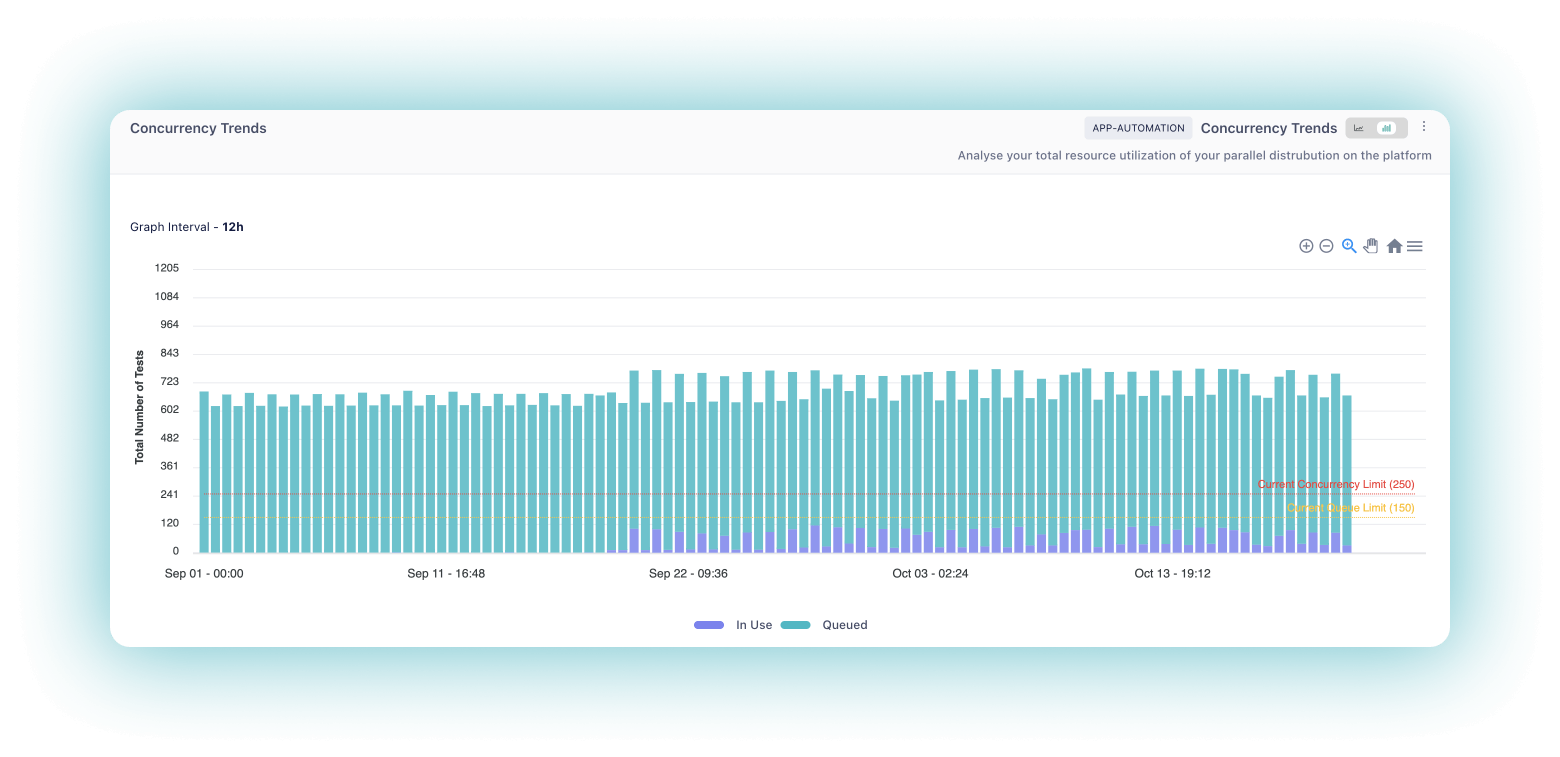
The Concurrency Trends widget provides a visual representation of your parallel test execution at the organization level on the TestMu AI platform. It allows you to monitor the number of concurrent sessions running over time, helping you optimize resource utilization and identify peak testing periods.
Chart Axes
- X-Axis: Represents the time intervals at which the concurrent sessions are measured
- Y-Axis: Represents the number of concurrent sessions, categorized into "Queued" and "In Use" sessions
How It Works
- The widget tracks the number of concurrent sessions running on the platform over a specified time period
- It presents the concurrency trends in a graph format, displaying the number of sessions in use and the number of sessions queued at each time interval
- You can hover over specific data points to view the exact number of sessions in use and queued at that particular time
Group Concurrency Trends
The Group Concurrency Trends widget provides concurrency utilization data segmented by groups within your organization. This helps you understand how different teams or groups are utilizing the parallel test execution capacity.
Key Insights
- View concurrency patterns for each group
- Compare resource utilization across different groups
- Identify which groups have higher queue times
SubOrg Concurrency Trends
The SubOrg Concurrency Trends widget provides concurrency utilization data at the sub-organization level. This is useful for organizations with multiple sub-organizations to track and compare resource usage.
Key Insights
- Monitor concurrency at sub-organization level
- Track queued vs in-use sessions per sub-organization
- Optimize resource allocation across sub-organizations
Custom Concurrency Trends
The Custom Concurrency Trends widget visualizes queued and running test concurrency over time for custom KPIs. It highlights peak usage trends with clear visibility into maximum concurrency levels and their corresponding timestamps for the selected KPI.
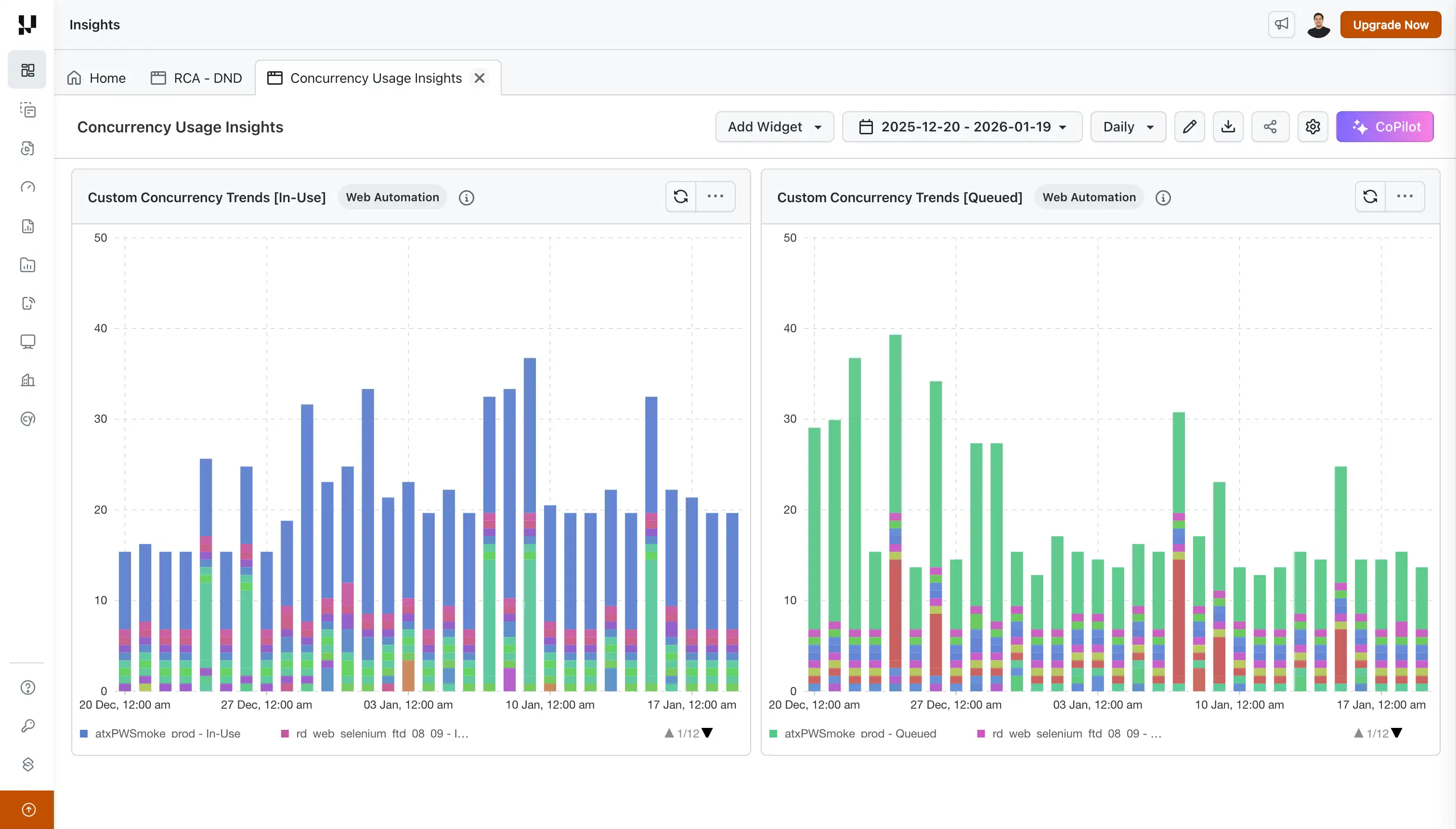
Unlike the standard Concurrency Trends widgets, Custom Concurrency Trends allows you to break down concurrency data by specific dimensions (KPIs), giving you granular insights into resource utilization patterns.
Key Features
- Stacked Visualization: View concurrency data as stacked bar charts or stacked area charts
- KPI-based Segmentation: Analyze concurrency trends grouped by custom dimensions
- Queued vs In-Use Metrics: Track both queued and running sessions separately
- Peak Usage Identification: Easily identify periods of maximum resource utilization
- Flexible Time Range: Analyze trends across daily, weekly, or custom time periods
Supported KPIs
| KPI | Status |
|---|---|
| Project Name | Available |
| Browser | Coming Soon |
| OS | Coming Soon |
How to Create a Dashboard with Custom Concurrency Trends
Step 1: Log in to your LambdaTest account and navigate to Insights from the left sidebar.
Step 2: Click on the + Create New button and select Pre-built Widgets.
Step 3: Select your product (Web Automation, App Automation, HyperExecute, Real Time, Real Device, Smart UI, Accessibility, or Test Manager).
Step 4: From the widget list, select Custom Concurrency Trends, enter a Dashboard Name, and click Create Dashboard.
Configure Widget
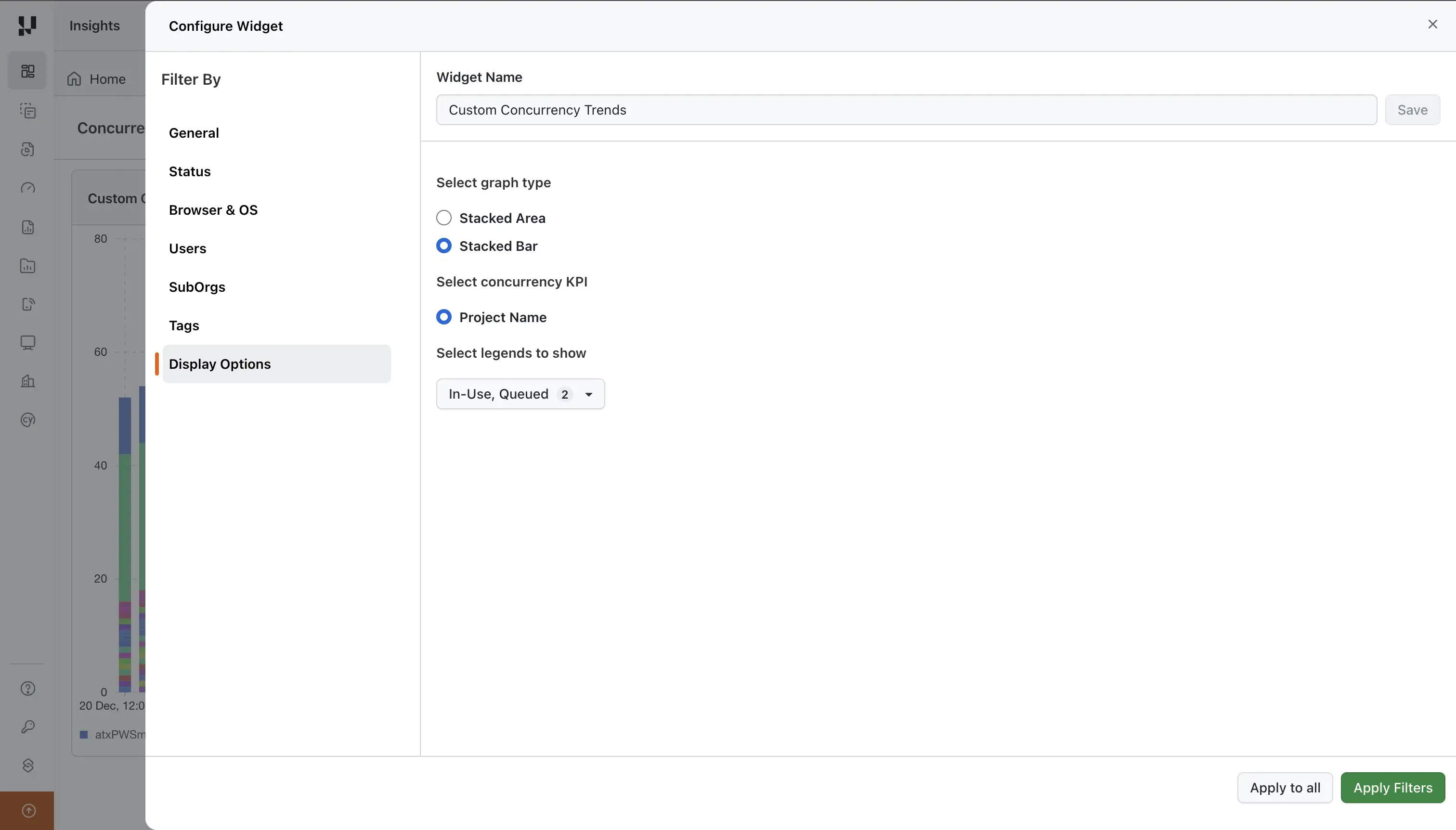
Click on the three-dot menu (⋯) on the widget and select Configure to customize the widget.
Supported Filters
| Filter Category | Filter Options |
|---|---|
| General | Project Names, Build Names, Test Names |
| Status | Test execution status |
| Browser & OS | Browser, Operating System |
| Users | Users, Groups, Teams |
| SubOrgs | Sub-organizations |
| Tags | Build Tags, Test Tags |
Display Options
- Graph Type: Stacked Area or Stacked Bar (default)
- Concurrency KPI: Project Name
- Select legends to show: In Use, Queued (both selected by default)
Recommended Usage
Viewing Multiple Dimensions (All Projects)
When visualizing concurrency trends across all dimensions (e.g., all projects at once), display either In-Use or Queued, not both simultaneously. This provides a cleaner view for comparing usage patterns across different projects.
How to configure:
- Open Configure Widget > Display Options
- Under Select legends to show, uncheck either "In Use" or "Queued" to show only one metric
- Click Apply Filters
Viewing Single Dimension (Specific Project)
When focusing on a single dimension (e.g., one specific project), keep both In-Use and Queued visible. This gives you a complete picture of concurrency utilization for that specific project.
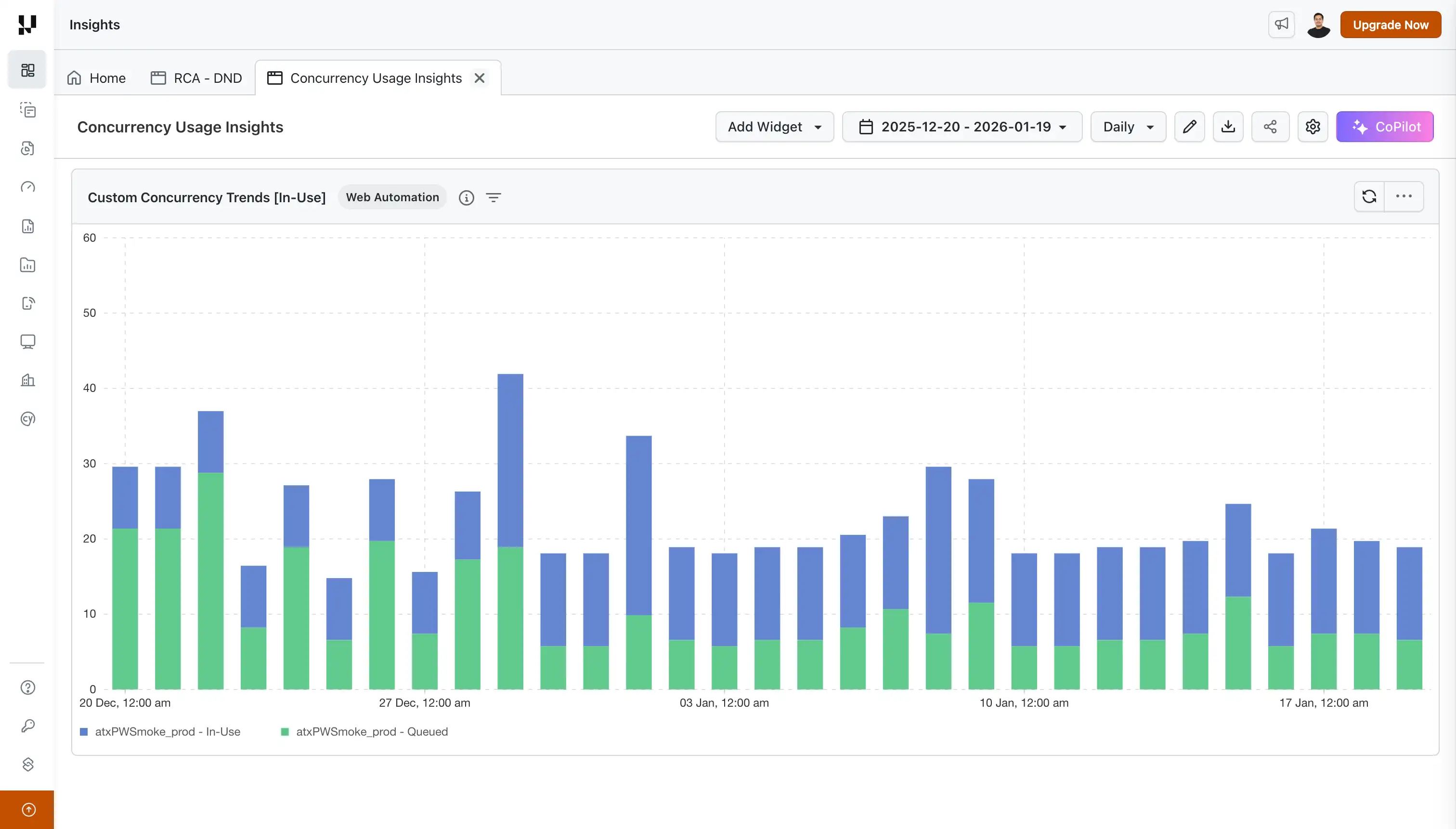
How to configure:
- Open Configure Widget > General
- Filter by the specific Project Name you want to analyze
- Under Display Options, ensure both "In Use" and "Queued" are selected in Select legends to show
- Click Apply Filters
Drilldown functionality for Custom Concurrency Trends widget is coming soon. This will allow you to click through to individual test details from the aggregated concurrency view.
Value Proposition
By analyzing the concurrency trends, you can make informed decisions about scaling your testing infrastructure, ensuring efficient resource allocation, and minimizing queuing times. These widgets empower you to strike the right balance between test execution speed and cost-effectiveness.
John is a QA Manager, and his team runs more than 50,000 Jobs in a month across various TestMu AI products like Web Automation, App Automation, and HyperExecute.
John wants to know the duration of the tests kept in queue and the duration of tests put in running state. With the Concurrency Trends widgets he can easily track the duration and make a decision to optimize the TestMu AI plan currently subscribed by his team. Using Custom Concurrency Trends, he can further drill down into which projects are consuming the most concurrency and schedule test runs more efficiently.

 Chat with Us
 Ask the Community